
Standard Search
Feature overview
Functional positioning
Standard Search is a unified query portal for national standards, industry standards, local standards and group standards. Users can enter the file from the standard card to view process or standard details, and check standard basic information, associated logical models, data elements, code tables and file life cycle information.
Simple understanding: gathers different types of standards into one page, first find the target standard, and then view its details and associated resources.
Usage suggestions
It is recommended to first query and check the classification, status and date in the card by the standard name, and then enter [Details] to view the associated resources; when you only need to view the standard file, you can use the [View] entry on the card.
Main features
- Unified search: Query or reset conditions by standard name, and browse four types of standards in a centralized manner.
- Resource Overview: Displays the four quantities of standards, logical models, data elements and code tables.
- Details Check: Switch between the four tabs in the standard details to view basic information, associated resources and file information.
- Clear entrance: The standard card provides [View] and [Details], and the details page provides [Return].
Scope
This page is suitable for users who need to query standard information, check modeling basis, or view standard-related resources. The addition, modification, deletion and file maintenance of standards are still completed on the national standards, industry standards, local standards or group standards page.
Scope hint
The specific presentation method of the current material after [View] has not been confirmed, and the actual results on the page shall prevail. The [New] and row operations in the details tab should use the current standard and current record as the operation context. Please confirm the target object before execution.
Preliminary steps
Preconditions
- Log in to the qData platform and have access rights to the [Standard Search] menu.
- The standard name or basic information of the target standard has been prepared.
- The target standard and its associated resources can be loaded normally.
Navigation path
Data Modeling > Data Standard > Standard Search
Page overview
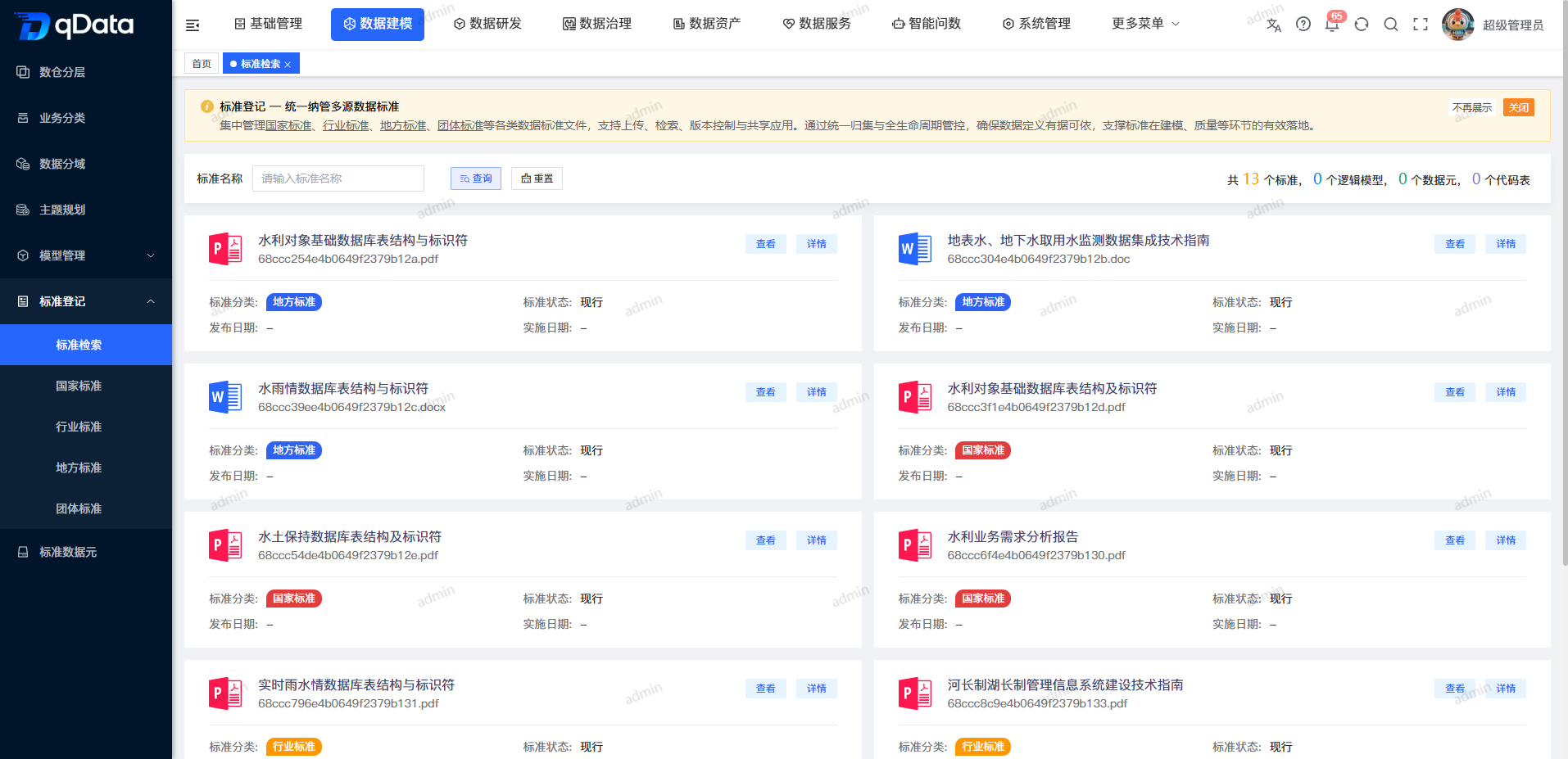
Standard name query, [Query] and [Reset] are provided at the top of the page, and the number of standards, logical models, data elements and code tables is displayed on the right side; the standard name, file name, standard classification, implementation status, release date and implementation date are displayed in cards below, and [View] and [Details] are provided.
Recommended operating procedures
Typical scenario: Enter [Standard Search] -> Enter the standard name and click [Query] -> Check the number of standard cards and resources -> Select [View] or [Details] -> Check files, basic information and associated resources -> Click [Return].
Troubleshooting: Confirm the menu path and page loading status -> Check the standard name conditions -> Click [Reset] to restore the default results -> Confirm the current standard title and status on the details page -> Then switch to the target tab.
Functional operation instructions
Query and browse standard cards
- Fill in the standard name or name fragment in the "Standard Name" input box.
- Click [Query].
- View matching standard cards.
- Click [Reset] to clear the standard name conditions and restore the default results.
- Check the standard name, file name, standard classification, implementation status, release date and implementation date in the card.
- When you need to view a file, click [View] to enter the current standard file viewing process.
- When you need to check the details, click [Details] to enter the standard details.
| Field Name | Description | Required or not |
|---|---|---|
| Standard name | The business name of the standard file, which is also the page query condition. | Fill in the required information when making inquiries |
| File name | Standard corresponding file storage name. | Not applicable (display field) |
| Standard classification | Distinguish between national standards, industry standards, local standards and group standards. | Not applicable (display field) |
| Implementation Status | Displays the current implementation status of the standard. | Not applicable (display field) |
| Release date | Displays the standard release date; if there is no value, the page can display "-". | Not applicable (display field) |
| Implementation date | Displays the standard implementation date; if there is no value, the page can display "-". | Not applicable (display field) |
View the number of resources
The page summarizes the four quantities of standards, logical models, data elements and code tables, which can be used to quickly understand the current standard resources and their correlations. The quantity on the page is based on the current result returned by the system, and the example value in the screenshot should not be regarded as a fixed value.
View standard details
- Click [Details] on the target standard card.
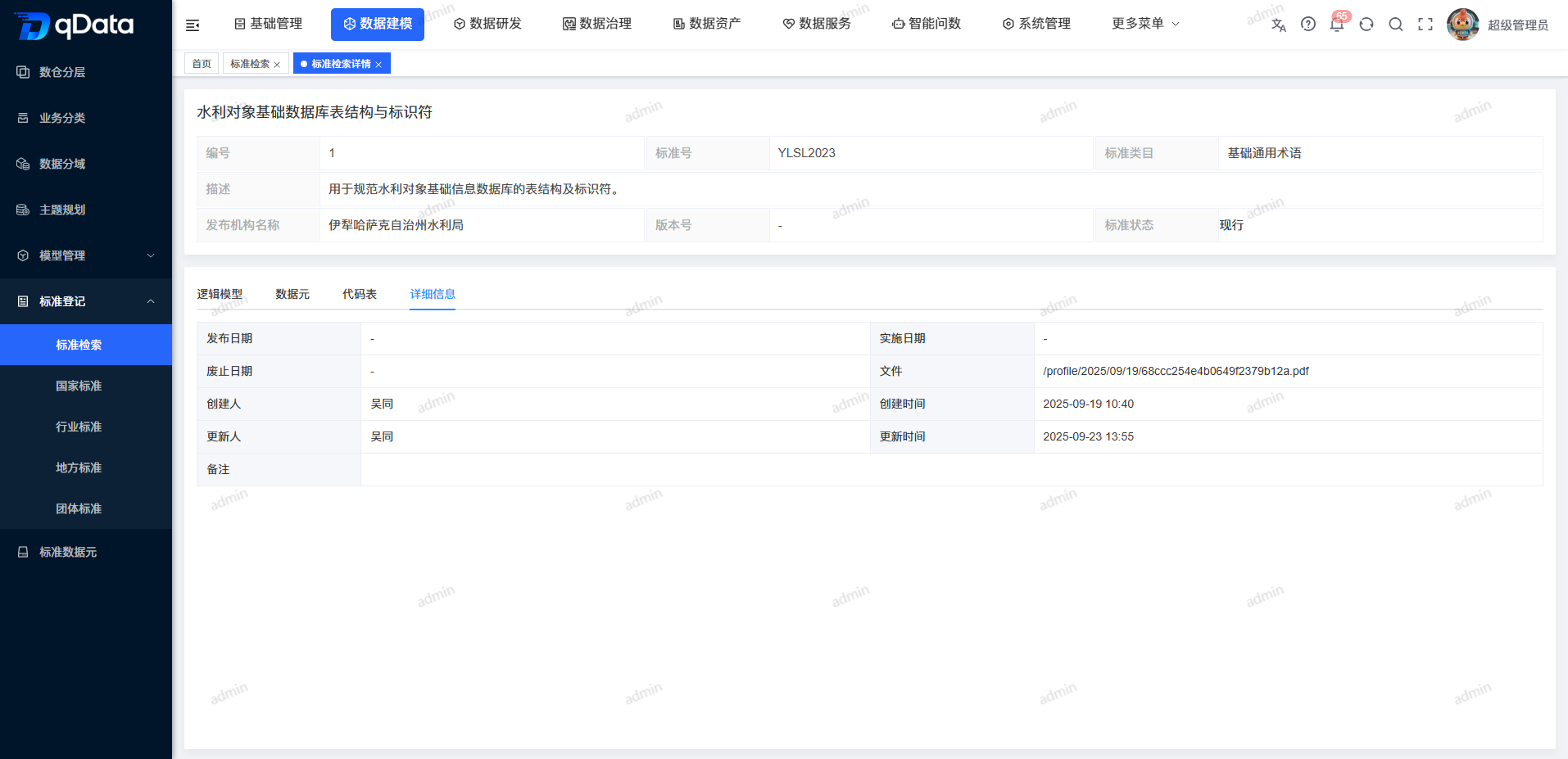
- Look at the number, standard name and status in the detail header.
- View the standard category, standard number, issuing agency name and description.
- View the creator, creation time, update time and comments.
- Click the [Logical Model], [Data Element], [Code Table] or [Details] tab.
View the associated logic model
- Click the [Logical Model] tab in the standard details.
- Check the number, English name, Chinese name, logical model category, status, creator and creation time.
- When there is no record in the list, the page displays zero data and a total number.
- Click [Add] as needed to enter the new process currently provided on the page.
Related range tips
The screenshot of the logic model shows the zero data empty state and the [new] entry. After entering the new process, please confirm whether you are creating a resource or adding an association to the current standard based on the actual form on the page.
View related data elements
- Click the [Data Element] tab in the standard details.
- View the number, Chinese name, English name, description, standard data element category, status, creator and creation time.
- Use paging to locate other records.
- Click [Add] as needed.
- Use the status switch, [Modify], [Delete] or [Details] entry for existing rows.
View associated code table
- Click the [Code Table] tab in the standard details.
- View the number, Chinese name, English name, description, standard data element category, status, creator and creation time.
- Use paging to locate other records.
- Click [Add] as needed.
- Use the status switch, [Modify], [Delete] or [Details] entry for existing rows.
Operation tips
Status, modification, deletion and detail entries are provided on data elements and code table rows. Before performing the operation, please check the current standard, tab type and target record at the same time to avoid operating the wrong object.
View file details
- Click the [Details] tab in the standard details.
- View the file name and file URL.
- View the name of the publishing organization and version number.
- Check the publication date, implementation date and revocation date.
- Click [Return] to return to the standard search list.
FAQ
- What is the difference between "standard classification" and "standard category"?
standard classification is used to distinguish national, industry, local and group standards; standard categories indicate the attribution of standards in specific business fields, such as reservoir engineering or basic general terminology.
Summarize
Standard search is used to search four types of standards, enter the document viewing process and check the standard details. When using it, you should first confirm the standard classification and target records, and then check basic information, associated resources and file life cycle through the details page.