
Business Classification
Feature overview
Functional positioning
Business Classification is used to organize the business attribution of the model in a tree-like hierarchy, and associate each classification with the corresponding data domain, person in charge, and status, providing a unified entrance for subsequent logical model selection of business classifications.
Simple understanding: First classify the business according to the parent-child level, and then specify for the model which type of business it belongs to and which data range it corresponds to.
Usage suggestions
Before adding, confirm that the relevant data fields have been maintained, and then determine whether the current record should be placed under the "top-level node" or a parent category; after saving, review the ownership by expanding the hierarchy and details.
Main features
- Tree Classification: Display business hierarchy with parent classification and subordinate classification.
- Conditional query: According to business classification name, superior business classification and responsible person positioning record.
- Category Maintenance: Add top-level categories or lower-level categories, and maintain English abbreviations, associated data fields, responsible persons and status.
- Association Check: View the basic classification information and associated data fields in the details.
Scope
This page is intended for data architects, business classification administrators, and logical model designers. The page covers classification query, hierarchical expansion, new addition, modification, details, status and deletion entries.
Preliminary steps
Preconditions
- Logged in to the qData platform.
- You have entered the [Data Modeling] module.
- The data fields that need to be associated have been maintained.
- The classification name, English abbreviation and level have been clarified.
- The person in charge data can be selected normally on the page.
Navigation path
Data Modeling > Business Classification
Page overview
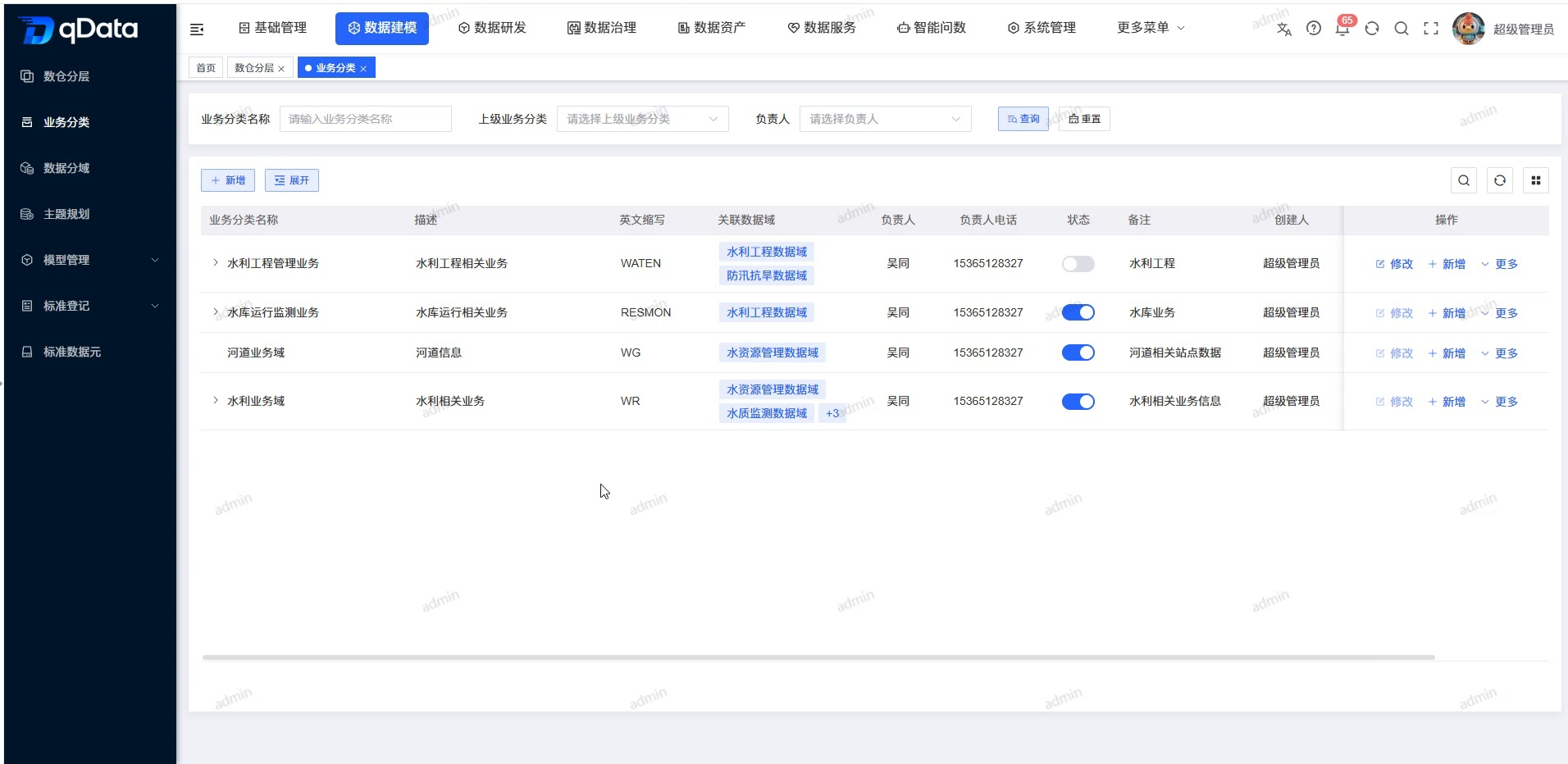
The top of the page provides business category names, superior business categories and responsible person inquiries, as well as [New] and [Expand] entrances. The list displays the classification name, description, English abbreviation, associated data fields, person in charge, status and row operations in a tree structure.
Recommended operating procedures
Typical scenario: Query or expand the category -> Select the top node or parent category -> Fill in the category information and associate the data field -> Save -> Review the association in the details.
Troubleshooting: Click [Reset] to clear the filter conditions -> expand the parent category -> check the parent category and associated data fields -> enter the details to check and save the results.
Functional operation instructions
Query and expand categories
- Fill in the name or keyword in the "Business Classification Name" input box.
- Select the upper-level business category as needed.
- Select the person in charge as needed.
- Click [Query].
- When you need to restore the default list, click [Reset].
- When you need to view all levels, click [Expand].
- When you need to view a single parent category, click the expand icon in front of the row.
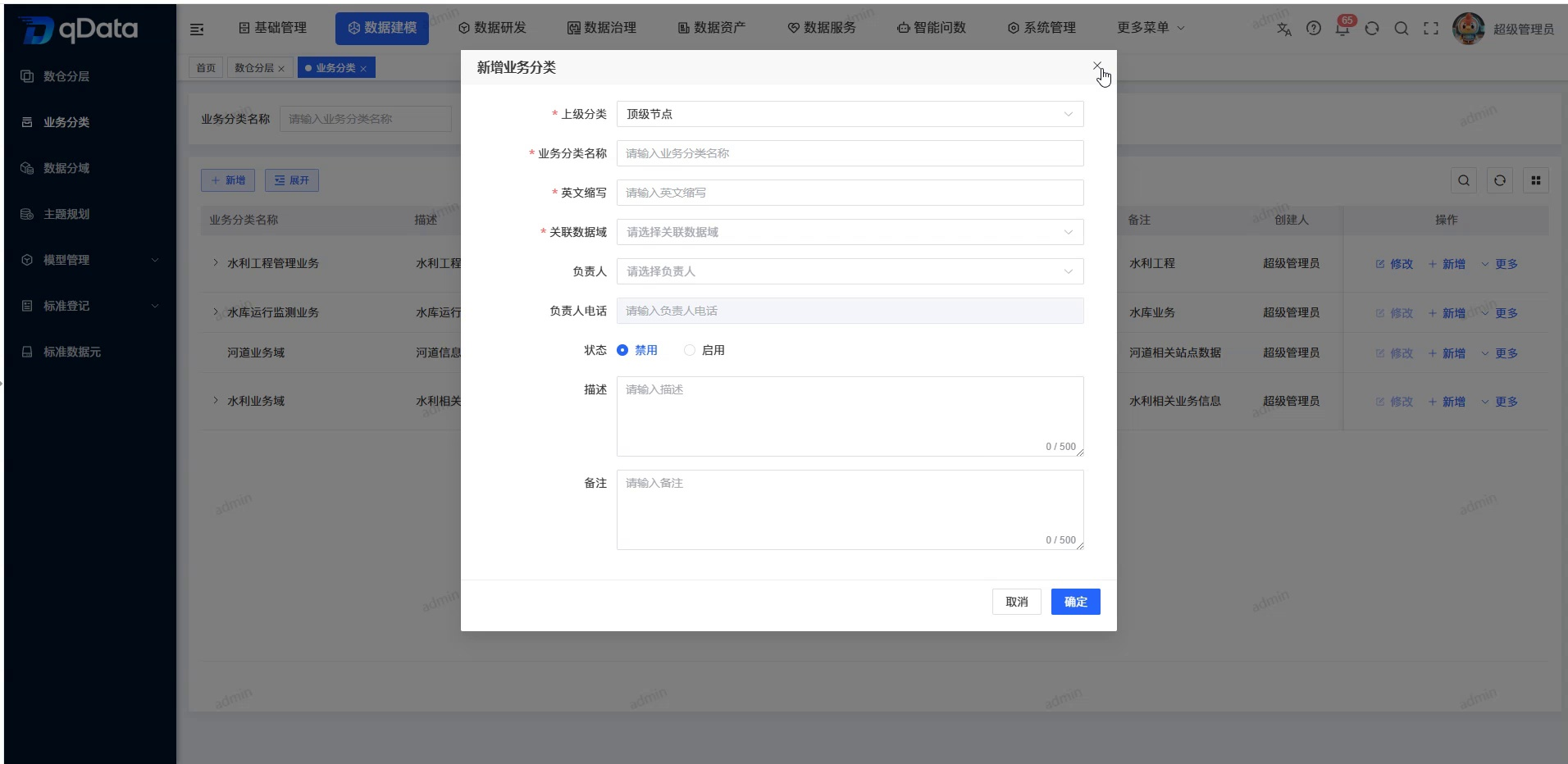
Add new business category
- When you need to create a top-level category, click [Add] at the top of the page.
- Select "Top-level Node" in "Parent Category".
- When you need to create a lower-level category, click [Add] in the row of the target parent category.
- Confirm the upper-level category brought up on the page.
- Fill in the classification information according to the page fields.
| Field Name | Description | Required or not |
|---|---|---|
| Parent category | Select the category parent node; select "Top Node" when creating a top-level category. | Yes |
| Business category name | Fill in the Chinese name of the category. | Yes |
| English abbreviation | Fill in the English identification of the category. | Yes |
| Associated data fields | Select the data fields associated with the current classification. Multiple selection is supported. | Yes |
| Responsible person | Select the category responsible person as needed. | No |
| Person in charge’s phone number | Displays the contact number corresponding to the selected person in charge. | No |
| Status | Set to disable or enable, the form is disabled by default. | No (system default) |
| Description | Fill in the classification purpose, up to 500 words. | No |
| Remarks | Fill in the supplementary explanation, up to 500 words. | No |
- Click [OK].
- Return to the list and expand the corresponding parent category.
- Check the level of the new classification.
Modify business classification
- Locate the target category in the list.
- Click [Modify].
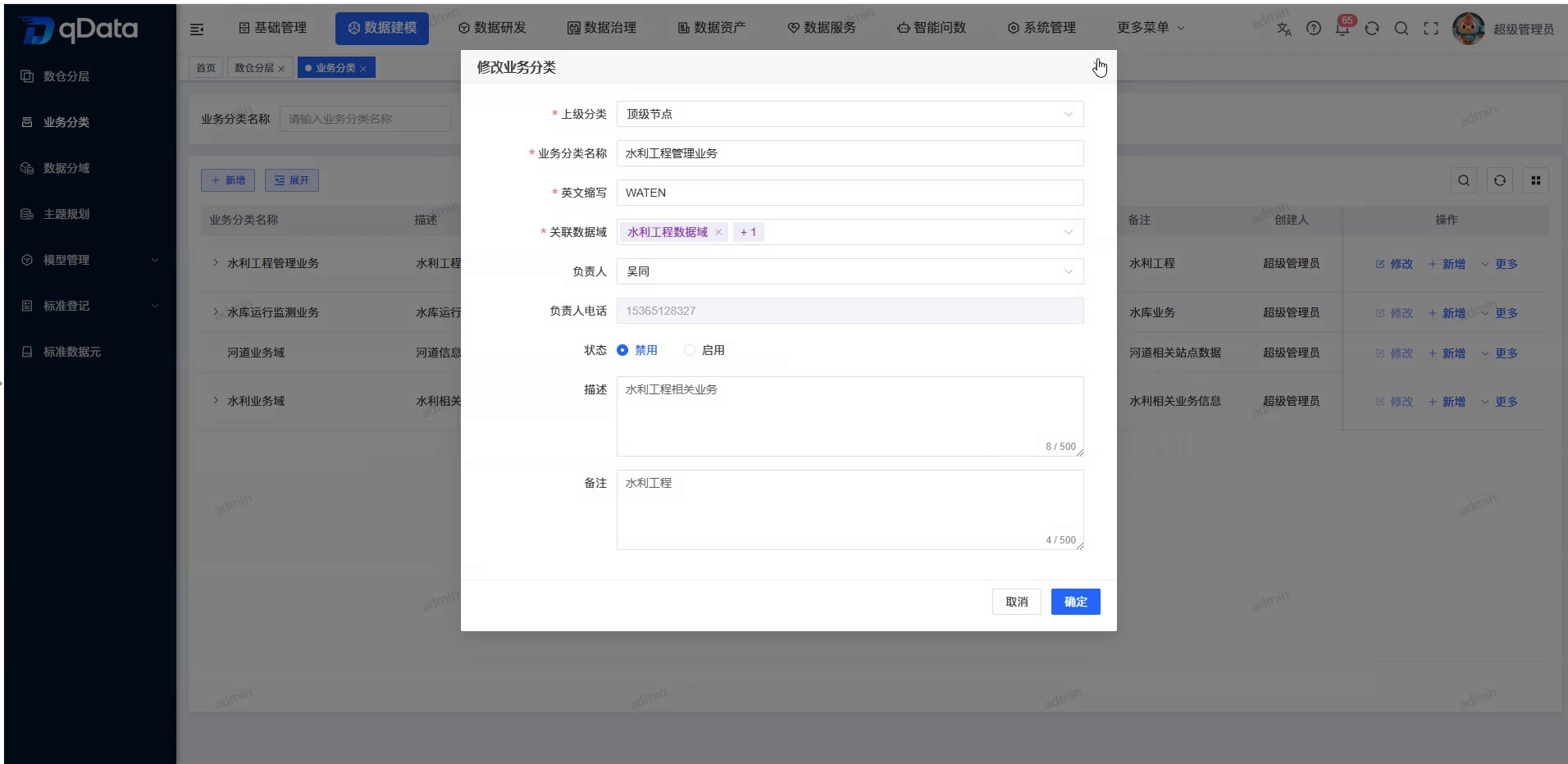
- Check the upper-level classification and related data fields brought out on the page.
- Adjust the fields that need to be changed.
- Click [OK].
- Return to the list to check the latest content and levels.
View details and associated data fields
- Click [More] in the target category row.
- Click [Details].
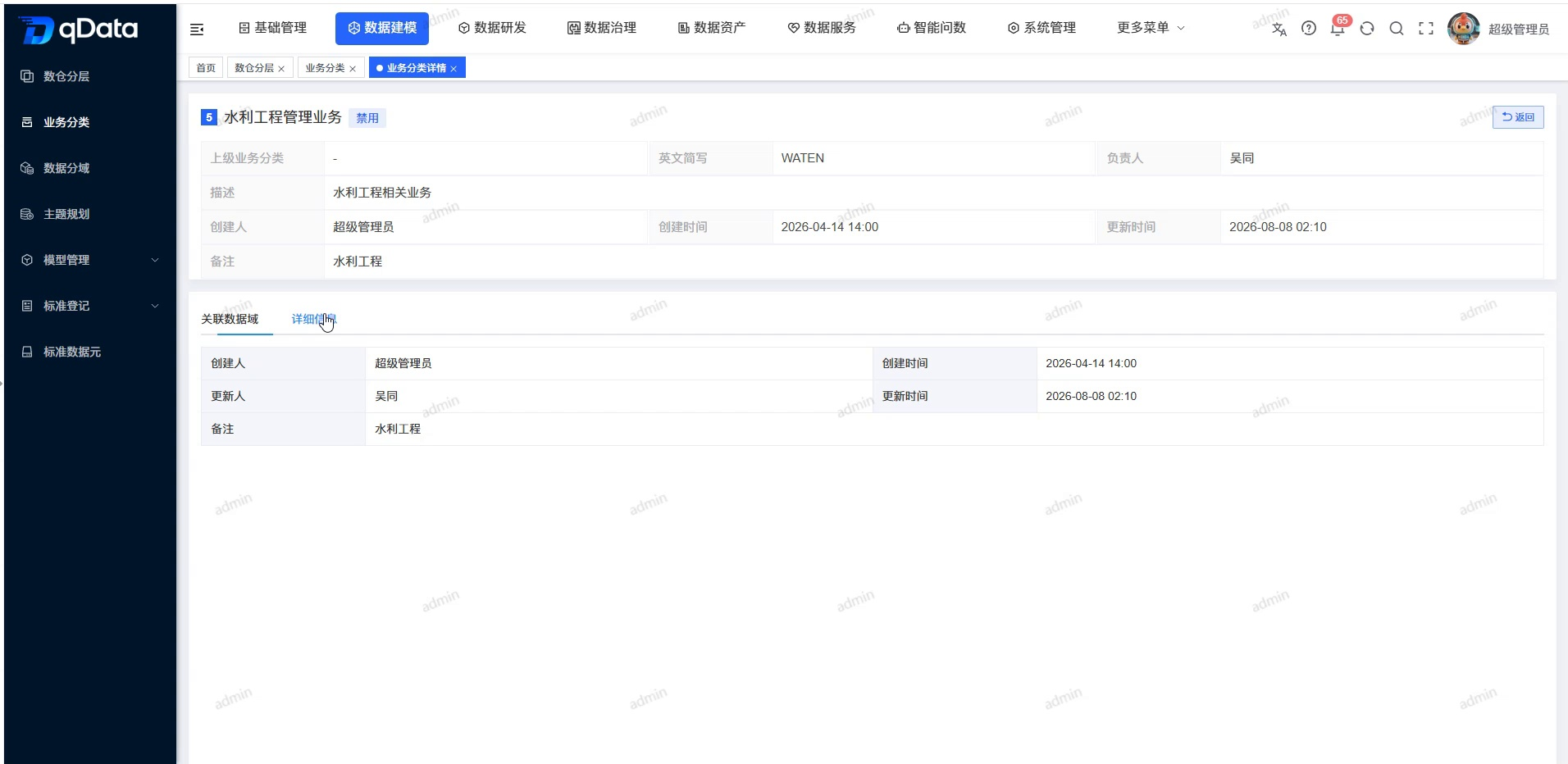
- View the superior business classification, English abbreviation, person in charge, description and creation information.
- Switch to the [Related Data Field] tab.
- Check the data field records associated with the current classification.
- When you need to view other basic information, switch to the [Details] tab.
Maintain status or delete categories
- Check the status switch in the target category row.
- When you need to adjust the status, switch to enable or disable.
- When you need to delete a category, open the [More] operation of the row.
- Click [Delete].
- Continue according to the current prompts on the page.
- Check the current level after returning to the list.
Operation tips
Deleting a parent classification may affect subordinate classifications and associated models. The classification level, sub-categories and associated data fields should be checked before execution;
FAQ
- How to distinguish between top-level classification and lower-level classification?
When creating a top-level category, select "Top-level Node" in "Superior Category"; when creating a lower-level category, select the corresponding parent category. After saving, the record will be displayed under the selected level.
Summarize
The business classification page is used to establish tree-shaped business hierarchy and data domain relationships. During maintenance, you should focus on checking the upper-level classification, English abbreviation and associated data field to avoid classification falling into the wrong level or affecting the business ownership of the model.