
National Standard
Feature overview
Functional positioning
National Standards is used to centrally register, query and view national standard data by standard category, and maintain standard numbers, names, status, life cycle dates and original documents. Registered information can be consulted or referenced by standard searches, logical models and standard data elements.
Simple understanding: Register national standards and their documents into the system to facilitate subsequent quick searches by category or condition.
Usage suggestions
When querying, it is recommended to select the standard category first, and then fill in the standard number, standard name or standard status; before adding, prepare the standard number, name and original document, and return to the list after submission to re-query the target record and check the registration information.
Main features
- Category Browsing: Locate national standards hierarchically through the standard category tree on the left.
- Conditional query: Query or reset the list by standard number, standard name and standard status.
- Data Maintenance: Add or modify standard basic information, date, description, remarks and standard documents.
- Details Entry: Enter the modification or details page of the target record from the list.
Scope
This page is suitable for users who maintain and review national standard materials. The page does not cover the national standard formulation, review or approval process, nor does it explain deletion, reference judgment or operation recording rules that are not displayed on the current interface.
Preliminary steps
Preconditions
- Log in to the qData platform and have access to the [National Standards] menu.
- The standard categories have been maintained and can be selected normally.
- The standard number, standard name and standard original text or attachments to be uploaded have been prepared.
Navigation path
Data Modeling > Data Standard > National Standard
Page overview
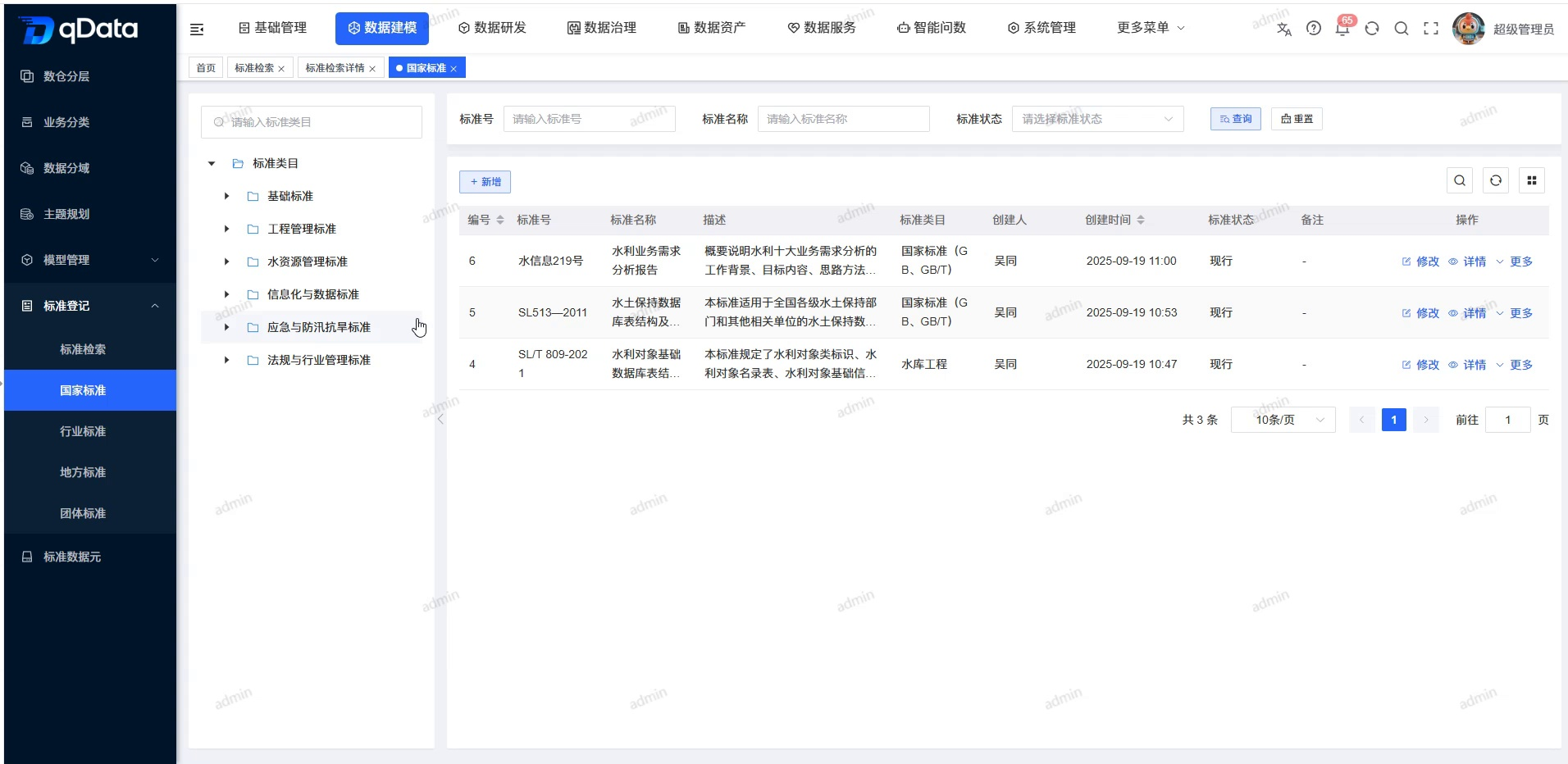
The standard category search box and category tree are displayed on the left side of the page, and the standard number, standard name and standard status query conditions are provided on the right side, as well as [Query] [Reset] [New], national standards list, row operations and paging. You can view the number, standard name, description, standard category, standard number, standard status and creation information in the list.
Recommended operating procedures
Query scenario: Enter [National Standards] -> Select a standard category or fill in the query conditions -> Click [Query] -> Check the name, category, standard number and status of the target standard -> Enter [Details].
Maintenance scenario: Prepare standard materials and documents -> Click [Add] or [Modify] of the target row -> Fill in and check the fields -> Click [OK] -> Return to the list to query the target record -> Check the latest information.
Troubleshooting: Confirm the category and query conditions -> Click [Reset] to restore the default list -> Check the required fields and files -> Follow the actual prompts on the page.
Functional operation instructions
Browse and query national standards
- Select the target category in the standard category tree on the left.
- Enter the standard number as required.
- Enter a fully qualified name if required.
- Select the standard status as required.
- Click [Query].
- View matching national standard records.
- Check the standard name, description, standard category, standard number and standard status.
- Click [Reset] to restore default conditions.
New national standards
- Click [Add].
- Fill in the standard information in the "Add National Standard" pop-up window.
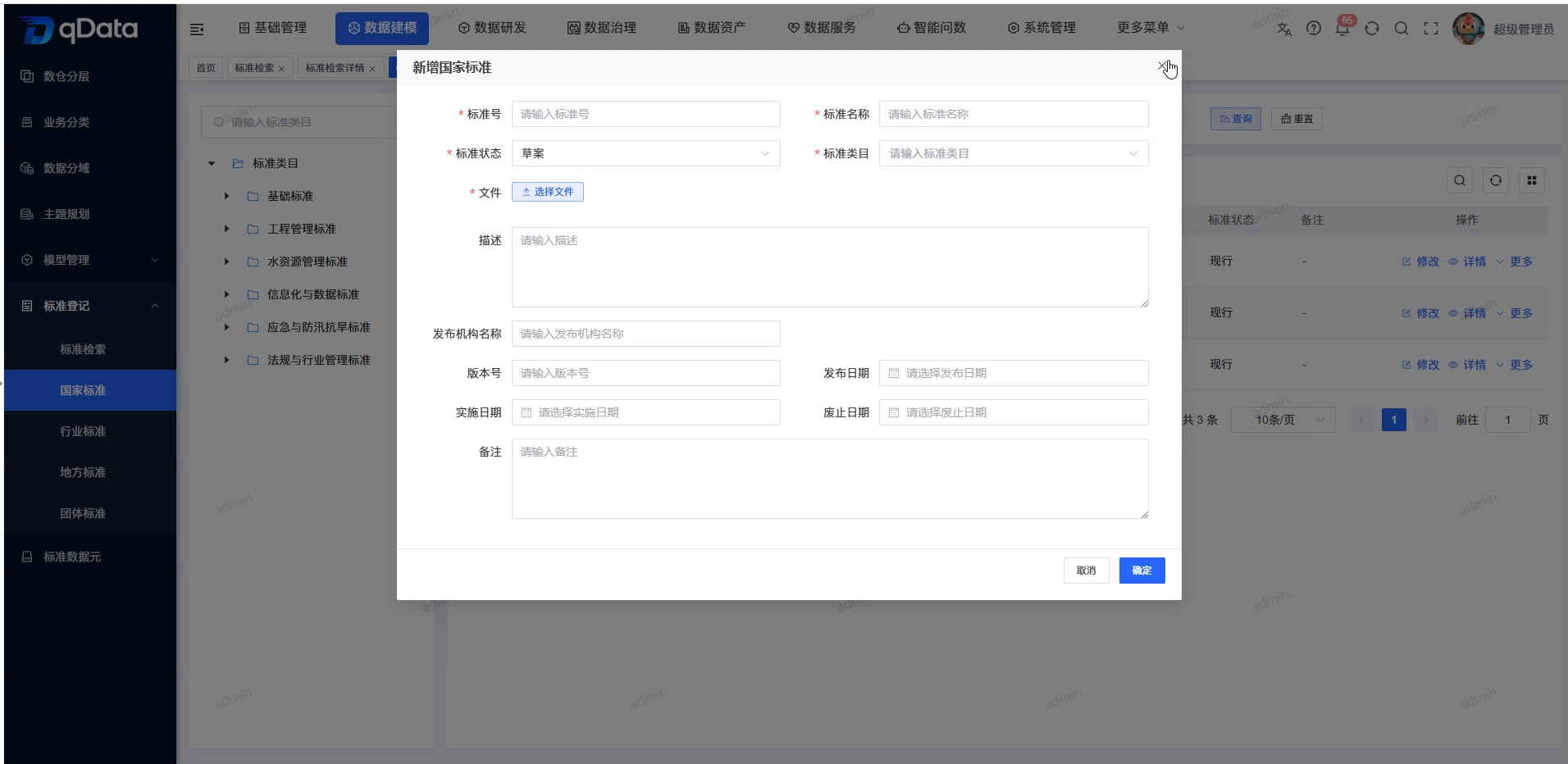
| Field Name | Description | Required or not |
|---|---|---|
| Standard Category | Select the category to which the national standard belongs. | Yes |
| Standard status | Select the current status of the standard; "Draft" and "Current" are visible in the current interface. | Yes |
| Standard number | Fill in the national standard number or business registration number. | Yes |
| Standard name | Fill in the standard data name. | Yes |
| File | Select standard text or attachments. | Yes |
| Issuing organization name | Fill in the standard issuing organization. | No |
| Version number | Fill in the standard version identification. | No |
| Release Date | Select a standard release date. | No |
| Implementation Date | Select the standard implementation date. | No |
| Retirement Date | Select the date when the standard will cease to apply. | No |
| Description | Fill in the standard content summary, the page can display up to 500 characters. | No |
| Remarks | Fill in the supplementary description, the page can display up to 500 characters. | No |
The date, description, and notes are in the lower half of the form; character counts are shown for description and notes respectively.
- Check the standard category, standard status, standard number, standard name and documents.
- Click [OK] to submit.
- If you do not want to save, click [Cancel] to close the pop-up window.
- Return to the list query target standard.
- Check the name, category, standard number and status of the new record.
Modify national standards
- Locate the target national standard in the list.
- Click [Modify] on the target row.
- Check the target records brought out by the system.
- Adjust the standard data that needs to be changed.
- Replace standard files as needed.
- Click [OK] to submit.
- Return to the list to query the target record.
- Check the list for the latest information.
View details of national standards
- Locate the target national standard in the list.
- Click [Details] of the target row.
- Check the standard category, standard number, standard name and standard status.
- View the publishing authority, version, and lifecycle date.
- View the description, notes, and standard file information.
- Return to the national standards list.
Use the [More] entrance
- Locate the target national standard in the list.
- Click [More] in the target row.
- View the menu items actually displayed on the current page.
- Proceed only after confirming the target record and operational impact.
FAQ
- **Why does the standard status only indicate "draft" and "current"?**The current interface of
clearly displays these two states, but does not display the complete list of states; other states are subject to the actual drop-down options of the system.
Summarize
The national standards page is used for classified query, registration, modification and viewing of national standard materials. During maintenance, you should focus on checking the standard number, standard name, status, original document and life cycle date , and confirm whether the record is correct through the query results after returning the list.