
Group Standards
Feature overview
Functional positioning
Group Standards is used to independently register, query and view standard materials released by social groups, and provides group standard basis for standard retrieval, logical models and standard data elements.
Simple understanding: manages the standards released by social groups separately, making it easy to quickly find target information by category, standard number, name or status.
Usage suggestions
First use the standard category and query conditions to locate the record, and then check the standard number, name, category and status in the list; when maintaining data, confirm that the standard file is consistent with the current group standard record.
Main features
- Independent classification: Group standards use independent menus and tabs under [Data Standards] and are not mixed with national, industry or local standards.
- Conditional query: Filter records by standard number, standard name and standard status, and support resetting query conditions.
- List browsing: View the standard name, description, standard category, standard number, status, creation information and row operation entry.
- Maintenance Portal: The page provides [New], [Modify], [Details] and [More] portals.
Scope
This page is intended for users who maintain and review group standards information. It does not include the group standards formulation or approval process. Currently, the category tree, query area, list, paging and maintenance entrance can be confirmed; new/modified forms, details pages and [More] sub-items are subject to the actual display on the group standard page.
Preliminary steps
Preconditions
- Log in to the qData platform and have access to the [Group Standards] menu.
- The standard number, standard name or status information to be queried has been prepared.
- If standards are to be maintained, standard documents and basic information have been prepared.
Navigation path
Data Modeling > Data Standards > Group Standards
Page overview
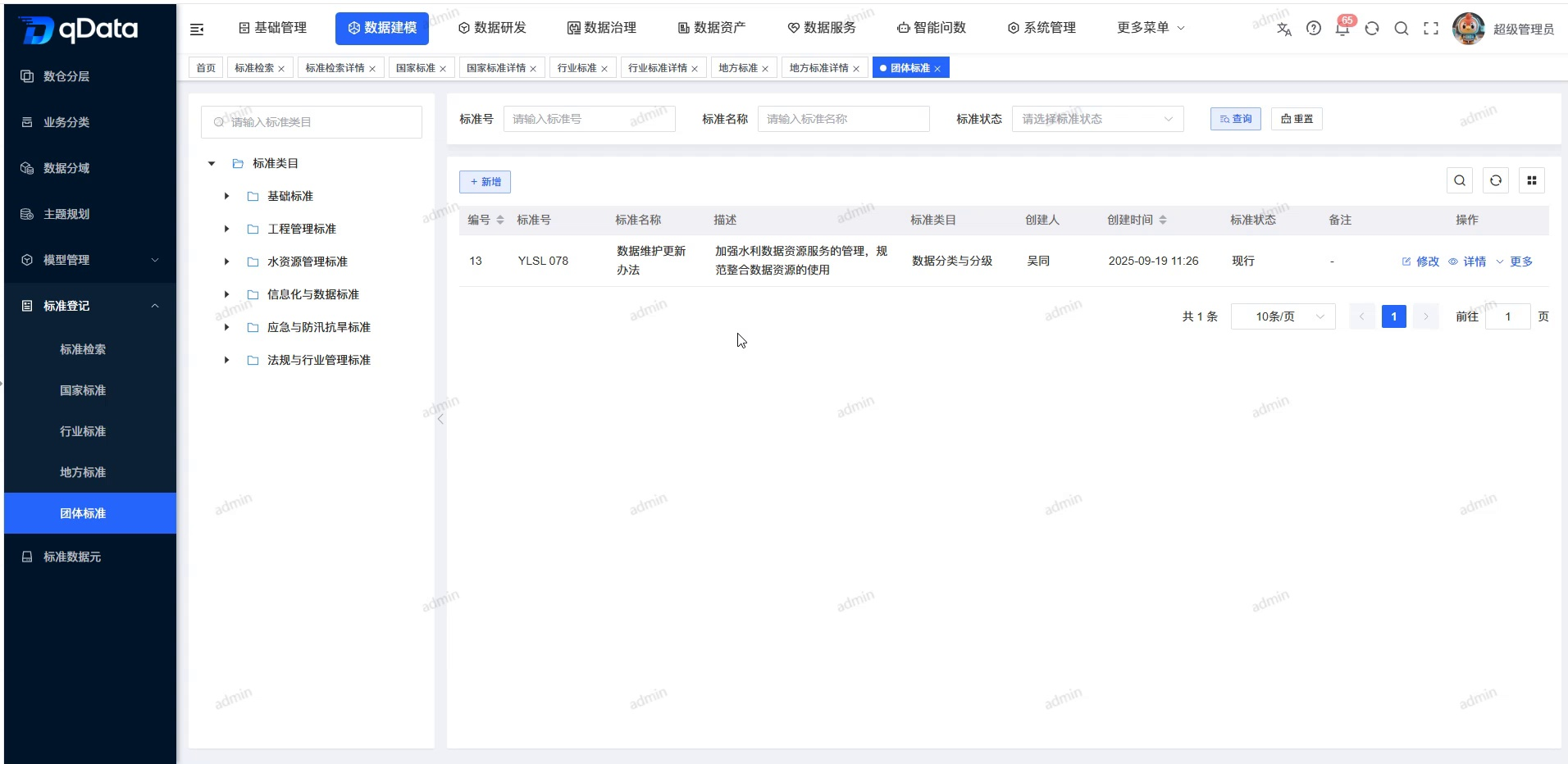
The top of the page provides query for standard number, standard name and standard status, as well as [Query] and [Reset]; the left side displays the standard category search box and category tree; the right side provides [New], group standard list, paging and row operations. The record "Data Maintenance and Update Method" can be seen in the stable screen, the standard number is YLSL 078, and the status is "current".
Recommended operating procedures
Query scenario: Enter the page -> Wait for the standard categories and lists to load -> Select the standard category or fill in the query conditions -> Click [Query] -> Check the list records -> Click [Details] as needed.
Maintenance scenario: Click [Add] or [Modify] on the target row -> fill in the standard information according to the actual form on the page -> return to the list after submission -> requery and check the record.
Functional operation instructions
Query and browse group standards
- Wait for the page to finish loading.
- Select the target category in the standard category tree on the left as needed.
- Fill in the standard number as needed.
- Fill in the standard name or name fragment as required.
- Select the standard status as required.
- Click [Query].
- View eligible group standard records.
- When you need to restore the default results, click [Reset].
The list shows the standard name, description, standard category, standard number, standard status, creation information and operation entry. The category area may be temporarily empty when the page is switched, and the standard category tree will be loaded on the stable screen; you should wait until the page is loaded before judging the category data.
Add or modify group standards
- When adding a new record, click [Add].
- When modifying a record, click [Modify] on the target row.
- Fill in or adjust the standard information according to the actual form on the group standards page.
| Field Name | Description | Required or not |
|---|---|---|
| Standard Category | Select the category to which the group standard belongs. | Yes |
| Standard Status | Select the current status of the standard. | Yes |
| Standard number | Fill in the group standard number. | Yes |
| Standard name | Fill in the group standard name. | Yes |
| File | Select the original text or attachment of the group standard. | Yes |
| Publishing organization name | Fill in the name of the issuing organization or social group. | No |
| Version number | Fill in the standard version identification. | No |
| Release Date | Select a standard release date. | No |
| Implementation Date | Select the standard implementation date. | No |
| Expiration Date | Select the standard expiration date. | No |
| Description | Fill in the standard summary. | No |
| Remarks | Fill in the supplementary instructions. | No |
- Submit or cancel the operation according to the actual prompts on the page.
- After returning to the list, query the target record again and check the results.
View details of group standards
- Click [Details] in the target record row.
- Check the group standard record corresponding to the opened page.
- View the standard number, standard name, standard category, status and file information.
- Use the page's actual return entry to return to the list.
Use the [More] entrance
- Click [More] in the target record row.
- Check the community standards page for actual extended operations.
- Check the target records and operational impact before continuing.
The current material only confirms the existence of the [More] entrance and does not confirm the content of the submenu.
FAQ
- What is the difference between group standards and other standards?
group standards use independent menus and type management, which are suitable for standard materials released by social groups; national, industry and local standards are maintained on their respective pages.
Summarize
The Group Standards page is used to independently query and maintain social group standards. When using it, you should focus on checking the standard type, standard number, name, category, status and original document , and refer to the actual form, details and operation tips on the group standards page.