
Standard Data Element
Feature Overview
Functional Positioning
Standard Data Element is used to centrally maintain field-level data definitions, including field name, type, category, status, and description, while distinguishing ordinary data elements from code tables. The details page can also show code dictionaries and code mappings, or associate cleaning rules and audit rules with data elements.
In short: define commonly used fields as unified standards first. Maintain enumeration values as code tables, and associate cleaning or audit rules when data processing is required.
Usage Tips
Before adding a record, first determine whether the object is a data element or a code table. For data elements, focus on field type and English name. For code tables, also verify the code dictionary and code mapping.
Main Features
- Unified search and maintenance: Query, add, or modify standard data elements by category, Chinese name, English name, and type.
- Two detail structures: Code tables provide code dictionary and code mapping; data elements provide entries for cleaning rule and audit rule association.
- Rule association: Select rules from the cleaning rule library, configure parameters such as numeric boundaries, and view association results.
Scope
This page covers standard data element query, list, add, modify, status, and details, as well as code dictionary, code mapping, cleaning rule association, and audit rule entries.
Prerequisites
Preconditions
- You have logged in to the qData platform.
- You have entered the Data Modeling module.
- Standard data element categories have been maintained.
- Related standard materials and rule libraries are available when associating standards or rules.
Navigation Path
Data Modeling > Standard Data Element
Page Overview
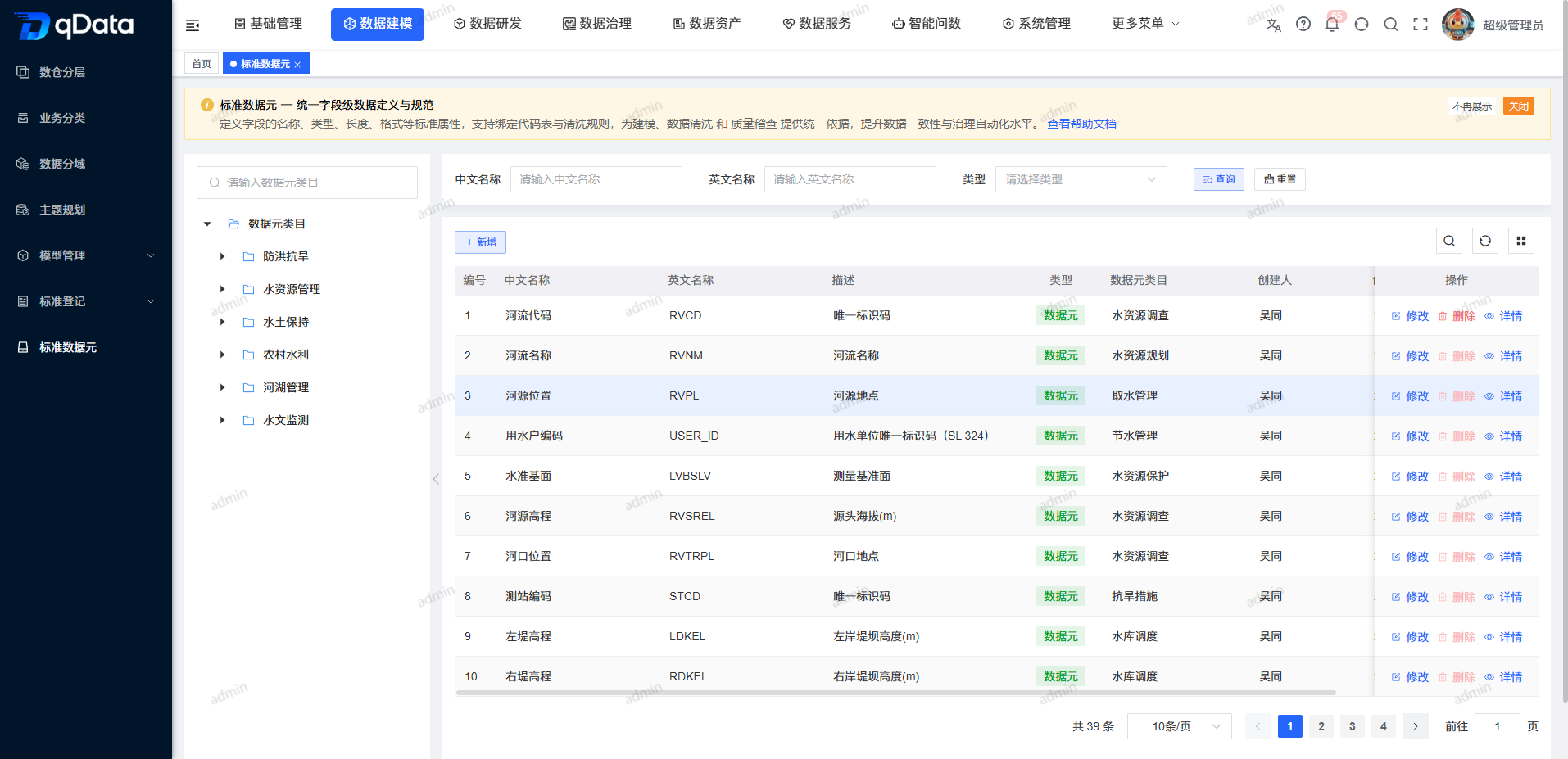
The left side of the page displays the standard data element category tree. The right side provides Chinese name, English name, and type filters, plus Add, Import, the list, status switches, and row actions. The type in the list distinguishes Data Element and Code Table.
Recommended Workflow
Ordinary data element: Select a category -> add or modify a data element -> verify field type and name -> enter details -> associate cleaning or audit rules as needed -> view association results.
Code table: Select a category -> add or modify a code table -> enter details -> view code dictionary -> view code mapping -> verify details.
Operation Guide
Browse and Query Standard Data Elements
- Search or select a standard data element category in the category tree on the left.
- Enter a Chinese name or English name.
- Select a type.
- Click Query.
- View number, Chinese name, English name, description, category, type, and status.
- Click Reset to restore the default list.
Add or Modify Standard Data Elements
- Click Add, or click Modify in the target record row.
- Fill in or adjust the standard data element information.
| Field | Description | Required |
|---|---|---|
| Standard data element category | Select the business category of the data element. | Yes |
| Field type | Select the database storage type. | Yes |
| Chinese name | Enter the Chinese business name of the field. | Yes |
| English name | Enter the English name of the field. | Yes |
| Standard type | Select the type of associated standard as needed. | No |
| Standard registration | Select associated standard material as needed. | No |
| Owner | Select the data element owner as needed. | No |
| Contact phone | Displays the phone number of the selected owner. | No |
| Type | Select data element or code table when adding. The default is data element. Verify the existing type when modifying. | No (system default when adding) |
| Status | Select enabled or disabled. The form defaults to enabled. | No (system default) |
| Description | Enter the business definition of the field. | No |
| Remarks | Enter additional notes. | No |
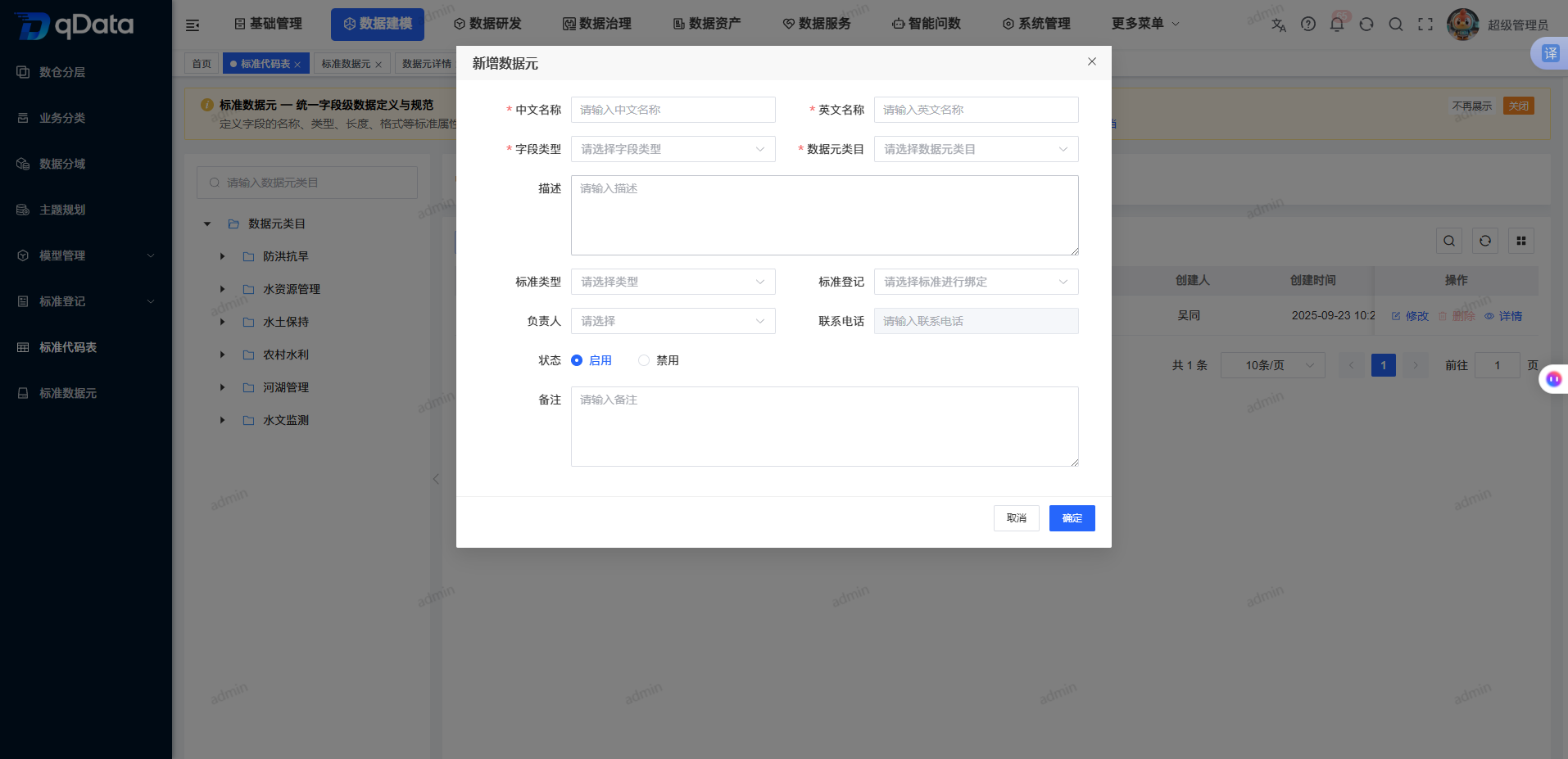
- Click the Field Type drop-down.
- Select the target database field type.
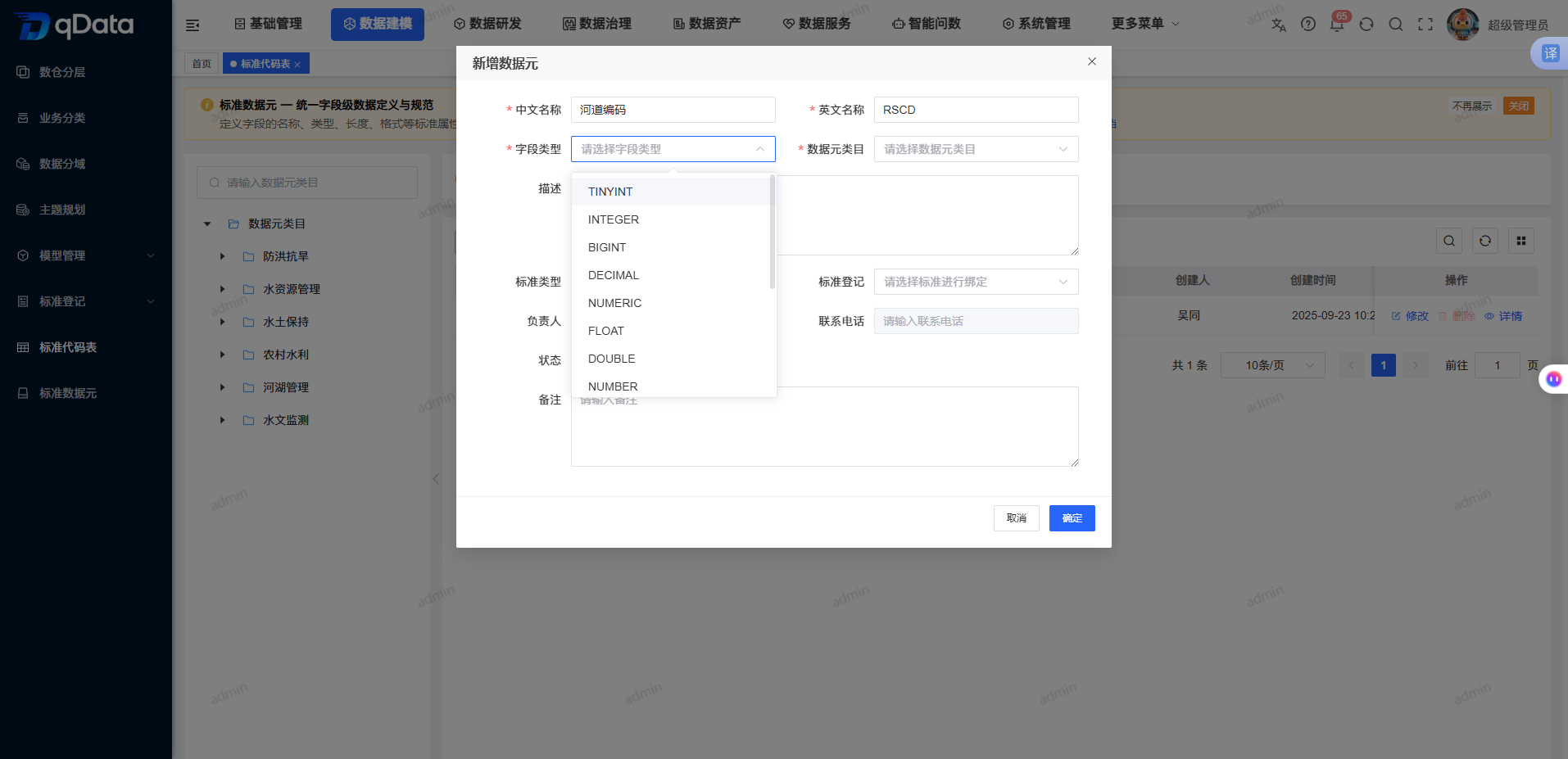
- Verify the category, field type, Chinese name, and English name.
- Click OK to submit, or click Cancel to close the form.
View Data Element Details and Rule Entries
- Locate a record whose type is Data Element in the list.
- Click Details.
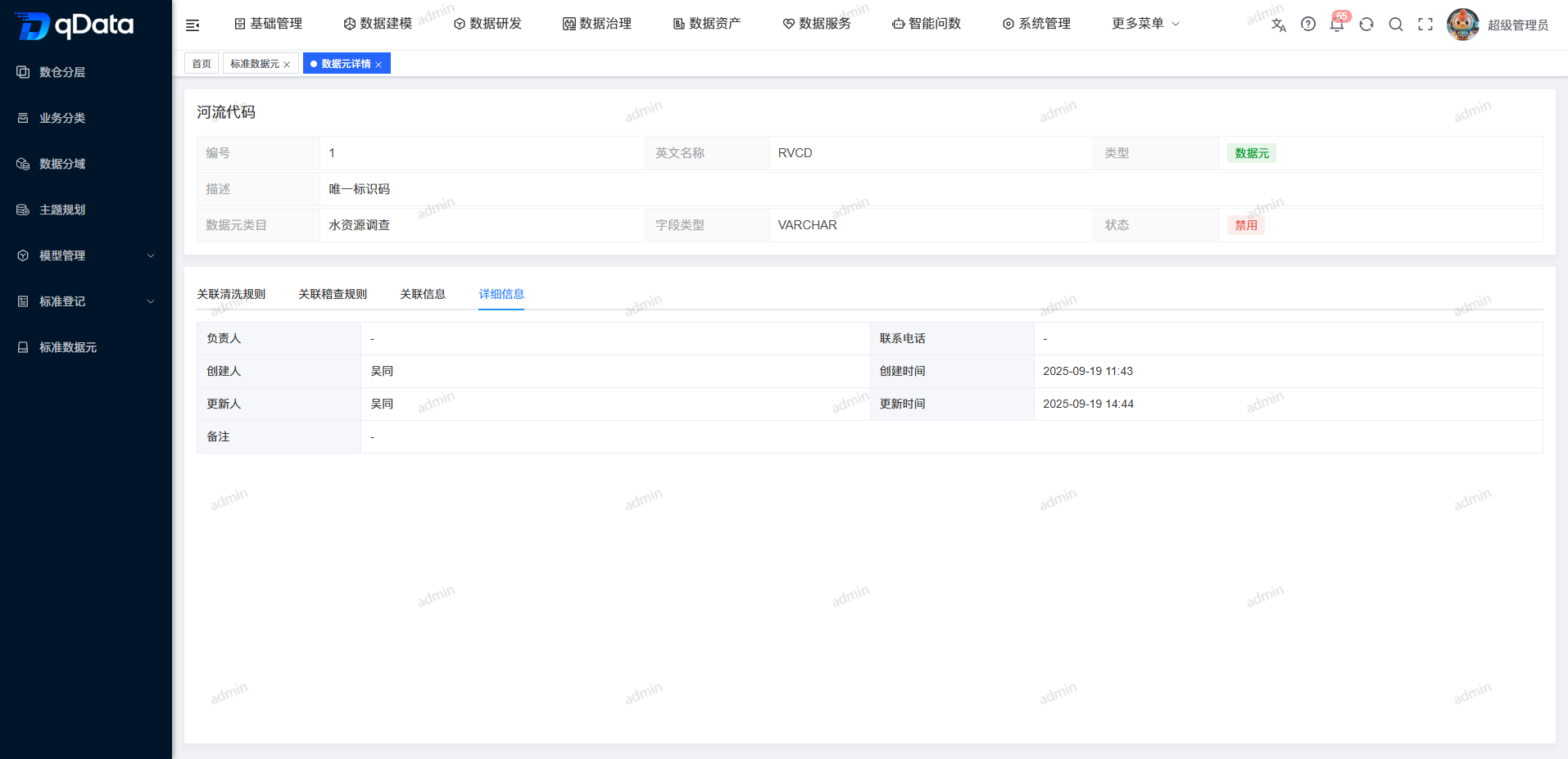
- View basic data element information.
- View tabs such as Associated Cleaning Rules, Associated Audit Rules, Association Information, and Details.
Associate Cleaning Rules
- Enter the Associated Cleaning Rules tab in data element details.
- Click Associate.
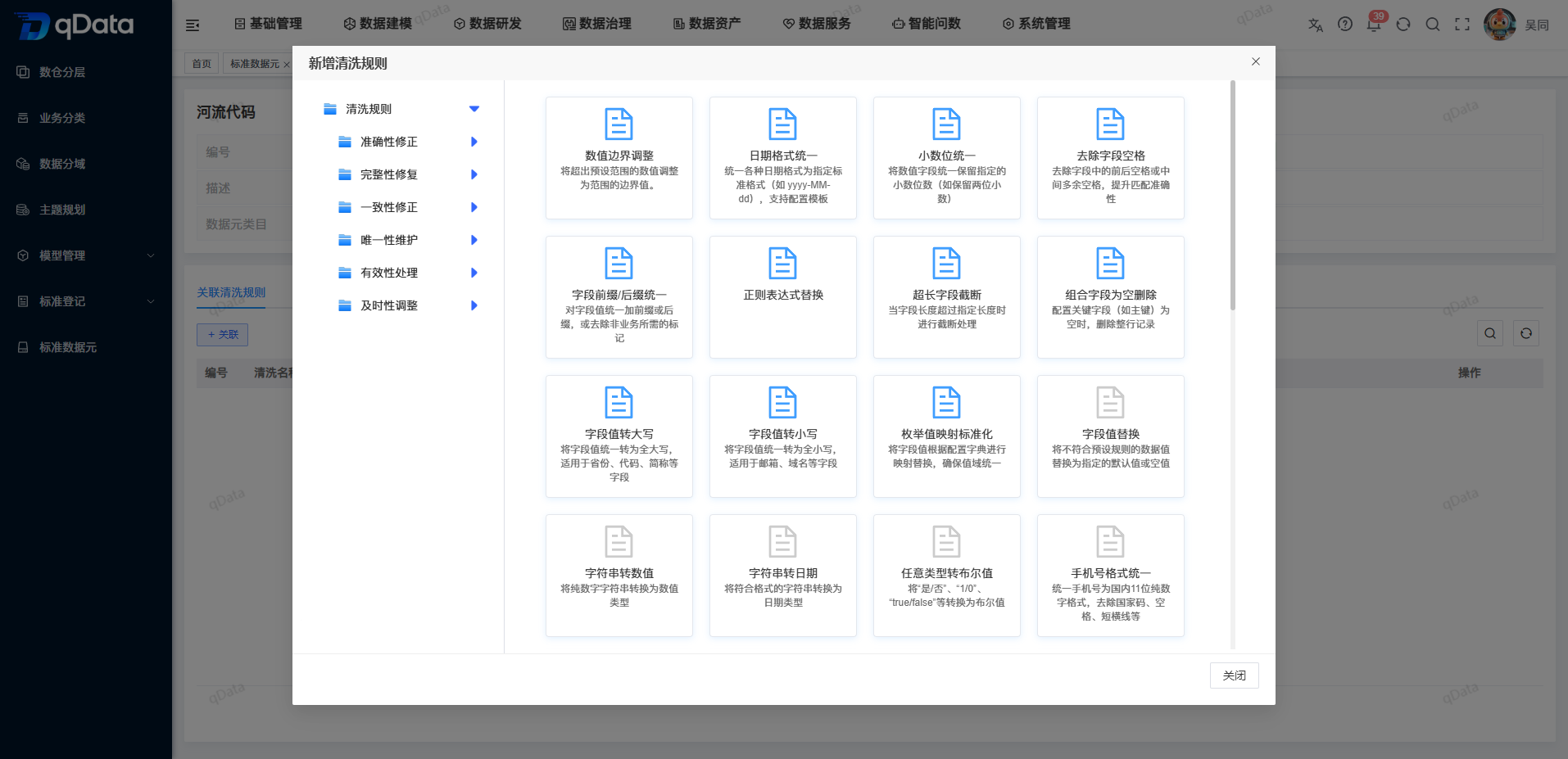
- Select a rule category in the cleaning rule library.
- Select the target rule, such as Numeric Boundary Adjustment.
- View the cleaning rule number and rule name filled by the system.
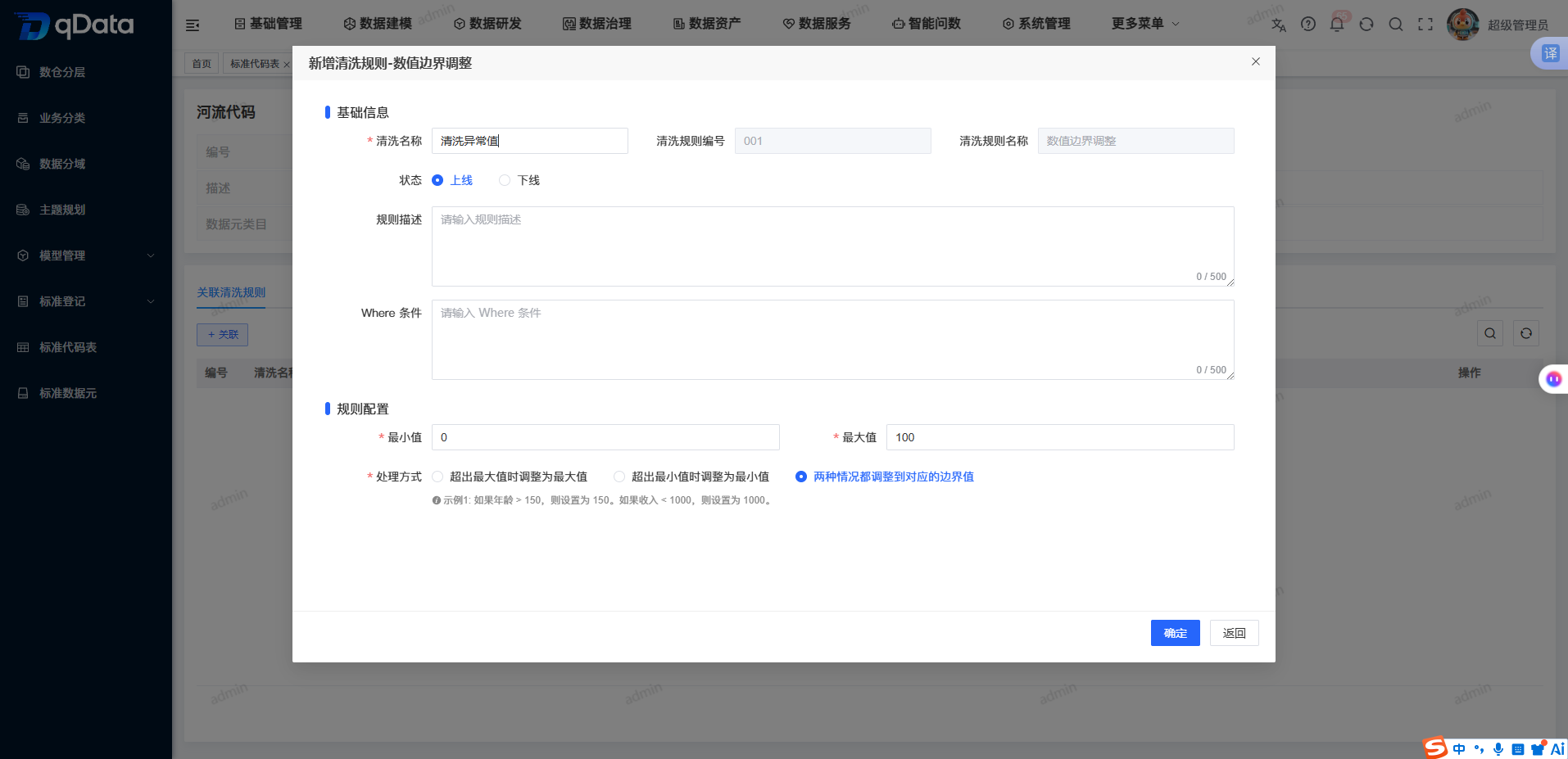
- Enter a cleaning name.
- Fill in rule description and Where condition as needed.
- Configure rule parameters.
- Click OK to save.
- Return to the association list to view the result.
Configure Numeric Boundary Adjustment
| Field | Description | Required |
|---|---|---|
| Cleaning name | Enter the cleaning instance name for the current data element. | Yes |
| Cleaning rule number | Generated or filled by the system after selecting a rule. | No (system-filled) |
| Cleaning rule name | Filled by the system after selecting a rule. | No (system-filled) |
| Status | Select online or offline. The form defaults to online. | No (system default) |
| Rule description | Enter the cleaning purpose. | No |
| Where condition | Enter a data scope condition as needed. | No |
| Minimum value | Enter the minimum allowed boundary. | Yes |
| Maximum value | Enter the maximum allowed boundary. | Yes |
| Processing method | Select maximum adjustment, minimum adjustment, or dual-boundary adjustment. | Yes |
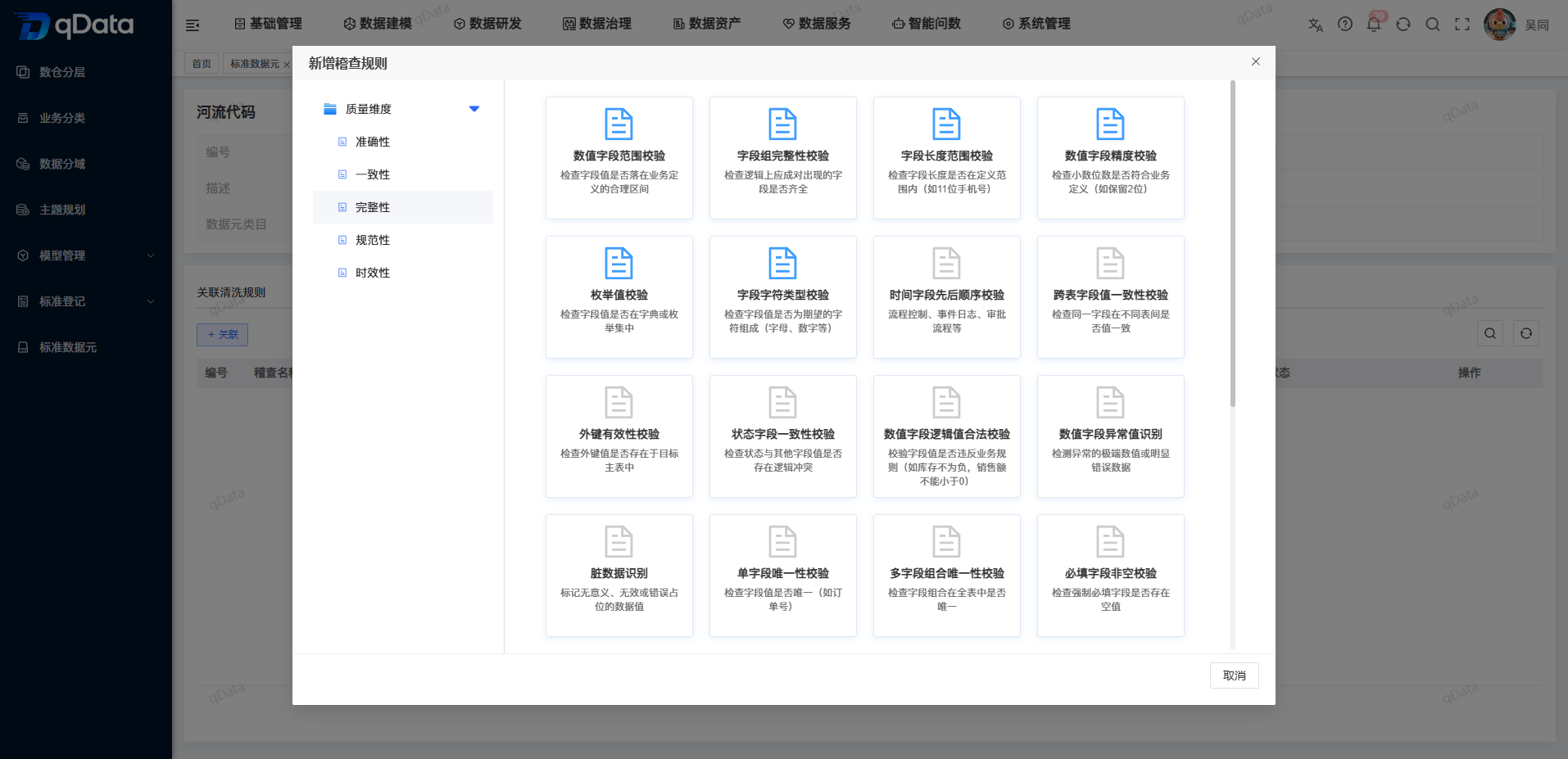
Enter the Audit Rule Association Flow
- Click the Associated Audit Rules tab in data element details.
- View the current association list.
- Click Associate to enter the rule selection flow.
View Details and Return
- Click the Details tab in the details page.
- View field type, owner, contact phone, and updater.
- Click Return to go back to the standard data element list.
FAQ
What is the difference between a data element and a code table?
A data element is used to unify field definitions. A code table is used to maintain enumerated fields with standard code values, and provides code dictionary and code mapping tabs.Why do I need to fill in parameters after selecting a cleaning rule?
The rule library provides reusable rule templates. A specific data element still needs a cleaning name and rule parameters. For example, numeric boundary adjustment requires minimum value, maximum value, and processing method.Can associated audit rules be saved directly?
The current material only confirms the Associated Audit Rules tab and the Associate entry. Rule selection and save results are not shown, so operate according to the actual system flow.
Summary
The Standard Data Element page centrally maintains data elements and code tables, and connects code dictionaries, code mappings, and rule associations. During maintenance, focus on verifying field type, English name, data element type, code mapping, and cleaning rule parameters.