
data domain
Feature overview
Functional positioning
Data Domain is used to maintain data domain names, English abbreviations, responsible persons and descriptions, and provides a unified data boundary for business classification association and logical model attribution.
Simple understanding: Divide different business data into clear data ranges, and set stable names, abbreviations and responsible persons for each range.
Usage suggestions
Before adding a new one, check whether there is already a similar data field; during maintenance, keep the English abbreviation simple and stable, and check the responsible person and description through the list and details after the operation.
Main features
- Conditional query: Locate data fields by data field name, English abbreviation and person in charge.
- Data domain maintenance: Add or modify name, English abbreviation, person in charge, description and remarks.
- Details Check: View the basic information, creation information and update time of the data domain.
- Upstream and downstream connection: Business classification can be associated with data domains, and the logical model can select corresponding data domains.
Scope
This page is intended for data architects, data domain administrators, and logical model designers. The page covers data domain query, new addition, modification, details and deletion entries.
Preliminary steps
Preconditions
- Logged in to the qData platform.
- You have entered the [Data Modeling] module.
- The name and English abbreviation of the data field to be maintained has been clarified.
- The business scope covered by the data domain has been clarified.
- The person in charge data can be selected normally on the page.
Navigation path
Data Modeling > Data Domain
Page overview
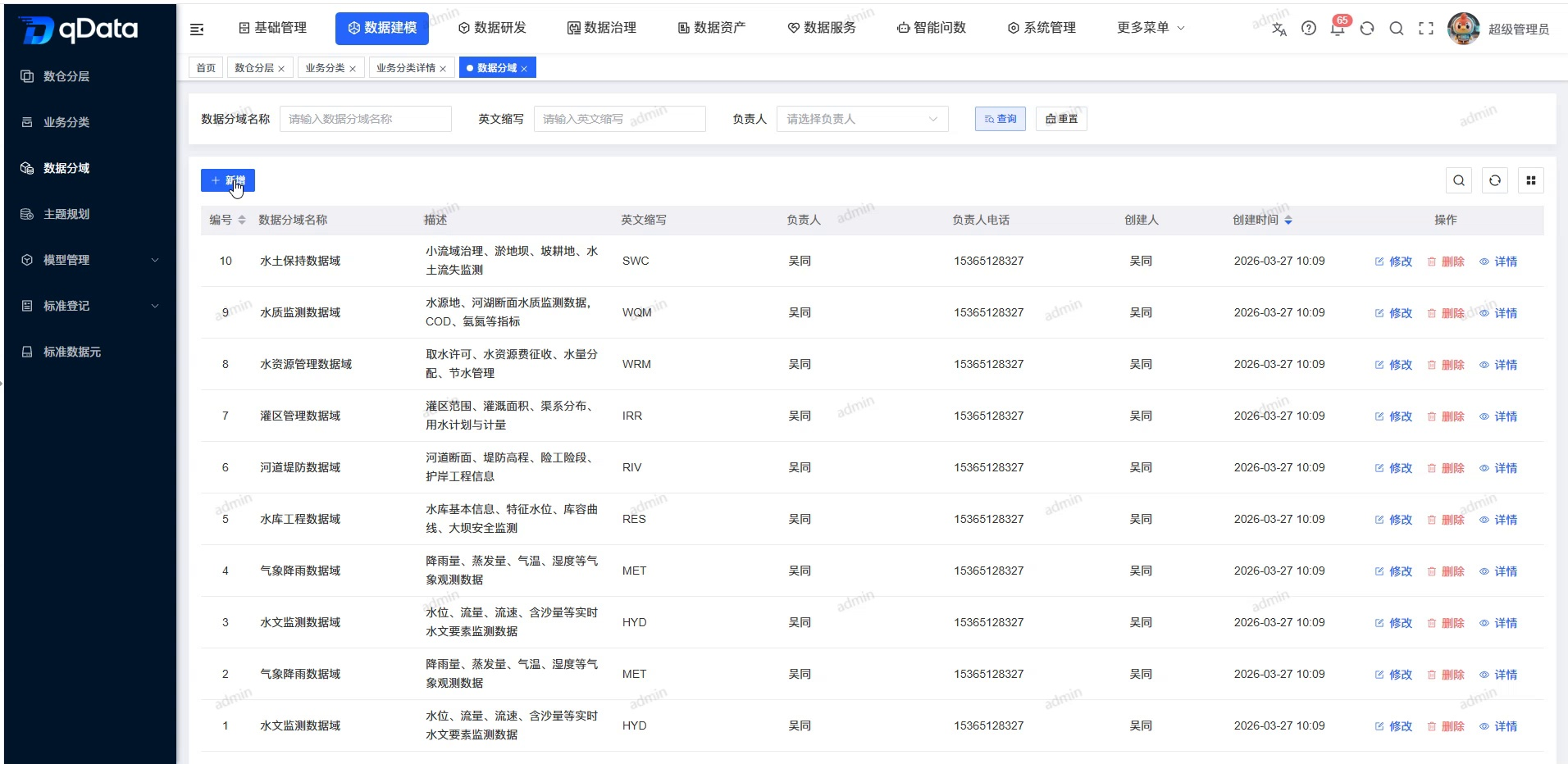
The top of the page provides the data domain name, English abbreviation and responsible person query, as well as the [New] entrance. The list displays the data field name, description, English abbreviation, person in charge, phone number of person in charge, creator, creation time and row operations.
Recommended operating procedures
Typical scenario: Query existing data fields -> Add or modify records -> Check the name, English abbreviation and person in charge -> Press the page button to submit -> Return to the list or details to check the current information.
Troubleshooting: Click [Reset] to clear the filter conditions -> check the required fields -> return to the list and query again -> enter the details to check the current record.
Functional operation instructions
Query and reset data fields
- Fill in the name or keyword in the "Data field name" input box.
- Fill in the abbreviation in the "English abbreviation" input box as needed.
- Select the person in charge as needed.
- Click [Query].
- View the data fields that meet the criteria.
- When you need to restore the default results, click [Reset].
Add new data field
- Click [Add].
- Fill in the data field information according to the page fields.
| Field Name | Description | Required or not |
|---|---|---|
| Data field name | Fill in the Chinese name of the data boundary. | Yes |
| English abbreviation | Fill in the English identifier of the data field. | Yes |
| Responsible person | Select the person responsible for the data domain. | Yes |
| Person in charge’s phone number | After selecting the person in charge, the system will bring out the contact number. | No (brought out by the system) |
| Description | Fill in the business scope covered by the data field, up to 500 words. | No |
| Remarks | Fill in the supplementary explanation, up to 500 words. | No |
- If you need to submit, click [OK]; if you do not want to continue, click [Cancel].
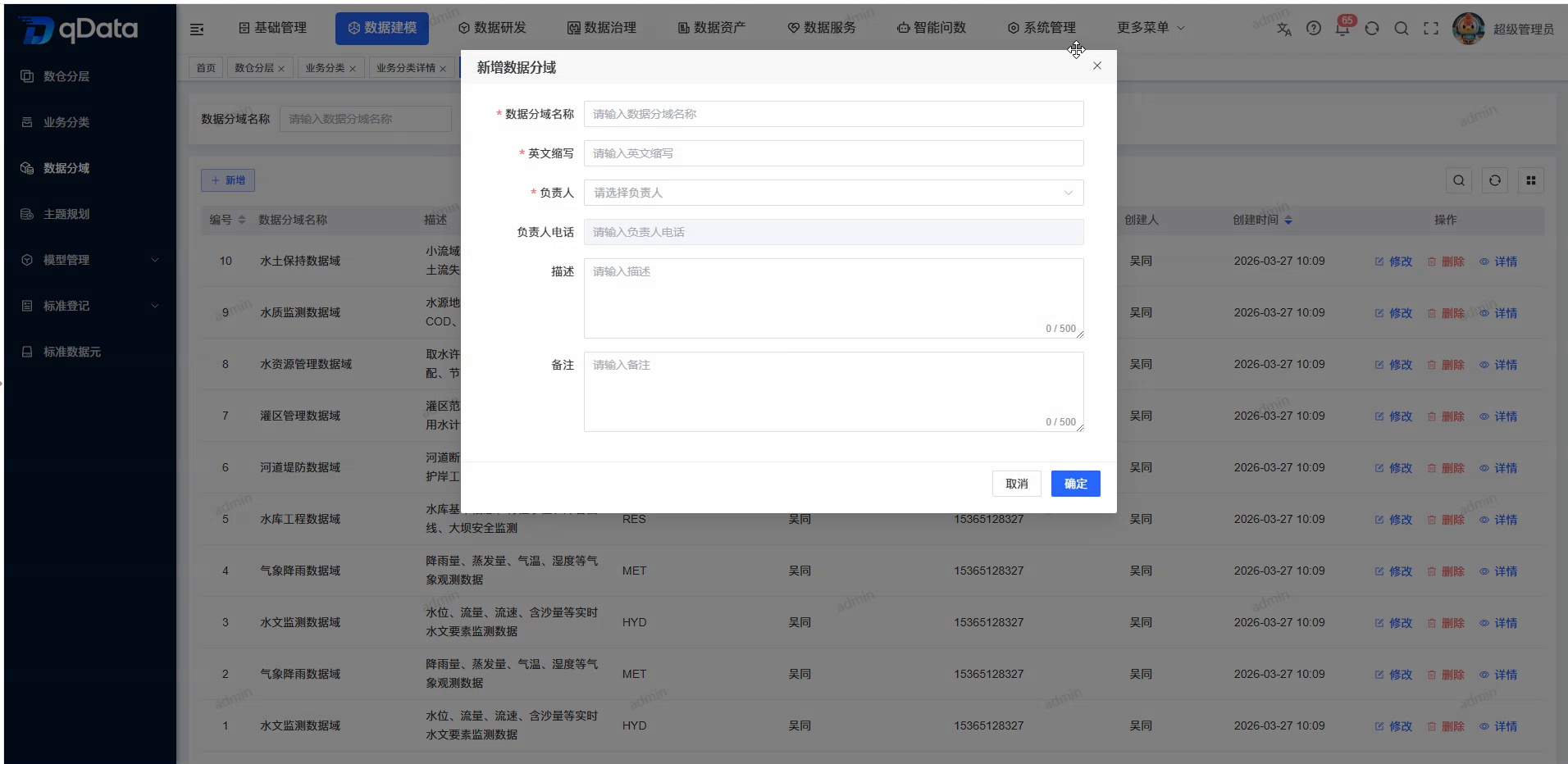
The current material shows the new form and operation entrance, but does not show the results after the new submission. This page does not extend the saving prompt.
Modify data fields
- Locate the target data field in the list.
- Click [Modify].
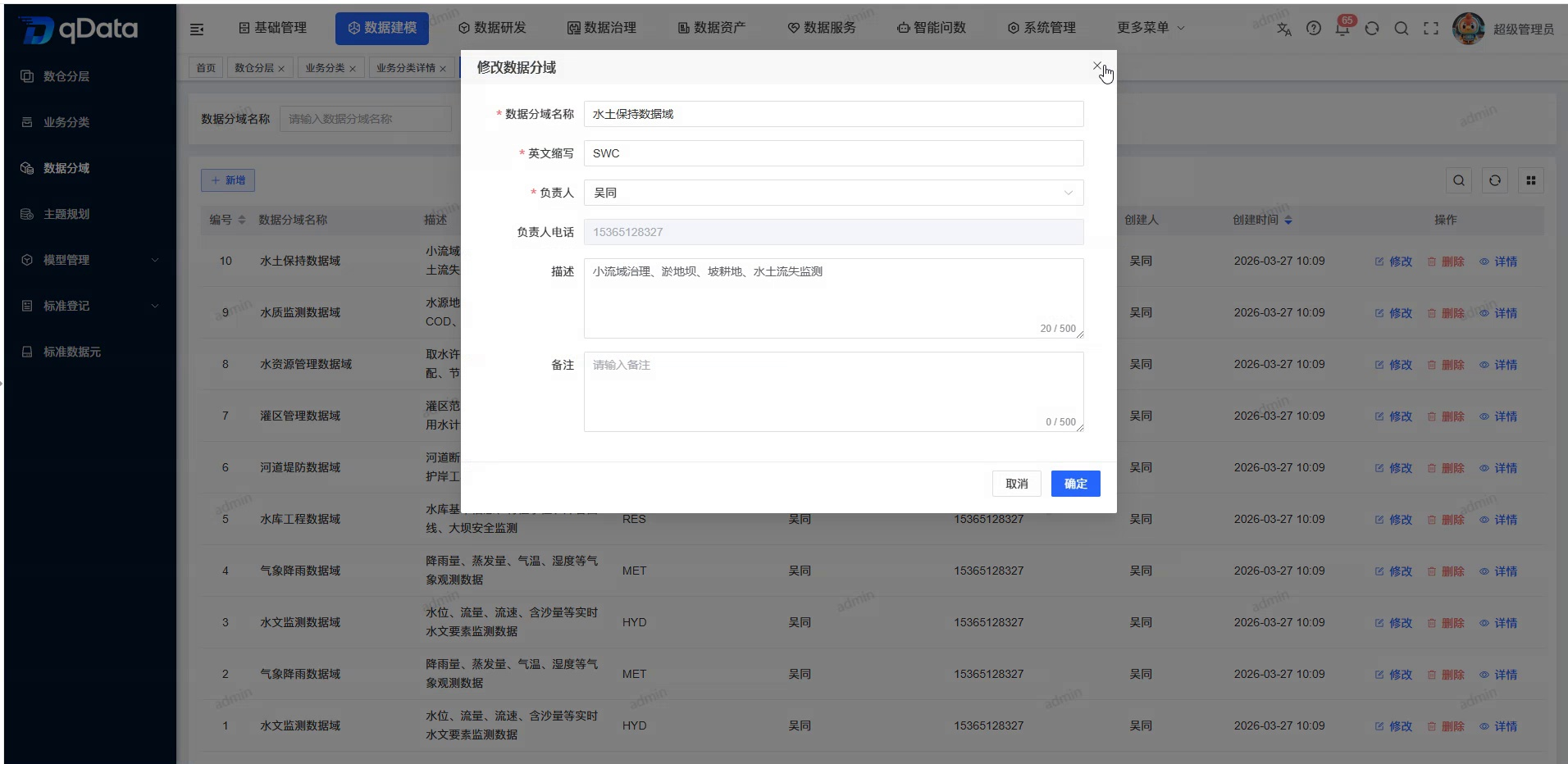
- Check the name, English abbreviation and person in charge displayed on the page.
- Adjust the fields that need to be changed.
- If you need to submit, click [OK]; if you do not want to continue, click [Cancel].
View data field details
- Click [Details] in the target data field row.
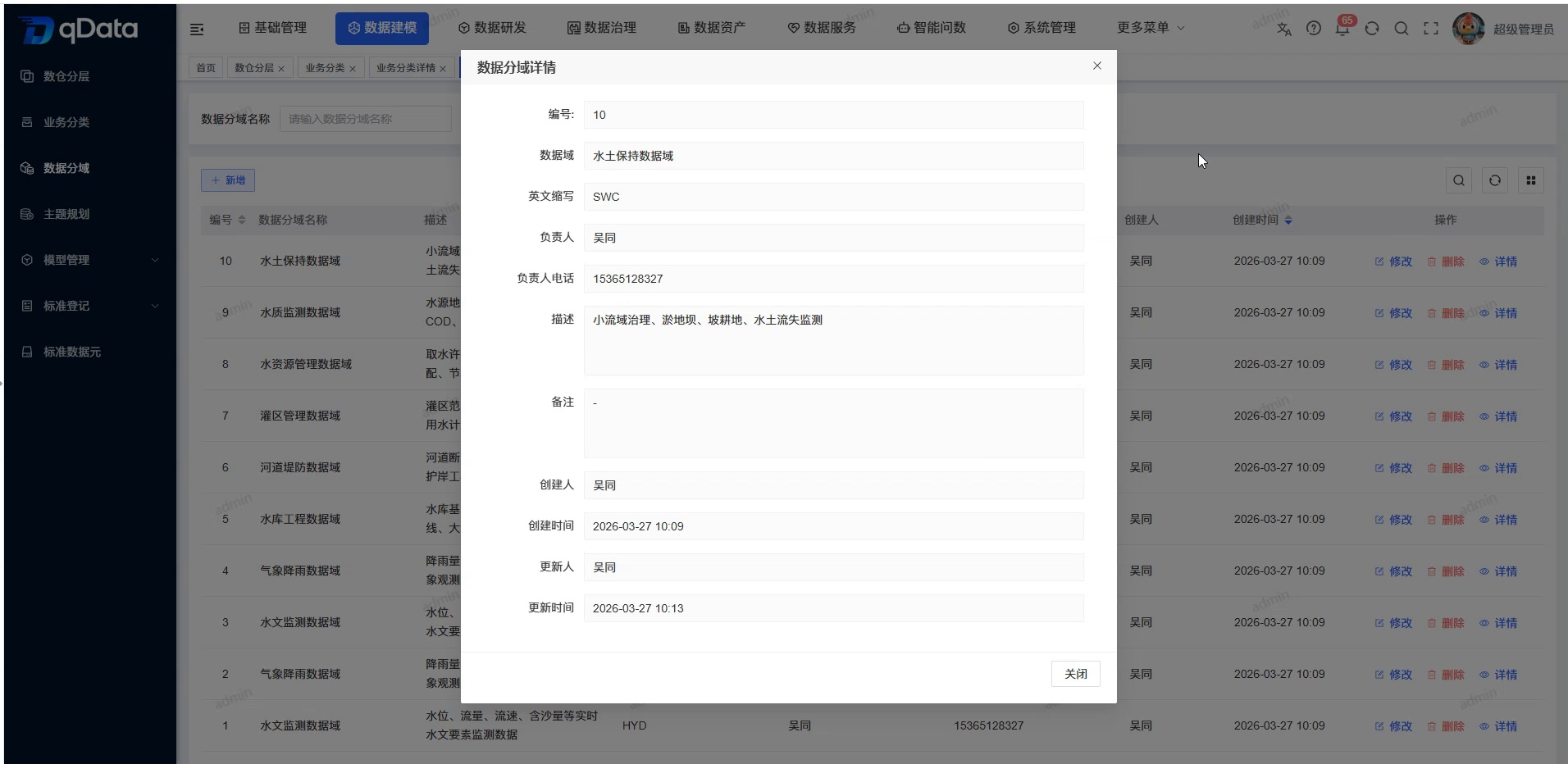
- Check the number, data field name and English abbreviation.
- Check the person in charge and the phone number of the person in charge.
- View the description, notes, creator and creation time.
- Check the update person and update time.
- Click [Close] to return to the list.
Delete data field
- Locate the target data field in the list.
- Click [Delete].
- Continue according to the current prompts on the page.
- Check the current results on the page after returning to the list.
Operation tips
Before modifying the English abbreviation or deleting the data field, you should first confirm whether the data field has been referenced by the business classification or logical model.
FAQ
**What is the function of the English abbreviation of data field?**The English abbreviation of
What is the difference between data zoning and topic planning?
data domain division emphasizes data management boundaries; theme planning emphasizes hierarchically organizing models by business themes and data warehouses, both of which bear different model ownership dimensions.
Summarize
The data domain page is used to maintain data scope boundaries and responsibility information. When adding or modifying, you should focus on checking the data field name, English abbreviation and person in charge , and confirm the current record through a list or details.