
Menu Management
1. Menu Management Page
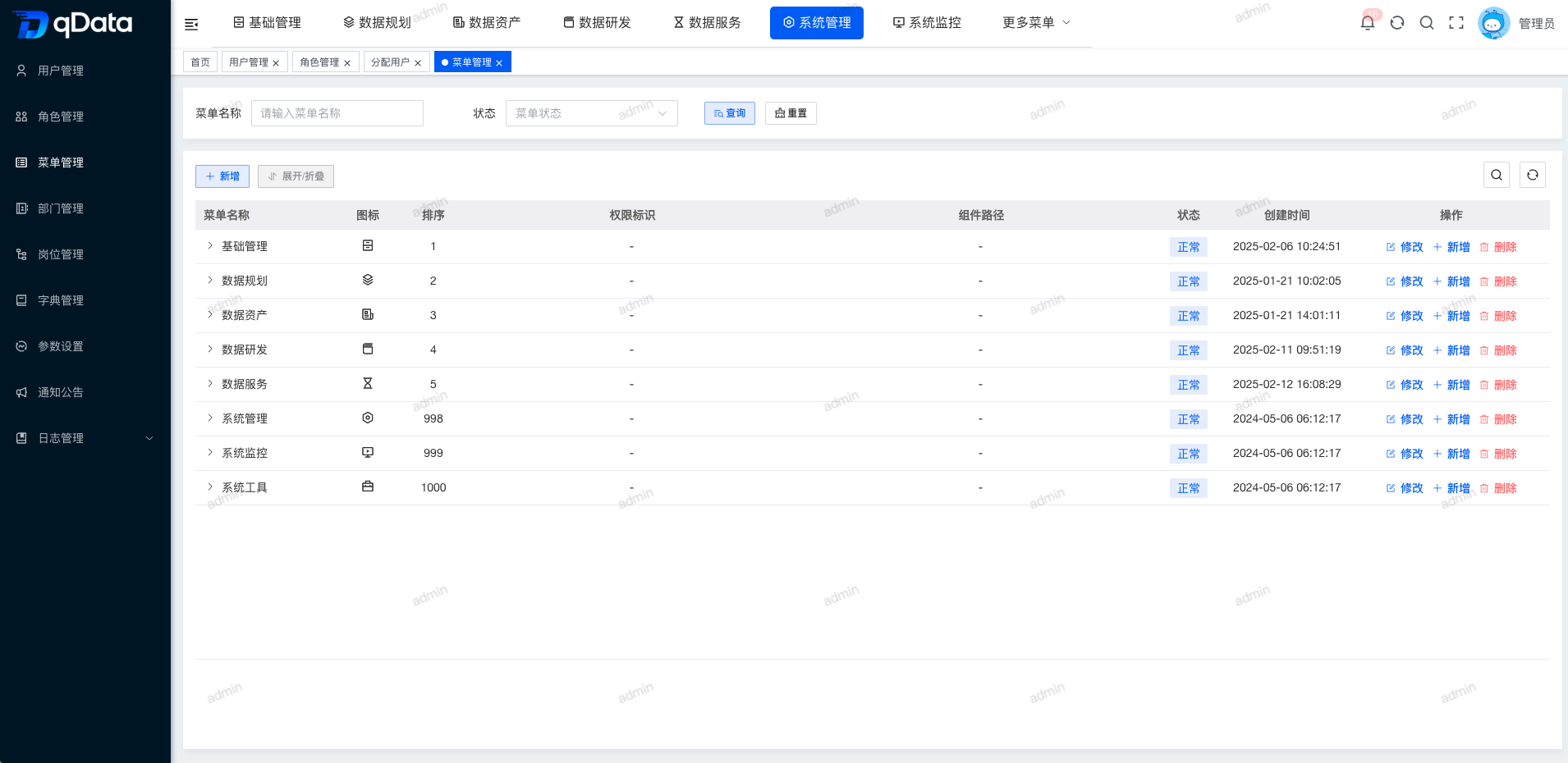
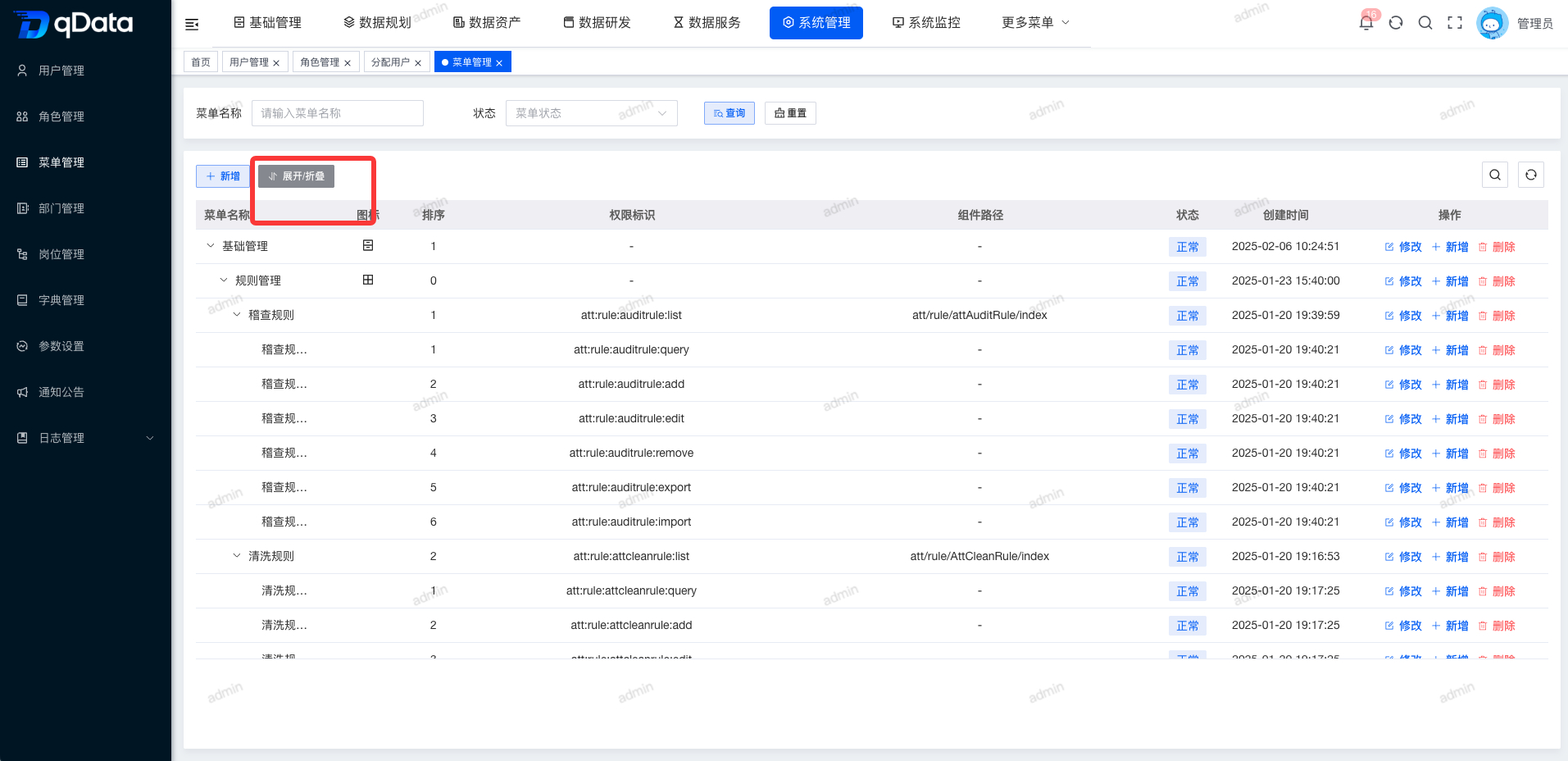
Click Menu Management under System Management to open the Menu Management page. This page displays a tree list containing fields such as menu name, icon, sort order, permission identifier, component path, status, and creation time.
2. Add Menu Information
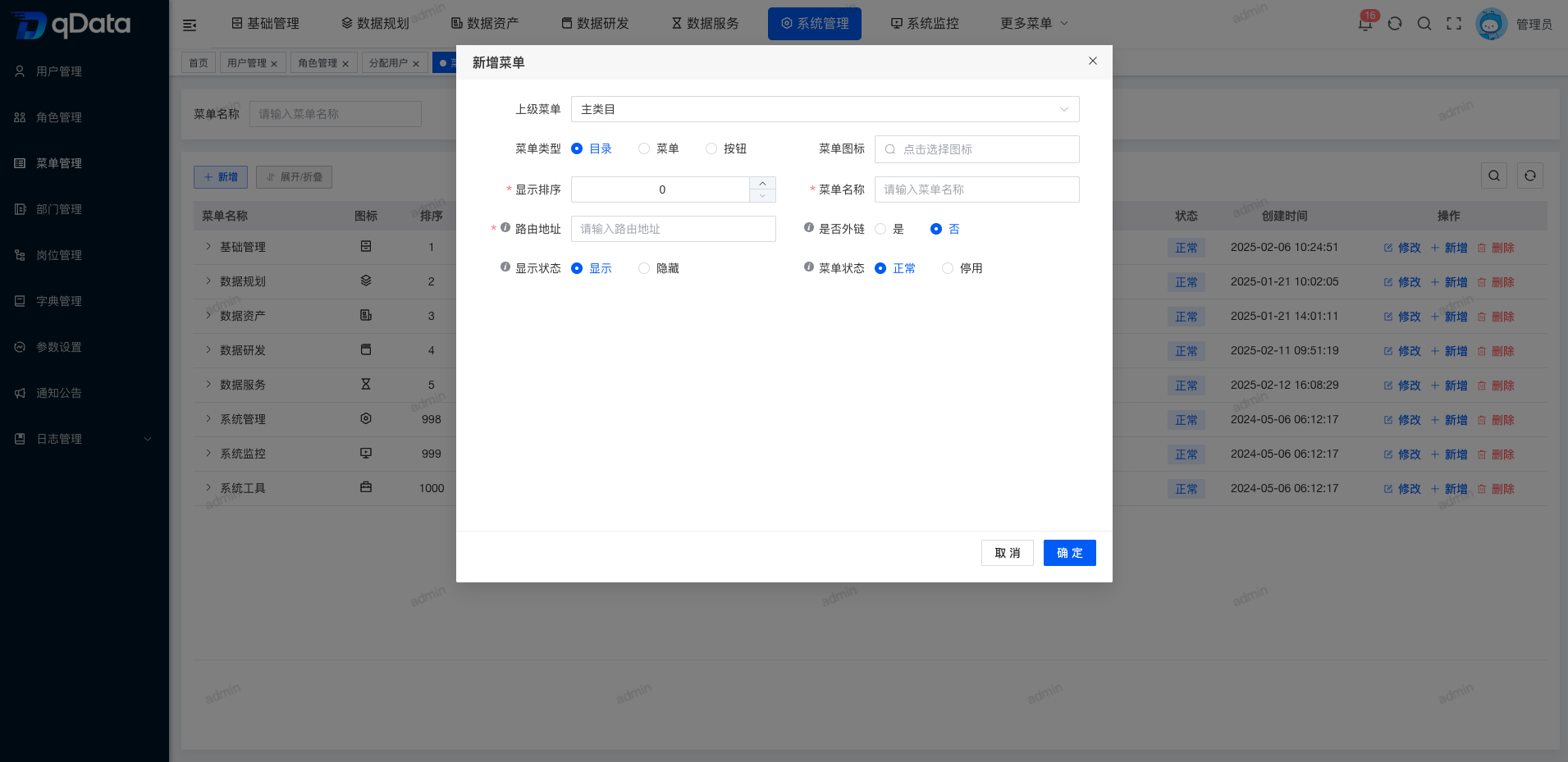
Click Add, fill in the menu information in the dialog, and click OK to complete adding menu information.
3. Edit Menu Information
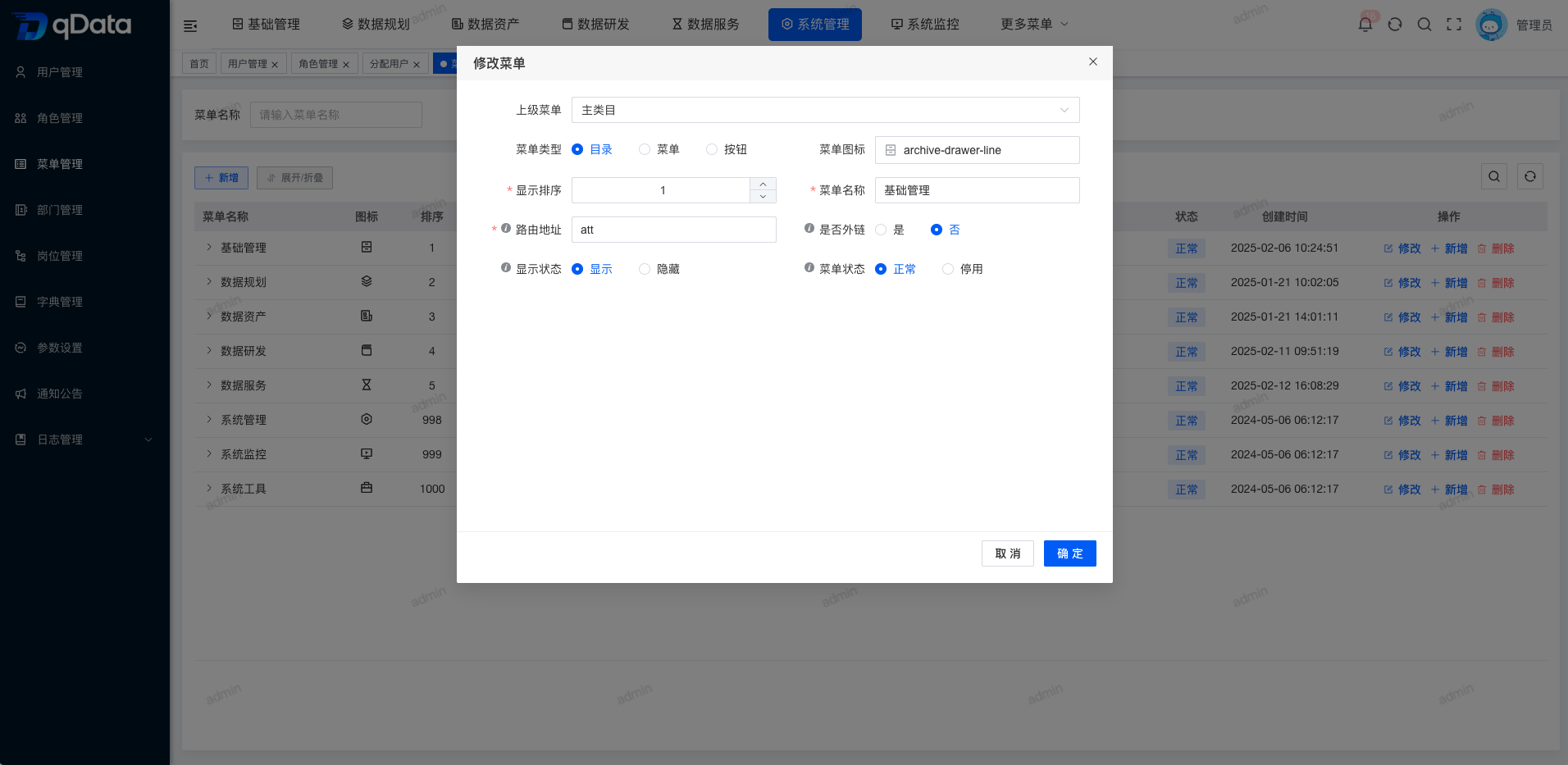
Select the menu information to edit, click Edit in the operation column, modify the existing menu information in the dialog, and click OK to complete editing menu information.
4. Delete Menu Information
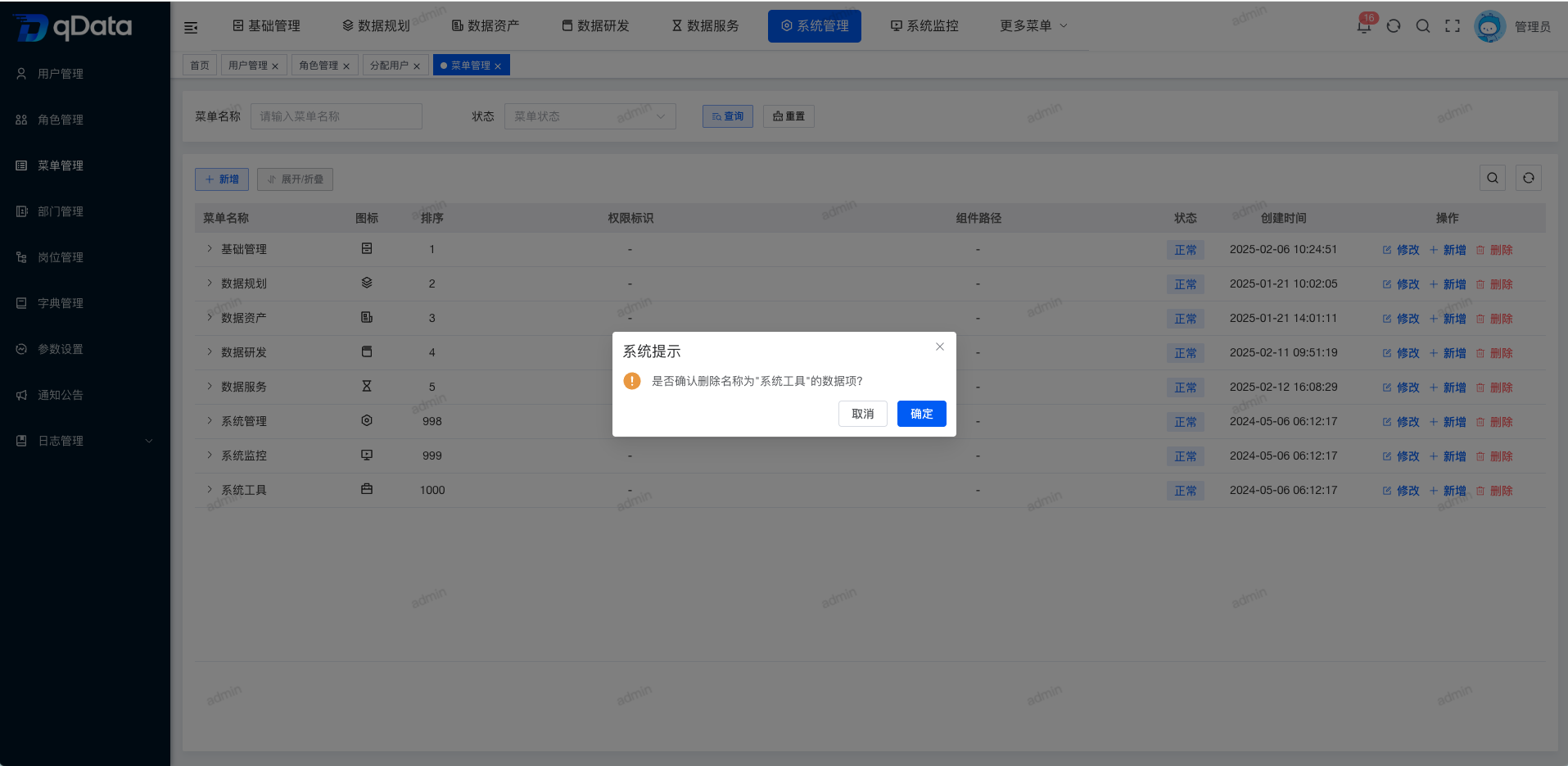
Select the menu information to delete, click Delete in the operation column, and click OK. The system will delete the menu information.
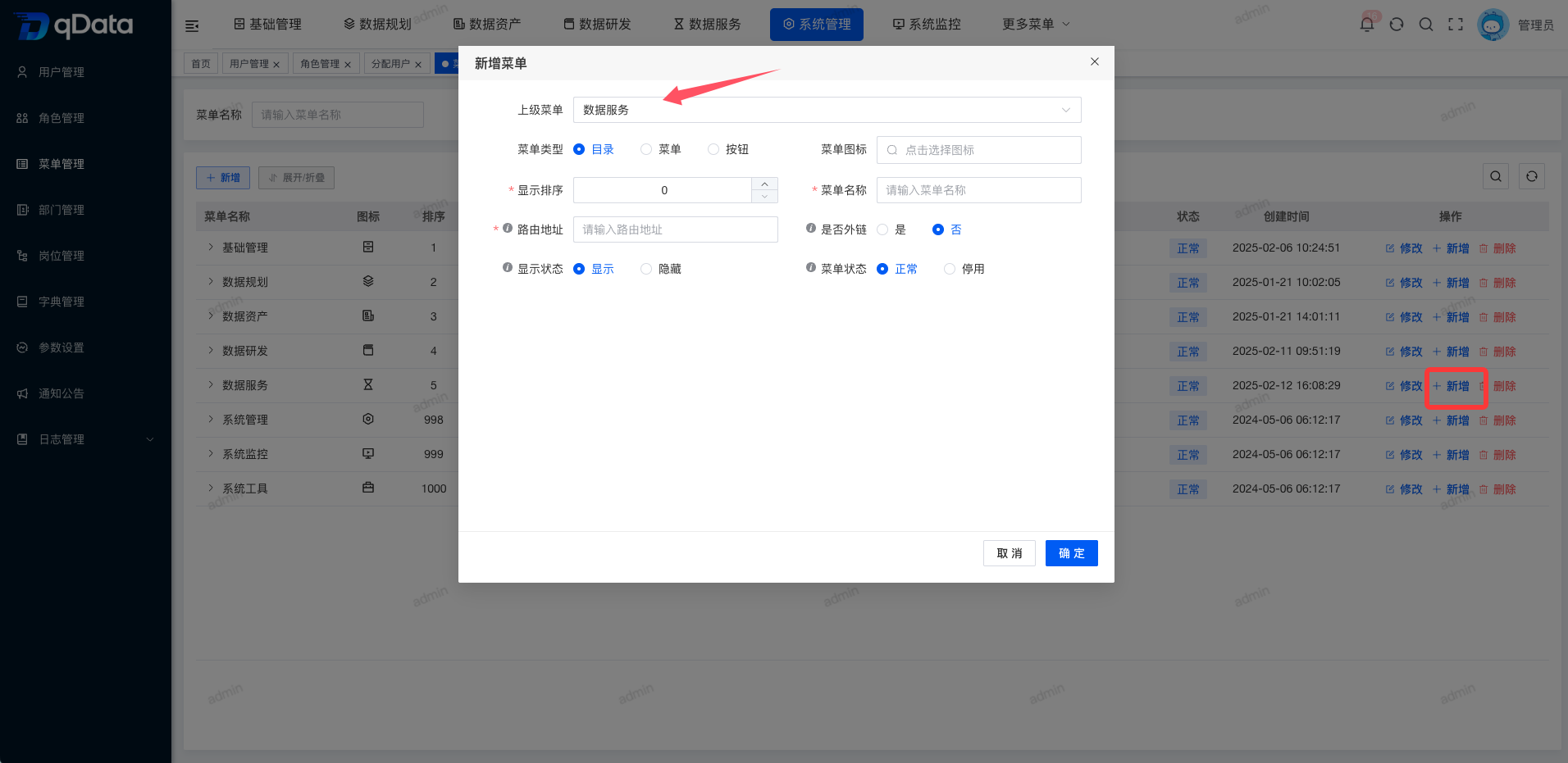
5. Auto-Fill Parent When Adding a Submenu
Select the target parent menu and click Add in its operation column. In the Add dialog, the Parent Menu field will automatically display the current menu. Fill in the other information and click OK to add a submenu.
6. Expand/Collapse
Click Expand/Collapse to switch the tree list between expanded and collapsed states.
7. Extended Information
7.1 Scenario Introduction
During project iteration, if a feature is added, a corresponding entry must be added to the system menu.
The code can be pulled directly from the repository, but the menu must be added by manually executing an SQL script. The following is a menu SQL example and explanation.
7.2 Script Execution Method
Database Type Notes
- MySQL: You can execute the following script directly.
- DM: Execute the Menu SQL first to generate the main menu, manually query the generated ID, and then replace
@parentIdin the subsequent script with that ID.
Execution Order
- Step 1: Execute the Menu SQL to insert the main menu.
- Step 2: Query
@parentIdor manually obtain the ID of the newly inserted menu. - Step 3: Execute the Button SQL script to insert the corresponding button permissions.
Notes
- Please execute it with an administrator account.
- If caching is enabled, clear the cache or restart the service after execution.
7.3 Example Script
-- Note: the following syntax is for MySQL
-- Menu SQL
insert into system_menu (menu_name, parent_id, order_num, path, component, is_frame, is_cache, menu_type, visible, status, perms, icon, create_by, create_time, update_by, update_time, remark)
values('Data Element', '2306', '1', 'dpDataElem', 'dp/dataElem/index', 1, 0, 'C', '0', '0', 'dp:dataElem:dataelem:list', '#', 'admin', sysdate(), '', null, 'Data Element menu');

-- Parent menu ID for buttons. DM does not support this and should not execute it.
SELECT @parentId := LAST_INSERT_ID();

-- Button SQL, execute in order
insert into system_menu (menu_name, parent_id, order_num, path, component, is_frame, is_cache, menu_type, visible, status, perms, icon, create_by, create_time, update_by, update_time, remark)
values('Data Element Query', @parentId, '1', '#', '', 1, 0, 'F', '0', '0', 'dp:dataElem:dataelem:query', '#', 'admin', sysdate(), '', null, '');

insert into system_menu values('Data Element Add', @parentId, '2', '#', '', 1, 0, 'F', '0', '0', 'dp:dataElem:dataelem:add',   '#', 'admin', sysdate(), '', null, '');
insert into system_menu values('Data Element Edit', @parentId, '3', '#', '', 1, 0, 'F', '0', '0', 'dp:dataElem:dataelem:edit',  '#', 'admin', sysdate(), '', null, '');
insert into system_menu values('Data Element Delete', @parentId, '4', '#', '', 1, 0, 'F', '0', '0', 'dp:dataElem:dataelem:remove','#', 'admin', sysdate(), '', null, '');
insert into system_menu values('Data Element Export', @parentId, '5', '#', '', 1, 0, 'F', '0', '0', 'dp:dataElem:dataelem:export','#', 'admin', sysdate(), '', null, '');
insert into system_menu values('Data Element Import', @parentId, '6', '#', '', 1, 0, 'F', '0', '0', 'dp:dataElem:dataelem:import','#', 'admin', sysdate(), '', null, '');
7.4 Field Meaning Description
| Field name | Meaning | Example value |
|---|---|---|
| menu_name | Menu name / button name | Data Element / Data Element Add |
| parent_id | Parent menu ID | 2306 (parent menu of business module) |
| order_num | Menu sort number | 1 |
| path | Route path | dpDataElem |
| component | Frontend component path | dp/dataElem/index |
| menu_type | Type: M=catalog, C=menu, F=button | C |
| perms | Permission identifier, must match frontend and backend | dp:dataElem:dataelem:add |
| icon | Menu icon | # |
| create_by | Creator | admin |
| create_time | Creation time | sysdate() |
| remark | Remarks | Data Element menu |
7.5 Configuration Result
After executing the script, the Data Element module will appear in the system menu, including the following operation buttons:
- Data Element Query
- Data Element Add
- Data Element Edit
- Data Element Delete
- Data Element Export
- Data Element Import
Administrators can view and adjust menu hierarchy, sort order, and permission allocation on the Menu Management page.