Department Management
1. Department Management Page
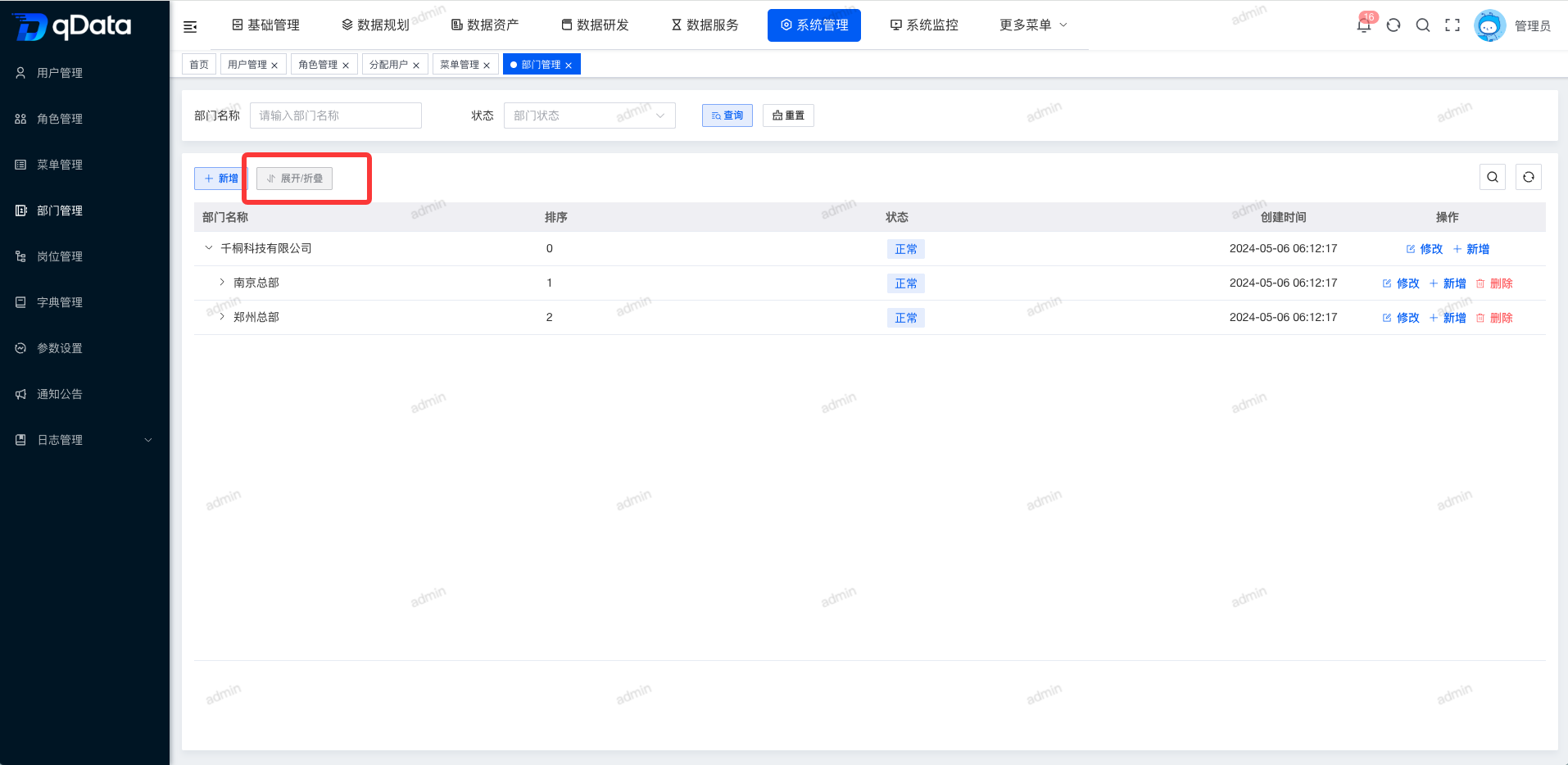
Click System Management > Department Management to open the department management page. The page displays a tree-structured list with fields such as department name, sort order, status, and creation time.
2. Add Department
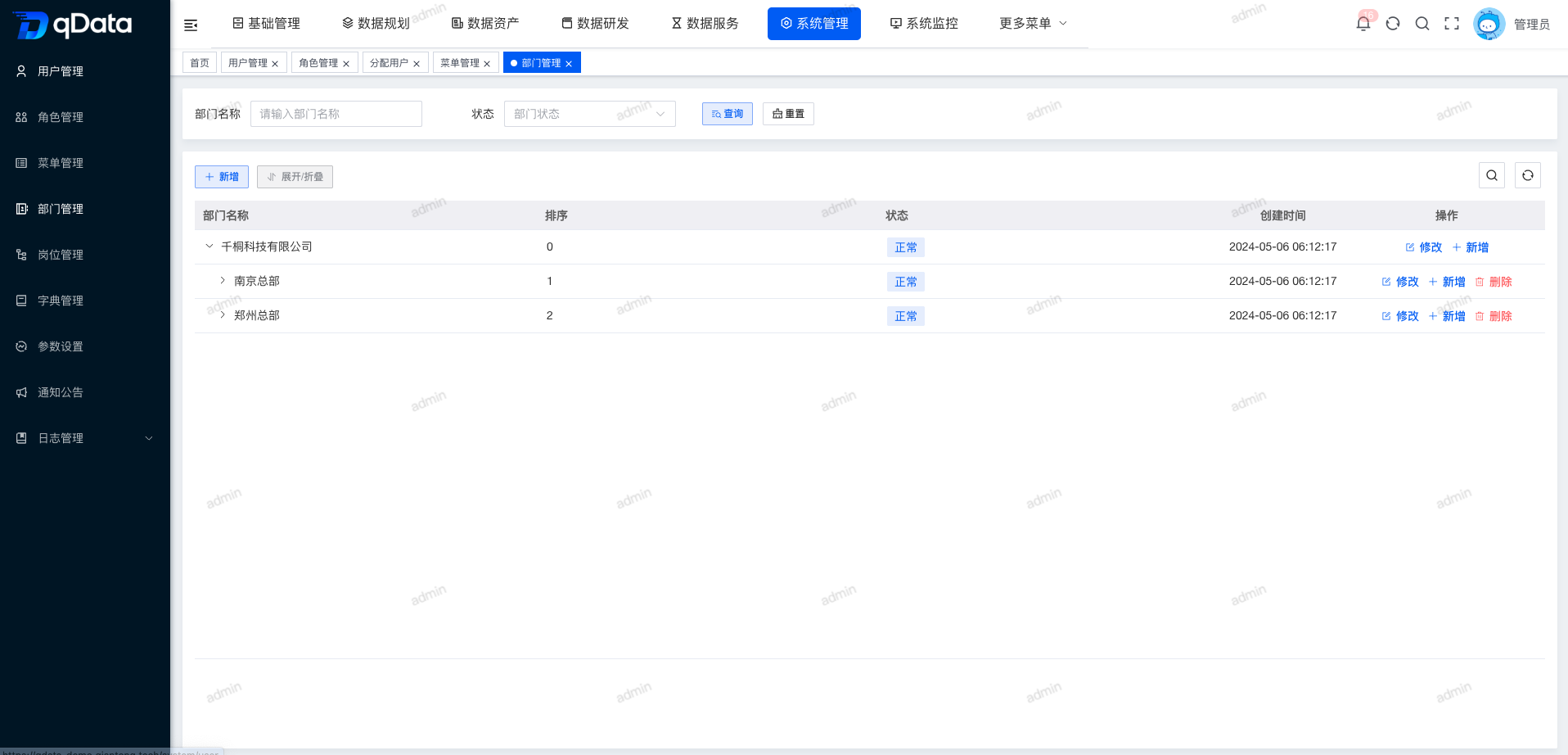
Click Add, enter the department information in the dialog, and click OK to create a department.
3. Edit Department
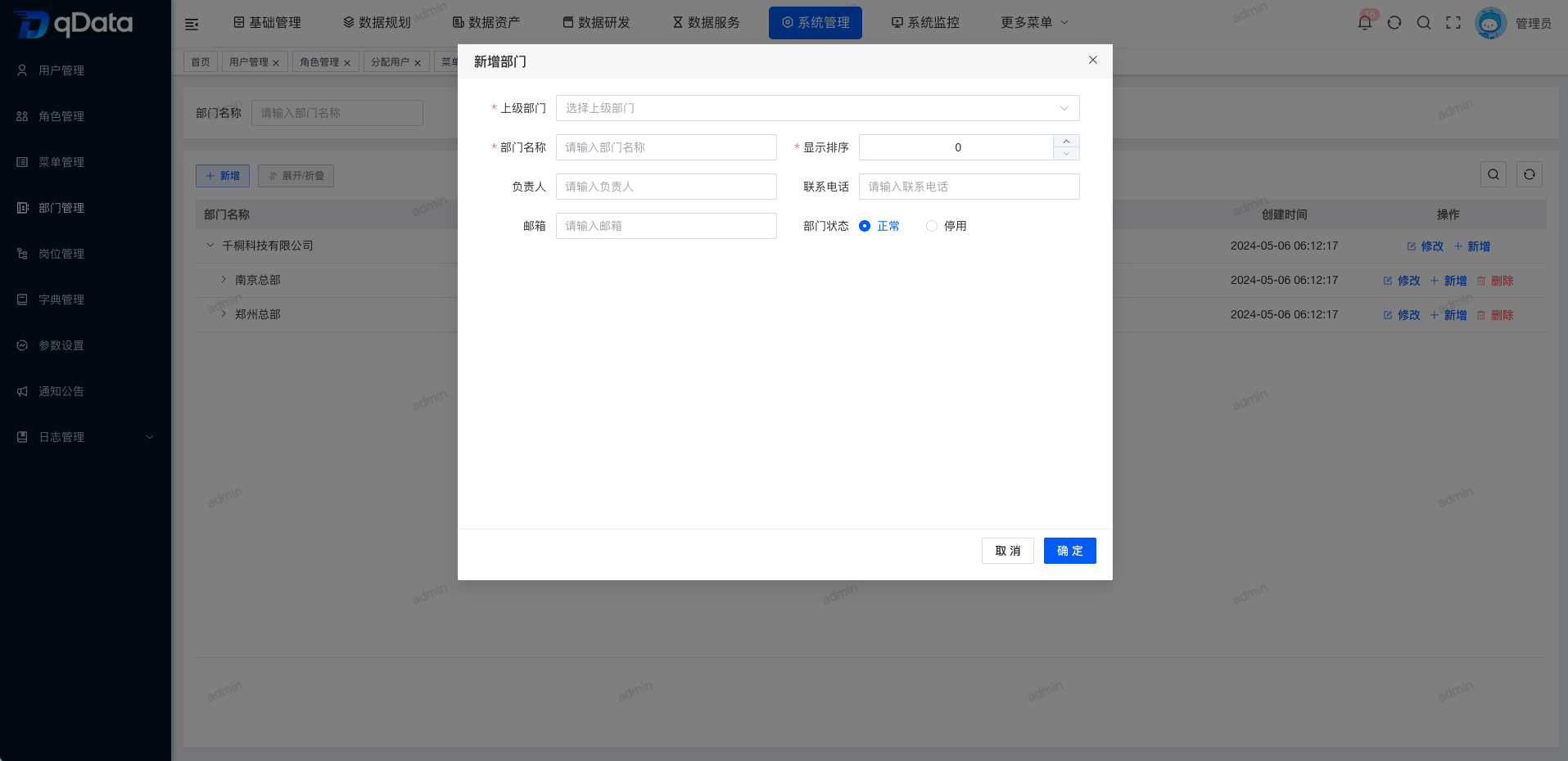
Select the department to update, click Edit in the operation column, modify the information in the dialog, and click OK.
4. Delete Department
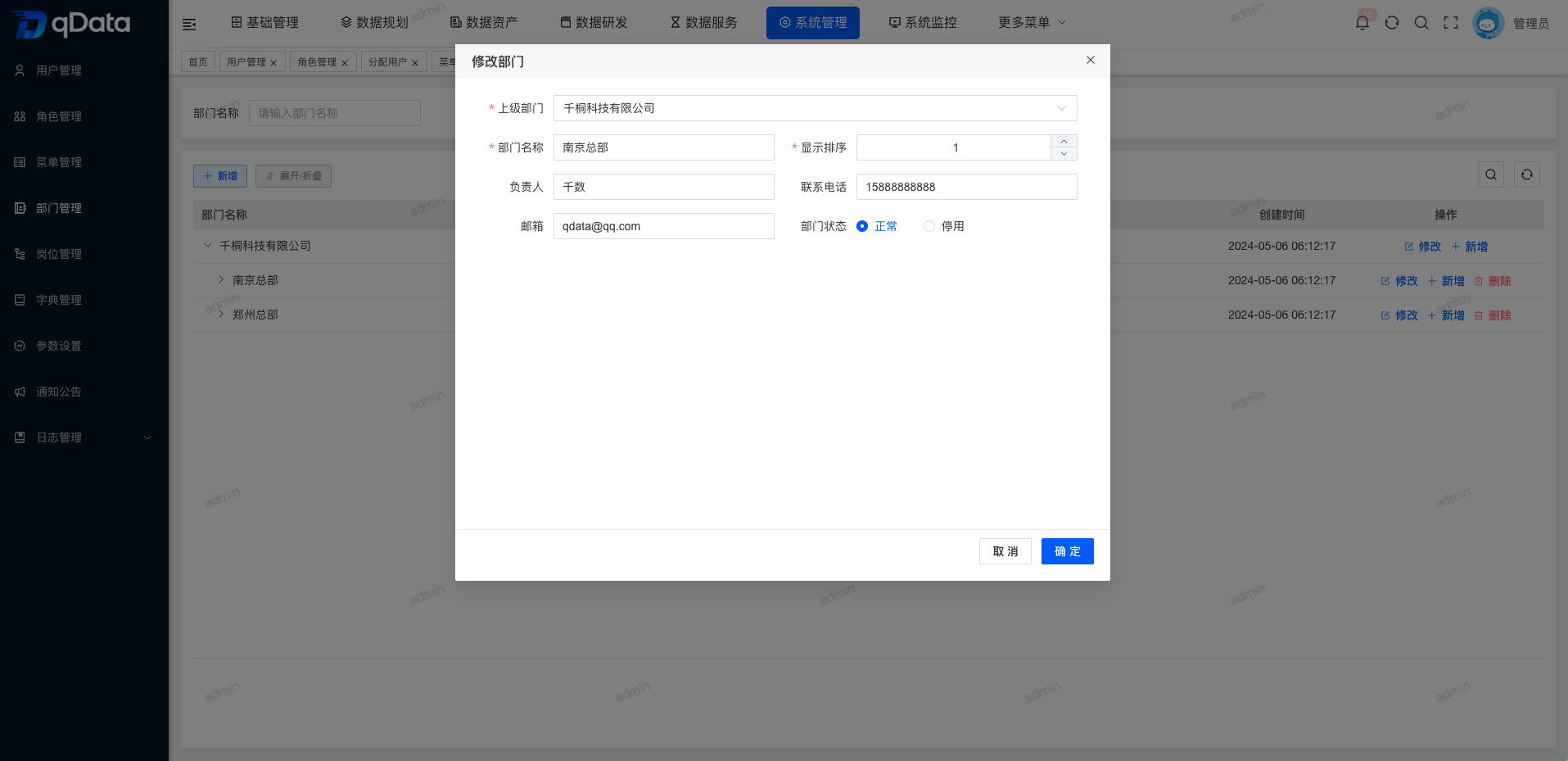
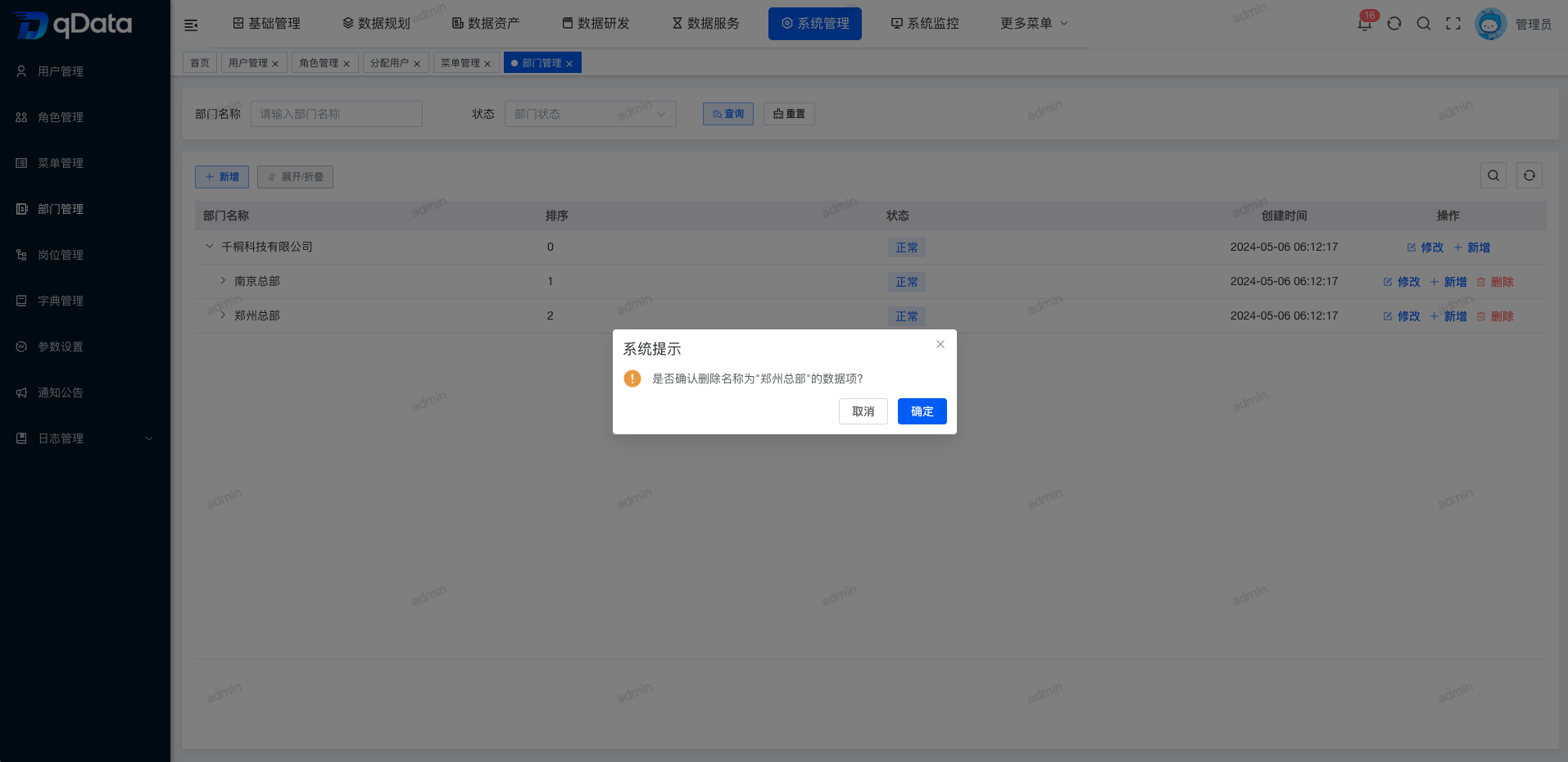
Select the department to delete, click Delete in the operation column, and click OK to confirm.
5. Auto-fill Parent for New Sub-departments
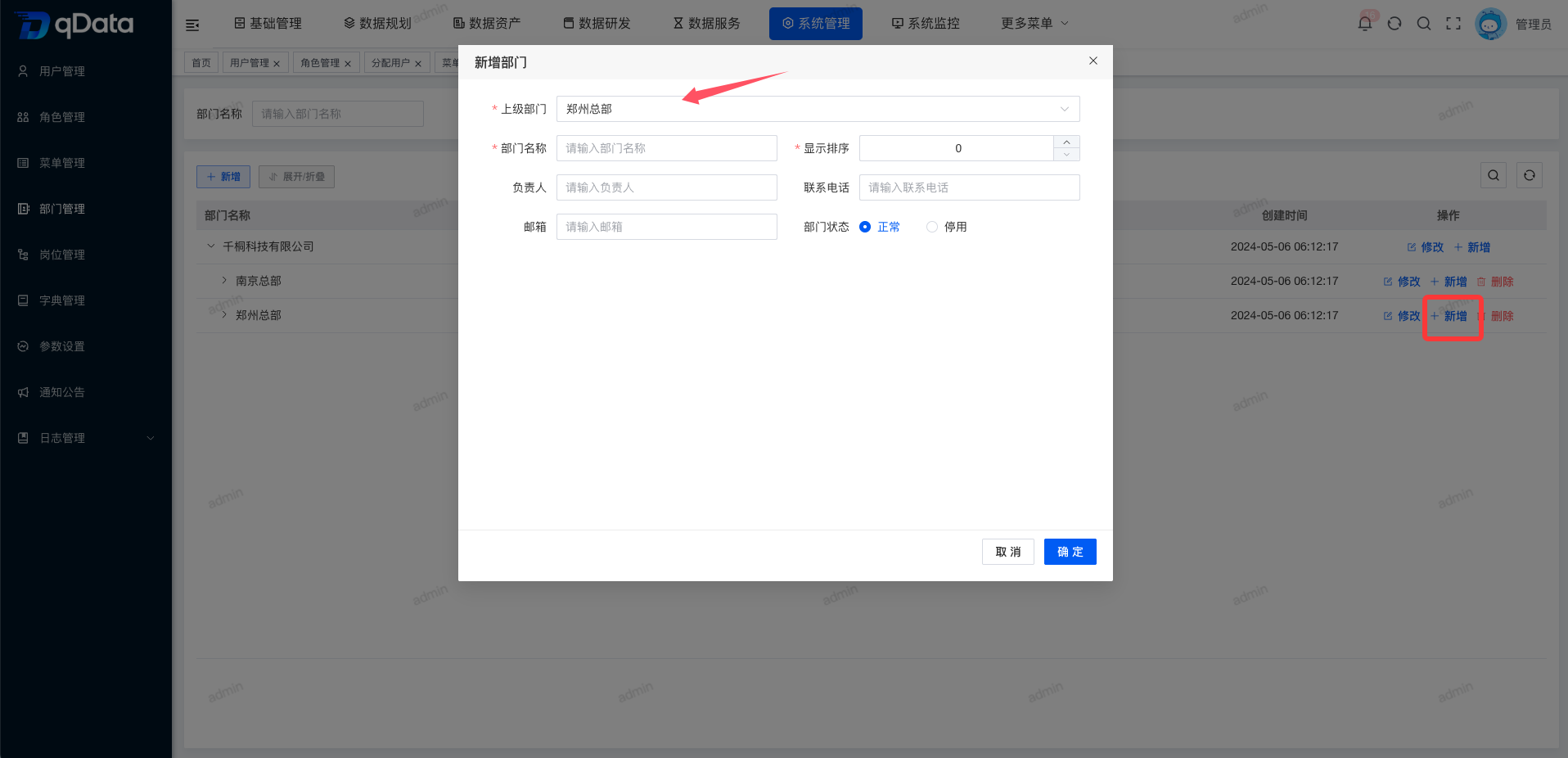
Select the target parent department and click Add in its operation column. The Parent Department field in the dialog is filled automatically with the current department. Enter the remaining information and click OK to add a child department.
6. Expand or Collapse
Click Expand/Collapse to switch the tree list between expanded and collapsed states.