Login Logs
6/11/26About 1 minAdministrator Manual
1. Login Logs Page
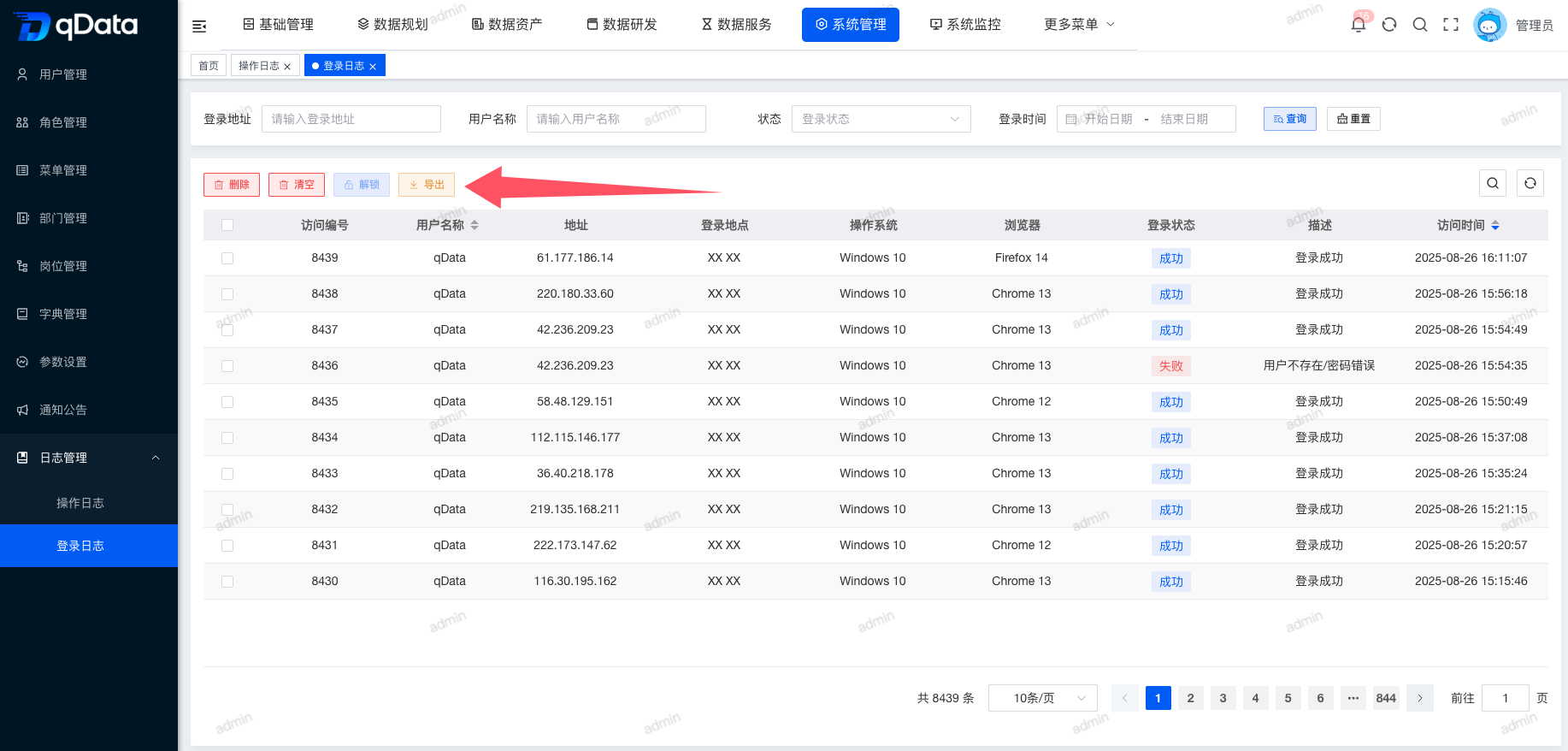
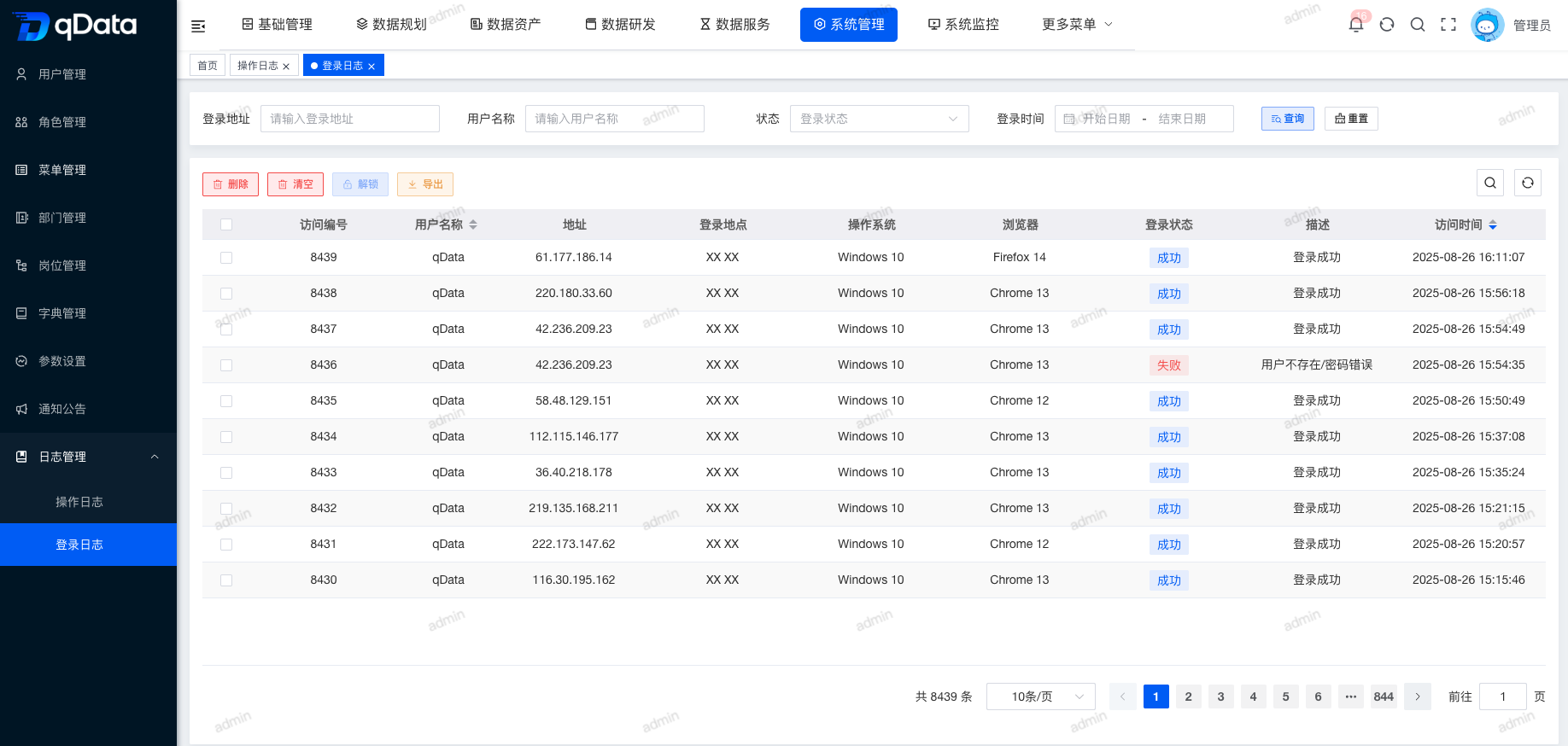
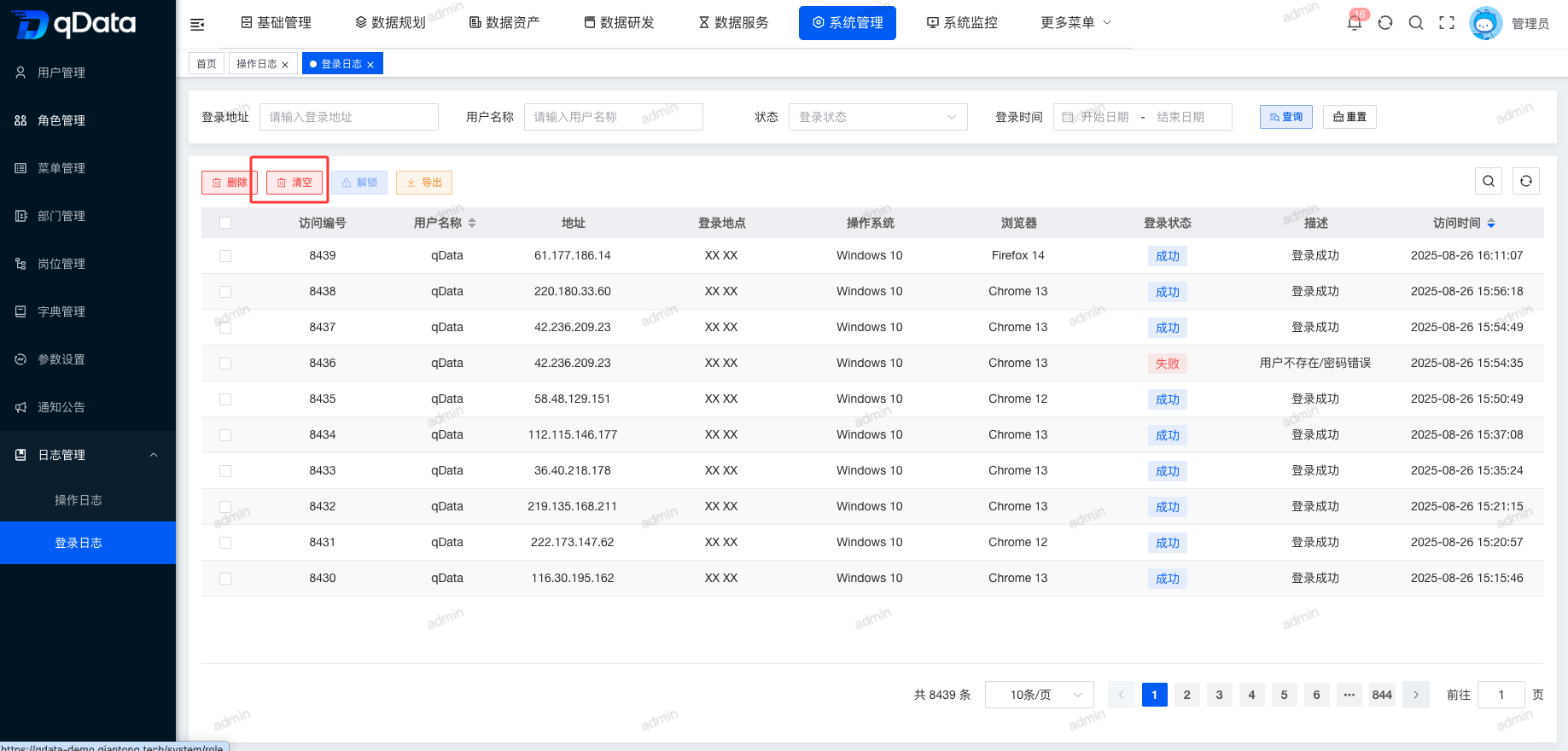
Click Login Logs under System Management to open the Login Logs page. This page displays a list containing fields such as access ID, username, address, login location, operating system, browser, login status, and description.
2. Unlock
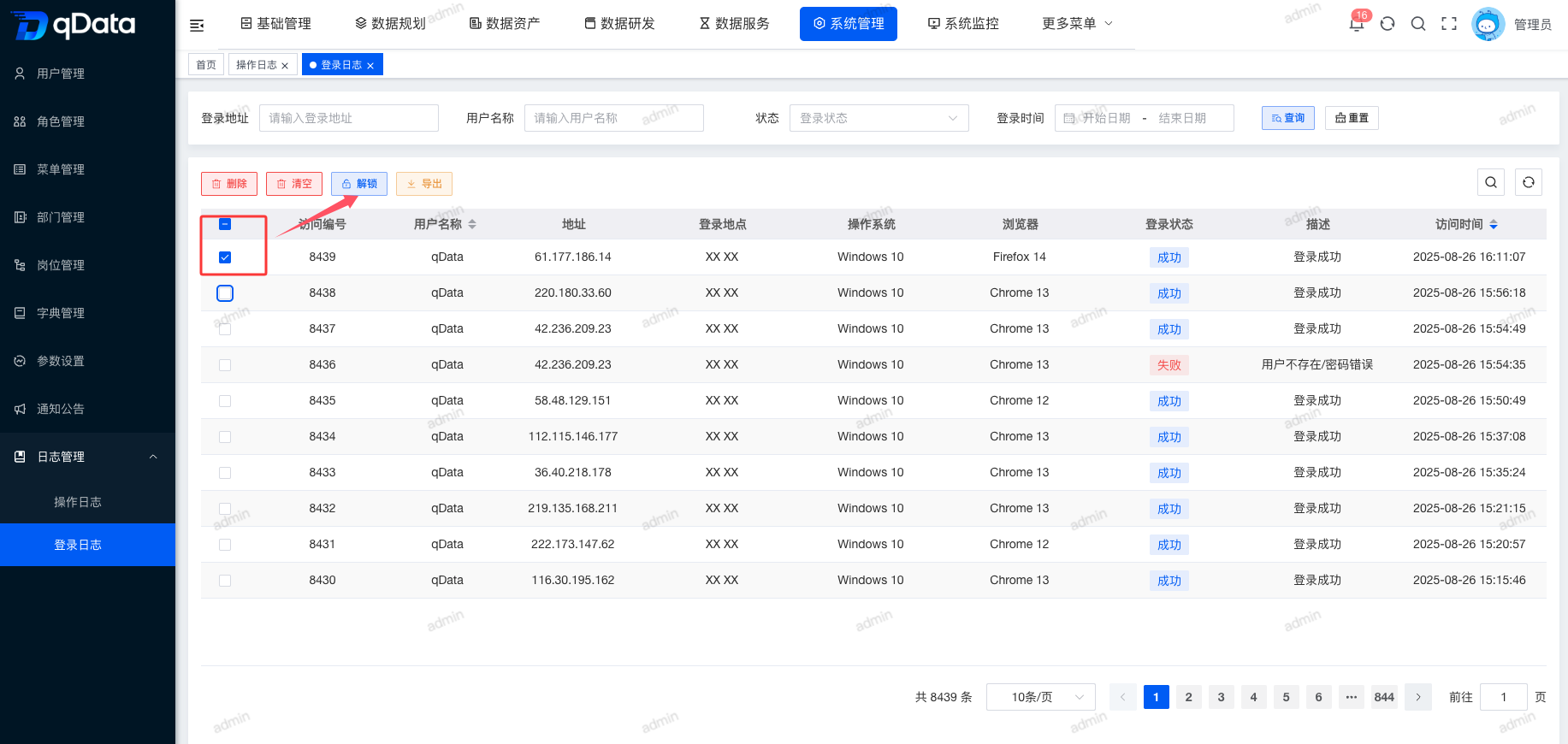
Select the checkbox for the login log that needs to be unlocked, click the Unlock button on the page, and click OK. The system will unlock it.
3. Batch Delete Login Logs
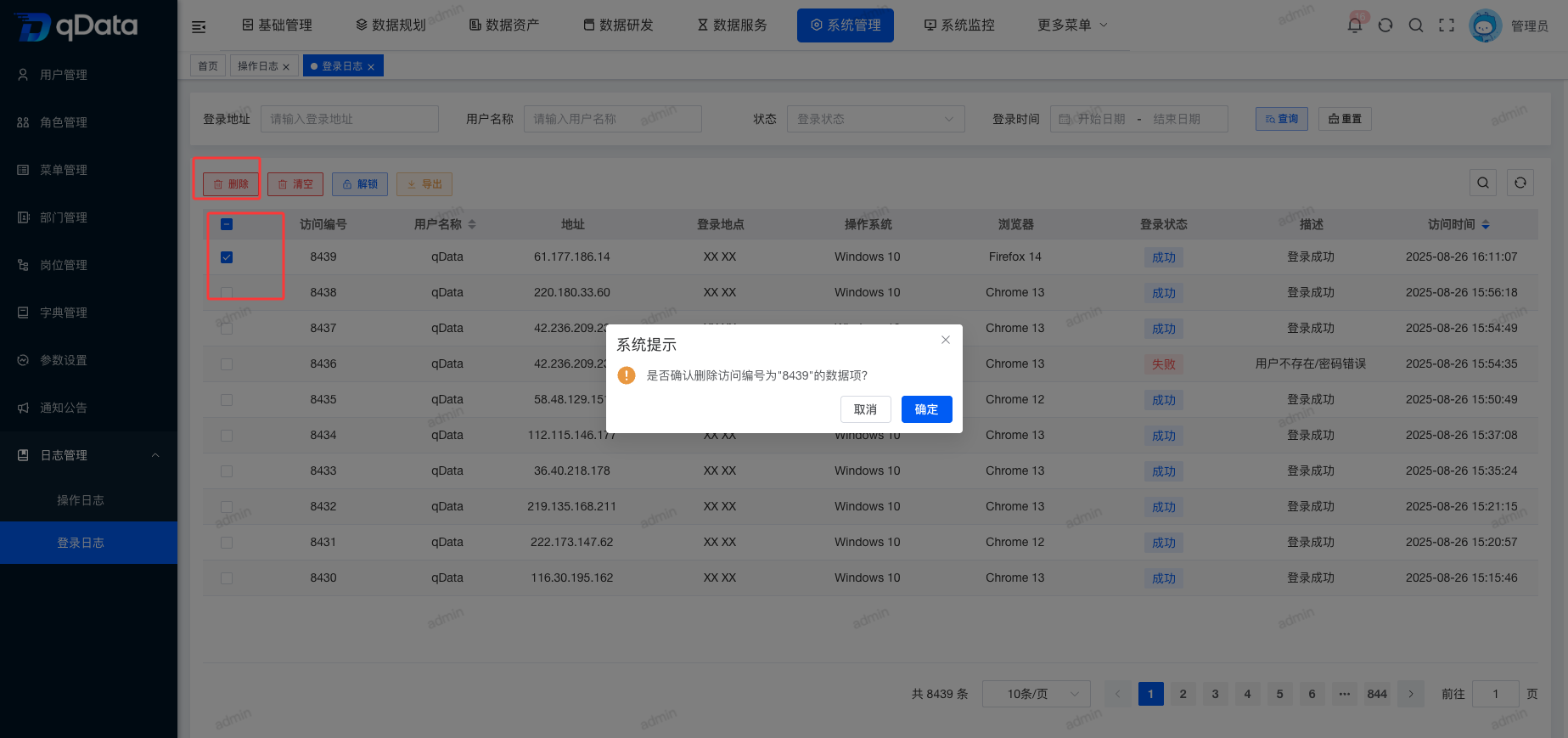
Select multiple login log checkboxes in the page list, click Delete, confirm the deletion in the dialog, and click OK to complete batch deletion of login logs.
4. Clear Login Logs
Click the Clear button on the page and click OK to clear login logs.
5. Export Operation Logs
Click the Export button on the page. The exported file will be downloaded automatically and can be viewed in the browser download list.