Dictionary Management
1. Dictionary Management Page
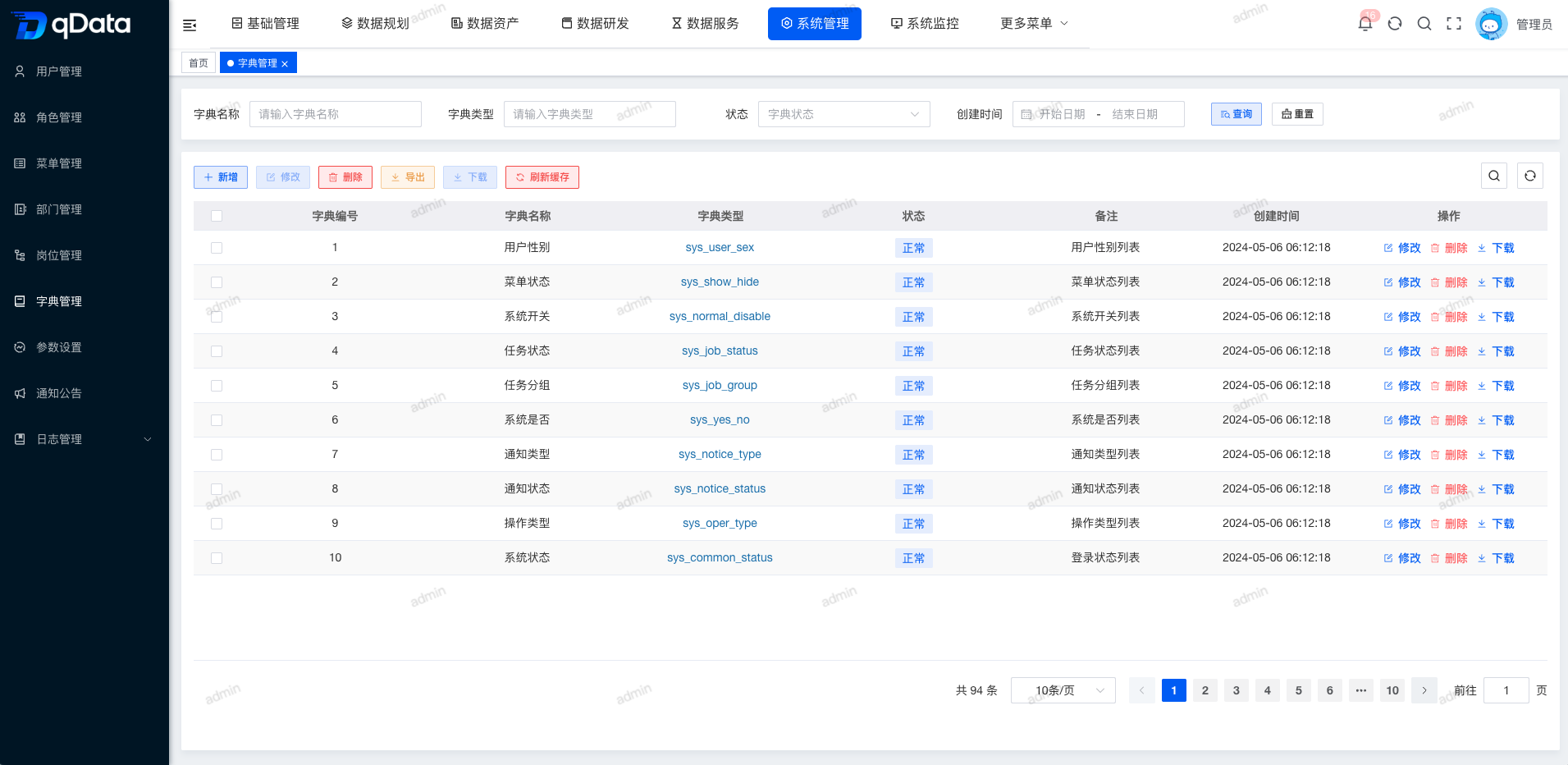
Click Dictionary Management under System Management to open the Dictionary Management page. This page displays a list containing fields such as dictionary ID, dictionary name, dictionary type, status, remarks, and creation time.
2. Add Dictionary Information
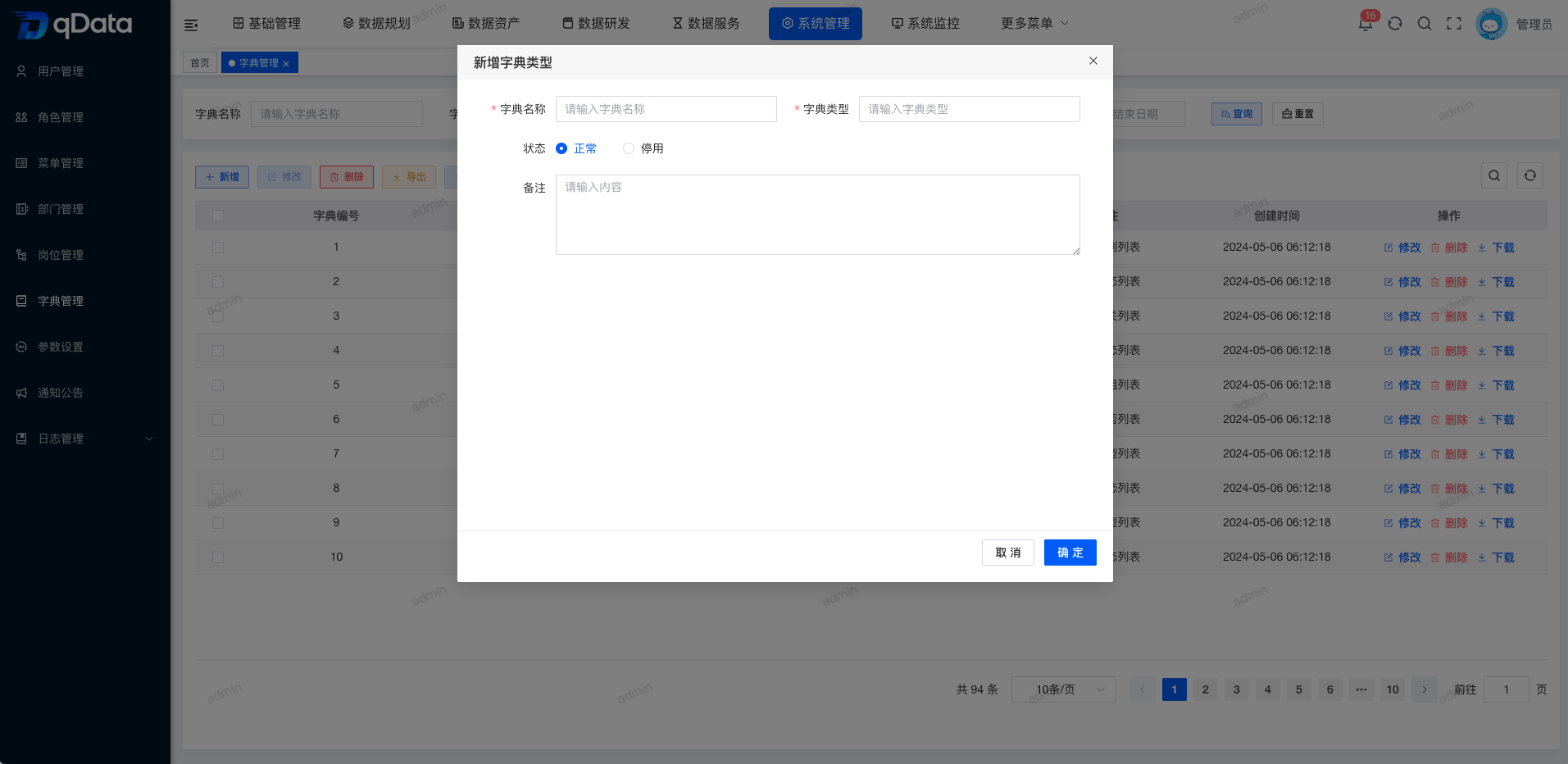
Click Add, fill in the dictionary information in the dialog, and click OK to complete adding dictionary information.
3. Edit Dictionary Information
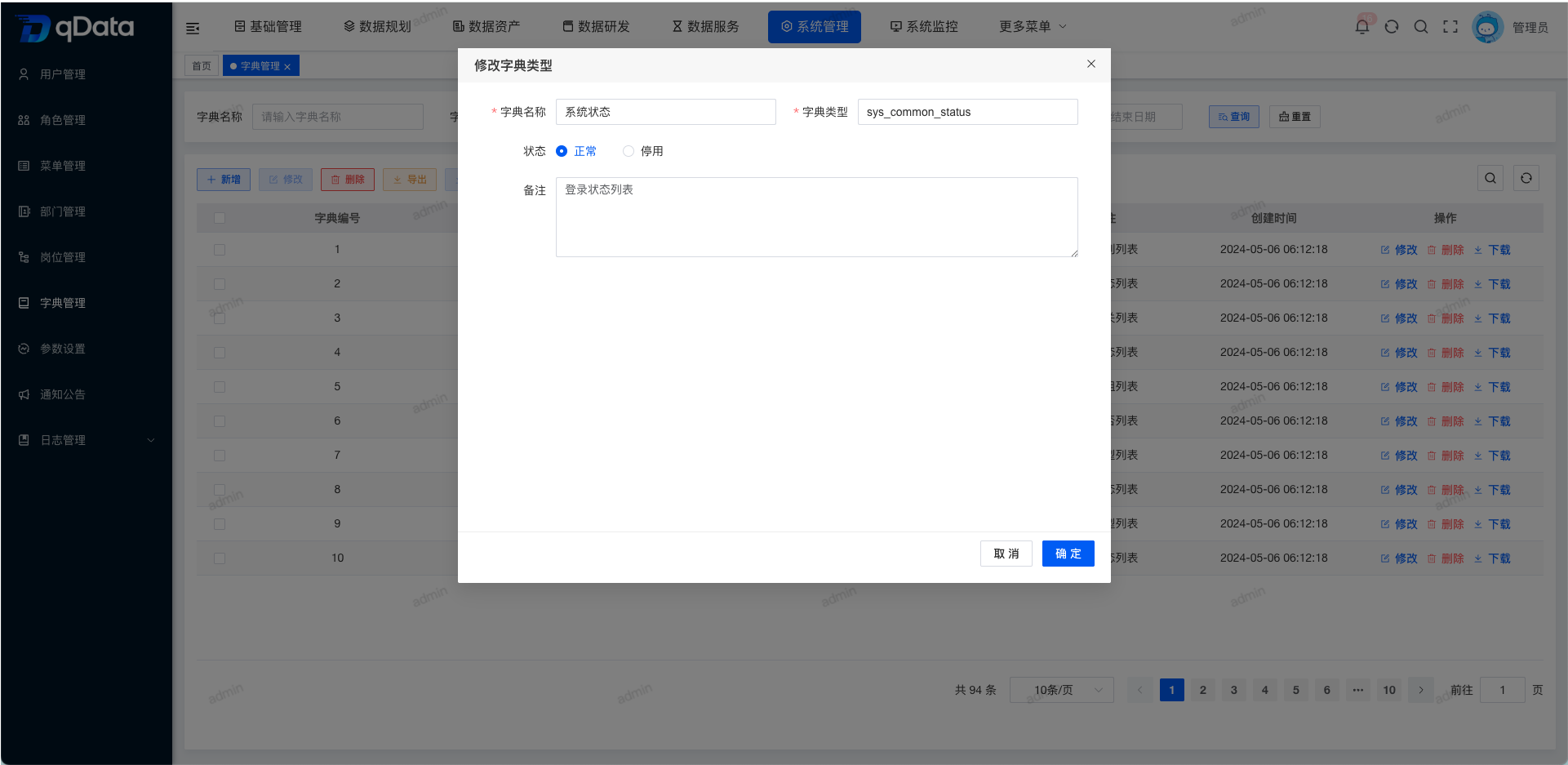
Select the dictionary information to edit, click Edit in the operation column, modify the existing dictionary information in the dialog, and click OK to complete editing dictionary information.
4. Delete Dictionary Information
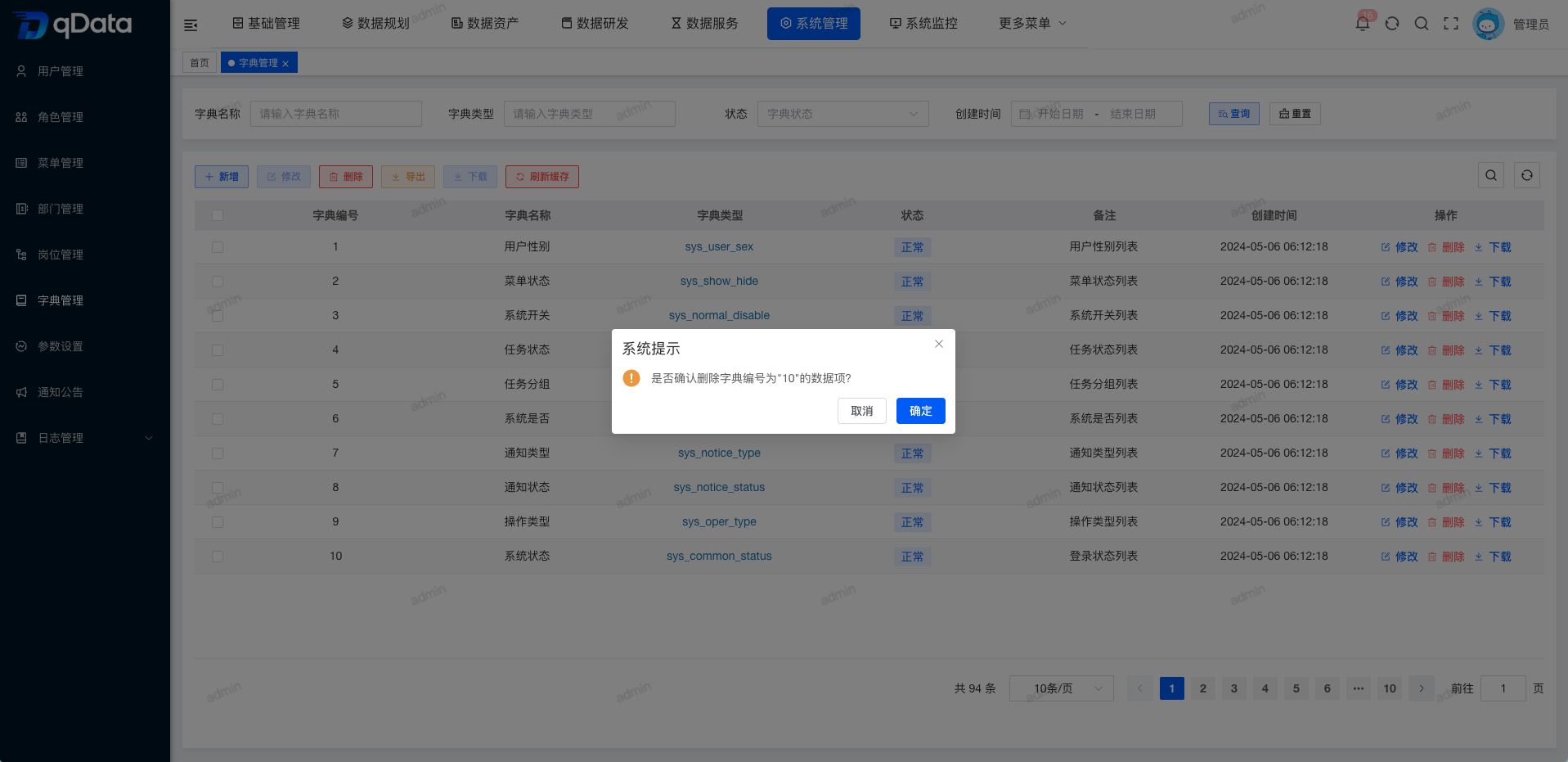
Select the dictionary information to delete, click Delete in the operation column, and click OK. The system will delete the dictionary information.
5. Batch Delete Dictionary Information
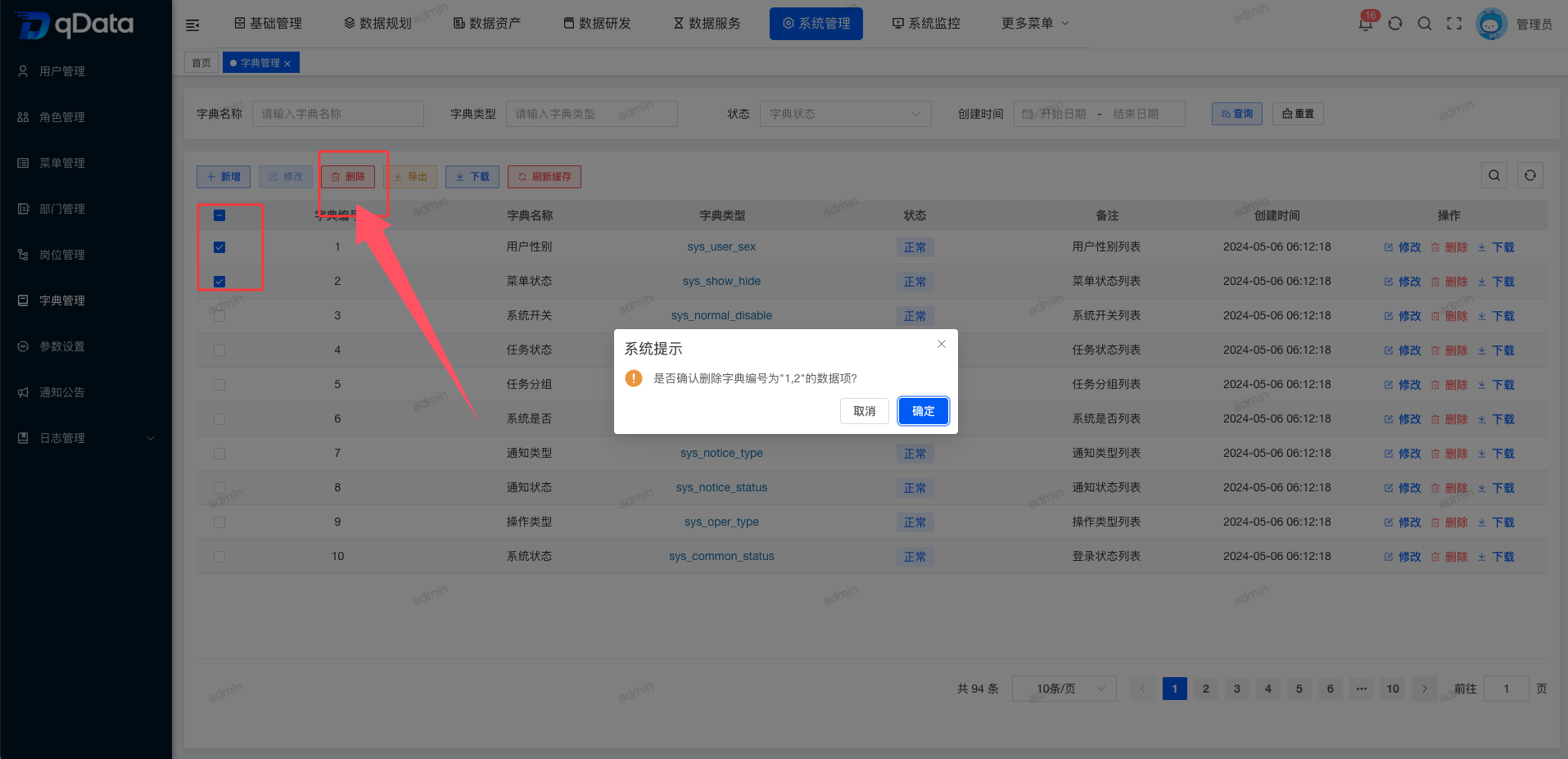
Select multiple dictionary information checkboxes in the page list, click Delete, confirm the deletion in the dialog, and click OK to complete batch deletion of dictionary information.
6. Export Dictionary Information
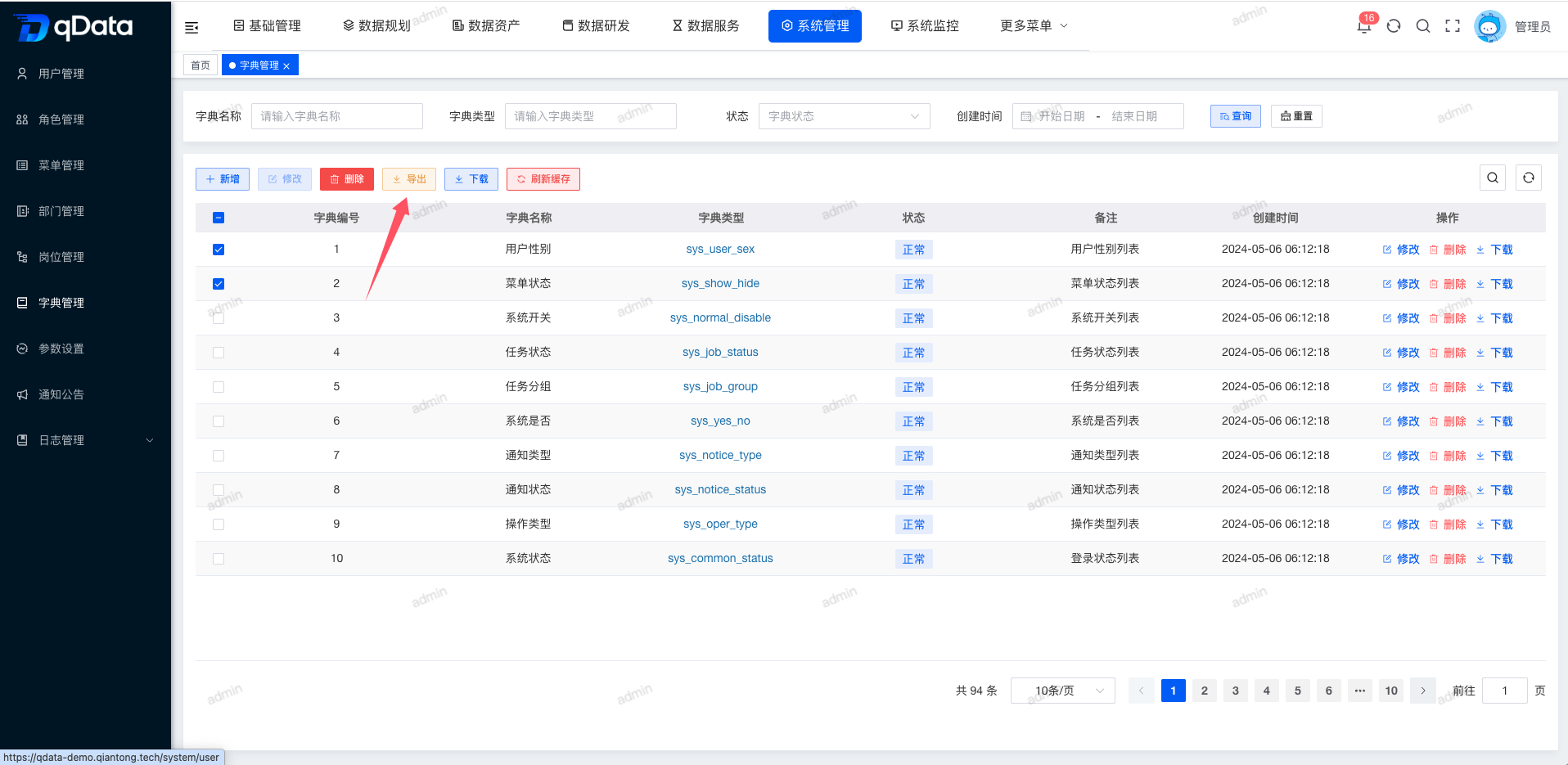
Click the Export button on the page. The exported file will be downloaded automatically and can be viewed in the browser download list.
7. Download Dictionary Information
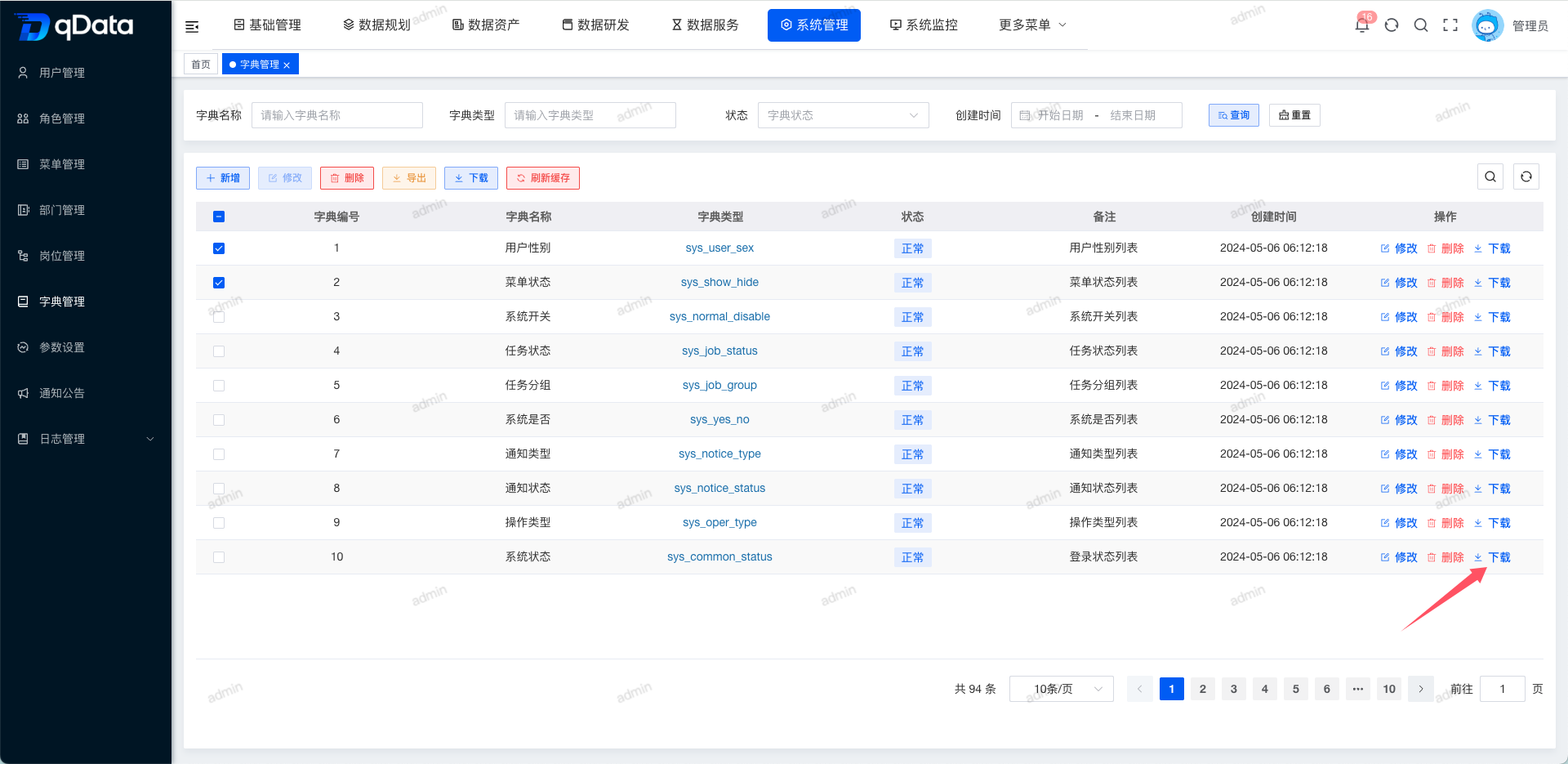
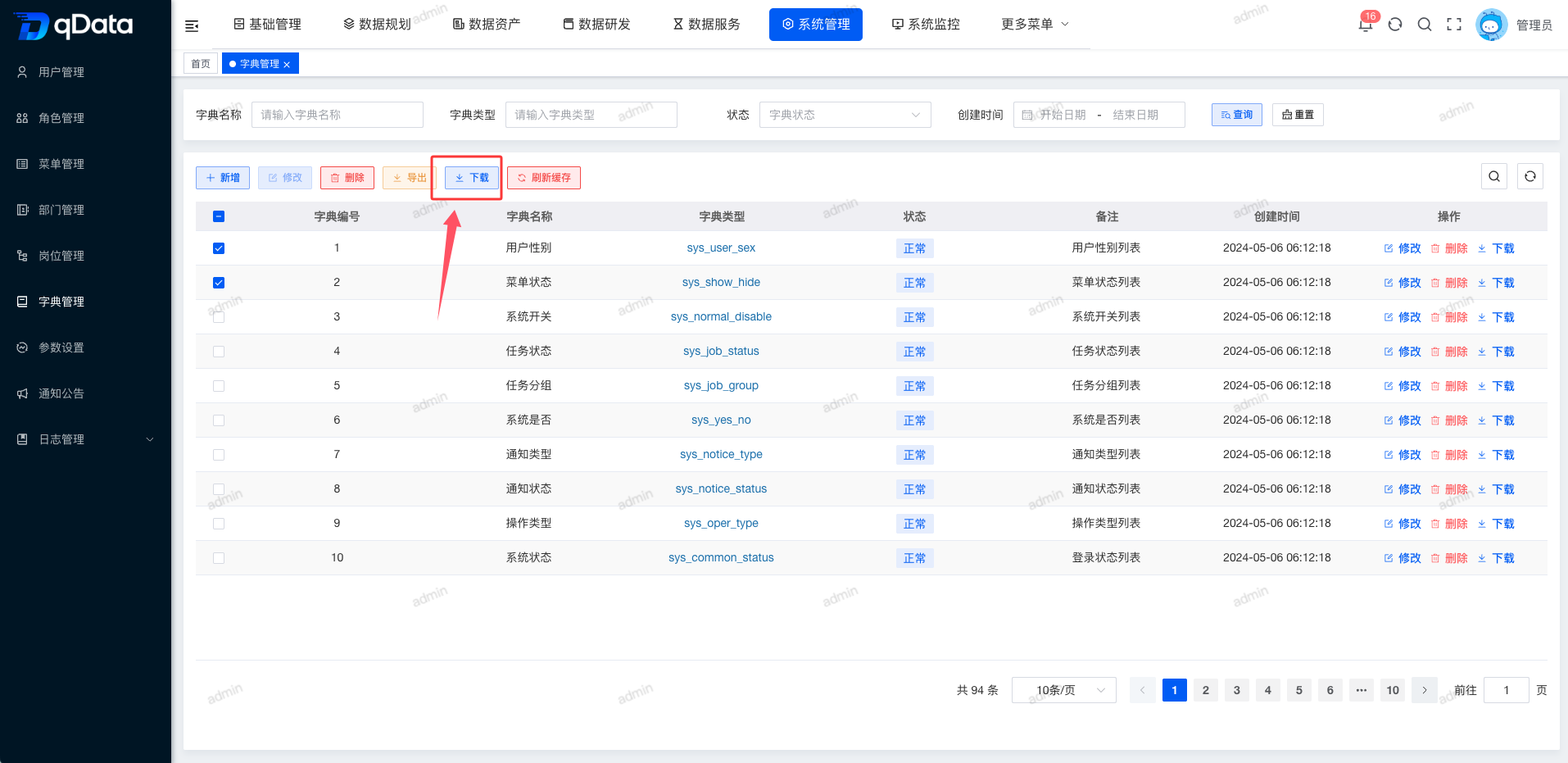
Select the dictionary information to download, click Download in the operation column, and the compressed file will be downloaded automatically. You can view it in the browser download list.
8. Batch Download Dictionary Information
Select multiple dictionary information checkboxes in the page list, click Download, and the compressed file will be downloaded automatically. You can view it in the browser download list.
9. Refresh Cache
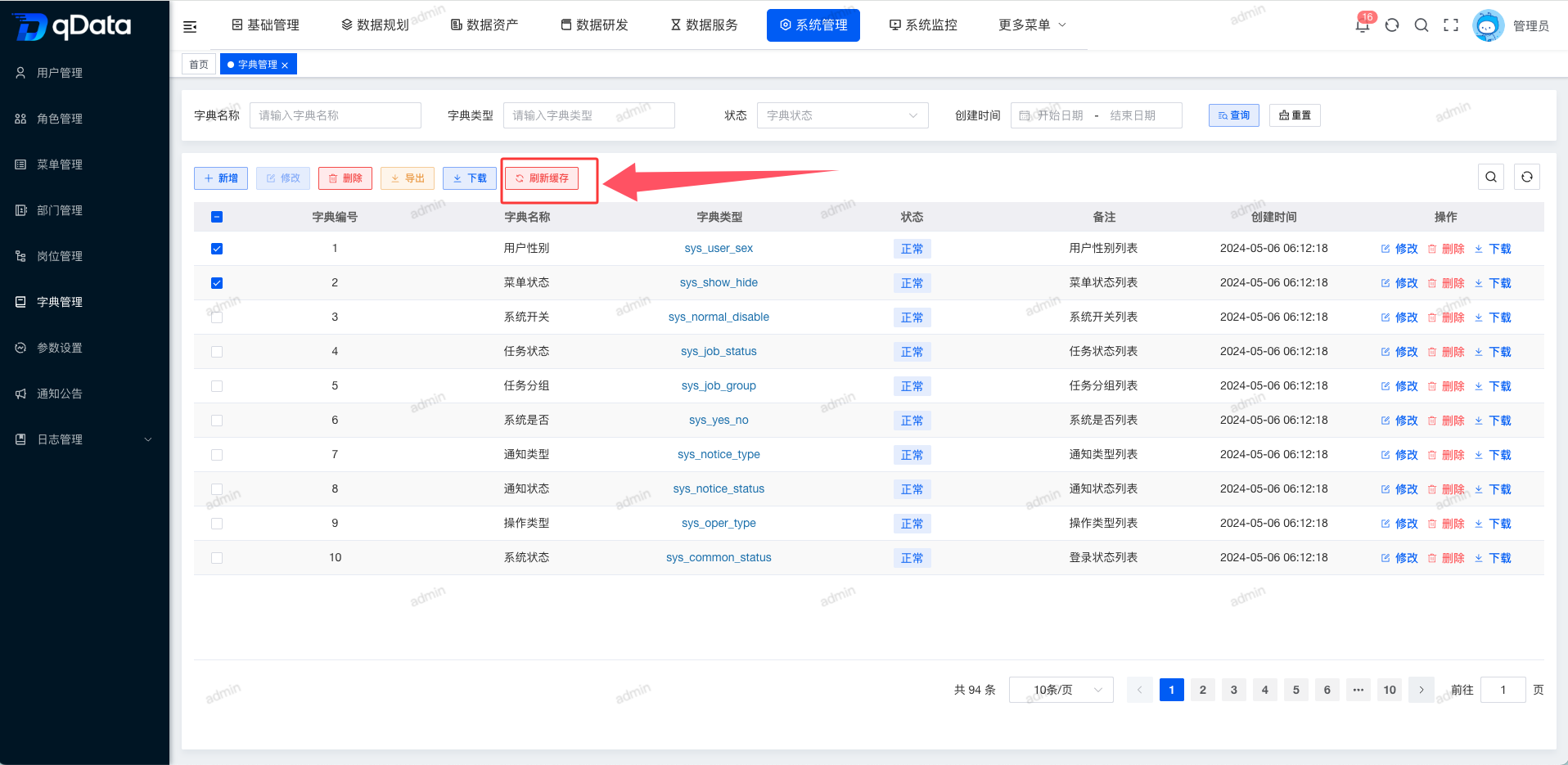
Click the Refresh Cache button on the page to refresh the dictionary cache.
10. Dictionary Data
10.1. Dictionary Data Page
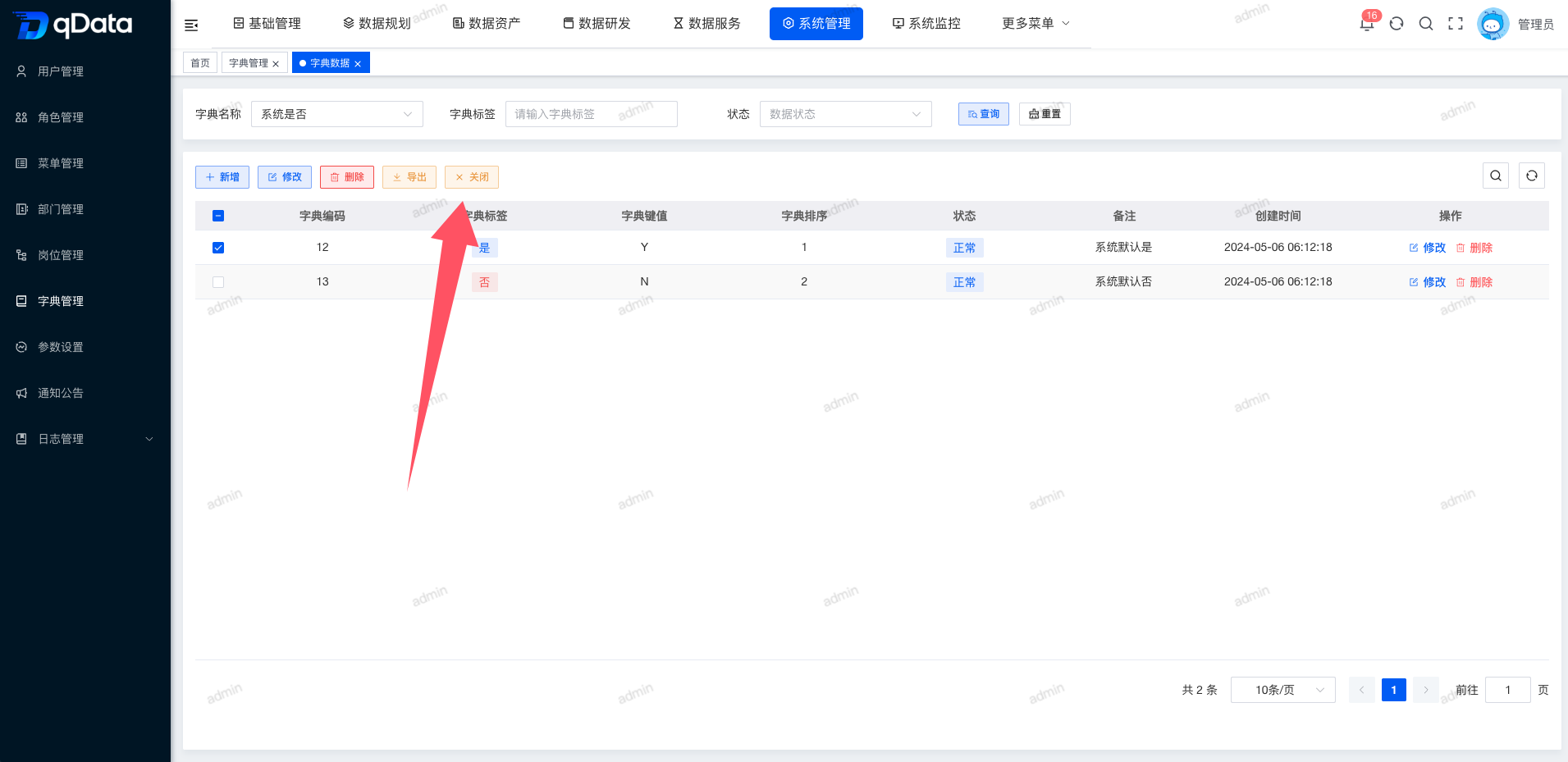
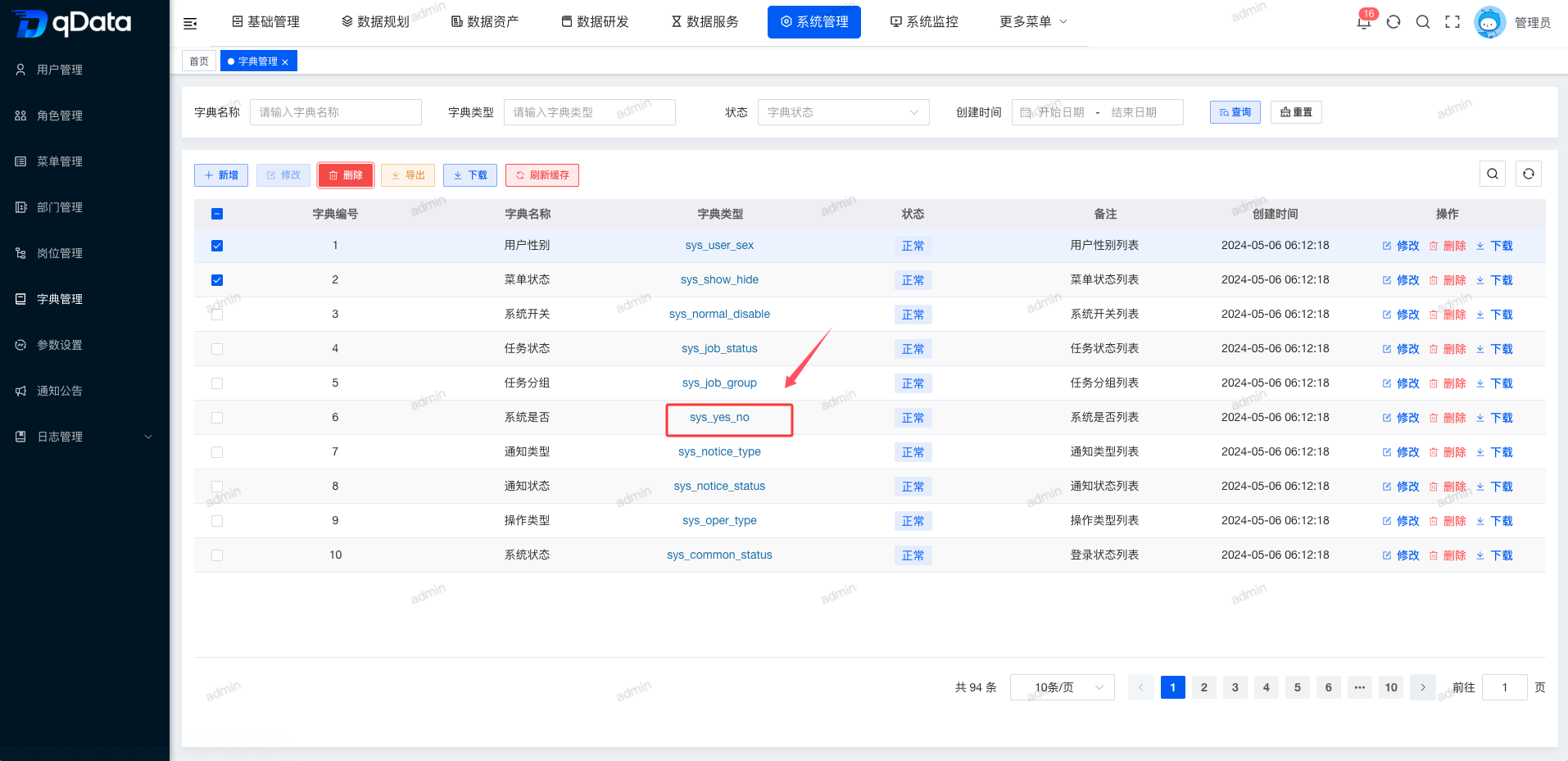
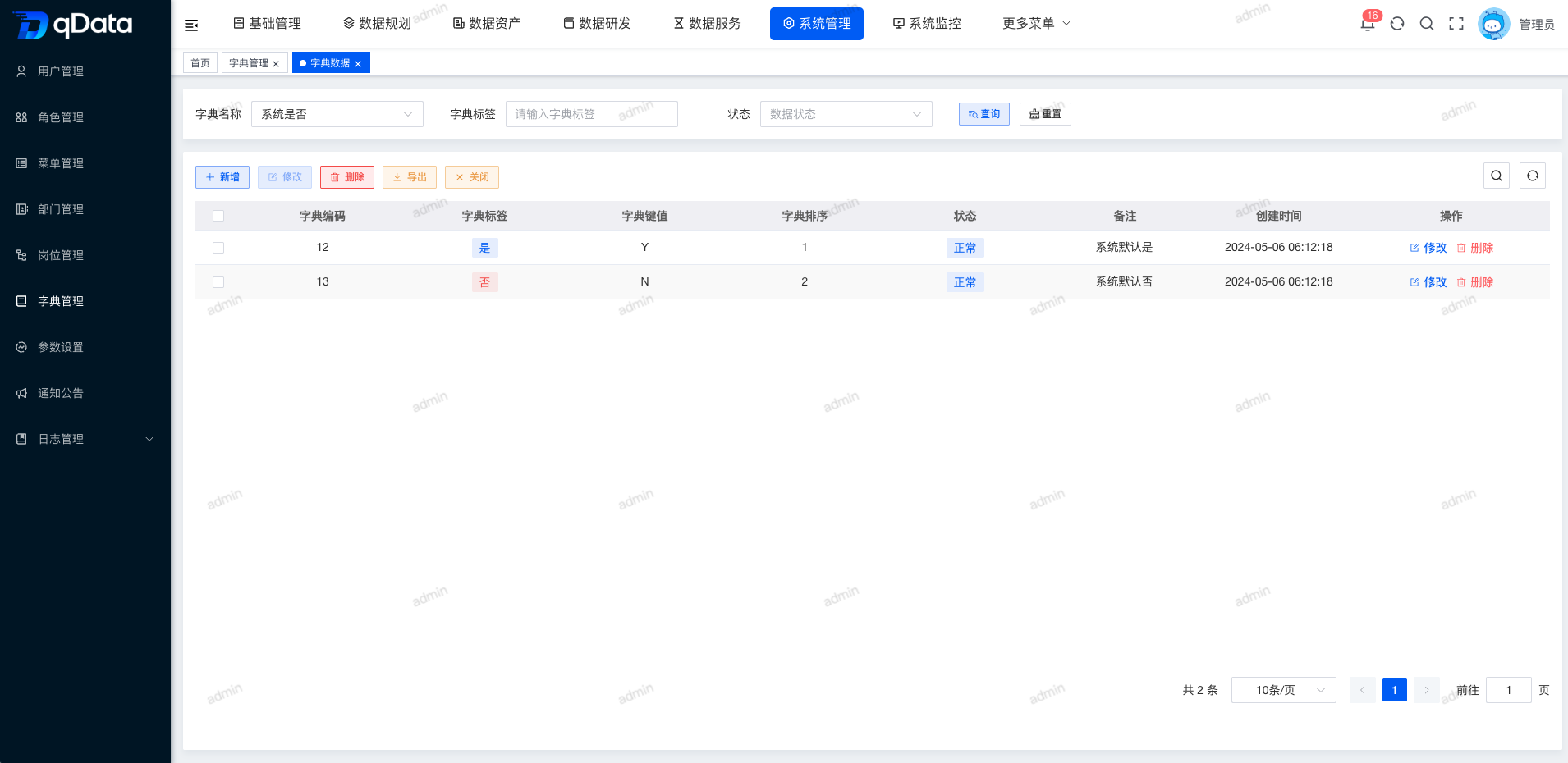
In the Dictionary Management list, locate the column containing dictionary type, and click the corresponding dictionary type link to open the Dictionary Data page. The Dictionary Data page displays a list containing fields such as dictionary code, dictionary label, dictionary key value, dictionary sort order, status, remarks, and creation time.
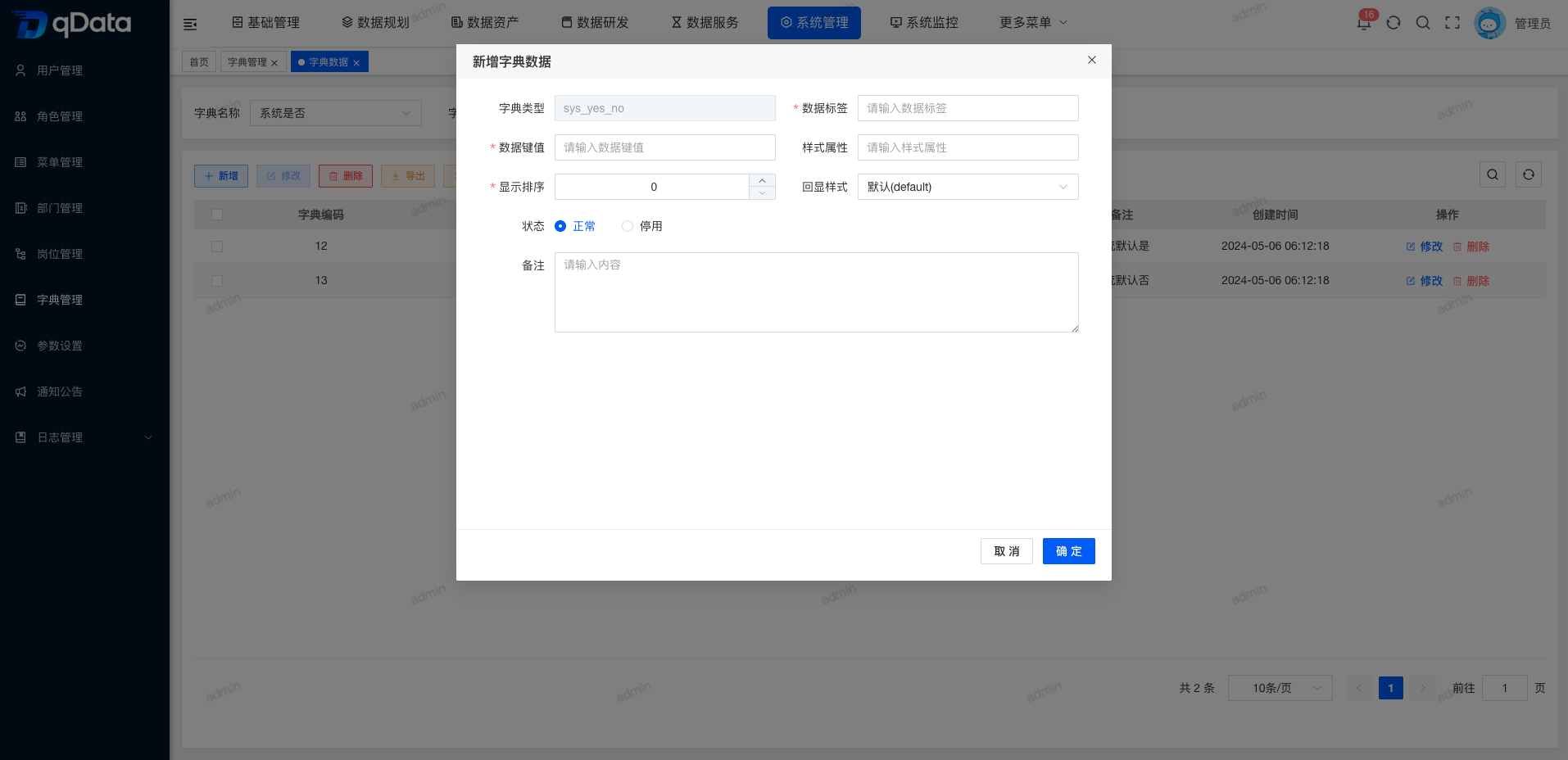
10.2. Add Dictionary Data
On the Dictionary Data page, click Add, fill in the dictionary data in the dialog, and click OK to complete adding dictionary data.
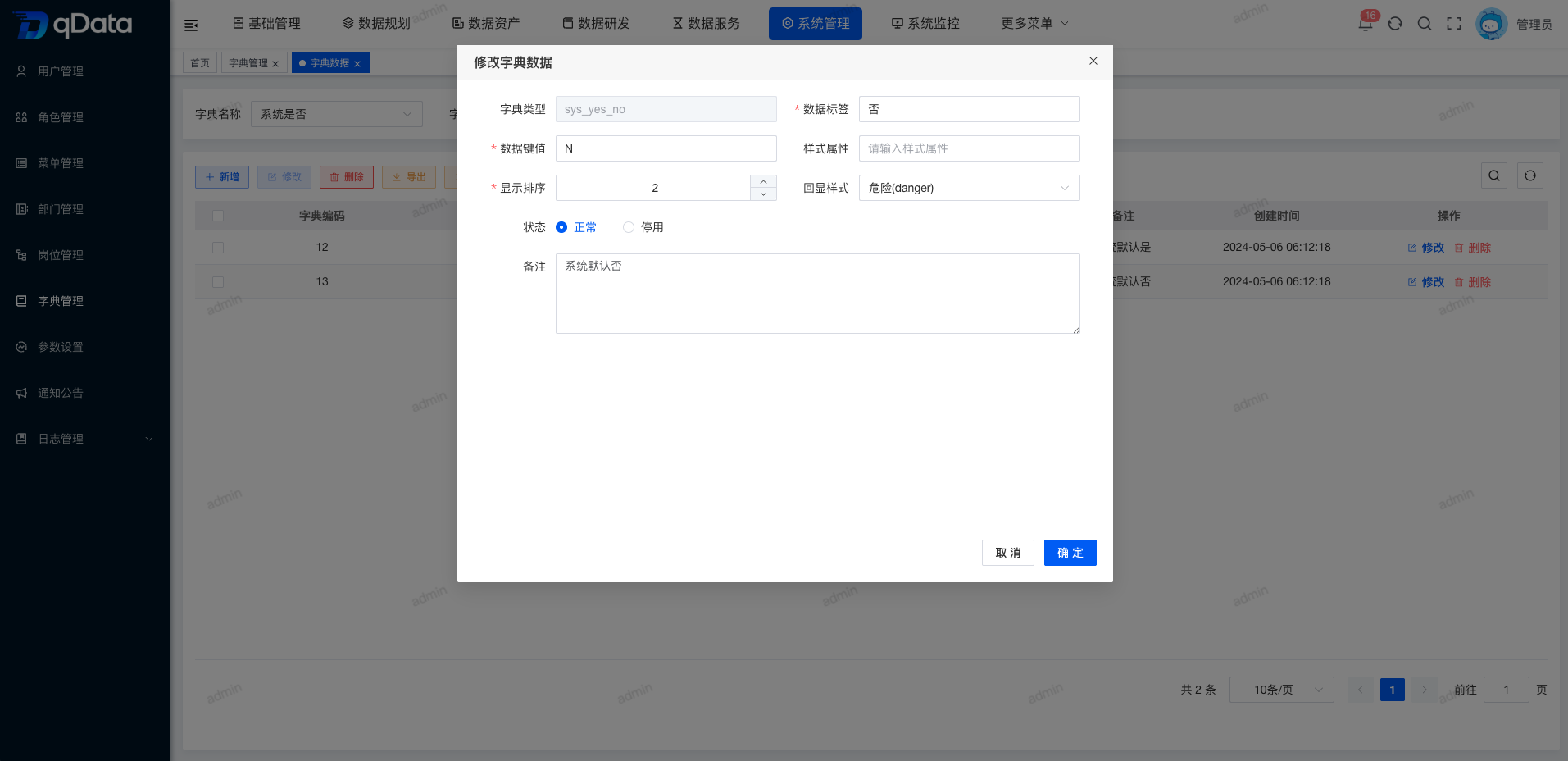
10.3. Edit Dictionary Data
On the Dictionary Data page, select the dictionary data to edit, click Edit in the operation column, modify the existing dictionary data in the dialog, and click OK to complete editing dictionary data.
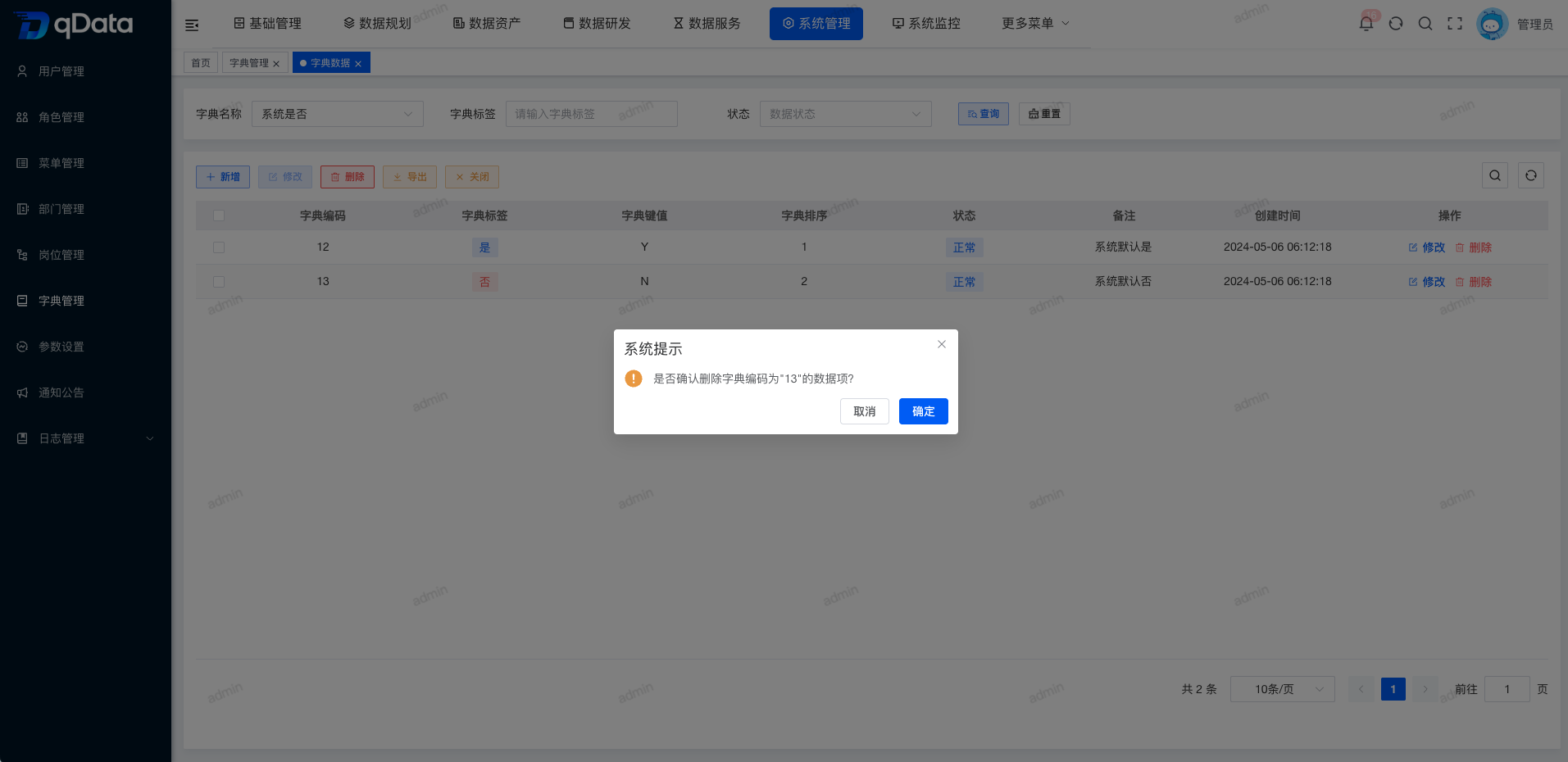
10.4. Delete Dictionary Data
On the Dictionary Data page, select the dictionary data to delete, click Delete in the operation column, and click OK. The system will delete the dictionary data.
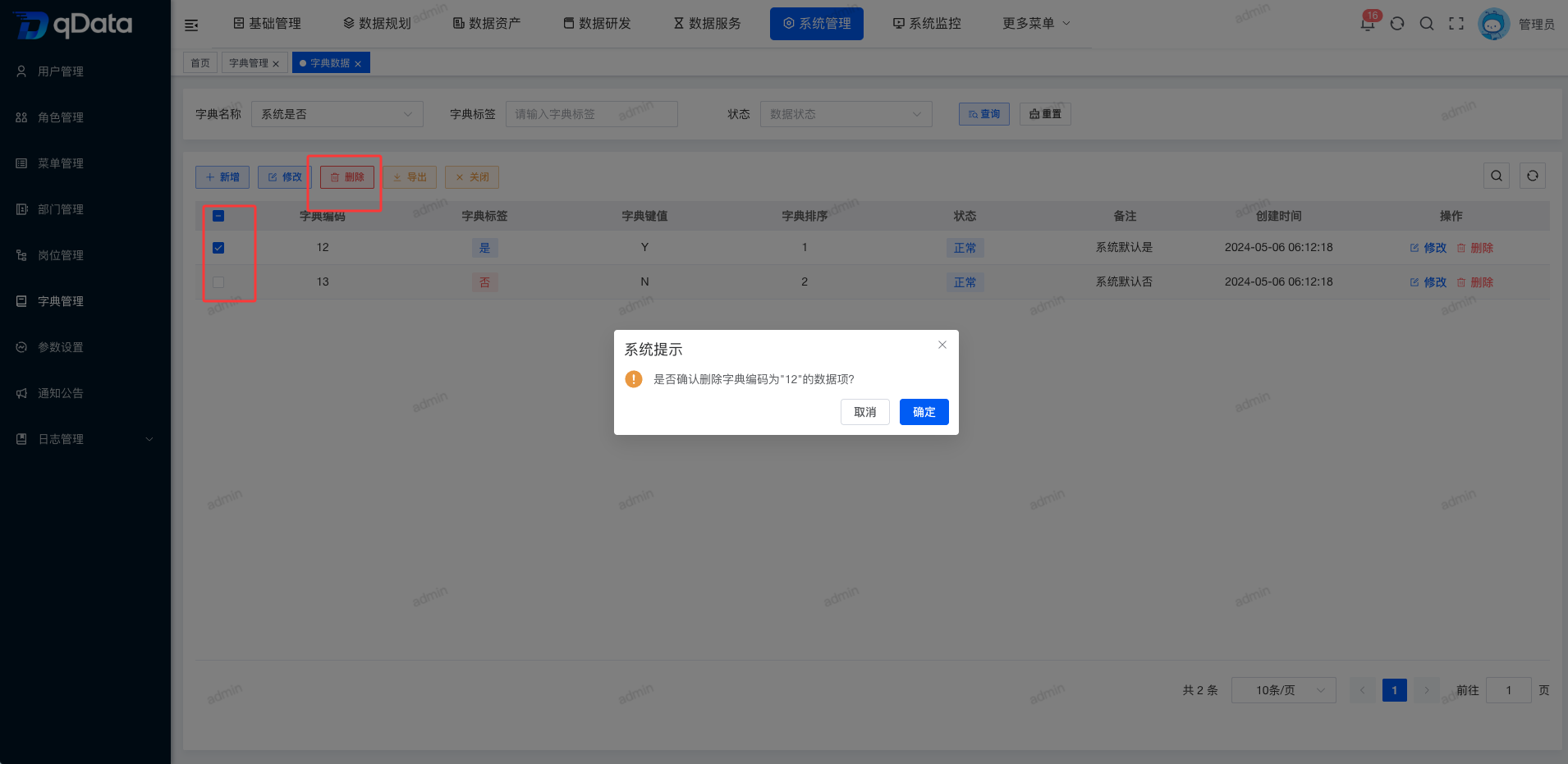
10.5. Batch Delete Dictionary Data
On the Dictionary Data page, select multiple dictionary data checkboxes in the page list, click Delete, confirm the deletion in the dialog, and click OK to complete batch deletion of dictionary data.
10.6. Export Dictionary Information
On the Dictionary Data page, click Export. The exported file will be downloaded automatically and can be viewed in the browser download list.
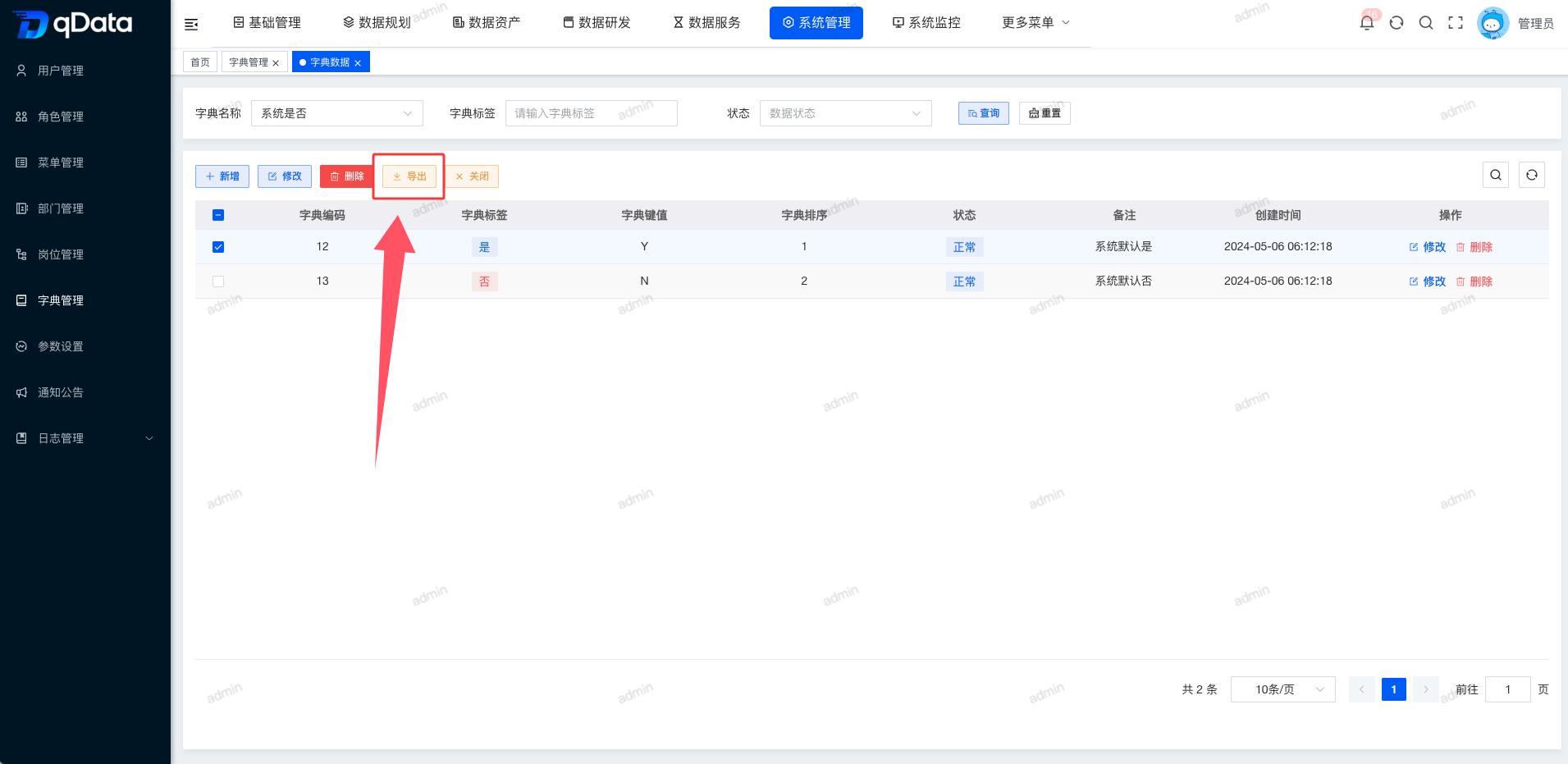
10.7. Close Dictionary Data Page
On the Dictionary Data page, click Close to close the Dictionary Data page.