
Create model
Feature overview
Functional positioning
Create model is used to establish logical models according to business classification, data domain, data warehouse layering and table type, and maintain the attribute fields of the model. After the model is saved, you can select the target database to publish on the [Publish Model] page.
Simple understanding: First determine the model ownership and table name, and then complete the fields; if there is a physical table, you can also directly read its fields to generate the model.
Usage suggestions
First confirm the upstream information such as business classification, data domain and data warehouse stratification, and then select [Manual Entry] or [Materialized Table Generation] according to the source. Before submitting, focus on checking the complete table name, field type, primary key and required attributes.
Main features
- Model retrieval: Locate logical models hierarchically according to the classification tree on the left, model Chinese name, English name and data warehouse.
- Multiple modeling methods: Select the table type through [Detailed Table], [Summary Table], [Dimension Table] or [Application Table], and support manual entry or materialized table generation.
- Field maintenance: Add attribute fields, set data type, length, primary key and required attributes.
Scope
This page covers the query, creation, field maintenance, modification, details, status and deletion entries of the logical model; it is not responsible for publishing the logical model to the database, nor does it define data development tasks and scheduling.
Scope hint
[OK] What is saved is the logical model configuration; to synchronize the model structure to the database, you need to enter the [Publish Model] page to perform publishing.
Preliminary steps
Preconditions
- Logged in to the qData platform.
- You have entered the [Data Modeling] module.
- Business classification, data domain and data warehouse layering have been maintained.
- When using [Materialized Table Generation], the target data connection and source table are available.
Navigation path
Data Modeling > Logical Model > Create Model
Page overview
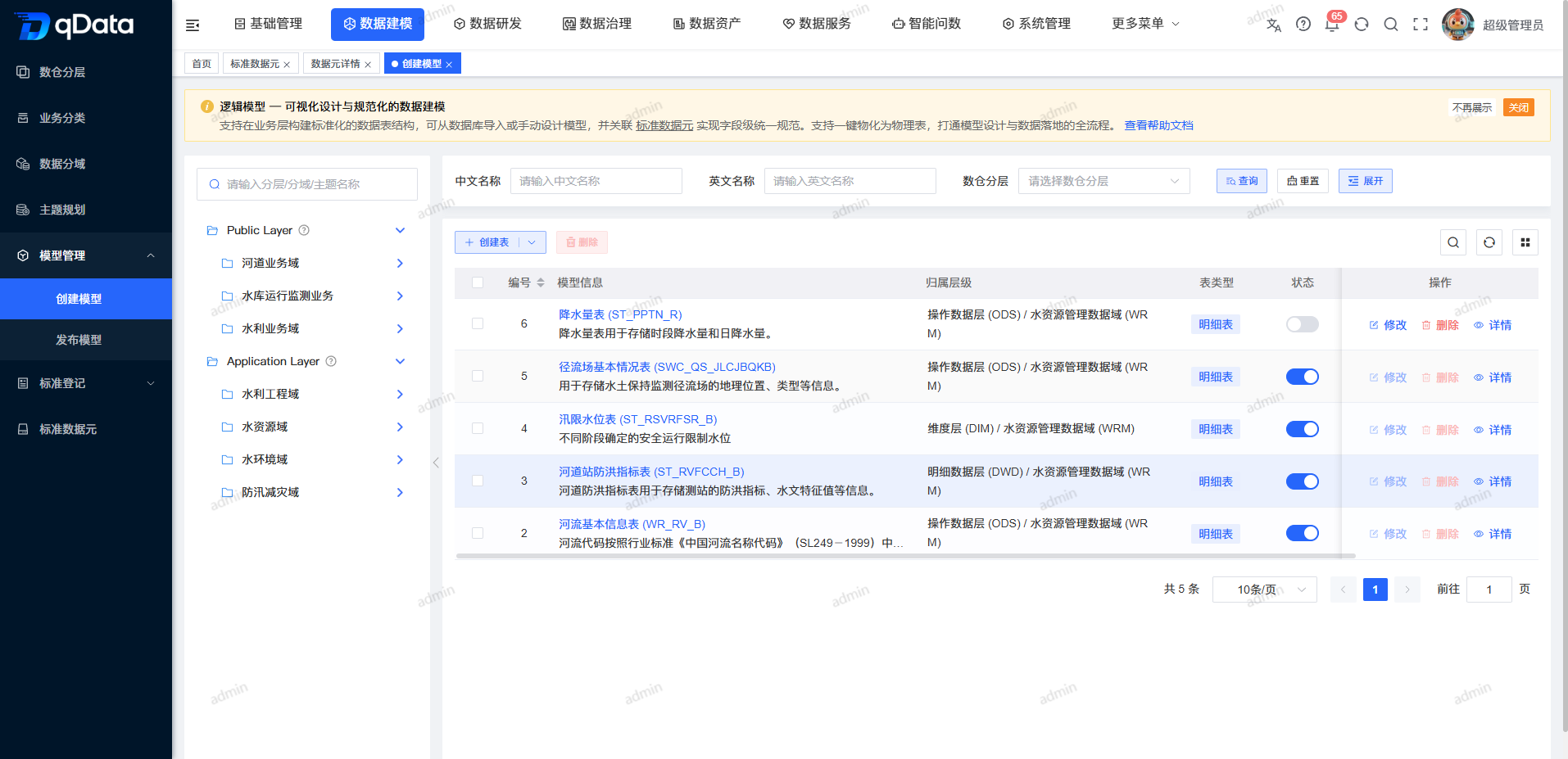
The left side of the page provides a classification tree, and the right side contains the model query area, [Create Table] entry and logical model list. The list can view the model name, ownership level, table type, status and operation entry.
Recommended operating procedures
Manual modeling: Locate the model scope -> Select the table type -> Select [Manual entry] -> Fill in the basic information -> Add attribute fields -> Submit and check the list results.
Materialized table generation: Select the table type -> Select [Materialized table generation] -> Select the data connection and source table -> Check the fields automatically brought out -> Submit and check the list results.
Functional operation instructions
Query logical models and select table types
- Select the target node in the classification tree on the left.
- Enter the Chinese name, English name of the model or select the data warehouse layer.
- If you want to display more query conditions, click [Expand].
- Click [Query].
- View matching model records and table types.
- Click [Reset] to restore the default results.
- Click [Create Table].
- Select [Details Table], [Summary Table], [Dimension Table] or [Application Table].
After the "New Logical Model" form opens on the page, continue to select the creation method.
Manual entry of logic model
- Select [Manual entry] in "Creation method".
- Fill in the basic information of the model.
| Field Name | Description | Required or not |
|---|---|---|
| Creation method | Select manual entry or materialized table generation. | Yes |
| Business Classification | Select the business ownership of the model. | Yes |
| Data Domains | Select the data boundaries for the model. | Yes |
| Data warehouse layer | Select the data warehouse level where the model is located. | Yes |
| Table English name | Fill in the English table name of the model and participate in the generation of the complete table name. | Yes |
| Table Chinese name | Fill in the Chinese name of the model. | Yes |
| Full table name | View or select the complete table name formed by naming rules. | Yes |
| Standard type | Select national, industry, local or group standards as needed. | No |
| Standard registration | Select the associated standard file as needed. | No |
| Responsible Person | Select the model responsible person as needed. | No |
| Contact number | Displays the contact number corresponding to the selected responsible person. | No |
| Status | Select Disabled or Enabled; the form is disabled by default. | No (system default) |
| Description | Fill in the description of the model purpose. | No |
| Remarks | Fill in the supplementary instructions. | No |
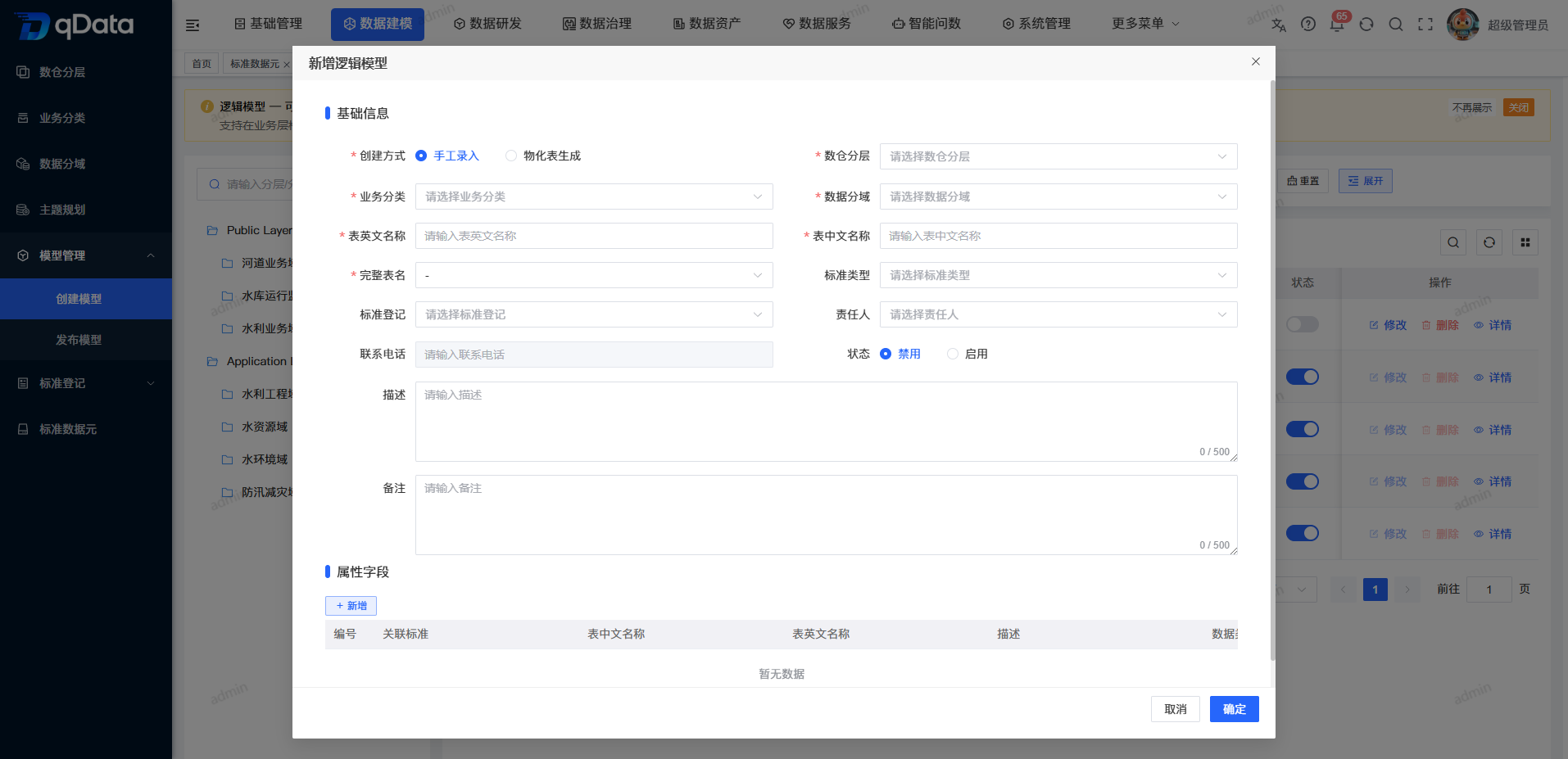
- Check the English name of the table, the Chinese name of the table and the complete table name.
- Click [Add] in the attribute field area.
- After completing the maintenance of attribute fields, click [OK].
- Return to the list to check the new model and save the results.
Add new attribute field
- Click [Add] in the attribute field area.
- Fill in the attribute field information.
| Field Name | Description | Required or not |
|---|---|---|
| Associated Standards | Select the standard data element or standard that the field refers to. | No |
| Chinese name | Fill in the Chinese business name of the field. | Yes |
| English name | Fill in the database field name. | Yes |
| Data Type | Select the field data type, such as VARCHAR, TINYINT, INTEGER, BIGINT, or DECIMAL. | Yes |
| Attribute length | Fill in the field length. | Yes |
| Decimal places | Numeric fields are filled with precision as required. | No |
| Default Value | Fill in the field default value as needed. | No |
| Description | Fill in the description of the field purpose. | No |
| Whether it is the primary key | Set whether the field is used as the primary key. | Yes |
| Is it required | Set whether the field is allowed to be empty. | Yes |
- Click [Confirm] to save the fields.
- Check the field name, type, and length in the attribute field list.
- Edit, delete fields or switch primary key status as needed.
Generate models from materialized tables
- Select [Materialized table generation] in "Creation method".
- Select a data connection name.
- Check the database type and database address brought out by the system.
- Select the source table in the Select table field.
- Check the English name, data type and length of the fields read by the system.
- Supplement information such as model business classification, data domain, data warehouse layering and name.
- Click [OK] to submit the model.
- Return to the list to check the generated results.
Modify, view and maintain models
- Locate the target record in the model list.
- Click [Modify] to adjust the basic information or attribute fields of the model.
- Click [Details] to view the model structure and detailed information.
- Use the status switch to toggle the enabled or disabled state.
- If you need to delete, click [Delete] and confirm according to the current prompts on the page.
- Return to the list to check the latest content and status.
Operation tips
After saving or modifying, first check the model ownership, complete table name, field type, primary key and required attributes, and then continue publishing on the [Publish Model] page. The specific results of the deletion operation are subject to the current confirmation prompt on the page.
FAQ
**How to form the complete table name?**The complete table name of
What is the difference between manual entry and materialized table generation?
manual entry is used to design the table structure from scratch; materialized table generation is used to select the data connection and source table, and read the source table fields to generate the model.**Why do you need to enter [Publish Model] after creating the model?**The
model creation page saves the logical model configuration; synchronizing the model structure to the target database requires publishing on the [Publish Model] page.
Summarize
The create model page covers logical model query, table type selection, manual modeling, materialized table generation and field maintenance. Before submitting, please focus on checking the model ownership, complete table name, field type, primary key and required attributes .