Data Integration
Definition
This module is used to configure and execute Data Integration (ETL) tasks. It supports multi-source data access, transformation, and writing, and is the core component for building data flows and data processing chains. Through node-based graphical configuration, users can complete the full process from data reading, cleaning, transformation, to landing.
Input Node Support
- 🗄️ Relational database table input, such as MySQL, Oracle, SQL Server, and Dameng;
- 🐝 Table input from Hive, Doris, and more;
- ⚡ Kafka message stream access for streaming processing;
- 📁 HDFS directory input, supporting formats such as CSV and TXT;
- 🌐 API input component, currently supporting JSON objects as input.
Output Node Support
- 🗄️ Table output, writing to relational databases;
- 🐝 Hive table output;
- 📁 Writing to HDFS.
Transformation Node Support (continually enhanced)
- Completed components: field selection, field renaming, value mapping, string replacement, adding constants, numeric ranges, string operations, setting field values, and more;
- Planned components: splitting fields into multiple rows, string trimming, setting fields as constants, setting sequences based on field values, dual-stream Join merge, row flattening, and more. Some UI has been completed;
- All components will continue to adapt to mainstream databases and remain consistent with the transformation capabilities of Data Quality Tasks.
Enhanced Features
- ✅ Supports Flink real-time task mode, and supports integrated stream-batch processing while retaining the original offline scheduling capability;
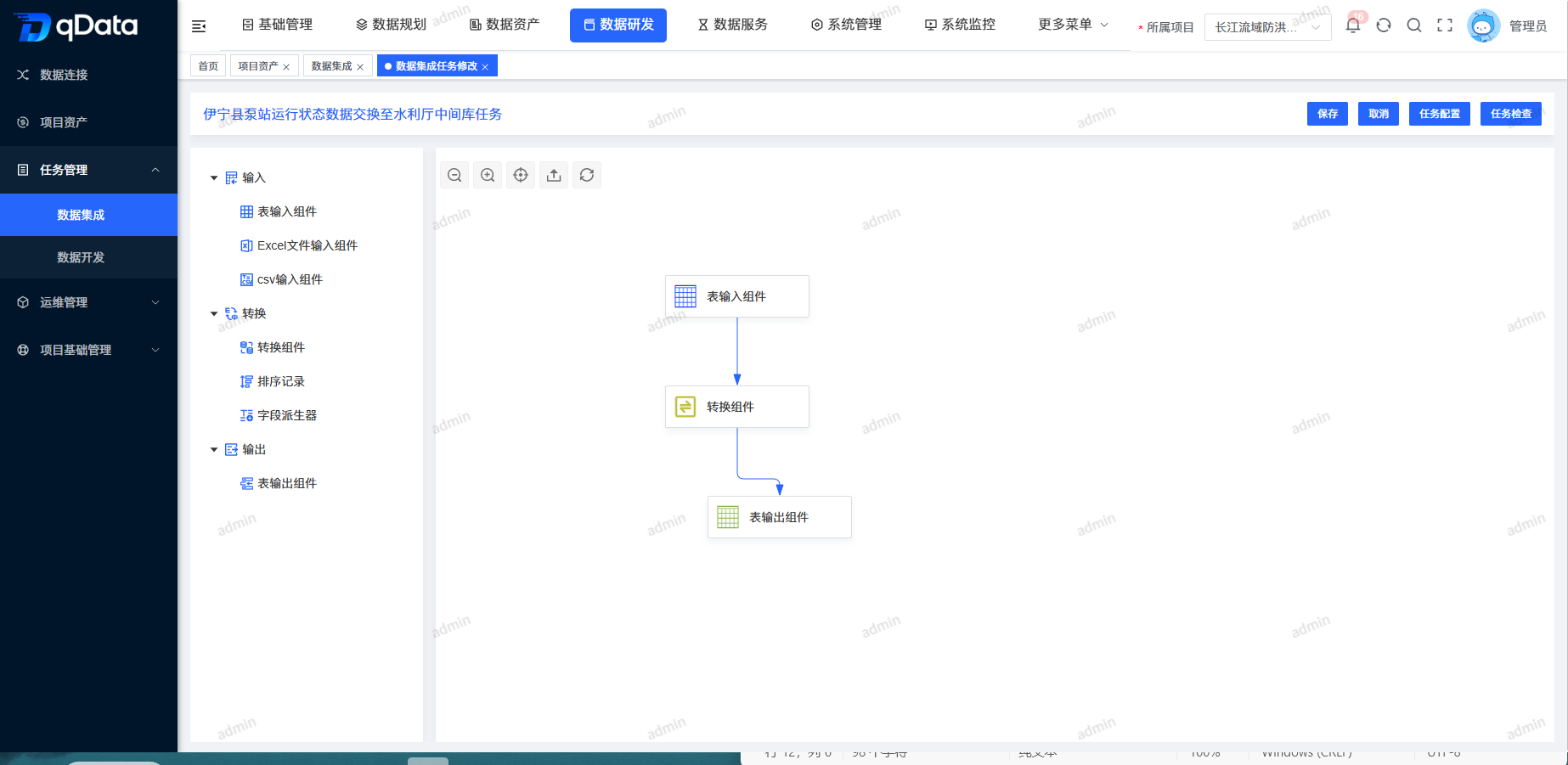
- 🔁 Supports a Kettle-like multi-node graphical configuration style, allowing multiple transformation nodes to be flexibly added for complex transformation logic orchestration;
- 🧩 The transformation component group has reconstructed UI interactions, unified the style with the quality task rule configuration method, and supports configuring dozens of Cleansing Rules.
Notes
Configure data source permissions and execution frequency reasonably to avoid excessive load on source systems. Streaming tasks should evaluate stability together with Kafka consumption strategies and Flink execution plans.
Scope
Applicable to integration processing scenarios for structured, semi-structured, and streaming data. It is widely used in key links such as data aggregation, Data Governance, and data lake/warehouse ingestion. It adapts to multiple data sources and targets, and supports rule-driven data transformation and cleaning.
1. Data Integration Page
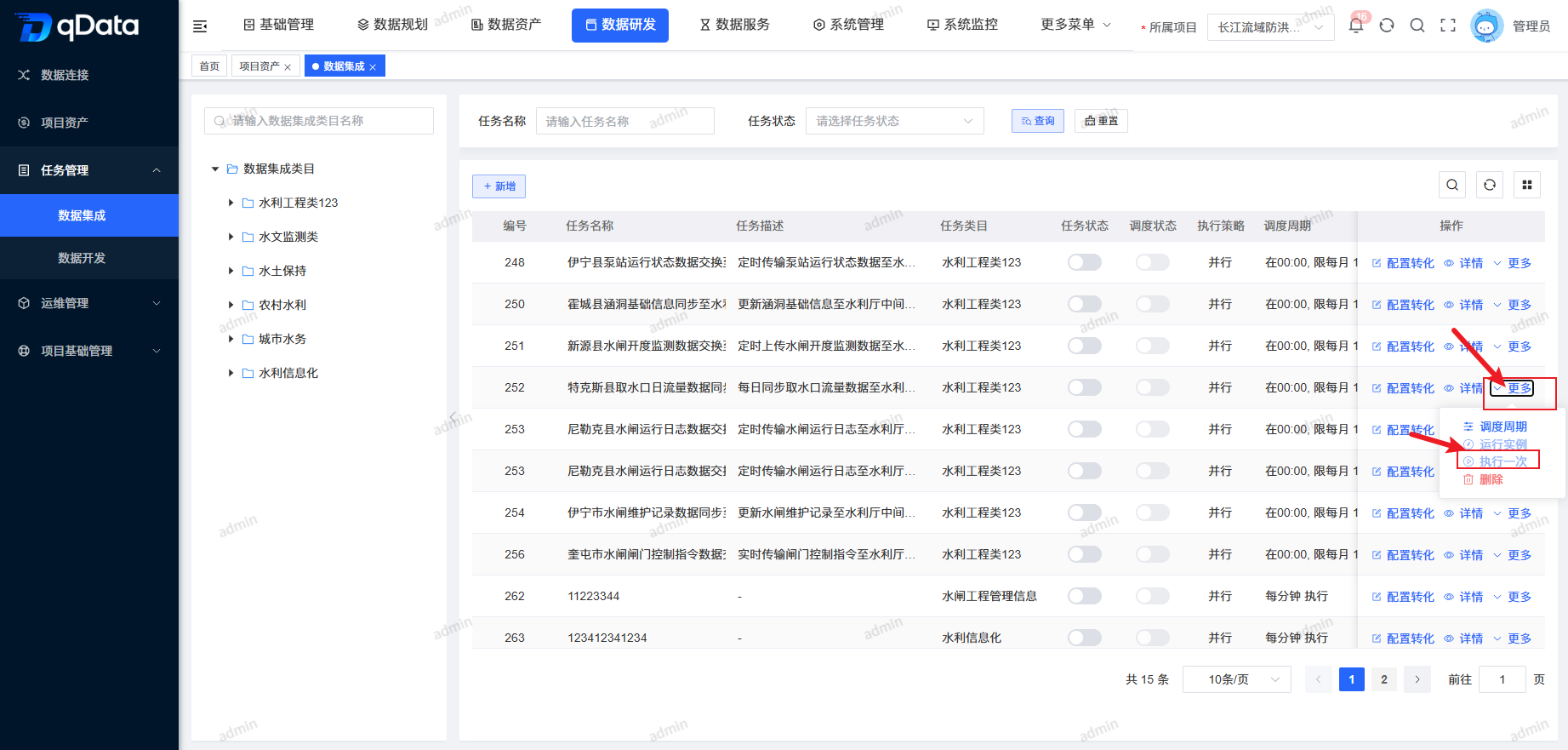
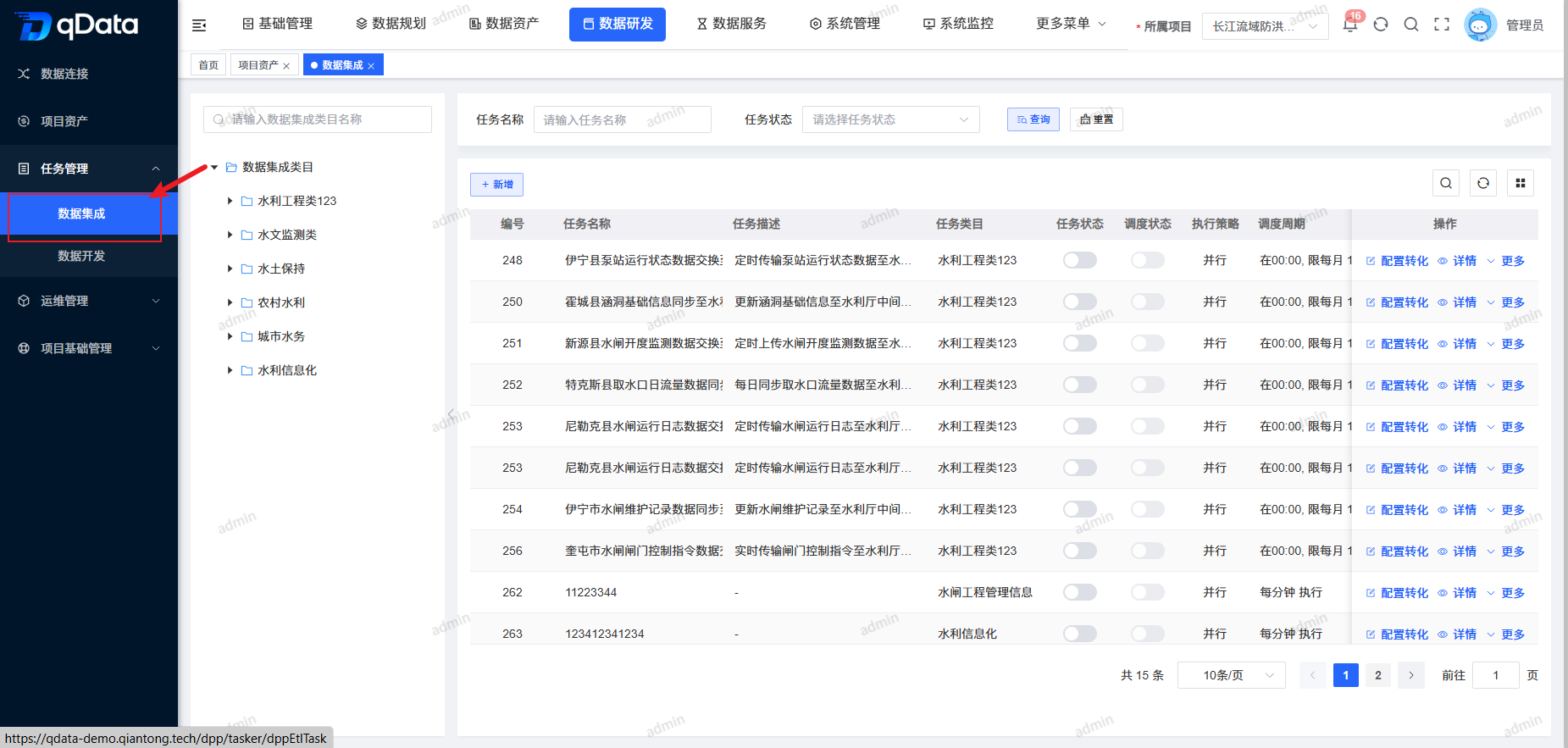
Click Data Development -> Task Management -> Data Integration to open the Data Integration page. The page uses a left-right layout: the left side displays Data Integration categories in a tree structure, and the right side displays a task list including task name, task description, task category, Task Status, Schedule Status, and other fields.
2. Add Data Integration Task
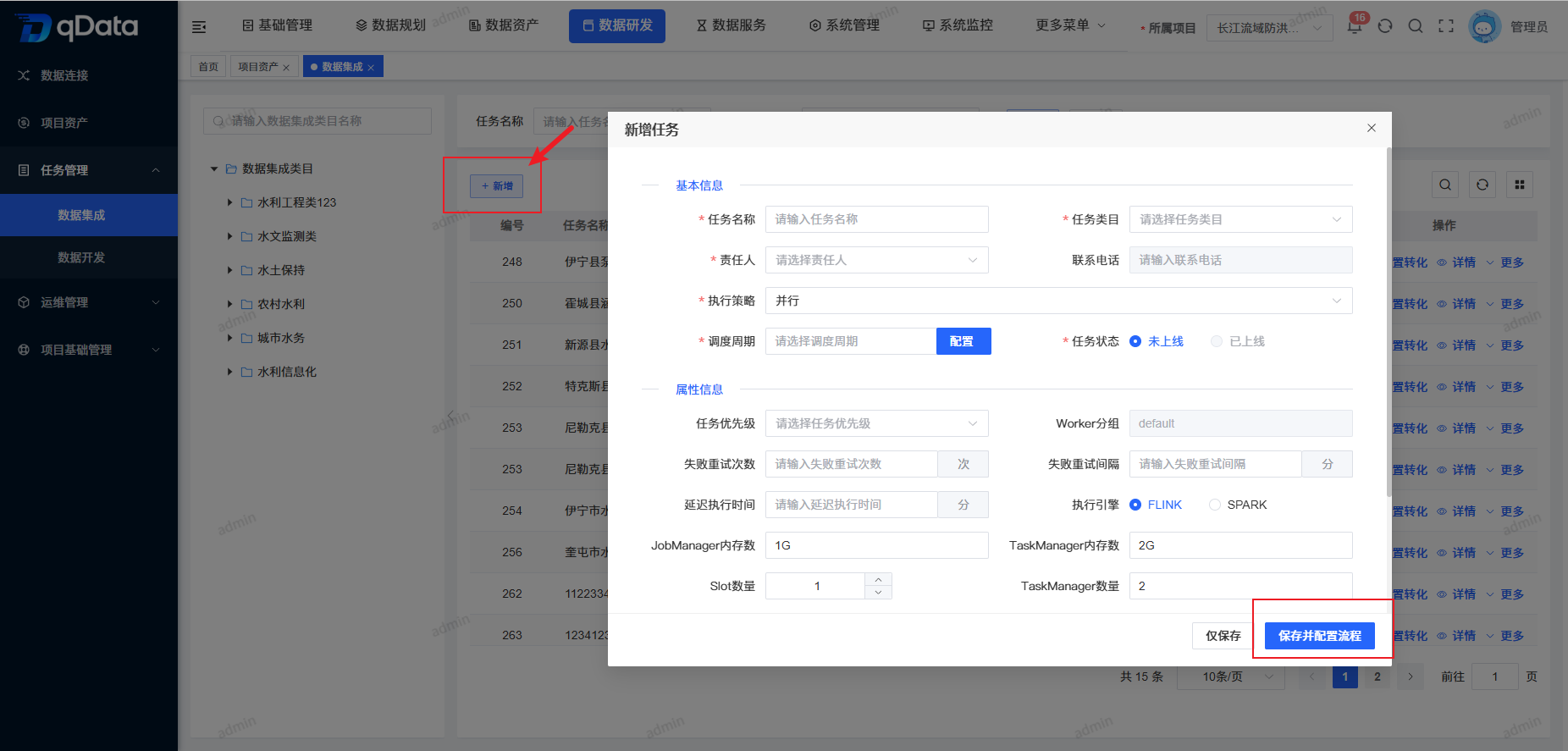
Click Add, fill in the topic information in the dialog, and click OK to complete adding the Data Integration Task.
3. Configure Data Integration Transformation
Select the task that needs Data Integration transformation configuration, click Configure Transformation in the operation column, edit the transformation rules on the page that appears, and click Save to complete configuring Data Integration transformation.
4. Delete Data Integration Task
Select the Data Integration Task to delete, click More -> Delete in the operation column, and click OK. The system will delete the Data Integration task.
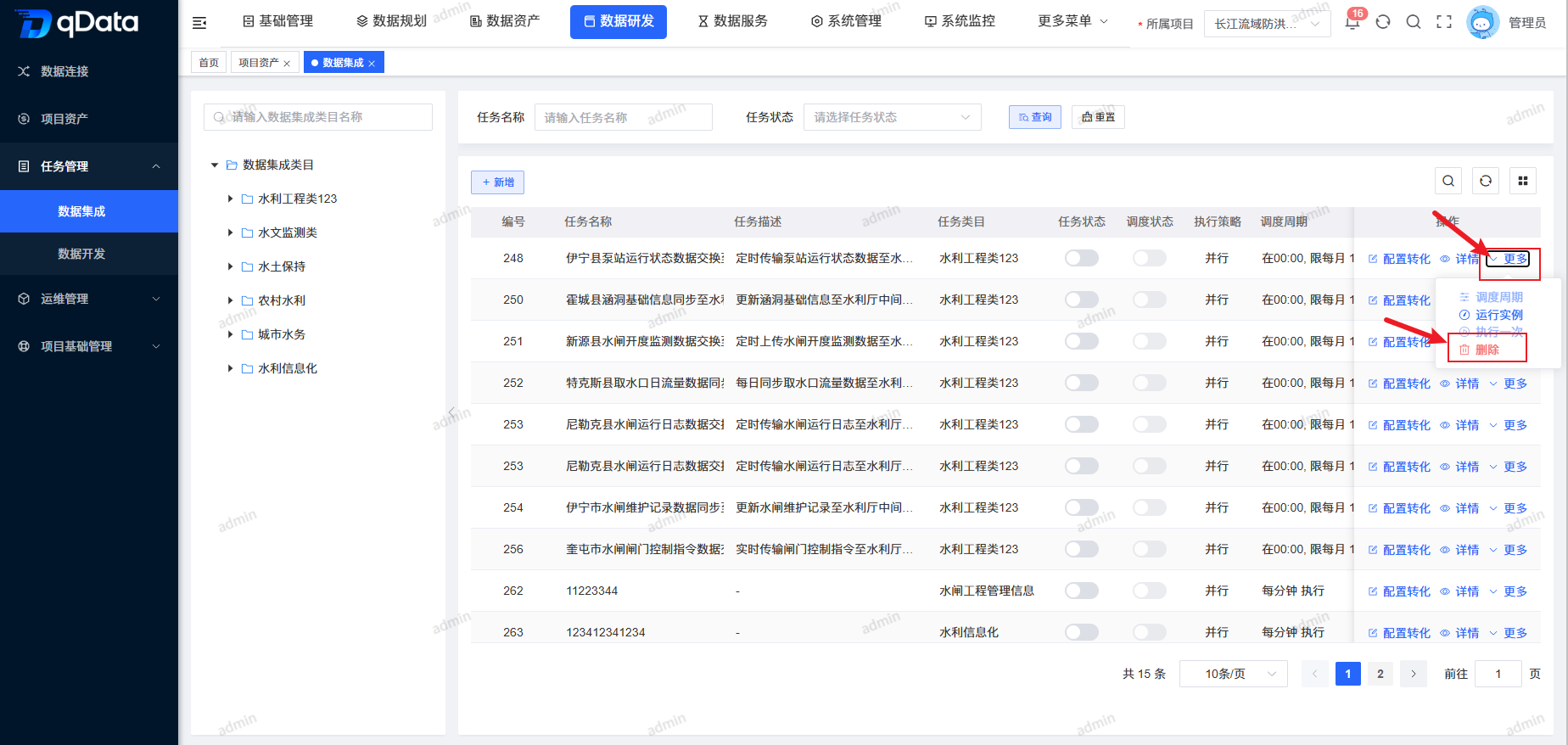
5. Data Integration Task Details
Select the task whose Data Integration Task Details need to be viewed, and click Details in the operation column to view Data Integration Task Details.
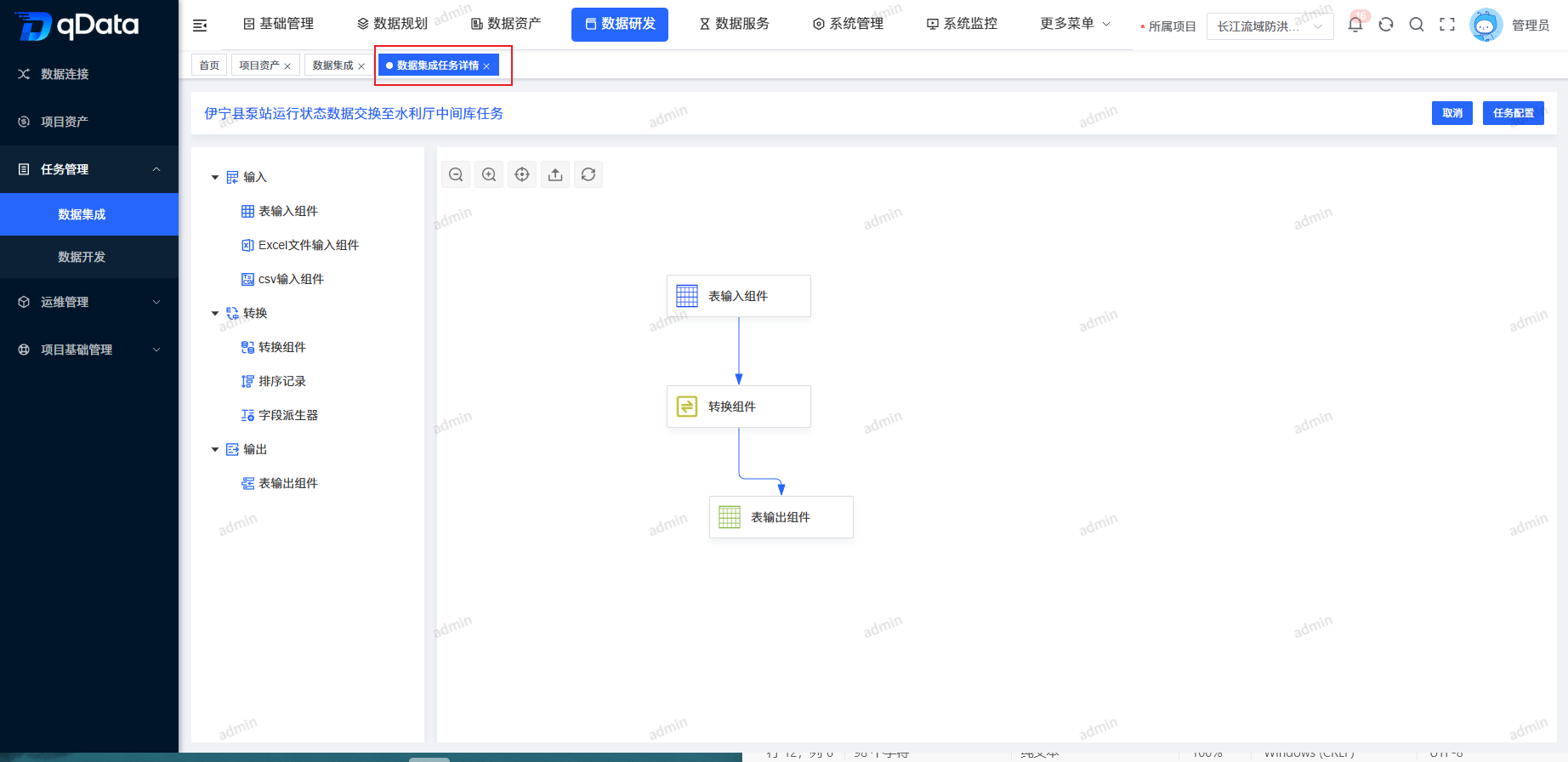
6. Schedule Cycle
Select the Data Integration task to schedule and execute, click More -> Schedule Cycle in the operation column, fill in the related information in the dialog, and click OK. The system will schedule and execute the Data Integration task.
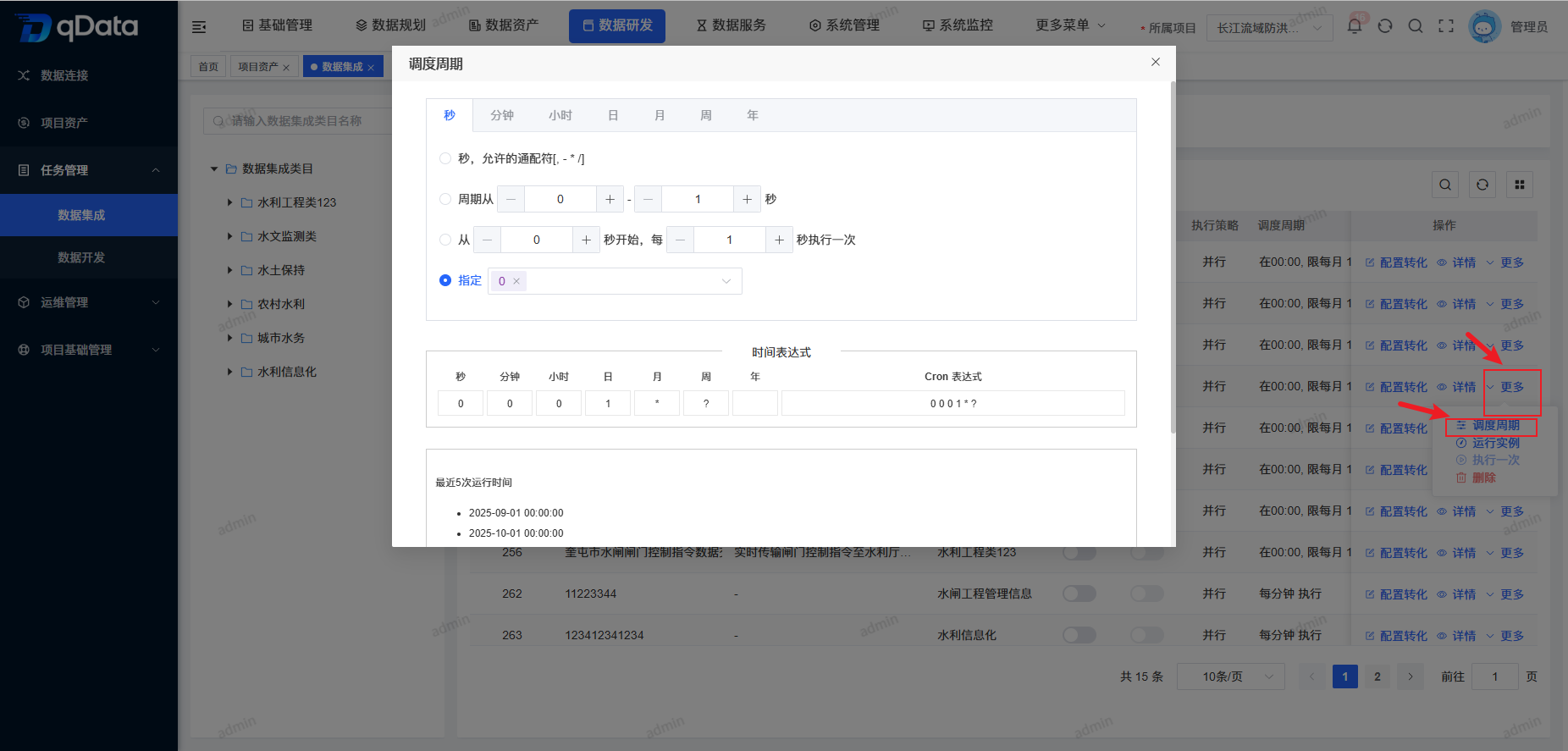
7. Task Status
Select the Task Status to enable or disable, and click the switch in the status column to complete Enable/Disable.
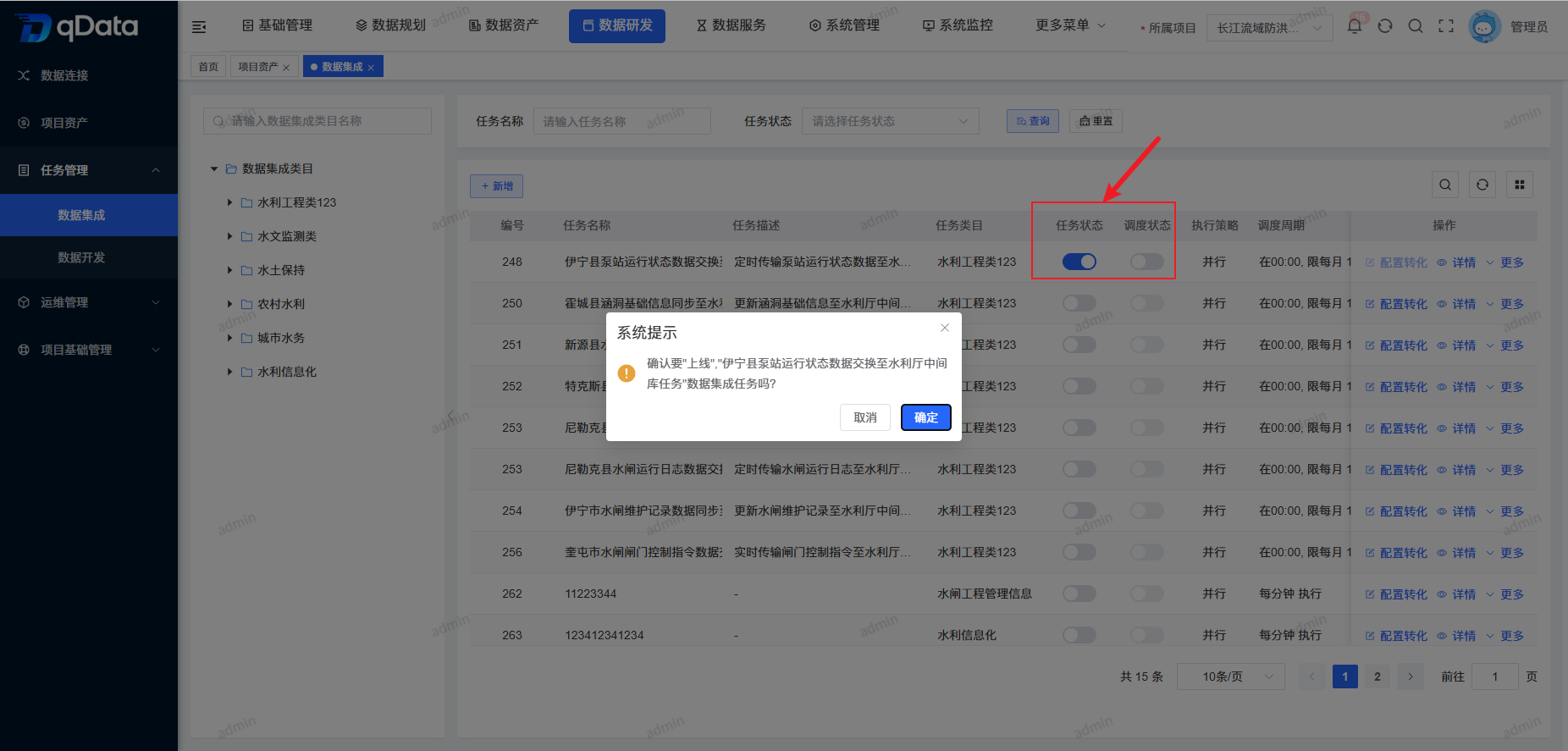
8. Schedule Status
Select the Schedule Status to enable or disable, and click the switch in the status column to complete Enable/Disable.
9. Run Instances
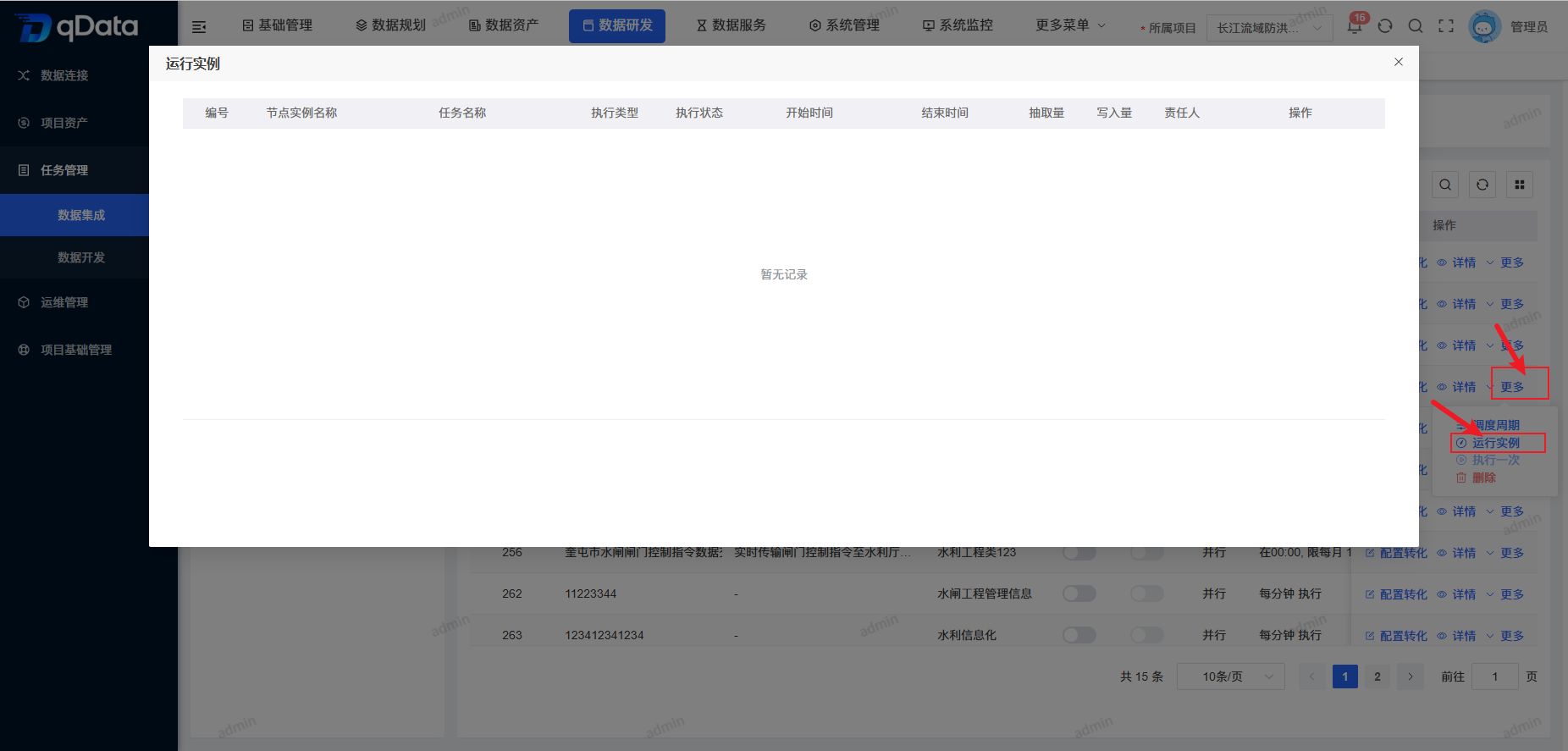
Select the Data Integration task whose Run Instances need to be viewed, click More -> Run Instances in the operation column, and view them in the dialog.
10. Run Once
Select the Data Integration task to run once, click More -> Run Once in the operation column, and the system will run the task once and display related information.