Project Assets
Definition
This module is used to manage Data Assets available within the current project. Functionally, it is consistent with the global "Data Assets Management" module and supports capabilities such as structured data access, field viewing, lineage analysis, quality inspection, and cleaning.
Module Features
- 📦 Project Assets can be obtained by self-creation or by requesting access from global "Data Assets";
- 🔒 Project Members can only access assets under the current project, ensuring data isolation and usage compliance;
- 🧪 Can be used for task input/output table selection, field mapping, data flow configuration, and other scenarios in the Data Development module;
- 💡 Shares asset models, field definitions, quality mechanisms, and cleaning mechanisms with "Data Assets" to keep usage consistent.
Notes
We recommend assigning Project Assets from global Data Assets through a unified approval process to avoid duplicate modeling. During development, use only assets authorized for the current project to ensure compliant data usage.
Scope
Limited to the Data Assets view within the current project, this module is used for asset reference, development, scheduling, and governance during Data Development. It is applicable to Project Members' data usage and task development, ensuring asset usage boundaries and permission control.
1. Project Assets Page
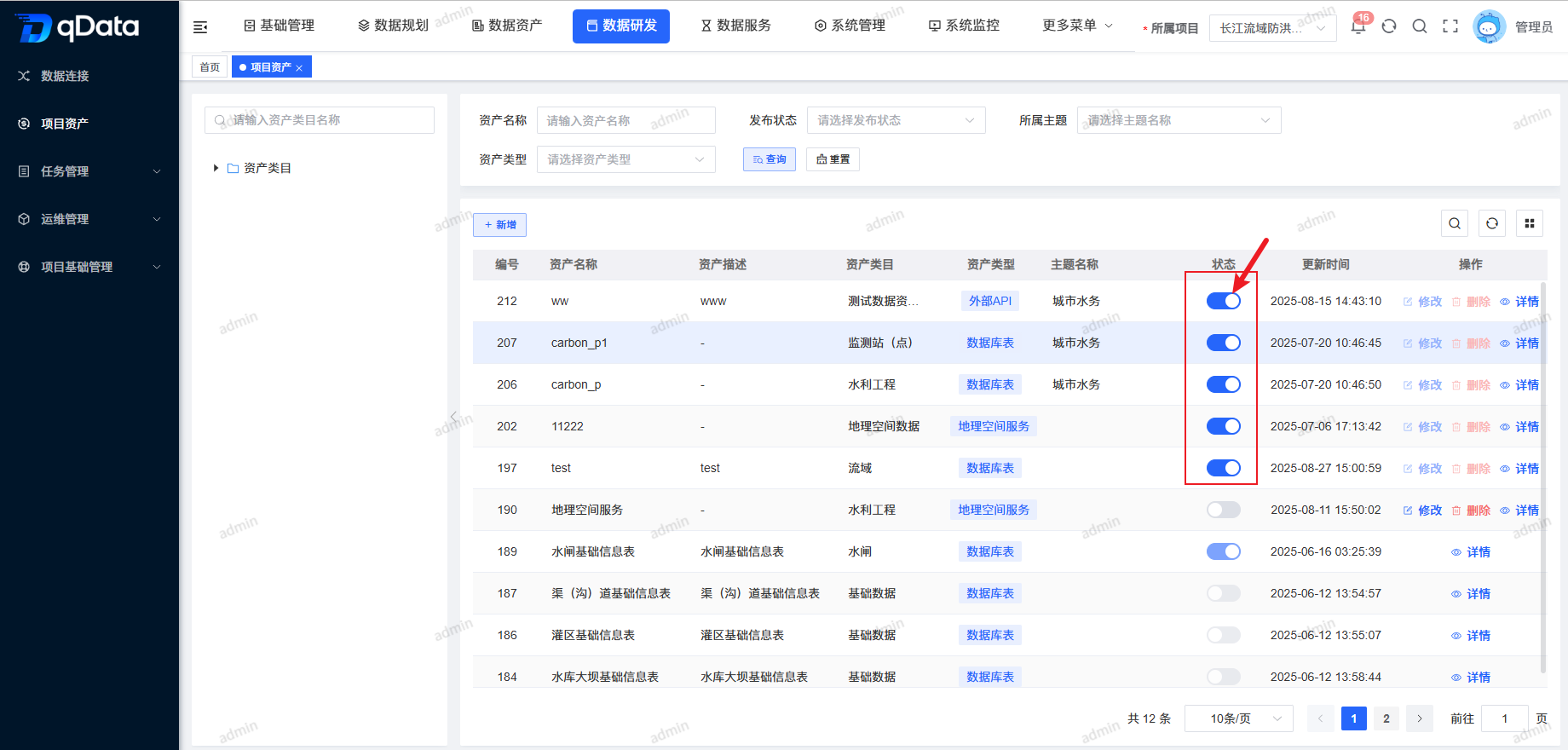
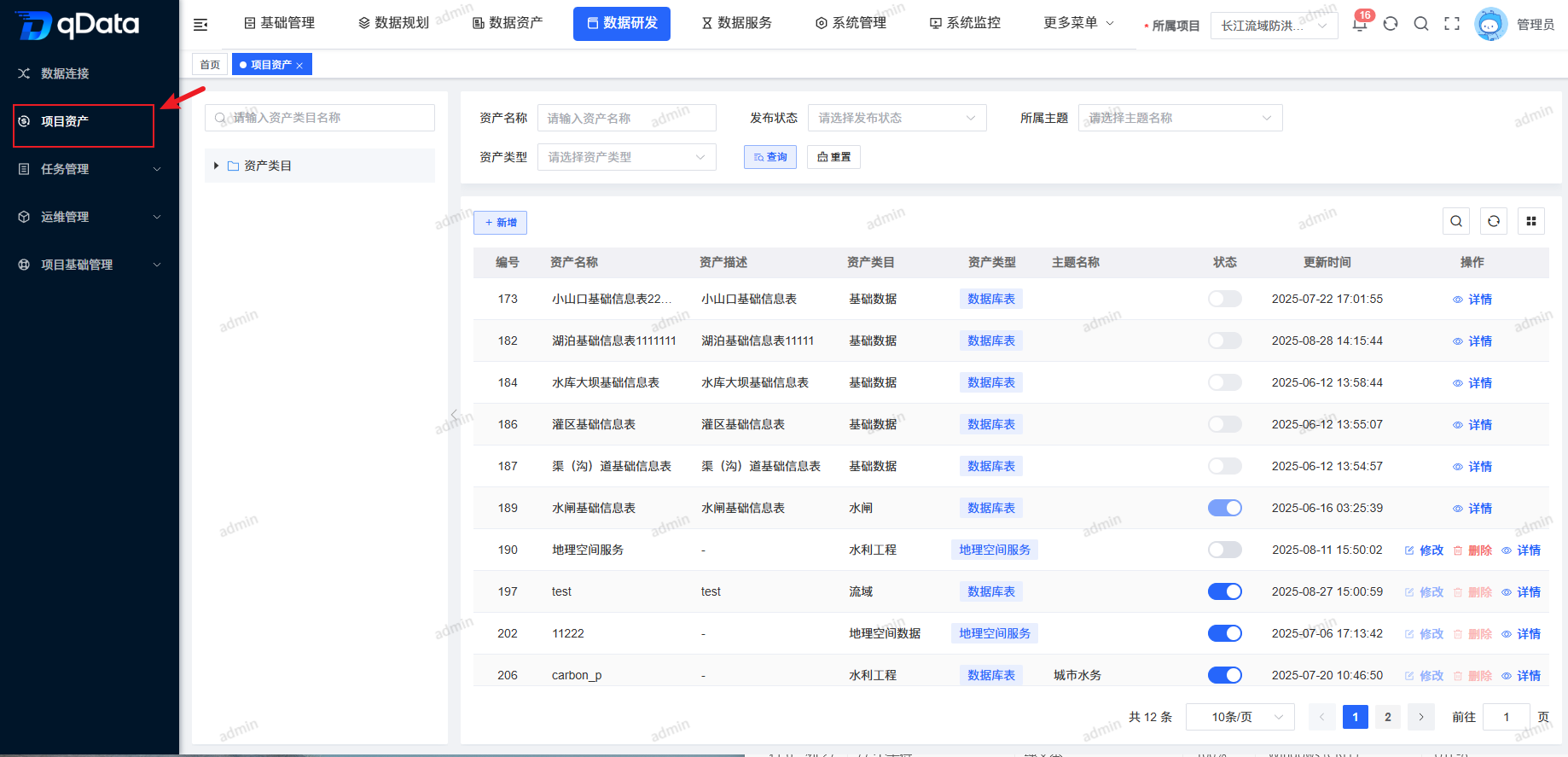
Click Data Development under Project Assets to open the Project Assets page. The page uses a left-right layout: the left side displays asset categories in a tree structure, and the right side displays the Data Assets list view, including asset name, asset description, asset category, asset type, topic name, and other fields.
2. Add Project Asset
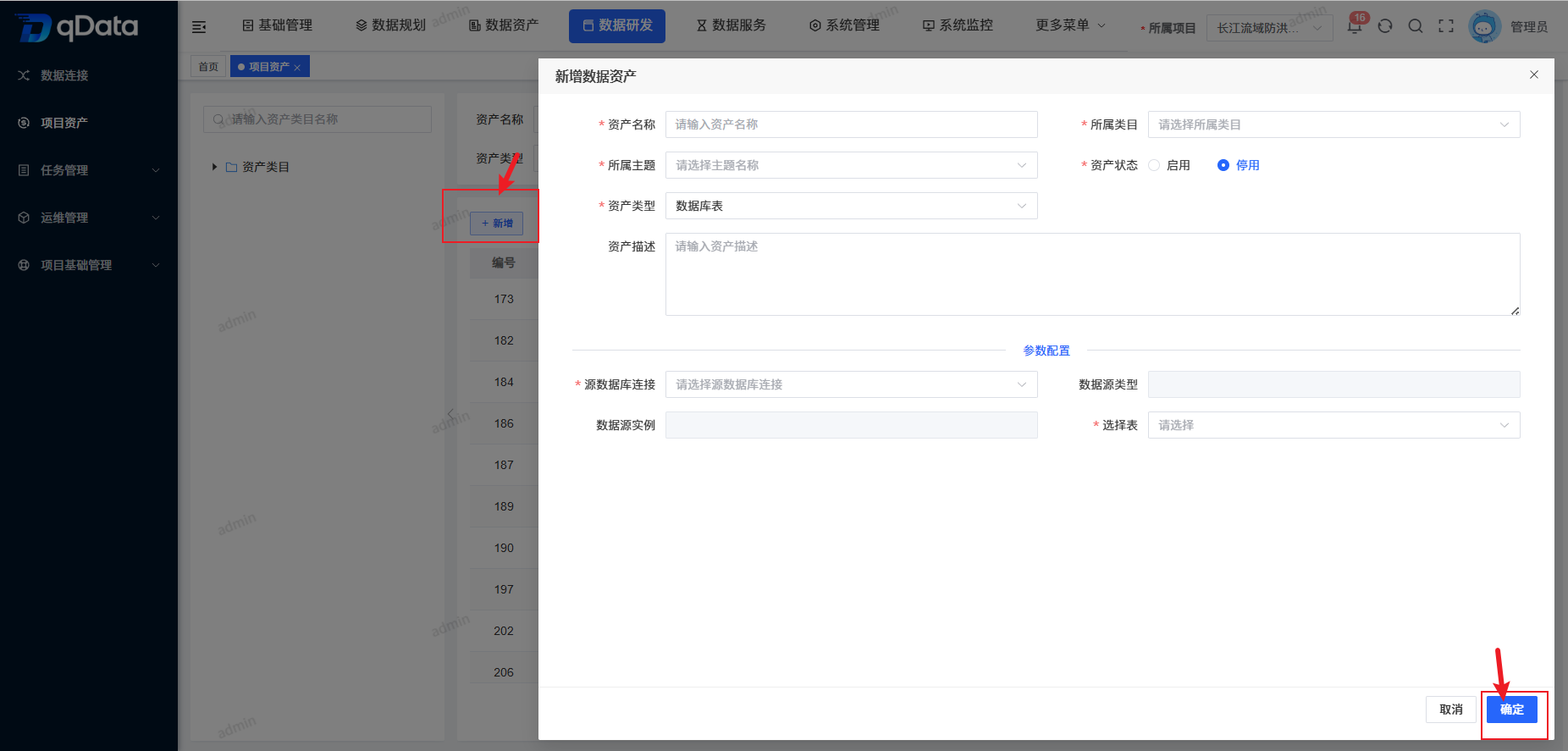
Click Add, fill in the Project Assets information in the dialog, and click OK to complete adding the Project Assets.
3. Edit Project Asset
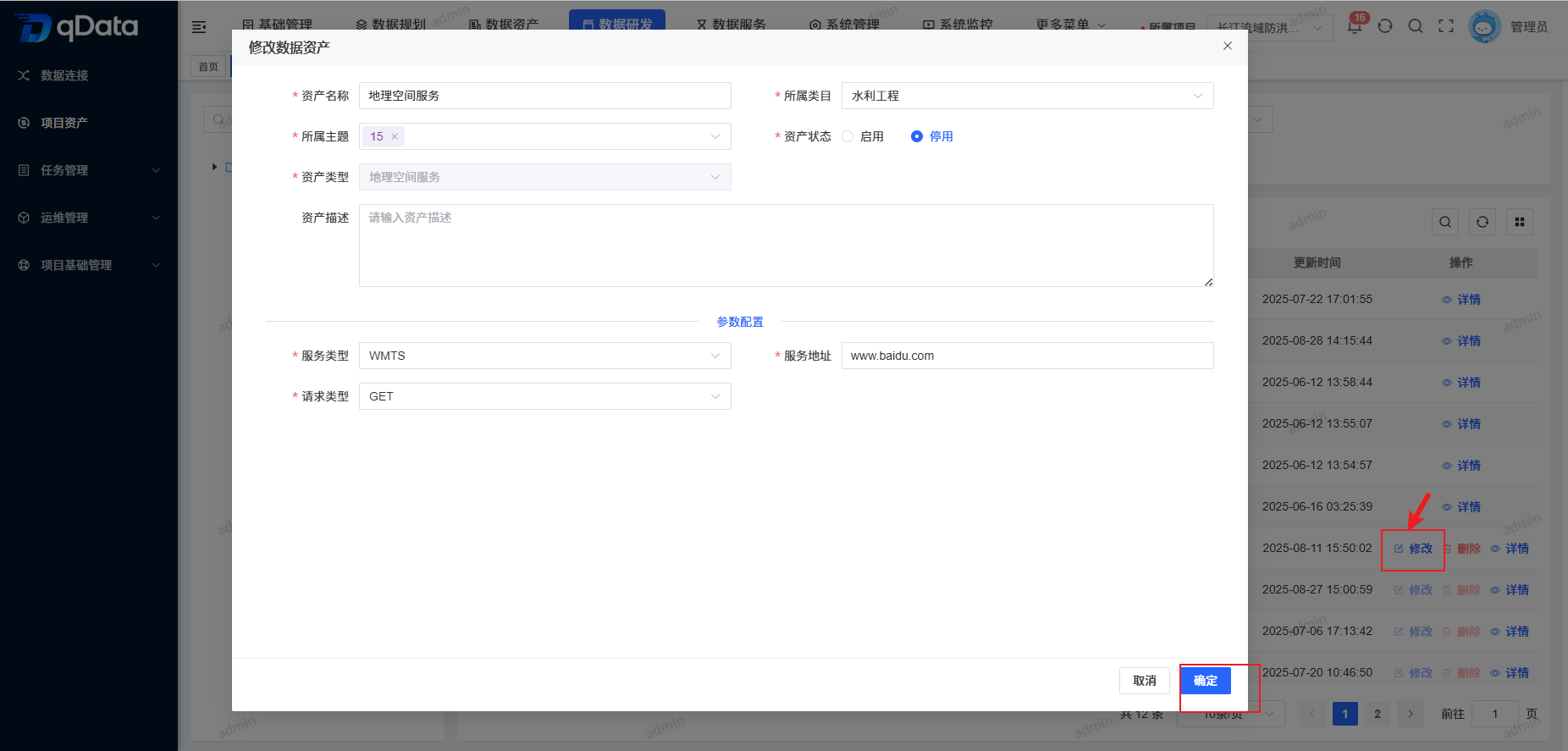
Select the Project Assets to edit, click Edit in the operation column, fill in the Project Assets information in the dialog, and click OK to complete editing the Project Asset.
4. Project Asset Details
Select the Project Assets whose details need to be viewed, click Details in the list view, and view the detailed Project Assets information on the details page, including user information, attribute fields, and Data Preview.
4.1. Attribute Fields
On the Project Asset Details page, click Attribute Fields to open the Attribute Fields page. The page includes fields such as Chinese name, English name, field type, field length, decimal places, nullable, primary key, Sensitivity Level, code flag, and Data Element.
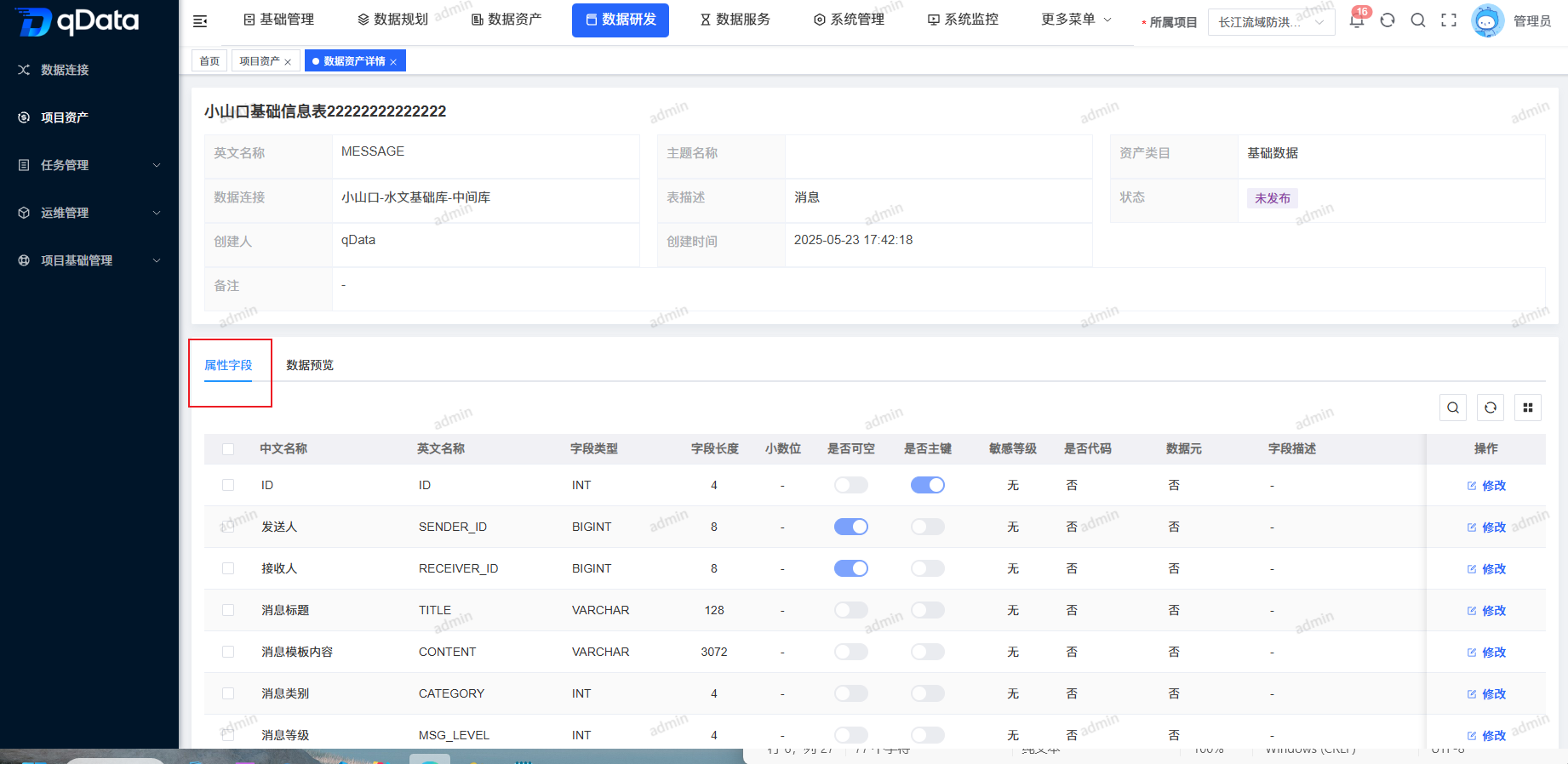
4.1.1. Edit Attribute Fields
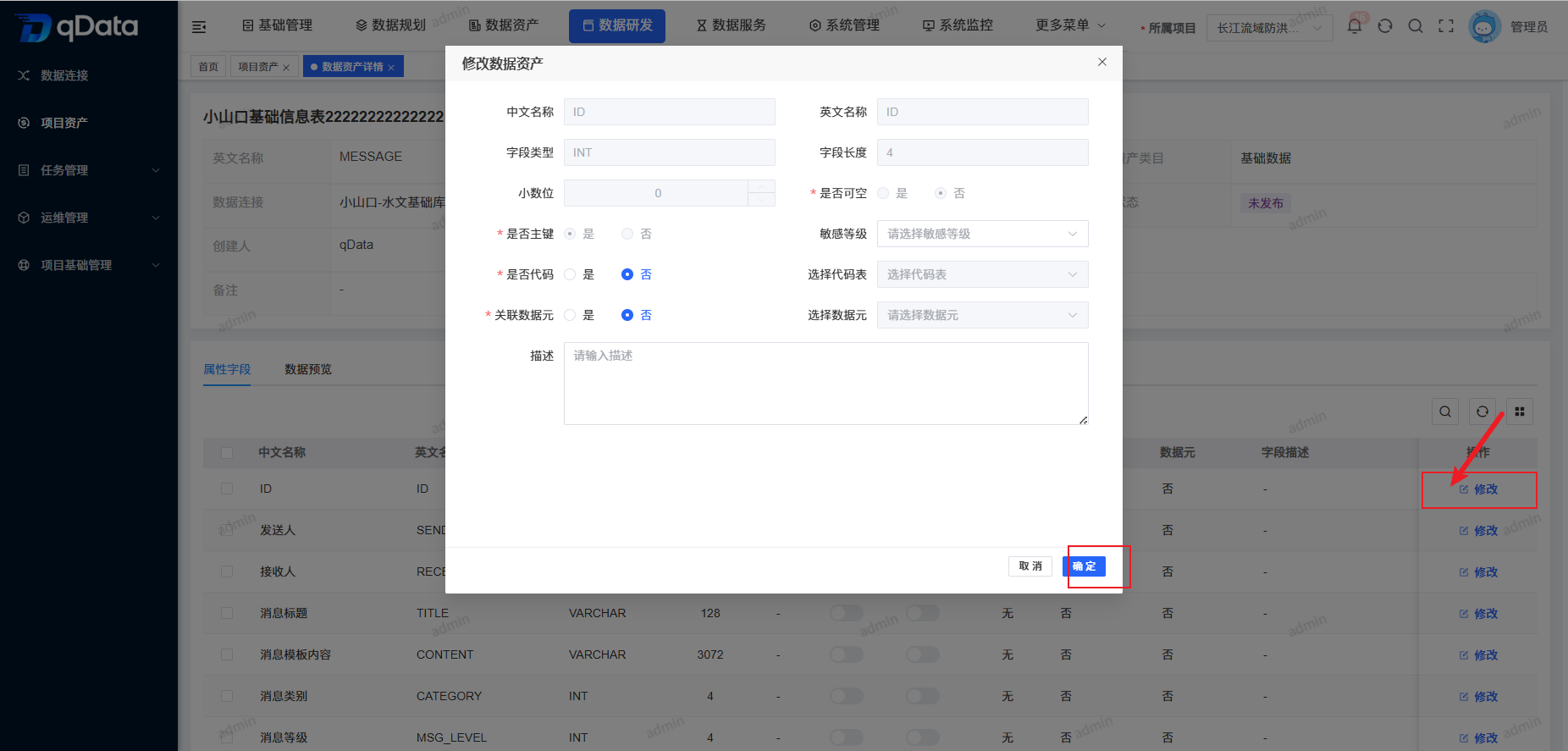
Select the attribute field to edit, click Edit in the operation column, edit the Attribute Fields information in the dialog, and click OK.
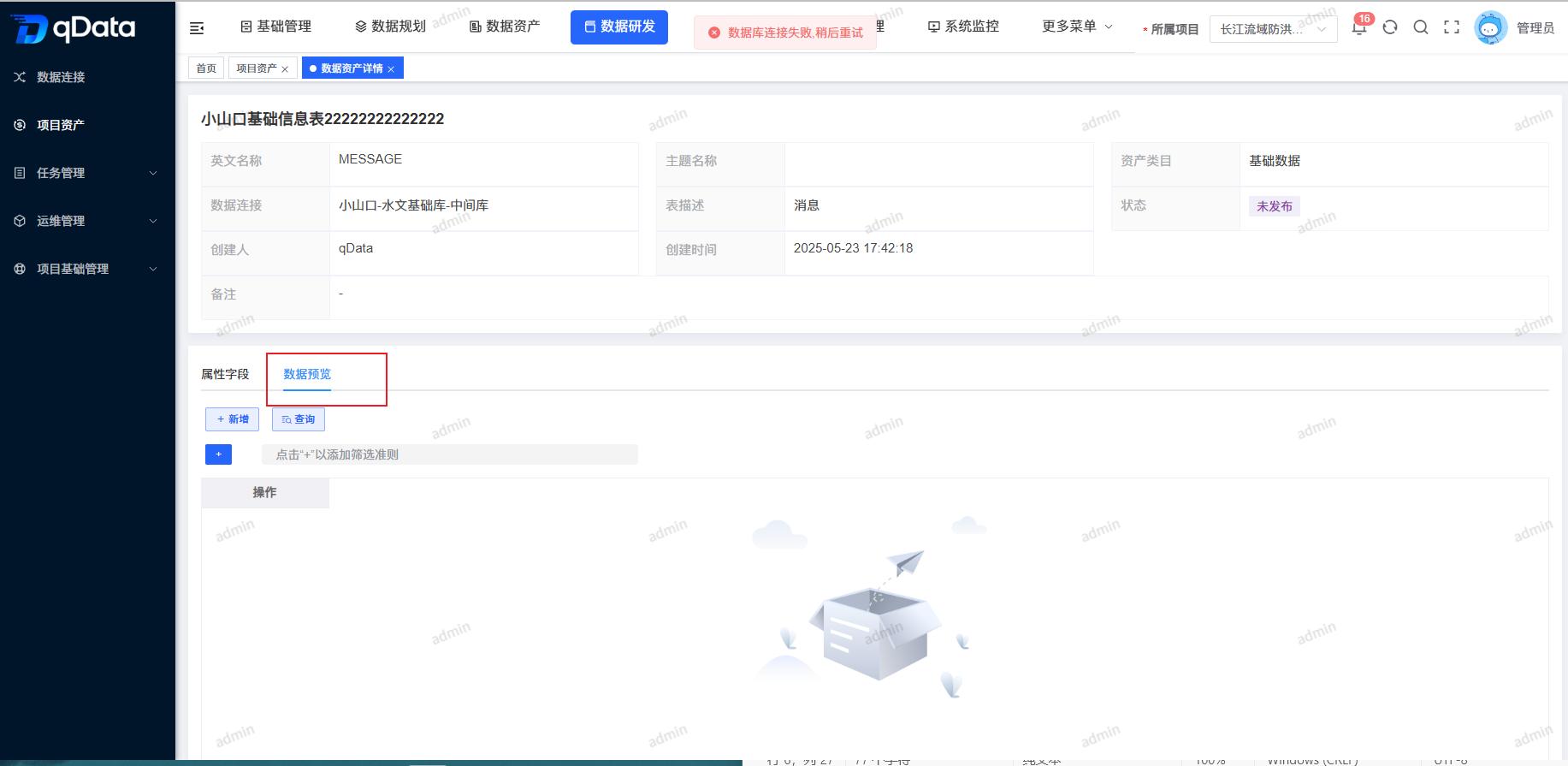
4.2. Data Preview
On the Project Asset Details page, click Data Preview to open the Data Preview page.
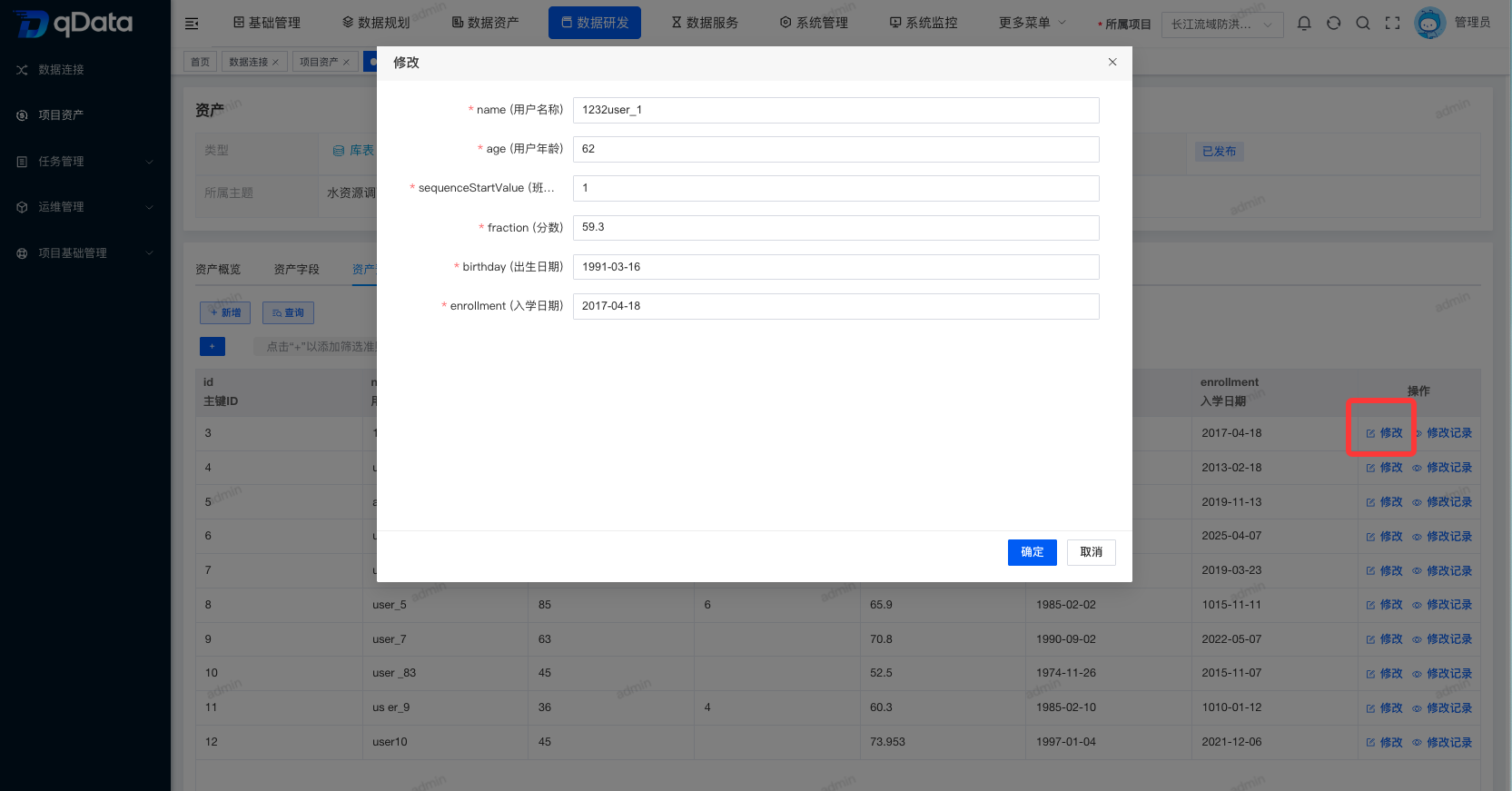
4.2.1. Edit Data
Select the data to edit, click Edit in the operation column, edit the Data information in the dialog, and click OK.
4.2.2. Change Records
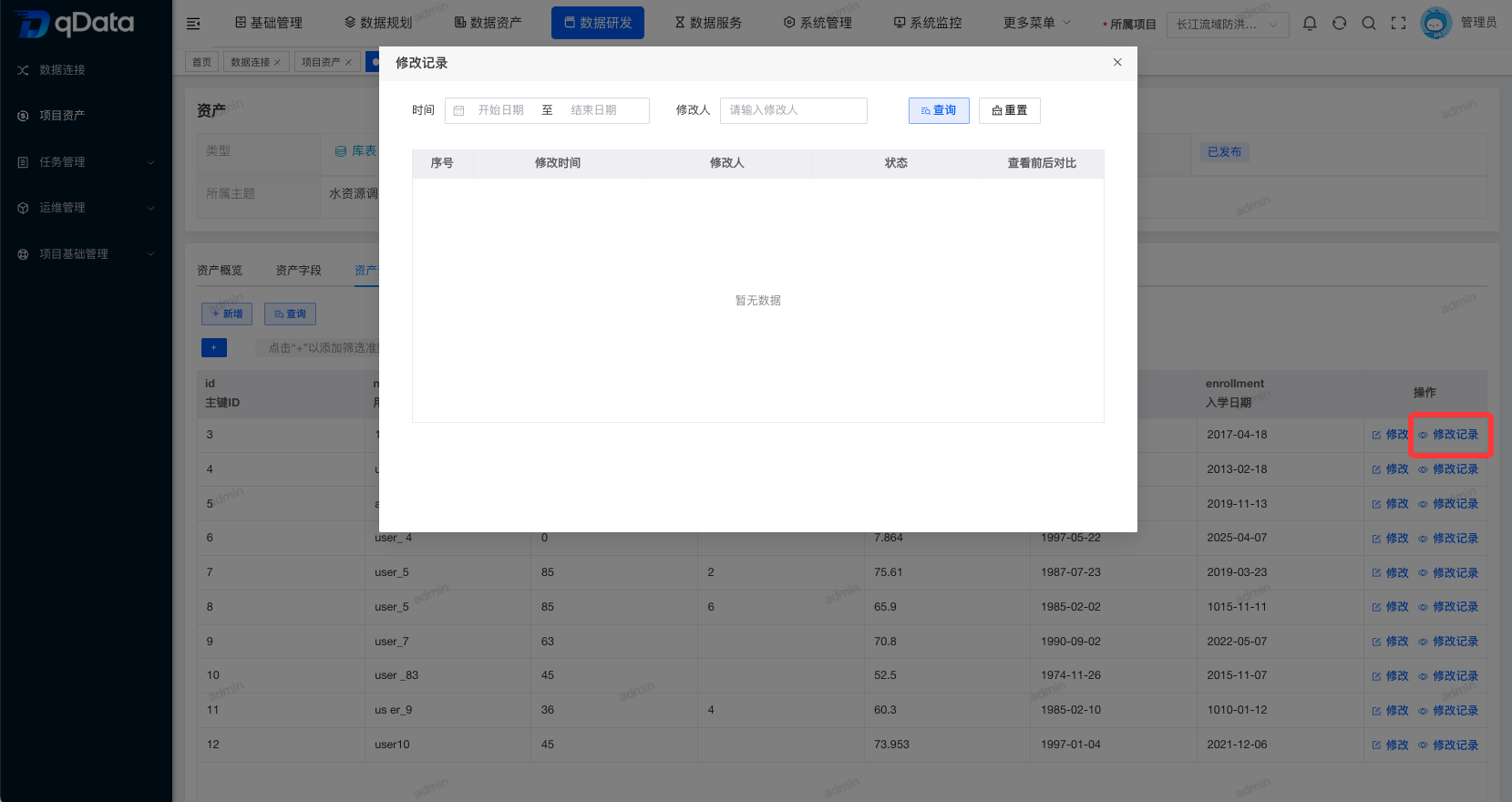
Select the Change Records to view, click Change Records in the list, and open the Change Records dialog. The page includes fields such as editor and edit time.
5. Delete Project Asset
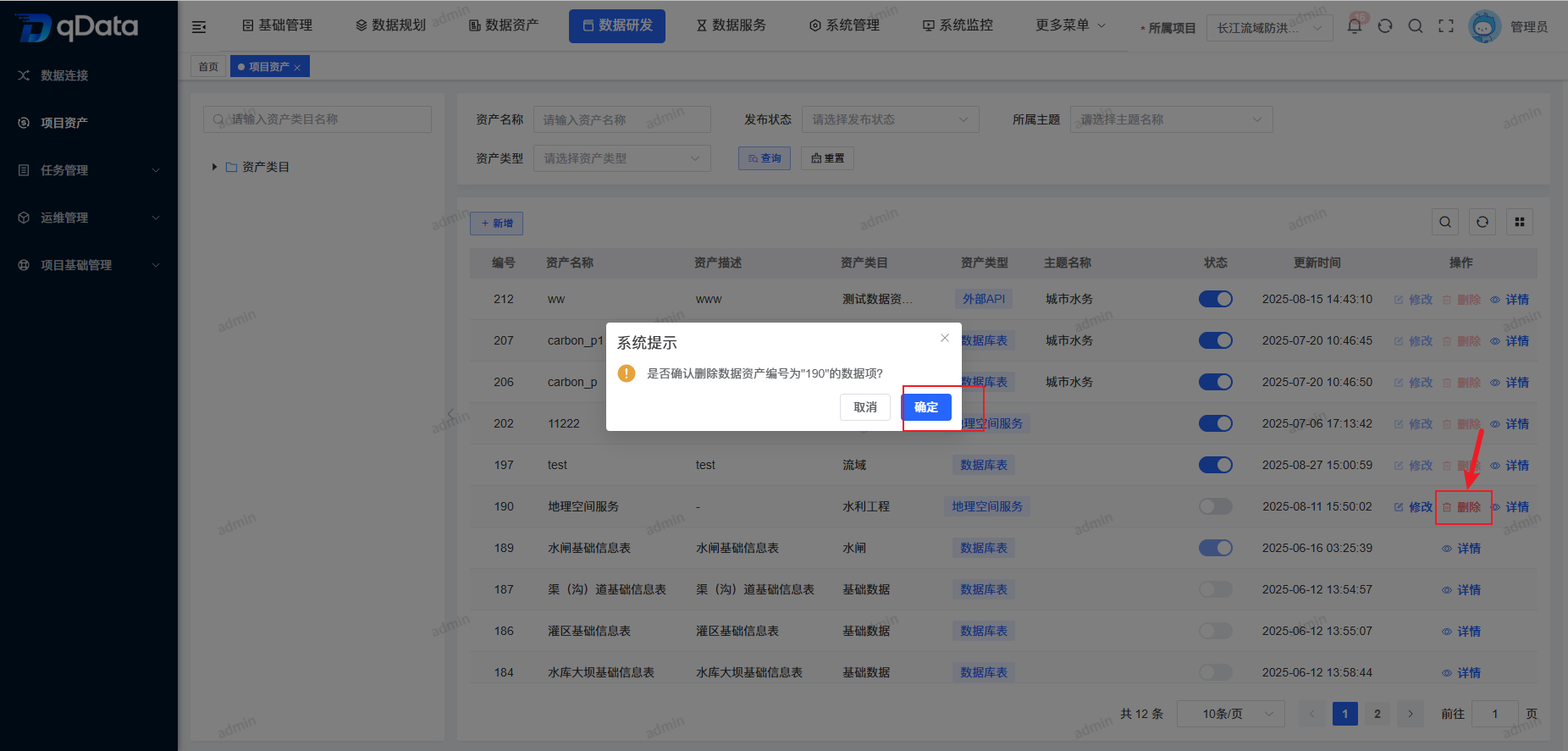
Select the Project Assets to delete, click Delete in the operation column, confirm the deletion in the dialog, and click OK to complete deleting the Project Assets.
6. Enable/Disable
Select the Project Assets to enable or disable, and click the switch in the status column to complete Enable/Disable.