
Data Connection
Feature overview
Functional positioning
Data Connection is used to view and manage available data source connections in the current project, providing a connection basis for accessing databases, big data platforms, message queues, file services, or object storage for downstream tasks such as data integration, data development, and jobs.
Simple understanding: First prepare data connections in the correct project, and downstream tasks can use these connections to read or write data.
Usage suggestions
When configuring for the first time, first confirm the [Project] at the top, and then fill in the connection parameters; you can execute [Test Connection] as needed, or save it directly. Before you prepare to close or delete a connection, you should first confirm that no downstream tasks are referencing the connection.
Main features
- Project management: Query, create and maintain project-owned connections in the project.
- Source Boundary Protection: Connections created by Basic Management can be viewed and used in the project, but cannot be modified, maintained status changed, or deleted within the project.
- Independent connectivity verification: Both the list and the new pop-up window provide [Test Connection]. Testing is not a prerequisite for saving.
- Association Protection: When there are downstream associated tasks, project-owned connections are not allowed to be closed or deleted.
- View details: View connection information through five tabs: operation monitoring, read and write logs, alarm records, alarm rules and basic information.
- Operation traces: Add, modify, delete and query operation logs recorded according to the existing mechanism of the system.
Scope
This page is suitable for connection query, addition, modification, testing, status maintenance, condition deletion and detailed viewing in data research and development projects. Page access and button permissions are configured in the background and are not fixed to specific job roles.
Connections created within the project are independently managed by the project and can be displayed on the basic management platform; connections created by basic management can be viewed and used in the project, but cannot be modified, maintained status changes or deleted within the project.
Preliminary steps
Preconditions
- Log in to the qData platform and have the [Data Development] and [Data Connection] menu permissions.
- Switch to the project that needs to maintain the connection at the top.
- Before adding, modifying or testing a connection, prepare the connection information such as the address, port, account number and password of the target service.
- Before closing or deleting the connection, confirm that the connection is not referenced by data integration, data development, jobs, or other downstream tasks.
Navigation path
Data Development > Data Connection
Page overview
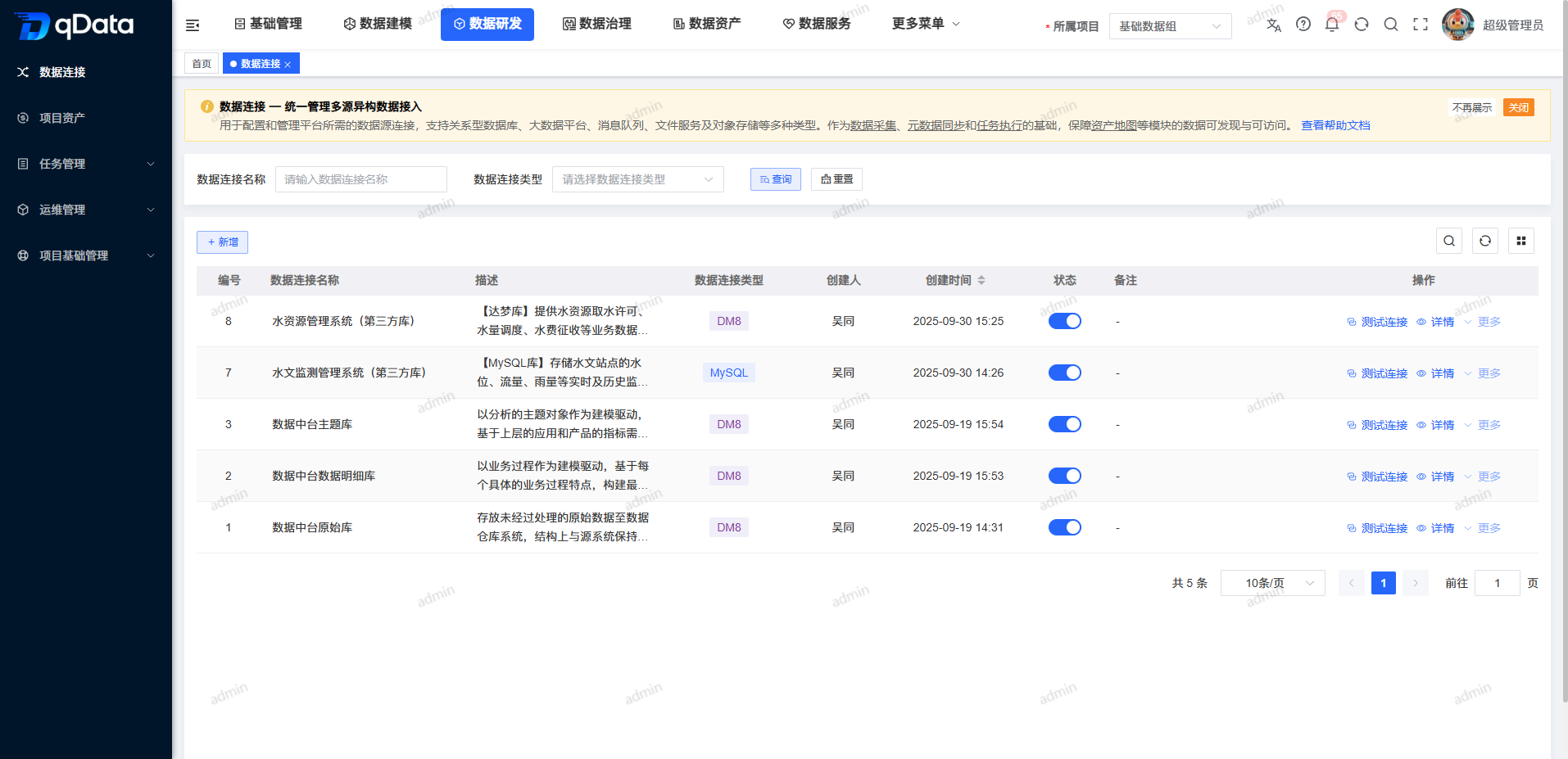
After entering [Data Connection], the current [Project] and the "Data Connection - Unified Management of Multi-source Heterogeneous Data Access" description bar are displayed at the top of the page; the query area provides the data connection name, data connection type and IP conditions; the list displays the connection type, status, creation information and row operations. Each record can verify connectivity through [Test Connection], view connection information through [Details], and enter maintenance operations from [More].
Recommended operating procedures
New connection: Confirm the project -> Click [Add] -> Fill in the connection parameters -> Execute [Test Connection] as needed -> Click [OK] -> Return to the list for verification results.
Daily maintenance: Query the target connection -> Confirm the connection source -> Modify the project's own connection or view details -> Check the latest information.
Deactivate or delete: Confirm that the connection was created by the project -> Check downstream references -> Close the connection -> Click [More] > [Delete] -> Complete the second confirmation.
View details: Click [Details] -> View the connection summary -> Switch to the five detail tabs -> Click [Return] to return to the list.
Functional operation instructions
Query and browse data connections
- Confirm that the [Project] at the top is the target project.
- Fill in the target connection name in the "Data connection name" input box.
- Select the target type from the "Data connection type" drop-down box.
- Fill in the target service address in the "IP" input box.
- Click [Query] to view qualified connections.
- Click [Reset] to restore the default query conditions.
- Click the sorting entry in the "Number" or "Creation Time" column to adjust the order of the list as needed.
- Check the connection name, type, status, creator and creation time in the list.
Add new project data connection
- Click Add above the list.
- View the [Add Data Source] pop-up window.
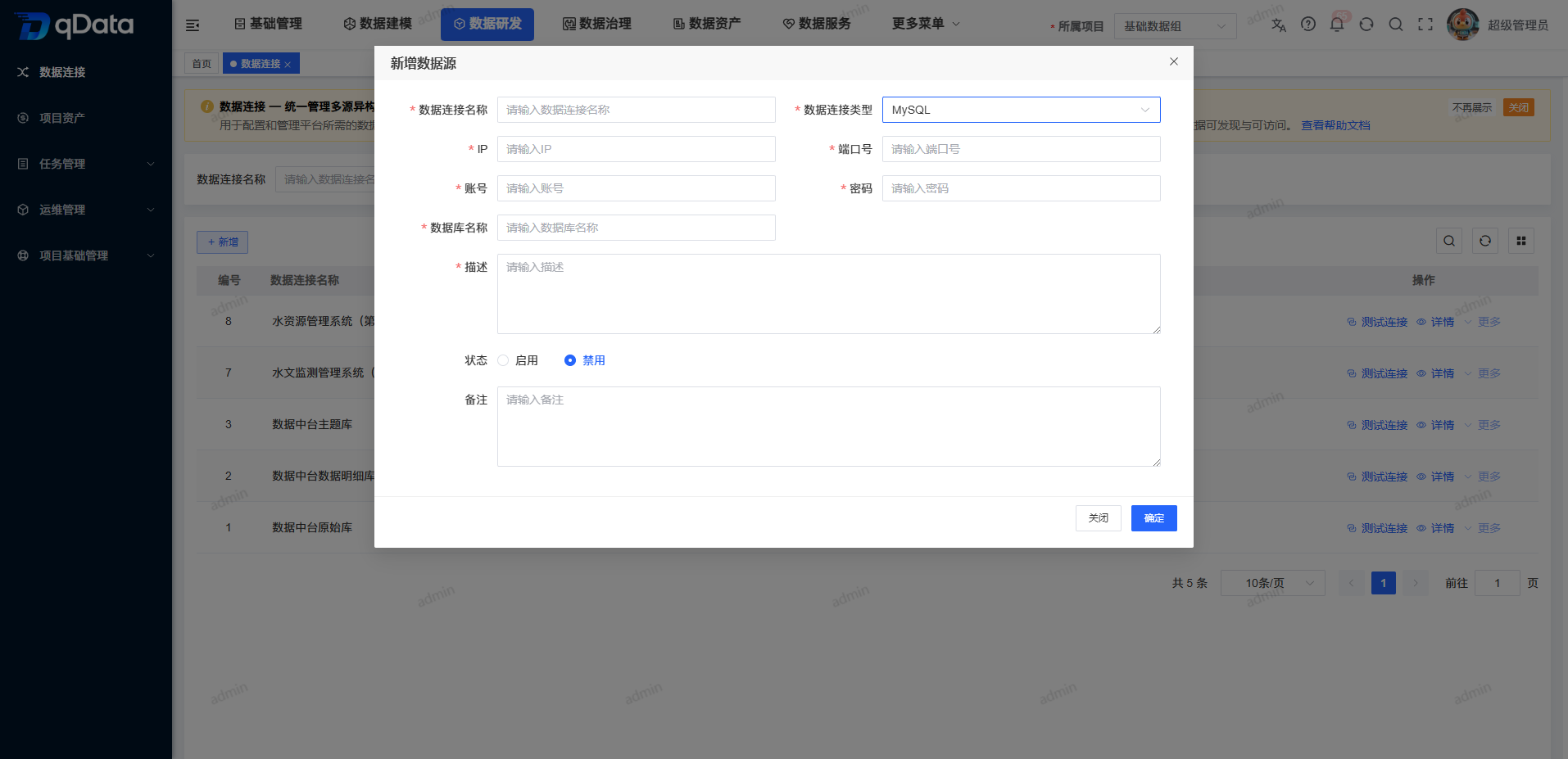
The page supports multiple data sources, covering relational databases, big data and computing components. When filling in, the fields actually displayed on the selected type page shall prevail.
| Type grouping | Data connection type |
|---|---|
| Relational database | MySql, DM8, Oracle, Oracle11, Kingbase8, SQL_Server, SQL_Server2008 |
| Big data and computing components | Doris |
When adding, focus on filling in the following fields:
| Field Name | Description | Required or not |
|---|---|---|
| Data connection name | Fill in the connection name for easy identification in the current project. | Yes |
| Data connection type | Select the connection driver or protocol type. | Yes |
| IP | Fill in the target service address. | Yes |
| Port number | Fill in the target service port. | Yes |
| Account | Fill in the connection authentication account. | Yes |
| Password | Fill in the connection authentication password. | Yes |
| Restrict operations | Select "Unrestricted" or "Restricted", the default is "Unrestricted"; this field is currently only for information display. | No |
| Status | Select [Enable] or [Disable], the default is [Disable]. | No |
| Description | Fill in the description of the connection purpose, and the interface displays a 500-character count. | No |
| Remarks | Fill in the supplementary information, and the interface will display a 500-character count. | No |
- Fill in the connection name in "Data connection name".
- Select the target type in Data connection type.
- Fill in the target service address in "IP".
- Fill in the target service port in "Port Number".
- Fill in the authentication account in "Account".
- Fill in the authentication password in "Password".
- Leave the default value or select a target value in Limit Action.
- Leave the default value or select the target state in Status.
- Fill in the "Description" as required.
- Fill in the "Remarks" as needed.
- To verify the current parameters, click [Test Connection].
- Click [OK] to save the connection.
- Return to the list to check the new connection.
If you want to terminate this addition, you can click [Cancel] or close the entrance in the upper right corner of the pop-up window.
After successful saving, the new connection will be visible in the current project list and can be displayed on the basic management platform; the system will also record the new operation log.
Test data connection
- Locate the target connection in the list, or open the new data source pop-up window.
- If testing in the pop-up window, first prepare the connection parameters required for the test.
- Click [Test Connection].
- View page feedback.
After the test is successful, the page displays a green prompt "Database connection successful." When a test is initiated from the list or a new pop-up window, the feedback from the current page shall prevail.
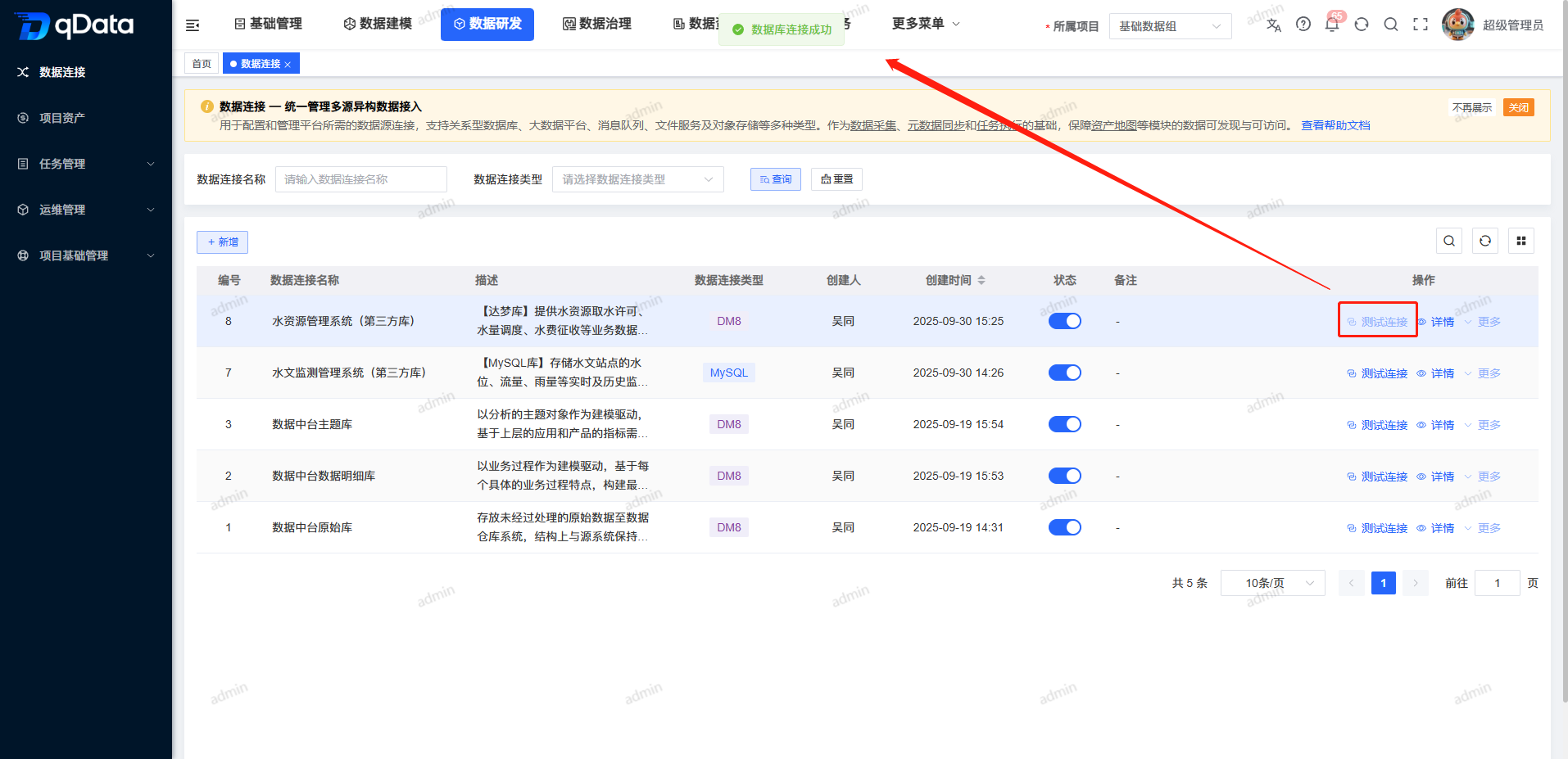
Test and Save
[Test Connection] is an independent verification action, not a save precondition. The user can also directly click [OK] to save without executing the test. When an exception occurs, please refer to the actual prompts on the page.
Modify the project's own connection
- Locate the connection created by the current project in the list.
- Click [More] of the target record.
- Click [Modify].
- Adjust the fields that are allowed to be edited on the page.
- Click [OK] to submit the changes.
- Return to the list or details to check for the latest information.
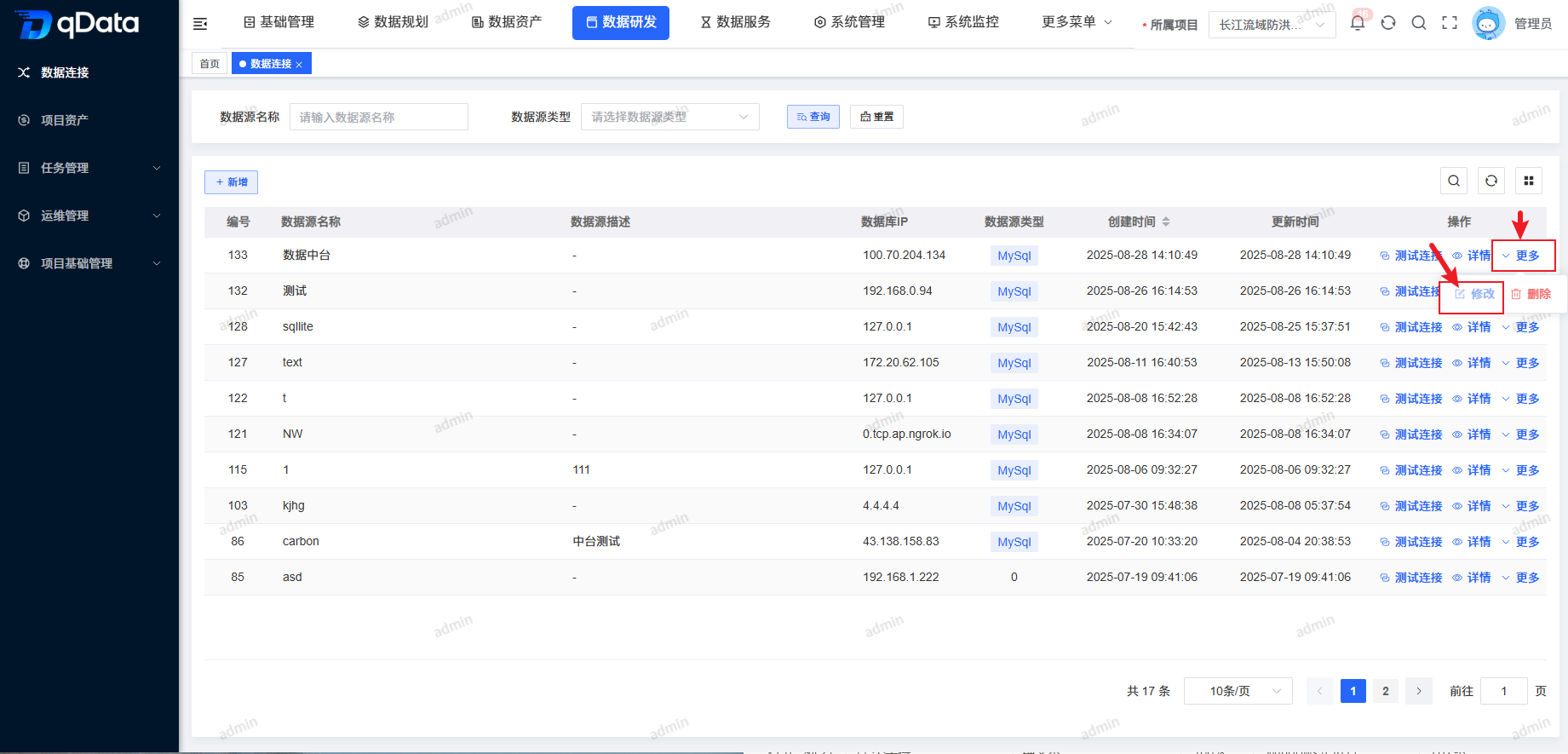
After the modification is successful, the system updates the list and details, and records the modification operation log. Connections created by basic management cannot be modified within the project, please maintain them within the scope of their source.
Toggle project-owned connections to disabled
- Locate the connection created by the current project in the list.
- Confirm that the connection has no downstream associated tasks.
- Click the status switch of the target record.
- Switch the connection status to [Disabled] (that is, close the connection).
- Check whether the connection status has been updated.
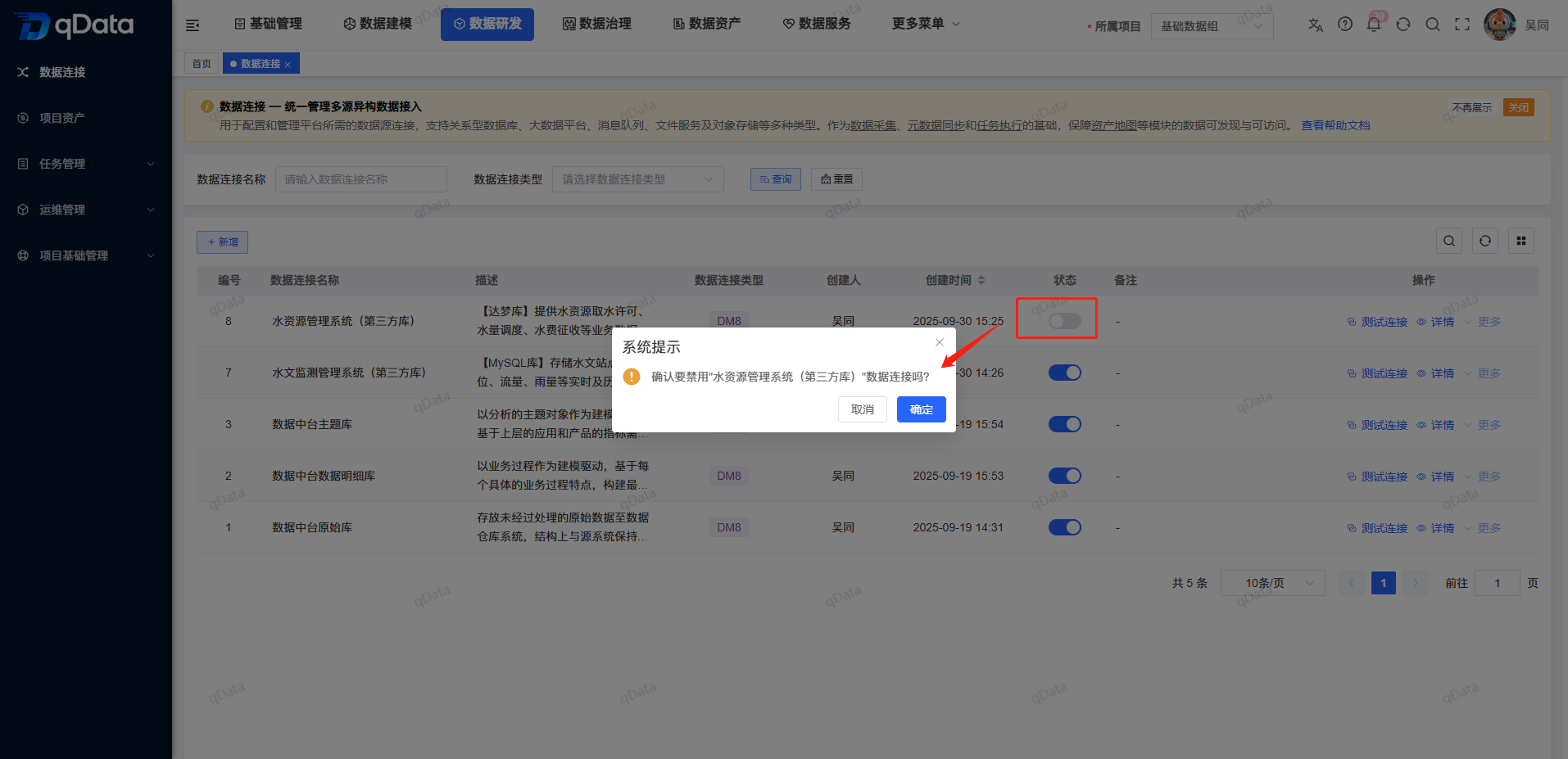
Delete project-owned connections
- Verify that the target connection was created by the current project.
- Confirm that the target connection is in the [Disabled] (closed) state.
- Confirm that the target connection has no downstream associated tasks.
- Click [More] of the target record.
- Click [Delete].
- Check the deleted object in the secondary confirmation.
- Click the Confirm button to perform the deletion, or click the Cancel button to terminate the operation.
- Return to the list to check whether the target connection has been removed.
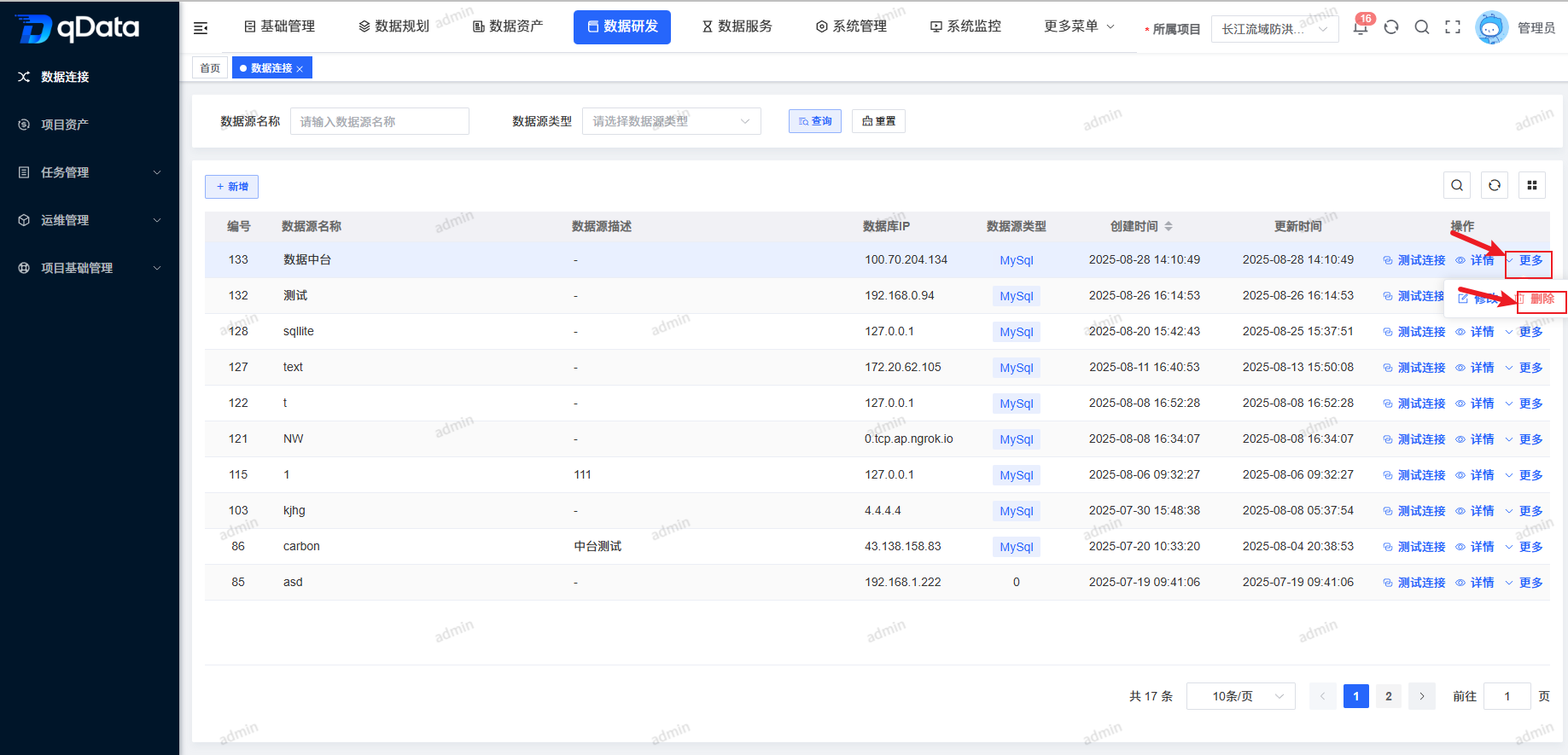
View connection details
- Locate the target connection in the list.
- Click [Details].
- View the connection summary.
- Check the SSL certification status.
- View restricted operations and updaters.
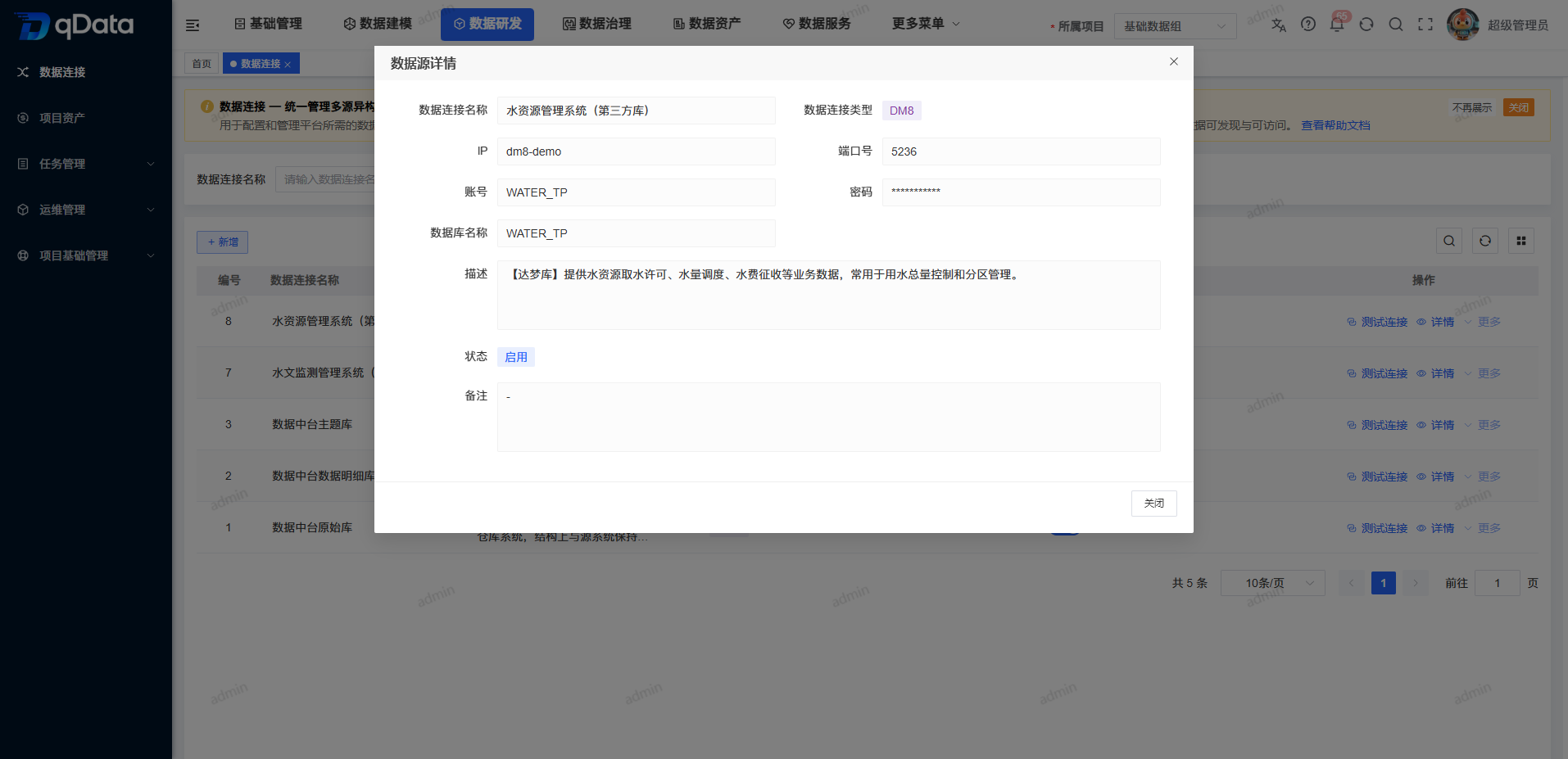
The basic information page does not display passwords. "Restricted operations" only retains the field display of "unrestricted/restricted" and does not generate specific business constraints in terms of permissions, reading and writing, or task running.
FAQ
Do I have to test the connection before saving?
Not required. [Test Connection] is an independent verification action. You can test it first, or you can directly click [OK] to save.Why can't the connections in the project be modified, switched status or deleted?
first confirm the connection source. Connections created by Basic Management can be viewed and used in the project, but cannot be modified, maintained status changed, or deleted within the project. The operation of the project's own connection also needs to meet conditions such as background permissions, status, and downstream references.Why can't project-owned connections be switched to disabled?
Please check the background permissions and downstream references. When there are downstream associated tasks, the system does not allow the status to be switched to [Disabled], and the connection remains in its original state.Can the values in operation monitoring, read-write logs or alarms be used as a basis for true judgment?
cannot. The values, thresholds, status, and operation results in the relevant tabs are front-end examples. This page only explains the fields and entries.Is the read-write log the data connection operation log?
is not. The [Read and Write Log] in the details is a front-end example tab; the operation logs of data connection addition, modification, deletion and query are recorded by the system's existing log mechanism.
Summarize
The Data Connections page is used to prepare and maintain the connections required for downstream tasks within the project scope. When using, please focus on checking the project to which belongs, connection source, connection parameters, downstream references and deletion conditions ; test connections can be executed on demand, basic management connections can only be viewed and used within the project, and monitoring, log and alarm examples are not used as real business rules.