
Data Integration
Feature overview
Functional positioning
Data Integration is used to create and manage ETL tasks within the current project. After connecting data from different sources, it completes conversion, cleaning and output through a visual process, and uniformly maintains task running resources, scheduling cycles, execution instances and logs.
Simple understanding: arranges "where data comes from, how it is processed, and where it is sent" into a task process that can check, save, schedule and track results.
Usage suggestions
It is recommended to complete the basic information, running resources and canvas configuration when the task is not online, pass [Task Check] and formally save it before putting the task online; only after the task is online can you enable scheduling or use [Execute Once].
Main features
- Intra-project task management: Query, create and maintain tasks according to the data integration category of the current project.
- DataX lightweight synchronization: supports MySQL, DM8, KingBase, Oracle, Doris and other types of data sources, suitable for full or incremental offline synchronization of small and medium-sized tables.
- Spark distributed synchronization: supports distributed parallel reading and batch processing, suitable for large-scale offline data warehouse construction.
- Visual process orchestration: configure the synchronization process by dragging and dropping components such as input, conversion, and output.
- Scheduling and Single Execution: Enable scheduling or initiate a single execution based on task status.
- Instance and log tracking: Check the execution status, time, responsible person and execution log by running the instance.
- Task Maintenance Protection: Online tasks cannot be modified, deleted, or cloned; tasks referenced by jobs cannot be deleted.
DataX lightweight capabilities
- ✅ Built-in all-type data source adaptation plug-ins, compatible with MySQL, DM8, KingBase, Oracle, Doris and other domestic and general databases, ready to use out of the box, no additional driver deployment required;
- 🔁 Supports JVM memory, channel concurrency, double-layer current limiting of bytes and records, and refined management and control of dirty data thresholds. It can flexibly adjust synchronization throughput and avoid source library pressure overload;
- 🧩 The single-machine lightweight architecture has no cluster dependence, fast startup speed, simple operation and maintenance, and is suitable for full or incremental offline synchronization scenarios of small and medium-sized tables within tens of millions.
Spark distributed capabilities
- ✅ Distributed parallel shard reading capability breaks through single-machine computing power and memory bottlenecks, and is suitable for large-scale historical data batch synchronization;
- 🔁 Integrate synchronization and complex calculations, support batch processing operators such as multi-table association, aggregation, and partition rewriting, and can complete cleaning and processing during the data transfer process;
- 🧩 Reuse big data cluster resource isolation and scheduling, support ultra-large partition tables, archived historical data and data warehouse hierarchical scenarios, and are suitable for large-scale offline data warehouse construction.
Scope
This function is applicable to data integration task creation, run configuration, process orchestration, status control, scheduling execution and instance query within the current project. The operations a user can perform are determined by the current project role authorization. After switching projects, the page reloads the data integration category, task scope, and role authorization of the target project.
Preliminary steps
Preconditions
- Log in to the qData platform and have access to the [Data Integration] menu of the current project.
- Switched to the correct project requiring maintenance tasks.
- The current project has maintained optional data integration categories and responsible persons.
- The data connection, execution engine, and running resources required for the task have been prepared.
- If you need to use the Yarn queue, it has been confirmed that the corresponding queue resources are available.
Navigation path
Data Development > Data Integration
Page overview
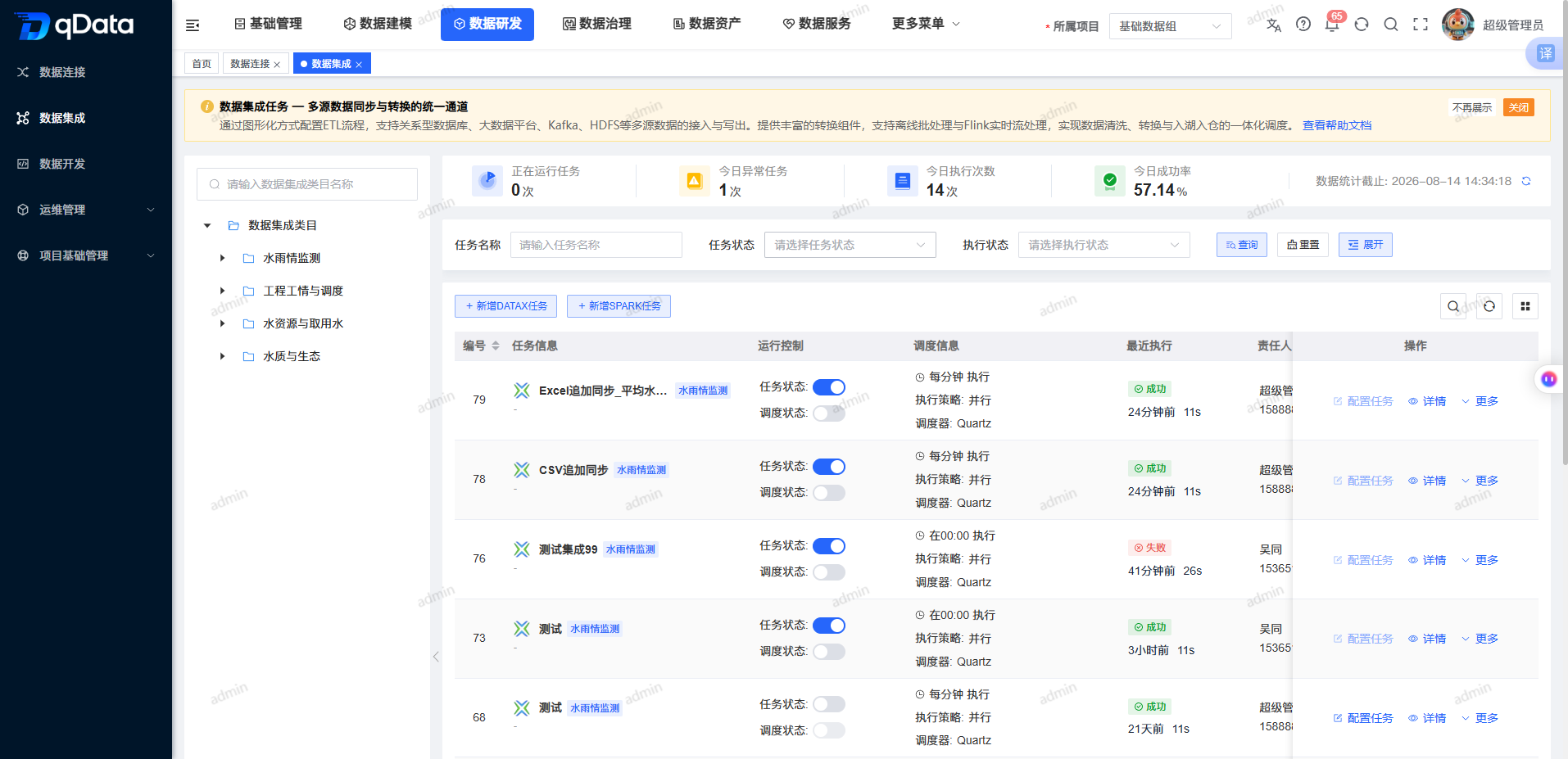
After entering the data integration page, the left side is the data integration category search and category tree. The top query area provides task name, task status and responsible person filtering. The right list displays task information, category, task status, scheduling status, strategy and scheduling, responsible person, creator, creation time and operation entry.
Each task provides [Configuration Task] [Details] [More]; the [More] menu includes [Scheduling Cycle] [Run Instance] [Execute Once] [Delete] [Clone] and other operations.
Recommended operating procedures
Create a new DataX task: Enter the page -> Click [New DATAX Task] -> Configure basic information and operating parameters -> Click [OK] -> Click [Configure Task] -> Configure input, conversion, and output components -> Save the synchronization process -> Put the task online -> Enable scheduling or [Execute Once] -> View the running instance and log.
Modify tasks: If scheduling is enabled, first turn off scheduling -> take the task offline -> modify the task or process -> save the configuration -> go online again -> resume scheduling as needed.
Troubleshooting: Check the task status and scheduling status -> Enter [Running Instance] to view the execution status -> Check the task log to locate the cause of the failure.
Functional operation instructions
Query and locate tasks
- Select the target data integration category in the category tree on the left.
- Fill in the task name, task status or responsible person in the query area.
- Click [Query] to refresh the task list.
- Click [Reset] to clear or restore the query conditions.
- Check the task status, scheduling status, execution strategy and responsible person in the list.
New DataX data integration task
- Click the [Add DATAX Task] button on the page.
- Fill in the task name, task category, responsible person, description and other basic information in the pop-up box.
- Select or confirm DataX (Lightweight) in the execution configuration.
- Configure execution strategy, scheduling cycle, failure retry and other operating parameters according to business needs.
- Click [OK] to complete the addition of the DataX data integration task.
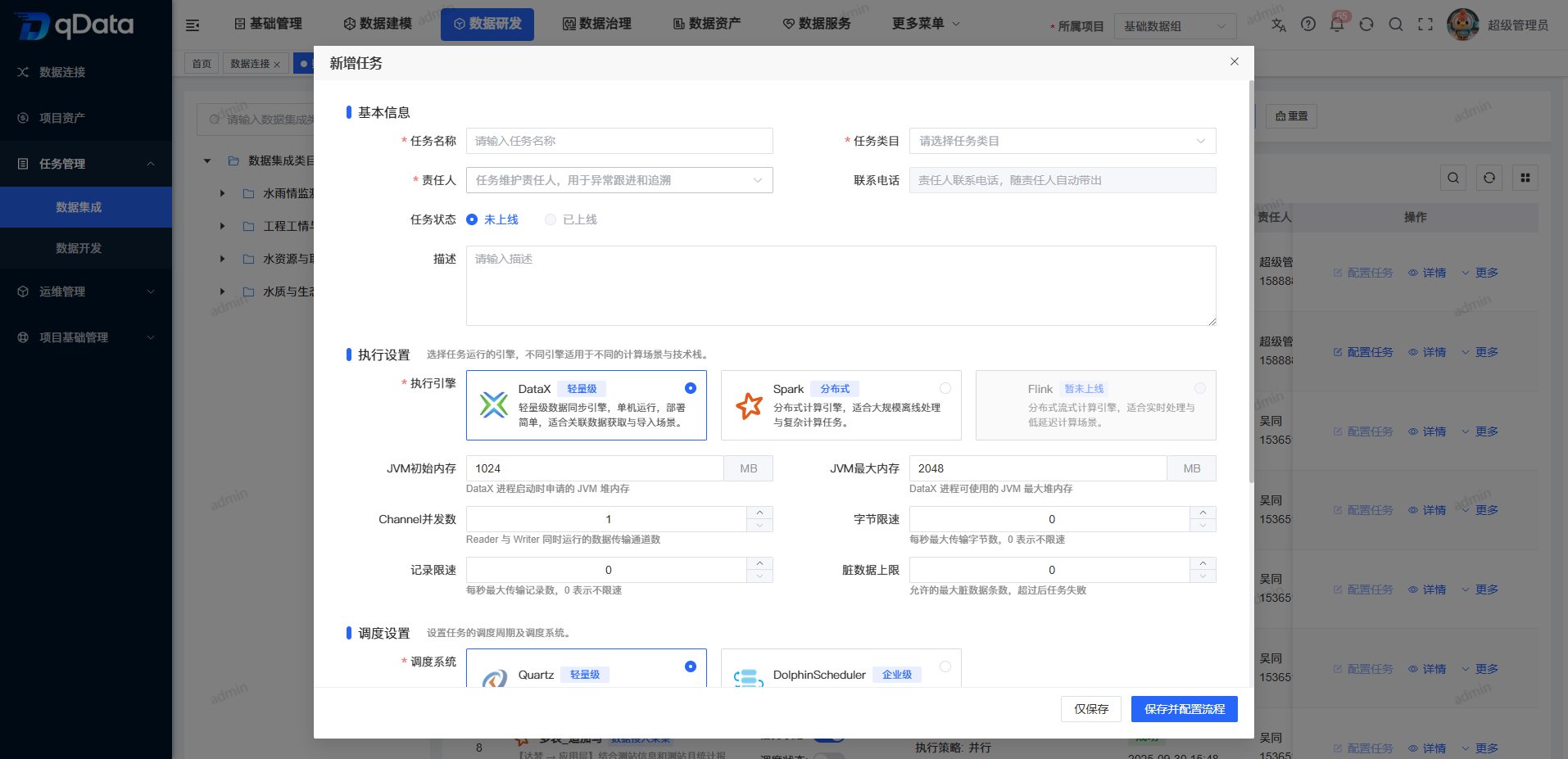
Basic information
| Field Name | Description | Required or not |
|---|---|---|
| Task Category | Select the data integration category in the current project. | Yes |
| Task Name | Enter a name to identify the task. | Yes |
| Execution strategy | Optional parallelism, serial wait, serial abandonment, serial priority; new default parallelism. | Yes |
| Scheduling Period | Configure the execution period through the Cron expression generator. | Yes |
| Responsible person | Select the person responsible for the task. | Yes |
| Contact number | Displayed with the responsible person, currently read-only. | No |
| Task status | The new task is not online by default, and the "online" option is unavailable. | No |
| Description | Fill in the purpose of the task, the page displays a 500 character count. | No |
| Remarks | Fill in the supplementary description, the page displays a 500 character count. | No |
Running parameters and execution resources
| Field Name | Description | Required or not |
|---|---|---|
| Task priority | Optional HIGH, HIGHEST, MEDIUM, LOW, LOWEST. | No |
| Number of failed retries | Number of retries after task failure, unit is "times". | No |
| Failure retry interval | The interval between adjacent retries, the unit is "minutes". | No |
| Delayed execution time | Delayed execution time of the task, unit is "minutes". | No |
| Worker group | Default default, currently read-only. | No |
| Execution engine | Optional DataX, SPARK; DataX is suitable for lightweight offline synchronization, and SPARK is suitable for distributed batch synchronization. | No |
| Yarn queue | The Yarn queue used by the task; configured according to cluster resources when executing with SPARK. | No |
- DataX resources: Focus on parameters such as JVM memory, channel concurrency, byte current limit, record current limit, and dirty data threshold, and configure them reasonably according to the source library's carrying capacity.
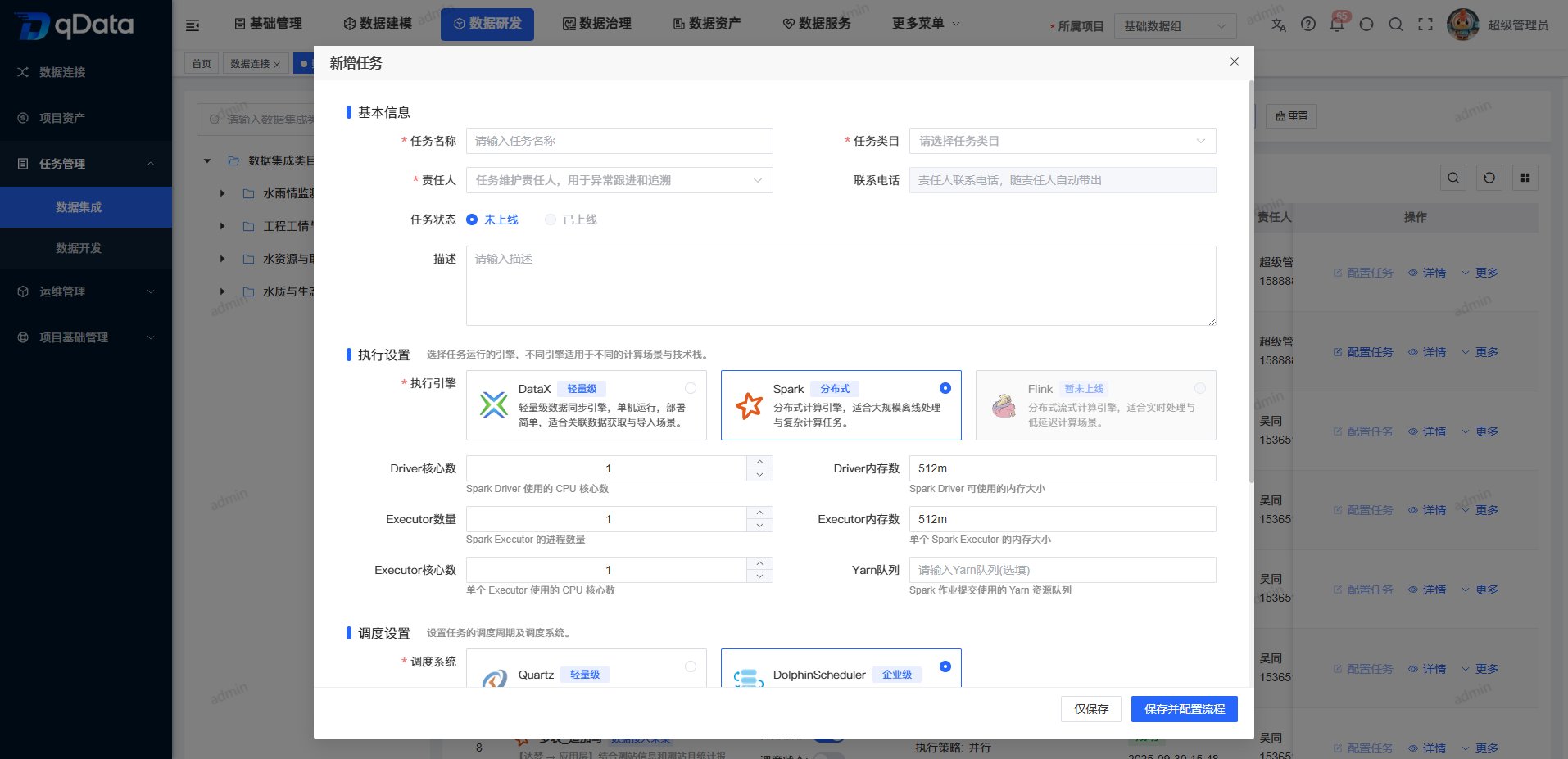
- SPARK resources: Number of Driver cores, number of Driver memories, number of Executors, number of Executor memories, and number of Executor cores.
DataX applicable scenarios
| Scene | Description |
|---|---|
| Offline synchronization of small and medium tables | Suitable for full or incremental synchronization of data tables within tens of millions. |
| Heterogeneous database synchronization | Supports data transfer between multiple types of relational databases and data warehouse targets. |
| Lightweight deployment | No need to rely on big data clusters, suitable for synchronization tasks with light resources. |
| Throughput control | Synchronization pressure can be controlled through concurrency, current limiting and dirty data thresholds. |
Spark applicable scenarios
| Scene | Description |
|---|---|
| Large-scale offline synchronization | Suitable for batch synchronization tasks with large amounts of data and high execution pressure on single-machine DataX. |
| Distributed batch processing | Suitable for tasks that rely on Spark cluster resources for parallel reading, transformation, and writing. |
| Data warehouse hierarchical processing | Suitable for completing data warehouse processing logic such as aggregation, association, and partition processing during the synchronization process. |
| Historical data archiving | Suitable for writing large batches of historical data, very large partition tables or archived data to targets such as Doris and Hive. |
Added Spark data integration task
If the task needs to process large-scale data or relies on distributed computing resources, you can click [Add Spark Task] to create a Spark (distributed) data integration task.
Configure synchronization process
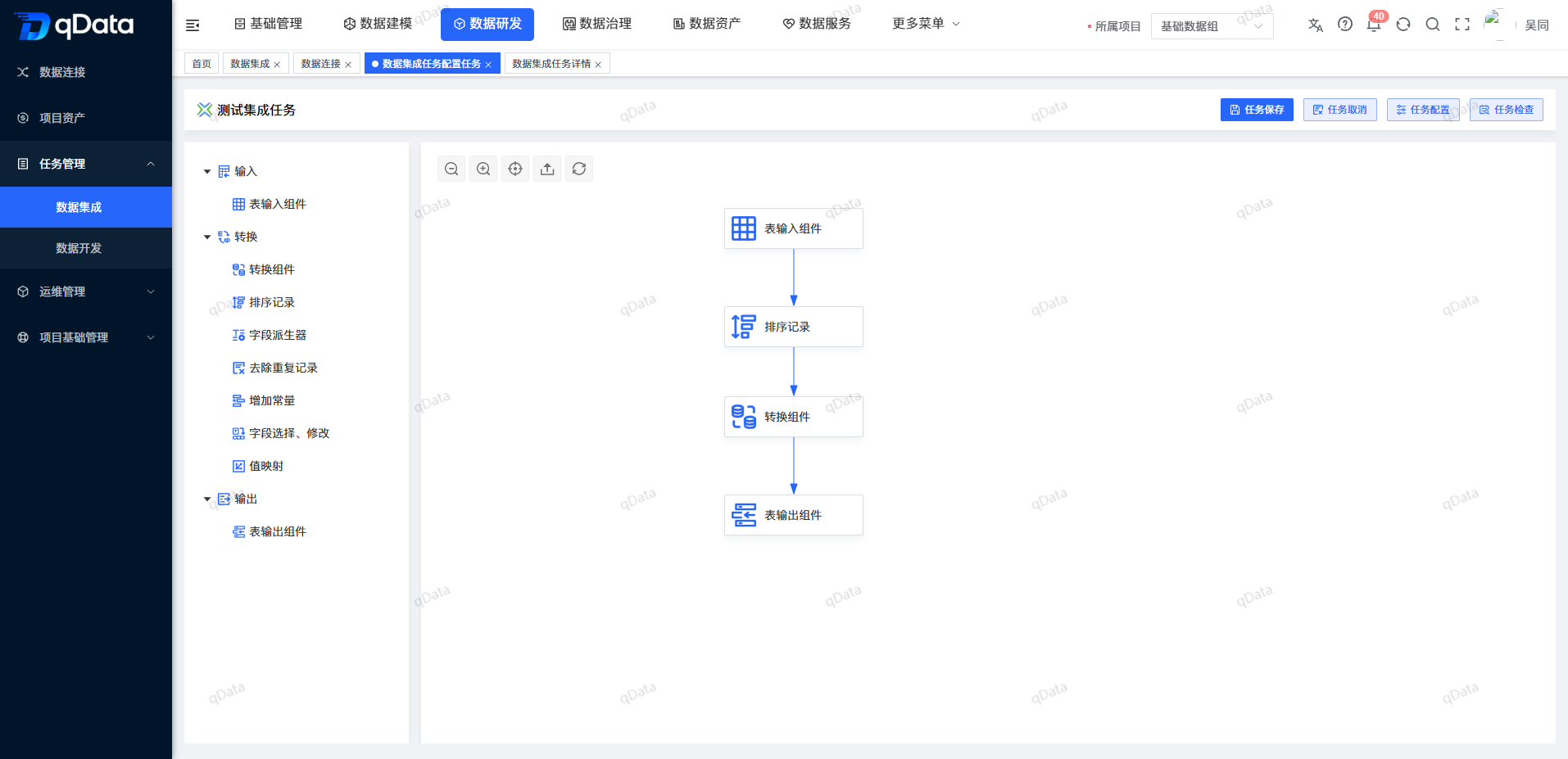
Select the data integration task that needs to be configured, and click the [Configure Task] or [Configure Transformation] button in the operation column to enter the visualization task configuration page. Users can configure input components, conversion components and output components in the canvas, and form a complete synchronization process through connections.
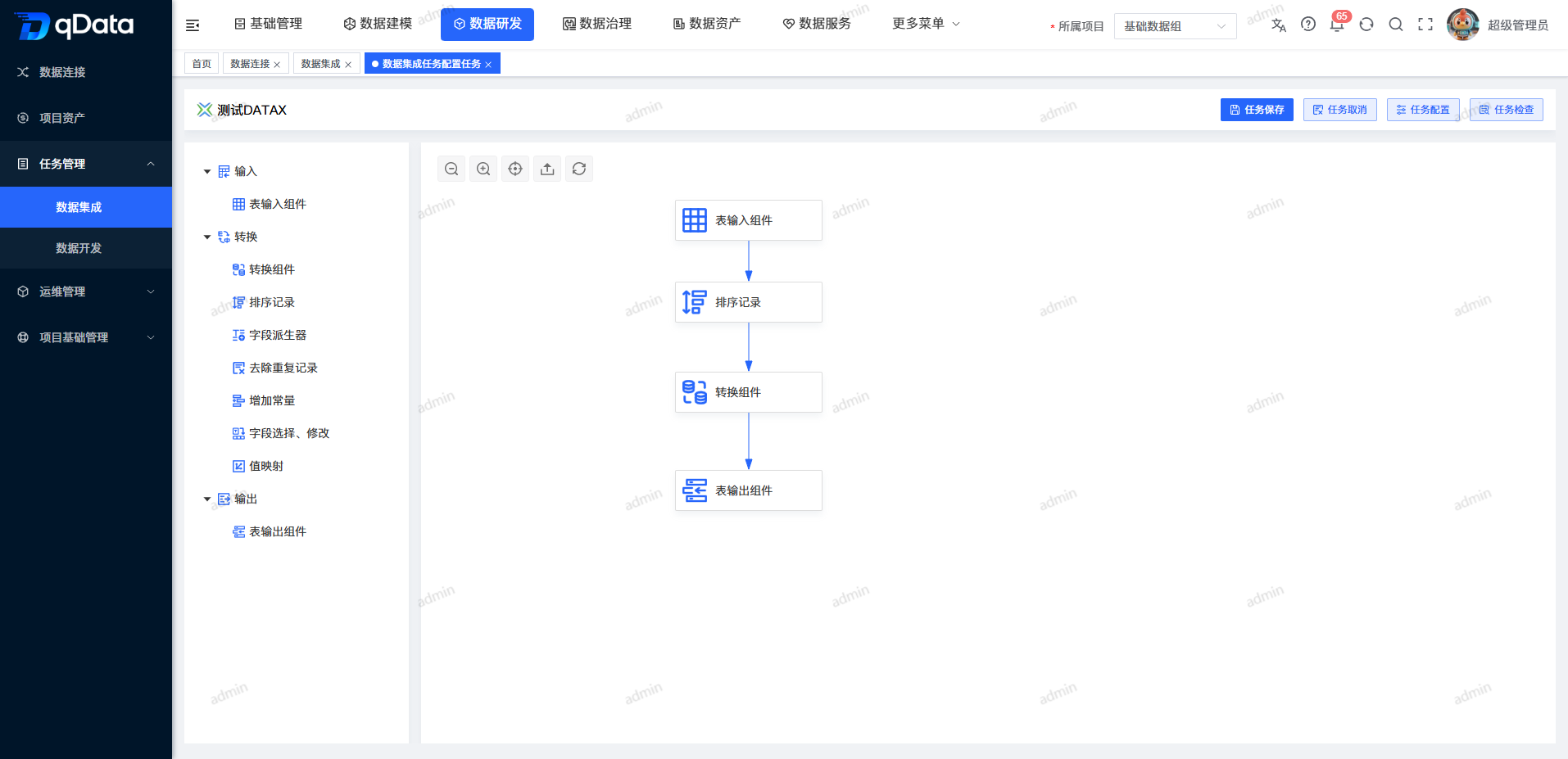
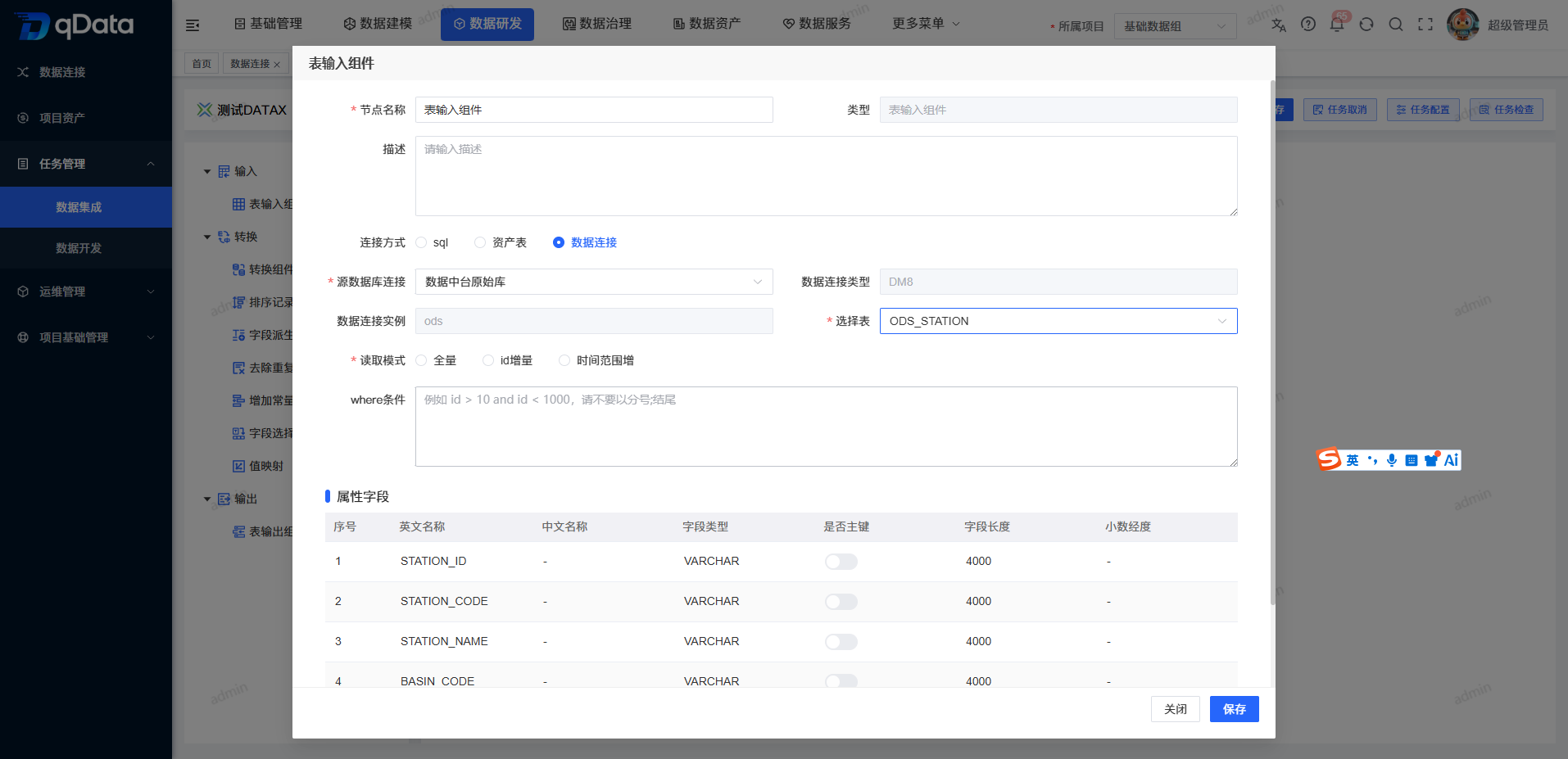
table input component
The table input component is used to configure the source data reading information. Usually, you need to select the data connection, library table object, reading field, filter condition and reading method.
Transform component
The transformation component is used for field mapping, field processing, rule configuration and data cleaning of input data. After configuring the transformation rules, the processing results can be passed to downstream output components.
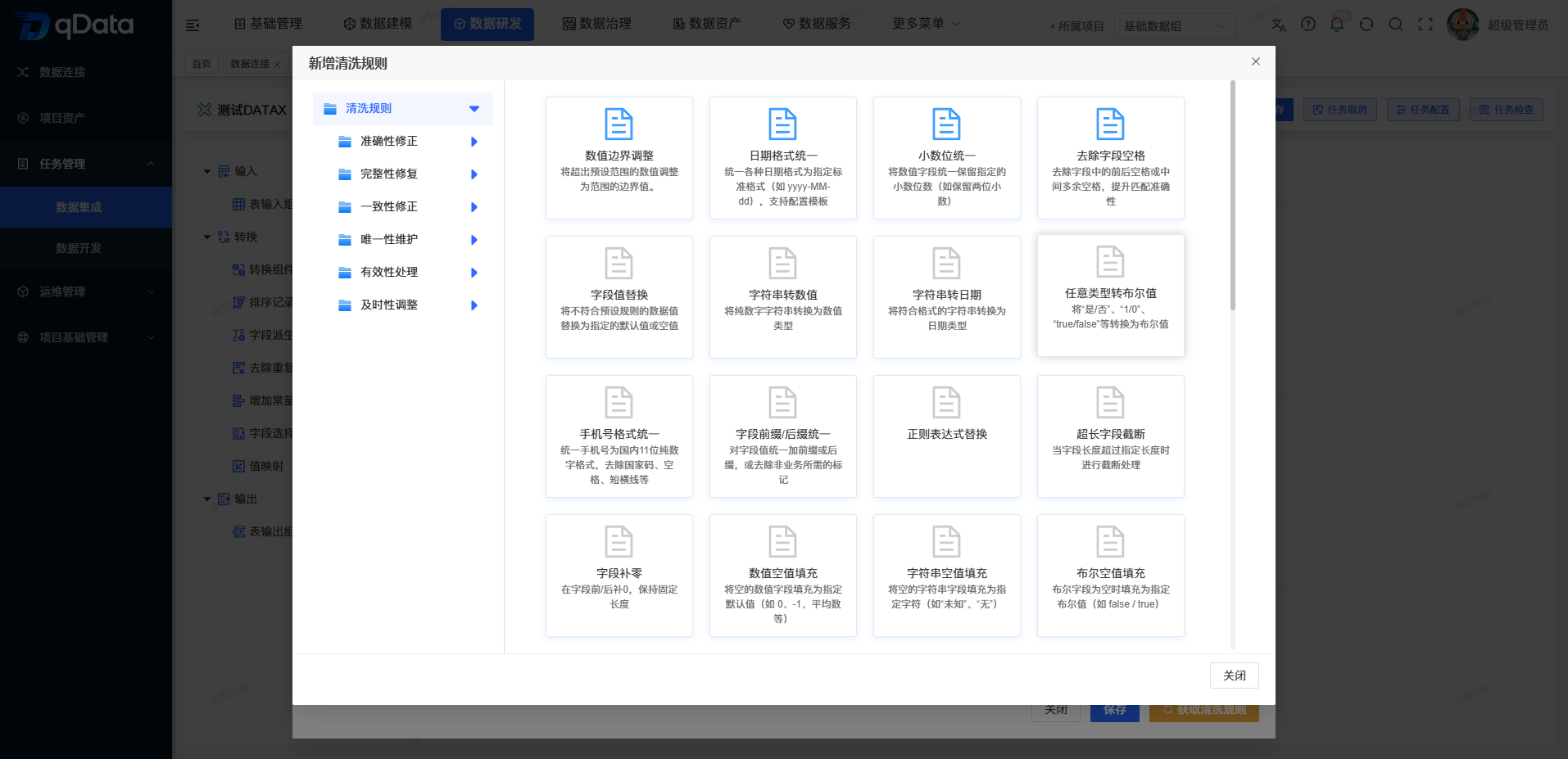
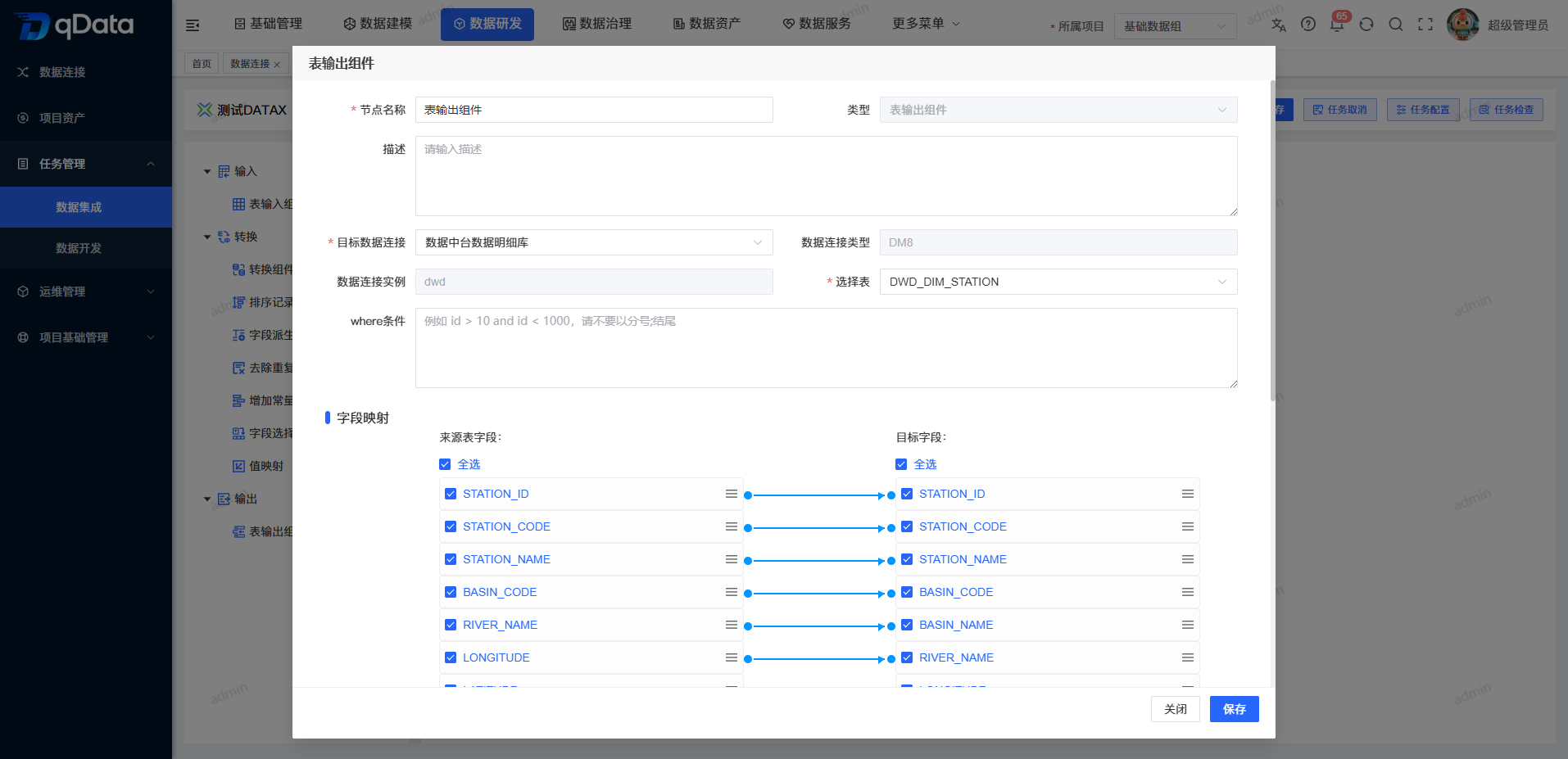
table output component
The table output component is used to configure the target side to write information. Usually, you need to select parameters such as target data connection, target database table, field mapping, and writing mode.
Configure rules
- It is not recommended to duplicate node names in the same canvas.
- Input components usually serve as the starting point of the process, and output components usually serve as the end point of the process.
- When upstream fields change, downstream field mappings should be rechecked.
- For DataX tasks, it is recommended to first confirm the source table fields, target table fields and writing mode to avoid field mismatches after execution.
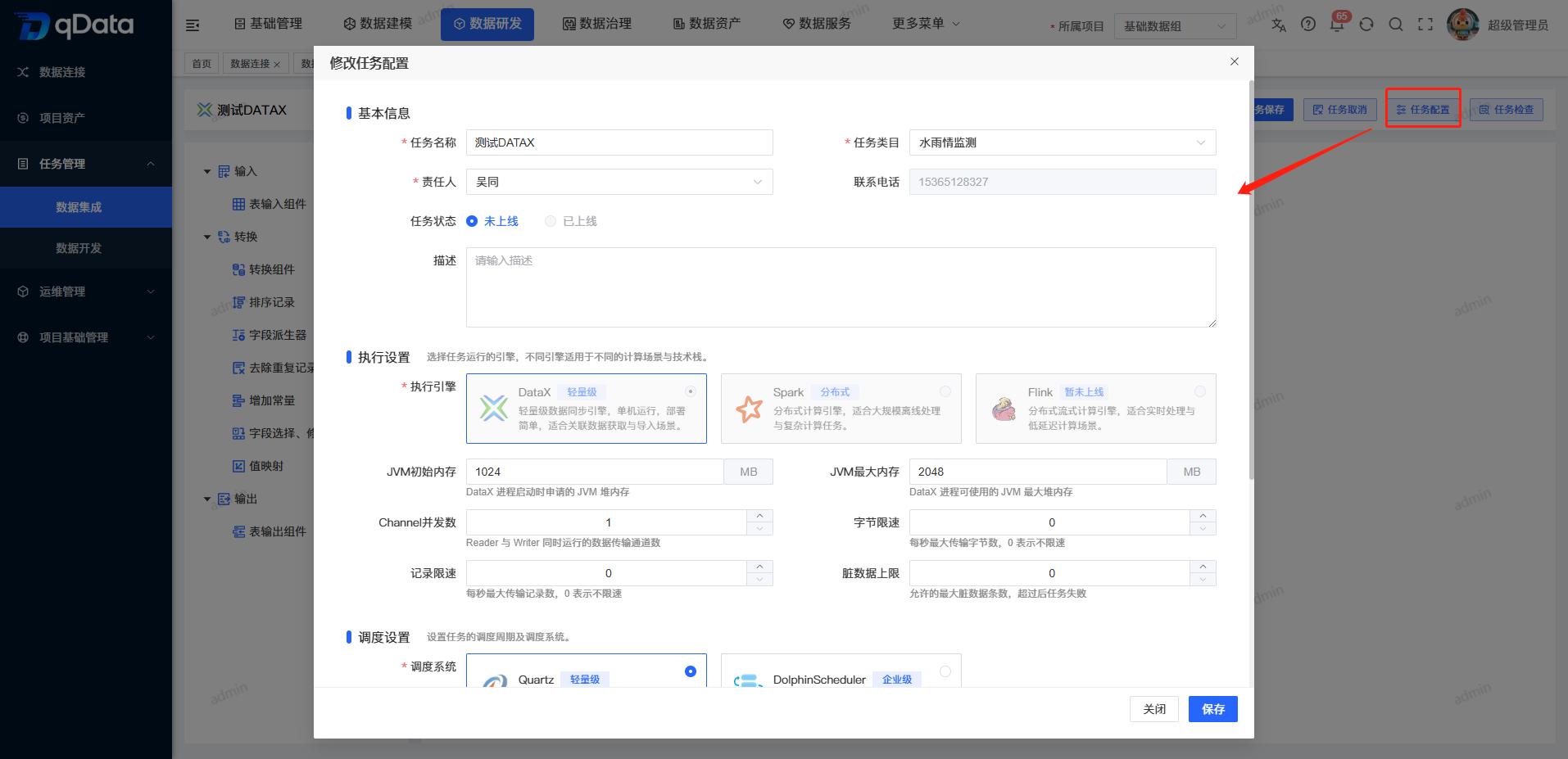
Modify task
Select the data integration task that needs to be modified, click the [Modify] button in the operation column, and adjust the basic information, execution strategy or resource parameters of the task. If the task is online or scheduling is enabled, please turn off scheduling and take the task offline before modifying it.
View task details
Select the data integration task you want to view and click the [Details] button in the operation column to view basic task information, scheduling configuration, execution configuration, process configuration and operation-related information.
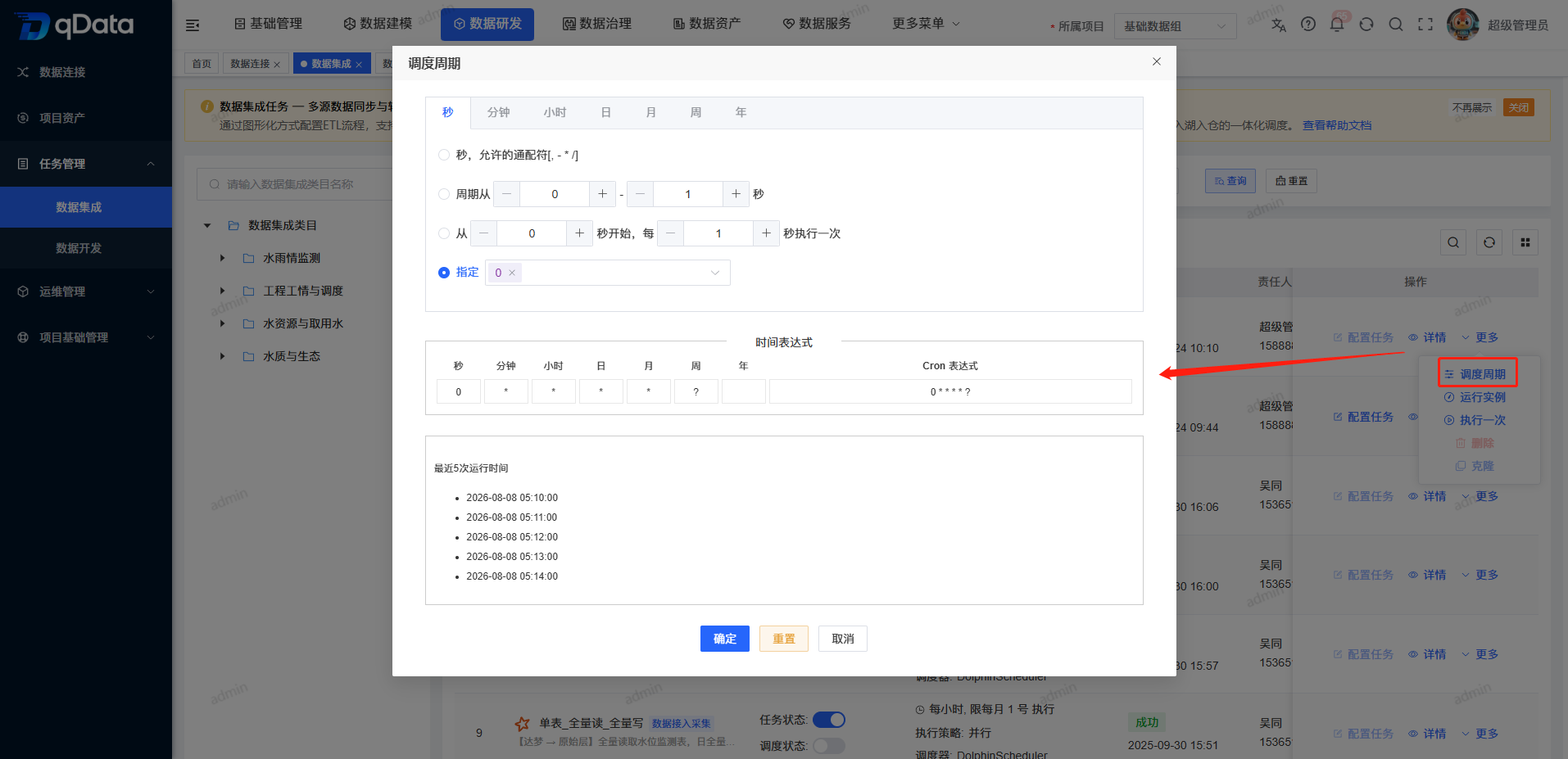
Configure scheduling cycle
Select the data integration task that needs to be scheduled and executed, click the [More]->[Scheduling Period] button in the operation column, fill in or generate the scheduling period in the pop-up box, and click the [OK] button to save.
Choose an entrance based on the current scene:
When adding a task, click [Configure] on the right side of the scheduling cycle.
When maintaining an existing task, click [Scheduling Period] in the [More] menu of the target task.
Set the period in the [Seconds] [Minute] [Hour] [Day] [Month] [Week] [Year] tab.
Verify the Cron expression generated by the page.
Check the last 5 run times shown on the page.
If you want to save this setting, click [OK].
Check that the saved scheduling period is echoed in the task form or task list.
If you do not want to save this setting, click [Close] to exit; the original scheduling cycle will remain unchanged after closing.
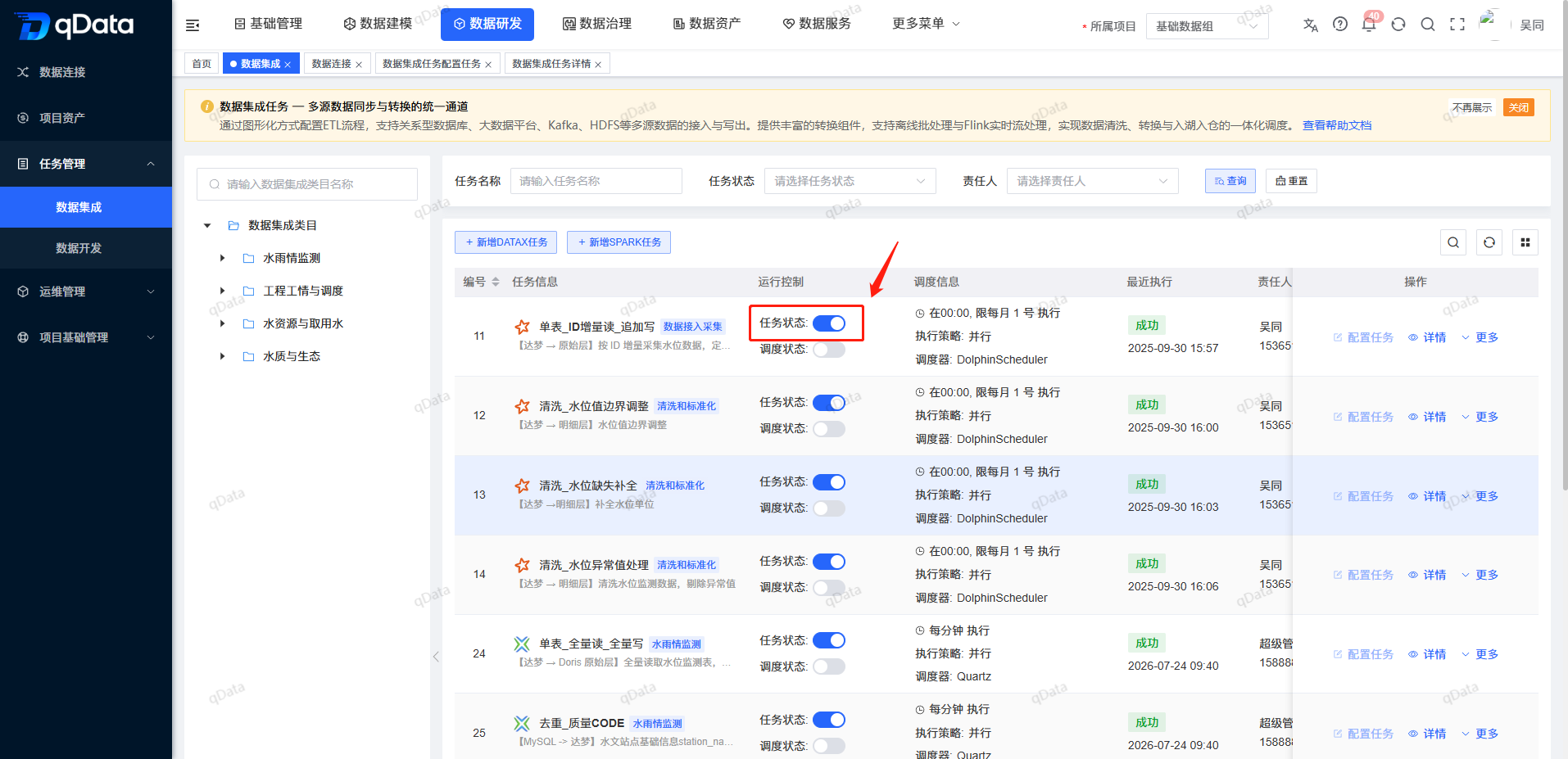
Online tasks and enabling scheduling
Task status
Select the data integration task that needs to be brought online or offline, and click the [Switch] button in the task status column to complete the online or offline operation.
Scheduling status
After the task goes online, you can click the [Switch] button in the scheduling status column to complete the scheduling activation or deactivation operation.
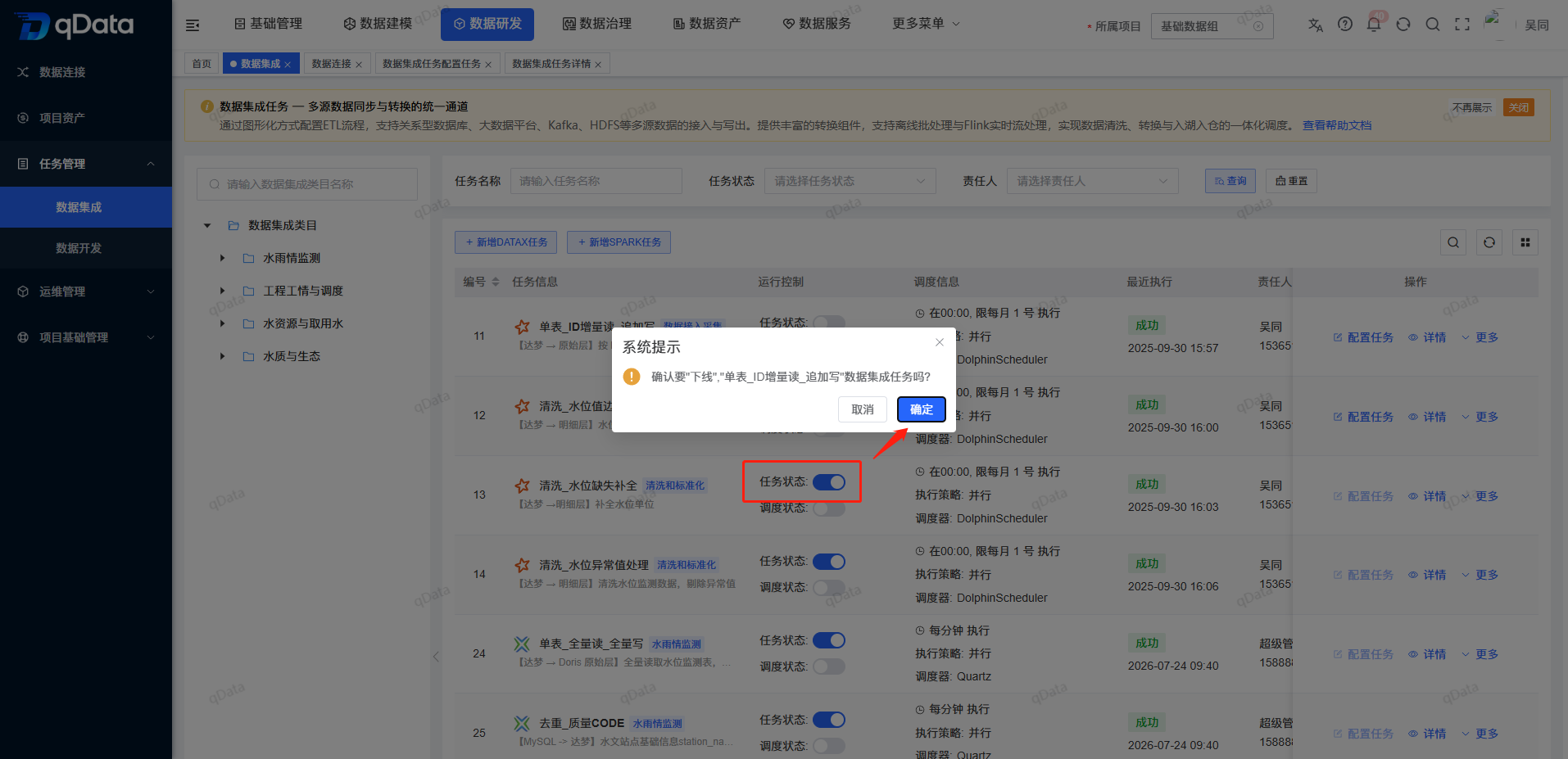
status sequence
- Scheduling can only be enabled or executed once the task is online.
- When scheduling is enabled, the cycle cannot be modified, and tasks cannot be taken offline.
- If you need to modify the task, please close scheduling first and then take the task offline.
Running instance
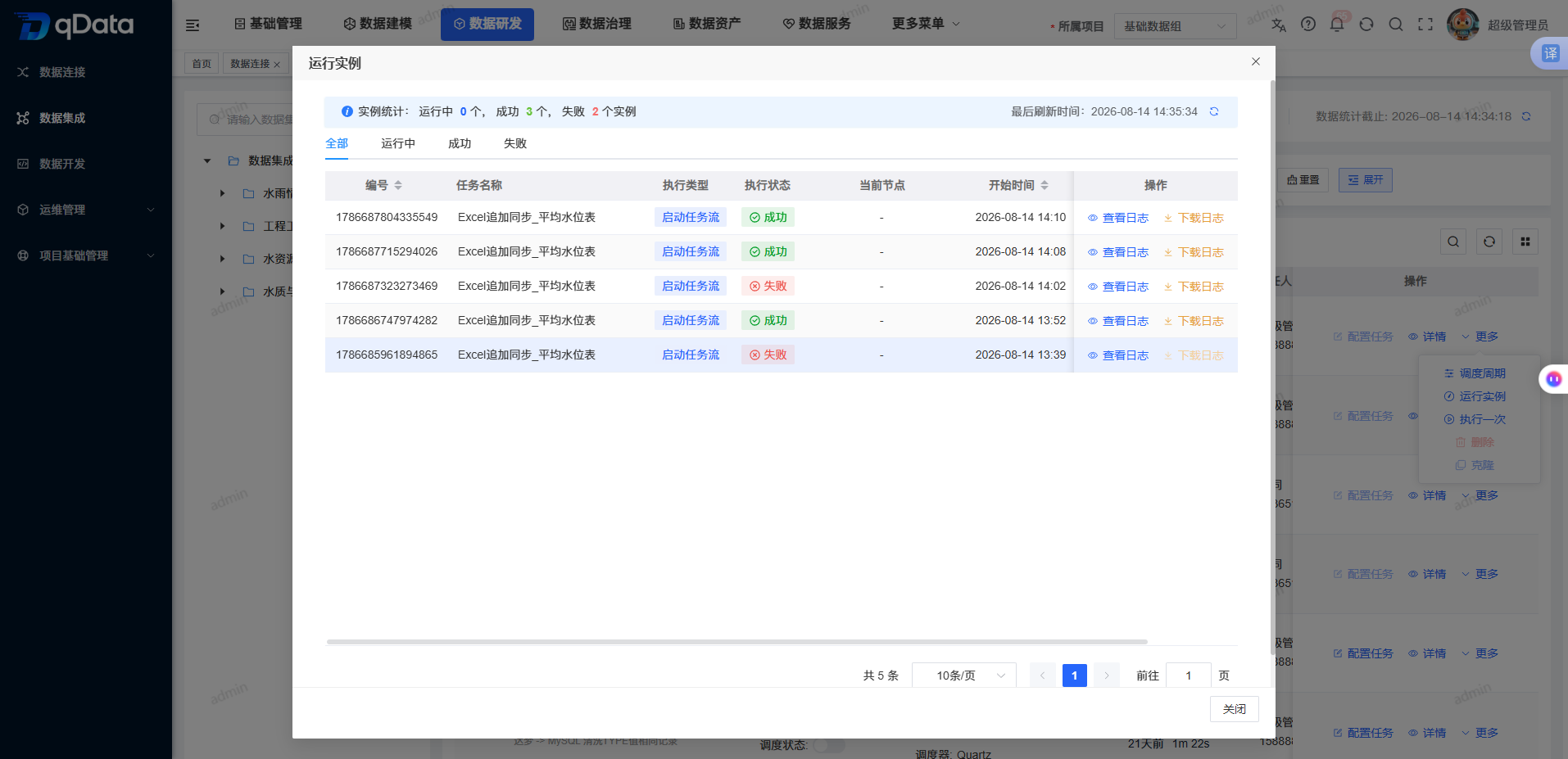
Select the data integration task for which you want to view the running instance, click the [More]->[Run Instance] button in the operation column, and view the execution record in the pop-up box. Running instances can be used to view information such as execution type, execution status, start time, end time, extraction volume, write volume, and responsible person.
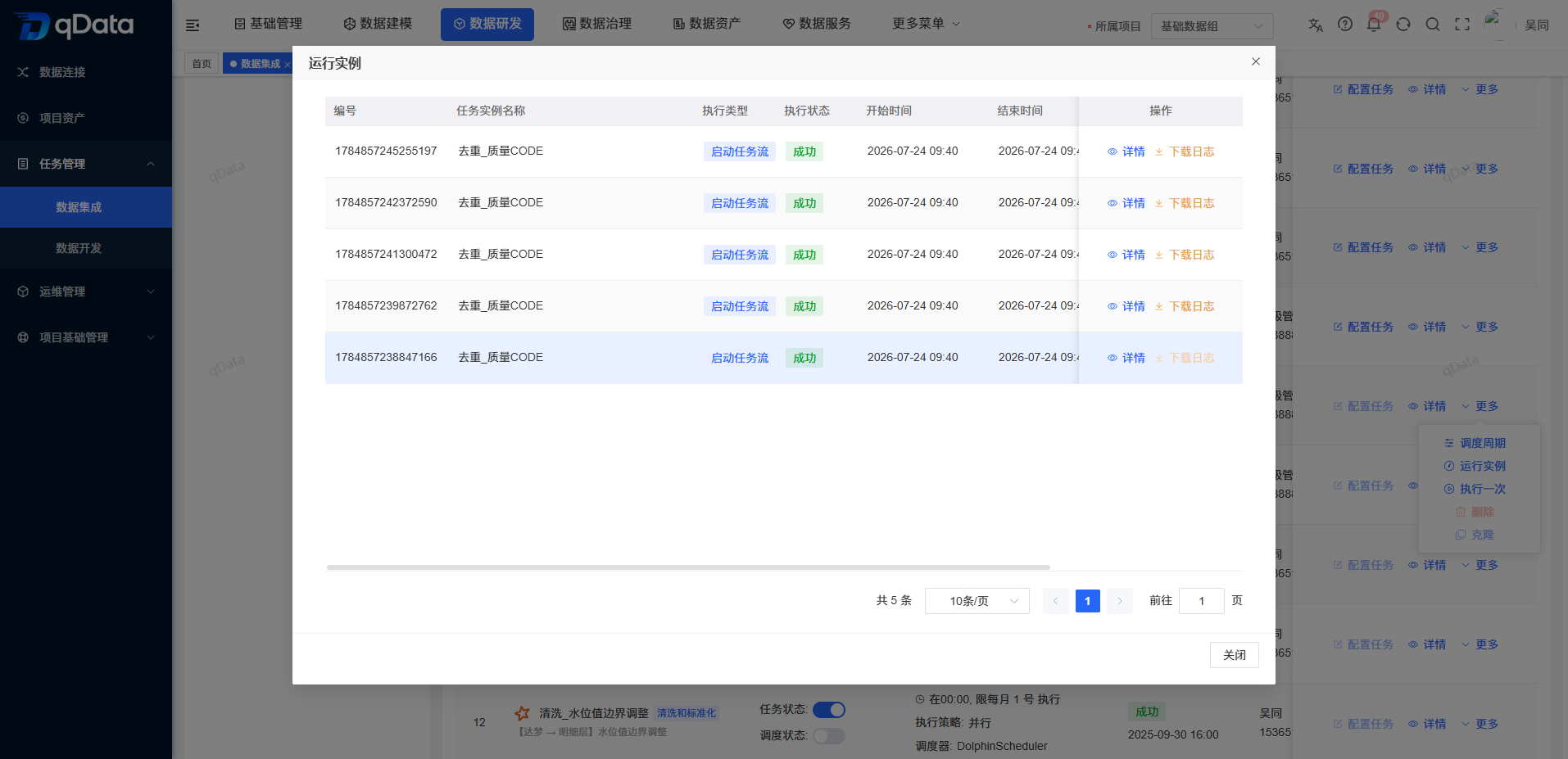
You can also enter the instance details to view the task execution process and log information.
Execute once
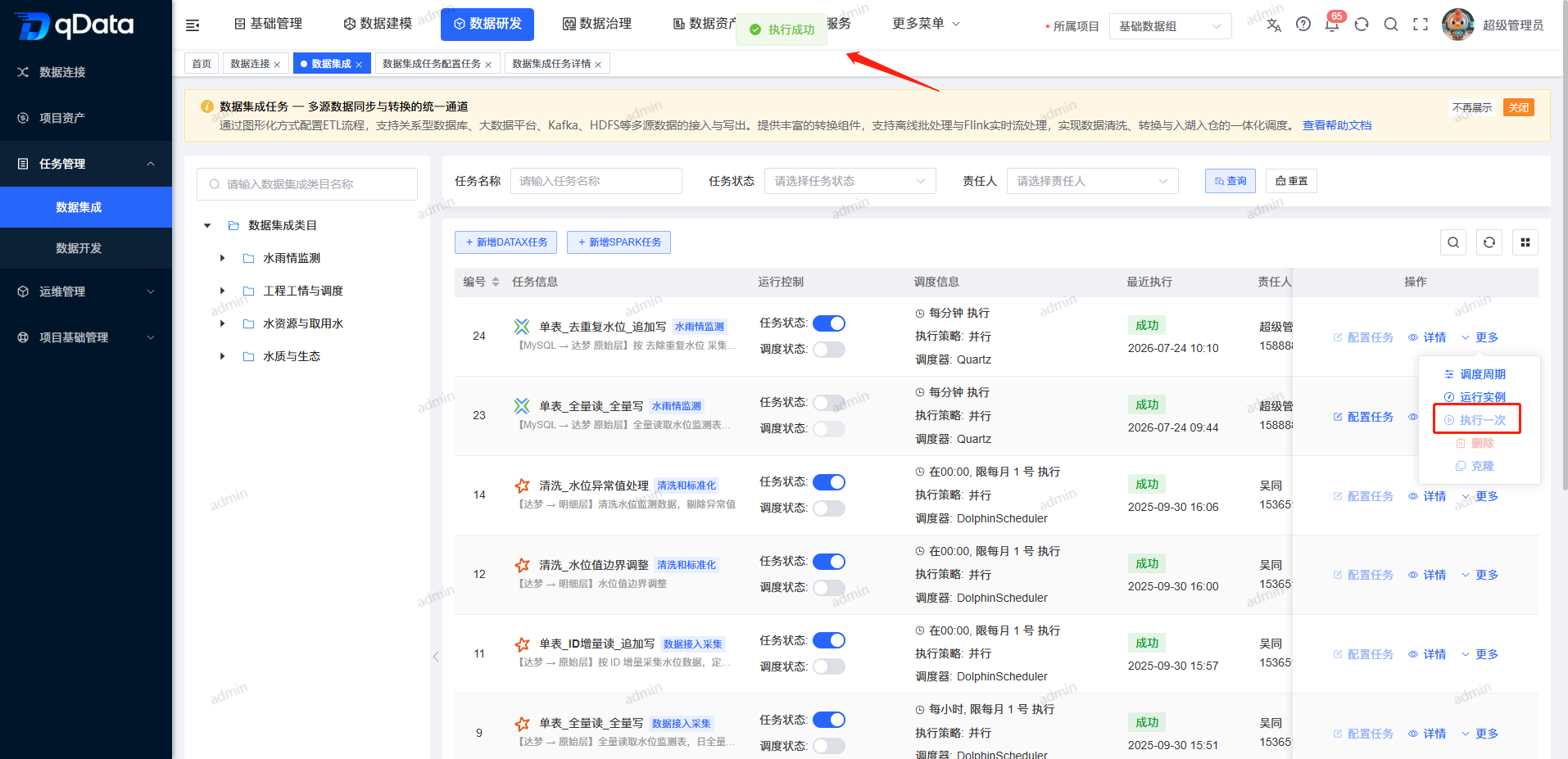
Select the data integration task that needs to be executed immediately and click the [More]->[Execute Once] button in the operation column. The system will immediately initiate a task execution and prompt relevant information. After the request is accepted, you can view the execution results through [Run Instance].
Clone task
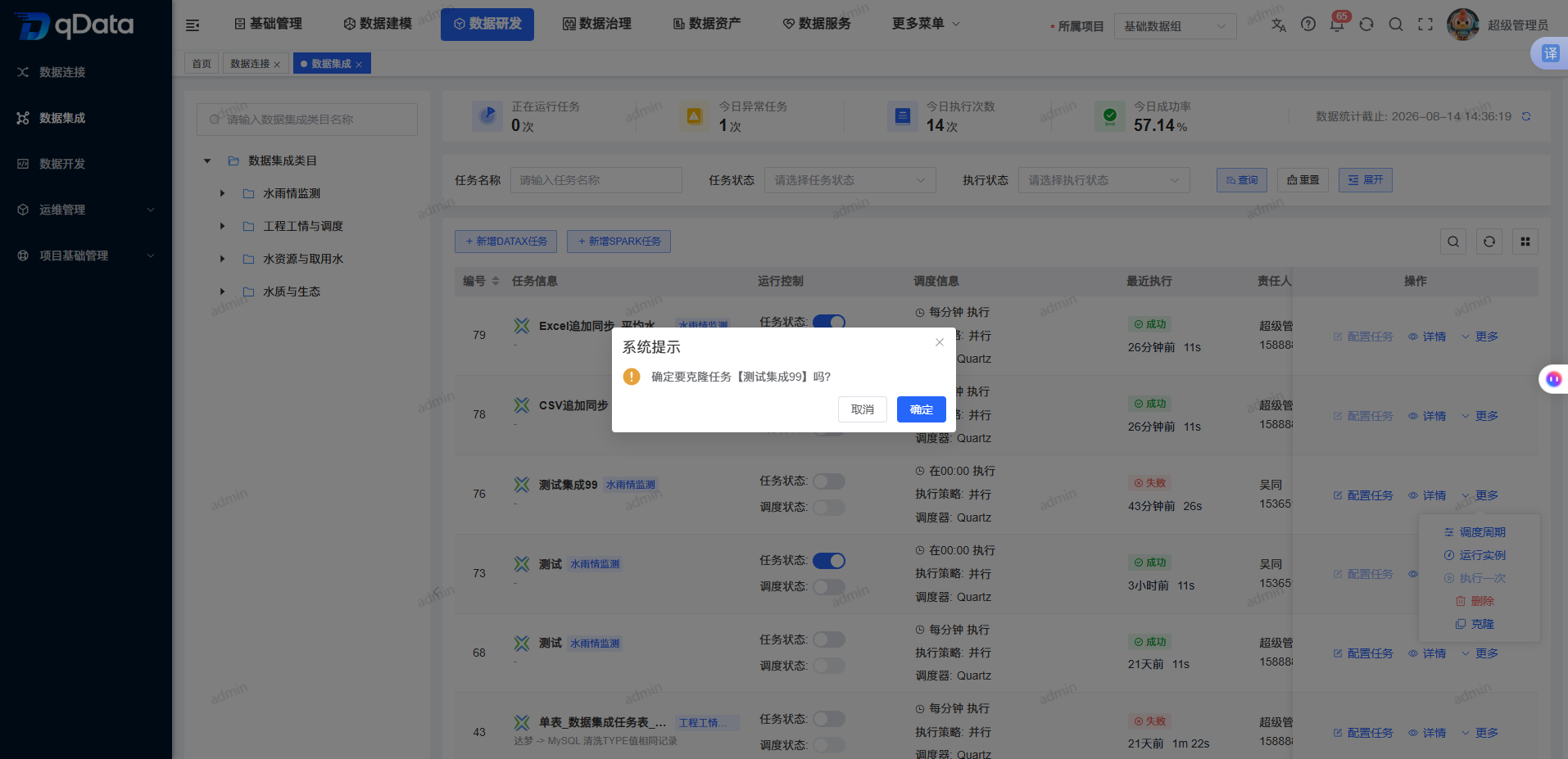
Select the data integration task that needs to be copied, click the [More]->[Clone] button in the operation column, and the system will generate a copy based on the original task. Clone tasks can be modified independently without affecting the source tasks.
Delete task
Select the data integration task that needs to be deleted, click the [More]->[Delete] button in the operation column, and click [OK] in the confirmation prompt. The system will delete the data integration task.
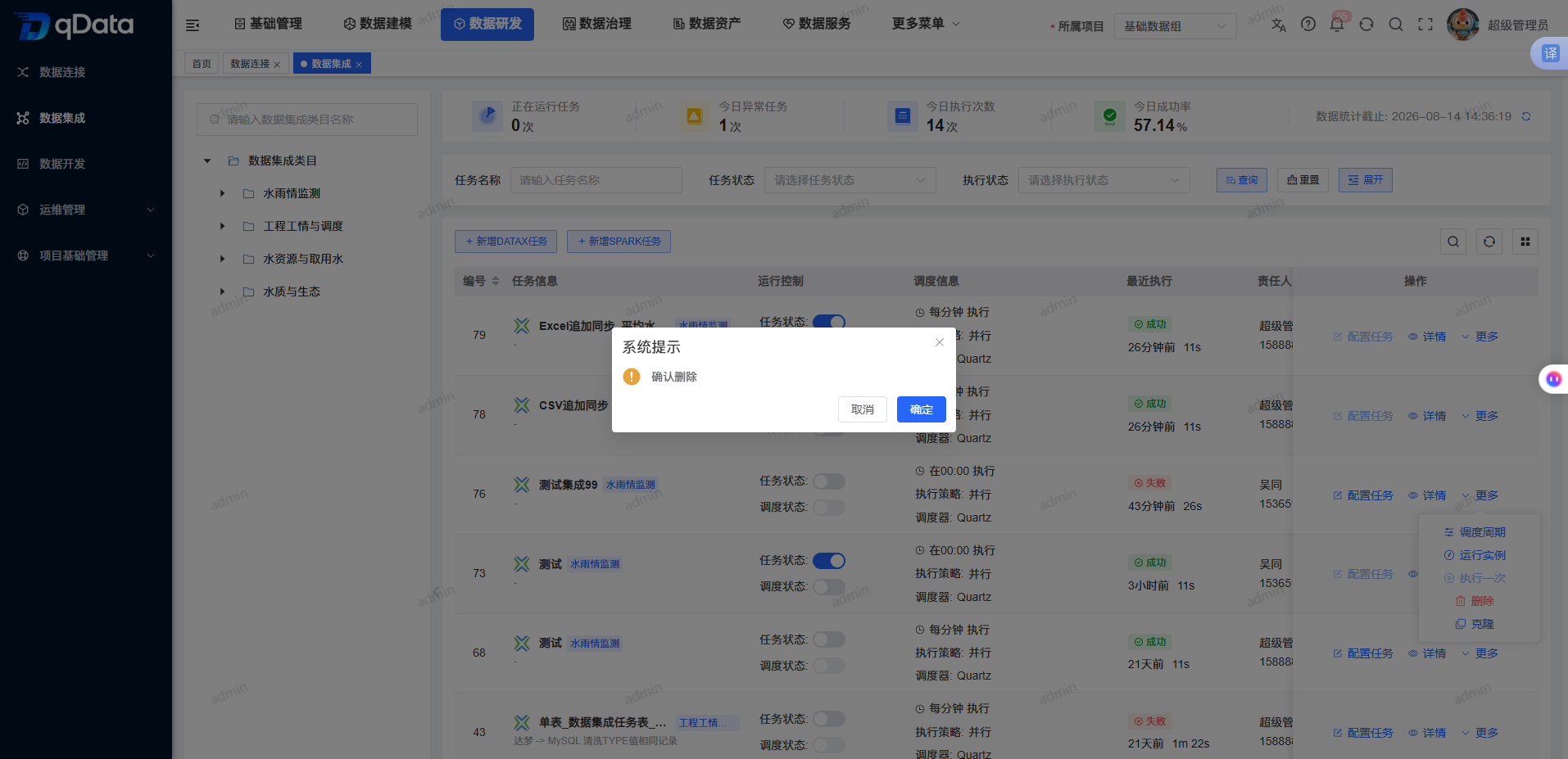
Delete tips
Online tasks cannot be deleted; tasks referenced by jobs cannot be deleted either. Before deleting, please take the task offline and remove the job reference.
FAQ
**Why can't I enable scheduling or execute once?**The
task must be online first. Tasks that are not online cannot be scheduled and cannot be executed once.**Why can't I modify the scheduling cycle or take the task offline?**When
scheduling is enabled, the cycle cannot be modified, and the task cannot be taken offline. Please turn off scheduling first.How should I choose between DataX and Spark?
For offline synchronization of small and medium tables and lightweight deployment scenarios, DataX is preferred; for large-scale data processing or distributed computing capabilities, Spark is preferred.Where can I view execution results and logs?
Go to [Run Instance] from [More], locate the target record and view the instance details or logs.Will cloning affect the source task?
will not. Cloning produces independent copies without affecting the source task.
Summarize
Data integration connects task creation, running resources, visual processes, verification and storage, online scheduling and instance logs. When operating, please focus on checking the current project, task status, scheduling status, DataX execution configuration and field mapping results ; when you need to modify the task, first close the scheduling and take the task offline.