Operations Management
Definition
This module is used to centrally manage the execution status of all scheduled tasks on the platform, including job instances and Data Development tasks. Through log viewing, instance retrieval, task rerun, and other functions, it helps operations personnel monitor Task Status and troubleshoot issues.
Job Task Management
- Supports viewing the execution instance list of job tasks, with an independent instance automatically generated for each run;
- Instances display the complete task tree structure, clearly reflecting dependencies between tasks;
- You can view the run log of each subtask node and download logs;
- Supports rerunning failed or specific instances as a whole, ensuring the scheduling chain is stable and controllable.
Data Development Task Management
- Provides execution instance lists for real-time and offline Data Development tasks;
- Supports viewing task execution logs and debugging information, and can download log files;
- Helps developers quickly locate issues, analyze exceptions, and continuously optimize task logic.
Notes
We recommend configuring alert mechanisms and log persistence policies for key tasks to ensure execution processes are monitorable, issues are traceable, and failures are recoverable.
Scope
For platform operations personnel and task execution owners, this module is used to manage Run Instances for job tasks and Data Development tasks. It is applicable to daily operations scheduling monitoring, task tracking, log analysis, fault retry, and other operational scenarios.
1. Task Instance Page
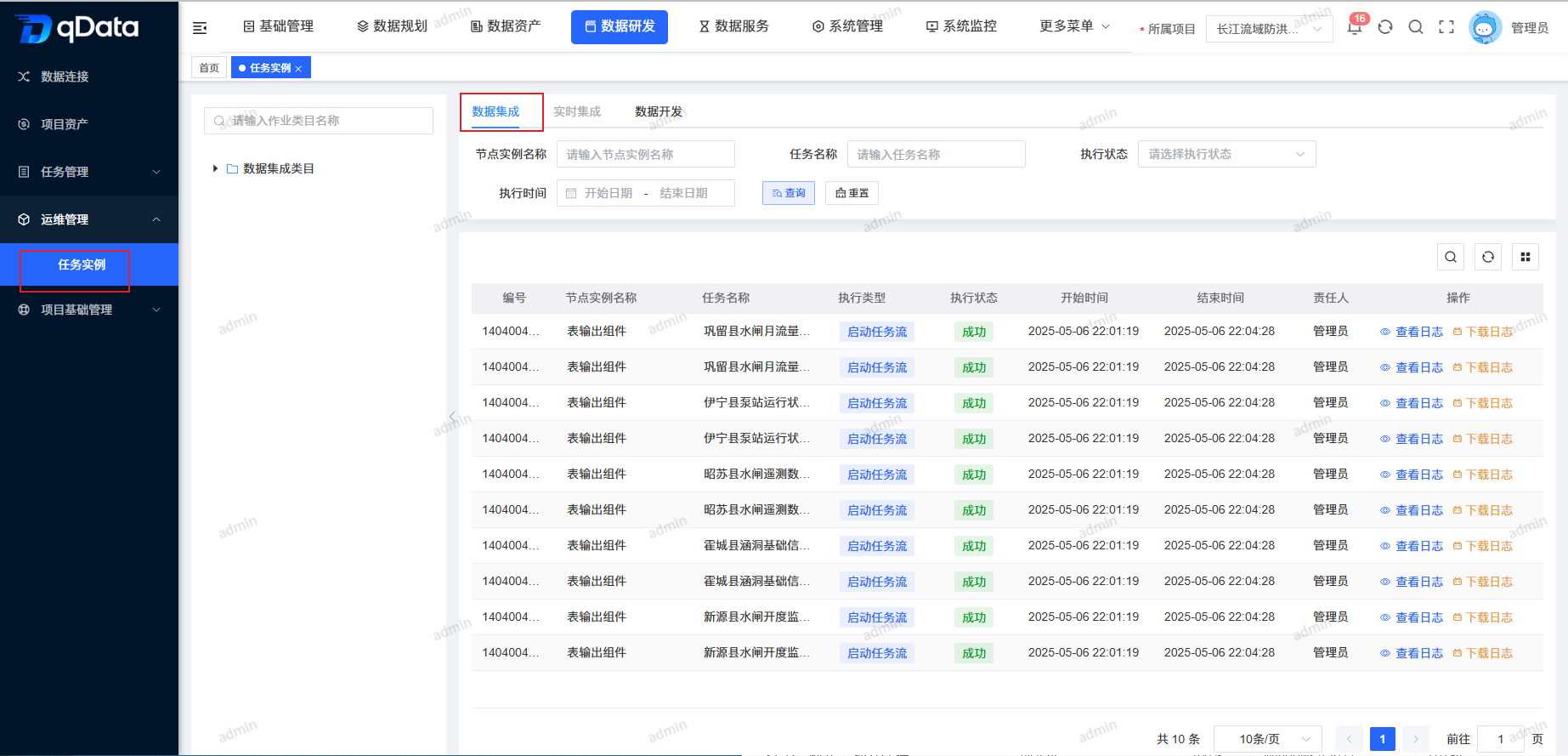
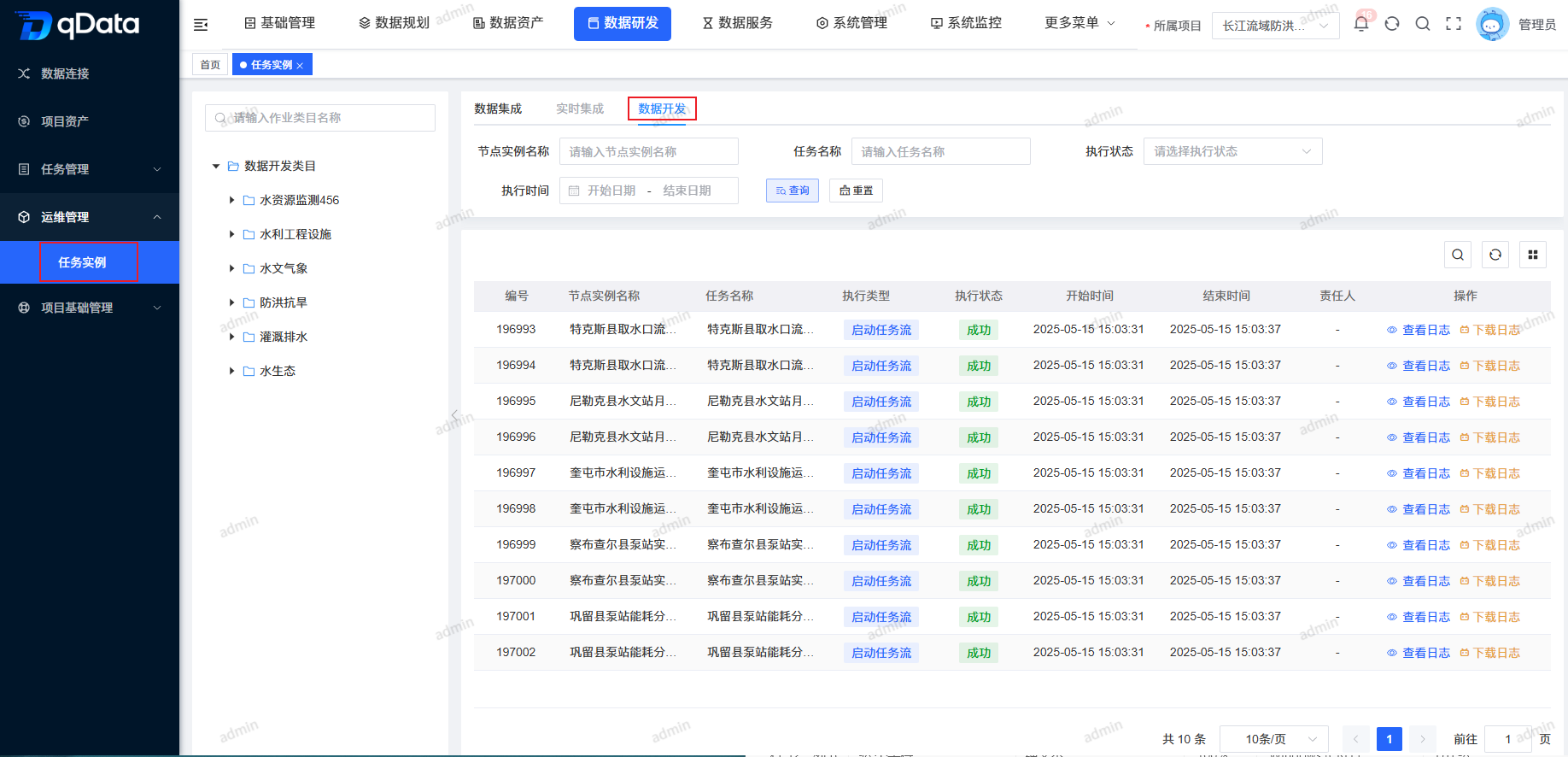
Click Data Development -> Operations Management -> Task Instance to open the Task Instance page. The page is divided into left and right sides: the left side displays Data Integration categories in a tree structure, and the right side displays a list including ID, node instance name, task name, execution type, execution status, start time, end time, and other fields.
2. View Data Development Log
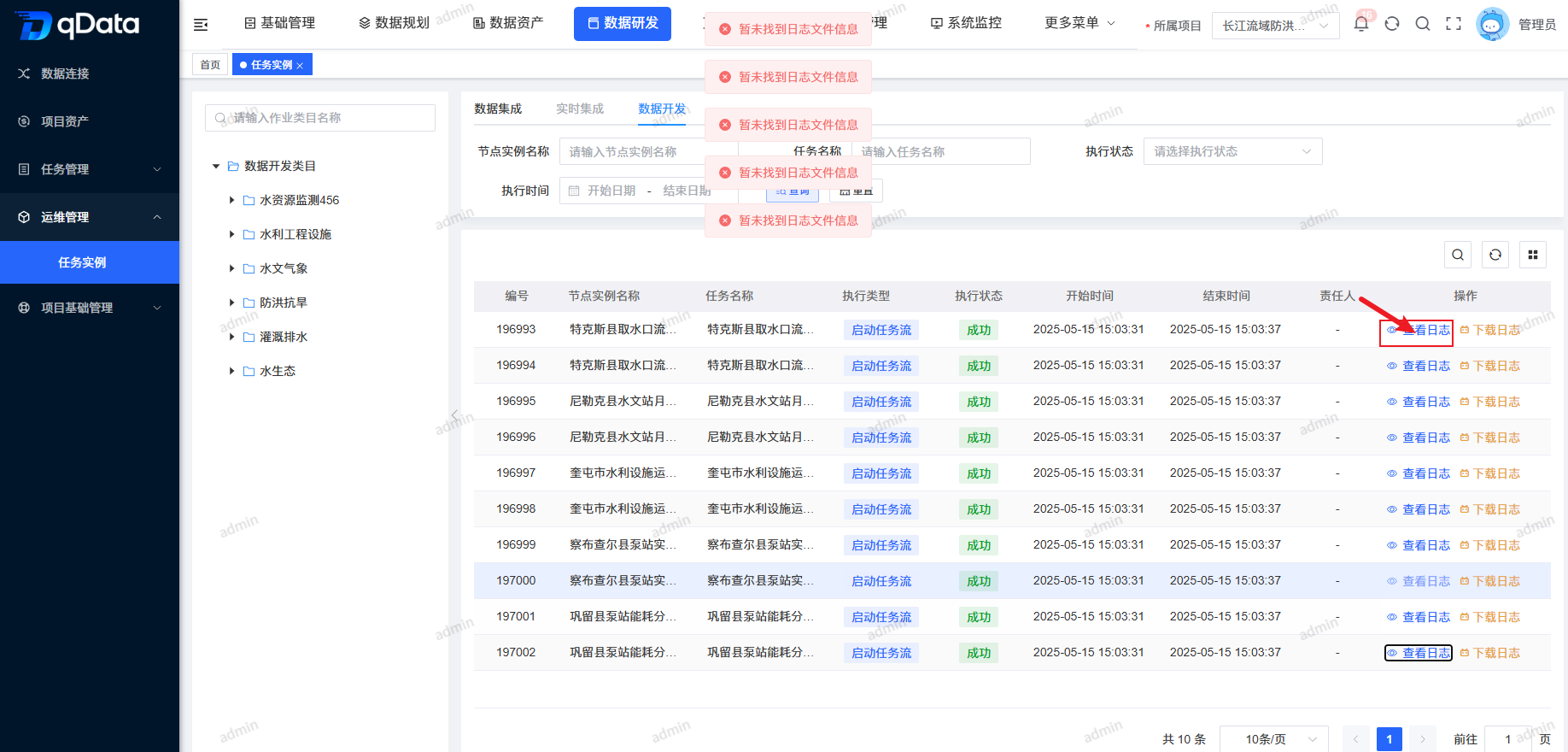
Select the Data Development log to view, click View Logs in the operation column, and view the Data Development log in the dialog.
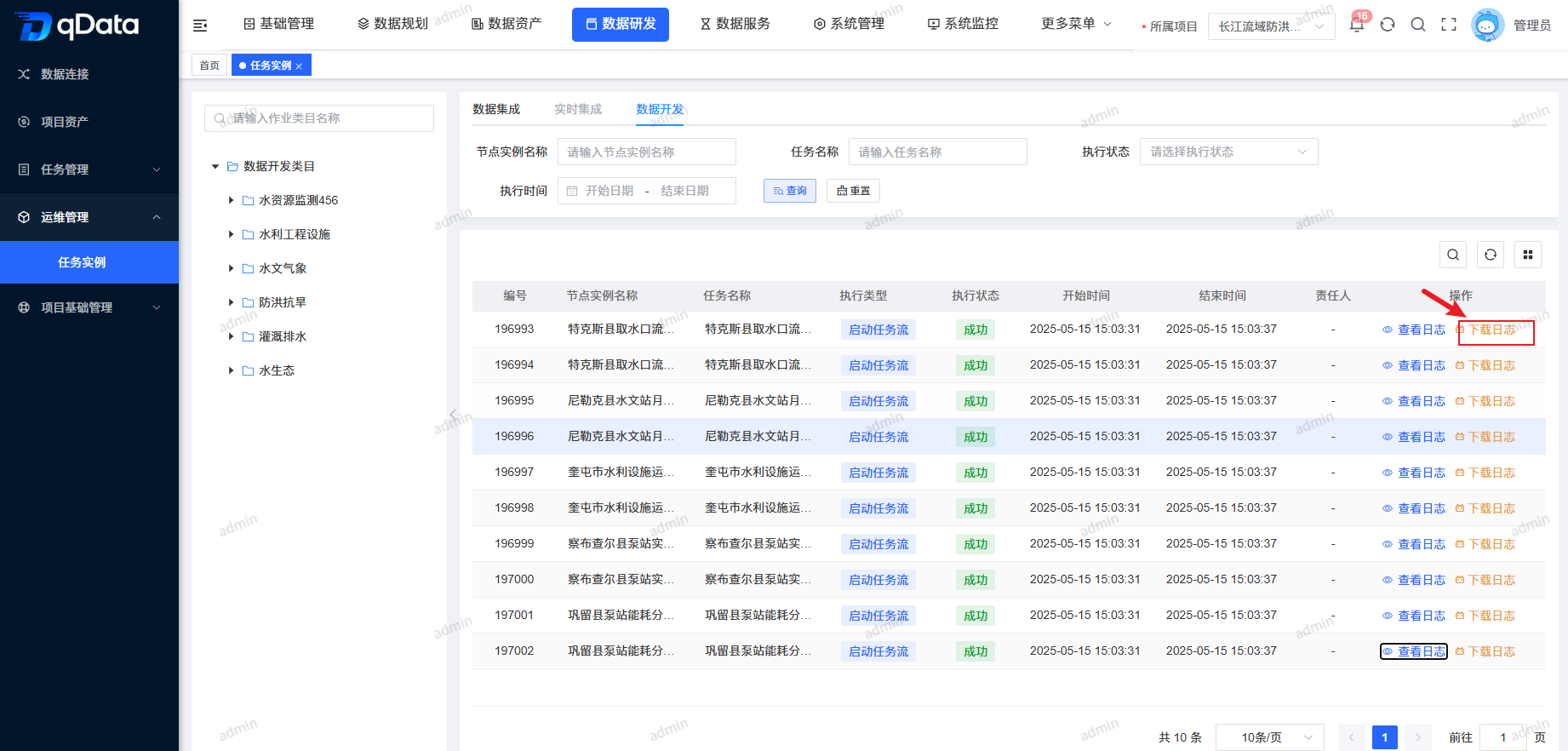
3. Download Task Log
Select the task log to download, click Download Log in the operation column, and the file will be downloaded automatically. You can view it in the browser's download list.