Data Development
Definition
This module is used to centrally manage and execute real-time and offline data processing tasks. It supports multiple data source types, scheduled execution methods, and task runtime control capabilities, and is the core data flow orchestration and processing tool of the data platform.
Real-time Data Development Tasks
Supports real-time collection, processing, and output of connected data through stream processing frameworks such as Flink. Tasks support hot updates and online management.
Core Capabilities:
- ✅ Task Management: supports add, edit, enable, disable, run immediately, View Logs, and other operations;
- 🔄 Status update mechanism: automatically restores Task Status after system restart and keeps tasks uninterrupted;
- 🧰 Execution templates: preset templates by executor type, such as Flink, SQL, and CDC, for quick configuration;
- 🗂️ Data source support:
- Input support: MySQL (CDC), Oracle, Dameng, Hive, Kafka, and more;
- Output support: MySQL, Oracle, Dameng, Hive, Kafka, and more;
- 🧪 Debugging and control: supports stopping during task debugging and manually stopping running tasks;
- 🔚 Automatic close: supports completion optimization for missing close logic after task execution;
- 🔗 Front-end and back-end API joint debugging has been completed, connecting task runtime status with execution feedback.
Offline Data Development Tasks
Based on Spark SQL or various database execution engines, it supports the development, scheduling, and execution of batch processing tasks, and is used for daily data processing, model calculation, data cleaning, and other processing workflows.
Core Capabilities:
- 💡 Supports SQL writing, debugging, and stored procedures for multiple data sources;
- ⚙️ Adapts to the Spark SQL engine and can execute complex SQL and stored procedures;
- 📤 Can work with Data Integration tasks, asset output tasks, and other tasks for chained processing.
Notes
For real-time tasks, we recommend optimizing performance together with Kafka partition strategies and Flink parallelism. For offline tasks, configure resource queues and scheduling priorities reasonably to avoid scheduling congestion.
Scope
For Data Development roles and development engineers, this module supports SQL task development based on engines such as Flink and Spark, covering both real-time stream processing and offline batch processing scenarios. It is applicable to data synchronization, data calculation, data lake ingestion, and other scenarios.
1. Data Development Page
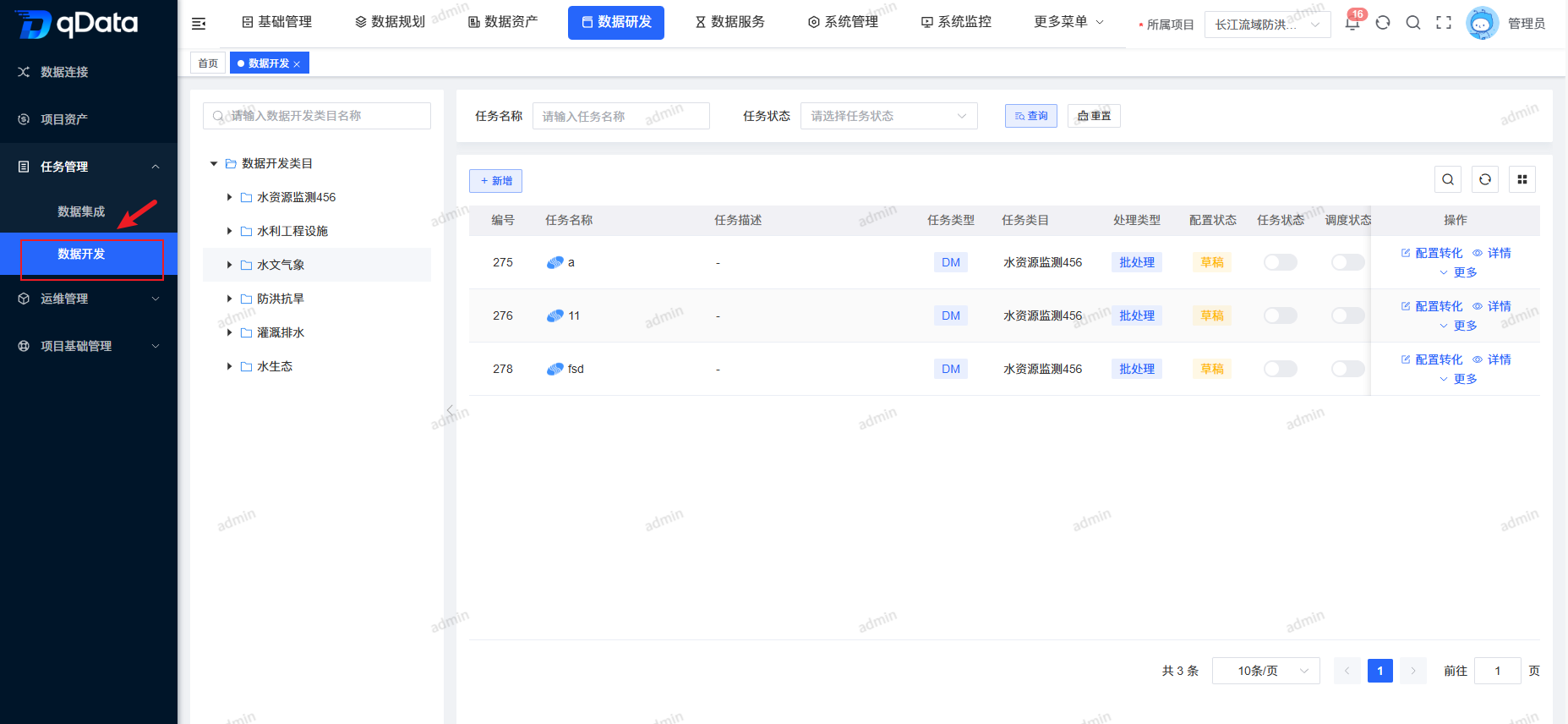
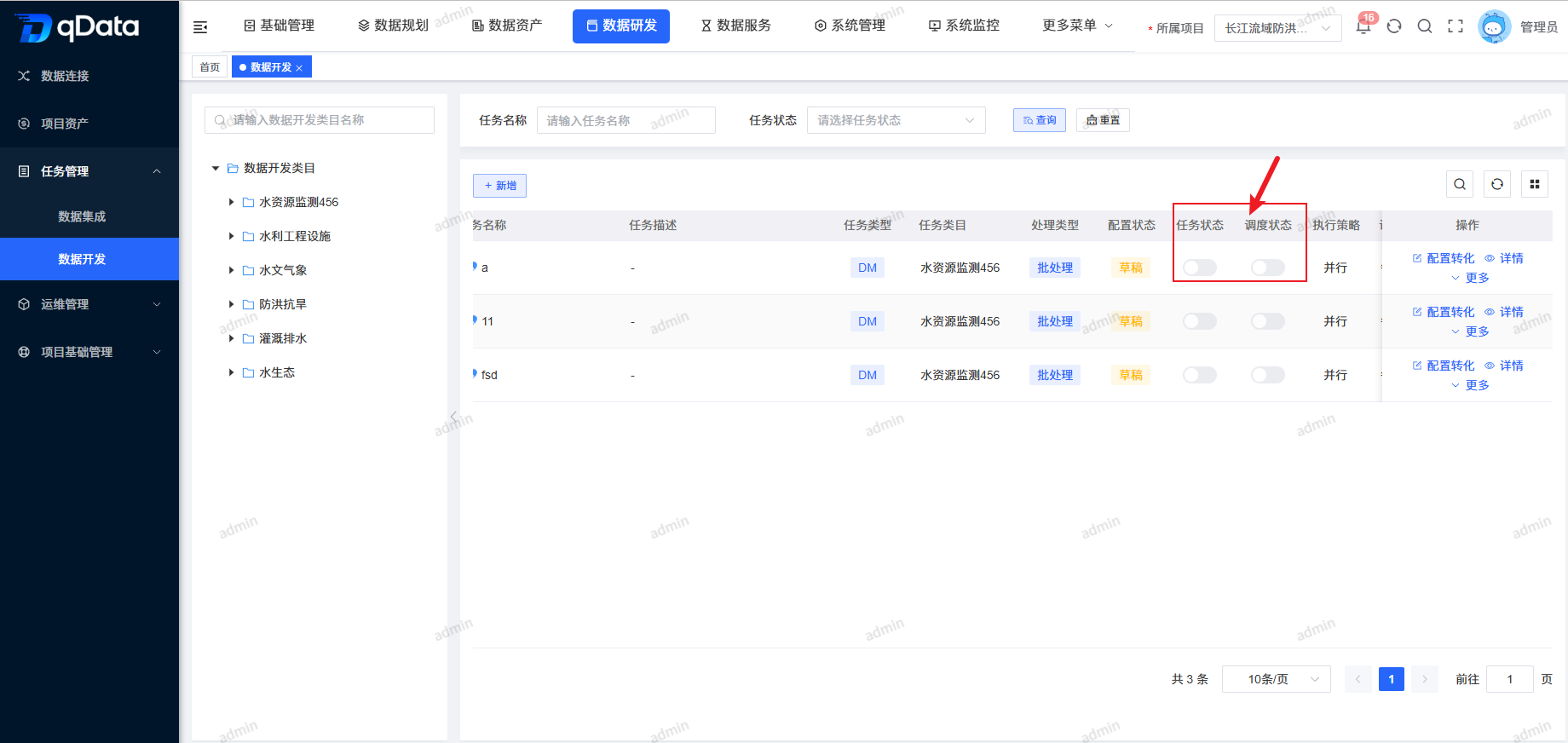
Click Data Development -> Task Management -> Data Development to open the Data Development page. The page uses a left-right layout: the left side displays Data Development categories in a tree structure, and the right side displays a task list including task name, task description, task category, Task Status, Schedule Status, and other fields.
2. Add Data Development Task
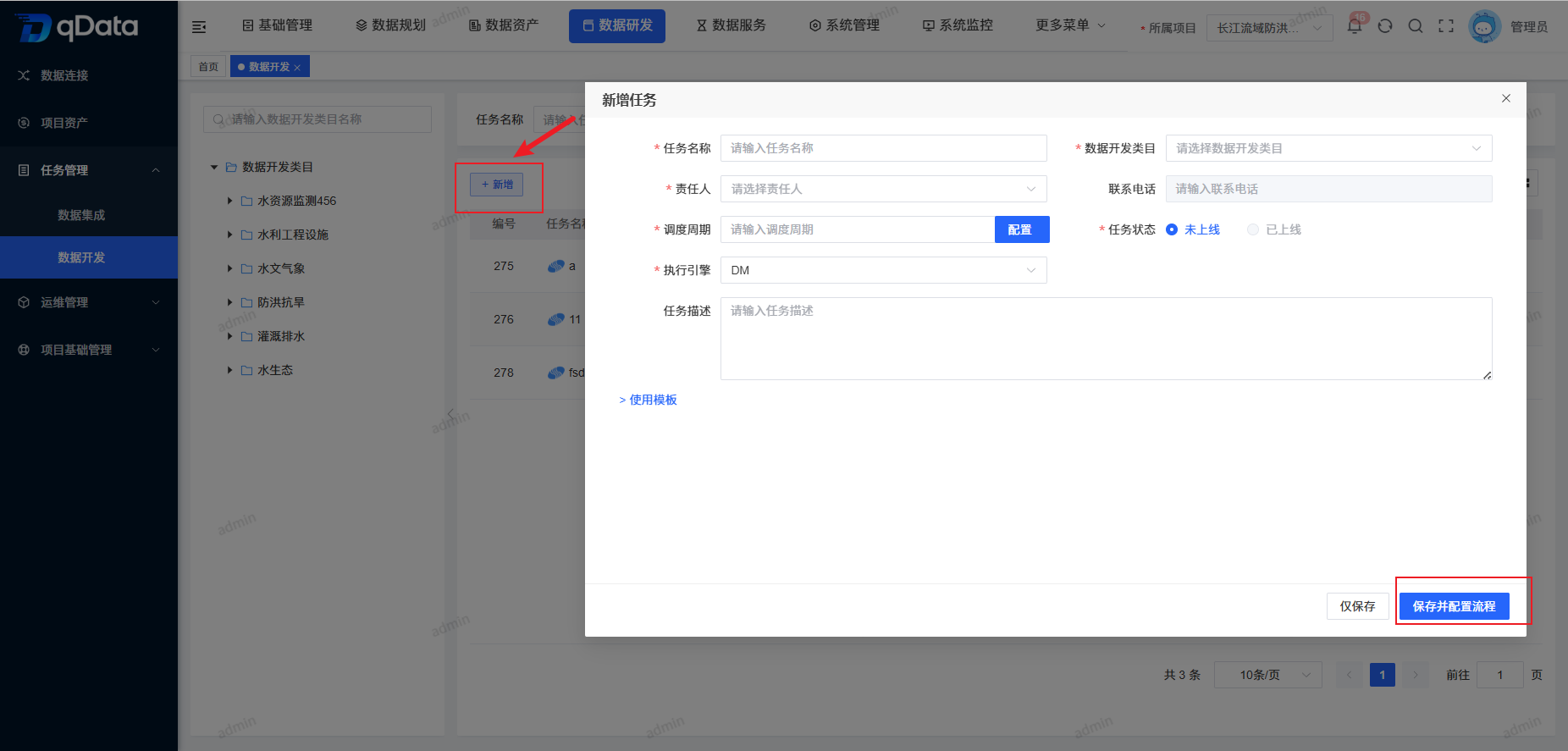
Click Add, fill in the topic information in the dialog, and click OK to complete adding the Data Development Task.
3. Configure Data Development Transformation
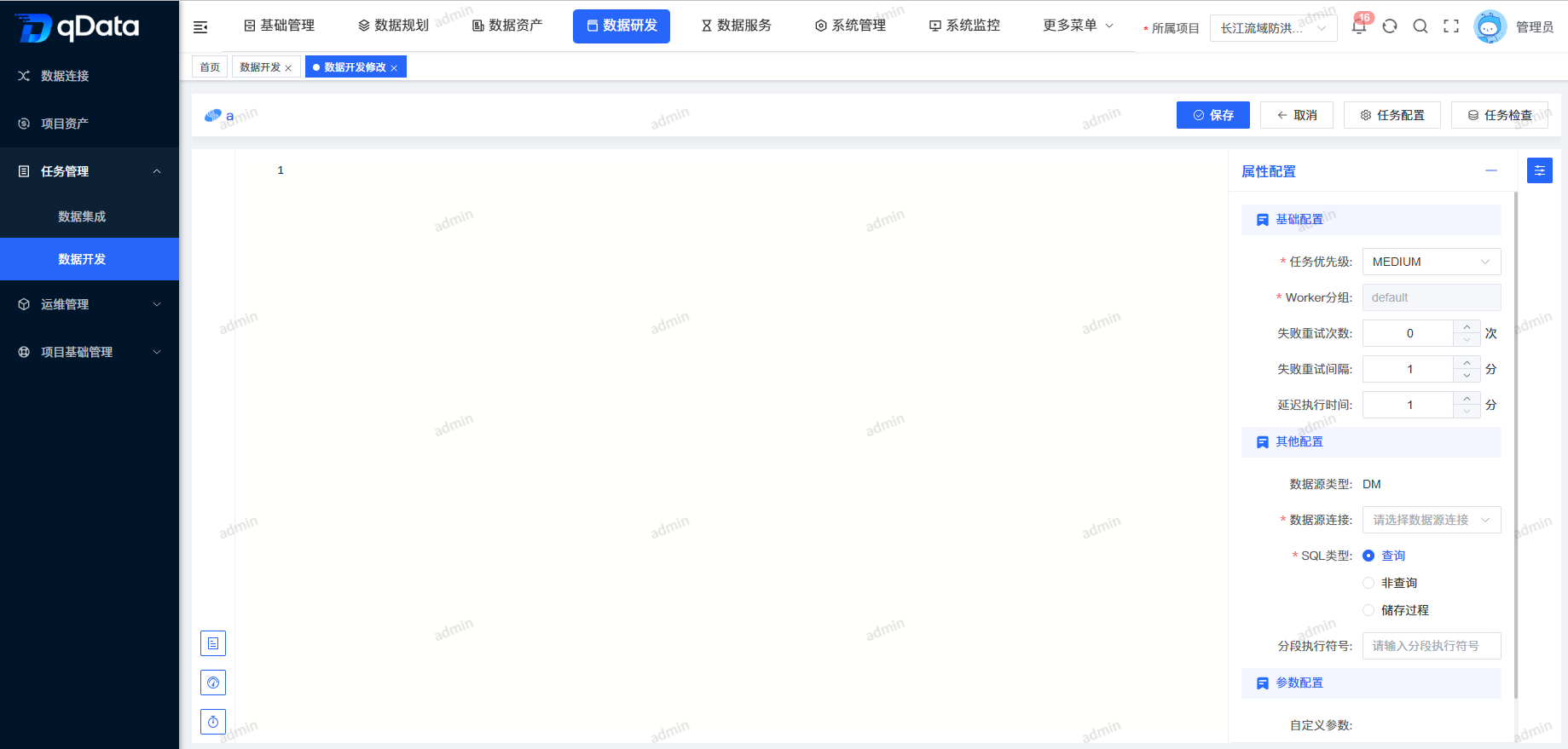
Select the task that needs Data Development transformation configuration, click Configure Transformation in the operation column, edit the transformation rules on the page that appears, and click Save to complete configuring Data Development transformation.
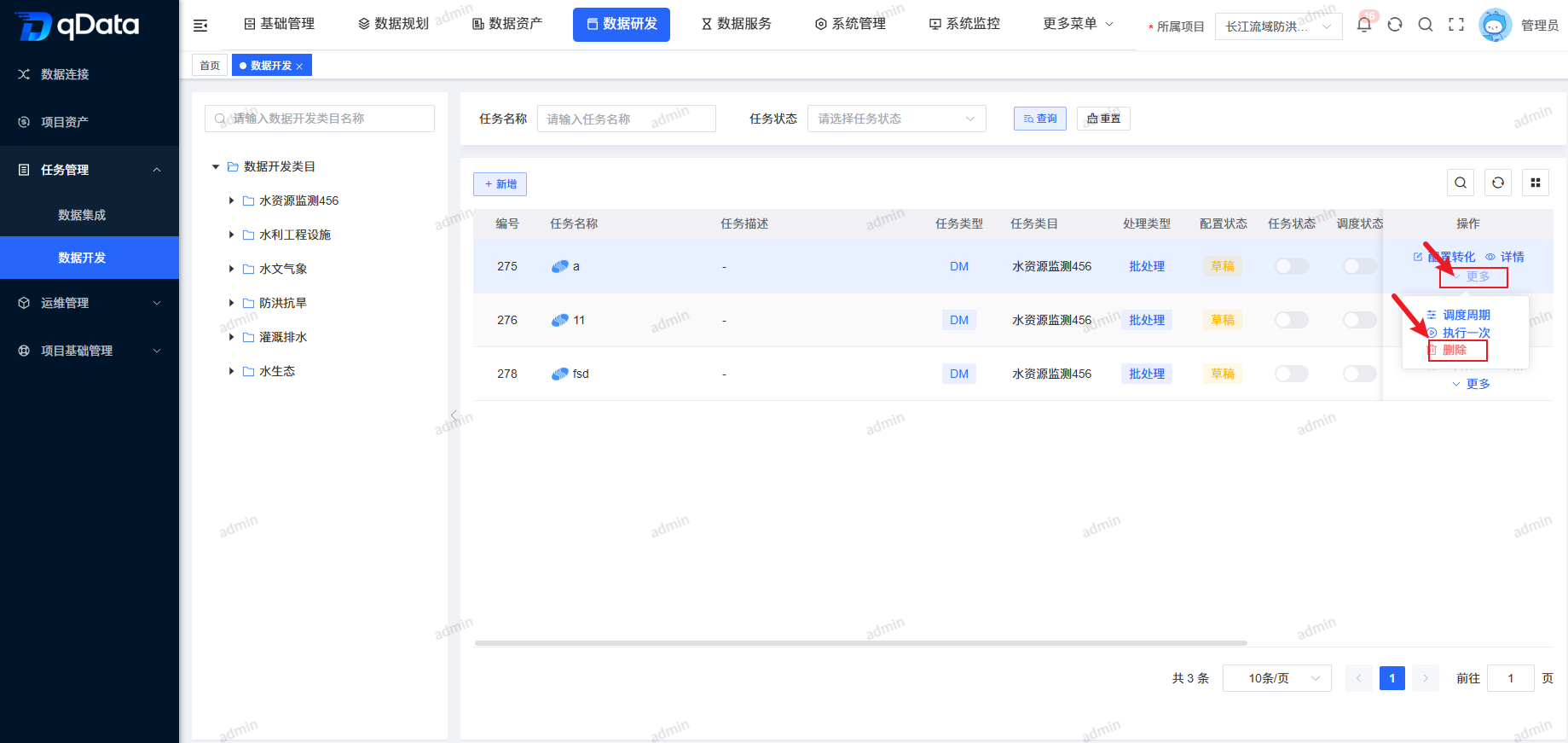
4. Delete Data Development Task
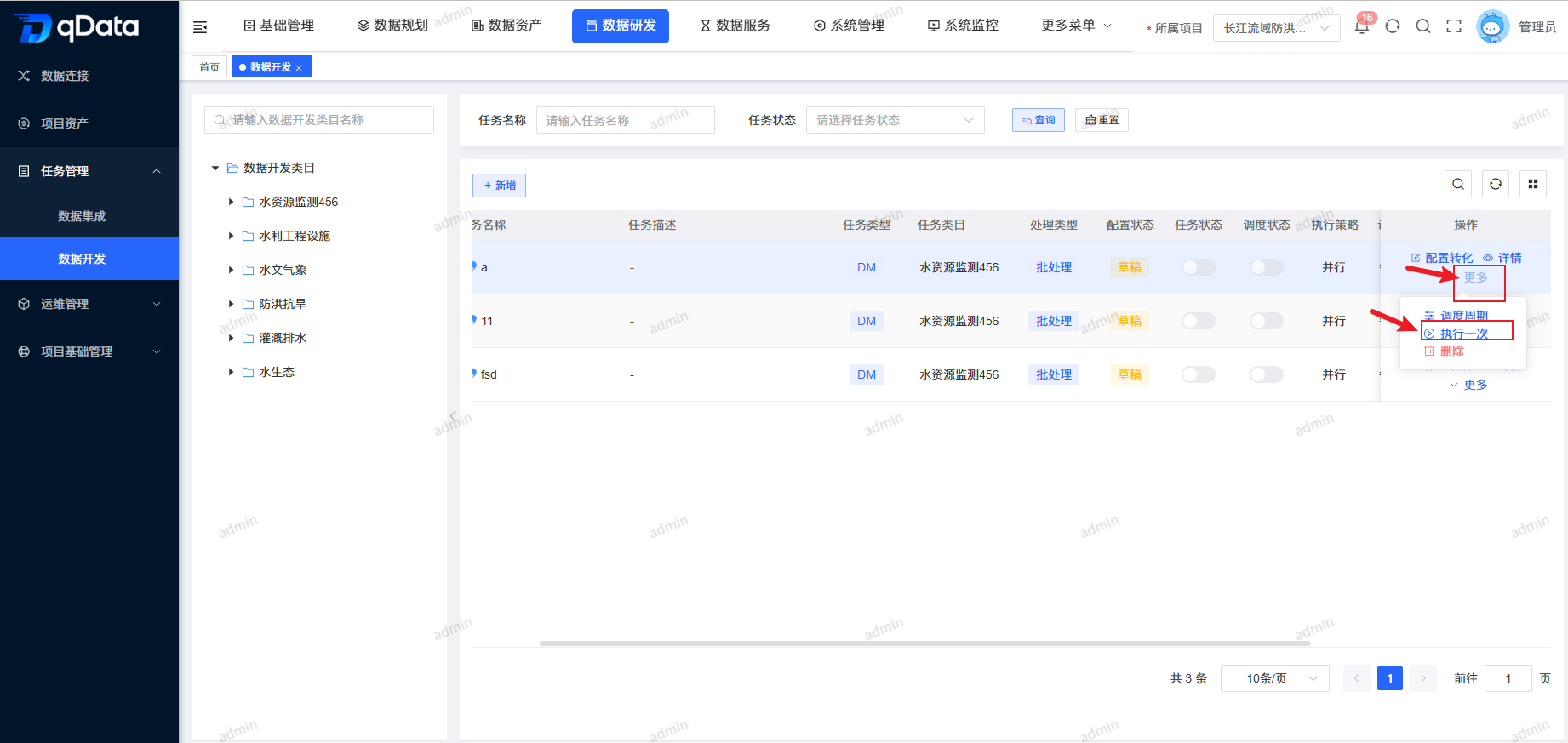
Select the Data Development Task to delete, click More -> Delete in the operation column, and click OK. The system will delete the Data Development task.
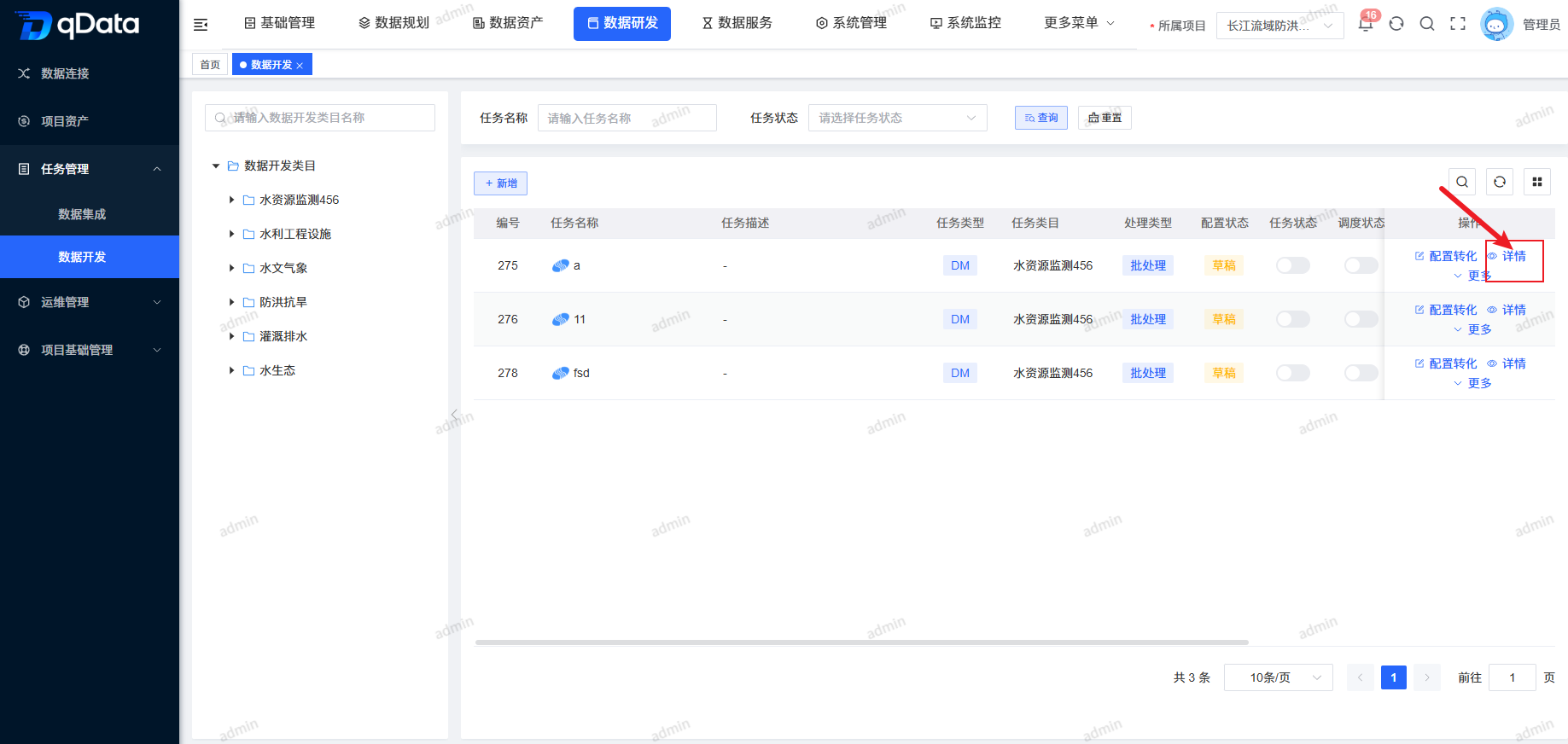
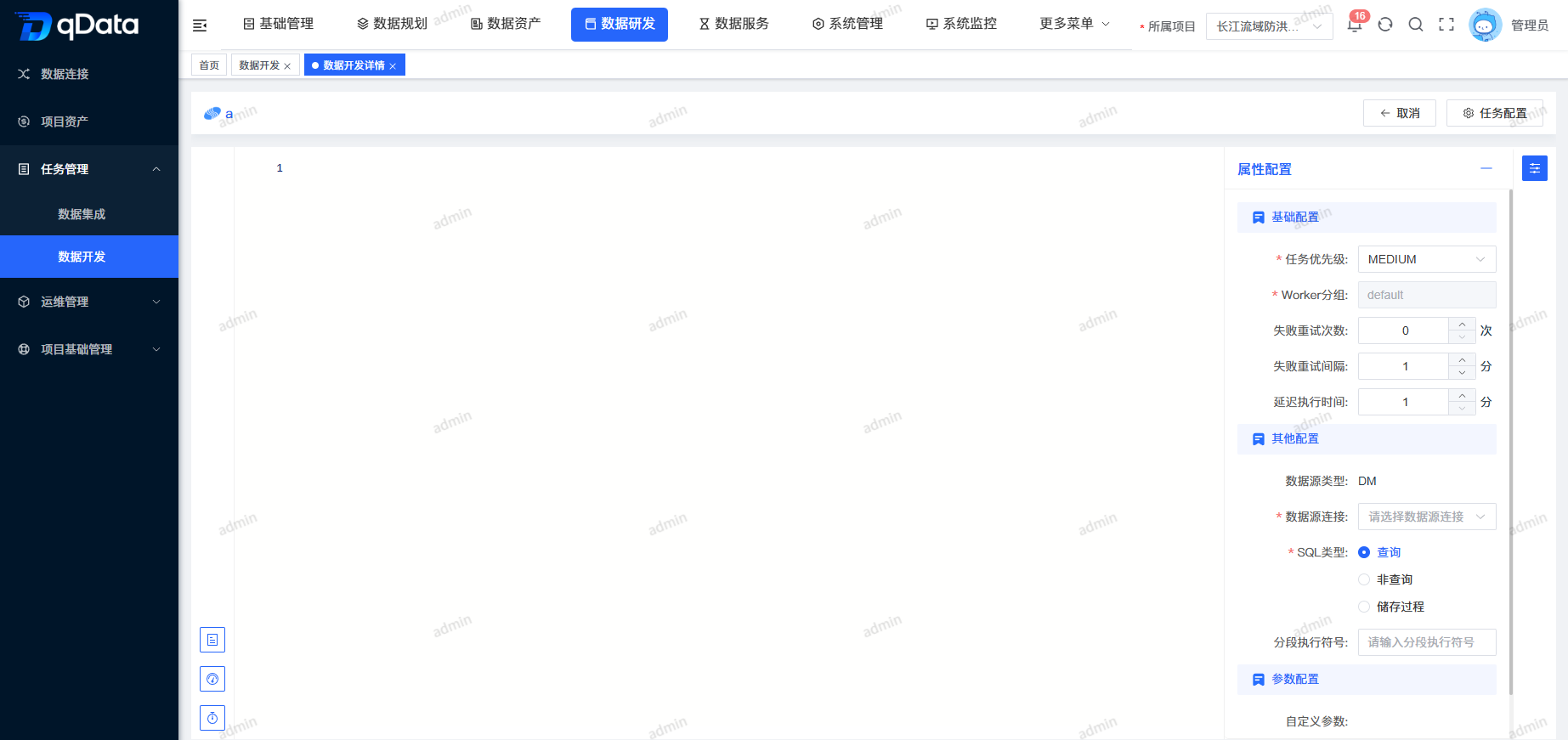
5. Data Development Task Details
Select the task whose Data Development Task Details need to be viewed, and click Details in the operation column to view Data Development Task Details.
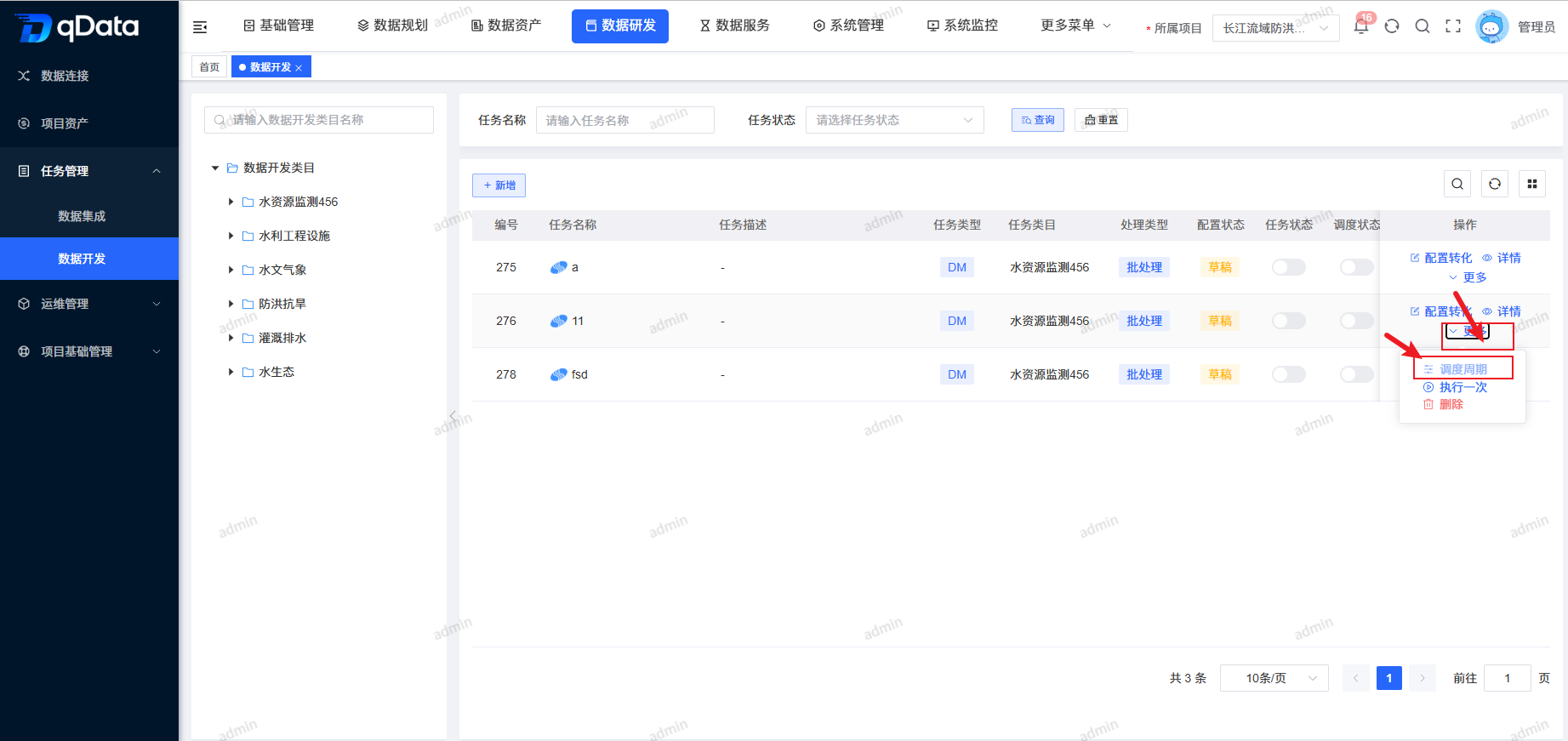
6. Schedule Cycle
Select the Data Development task to schedule and execute, click More -> Schedule Cycle in the operation column, fill in the related information in the dialog, and click OK. The system will schedule and execute the Data Development task.
7. Task Status
Select the Task Status to enable or disable, and click the switch in the status column to complete Enable/Disable.
8. Schedule Status
Select the Schedule Status to enable or disable, and click the switch in the status column to complete Enable/Disable.
9. Run Once
Select the Data Development task to run once, click More -> Run Once in the operation column, and the system will run the task once and display related information.