
Data quality tasks
Feature overview
Functional positioning
Data Quality Task is used to create, configure and execute data quality assessment tasks. The user selects the audit object in the task and configures the corresponding audit rules for the object. After the task is executed, a quality report will be generated for subsequent viewing of scores, execution records, operation logs, and problem data.
Simple understanding: Data quality task is the configuration entrance for data quality evaluation, which determines the evaluation objects, evaluation rules, execution methods and responsible persons.
Usage suggestions
When adding a new task, it is recommended to complete the configuration in the order of Basic Information -> Audit Object -> Audit Rules -> Save and Exit. Before saving, make sure that the required fields, object information, and rule parameters have been completed.
Main features
- Quality evaluation task management: supports adding, editing, deleting, detail viewing and task execution;
- Three-step wizard configuration: When adding tasks, maintain basic information, audit objects and audit rules in sequence;
- Audit object configuration: Load table structure from specified data source, support selecting multiple tables as evaluation targets;
- Rule configuration management: Each object can be configured with multiple audit rules, supporting adding, enabling, disabling, editing and deletion;
- Execution record traceability: After the task is executed, the execution record, operation log and execution details can be viewed;
- Quality report linkage: Each time a task is performed, a quality evaluation record can be formed to support problem data location and closed-loop governance.
Scope
This function is suitable for quality assessment task creation, rule configuration, task execution and execution result tracing in the data governance process. It is mainly intended for data governance administrators, governance operation and maintenance personnel, data leaders and read-only reviewers. Page buttons and data ranges are affected by platform permission configuration.
Preliminary steps
Preconditions
- Have logged in to the qData platform and have access to the [Data Assets] related menu.
- Switched to the correct project, tenant or business space.
- The data connections, audit objects, rule calibers, responsible persons and scheduling resources required for quality tasks have been prepared.
- If you need to perform tasks manually, the target task must be online or enabled.
Navigation path
Data Assets>Data Quality>Data Quality Tasks
Page overview
Click [Data Quality Tasks] under [Data Assets]->[Data Quality] to enter the data quality task page. The page adopts a left-right layout: the tree on the left displays data quality categories, and the right displays a list of data quality tasks, including fields such as number, task name, number of audit objects, number of audit rules, task status, execution strategy, and category.
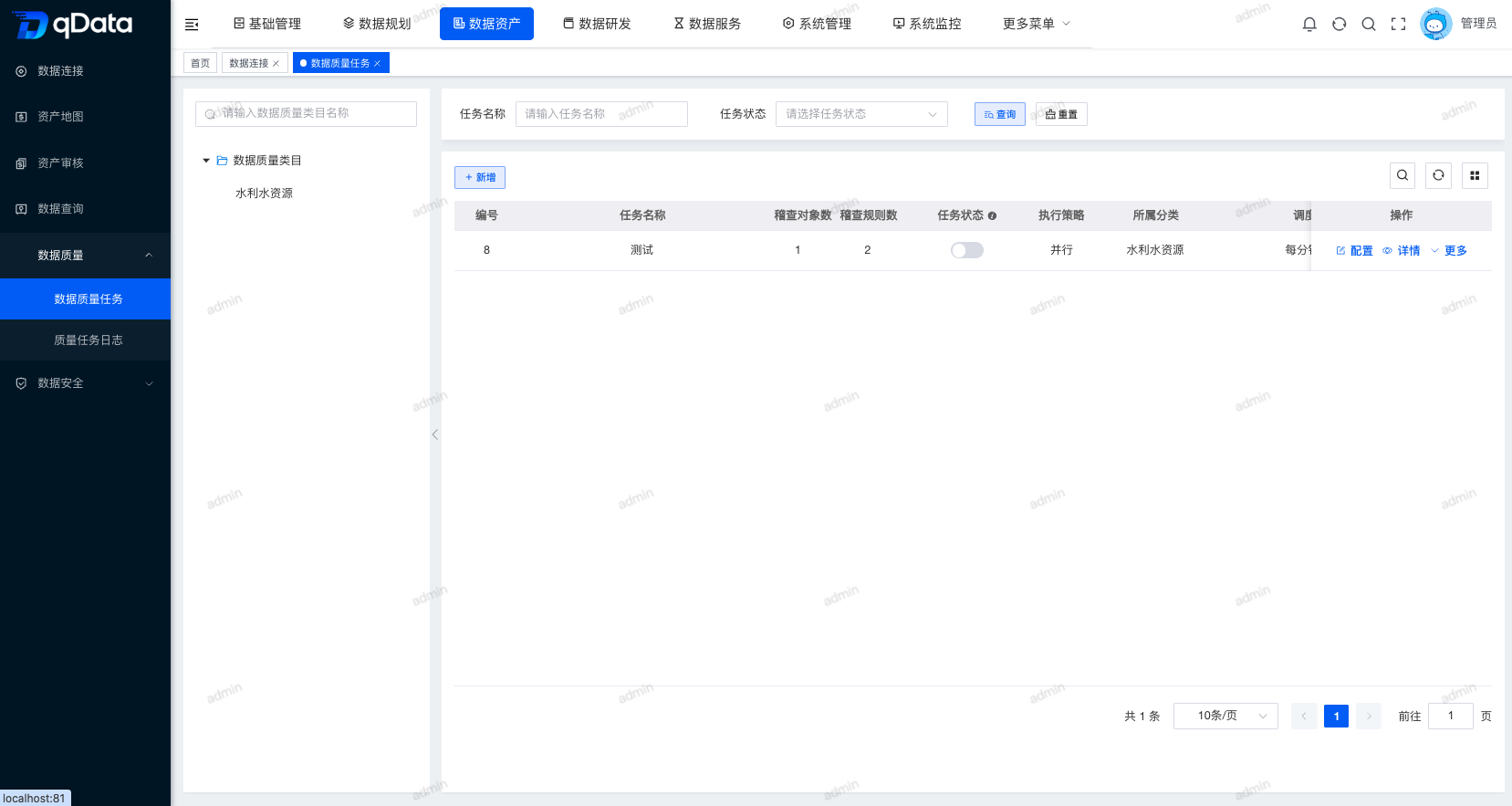
| Region | Main content | Instructions for use |
|---|---|---|
| Category tree on the left | Data quality task classification | Used to locate tasks by classification. |
| Query and operation area | Query conditions, new addition, batch operation entrance | Used to filter tasks and create tasks. |
| Task list | Task name, number of objects, number of rules, status, execution strategy, and category | Used to view the task configuration overview. |
| Row Actions | Configuration, Details, More | For editing, executing, viewing records and logs. |
Recommended operating procedures
Add new task: Enter [Data Quality Task] -> Click [Add] -> Fill in basic information -> Add audit object -> Configure audit rules -> Save and exit.
Adjust tasks: Locate the target task -> Click [Configuration] -> Modify basic information, audit objects or audit rules -> Save and exit.
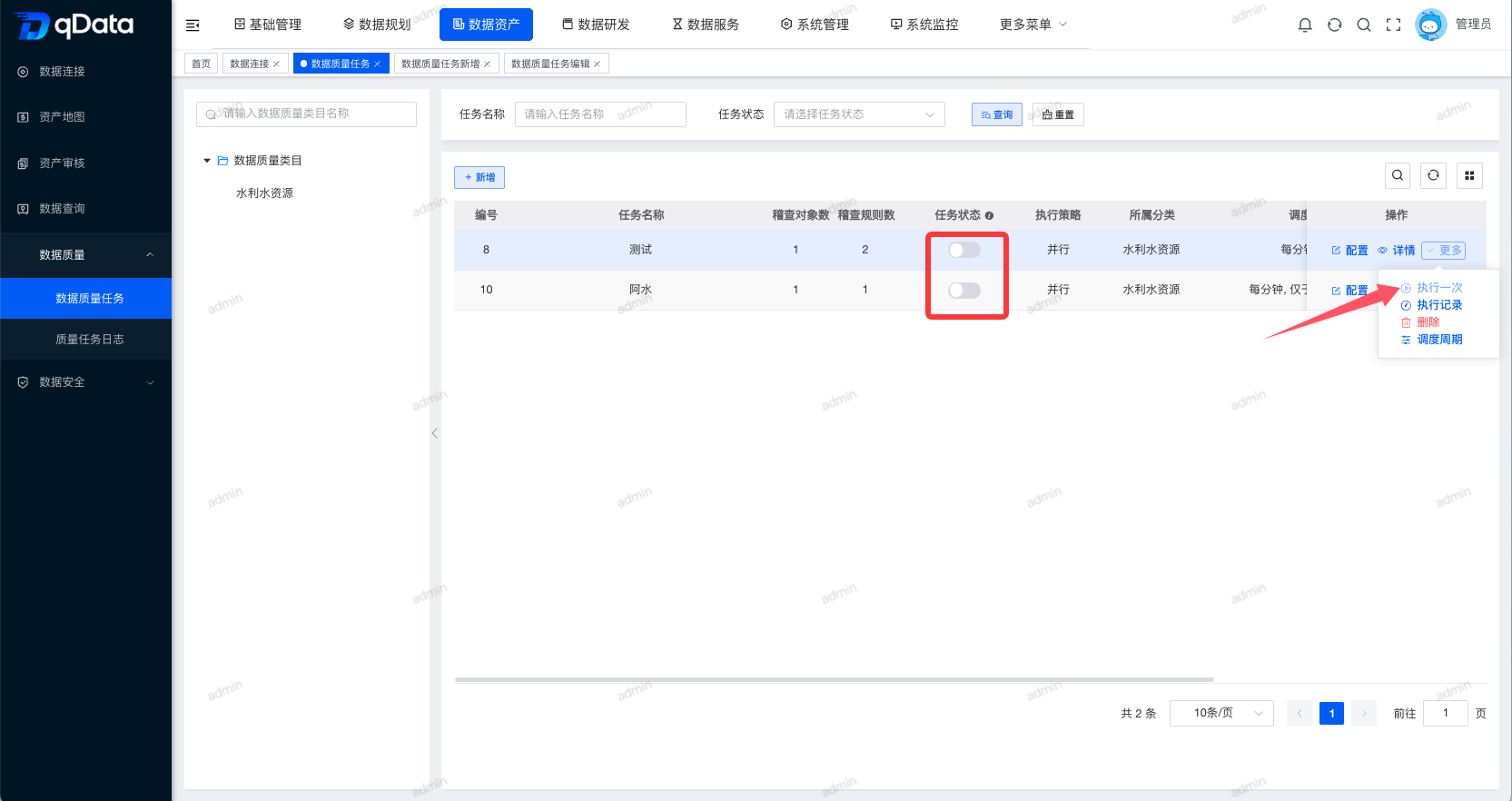
Execution and Traceability: Confirm that the task is enabled -> Click [More] -> [Execute Once] -> View execution records -> View logs or details.
Functional operation instructions
Add new data quality tasks
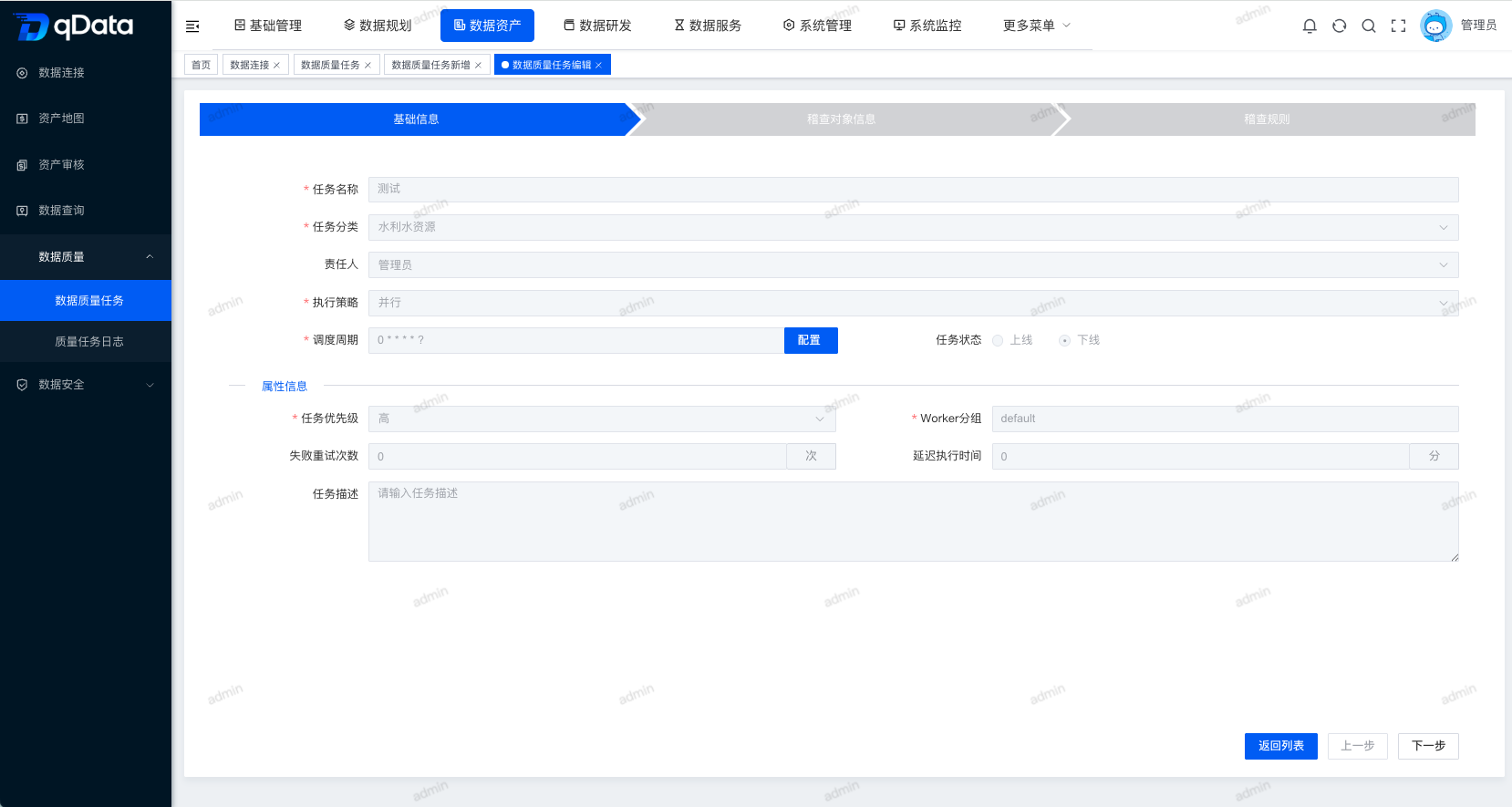
Click the [Add] button and configure the basic information, audit objects, and audit rules in sequence on the new page that appears. After completing the filling, click [Save and Exit] to complete the new data quality task. When the basic information, audit objects, and audit rules need to be adjusted, you can click [Previous] to return to modifications.
Basic information
Fill in the basic information and attribute information, and click [Next] after completion to enter the audit object configuration.
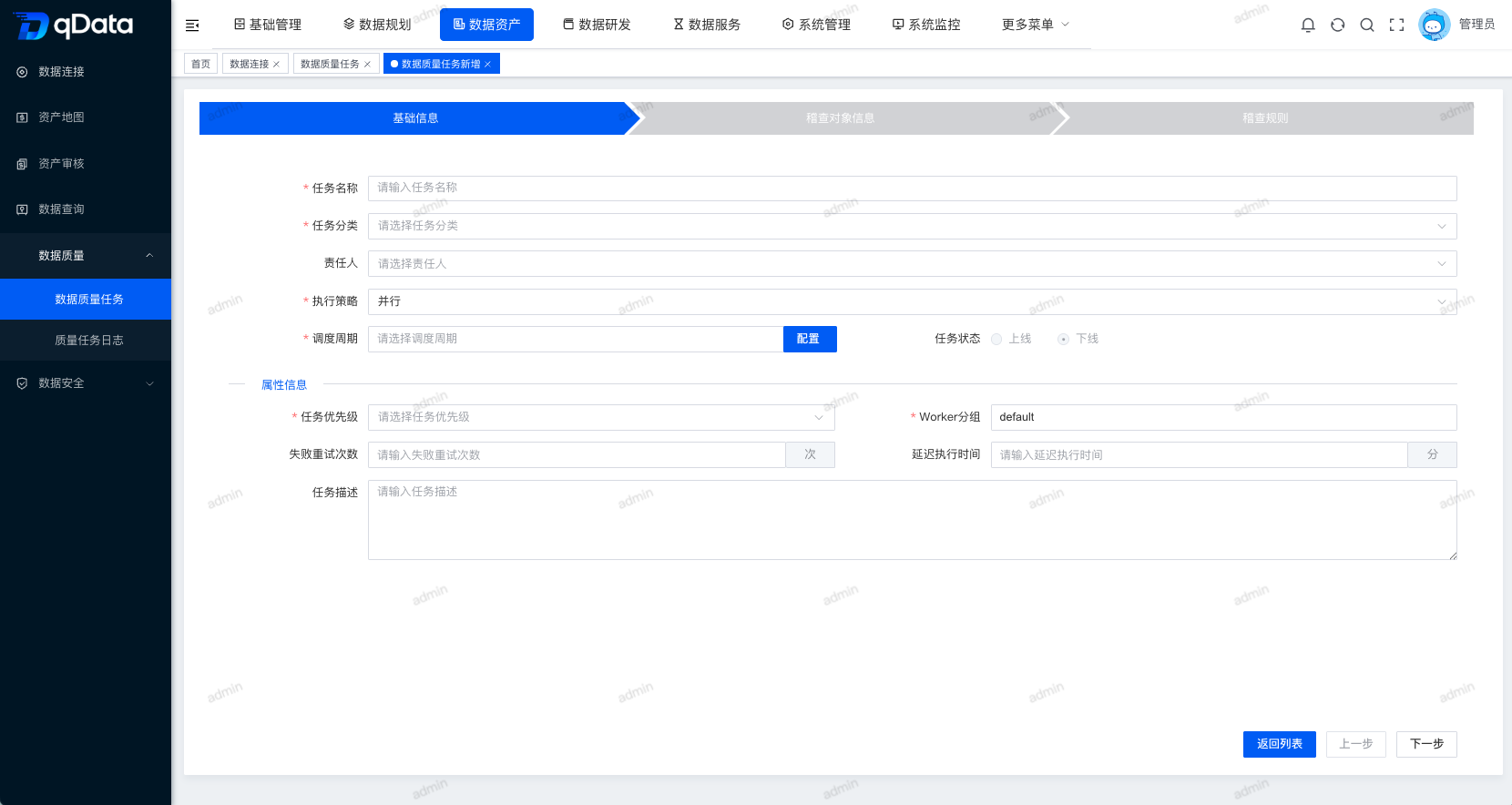
| Field Name | Description | Required or not |
|---|---|---|
| Task classification | Select the quality task classification to facilitate task management by classification. | Yes |
| Execution Strategy | Select the task execution method. | Yes |
| Scheduling cycle | Configure task cycle scheduling rules, which can be maintained through the [Configuration] portal on the side. | Yes |
| Task Name | Enter a name to identify the quality task. | Yes |
| Responsible person | Select the task maintenance or responsible person. | By page ID |
| Task Status | Select the online or offline status of the task. | System selected by default |
| Task description | Fill in the task purpose, evaluation scope or business description. | No |
| Task priority | Set task scheduling priority. | Yes |
| Worker Grouping | Select task running resource grouping. | Yes |
| Number of failed retries | Set the number of retries after failed task execution. | No |
| Delayed execution time | Set the delayed execution time of the task, in minutes. | No |
| Remarks | Fill in the supplementary instructions. | No |
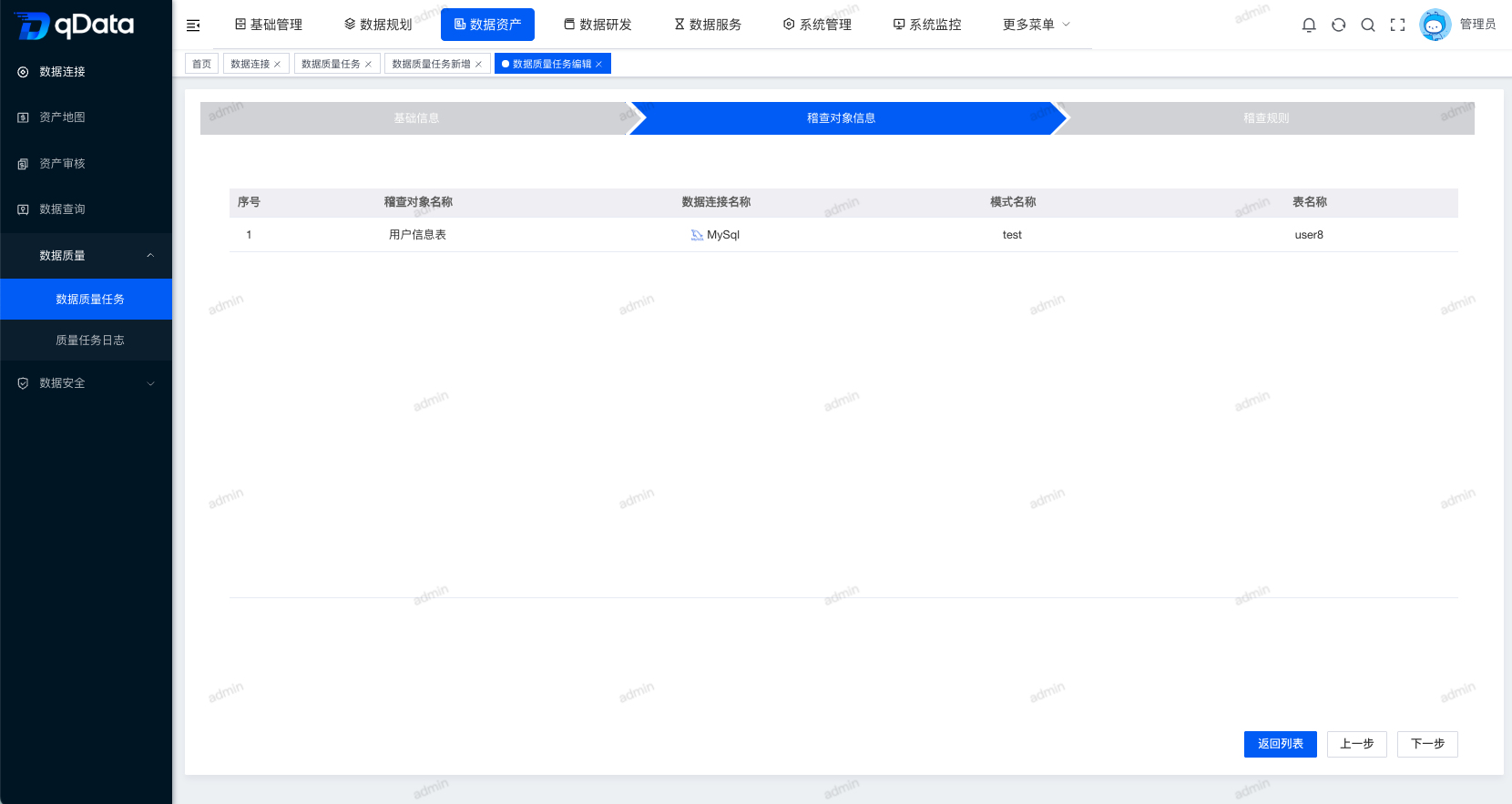
Audit object
Click the [Add] button, fill in the audit object information in the pop-up box, and click the [OK] button to complete the addition of the audit object. After completion, click [Next] to enter the audit rule configuration.
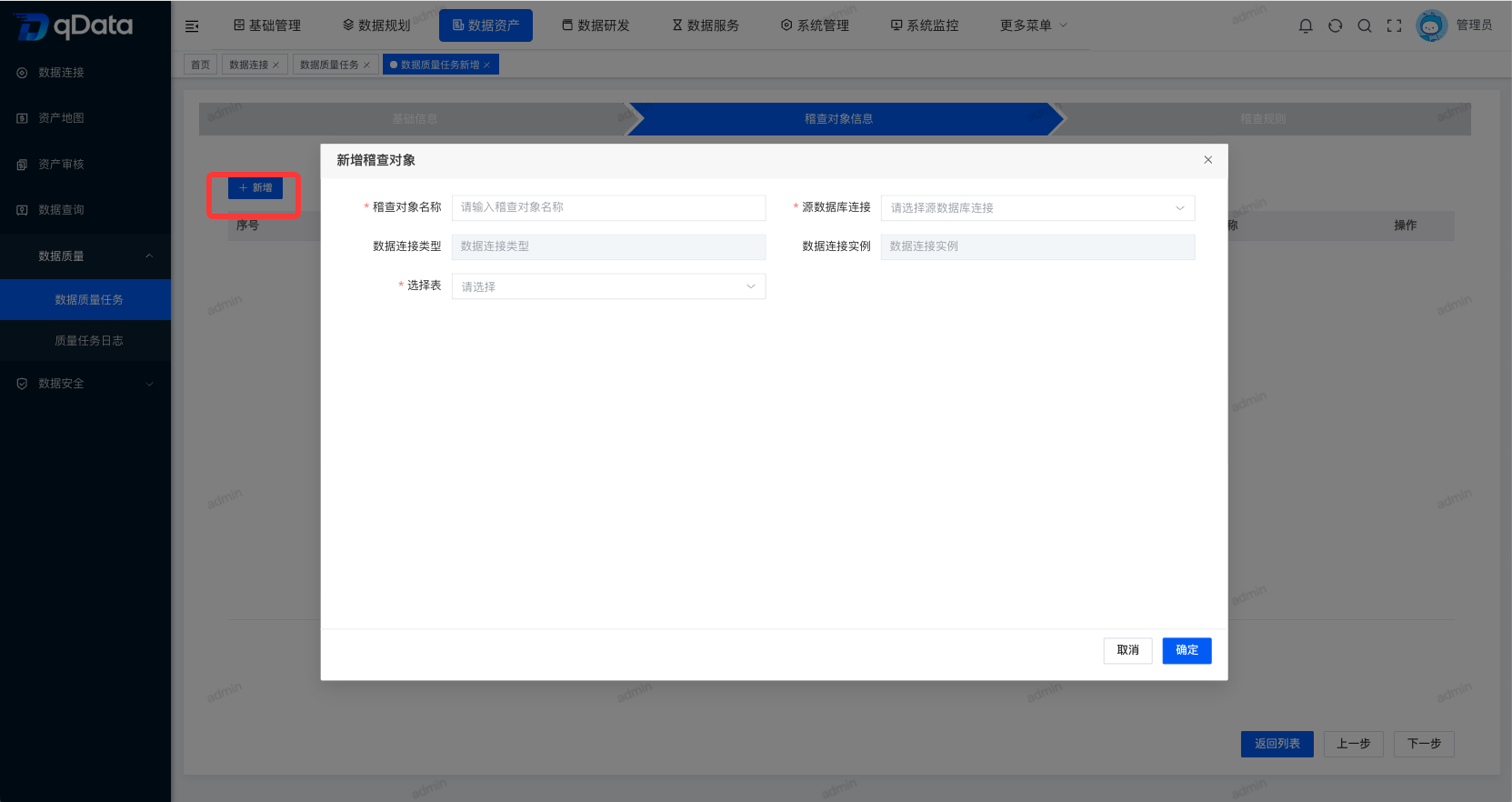
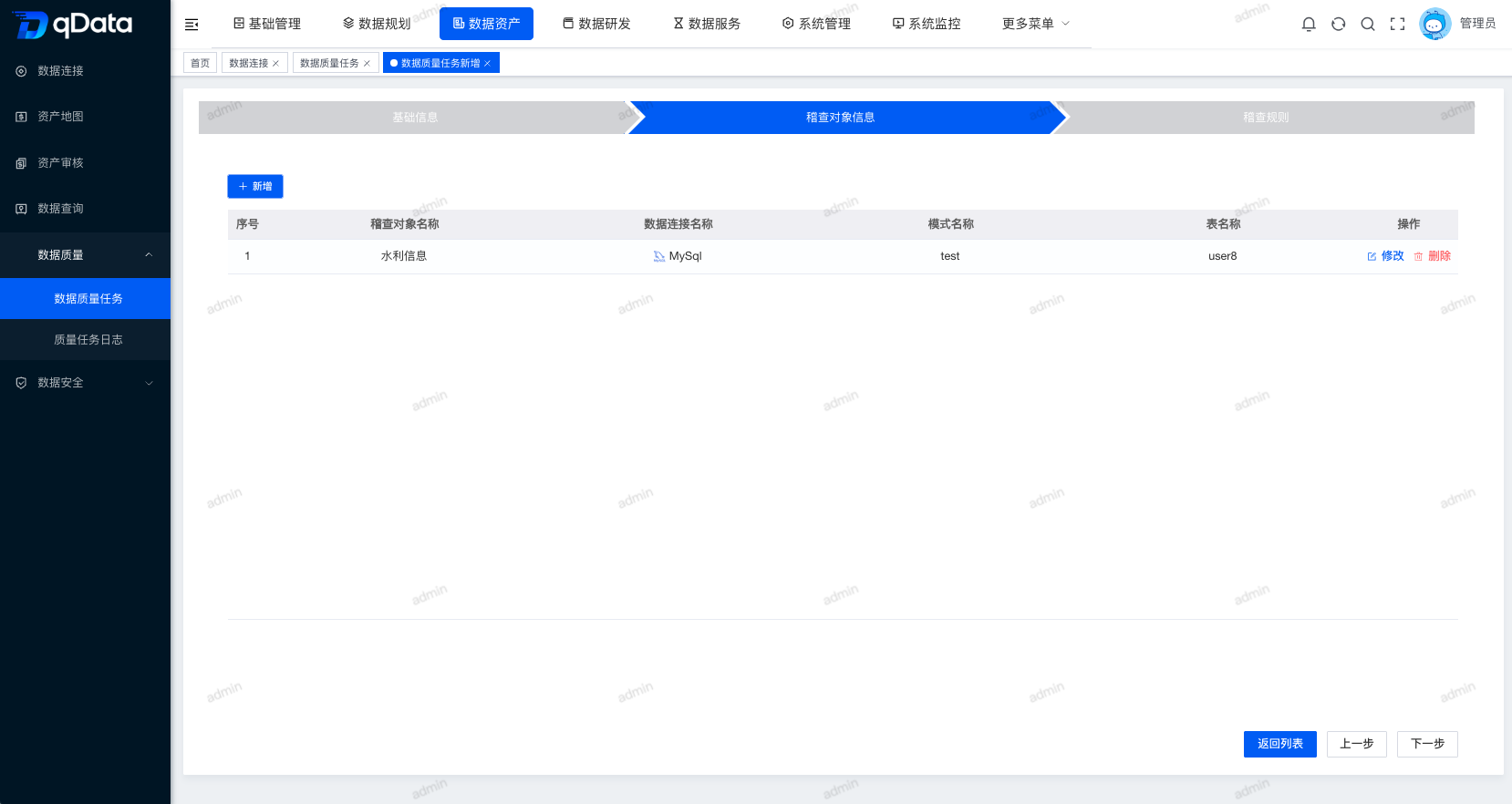
The audit objects are derived from selectable data objects in the data connection and support multi-object configuration. When configuring, you should confirm whether the data source, database table objects, and field ranges meet the current quality assessment goals.
| Configuration items | Description | Notes |
|---|---|---|
| Data source | The data connection to which the audit object belongs. | Make sure the connection is normal and the account has read permission. |
| Database/Schema | The library or namespace where the audit object is located. | The scope of the target business data should be selected. |
| Data table | Table object participating in quality assessment. | You can select one or more tables based on task goals. |
| Field | Check fields that can be referenced by subsequent rules. | Should match the rule type. |
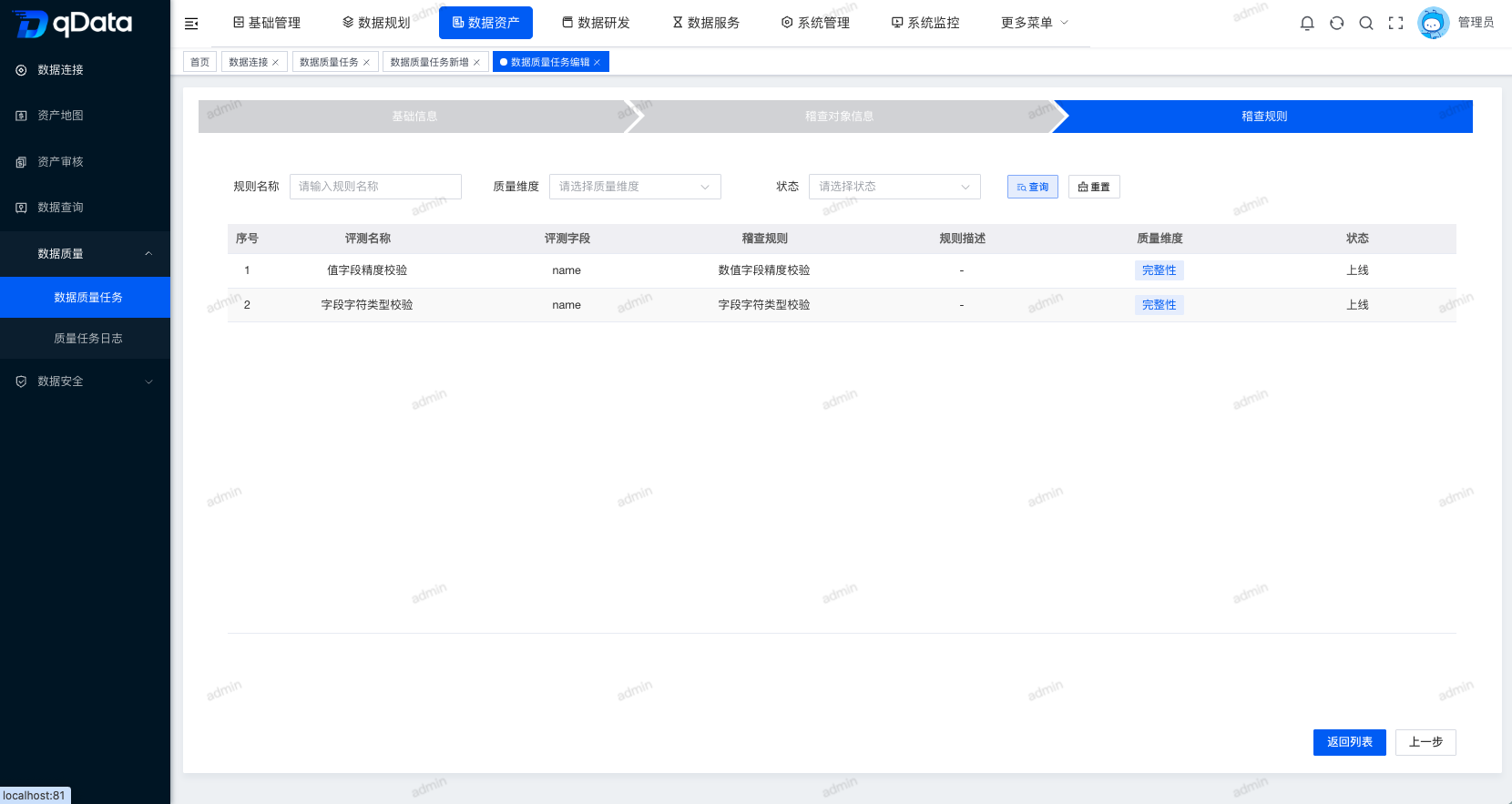
audit rules
Click the [Add] button, select the audit object in the new evaluation information pop-up box, fill in the audit rule information, and click the [OK] button to complete the addition of the audit rule. After completion, click [Save and Exit] to create the data quality task.
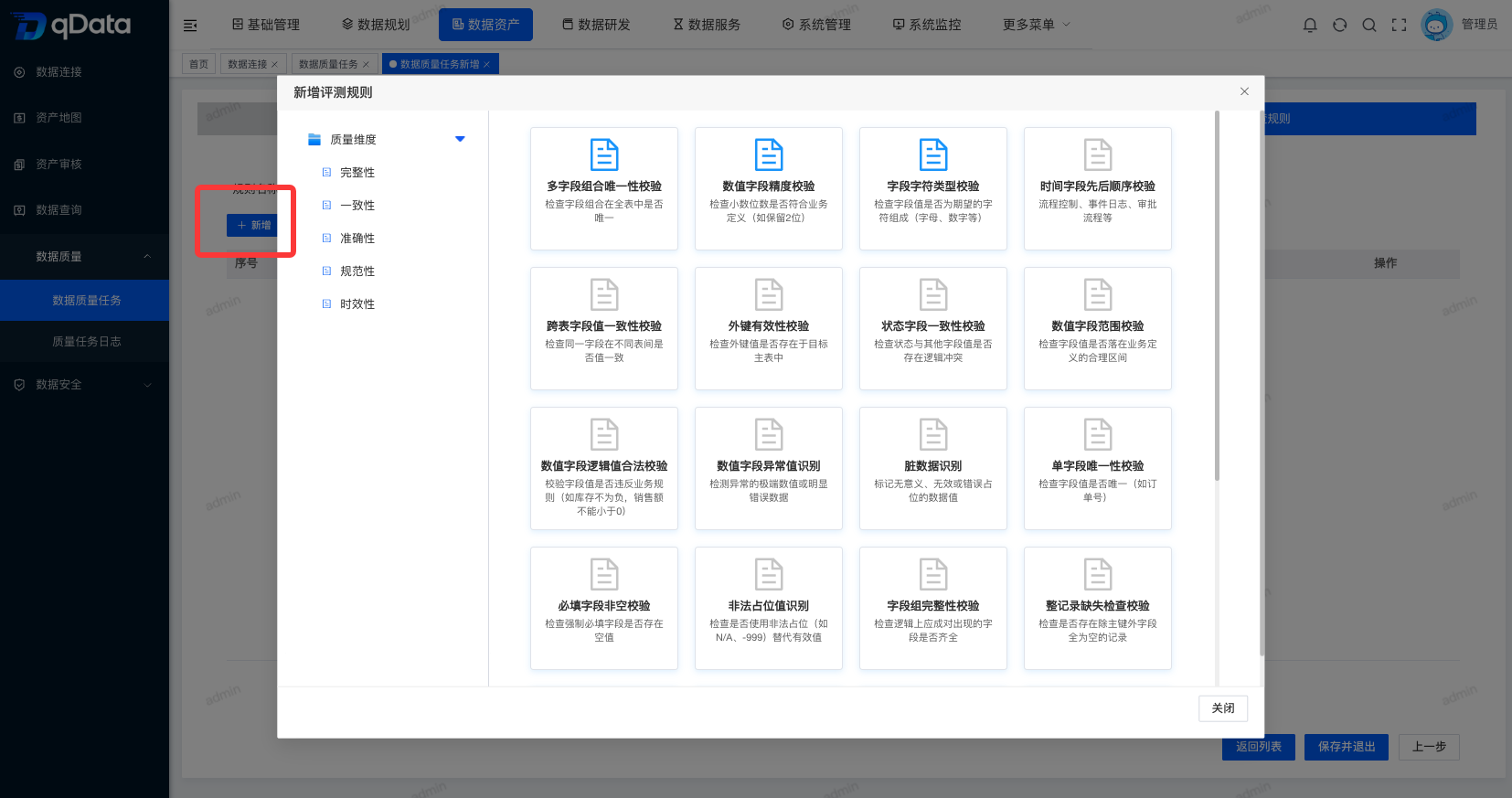
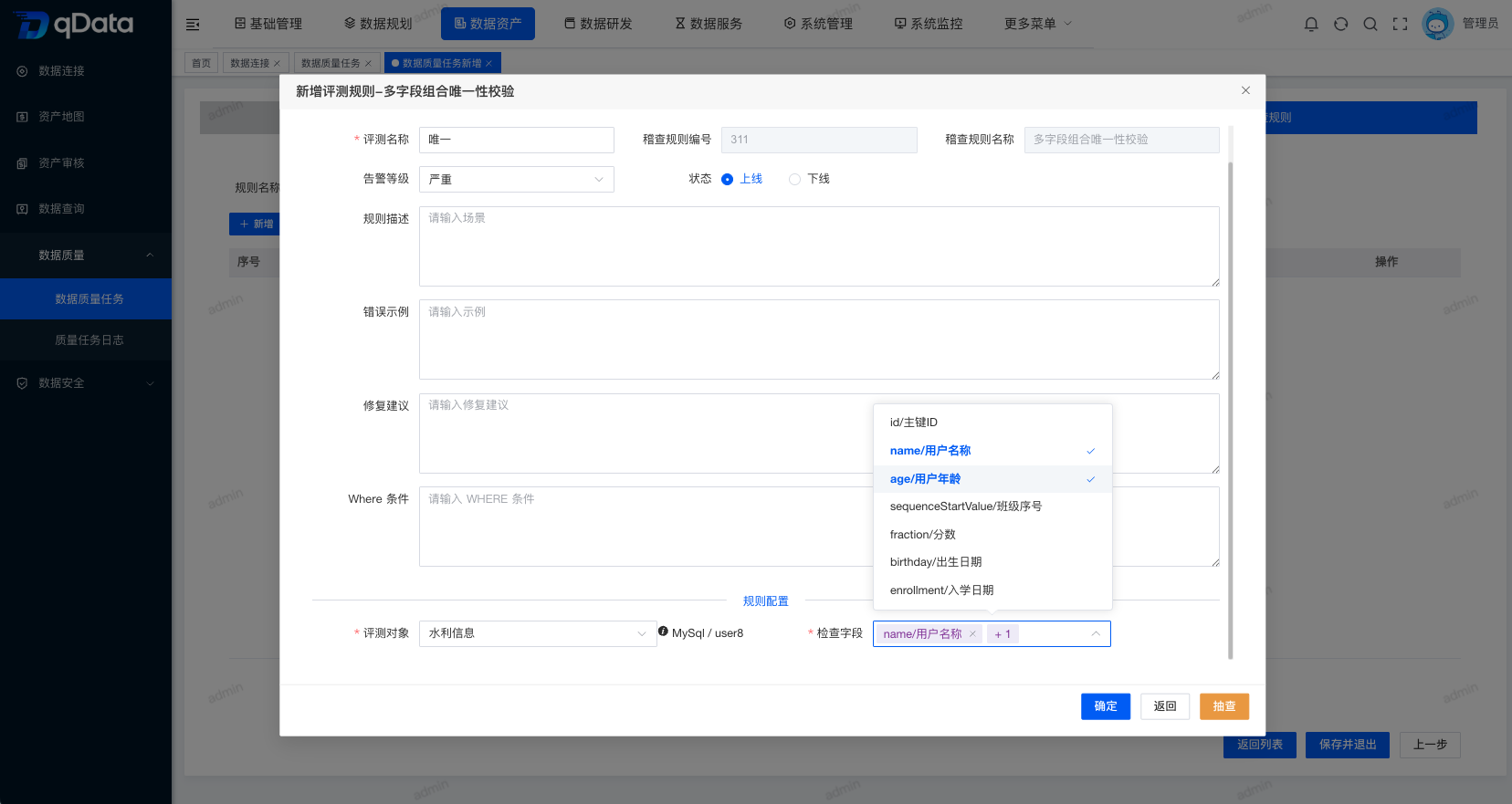
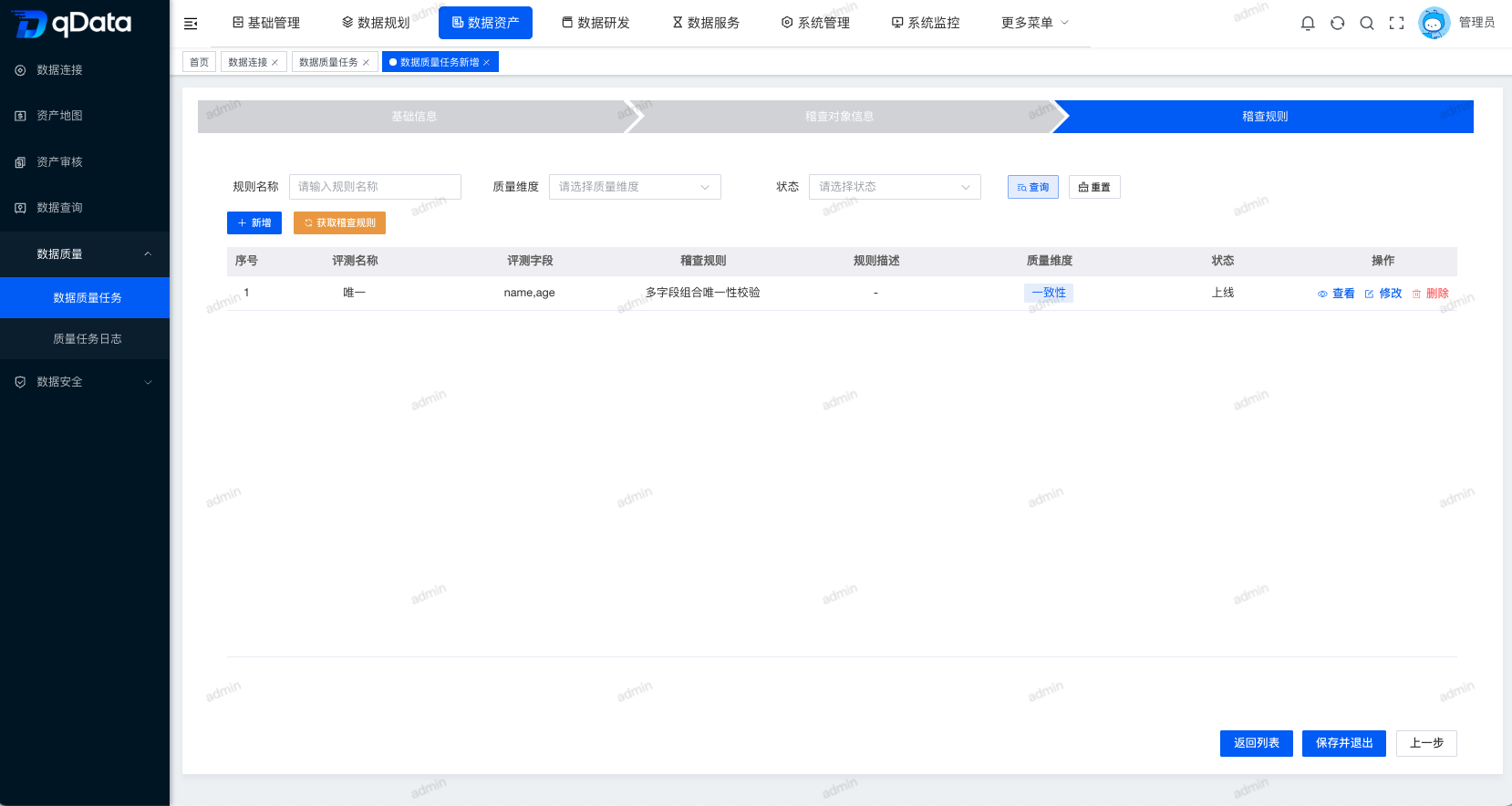
When configuring audit rules, you usually need to complete the following steps:
- Select the audit object.
- Select quality dimensions, rule categories, and rule items.
- Fill in the evaluation name, alarm level, status, rule description, error examples and repair suggestions.
- Fill in the Where criteria as needed.
- Supplement the unique parameters according to the selected rule item.
- Click [OK] to save the rule configuration.
| Rule information | Description | Notes |
|---|---|---|
| Quality dimensions | Dimensions such as standardization, completeness, accuracy, consistency, and timeliness. | Should match current service quality goals. |
| Rule Category | The category to which the rule belongs. | is used to narrow down the selection of rules. |
| Rule item | The actual implemented quality audit rules. | Different rule items will display different parameters. |
| Review Name | The name of the current review item. | It is recommended to reflect the meaning of objects and rules. |
| Alarm Level | The problem level after the rule is hit. | Should be configured based on business impact. |
| Where condition | Limit the range of data participating in the evaluation. | It is recommended to configure necessary filter conditions for large tables. |
Edit data quality tasks
Click the data quality task you want to edit, and click the [Configure] button in the operation column to enter the data quality task editing page. The editing page is consistent with the new process, and basic information, audit objects and audit rules can be adjusted.
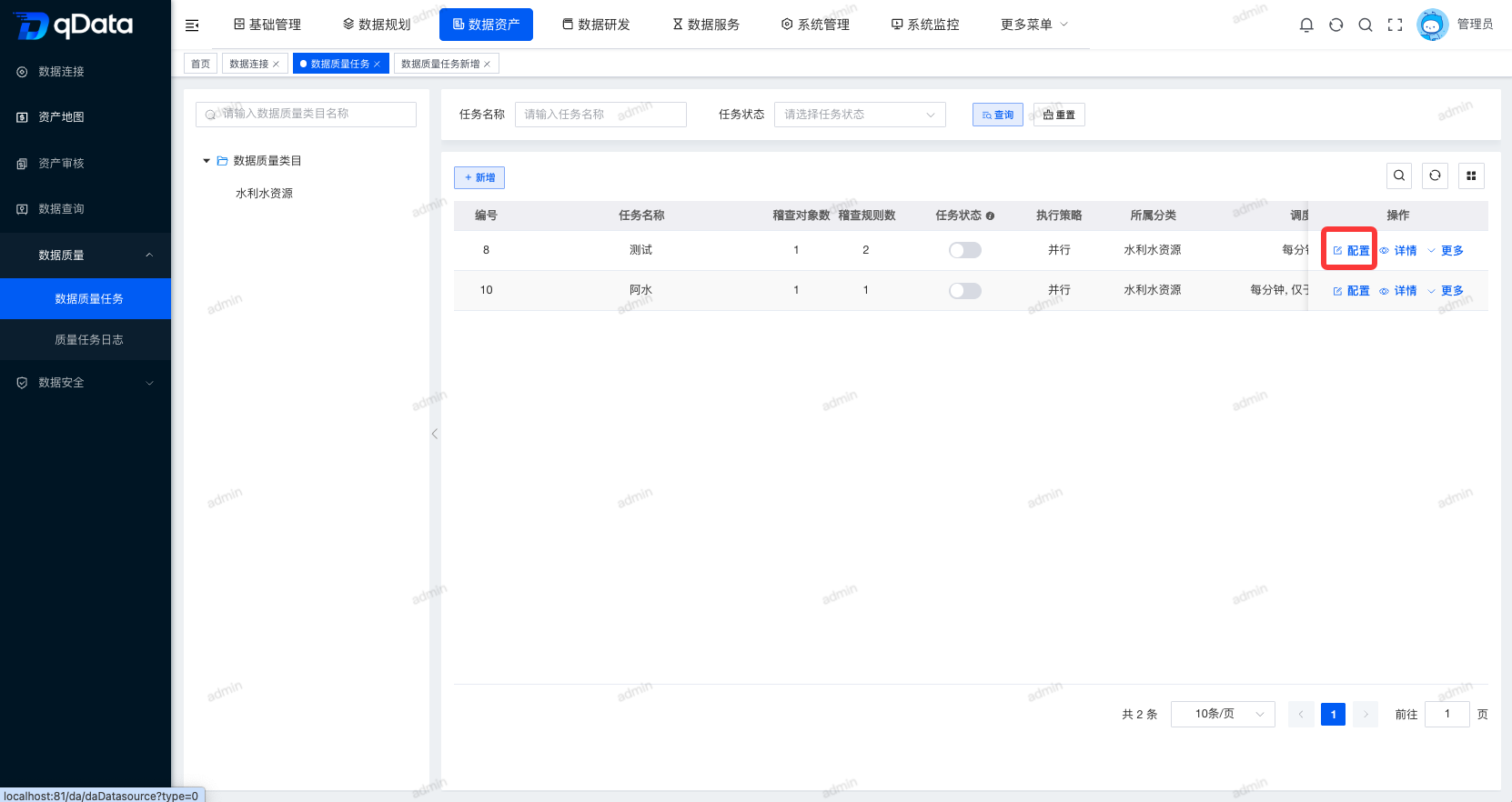
When editing a task, it is recommended to first confirm whether the task is being executed. If the task is running, you should wait until the execution is completed before adjusting the configuration to avoid affecting the results of this execution.
Data quality task details
Click the data quality task whose details you want to view, and click the [Details] button in the operation column to enter the data quality task details page.
The details page is used to read-only view the task configuration, usually including basic information, audit objects and audit rules. Viewing details does not modify the task configuration.
Execute once
Select the data quality task that needs to be executed once, and click the [More]->[Execute Once] button in the operation column. The system will execute the task once and prompt relevant information.
Things to note
When executed once, the task needs to be enabled. Before execution, you should confirm that the data source connection of the audit object is normal to avoid task failure due to connection or permission issues.
View execution records
Select the data quality task for which execution records need to be viewed, click the [More]->[Execution Records] button in the operation column, and view the execution record list in the pop-up box.
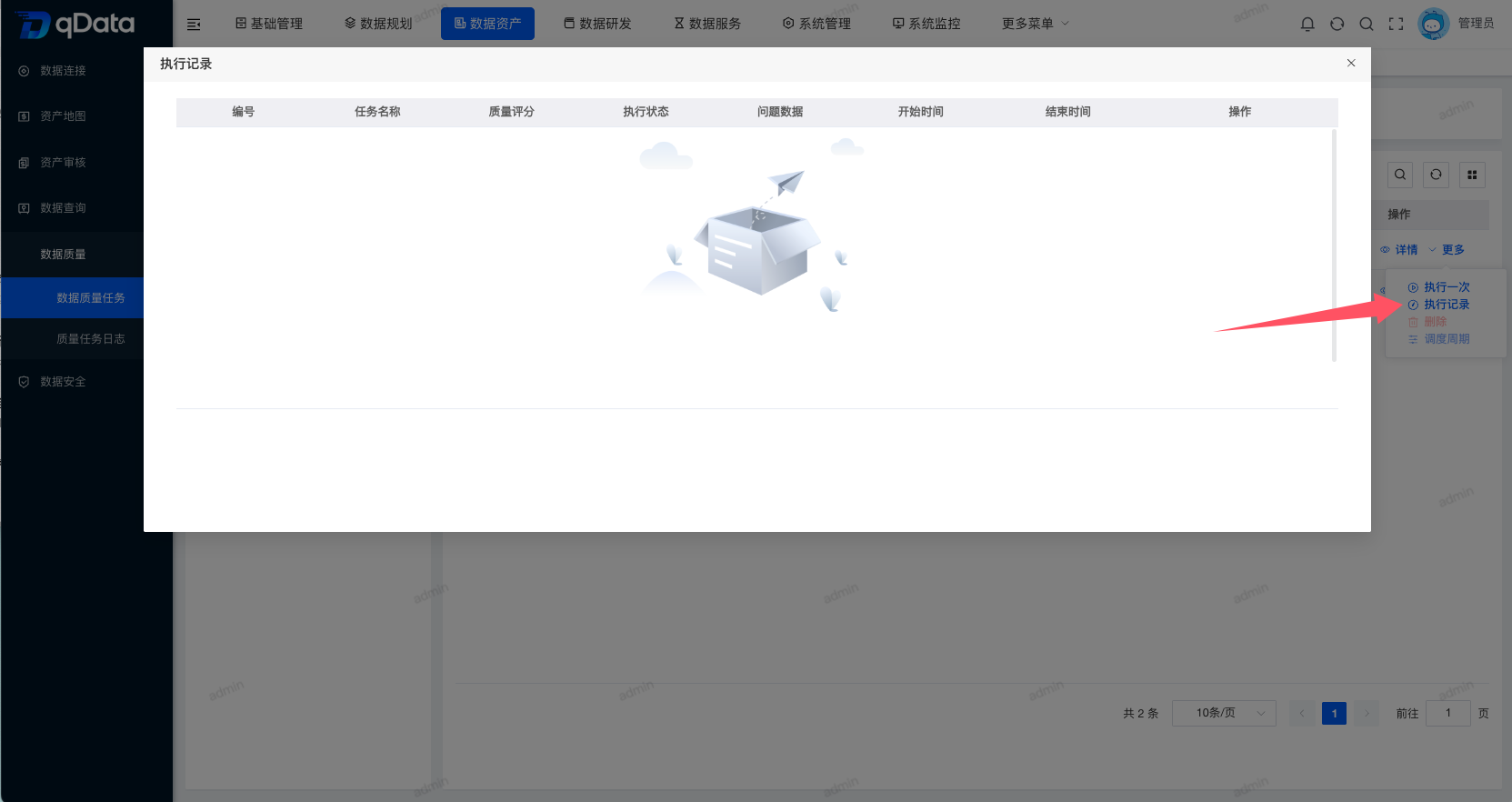
Execution records are used to track the running status of each task. Common information includes execution time, execution status, time consumption, triggering method and operation entry.
View log
Select the execution record for which you want to view the log, click the [View Log] button in the operation column, and view the log in the pop-up box.
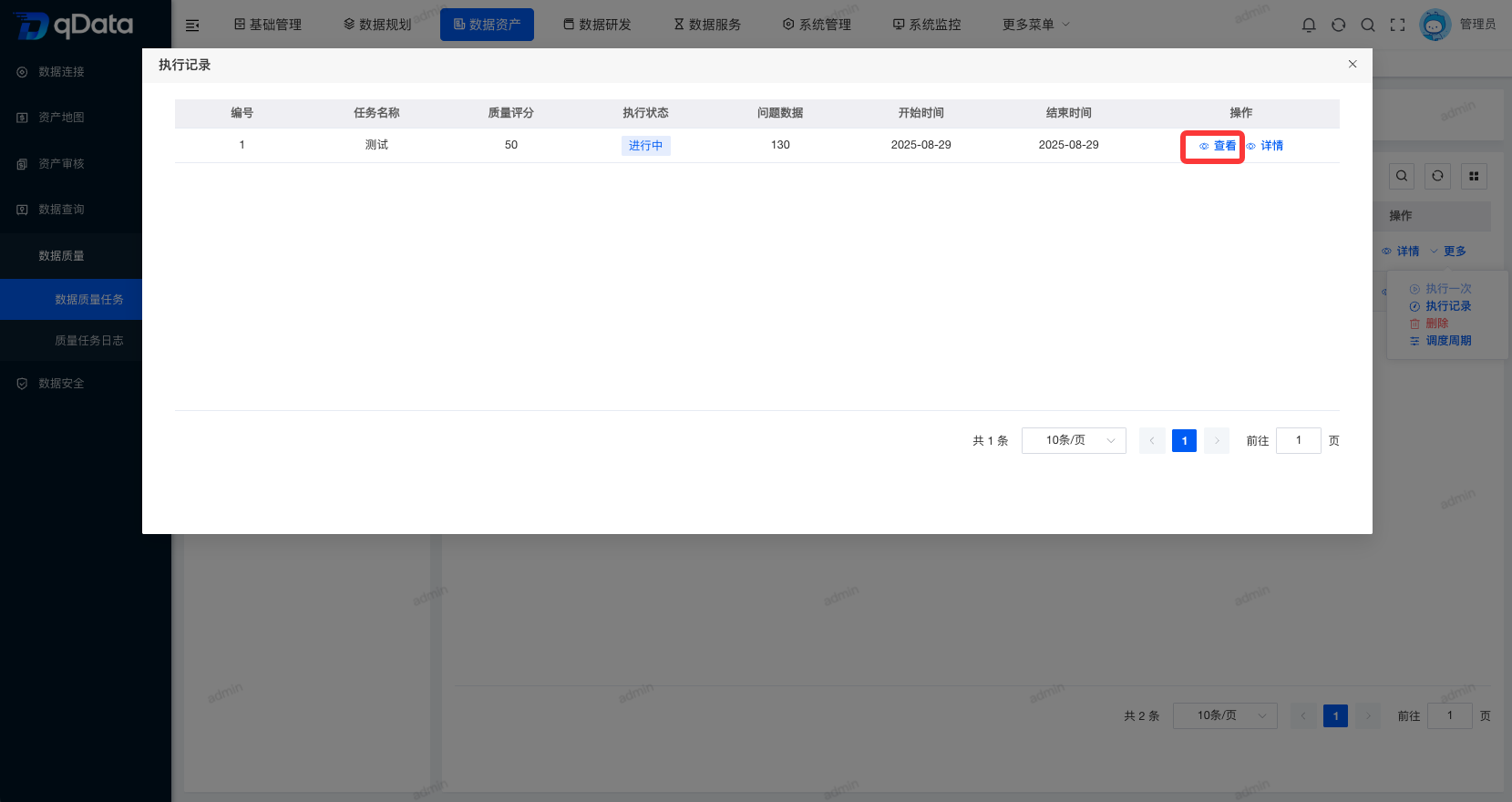
When troubleshooting logs, give priority to error information related to data source connections, permissions, SQL execution, rule parameters, and task scheduling.
Execution record details
Select the execution record whose details you want to view, click the [Details] button in the operation column, and jump to the [Quality Task Log] to view the details.
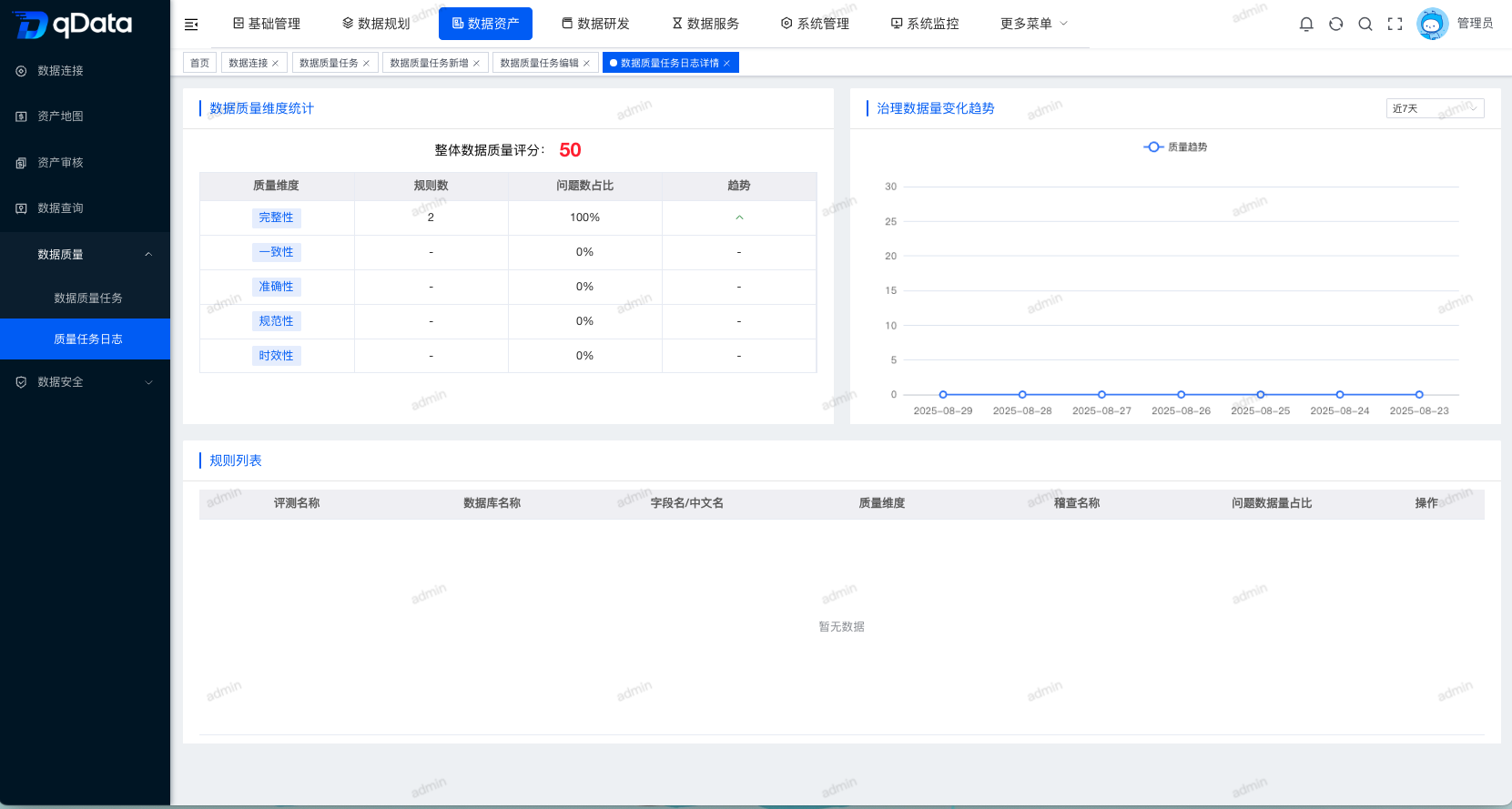
The execution record details can be used to further view the execution results of this quality task and be connected with the quality report or problem data troubleshooting process.
Start, stop and delete quality tasks
- Locate the target task in the quality task list.
- Click the status switch or start/stop entry.
- Follow the page prompts to confirm the operation.
- If you need to delete a task, click [Delete] corresponding to the target task.
- Click [OK] in the deletion confirmation prompt.
Before starting or stopping a task, you should confirm whether the task is currently scheduled for use; before deleting a task, you should confirm whether you need to retain historical execution records and quality reports.
FAQ
What are the prerequisites for executing it once?
Execute once after the task is enabled, and ensure that the data source connection, permissions, and rule parameters are normal.Why did the saving of audit rules fail?
It may be that the required fields are not filled in, the rule parameters are missing, the audit object is not selected, or the rule does not match the field type. It is recommended to check the required fields in the rule pop-up window one by one.What do you mainly look at when viewing logs?
Prioritize checking for connection exceptions, permission exceptions, SQL execution exceptions, rule parameter exceptions and scheduling resource exceptions.Will editing the task affect the historical execution records?
Editing will affect subsequent execution configurations, and historical execution records are usually used to track the running results at that time. The specific retention policy is subject to the actual configuration of the system.What do I need to confirm before deleting or deactivating a task?
It is necessary to confirm whether there are still scheduling dependencies, quality reporting traceability requirements, or downstream governance process dependencies.
Summarize
Data quality tasks are used to apply data quality audit rules to specific data objects to form executable and traceable quality evaluation tasks. After the user completes the configuration of basic information, audit objects, and audit rules through the three-step wizard, he or she can continue configuration, execution, record viewing, and log troubleshooting in the list.