
data connection
Feature overview
Functional positioning
Data Connection is used to uniformly register the connection types, service addresses and authentication parameters required for the platform to access external data sources, and provides a reusable access basis for functions such as metadata collection, data research and development, data governance, data assets and data services.
Simple understanding: first configure "how the platform connects to the target data source" clearly, and then subsequent pages can reference this connection to access the database, message queue, file service or object storage.
Usage suggestions
When adding a new connection, it is recommended to pressto select the connection type -> fill in the address and authentication parameters -> use [Test Connection] to check the parameters -> confirm the sequence of saving. When maintaining an existing connection, first confirm the target record name and type to avoid modifying similar connections.
Main features
- Multiple types of data source access: Supports connection types such as relational databases, big data components, NoSQL, message queues, file services, and object storage;
- Unified public fields: Centrally maintain data connection name, type, IP, port number, account, password, status, description and remarks;
- Double test entrance: [Test connection] can be used in the list target row or in the new or modified pop-up window;
- Status Control: Enable connections to display and select in other reference locations; disable only affecting visible, selectable ranges in other reference locations;
- Delete reference protection: Data connections referenced by other businesses are not allowed to be deleted, and the original records will continue to be retained.
Scope
This page is suitable for querying, adding, modifying, testing, status setting, detail viewing and deletion of data connections. The page is responsible for saving access parameters and is not responsible for configuring downstream collection tasks, R&D tasks or data services.
Preliminary steps
Preconditions
- Log in to the qData platform and have the relevant menu permissions for [Data Assets].
- The IP, port number, account number and password of the target data source have been prepared.
- The network where qData is located can access the target data source.
- The data connection type to be selected has been confirmed.
Navigation path
Data Assets>Data Connections
Page overview
The data connection page consists of query area, connection list, row operation and paging area. The query area can locate records by data connection name, data connection type and IP; the list displays the connection name, description, type, status and creation information; each record provides [Test Connection], [Details] and [More] entrances.
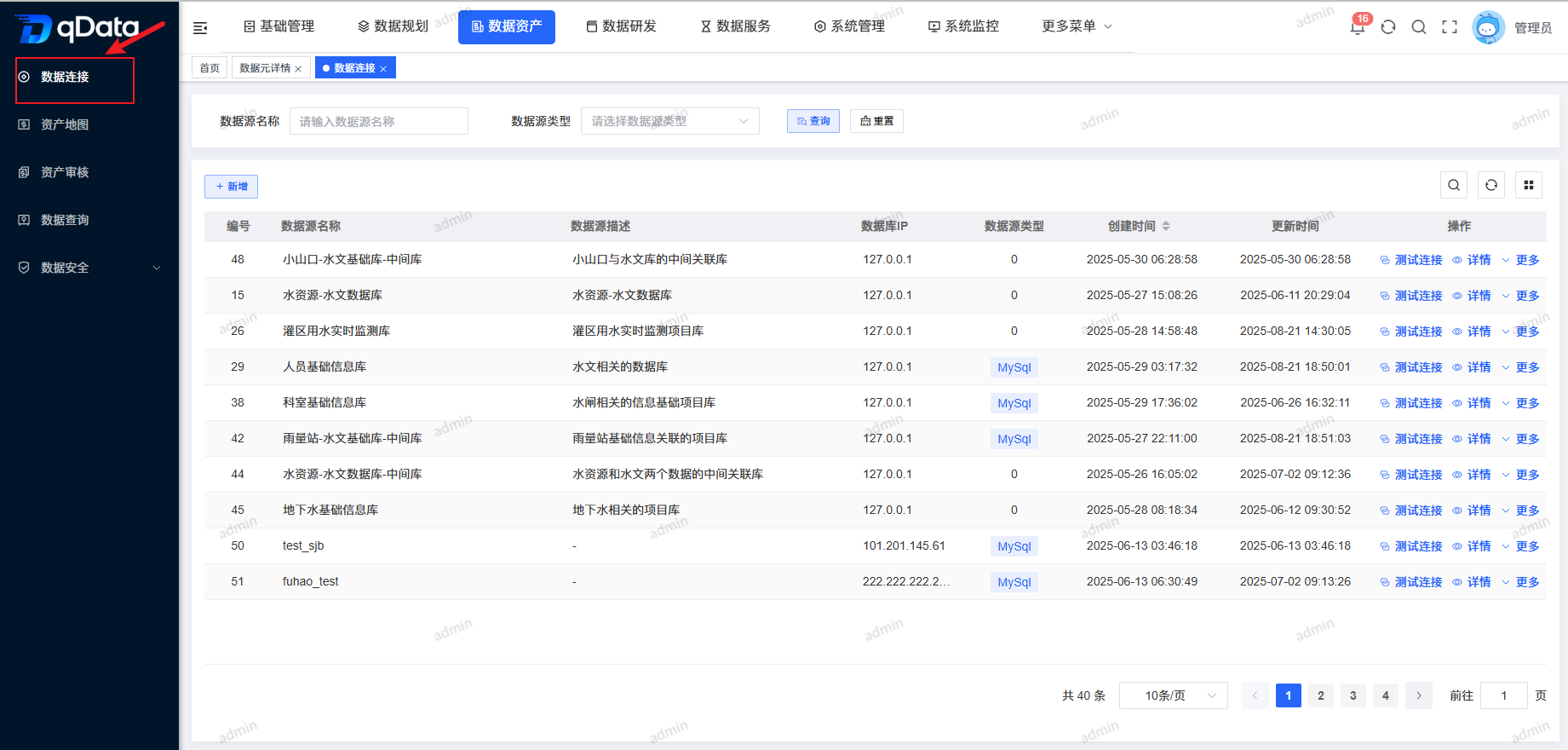
| Region | Main content | Instructions for use |
|---|---|---|
| Query area | Data connection name, data connection type, IP, [Query], [Reset] | Combine input conditions to locate the target connection. |
| List area | Number, data connection name, description, data connection type, status, creator, creation time | Check basic connection information and status. |
| Row operations | [Test Connection] [Details] [More] | [More] includes [Modify] and [Delete]. |
| Paging area | Total number of records, number of records per page, page number | Switch to view records on different pages. |
Recommended operating procedures
New connection: Click [New] -> Select the data connection type -> Fill in the public connection parameters -> Set restriction operations and status as needed -> Use [Test Connection] -> Click [OK].
Check connection: Query by name, type or IP -> Click [Test Connection] in the target row -> If you need to adjust parameters, enter [More] > [Modify].
Deactivate or cleanup: First check the downstream references -> Set to disabled when not in use -> Confirm that it is no longer referenced by the business before entering the deletion process.
Functional operation instructions
| Operation | Usage scenarios | Simplified operation |
|---|---|---|
| Query | There are many connection records and it is necessary to quickly locate the target connection. | Fill in the name, select the type or enter the IP, click [Query]; click [Reset] when resetting the conditions. |
| New | Access new databases, middleware, file services or object storage. | Click [Add], select the type and fill in the connection parameters, test as needed and click [OK]. |
| Test connection | Need to check whether the target service and authentication parameters are available. | Click [Test Connection] in the target row of the list, or click [Test Connection] at the bottom of the new or modified pop-up window. |
| Details | Need to see complete configuration and maintenance information for the target connection. | Click [Details] on the right side of the target record. |
| Modify | The address, port, authentication information, status or description needs to be adjusted. | Click the target row [More] > [Modify], and click [OK] after making adjustments. |
| Delete | The connection is abandoned and no longer referenced by other services. | Click [More] > [Delete], check the prompts and confirm deletion. |
Query and browse data connections
- Enter the connection name in [Data Connection Name].
- Select [Data connection type] as needed.
- Enter the target service address in [IP].
- Click [Query]; click [Reset] when you need to reset the conditions.
- Check the connection type, status, creator and creation time in the list, and switch records through the paging area.
Add new data source
Click the [Add] button on the page, fill in the data source information in the pop-up box, and click the [OK] button to complete the addition of the data source.
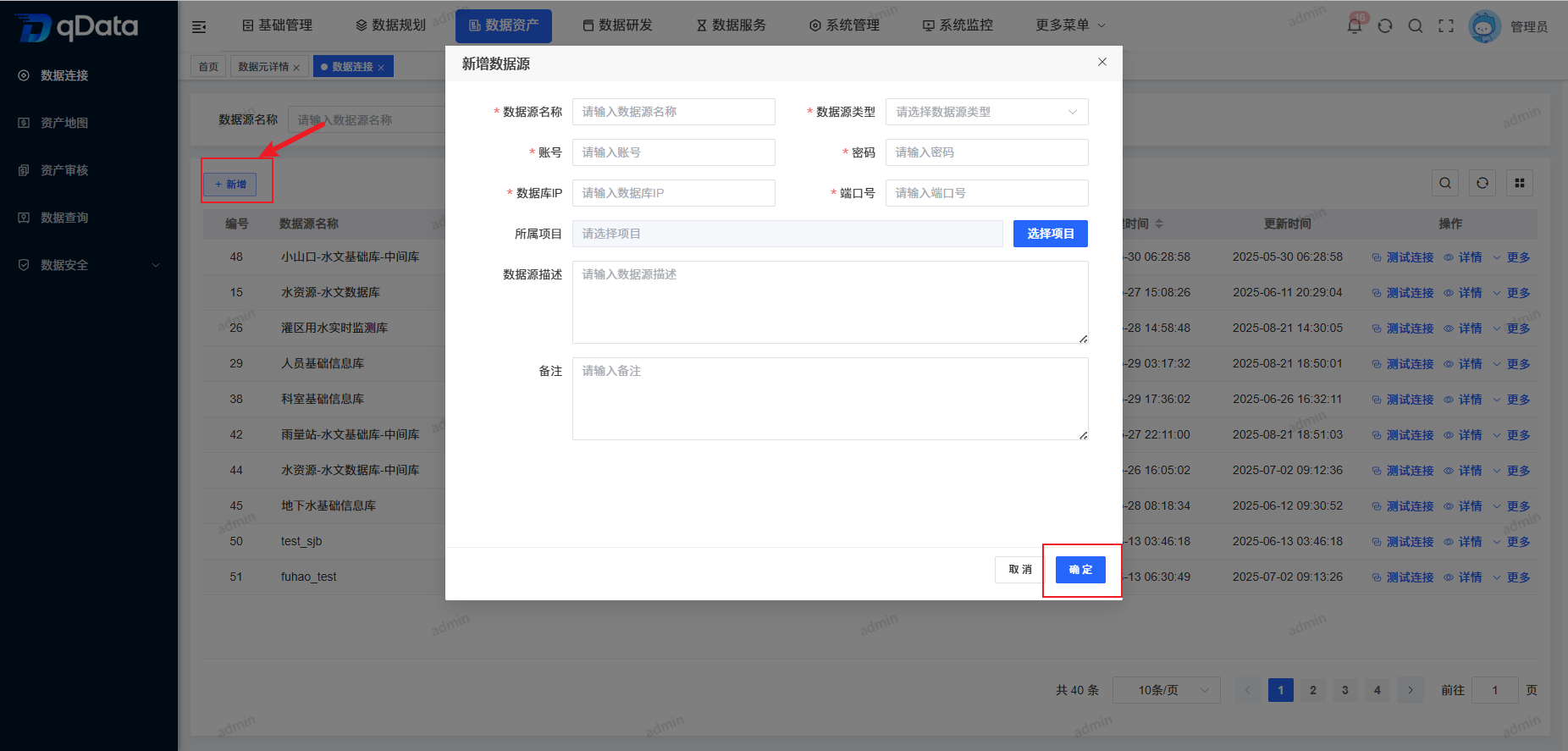
When adding, focus on filling in the following fields:
| Field Name | Description | Required or not |
|---|---|---|
| Data connection name | The display name of the connection in the platform. | Yes |
| Data connection type | The driver or protocol type used by the target data source. | Yes |
| IP | Target service address. | Yes |
| Port number | Target service port. | Yes |
| Account | Connect to the authentication account. | Yes |
| Password | Connection authentication password. | Yes |
| Restrict operations | Select [Unrestricted] or [Restricted] to save only the mark status. | No |
| Status | Set to [Enable] or [Disable]. | No |
| Description | A description of the purpose of the connection, up to 500 characters. | No |
| Remarks | Supplementary maintenance information, up to 500 characters. | No |
Select data connection type
The page supports multiple data sources, covering relational databases, big data and computing components. When filling in, the fields actually displayed on the selected type page shall prevail.
| Type grouping | Data connection type |
|---|---|
| Relational database | MySql, DM8, Oracle, Oracle11, Kingbase8, SQL_Server, SQL_Server2008 |
| Big data and computing components | Doris |
test connection
Select the data source information whose connection needs to be tested, and click the [Test Connection] button in the operation column. The system will test the connection status of the data source and return the test results.
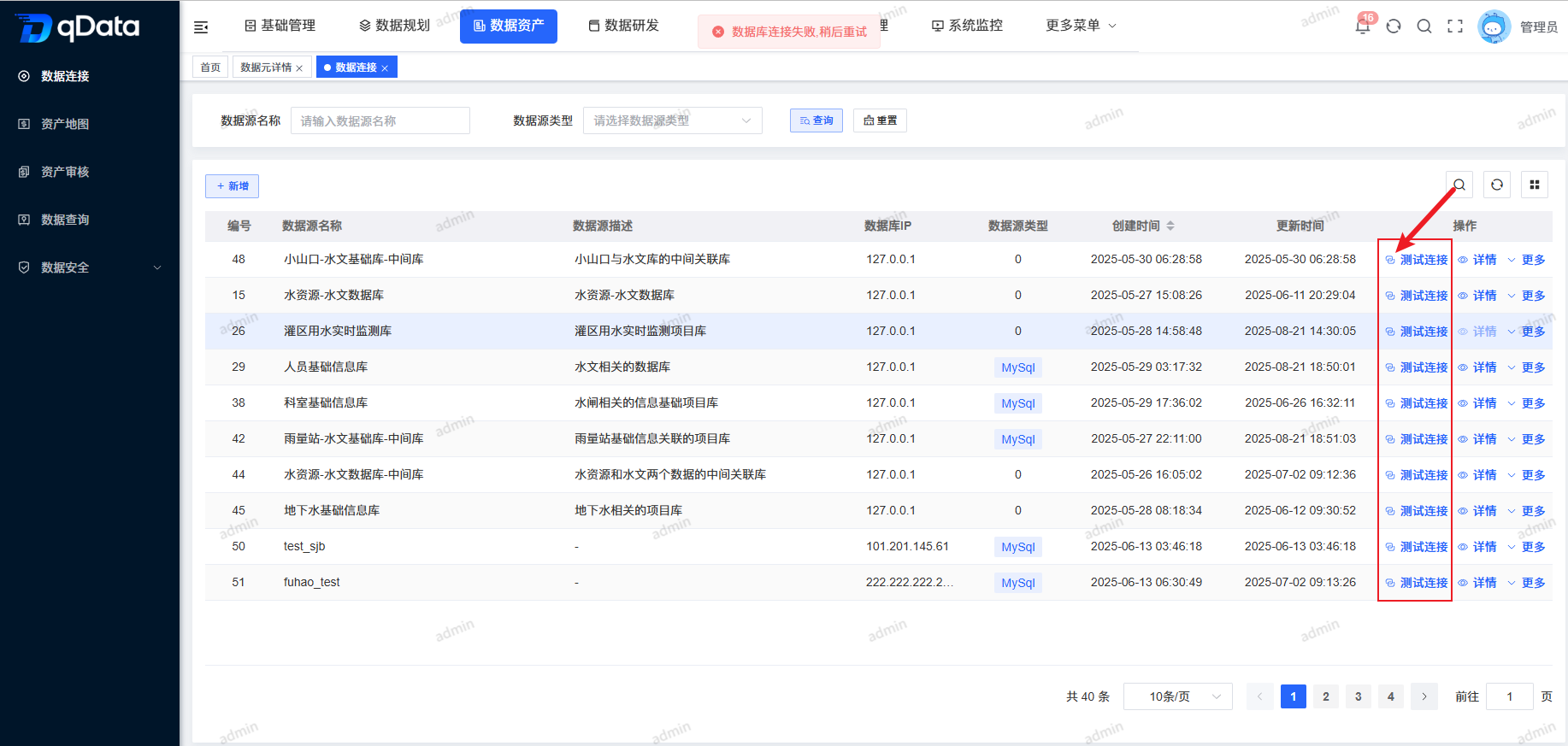
Before testing, focus on checking the connection type, IP, port number, account number, and password; if the current connection type contains exclusive parameters such as database name, SSL authentication, etc., these also need to be checked.
Data source details
Select the data source information whose details you want to view, click the [Details] button in the operation column, and view the data source information details in the pop-up box.
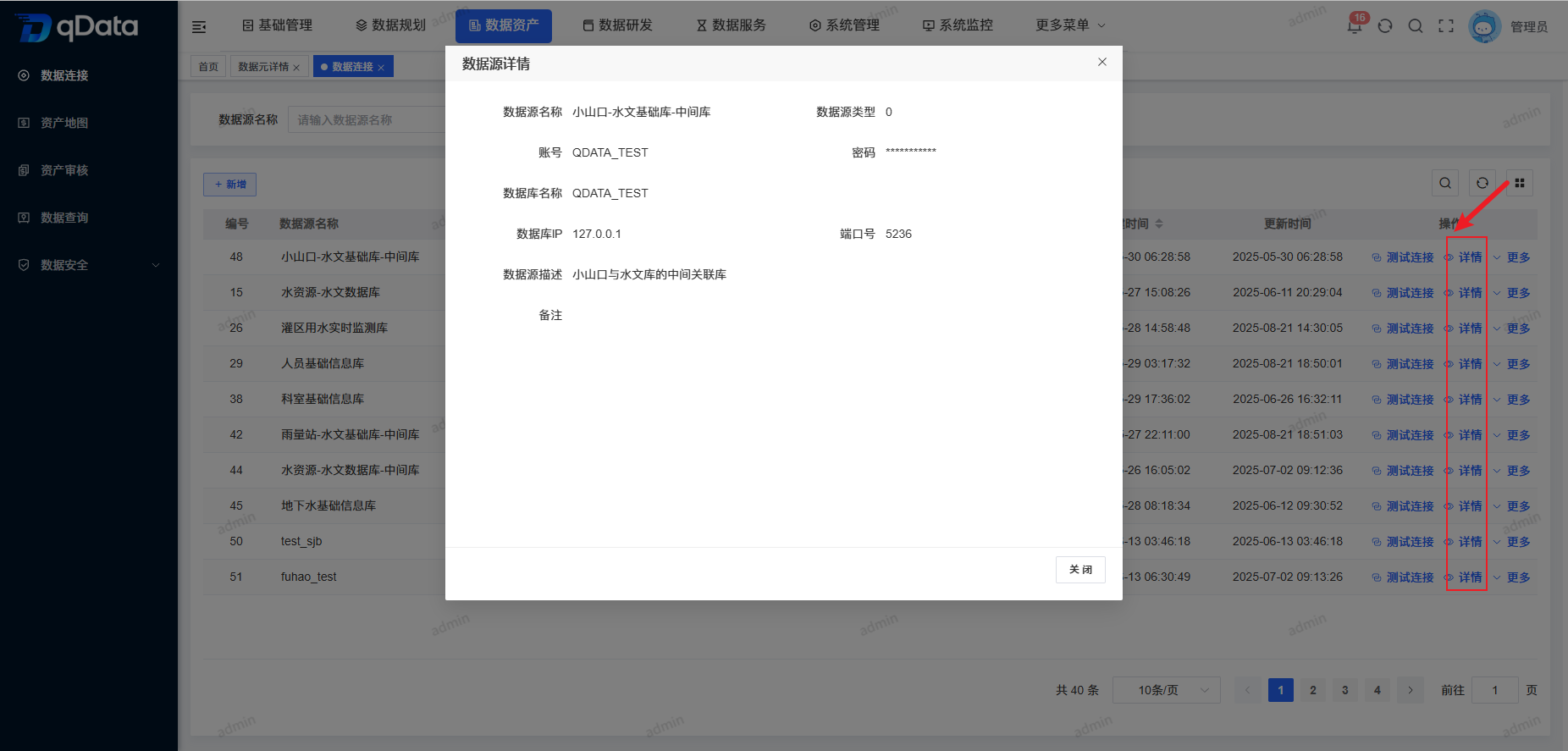
The details page is mainly used to check the basic information of the data connection, connection type, network address, status, description, remarks and create update information. Viewing details does not modify the connection configuration.
Modify data source
Select the data source information that needs to be modified, click the [More]->[Modify] button in the operation column, modify the existing data source information in the pop-up box that appears, and click the [OK] button to complete the modification of the data source information.
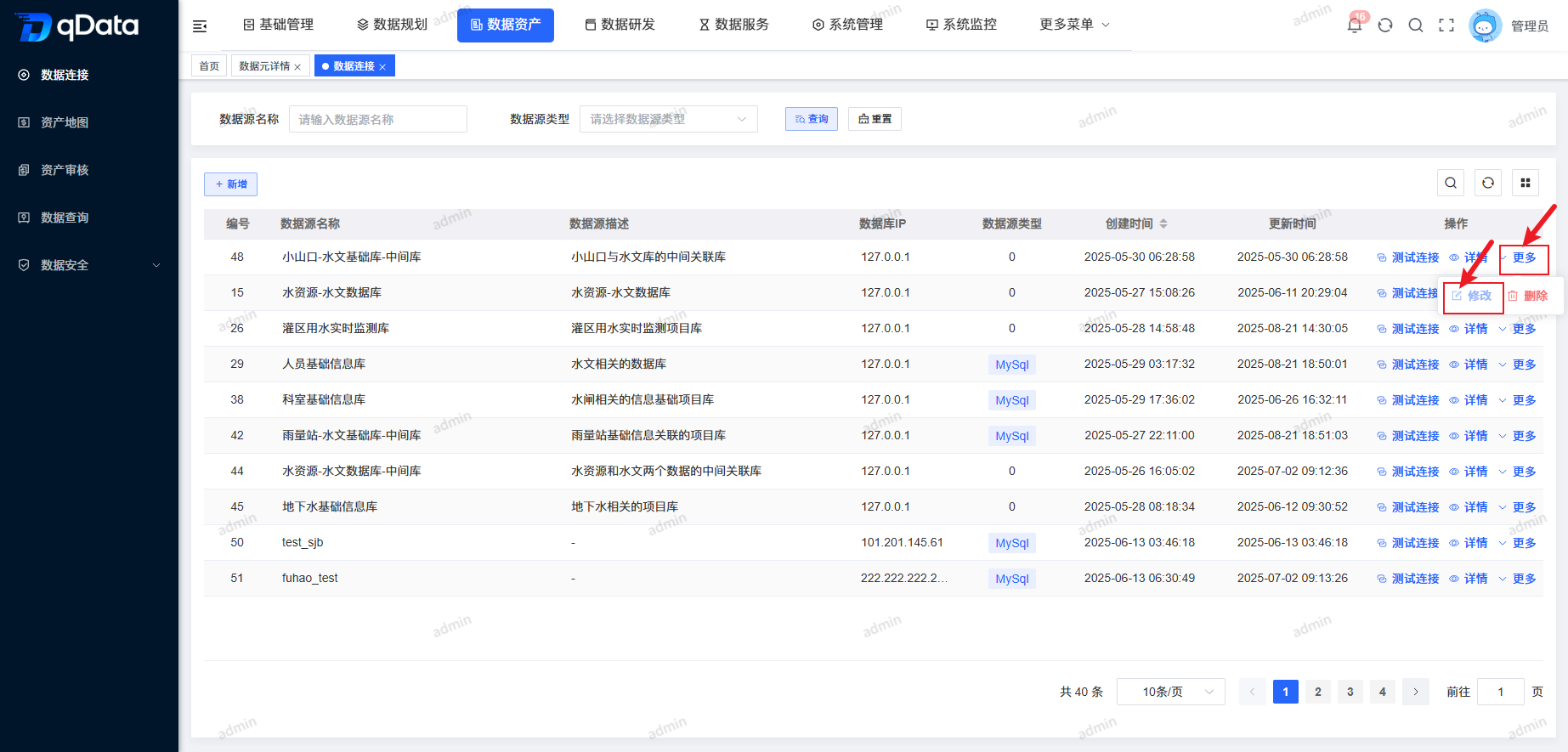
Common fields when modifying are as follows:
| Field Name | Description | Required or not |
|---|---|---|
| Data connection name | The display name of the current connection. | Yes |
| Data connection type | Current connection type, some types cannot be edited when modified. | Yes |
| IP | Target service address. | Yes |
| Port number | Target service port. | Yes |
| Account | Connect to the authentication account. | Yes |
| Password | Connection authentication password. | Yes |
| Status | Select [Enable] or [Disable]. | No |
| Description | Description of the connection purpose. | No |
| Remarks | Supplementary maintenance information. | No |
Set connection status
- Use the status switch setting in the target record row to enable or disable.
- You can also enter [Modify], select [Enable] or [Disable] in [Status] and submit.
The status rules are as follows:
- Enable: The connection can be displayed and selected in other reference locations or pages;
- Disable: The connection is removed from the visible, selectable scope of other referenced locations or pages;
- Data Impact: Disabling will not delete or modify the current connection and existing historical data, nor will it cascade change other objects.
Delete data source
Select the data source information to be deleted, click the [More]->[Delete] button in the operation column, and click the [OK] button. The system will delete the data source information.
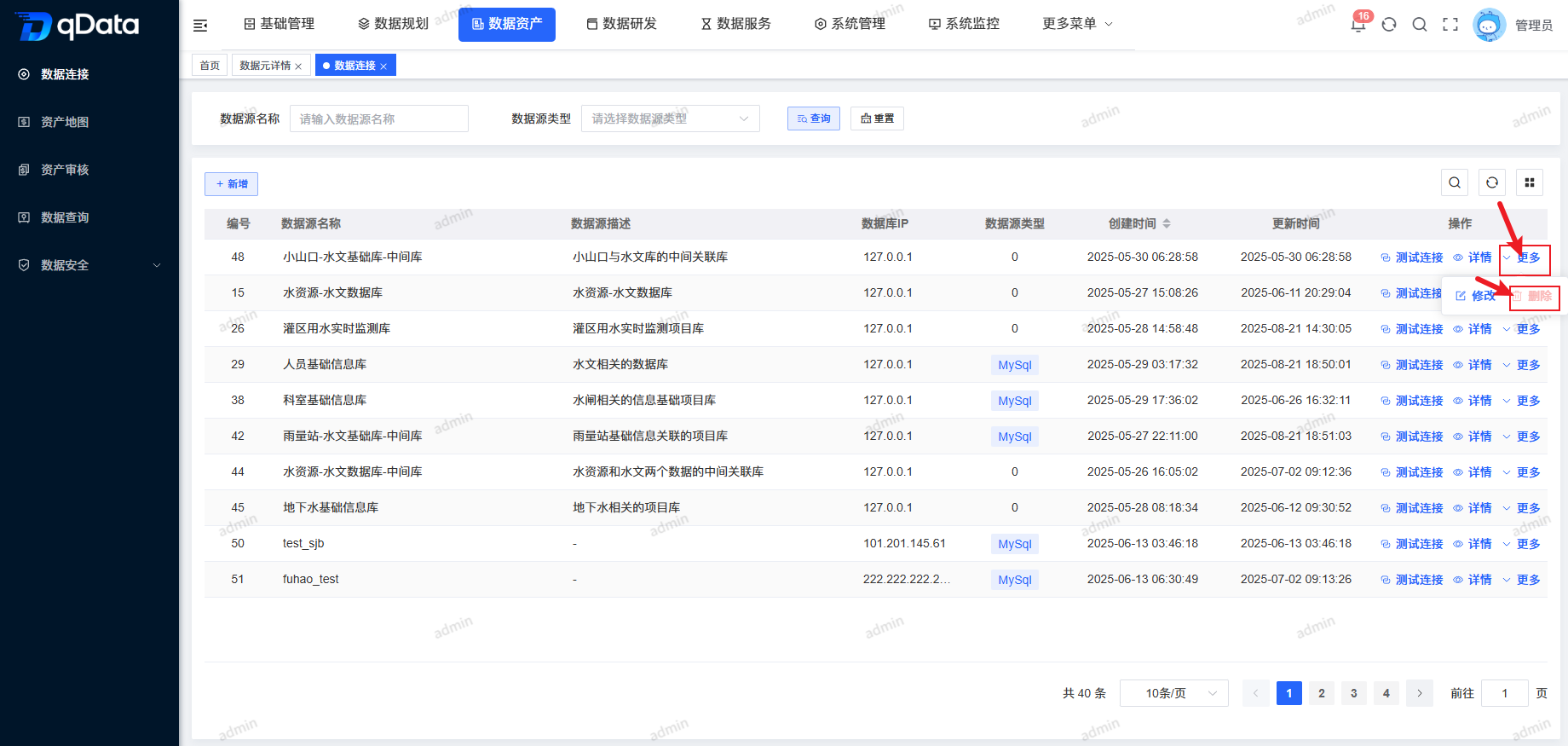
Before deleting, please confirm that the connection is no longer referenced by collection tasks, data research and development tasks, data services or other business configurations. If the system detects that a reference exists, deletion is usually not performed and the original record is retained.
FAQ
What data connection types can I choose?
The page supports relational databases, big data and computing components, NoSQL, message queues, file services, object storage and other types. For details, please refer to the type list in the new pop-up window.Why may the fields displayed differently for different types?
The public form maintains general access parameters, and specific types can display additional parameters; when filling in, the fields displayed on the selected type page shall prevail.Will disabling the connection delete existing data?
Won't. Disabling only affects the display and selection of the connection in other reference locations. It does not delete the current connection or historical data, nor does it change other objects.Can connections referenced by other businesses be deleted?
Can't. When the system detects other business references, the deletion will not be performed and the original record will be retained.What should you check before testing the connection?
First check the connection type, IP, port number, account number and password, and then check the exclusive parameters displayed for this type.
Summarize
When maintaining data connections, you should focus on checking three items:whether the connection type and address match, whether the authentication parameters are accurate, and whether the downstream references have been confirmed before disabling or deleting. After adding or modifying, you can use the [Test Connection] entrance provided by the page to check the parameters, and then pass them to downstream pages for reference.