
Asset tag
Feature overview
Functional positioning
Asset Tag is used to centrally manage tag classification and tag information. The page manages the category tree through tags on the left, query area and tag list on the right, and supports viewing basic tag information, maintaining tags, controlling tag status and entering tag details.
Simple understanding: first find the tag by category, then view or maintain the tag content, and control whether the tag can still be used for new asset marking through status.
Main features
- Tag classification tree: Displays tag management categories in a tree structure and provides a search entry for category names;
- Tag Query and List: Locate tags by tag name, creator and status, and view asset quantity and creation information;
- Tag maintenance entrance: Provides the ability to add, modify, single delete and batch delete;
- Status Management: enabled tags can be used for marking; after disabled, they can no longer be used for new marking, but existing tag associations will continue to be retained;
- Asset association scope: Tags can be applied to assets such as tables, files, and APIs, and the same asset can be associated with multiple tags.
Scope
This page is suitable for maintaining tag classification and basic tag information, viewing tag status and the number of associated assets, and identifying tag details and asset association entries.
Preliminary steps
Preconditions
- Logged in to the qData platform.
- The current page has loaded the tag management category and tag list.
- The tags to be viewed or maintained and their categories have been identified.
Navigation path
Data Assets>Asset Tags
Page overview
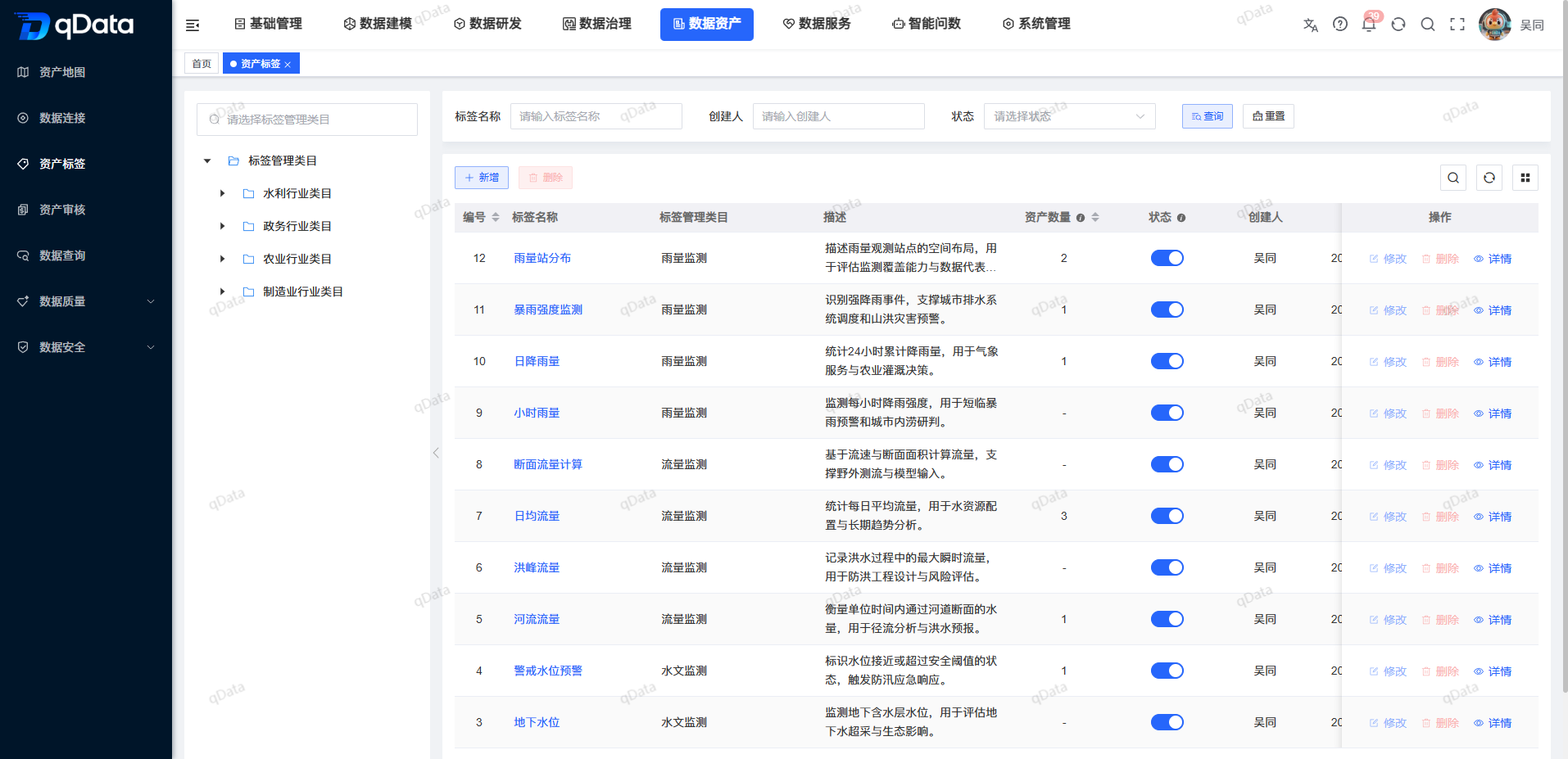
The left side of the page is the tag management category search box and tree category, and the right side displays the tag query area, [Add] and batch [Delete] entrances, tag list and row-level operations. List fields include number, tag name, tag management category, description, asset quantity, status, creator, creation time and operation.
| Region | Main content | Instructions for use |
|---|---|---|
| Category tree on the left | Tag management categories, category search | Used to locate tags by tag classification. |
| Query area | Tag name, creator, status, query, reset | Used to quickly filter target tags. |
| List area | Tag name, tag management category, description, asset quantity, status, creation information | Used to view basic tag information and usage. |
| Operation area | Add, modify, details, delete, enable and disable | Used to maintain the label life cycle. |
Recommended operating procedures
Browse tags: Enter [Asset Tags] -> View tag management categories -> Locate tags in the list -> Check tag name, category, asset quantity and status.
Maintain Label: Locate the target label -> Use [New] or row-level maintenance portal -> Check the label field and status -> Continue on the current page.
View details: Positioning target record -> Click [Details] -> View basic information and detailed information -> Click [Return].
Functional operation instructions
Browse and query tag lists
- Enter the [Asset Tag] page.
- Browse the tag management category tree on the left.
- View the tag query area on the right.
- Enter the tag name or creator as required.
- Select the status as needed.
- Use the [Query] or [Reset] entry to process the current conditions.
- View label information and row-level operations in the list.
The main contents of the query area and list are as follows:
| Field Name | Description | Required or not |
|---|---|---|
| Tag name | The display name of the tag, which can be used as a query condition. | No |
| Creator | Tag creator, can be used as a query condition. | No |
| Status | The label is currently enabled or disabled and can be used as a query condition. | No |
| Tag management category | The category to which the tag belongs. | System display |
| Description | Description of the label's meaning or purpose. | System display |
| Asset Quantity | The number of assets associated with the current tag. | System display |
| Creation time | Tag creation time. | System display |
Add asset tag
- Click [Add] at the top of the list.
- Select the tag management category in the "Add Tag" pop-up window.
- Fill in the label name.
- Fill in synonyms, synonyms, descriptions and remarks as needed.
- Select the label status.
- Click [OK] to save; click [Cancel] or close the pop-up window if not saving.
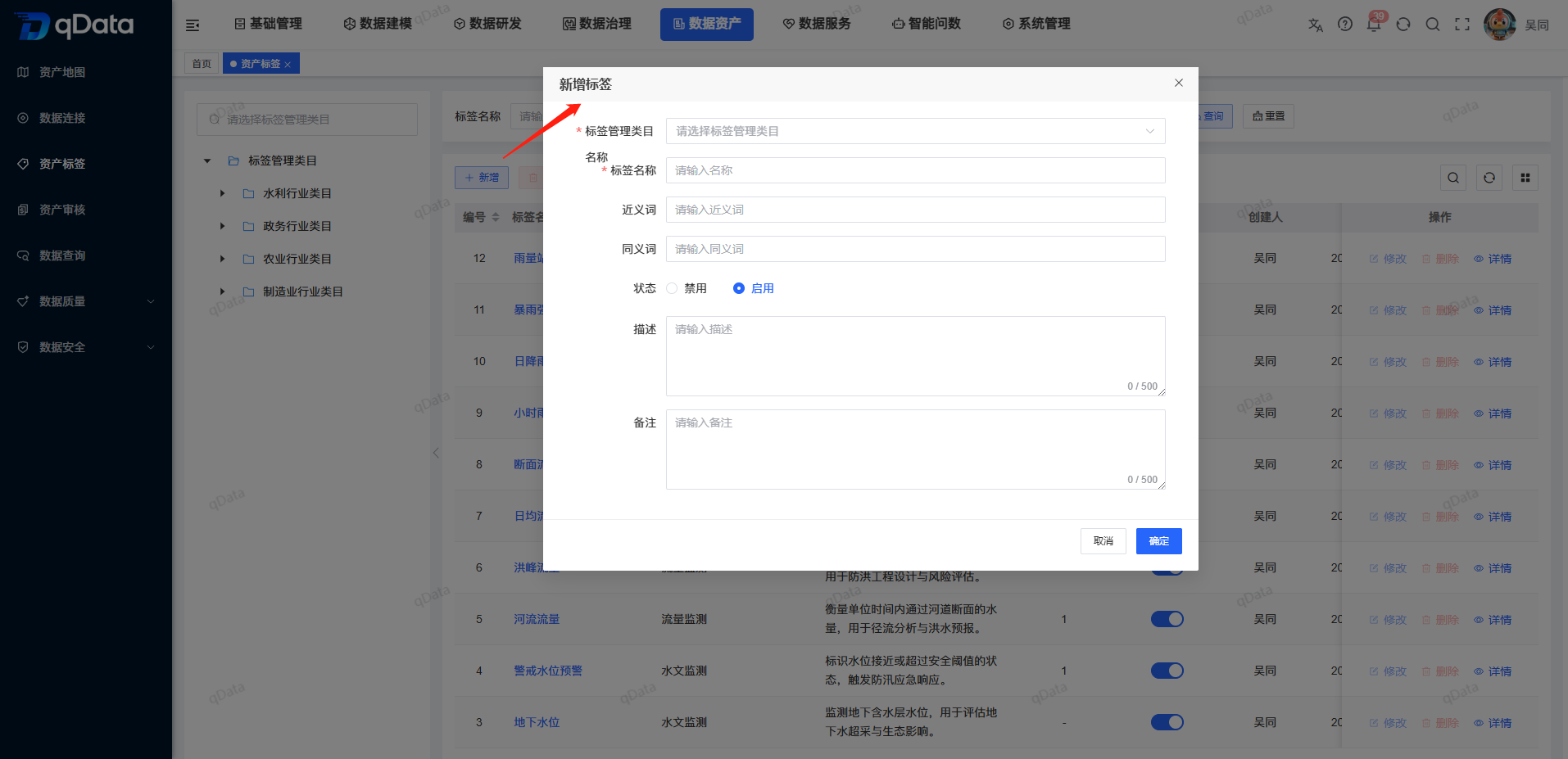
The description of the new label field is as follows:
| Field Name | Description | Required or not |
|---|---|---|
| Tag Management Category | The category directory to which tags belong. | Yes |
| Tag name | The display name of the tag in the platform. | Yes |
| Synonyms | Words that are close in meaning to the tag. | No |
| Synonyms | Words that have the same meaning as the label. | No |
| Status | Whether the label is enabled. | Yes |
| Description | Description of label meaning and scope of application. | No |
| Remarks | Other maintenance information. | No |
Modify asset label
Select the tag that needs to be adjusted, click the [Modify] button in the operation column, modify the tag management category, tag name, synonyms, synonyms, status, description or remarks and other information in the pop-up window, and click [OK] to save.
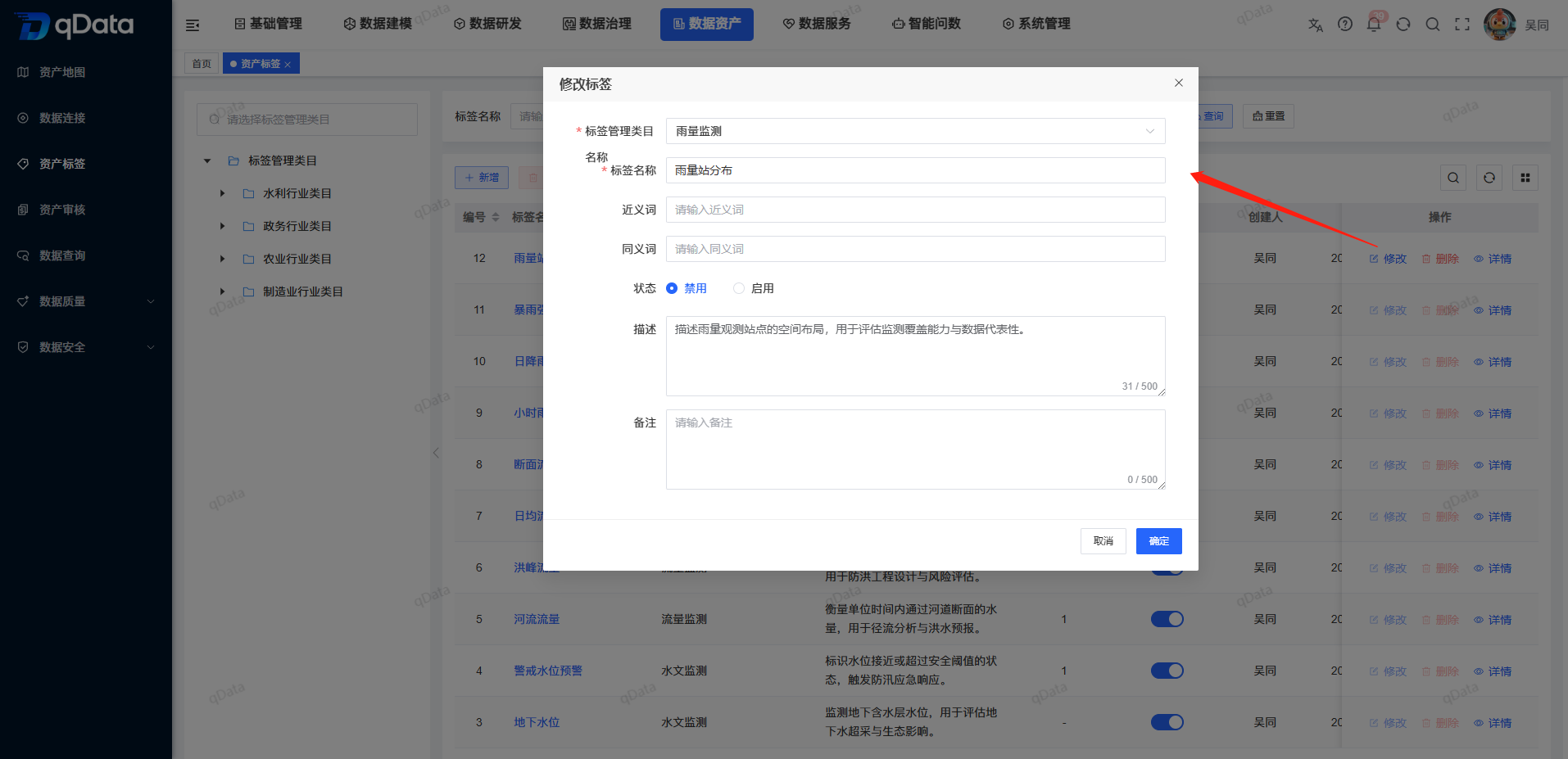
Before modifying a label, it is recommended to confirm the number of assets associated with the label. For labels that have been used by a large number of assets, you should first confirm that the modified name and meaning will not cause deviations in business understanding.
Enable or disable labels
The status prompt clearly states: The enabled status means that the tag can be used to mark data assets; after being disabled, it can no longer be used, but the existing tags will still be retained.
- Locate the target tag in the list.
- Check the current status switch.
- Toggle the status switch of the target label.
- The confirmation page shows that the operation was successful.
- Confirm that the target row status has been updated.
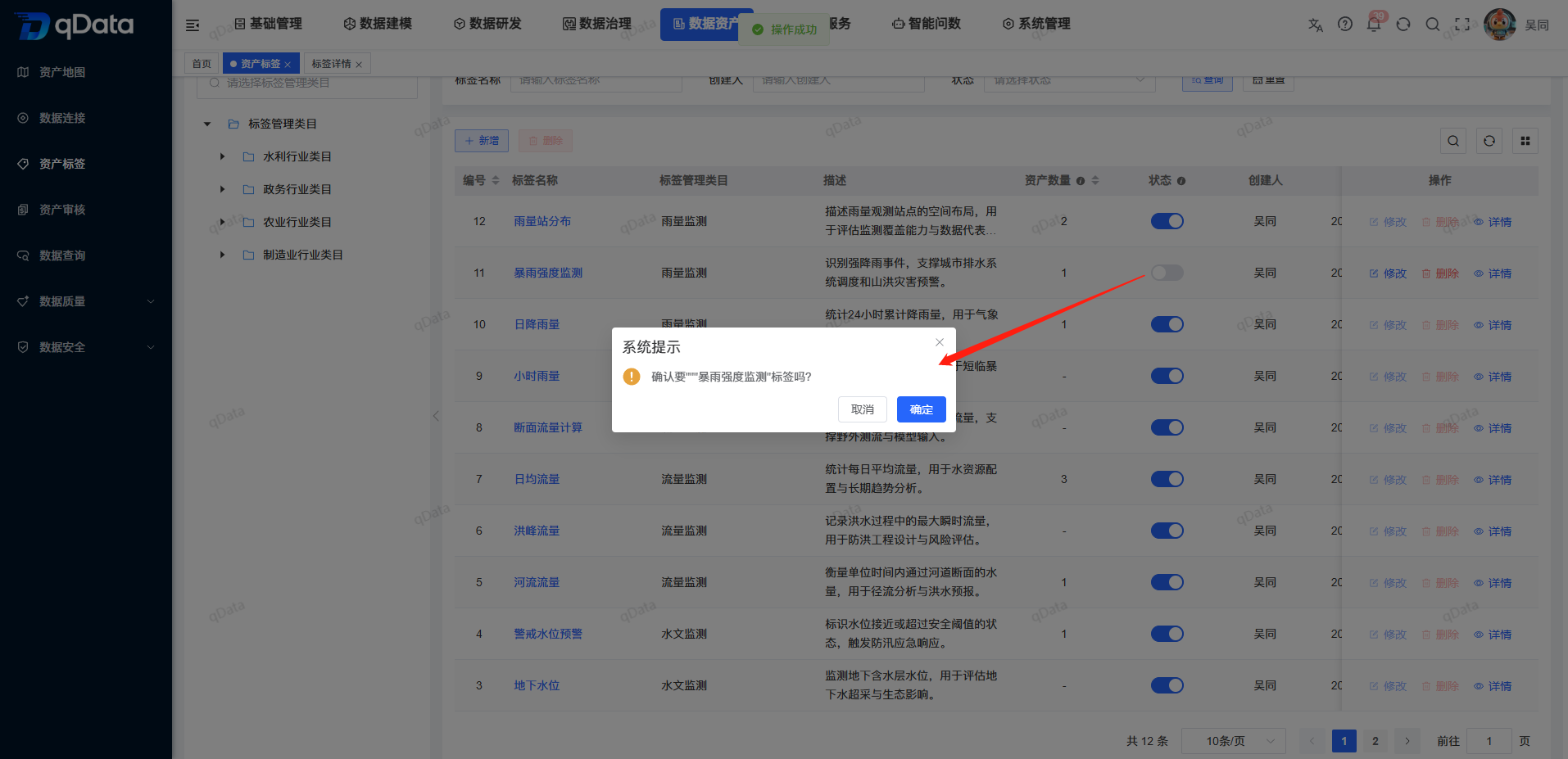
The status rules are as follows:
| Status | Description | Impact |
|---|---|---|
| Enabled | Tags can be used for asset tagging. | You can select this tag when adding or maintaining asset tags. |
| Disabled | The label can no longer be used for new markings. | The existing association relationship is retained and will not be automatically removed. |
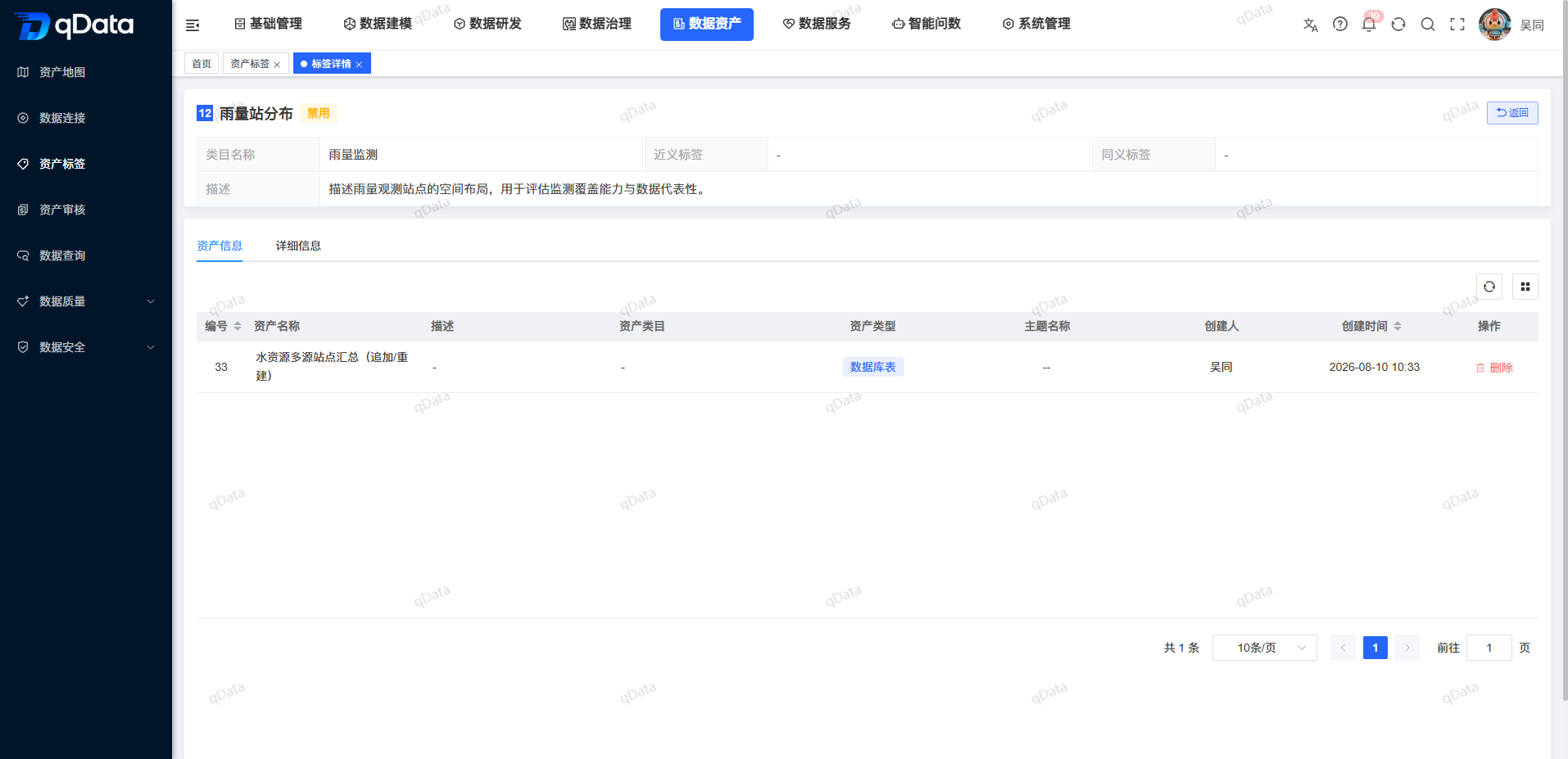
View label details
- Locate the target record in the tag list.
- Click [Details] of the row.
- Look at the number, tag name, and status in the detail header.
- View tag management categories, synonyms, synonyms and descriptions.
- View the creator, creation time, updater, update time and comments.
- View the [Asset Information] tab as needed.
- Click [Return] to leave the details page.
Delete asset tag
Select the tag to be deleted and click the [Delete] button in the operation column, or select multiple records and click the [Delete] button above the list. After the system pops up a confirmation prompt, click [OK] to complete the deletion.
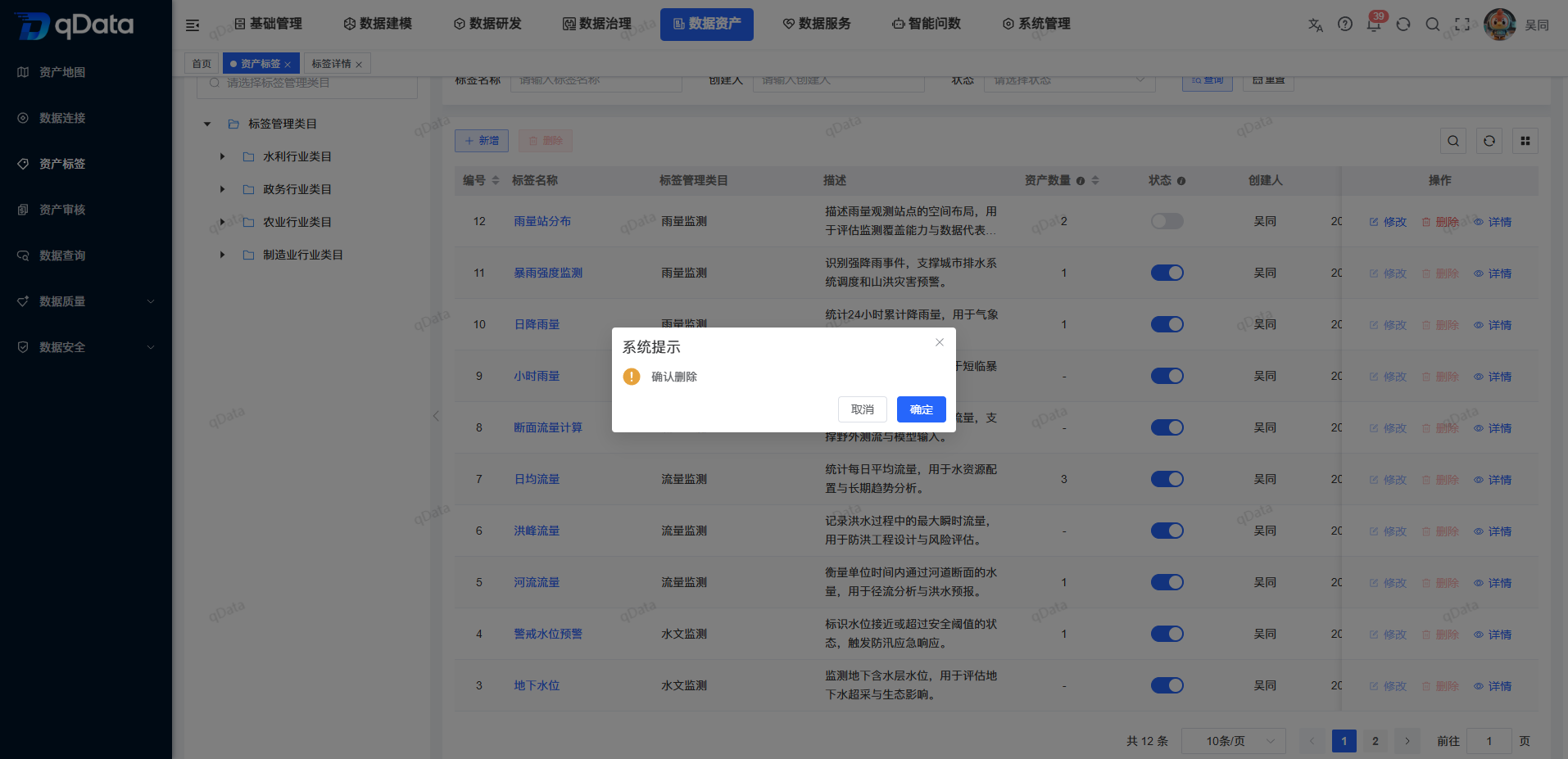
Please confirm whether the tag is still referenced by the asset before deleting it. If the tag has been used by business assets, it is recommended to assess the impact first, deactivate the tag if necessary, and then clean up the association.
Identify other maintenance capabilities
- Maintain tag classification: Tag management categories support query, addition, editing and deletion, making it easy to organize tags by business domain or governance theme;
- Apply tags to assets: Tags can be used for assets such as tables, files, APIs, etc., and allow a single asset to be bound to multiple tags;
- View associated assets: [Asset Information] in the details can be used to view the range of assets associated with the current tag.
FAQ
After disabling a tag, will the tags on existing assets be removed?
Won't. After being disabled, the tag can no longer be used for new marking, but existing tags will still be retained.What does the number of assets in the list mean?
Asset quantity is used to display the number of assets associated with the current tag. Specific related assets can be viewed from the [Asset Information] entry on the details page.What should I pay attention to before deleting tags?
Need to confirm whether the tag is referenced by the asset. For tags that are still in use, it is recommended to first evaluate the impact or disable them instead.Can one asset be bound to multiple tags?
Can. Tags can be used for assets such as tables, files, and APIs, and the same asset can be associated with multiple tags.
Summarize
The asset tag page centrally presents tag classification, query list, maintenance portal, status and details. When using it, focus on checking thecategory, tag name, asset quantity and activation status; before disabling a tag, you should understand that it only affects new marking uses, and existing tag associations will continue to be retained.