Standard Data Element
Definition
This module is used to maintain Standard Data Elements and code tables in the platform, providing unified data specification support for data cleaning and quality auditing, and improving field-level consistency and maintainability.
Data Element definitions include field standard information such as name, type, length, and format. They support binding Cleansing Rules and can establish associations with Data Assets. Code tables serve as value standards for enumerated fields and support adding, editing, deleting, and querying standard dictionaries.
Notes
We recommend preferentially referencing Standard Data Elements during modeling, asset management, audit configuration, and other stages to promote data item standardization and governance automation.
Scope
1. Standard Data Element Page
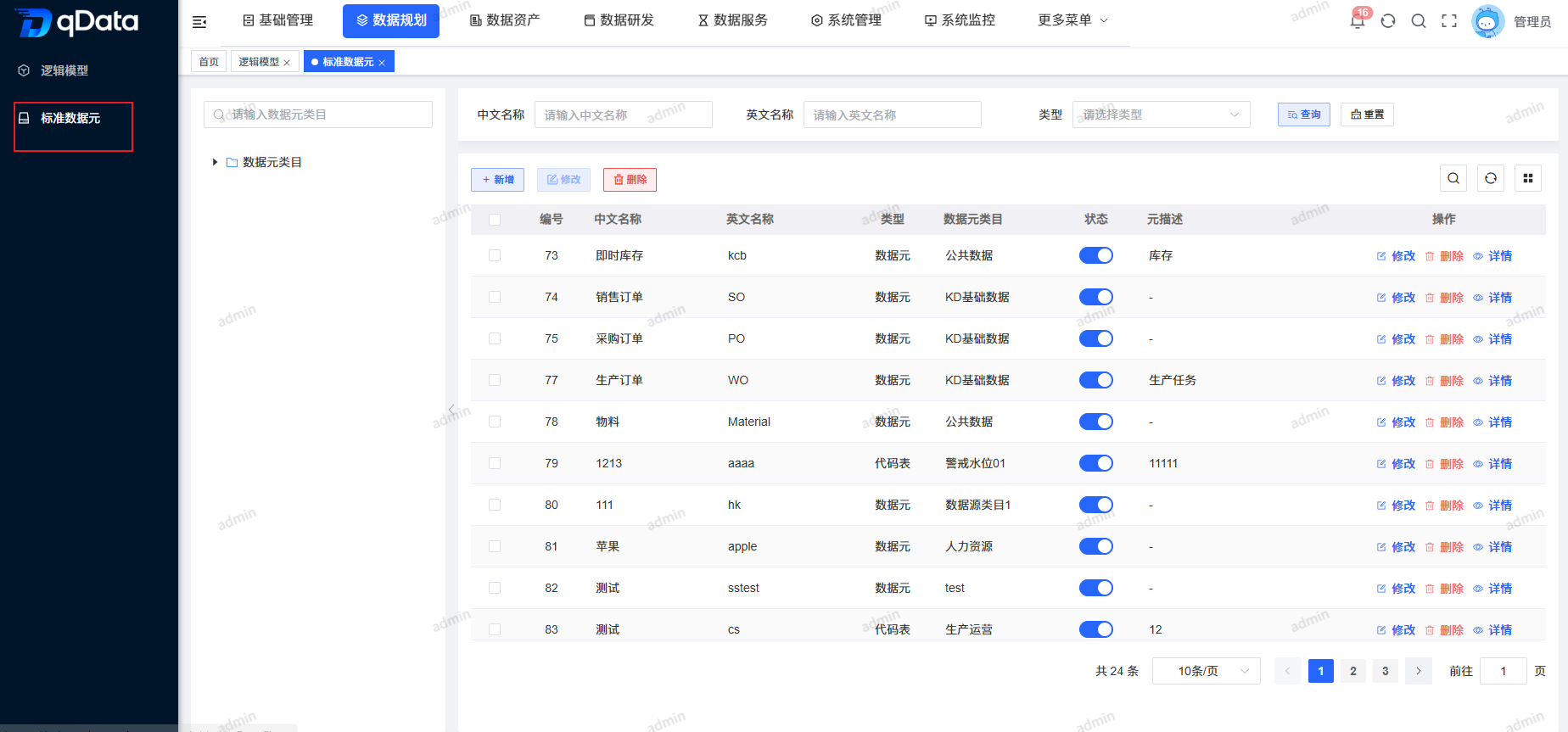
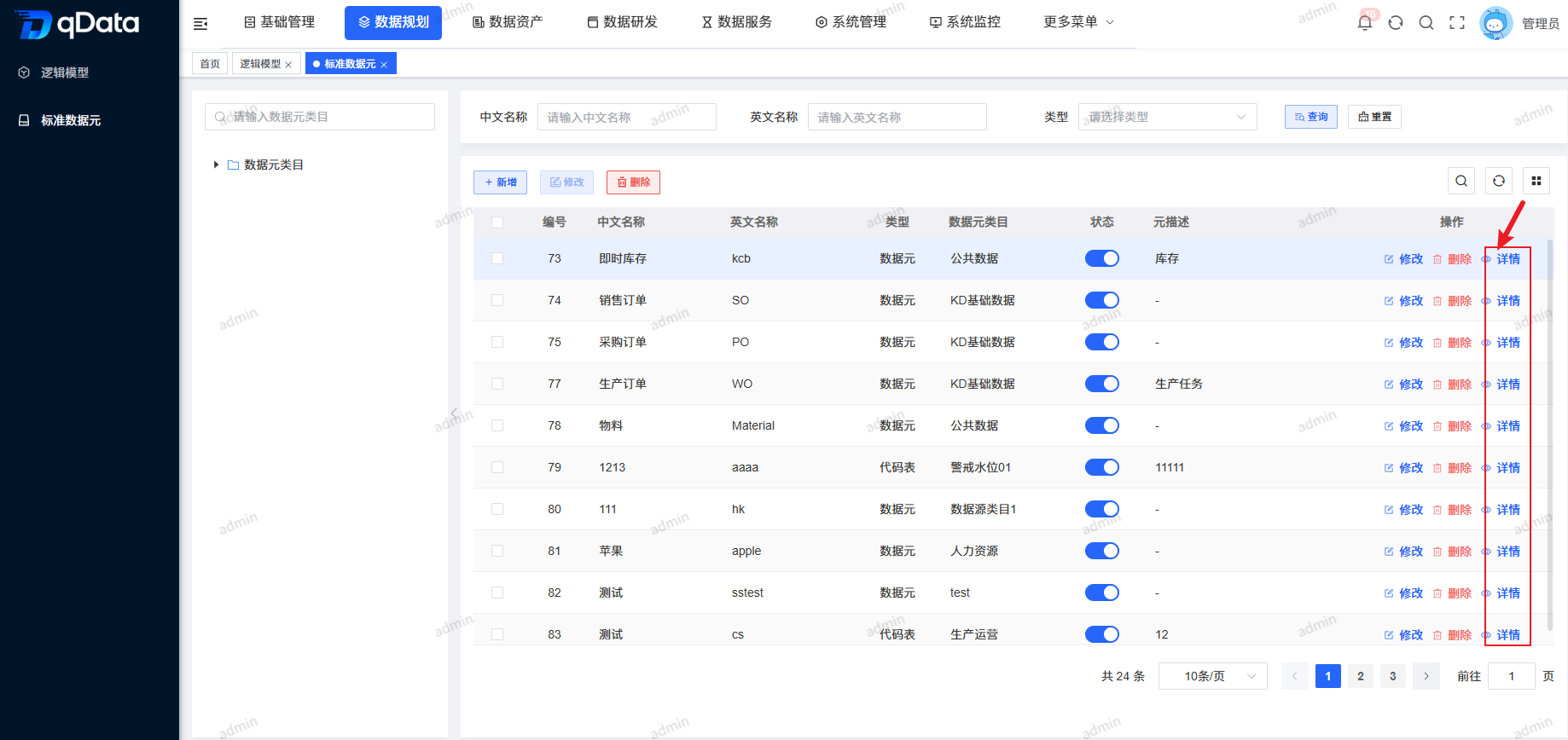
Click Data Standards under Standard Data Element to open the Standard Data Element page. The page uses a left-right layout: the left side displays Data Element Categories in a tree structure, and the right side displays the Standard Data Element information list, including ID, English name, Chinese name, type, data source category, status, element description, and other fields.
2. Add Standard Data Element
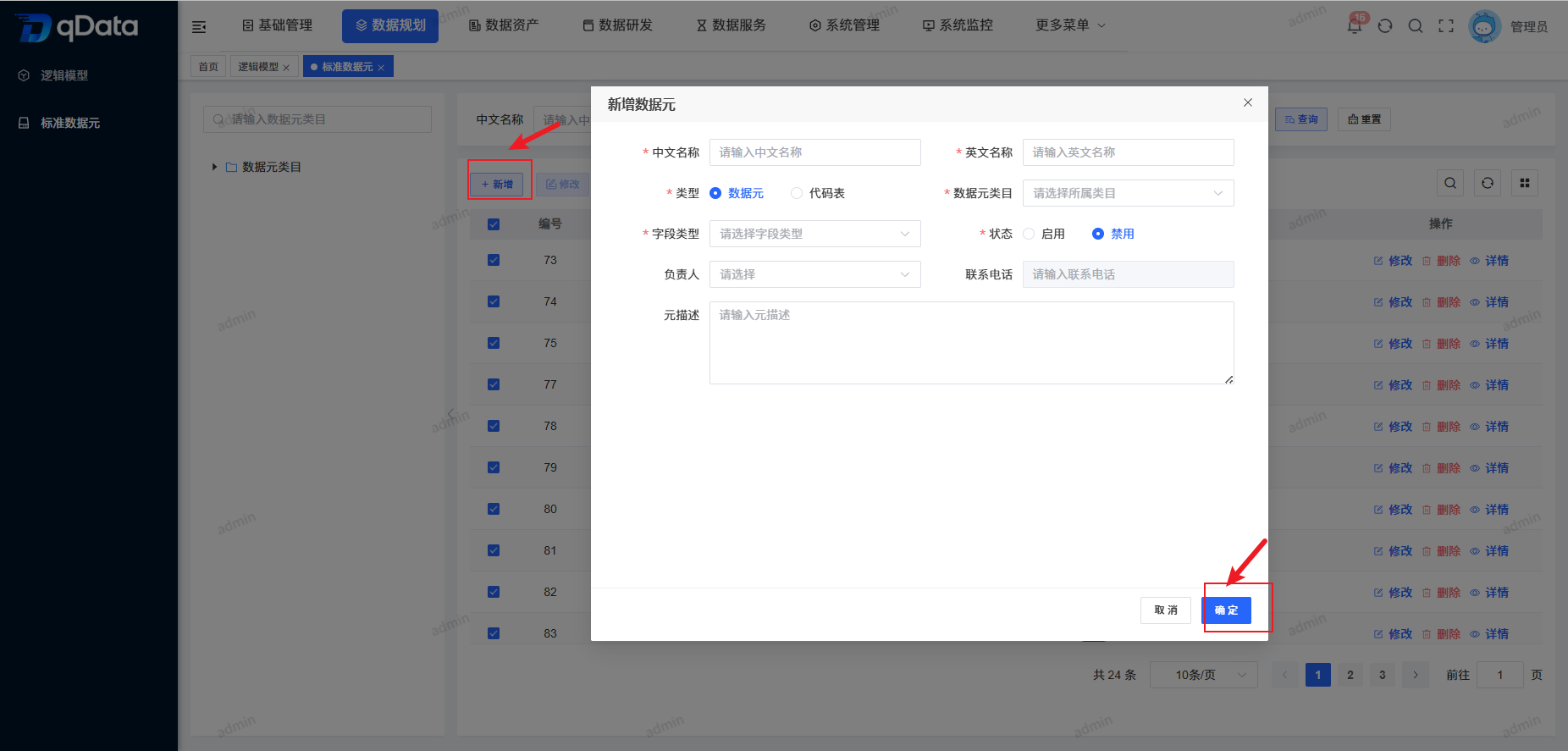
Click Add on the page, fill in the data element information in the dialog, and click OK to complete adding the data element.
3. Edit Standard Data Element
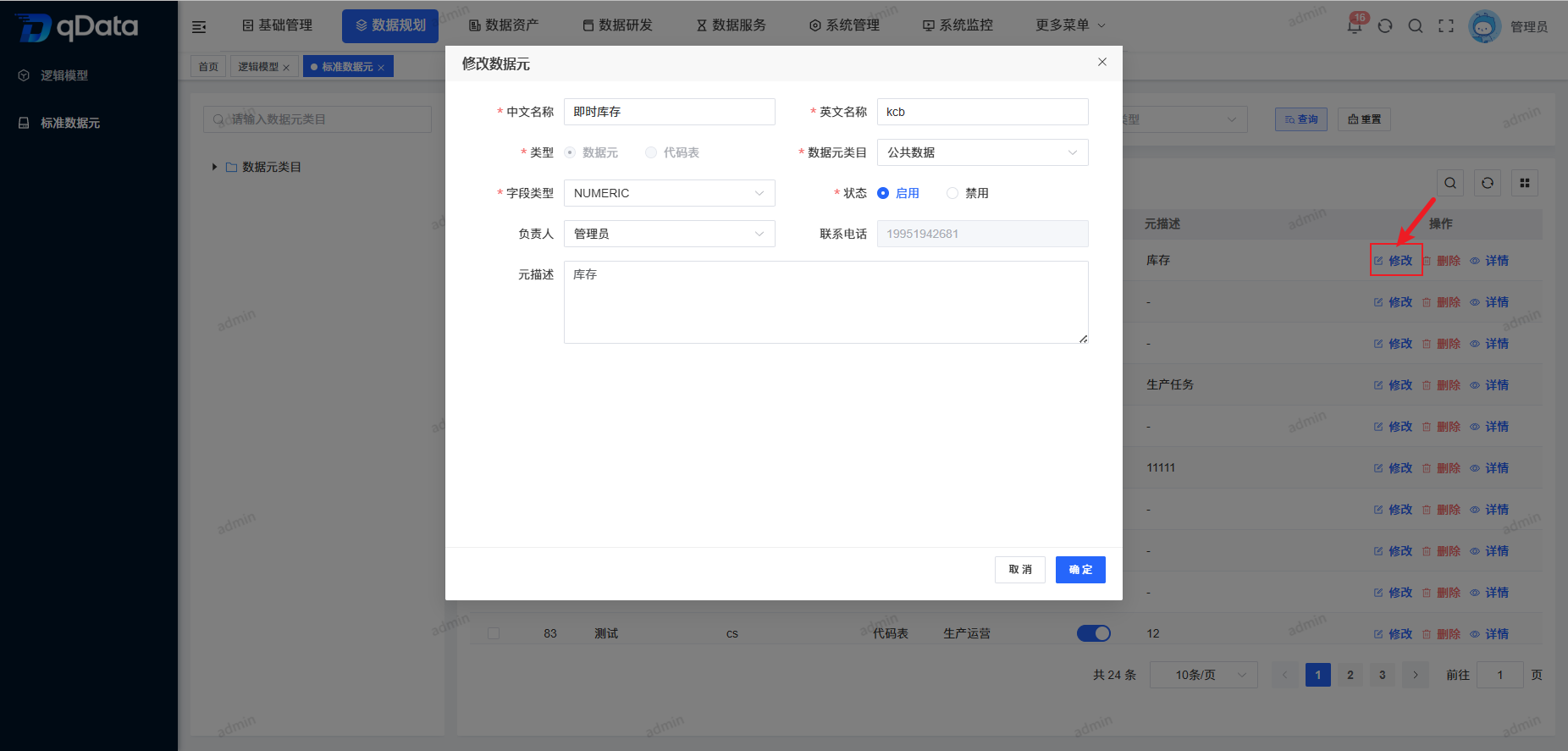
Select the Standard Data Element to edit, click Edit in the operation column, edit the existing Standard Data Element information in the dialog, and click OK to complete editing the Standard Data Element.
4. Standard Data Element Details
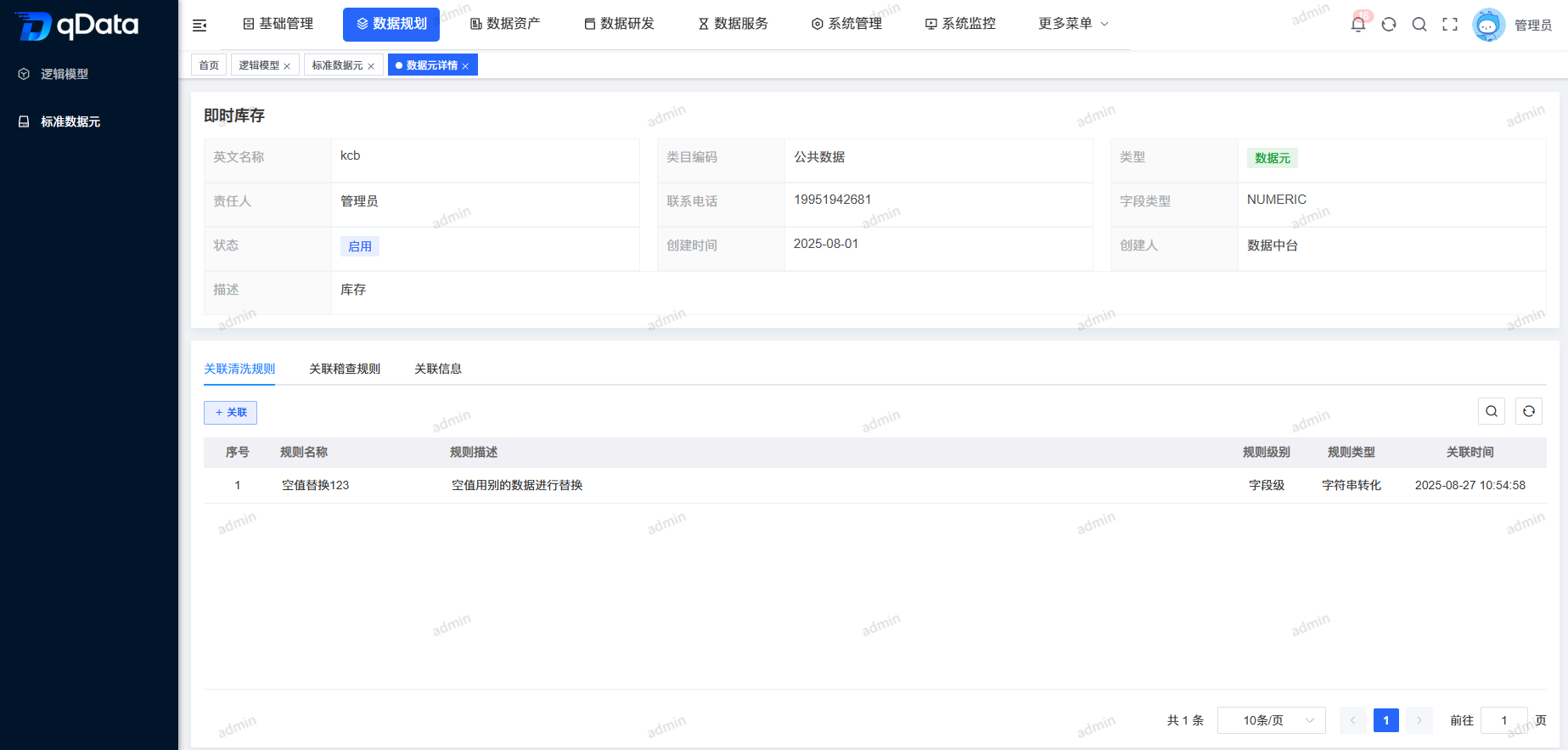
Select the Standard Data Element Details to view, click Details in the operation column, and view them in the dialog that appears.
4.1. Associated Cleansing Rules
On the Standard Data Element Details page, click Associated Cleansing Rules to view fields including sequence number, rule name, rule description, rule level, rule type, association time, and more.
4.1.1. Add Associated Cleansing Rules
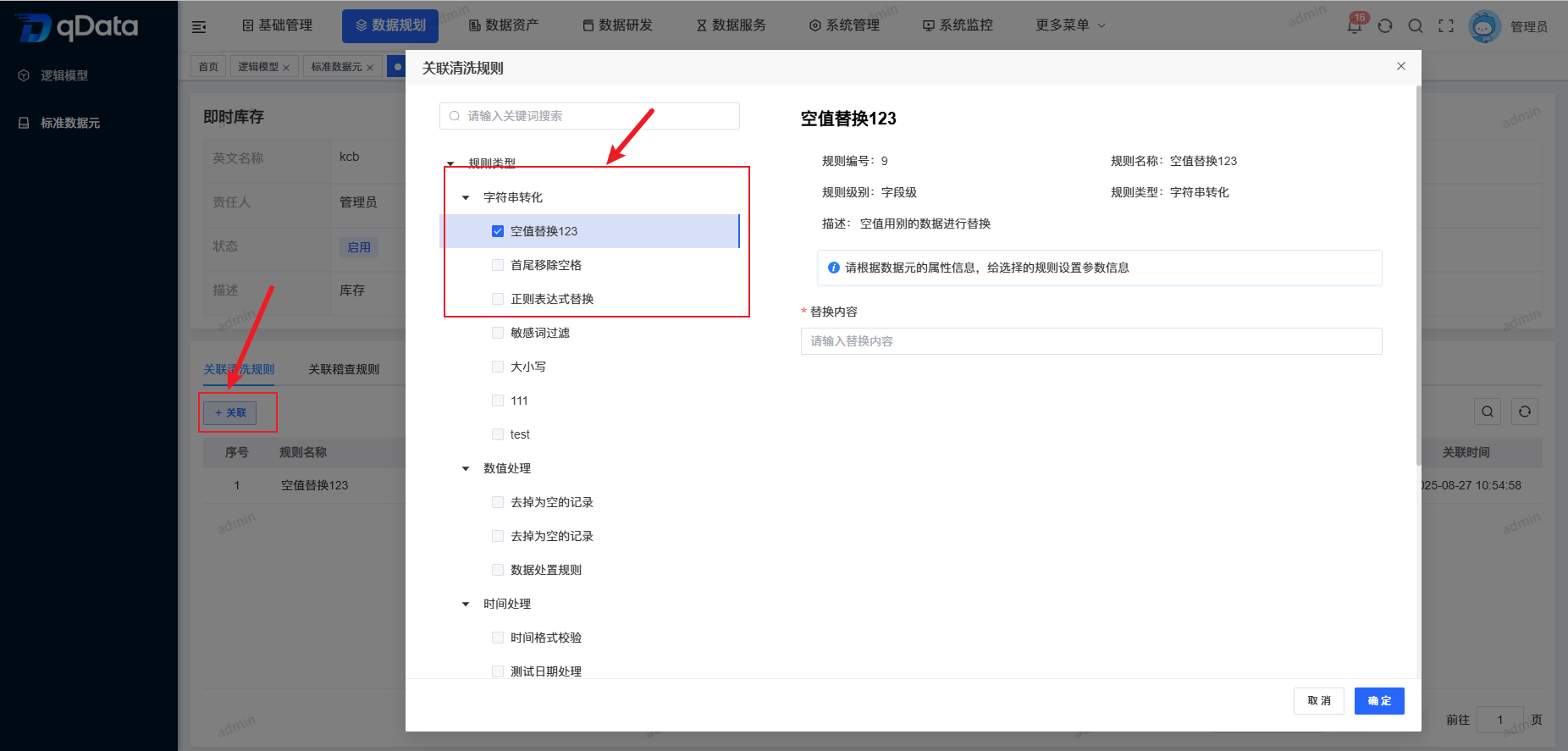
Under the Associated Cleansing Rules tab, click Associate, fill in related information in the dialog that appears, and click OK to complete adding the association.
4.2. Associated Audit Rules
On the Standard Data Element Details page, click Associated Audit Rules to view fields including sequence number, rule name, rule description, rule level, rule type, quality dimension, association time, and more.
4.2.1. Add Associated Audit Rules
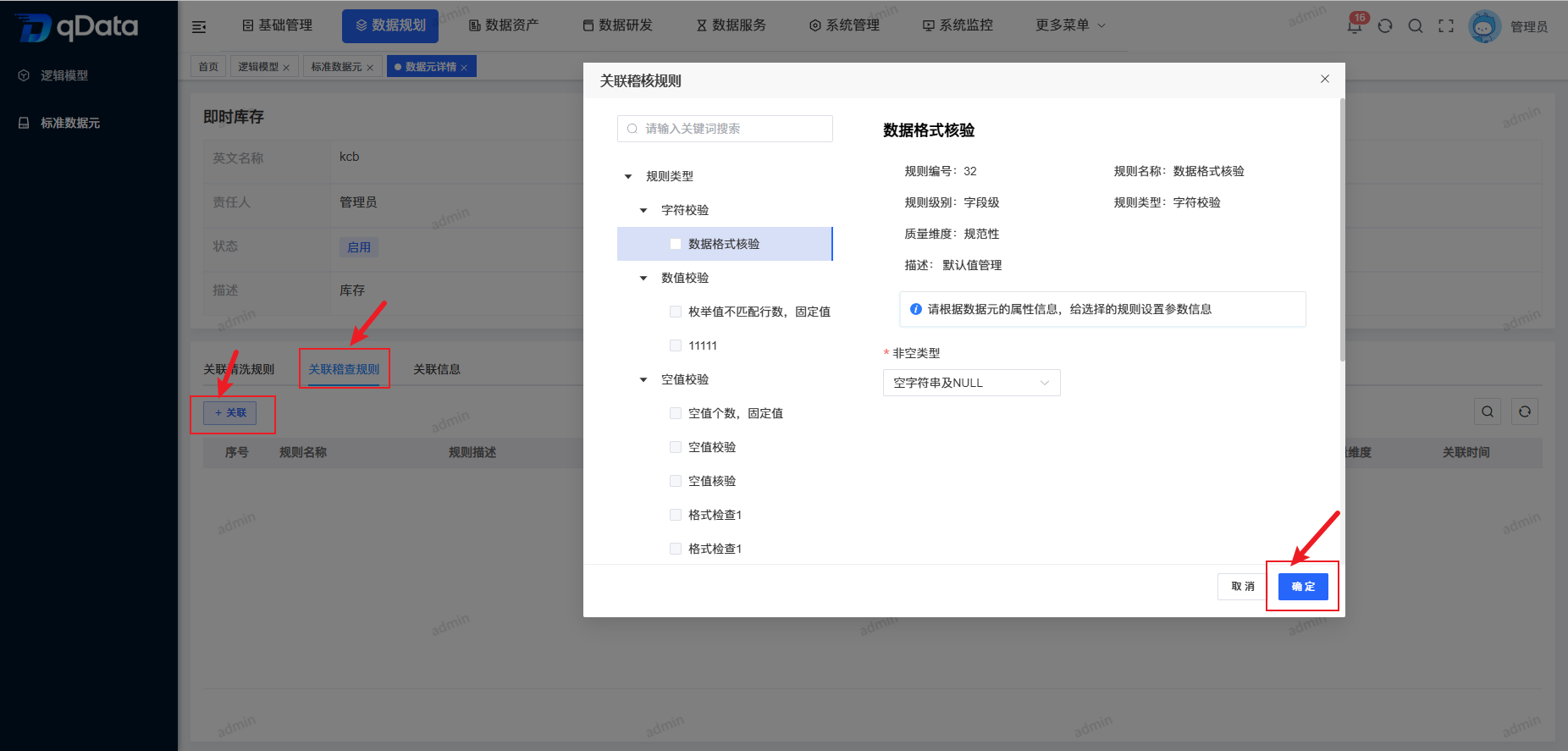
Under the Associated Audit Rules tab, click Associate, fill in related information in the dialog that appears, and click OK to complete adding the association.
4.3. Association Information
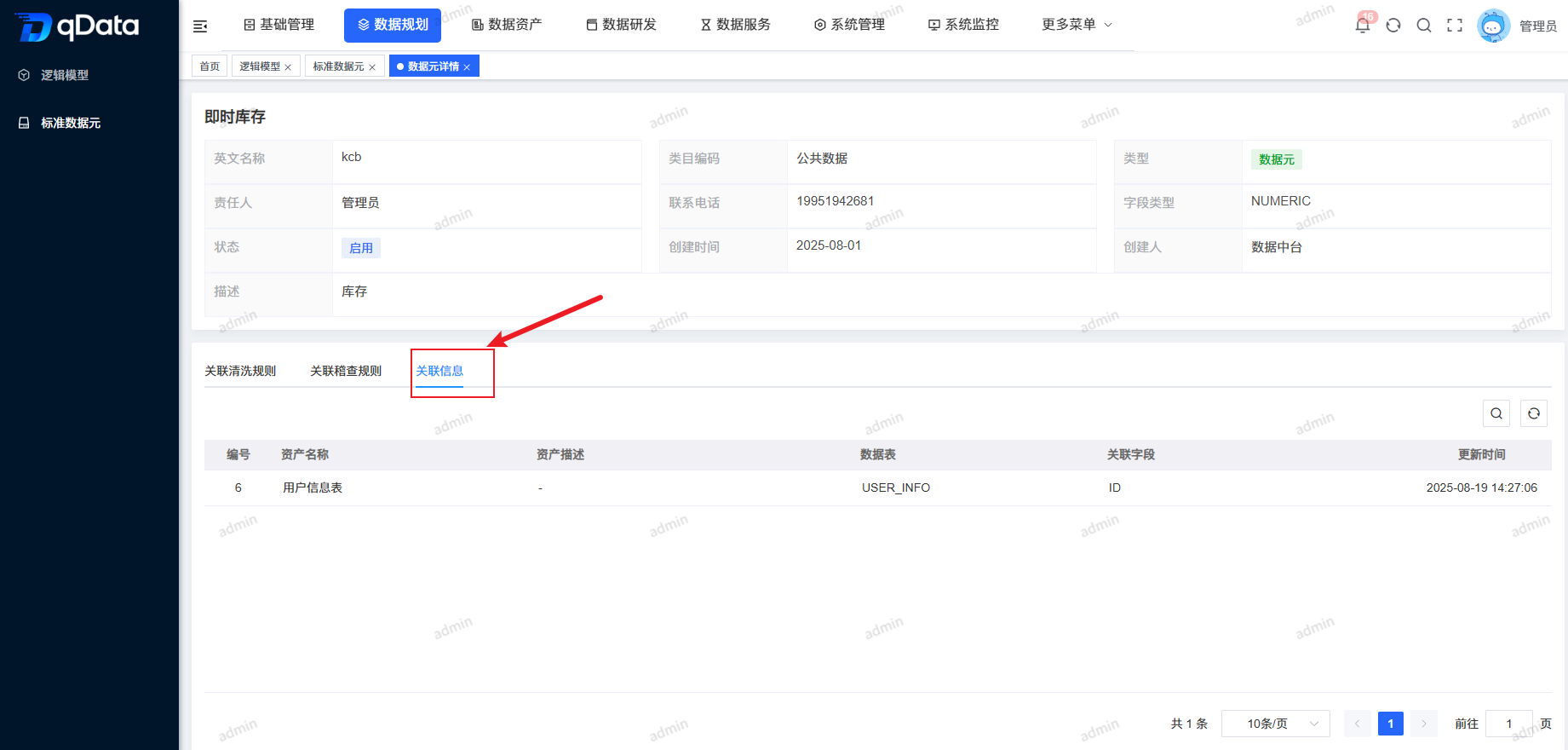
On the Standard Data Element Details page, click Association Information to view fields including ID, asset name, asset description, data table, associated fields, update time, and more.
5. Delete Standard Data Element
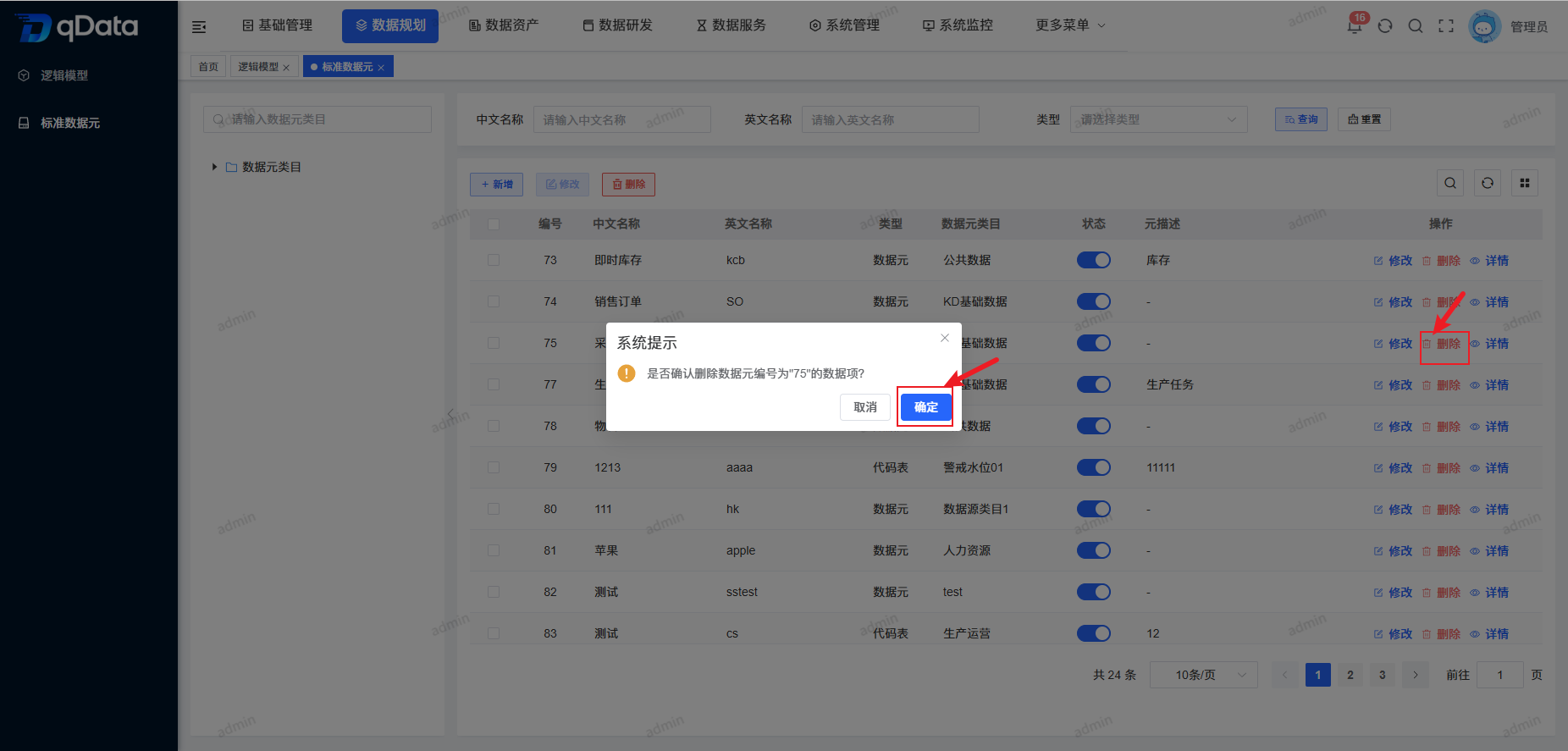
Select the Standard Data Element information to delete, click Delete in the operation column, and click OK. The system will delete the Standard Data Element information.
6. Bulk Delete Standard Data Element
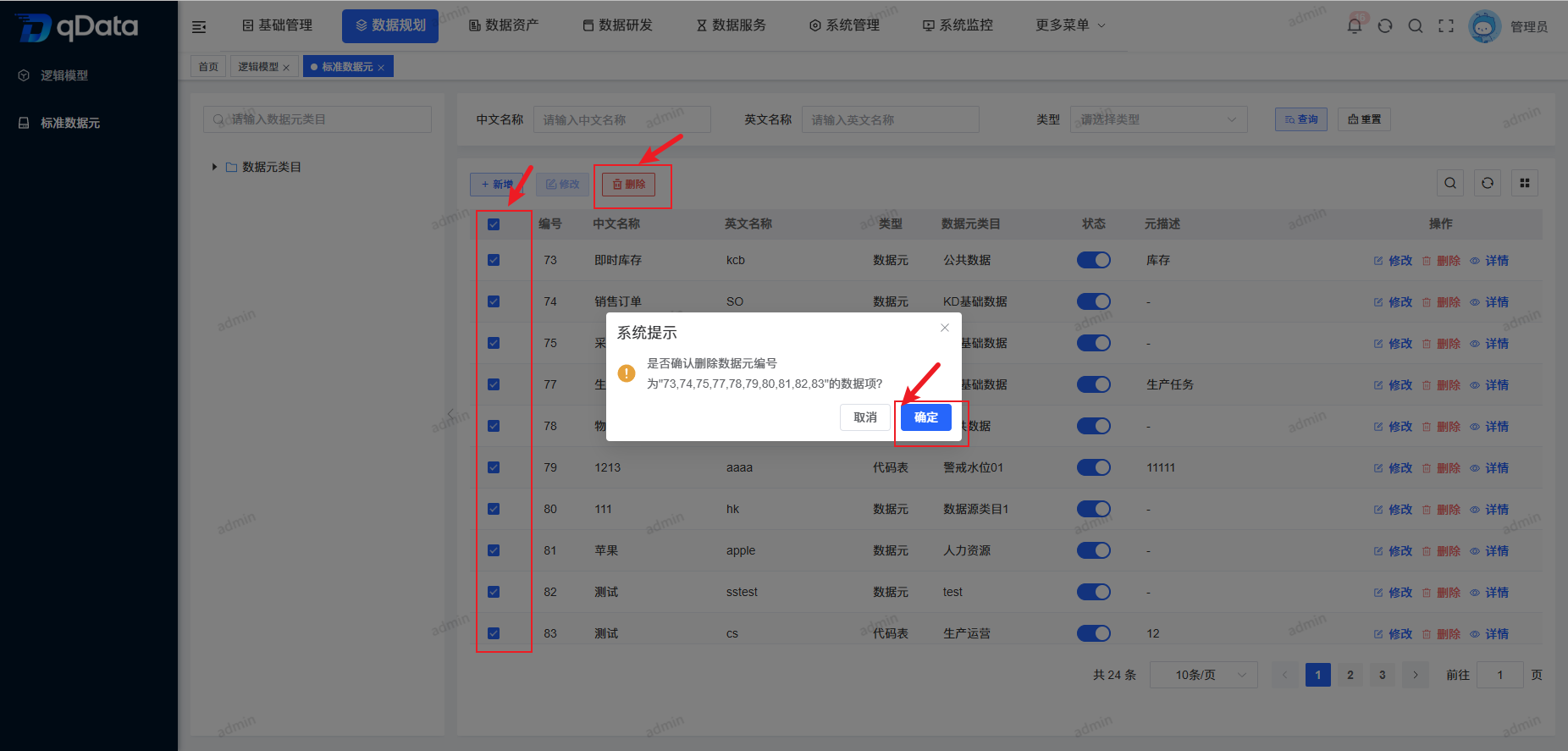
Select multiple Standard Data Element checkboxes in the page list, click Delete, confirm the deletion in the dialog, and click OK to complete bulk deleting Standard Data Elements.
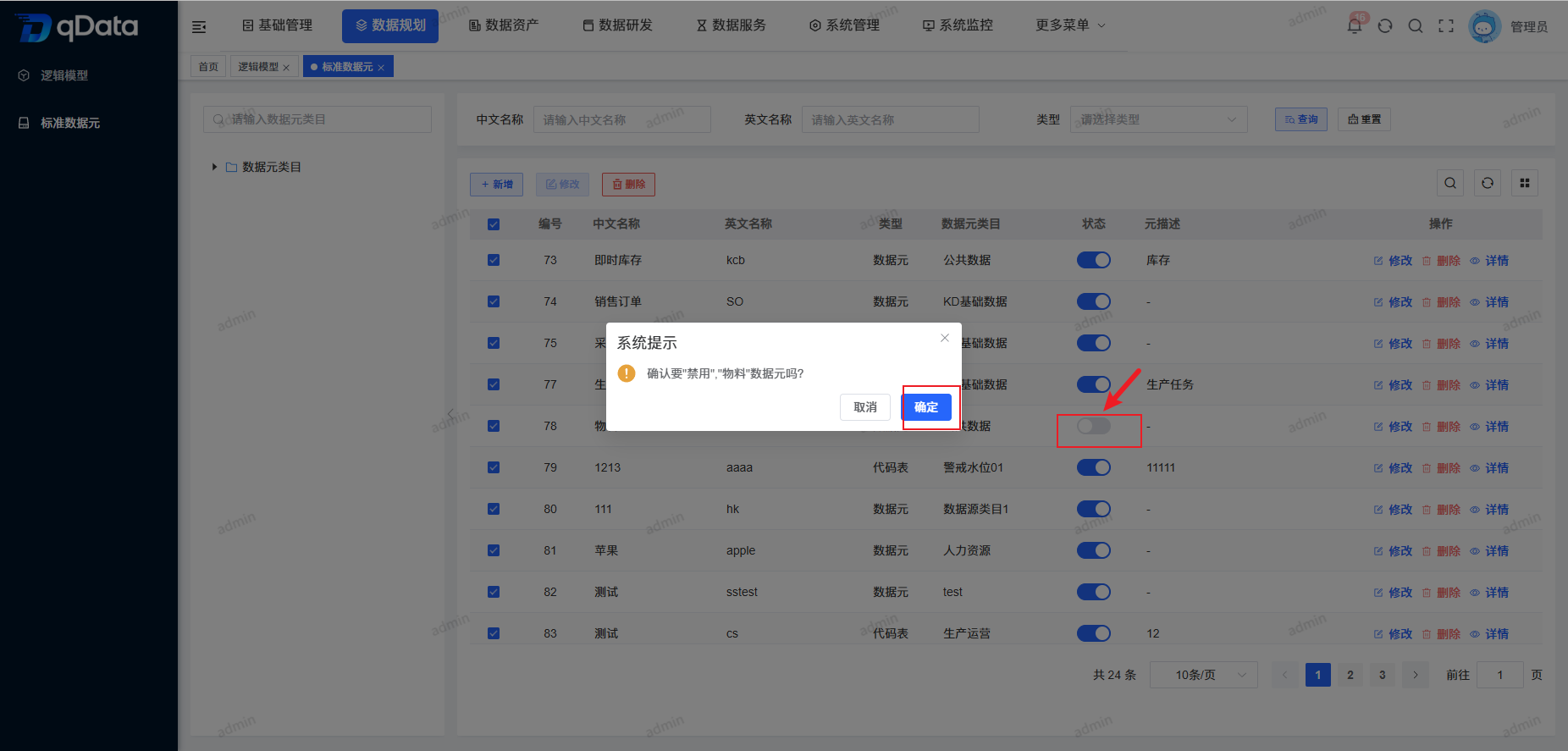
7. Enable/Disable
Select the Standard Data Element information to enable or disable, and click the switch in the status column to complete Enable/Disable.