
Asset Map
Feature Overview
Functional Positioning
Asset Map is a centralized workspace for data asset registration, marketplace publishing configuration, and detail maintenance. Users can register database tables or unstructured assets, publish assets to the data marketplace, configure tags and field terms for assets, and view previews, overviews, and asset quality tasks from the details page.
In short: register metadata as assets first, then supplement display and business information, and finally use the details page to check fields, previews, and quality status.
Usage Tips
Follow this sequence: locate or register assets -> verify asset information -> publish to the marketplace -> supplement tags and field definitions -> view previews and overviews. Before each submission, confirm the current asset, source metadata, and target fields to avoid updating the wrong record.
Main Features
- Asset classification and query: Locate assets by category tree, asset type, asset name, and publishing status.
- Multi-type asset registration: Supports database tables, external APIs, and unstructured data entries. The current material covers database tables and unstructured data in detail.
- Asset tags: Select multiple existing tags, or add tags during selection.
Scope
This page applies to asset registration, marketplace display configuration, tag and term supplementation, field information maintenance, asset preview and overview, and asset quality task configuration.
Prerequisites
Preconditions
- You have logged in to the qData platform.
- When registering assets, selectable database tables or file objects already exist in the metadata catalog.
- When publishing assets, marketplace categories, display names, update frequencies, and delivery forms are ready.
- When configuring tags, the business meaning of the asset and target fields has been clarified.
Navigation Path
Data Assets > Asset Map
Page Overview
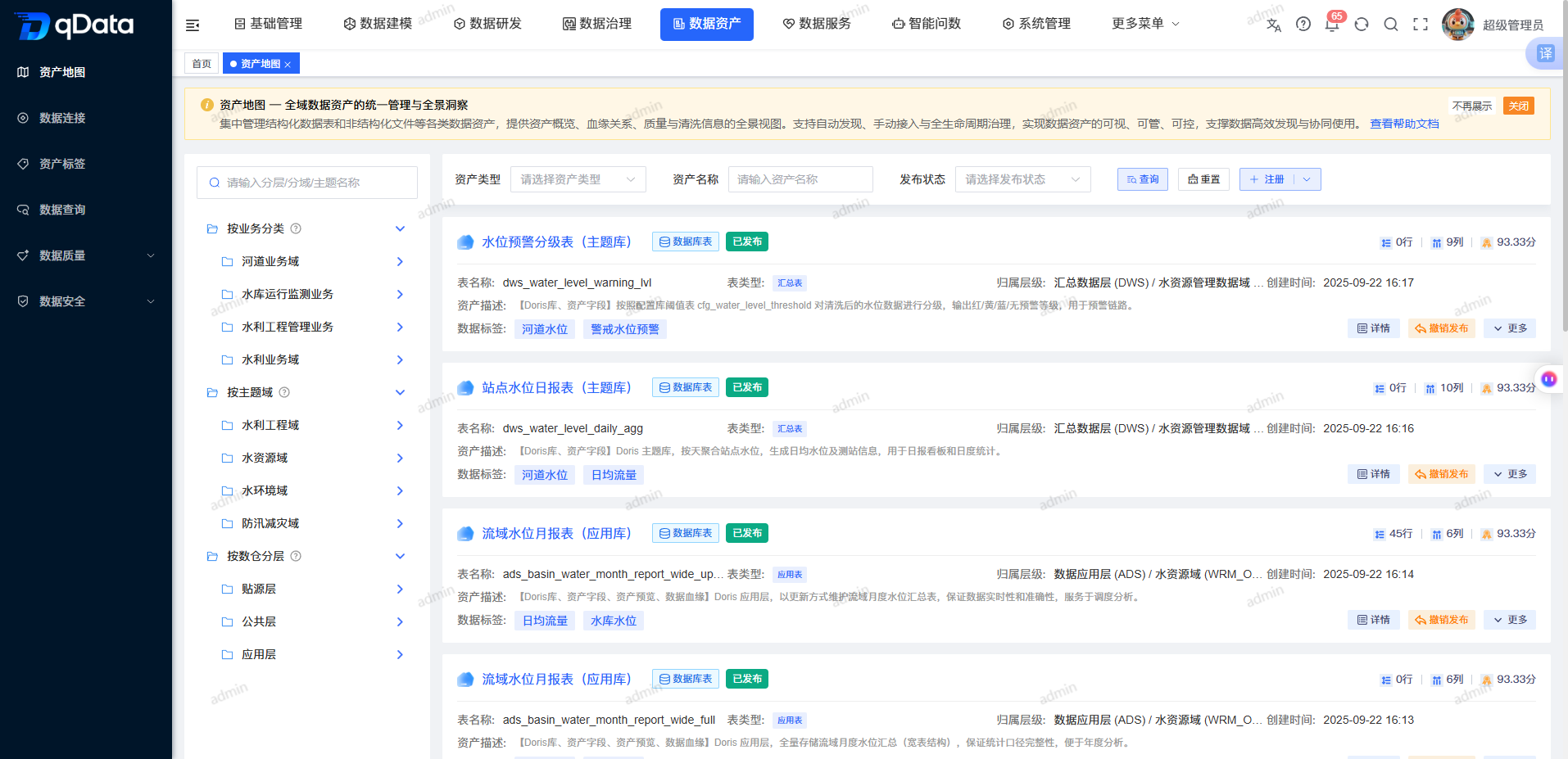
The Asset Map page contains category search and a tree category area on the left. The top area provides asset type, asset name, publishing status, Query, Reset, and Register. The main list shows asset name, type, publishing status, tags, details, and publishing-related actions.
Recommended Workflow
Register assets: Enter Asset Map -> click Register -> select an asset type -> select metadata -> configure asset information -> click Register and Exit -> verify the list result.
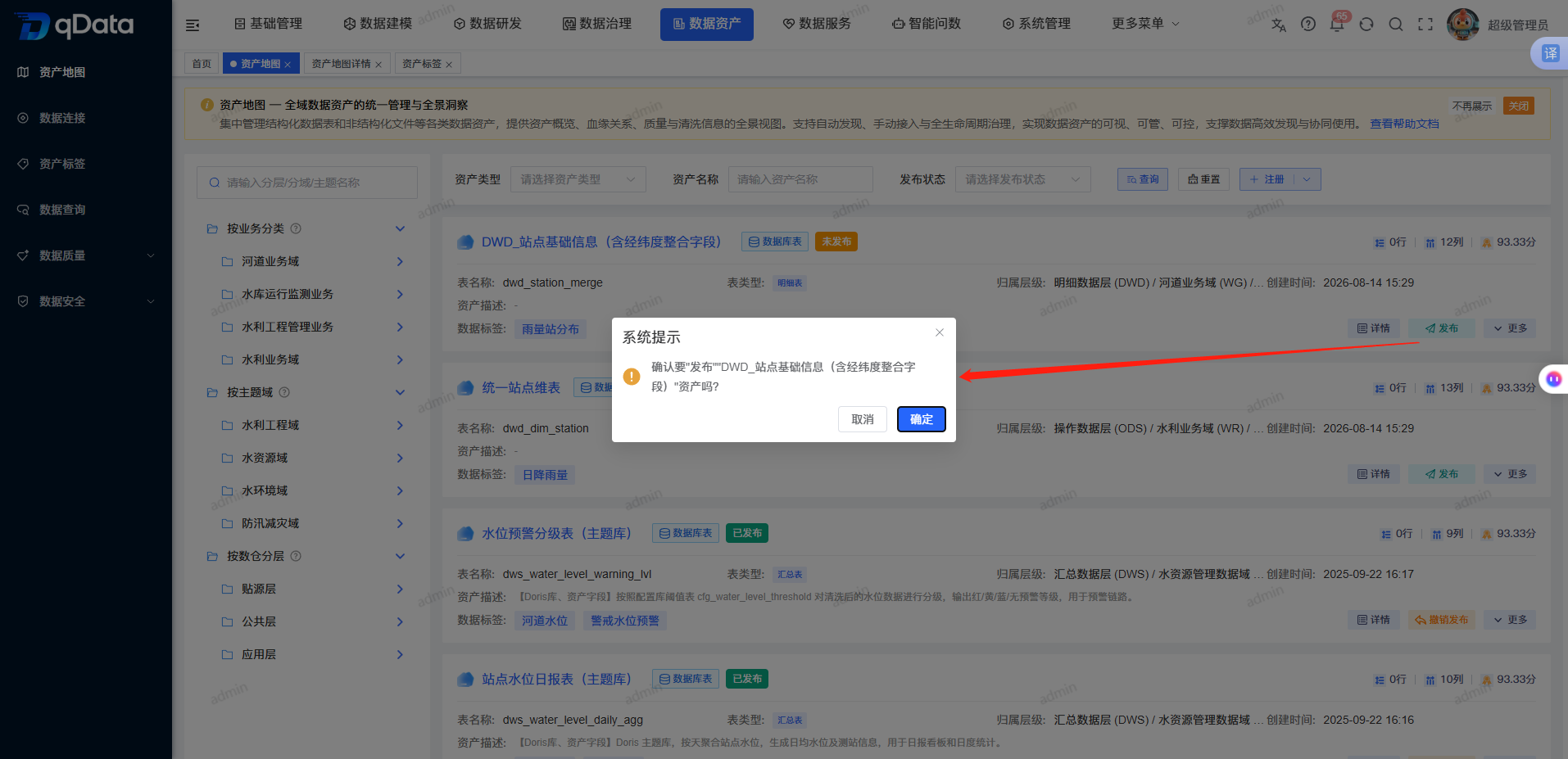
Publish assets: Locate an unpublished asset -> click OK -> verify the Published status.
Inspect assets: View Asset Preview and Asset Overview.
Operation Guide
Browse and Locate Assets
- Enter the Asset Map page.
- Browse the business category, subject area, or data warehouse layering tree on the left.
- Select an asset type as needed.
- Enter an asset name as needed.
- Select a publishing status as needed.
- Use Query or Reset to process the current conditions.
- View asset type, publishing status, tags, and operation entries in the list.
Register Database Table Assets
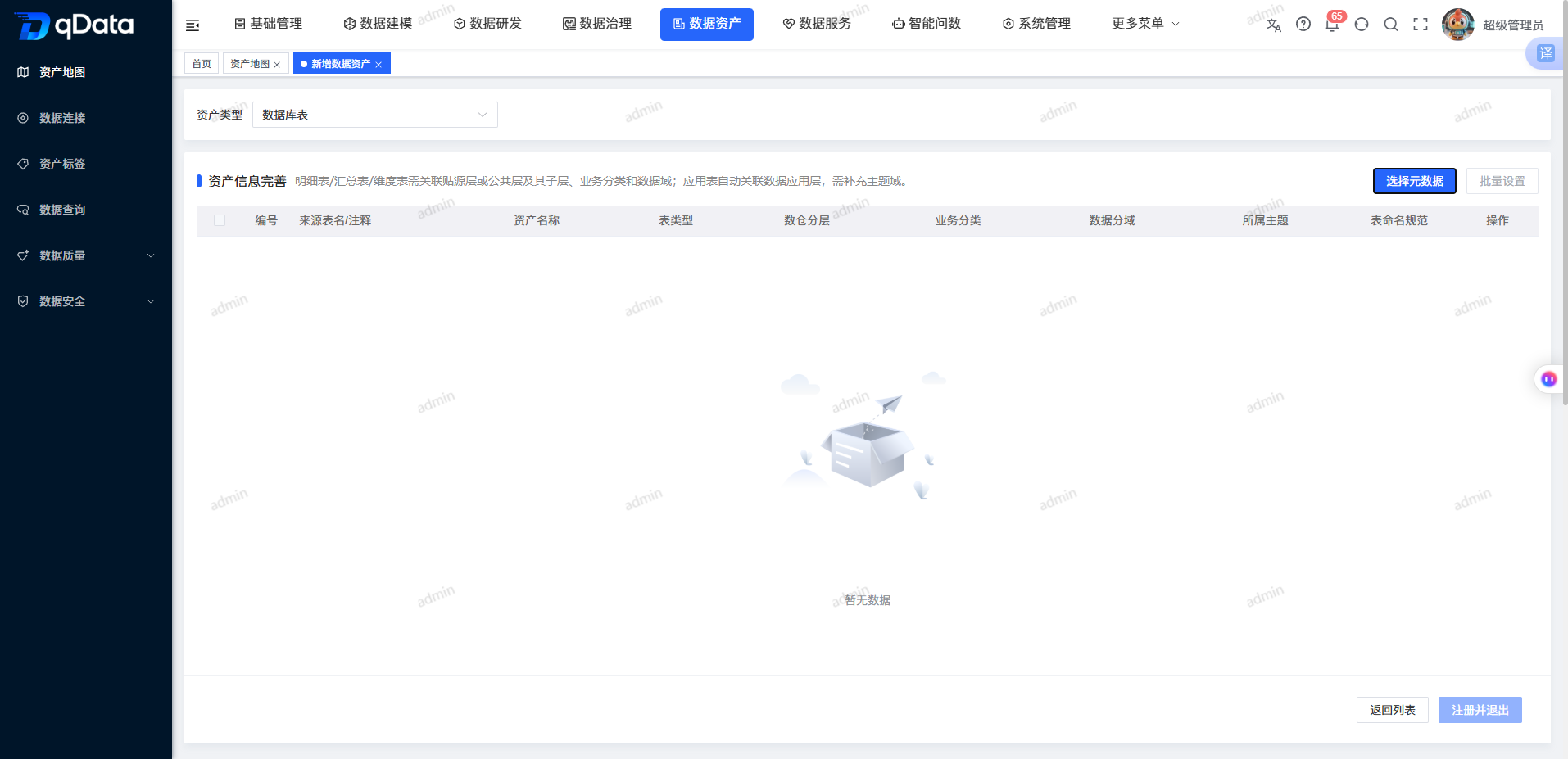
- Click Register.
- Select Database Table.
- Click Select Metadata.
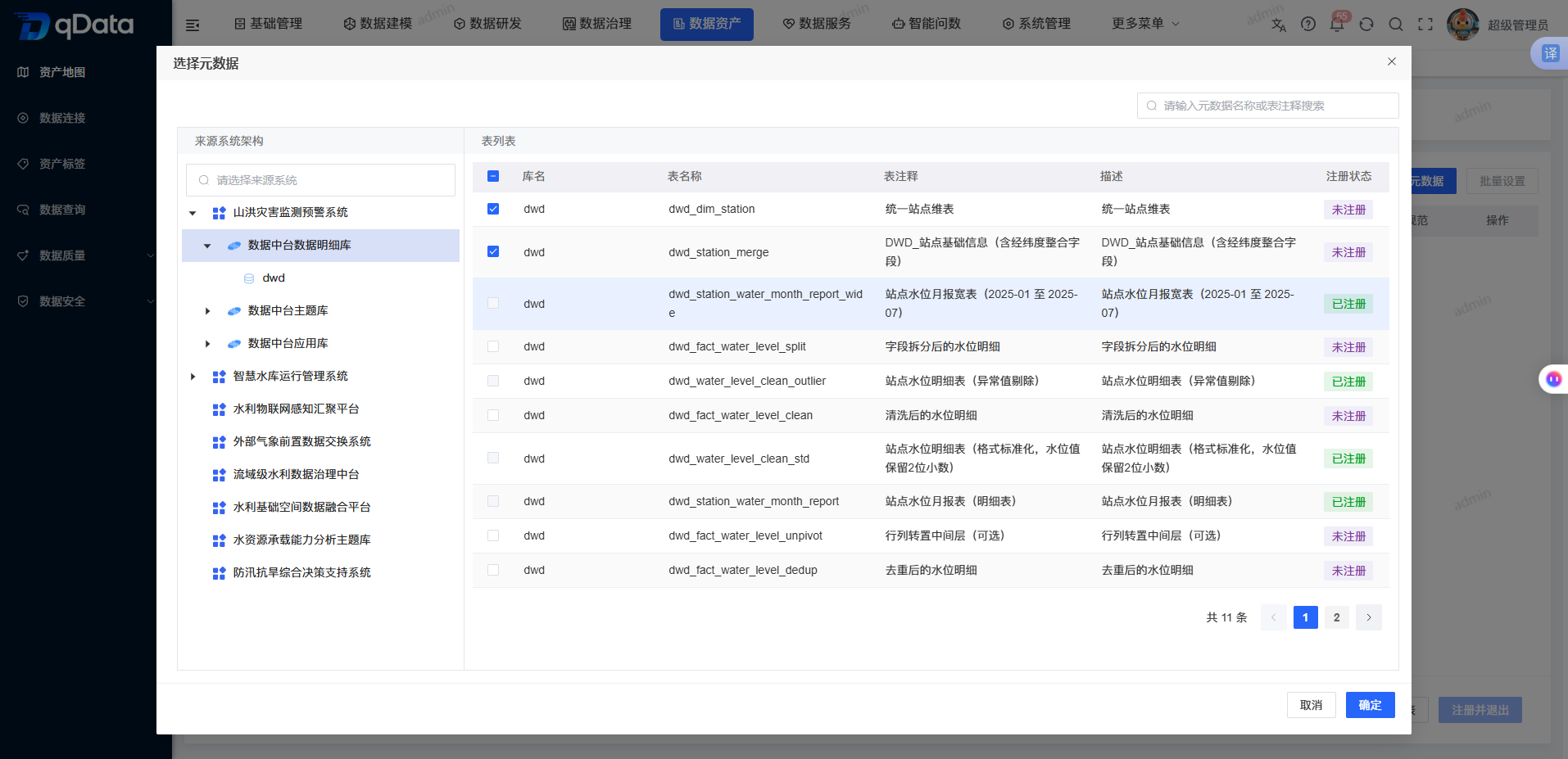
- Select one or more database tables from the metadata catalog.
- Confirm that the selected objects enter the pending configuration scope.
- Fill in or verify the asset name for each record.
- Configure table type and data warehouse layer.
- Configure business category, data domain, subject, table naming standard, and description as needed.
- Click Register and Exit.
- After returning to Asset Map, confirm that the new database table asset appears in the list.
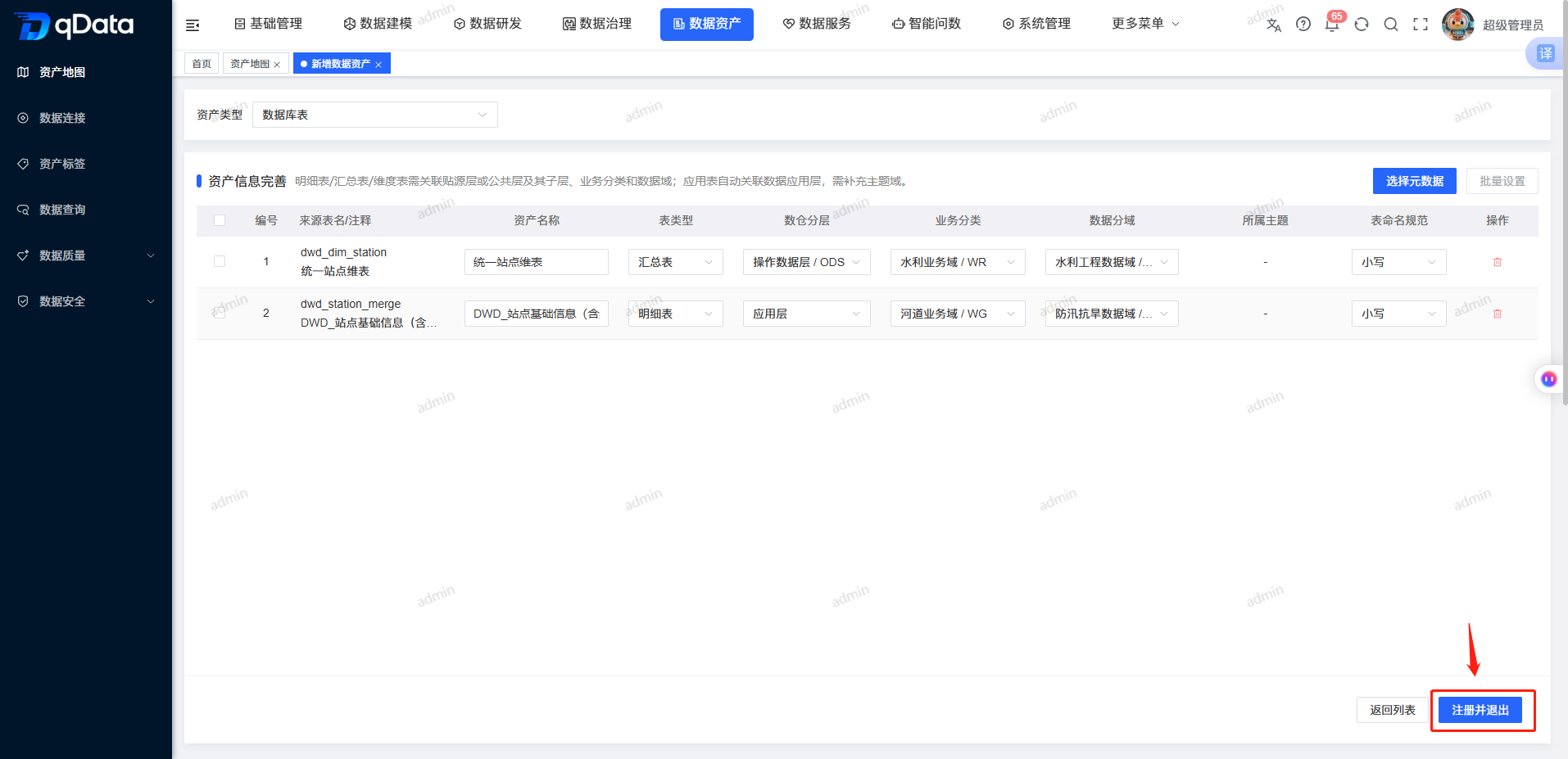
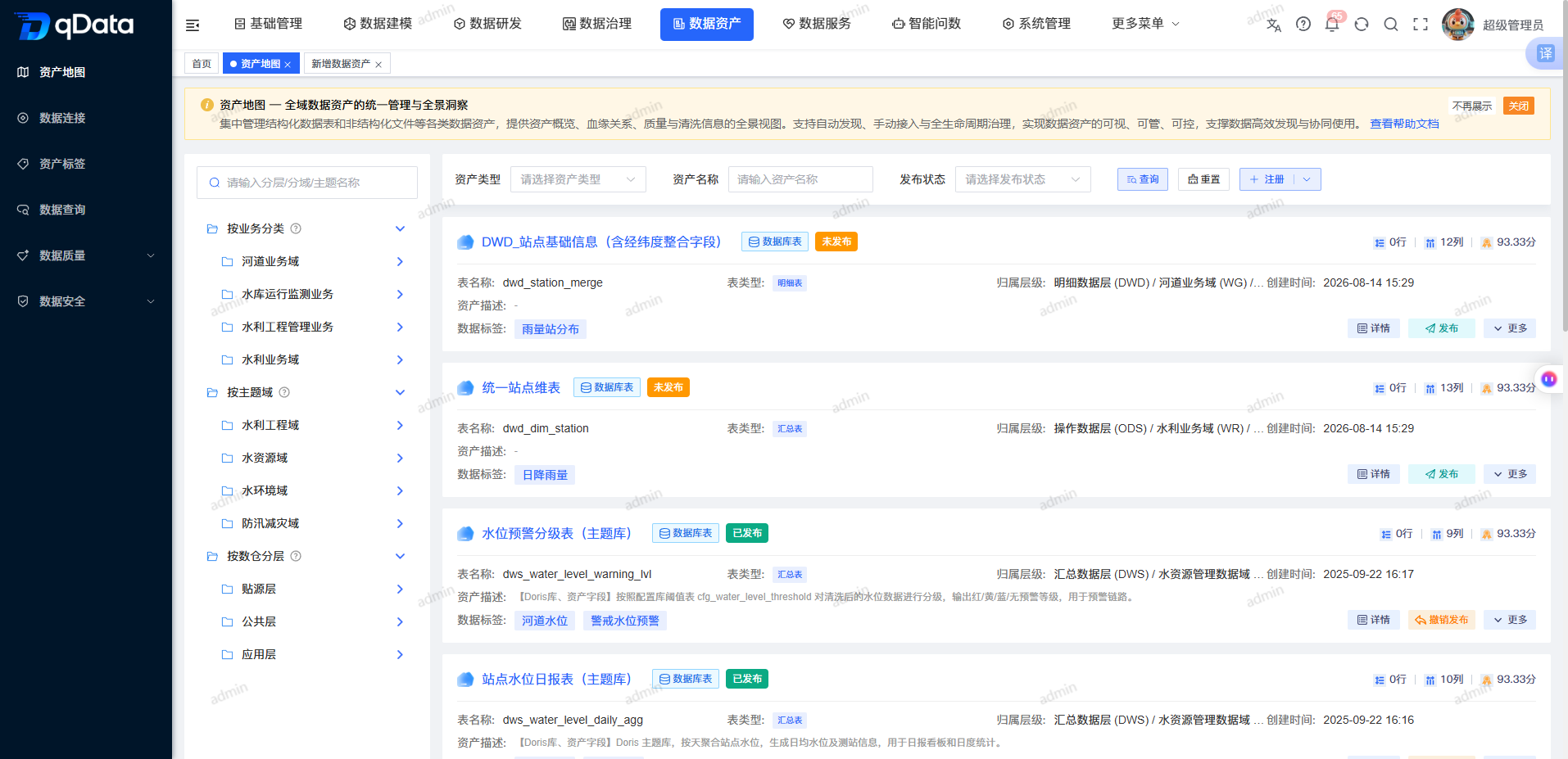
The main fields for database table registration are as follows:
| Field | Description | Required |
|---|---|---|
| Source table name or comment | Source object filled from the selected metadata. | System-filled |
| Asset name | Display name of the asset in the platform. | Yes |
| Table type | Detail, summary, or other type of the database table. | Configured on page |
| Data warehouse layer | Data warehouse layer where the database table belongs. | Configured on page |
| Business category | Business category of the asset. | Validated on page |
| Data domain | Data domain of the asset. | Validated on page |
| Subject | Business subject of the asset. | Validated on page |
| Table naming standard | Naming format of the database table. | No |
| Description | Additional description of the asset usage. | No |
Select or Add Tags for Assets
- Enter tag configuration from the target asset.
- Browse tag categories in the tag selection area.
- Select one or more existing tags.
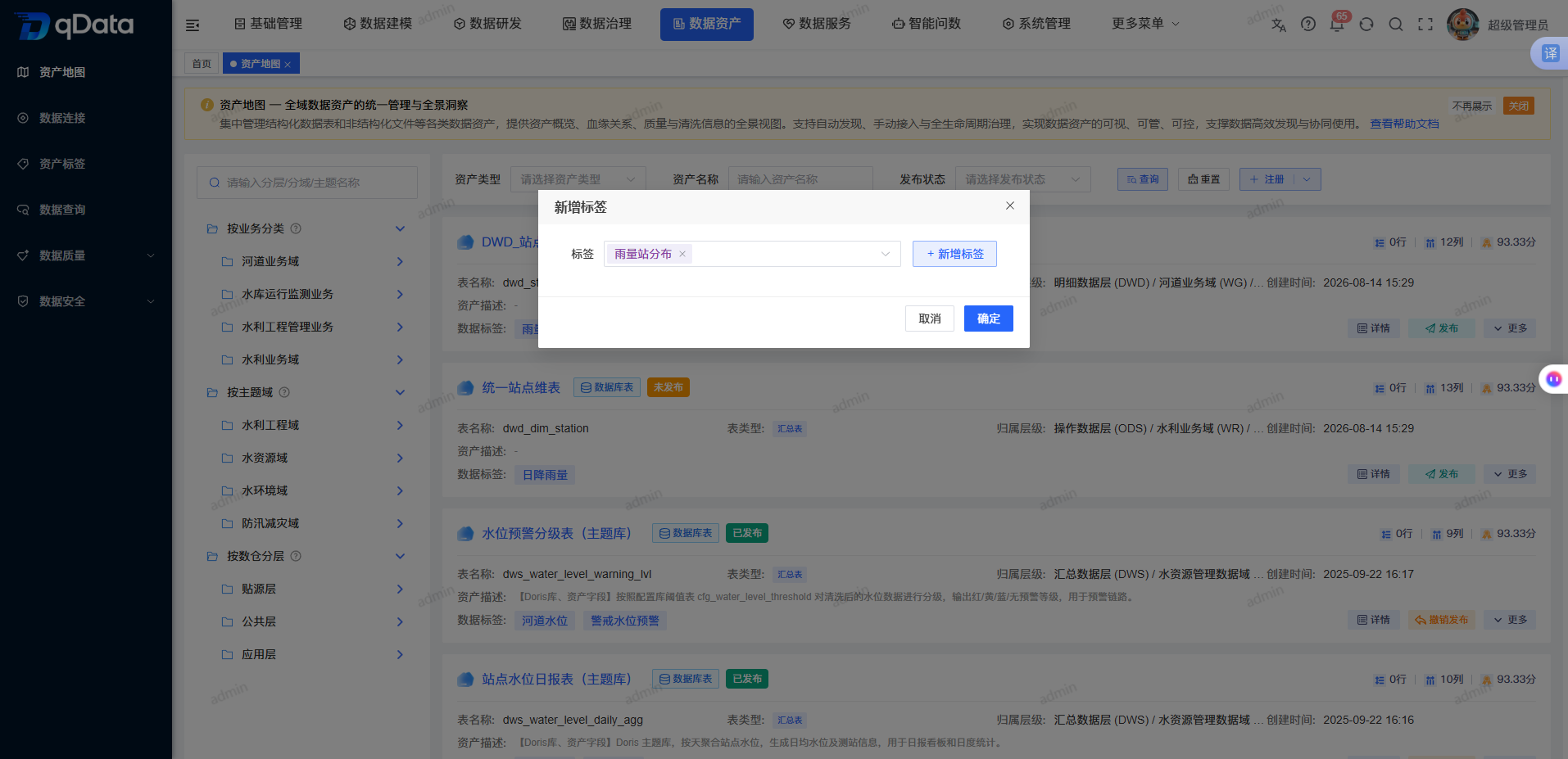
- If no suitable tag exists, click the add entry.
- Fill in the tag name and tag management category.
- Fill in description, related terms, synonyms, status, and remarks as needed.
- Save the new tag and return to tag selection.
- Save the current tag selection.
- Confirm that the asset display is bound to the tags.
View Asset Preview and Asset Overview
- Click Details in the target asset row.
- Enter Asset Fields.
- View field Chinese name, English name, type, length, decimal places, nullable flag, primary key flag, data classification, and field term.
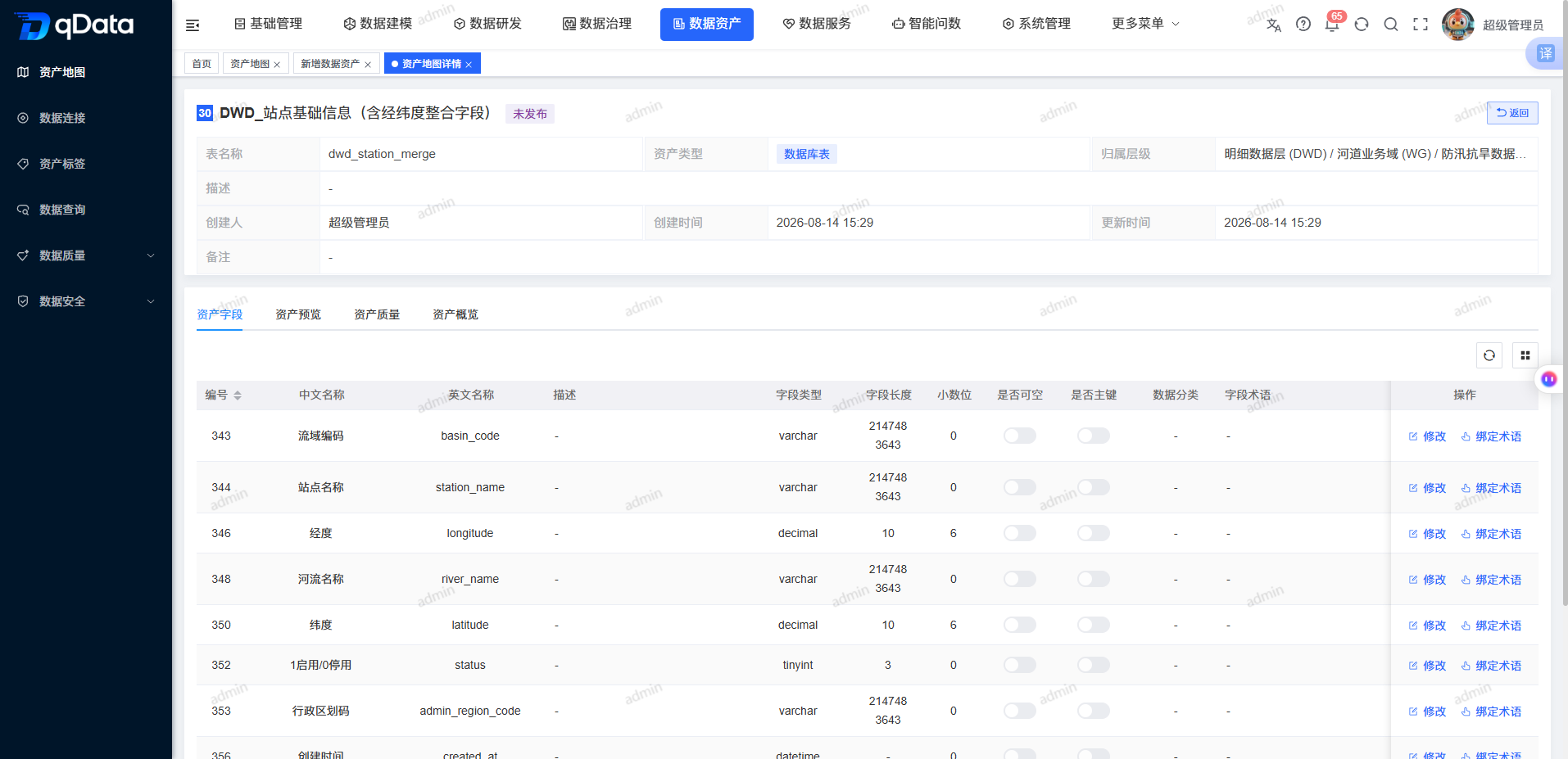
- Select Asset Overview in the asset details.
- View the data overview area of the current asset.
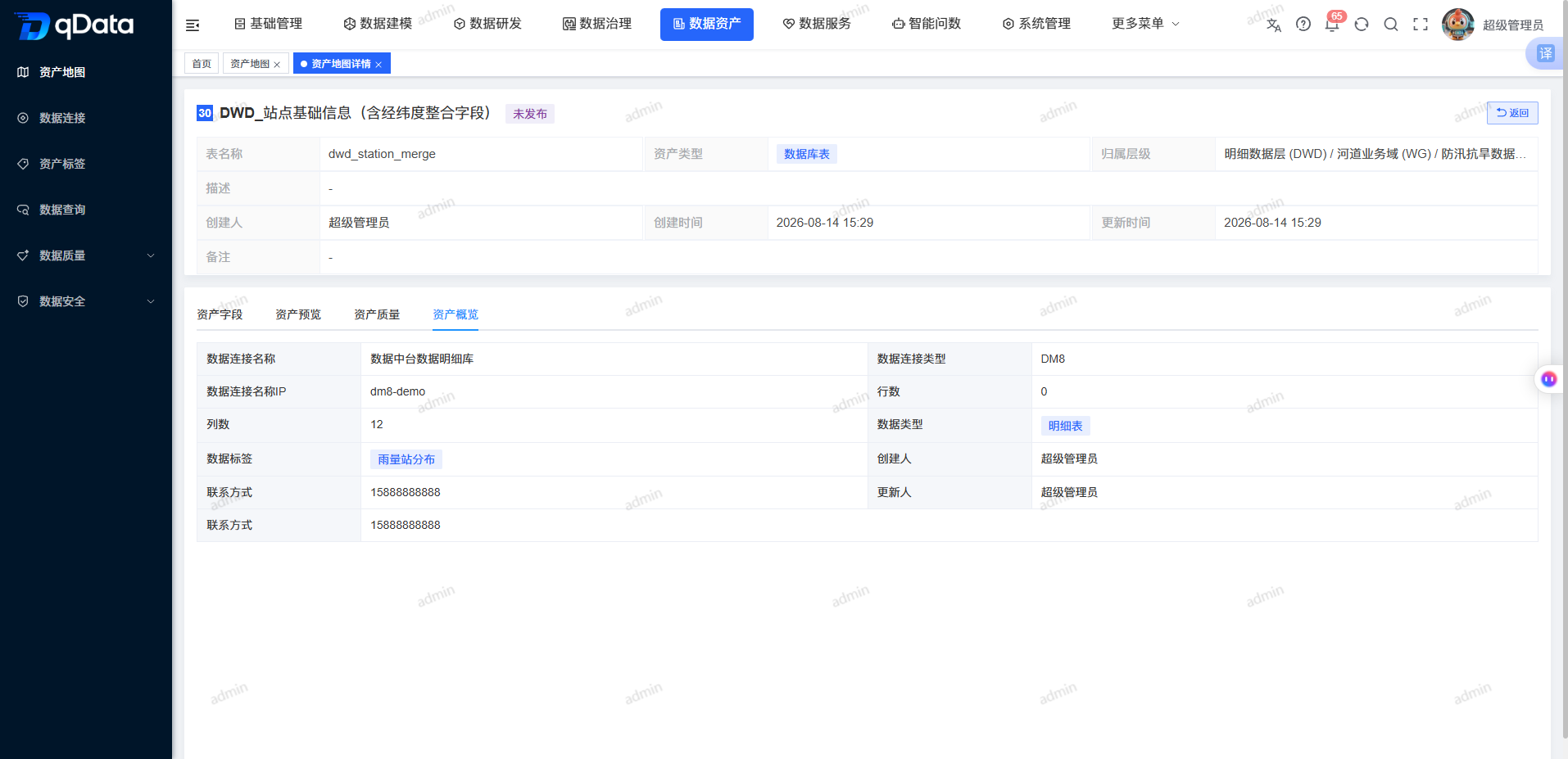
Publish Assets to the Marketplace
- Locate an unpublished asset in the Asset Map list.
- Click Publish.
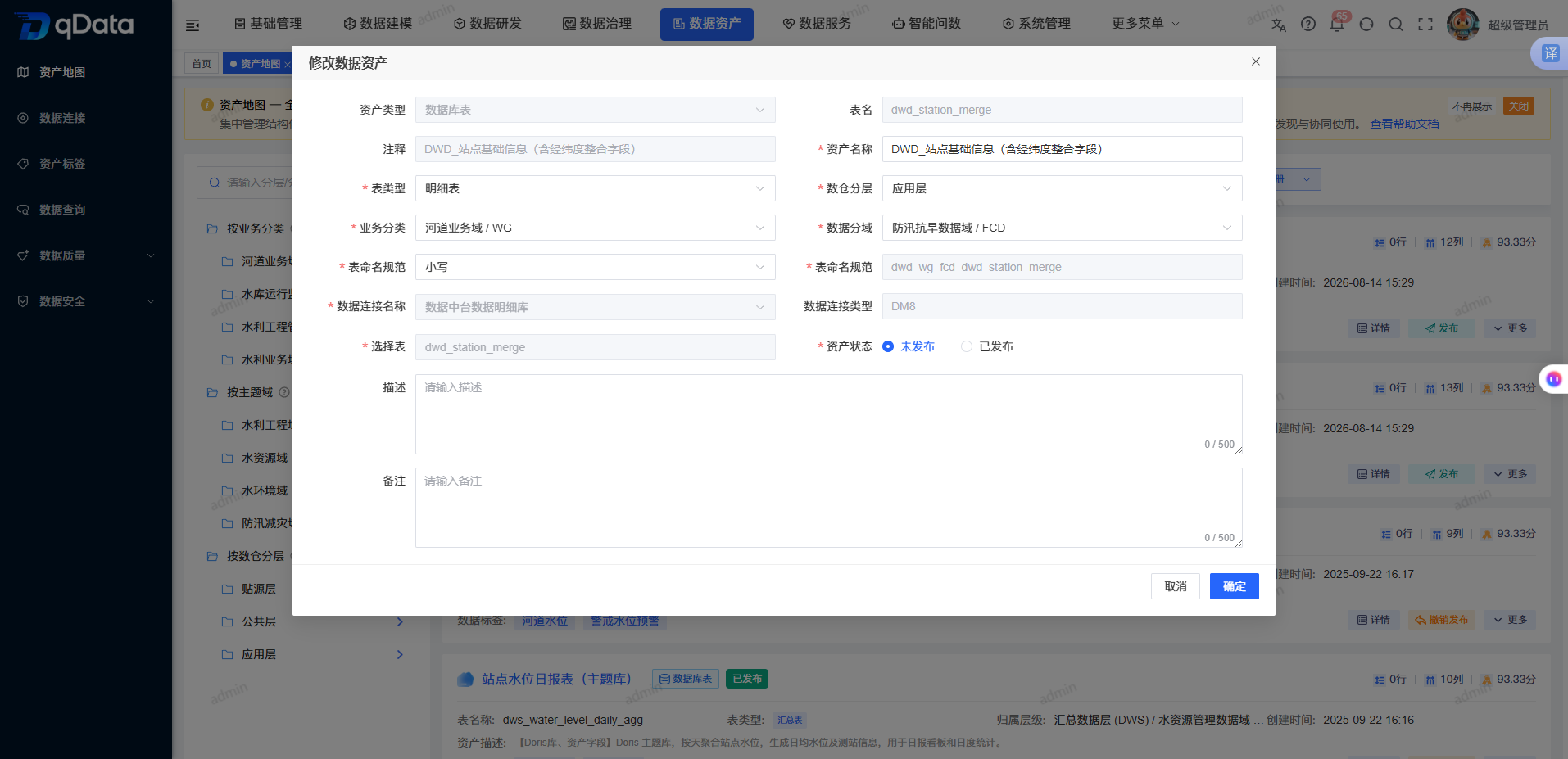
Modify Asset Information
- Click Modify in the target asset row.
- Open the modification dialog.
- Enter the updated asset information.
- Click OK.
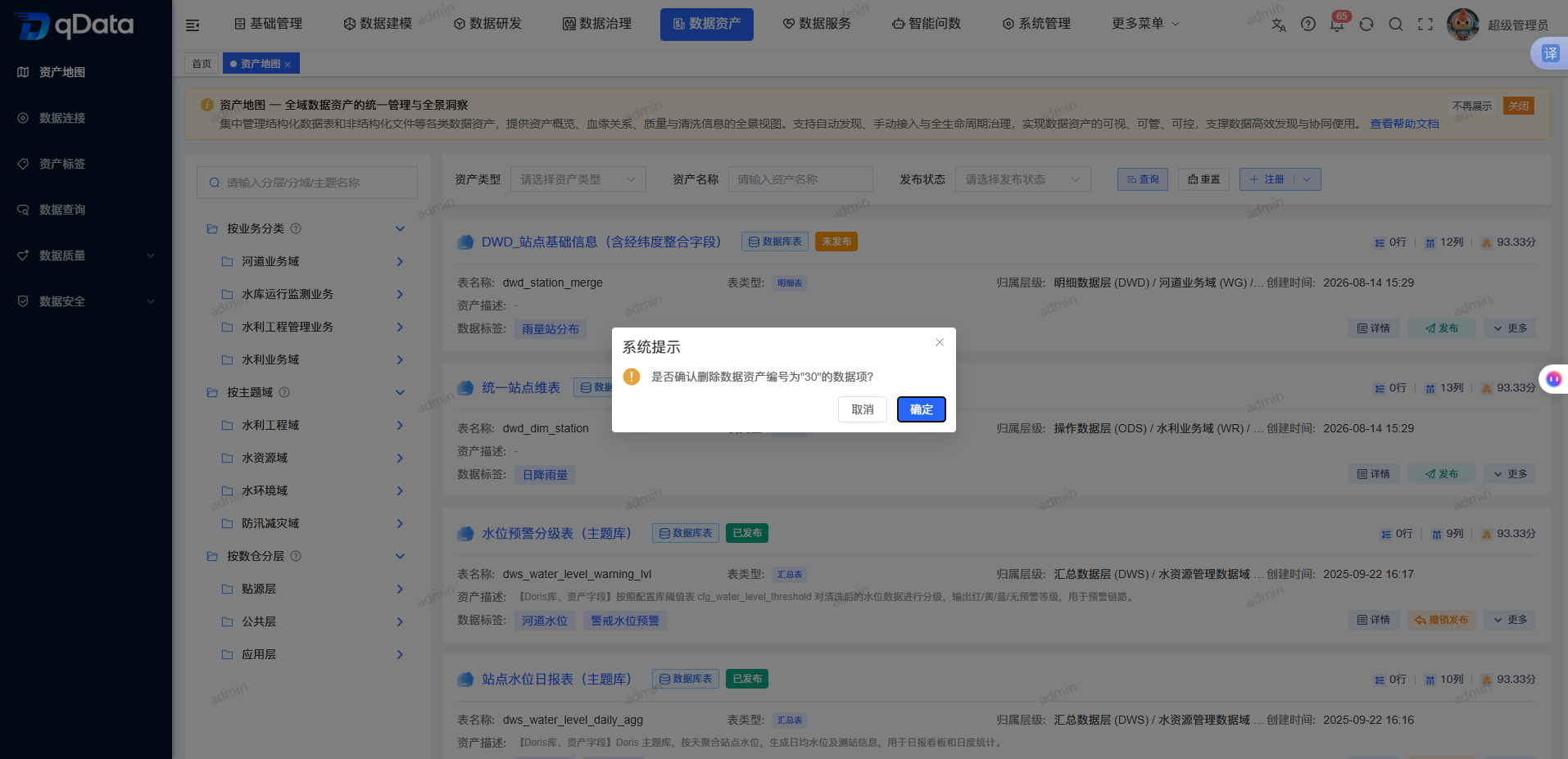
Delete Asset Information
- Click Delete in the target asset row.
- Confirm the deletion operation.
FAQ
- What is the difference between registering an asset and publishing it to the marketplace?
Registration selects objects from metadata and turns them into platform assets. Publishing to the marketplace configures marketplace category, display name, update frequency, and delivery form for a registered asset, and updates its publishing status.
Summary
Asset Map covers the main page flow from asset registration and display configuration to detail maintenance and quality checks. During operation, focus on verifying source metadata, asset name, publishing configuration, target fields, and quality rules, and confirm on each result page that the current asset and status match expectations.