
Call Record
Feature overview
Functional positioning
Call Record is used to centrally view the call logs generated by API services, helping users locate single calls according to service categories and query conditions, check the call source, interface address, data volume, time consumption, status and exception information, and delete target records as needed.
Simple understanding: Every time the API is called, you can check here "who called which interface, what was passed, how long it took, and what the result was."
Usage suggestions
When troubleshooting a single API call, it is recommended to first narrow the scope by service category or service name -> check the interface address and time consumption in the list -> open [Details] to check the parameters, status and exception information .
Main features
- Combined query: Locate call records by API service category, API service name, status and call time.
- Call Overview: View the API service name, category, caller IP, interface address, call data volume and call time.
- Details Check: View the parameters, time, method, status and exception information of a single call through [Details].
- Single Delete: Delete the target call record; this operation does not affect other businesses.
- Paging information: View the total number of records, number of records per page, current page and paging controls.
Scope
[Call Record] is used to view and locate the call records generated by the API service. API management and service classification provide upstream information such as service name, interface address and category; this page provides entry for record query, detailed view and single item deletion. This page does not describe downloading, exporting, actual page turning results, deletion confirmation copywriting, or other role permission rules.
Preliminary steps
Preconditions
- Logged in to the qData platform.
- The current account can access the [Data Service] module.
- The current account can see the [Call Record] menu.
- The API call records available for browsing have been generated in the system.
Navigation path
Data Service > Call Record
Page overview
After entering [Call Record], the API service category search and category entry are displayed on the left; the API service name, status, call time, [Query] and [Reset] are displayed on the top; the call record list and [Details] and [Delete] entries are displayed in the middle; the paging information and paging controls are displayed on the bottom.
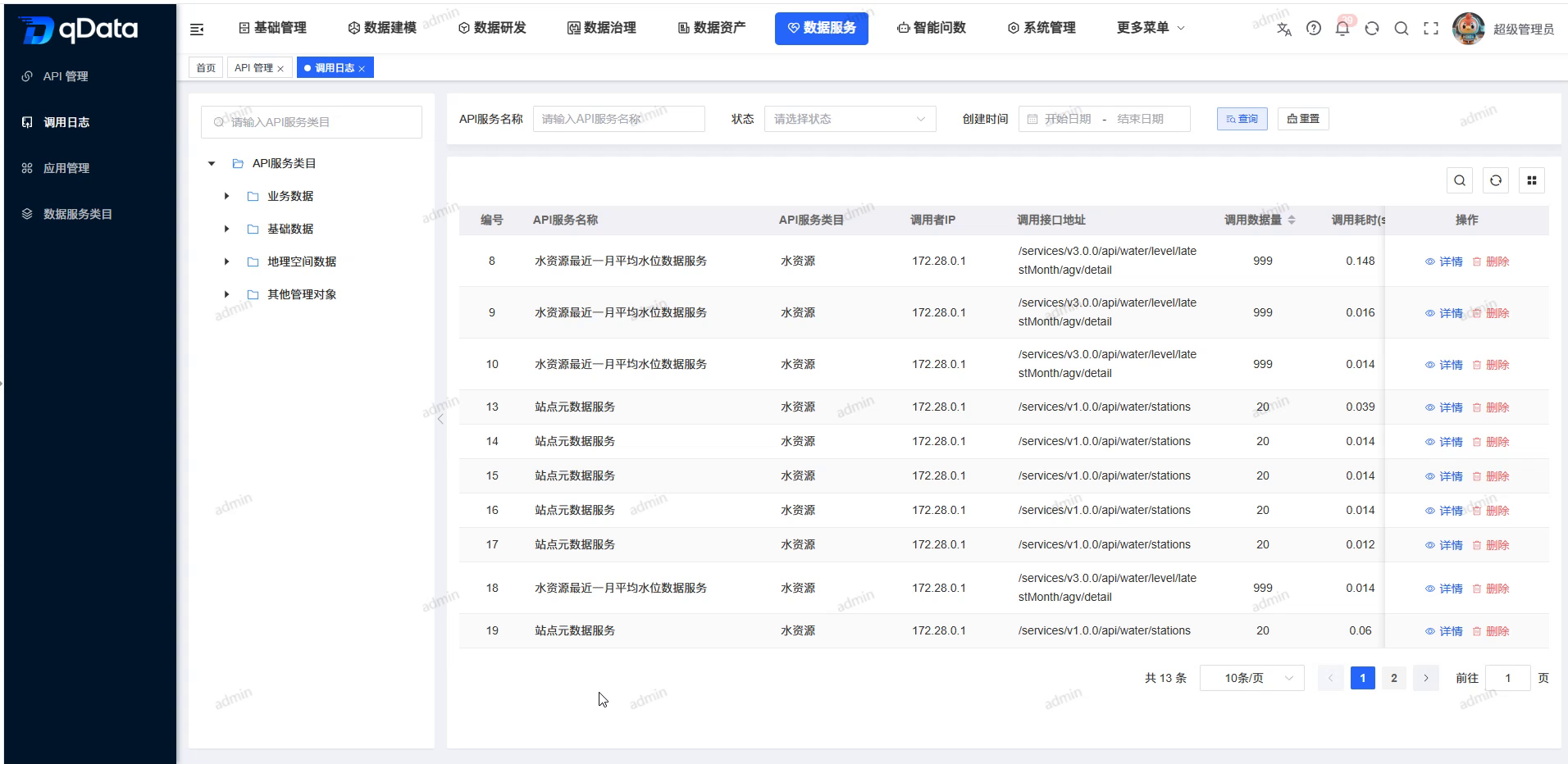
Call record list field
| Field Name | Description | Required or not |
|---|---|---|
| Number | The current calling record number. | Not applicable (system display) |
| API service name | The API service name associated with this call. | Not applicable (system display) |
| API Service Category | This call is associated with the service category to which the API belongs. | Not applicable (system display) |
| Caller IP | The network address of the client that initiated the call. | Not applicable (system display) |
| Calling interface address | The actual interface path used in this call. | Not applicable (system display) |
| Amount of call data | The amount of data recorded by the system for this call. | Not applicable (system display) |
| Calling time (seconds) | The time spent on this call, in seconds. | Not applicable (system display) |
| Operation | Display the [Details] and [Delete] entries. | Not applicable (system display) |
The bottom of the list displays the total number of records, the number of items per page, the page number, forward and backward page turning, and page jump controls; this page only describes the presentation of the controls, not the actual page turning, page jumping, or switching results of the number of items per page.
Recommended operating procedures
Check the call status: Enter [Call Record] -> select the service category or fill in the query conditions -> click [Query] -> check the interface address, data volume and time consumption.
Troubleshooting a single call: Locate the target record in the list -> click [Details] -> view the call parameters, request method, status and exception information records -> close the details pop-up window.
Clean the target record: Confirm the target record and click [Delete] -> Query again according to the original conditions -> Confirm that the target record will not be returned, and check that other records still exist normally.
Functional operation instructions
Enter the call record page
- Enter the [Data Service] module.
- Click the [Call Record] menu on the left.
- View the activated [Call Record] tab at the top.
- View the main body of the call record page.
Query call records
- Enter the API service category keyword in the category search box on the left.
- Select the API service category on the left.
- Fill in the service name in the "API Service Name" input box.
- Select a status from the Status drop-down box.
- Select the start date in the "Call on" area.
- Select the end date in the "Call on" area.
- Click [Query].
- View the results in the call record list.
- When you need to clear the conditions, click [Reset].
The query matching rules, status enumeration, date verification and refresh timing after clicking [Reset] are subject to the actual behavior of the page.
View call record list
- View the call record list.
- Locate the target service name.
- Check the calling interface address of the target record.
- Check the amount of call data recorded by the target.
- View the call time (seconds) of the target record.
- View the [Details] entry on the right side of the target record.
- Check the [Delete] entry on the right side of the target record.
- Look at the paging information and paging controls at the bottom of the list.
"Status" and "Calling Time" are query conditions, not the current list display columns.
View API service call log details
- Locate the target call record in the list.
- Click [Details] in the operation column of the target record.
- View the pop-up window titled "API Service Call Log Details".
- Check the API service name in the pop-up window.
- Check the caller IP in the pop-up window.
- Check the calling interface address in the pop-up window.
- Check the calling parameters in the pop-up window.
- Check the calling time in the pop-up window.
- Check the call time (seconds) in the pop-up window.
- Check the request method in the pop-up window.
- Check the amount of call data in the pop-up window.
- Check the exception information record in the pop-up window.
- Check the status in the pop-up window.
- When you need to close the pop-up window, click the close icon in the upper right corner.
- You can also click [Close] at the bottom of the pop-up window.
| Field Name | Description | Required or not |
|---|---|---|
| API service name | The API service name associated with this call. | Not applicable (system display) |
| Caller IP | The network address of the client that initiated the call. | Not applicable (system display) |
| Calling interface address | The actual interface path used in this call. | Not applicable (system display) |
| Call parameters | Display the parameters carried by this call. | Not applicable (system display) |
| Call time | The time when this call occurred. | Not applicable (system display) |
| Calling time (seconds) | The time spent on this call, in seconds. | Not applicable (system display) |
| Request method | The request method used in this call. | Not applicable (system display) |
| Amount of call data | The amount of data recorded by the system for this call. | Not applicable (system display) |
| Exception information record | Display the exception information record of this call. | Not applicable (system display) |
| Status | Displays the processing status of this call. | Not applicable (system display) |
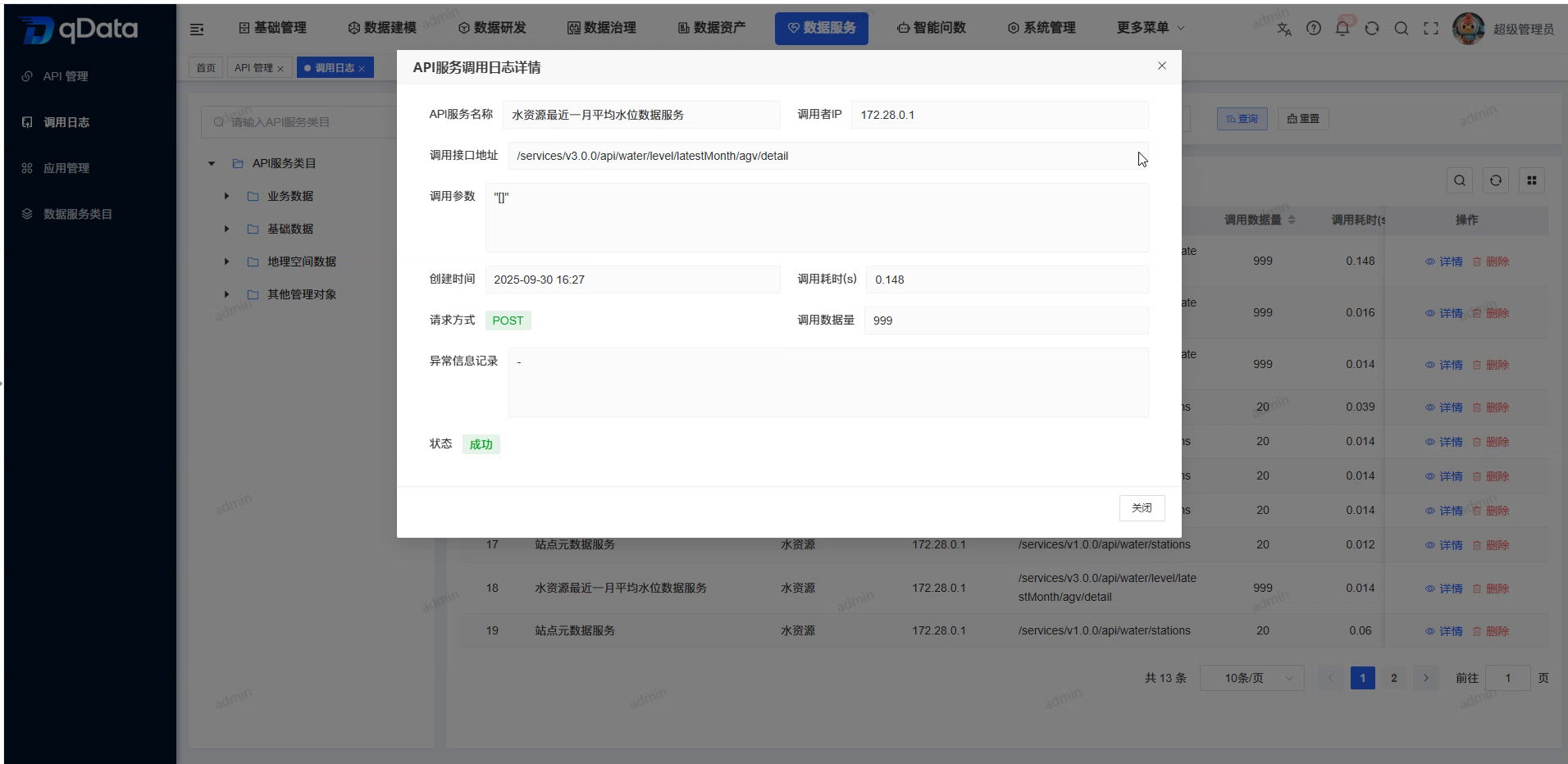
Delete target call record
- Locate the target call record that needs to be deleted in the list.
- Click [Delete] in the operation column of the target record.
- Query the call record according to the original conditions again.
- Confirm that the deleted target records will not be returned.
- Confirm that other call records, other business data, and business processes are not affected.
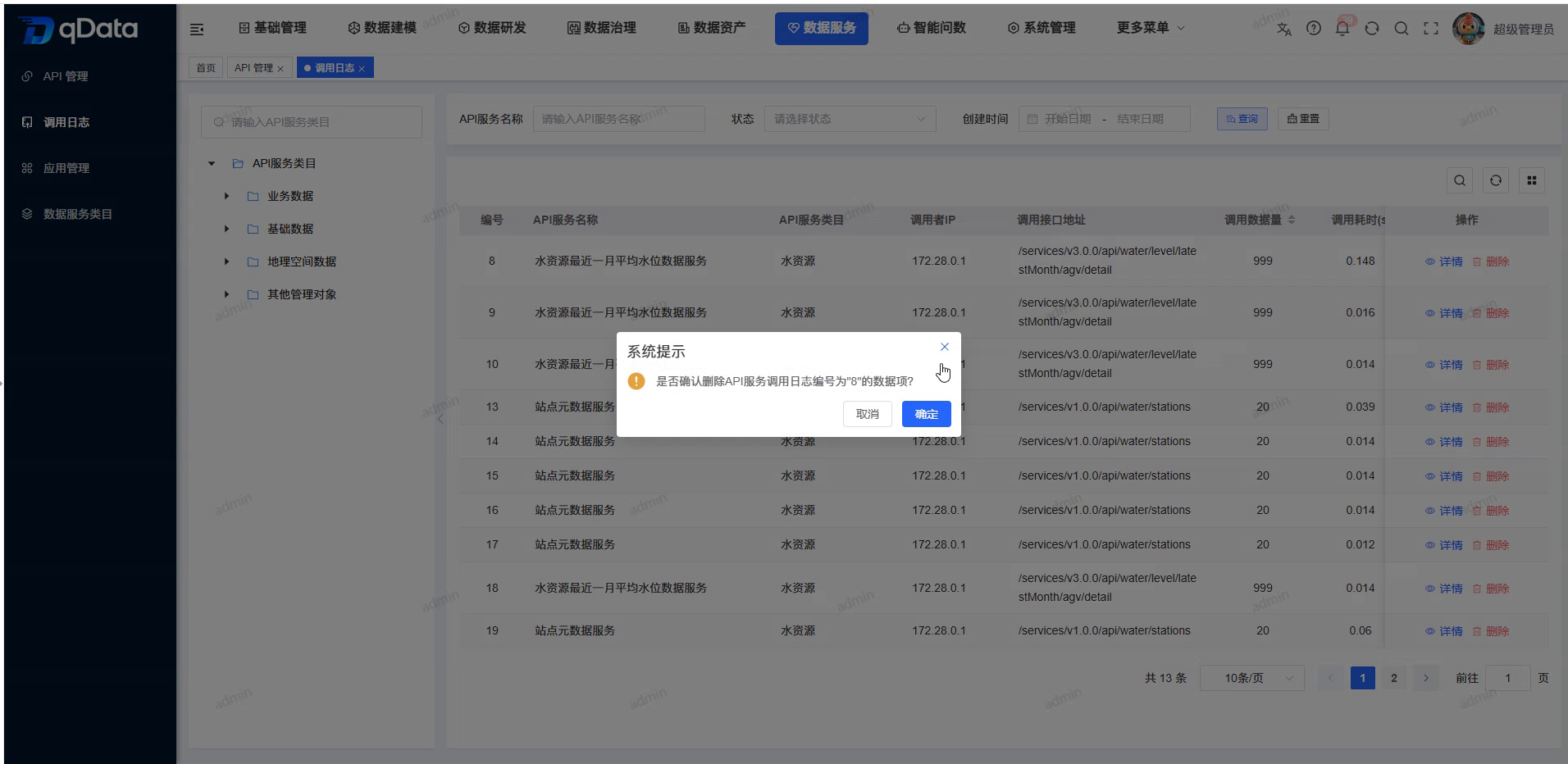
FAQ
- Will deleting a call record affect other businesses?
will not. The deletion operation only deletes the target call record and does not affect other call records, other business data, and business processes. The confirmation copy, specific success prompts and instant refresh methods are subject to the actual behavior of the page.
Summarize
[Call Record] is used to query API call records, view single call details and delete target records. When troubleshooting, focus on checking service name, caller IP, interface address, calling parameters, time consumption, status and exception information ; query matching, paging operations and deletion interaction details are not within the scope of this page.