
Collection examples
Feature overview
Functional positioning
Collection instance is used to view the running records after each execution of the collection task. Here, users can confirm whether the task was executed successfully, how many objects were collected, how long it took to run, and troubleshoot exceptions through logs.
Simple understanding: the collection task is the configuration, and the collection instance is the result record after each run.
Main features
- Instance Query: Supports filtering collection records by task name, metadata source and creation time;
- View running results: Display task information, collection source, collection information, collection start and end time, person in charge and creation information;
- Log troubleshooting: Supports viewing log details and copying log content;
- Log Download: Supports downloading and collecting logs for problem traces and offline troubleshooting;
- Instance deletion: Supports deletion of historical collection instance records that can be cleaned;
- Process Tracking: Master the historical execution and operational stability of different collection tasks through the instance list.
Scope
It is suitable for tracking the running status of collection tasks underData Governance > Metadata Management, and is mainly intended for data governance operation and maintenance personnel, metadata administrators and project administrators.
Preliminary steps
Preconditions
- Have logged in to the qData platform and have the relevant menu permissions for [Data Governance].
- A collection task already exists, and the task has been run according to schedule or through [Execute Once].
- Before troubleshooting the problem, it is recommended to confirm the task name, metadata source and approximate execution time.
Navigation path
Data Governance>Metadata Management>Collection Example
Page overview
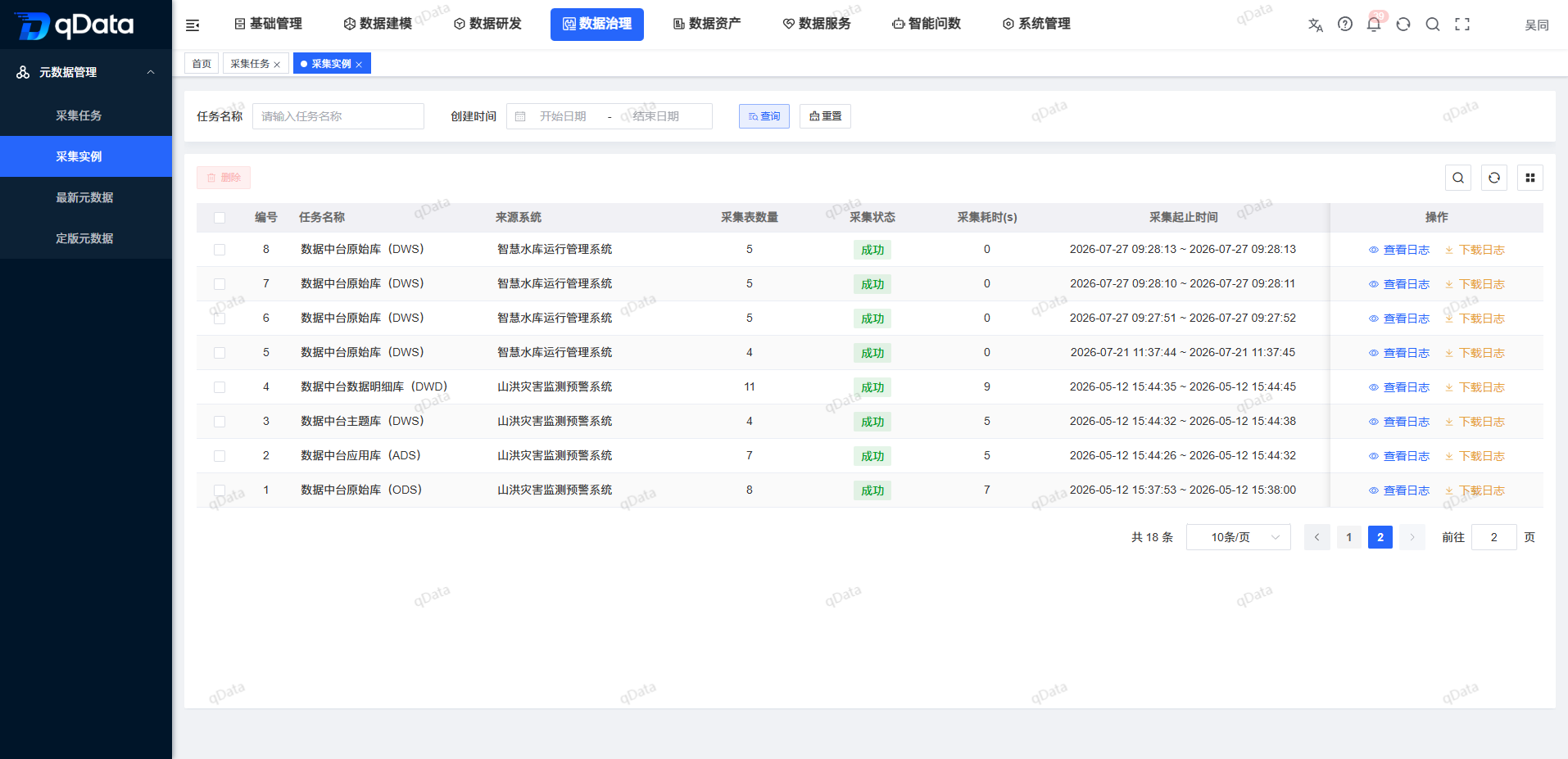
After entering [Collection Instance], query conditions such as task name, metadata source, and creation time are provided at the top of the page. The list displays the collection information, collection start and end time, person in charge, creator, creation time and operation entry after each collection task is run.
Recommended operating procedures
Confirm whether the task is executed successfully: Enter the task name or select the metadata source -> Click [Query] -> View the collection information and collection start and end time.
Troubleshoot exceptions: Locate the abnormal instance -> Click [View Log] -> Copy or download the log -> Return to the collection task to check the configuration.
Functional operation instructions
Query collection examples
- Enter [Task Name] in the query area, or select [Metadata Source] or [Creation Time].
- Click [Query] to display a list of collection instances that meet the conditions.
- If you need to restore all records, click [Reset] and query again.
| Query conditions | Description | Usage suggestions |
|---|---|---|
| Task name | Locate the instance based on the collection task name. | Use it first when troubleshooting a task. |
| Metadata Sources | Filter by source system or source object. | Suitable for confirming the collection results from a certain source. |
| Creation Time | Narrow down by instance creation time. | It is recommended to use it in conjunction with scheduling time when troubleshooting scheduled tasks. |
View running results
The collection instance records in the list can help users quickly determine whether the collection task is executed normally.
| List information | Description | Points of concern |
|---|---|---|
| Task information | Displays the collection tasks corresponding to this instance. | Confirm whether it is the target task. |
| Collection source | Displays the source corresponding to this collection. | Confirm whether the source system or data source is correct. |
| Collection information | Displays a summary of the collection results. | Pay attention to the collection quantity and execution results. |
| Collection start and end time | Display the start and end time of this collection. | Pay attention to whether the running time is abnormal. |
| Responsible Person/Creator | Shows the personnel involved in task maintenance and creation. | Facilitates problem coordination. |
View log
[View Log] is used to locate detailed information during the running process of the collection task, and is the main entrance to troubleshoot failures or abnormal results.
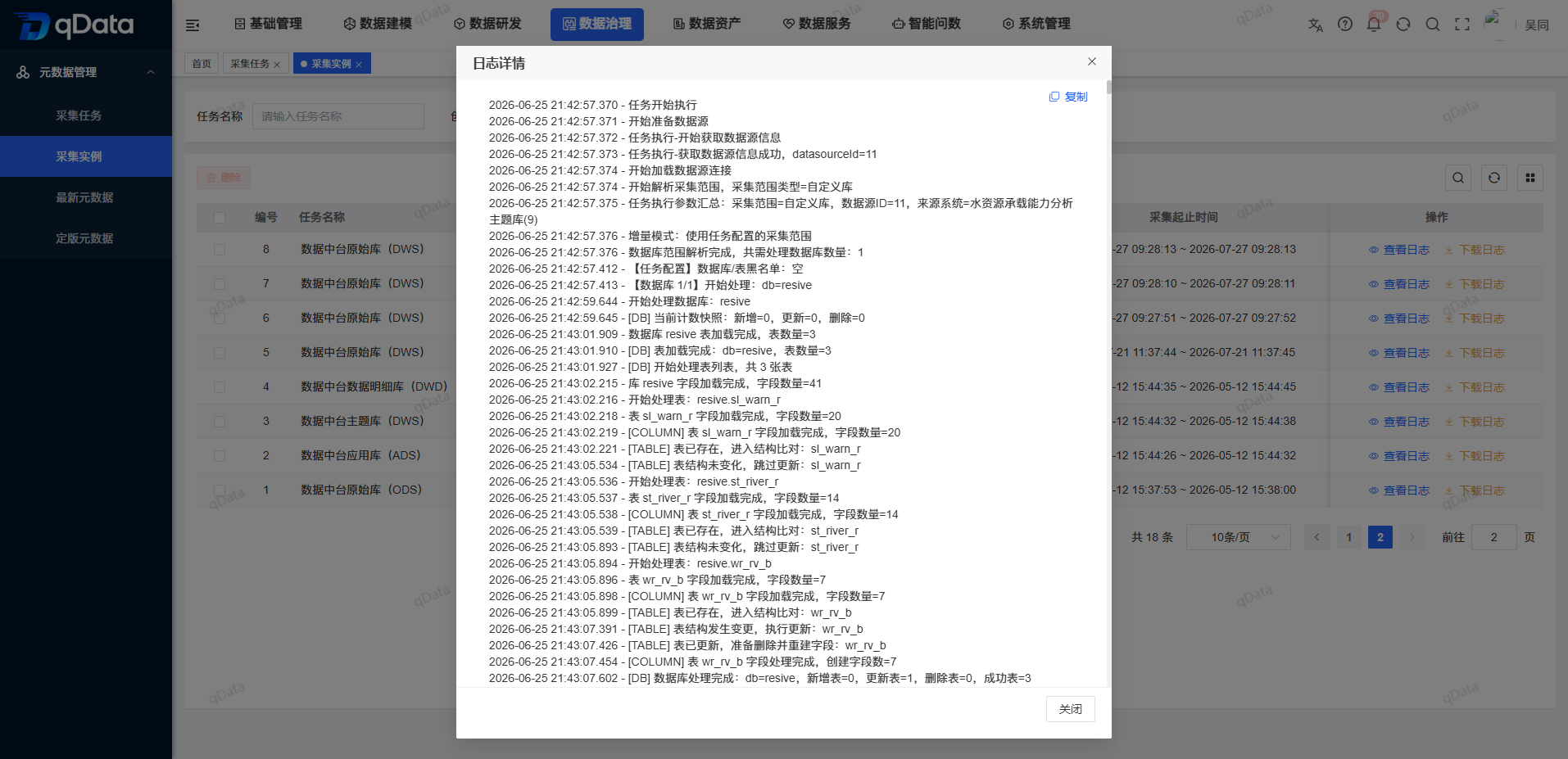
- Locate the target record in the collection instance list.
- Click [View Log] in the operation column.
- View the running log in the log details pop-up window.
- If you need to keep the log, click [Copy] to copy the log content.
- Click [Close] after viewing.
Log viewing suggestions
Each collection task execution will generate a collection instance log. When troubleshooting fails, priority is given to information such as incorrect keywords, connection exceptions, permission exceptions, file path exceptions, and collection objects that do not exist.
Download log
When you need to archive offline and hand it over for implementation or R&D inspection, you can use [Download Log].
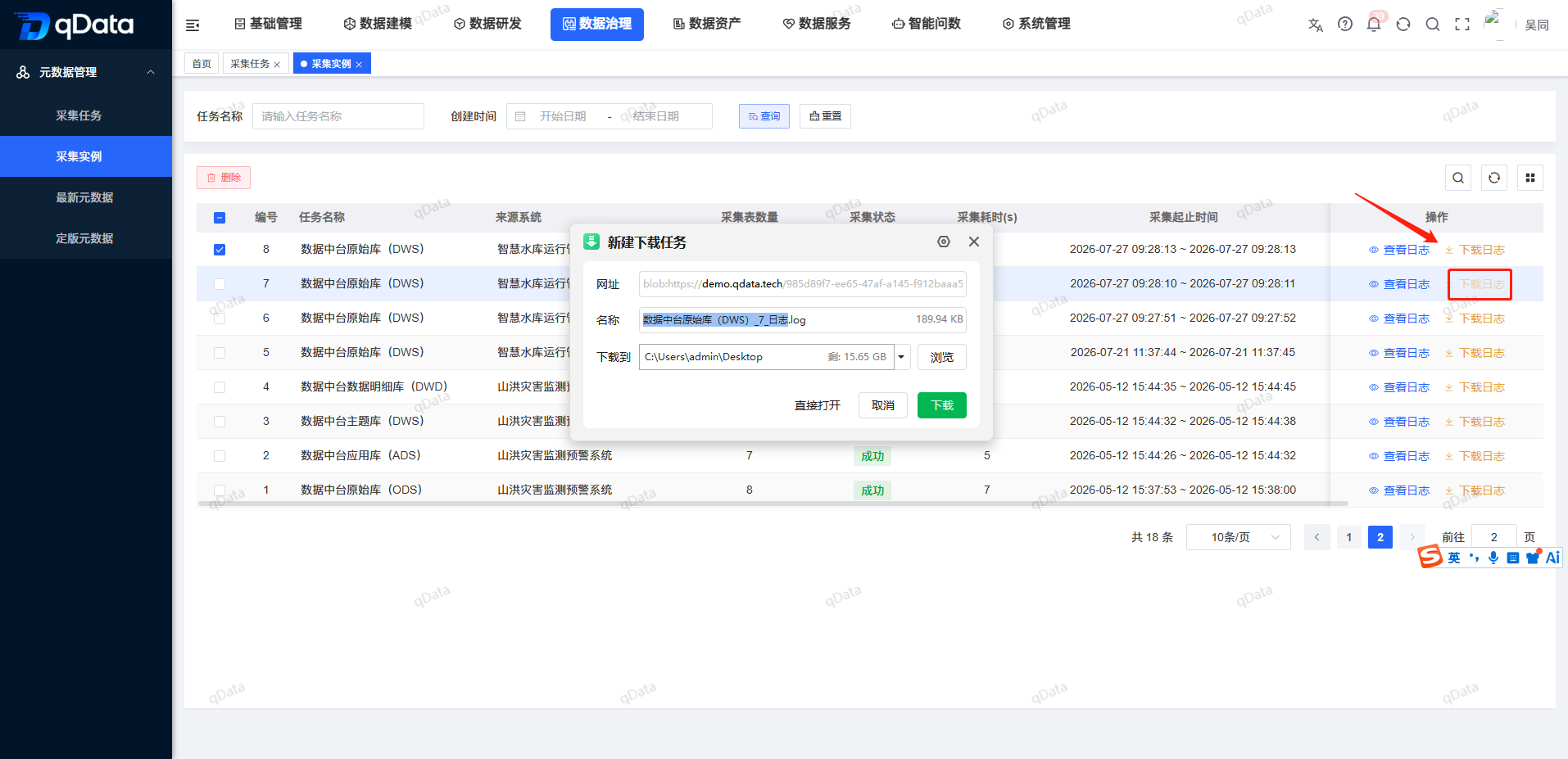
- Locate the target record in the collection instance list.
- Click [Download Log] in the operation column.
- After the download is completed, check whether the file content corresponds to the current instance.
The current log download format is TXT. If the download fails, you can first confirm the browser download permissions, account permissions and network status.
Delete collection instance
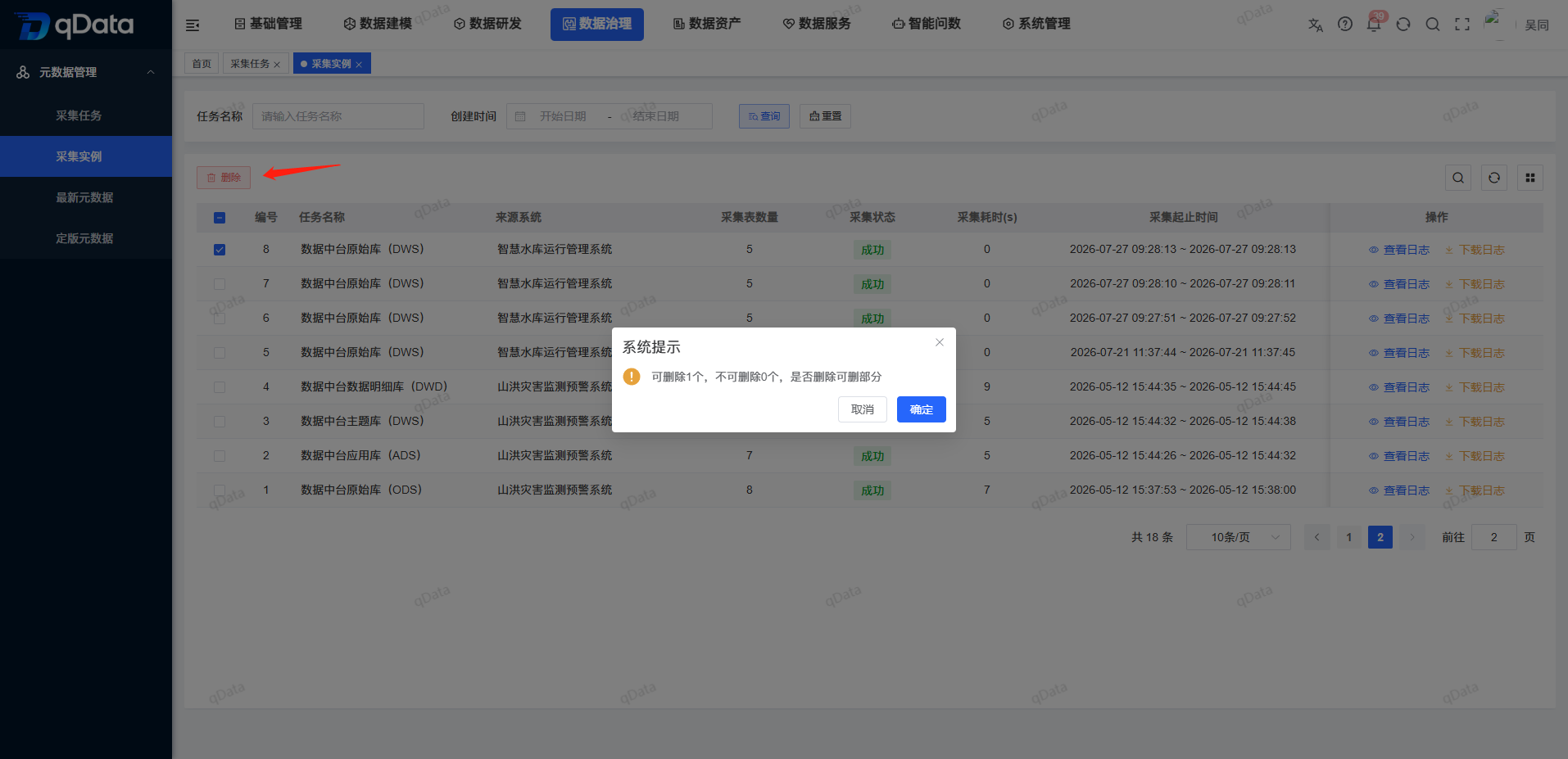
Check the collection instance that needs to be deleted, click the [Delete] button above the list, and the system will pop up a confirmation prompt. After confirmation, the system will delete the deletable collection instance records; if there are non-deletable records, the system will indicate the deletable and non-deletable numbers in the prompt.
FAQ
Why is the collection task executed but there is no record in the instance list?
First expand the creation time range, and then confirm whether the task is actually executed successfully. If it is executed manually, please return to the collection task page to confirm whether the [Execute Once] prompt appears successfully.What should I read in the log?
First check whether there are any obvious abnormalities such as connection failure, authentication failure, path non-existence, table non-existence or insufficient permissions, etc., and then combine the task configuration to check the source system and collection scope.When do I need to download logs?
When the page log is long, needs to be left with traces, or needs to be analyzed by other personnel, it is recommended to download the log file.
Summarize
The collection instance page is used to receive the running results of collection tasks. When troubleshooting metadata collection issues, you can follow the sequence ofQuery instance -> View collection information -> View logs -> Return to collection task to adjust configuration.