
collection tasks
Feature overview
Functional positioning
Collection task is the starting point of metadata management and is used to configure the sources from which the platform collects metadata information such as libraries, tables, fields or unstructured files. Users maintain the collection source, collection range, scheduling cycle, scheduler and responsible person here. After the task is executed, a collection instance will be generated and the latest metadata version will be further formed.
Simple understanding: Configure the collection task first, and then the platform will know where the metadata comes from, what scope it is collected from, when it is executed, and who is responsible for maintaining it.
Usage suggestions
When adding a new collection task, it is recommended to press to select the source system and data connection -> configure the collection range -> set the scheduler and scheduling cycle -> save the task -> go online or perform a sequence operation of . After the first configuration is completed, you can first use [Execute Once] to verify whether the task can run normally.
Main features
- Structured Collection: Supports database table metadata collection, and you can select the entire database or a custom library range.
- Unstructured collection: Supports file path metadata collection, suitable for unstructured objects such as documents.
- Quartzzz lightweight scheduling: Supports selecting the Quartzzz scheduler and configuring cycle execution time through Cron expressions.
- DolphinScheduler enterprise-level scheduling: Supports the selection of DolphinScheduler scheduler, which is suitable for collection scenarios that require a unified scheduling platform, task orchestration, and operation and maintenance management.
- Task status control: Use the task status and scheduling status to control whether the task is valid and whether it runs periodically.
- Run linkage: After the task is executed, a collection instance will be generated, and the results can be viewed later in the collection instance and the latest metadata.
Scope
Applicable to the addition, query, modification, start and stop, manual execution and detailed viewing of collection tasks underData Governance > Metadata Management > Collection Tasks. Mainly intended for metadata administrators, data governance operation and maintenance personnel, and project administrators.
Preliminary steps
Preconditions
- Have logged in to the qData platform and have the relevant menu permissions for [Data Governance].
- The source system and data connection have been prepared, and structured collection needs to be able to access the target database.
- If you need to collect unstructured data, the file path source has been prepared, such as HDFS, FTP or OSS.
- The scope of the collection and the responsible person have been confirmed to avoid excessive collection scope or unclear responsibility.
- If you need to use Quartzzzzz or DolphinScheduler scheduling, make sure that the corresponding scheduling service is normal.
Navigation path
Data Governance > Metadata Management > Collection Task
Page overview
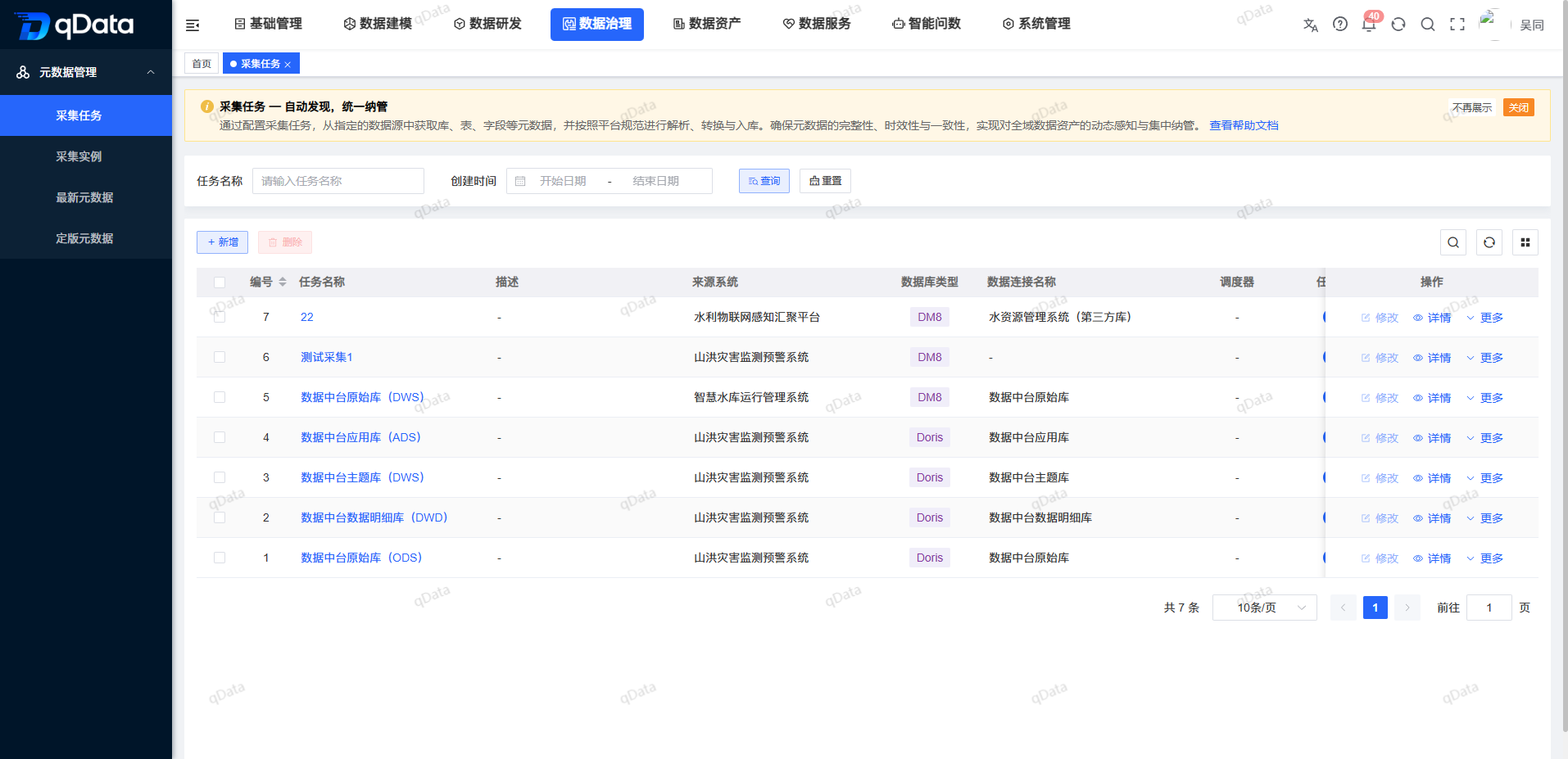
After entering [Collection Tasks], the page takes the task list as the core, supports querying by task name and creation time, and provides operations such as [Add], [Delete], Refresh, and Column Settings. You can view the task source, task status, scheduling status, scheduling period, latest running time and person in charge in the list.
Recommended operating procedures
Structured metadata collection: Click [Add] -> Select the source system and data connection -> Configure the scheduler Quartzzzzz or DolphinScheduler and the scheduling cycle -> Configure the collection range -> Save the task -> Schedule online or [Execute once].
Unstructured metadata collection: Click [Add] -> Select the source system and file path -> Configure the scheduler, scheduling cycle and responsible person -> Save the task -> Go online or execute manually as needed.
Operation troubleshooting: Click [Execute Once] or [View Collection Instance] from the task line, and then go to the collection instance page to view the execution records and logs.
Functional operation instructions
Add new collection tasks
Collection tasks are used to collect metadata information such as libraries, tables, and fields in structured databases. Unstructured object collection can also be configured according to system capabilities.
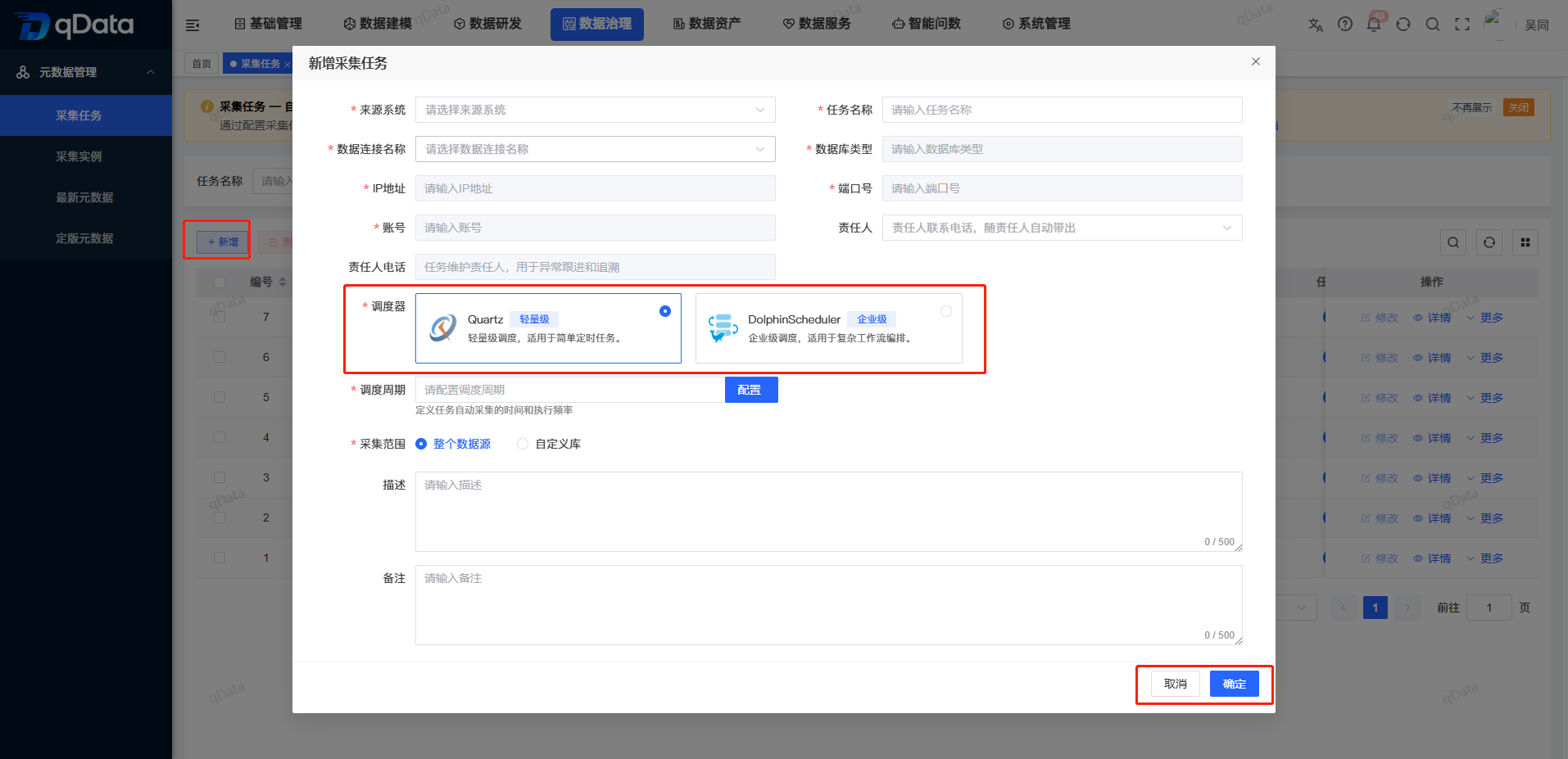
- Click [Add] in the collection task list.
- Select [Source System] and [Data Connection Name] in the pop-up window.
- Fill in the [Task Name] and check the database type, IP, port number, account and other information brought out by the system.
- Select Quartzzzzz (lightweight) or DolphinScheduler (enterprise-level) in [Scheduler].
- Click [Configure] in [Scheduling Period] and set the period through Cron expression.
- Select [Responsible Person] and fill in the responsible person’s phone number, description and remarks as needed.
- After configuring the [Collection Range], click [OK] to save.
Key fields
| Field Name | Description | Required or not |
|---|---|---|
| Source system | Select the business system or source system corresponding to this metadata collection. | Yes |
| Task name | Fill in the collection task name for easy identification and operation and maintenance. | Yes |
| Data connection name | Select the configured data connection, and the system will bring out information such as database type, IP, port number, and account number. | Yes |
| Scheduler | Select the task execution scheduler, you can choose Quartzzzzz (lightweight) or DolphinScheduler (enterprise level). | Yes |
| Scheduling cycle | Configure task cycle execution time, which can be generated with the help of Cron expression generator. | Yes |
| Responsible person | Select the task maintainer to facilitate operation tracking and exception handling. | Yes |
| Collection range | Choose to collect the entire database, or collect according to a custom library range. | Yes |
Quartzzz Scheduling Instructions
| Configuration items | Description |
|---|---|
| Quartzzzzz (lightweight) | Suitable for lightweight periodic collection tasks within the platform, with simple configuration and easy online verification. |
| Cron expression | Used to define the task cycle execution time, which is triggered periodically when the scheduling status is enabled after saving. |
| Executed once | Does not depend on the scheduling cycle and can be used for immediate verification after adding tasks. |
DolphinScheduler Scheduling Instructions
| Configuration items | Description |
|---|---|
| DolphinScheduler (enterprise level) | Suitable for collection tasks that can be integrated into the unified management of enterprise-level scheduling platforms, and can be used for more complex scheduling, monitoring, and operation and maintenance scenarios. |
| Scheduling cycle | The periodic execution time of the task still needs to be configured. After saving, the scheduling status controls whether it is triggered periodically. |
| Operation and maintenance management | Suitable for scenarios with unified operation and maintenance requirements for scheduling instances, execution status, failure troubleshooting, and task running links. |
Configure collection range
The collection scope determines which metadata objects are collected in this task. The more accurately the scope is configured, the easier it is to maintain subsequent metadata versions and change results.
- When selecting [Entire Database], the task will collect metadata under the database according to the current data connection range.
- When selecting [Custom Library], you can select the library to be collected between the source library and the selected source library.
- If you need more fine-grained table-level or field-level collection, please refer to the actual display entrance of the current system and confirm the collection range before formal operation.
Collection range tips
If the collection scope is too large, it will increase the cost of subsequent version comparison and operation and maintenance troubleshooting; if the collection scope is too small, tables or fields that need to be managed may be missed. It is recommended to select the scope according to the governance objectives of this time.
Edit collection tasks
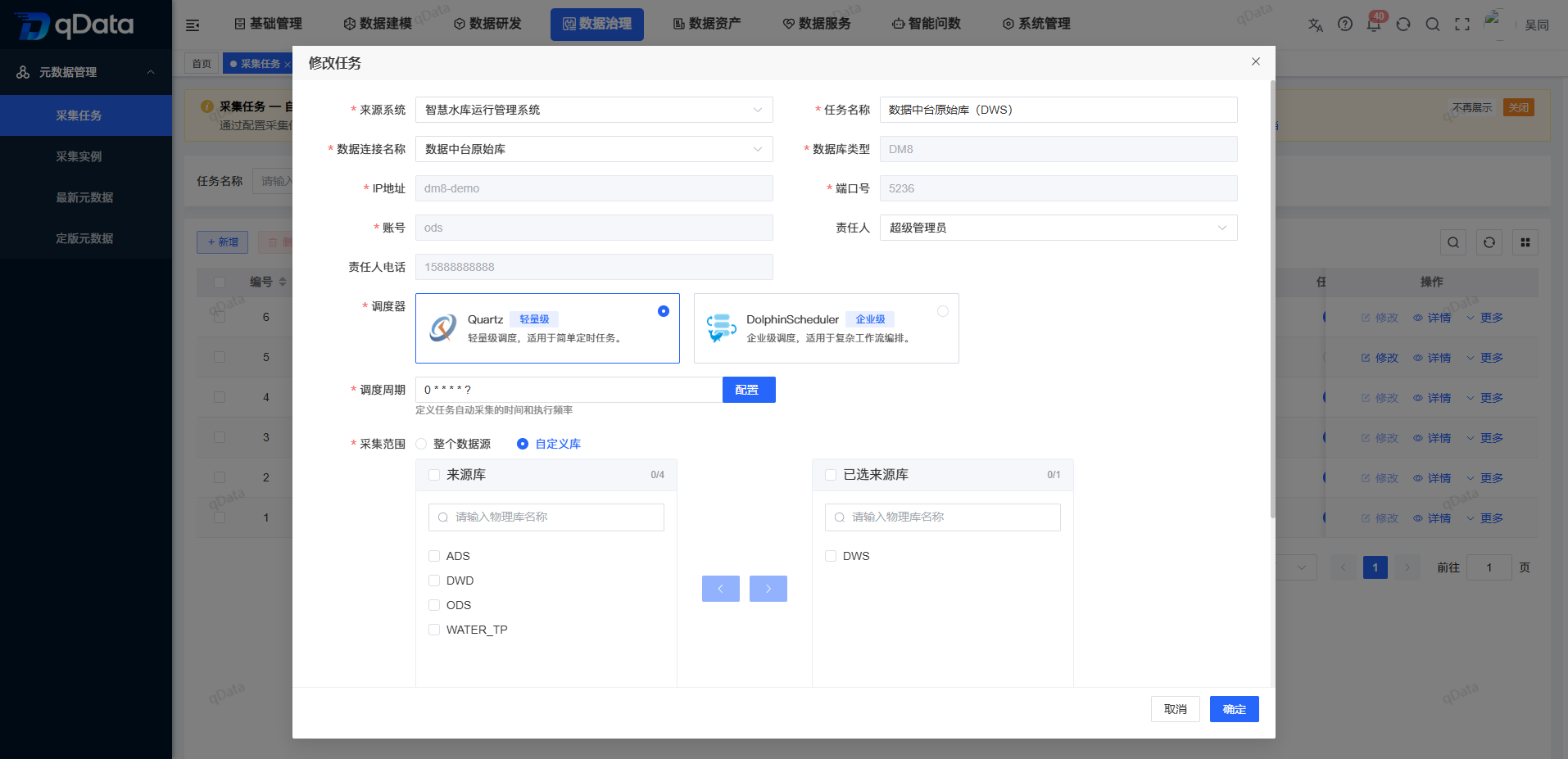
- Locate the target task in the collection task list.
- Click the [Edit] button in the operation column.
- Modify the task name, data connection, scheduler, scheduling cycle, collection range, responsible person and other information in the pop-up window.
- Click [OK] to save the changes.
Online or disabling collection tasks
After the task is saved, you can use the status switch to control whether the task goes online or is executed as scheduled.
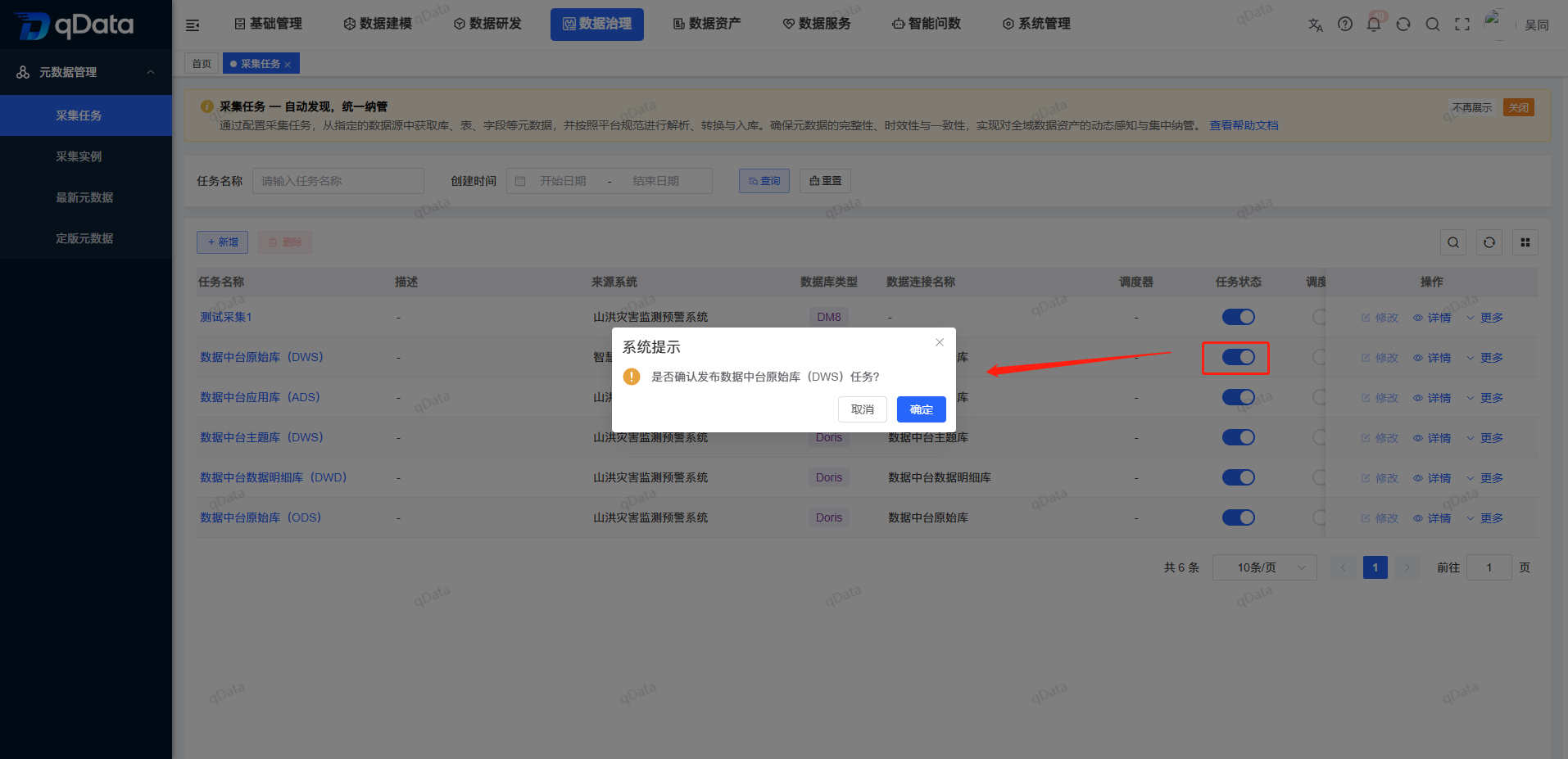
- Locate the target task in the collection task list.
- Click the task status or scheduling status switch.
- When the system prompts for confirmation, click [OK].
- After the page prompts success, the task enters the executable or schedulable state.
Status description
The task status is used to mark whether the task is valid and executable; the scheduling status is used to mark whether the task is automatically executed according to the configured scheduling period. After deactivation, the task will no longer run according to the scheduling cycle.
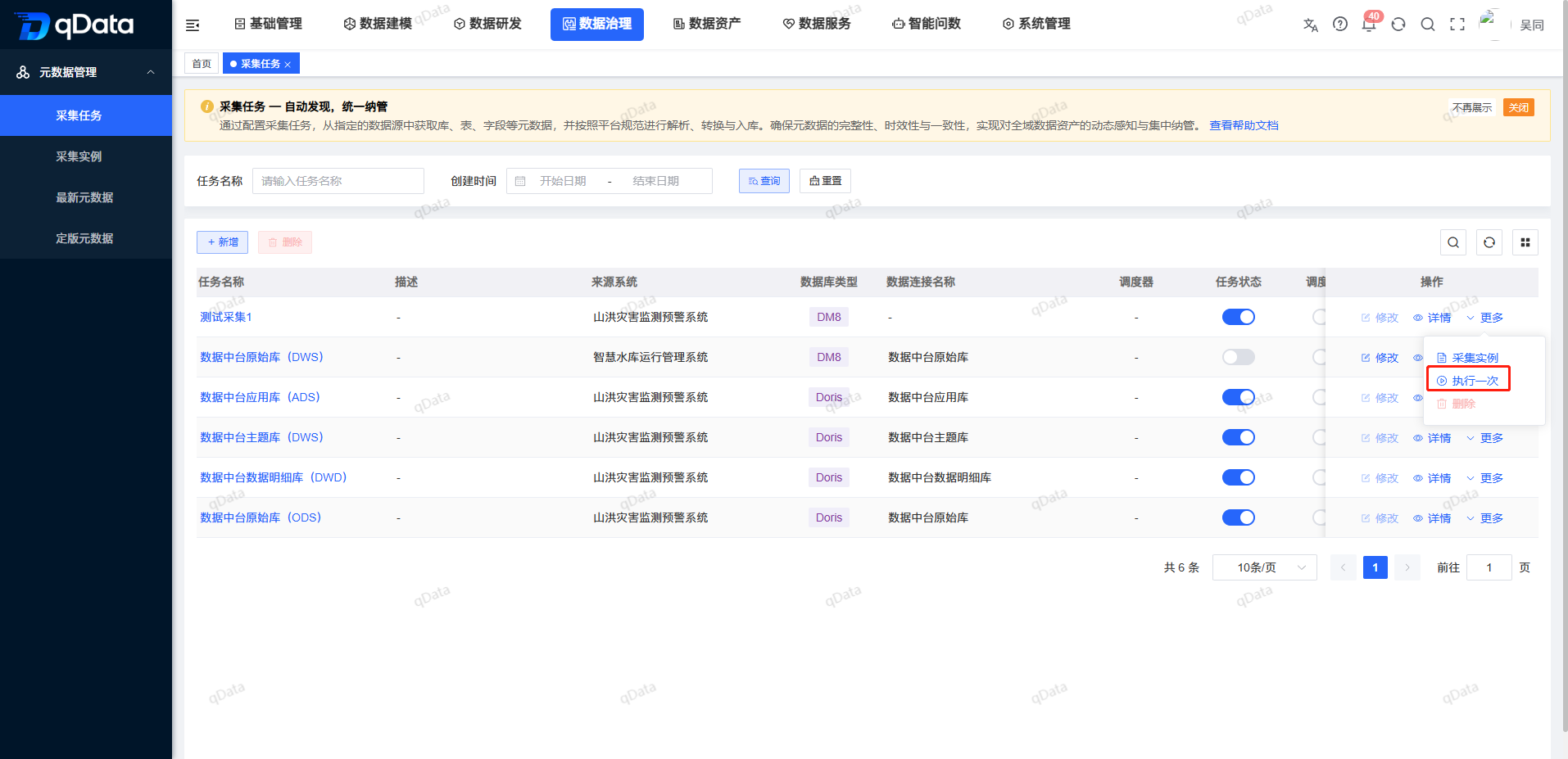
Execute once
[Execute once] is suitable for temporary verification after the task configuration is completed, and is also suitable for confirming whether the task can run normally before troubleshooting and scheduling.
- Click [Execute Once] in the target task operation column.
- The system immediately initiates a metadata collection.
- After successful execution, a collection instance record will be generated.
- If you need to view the running results, you can enter the [Collection Instances] page to continue troubleshooting.
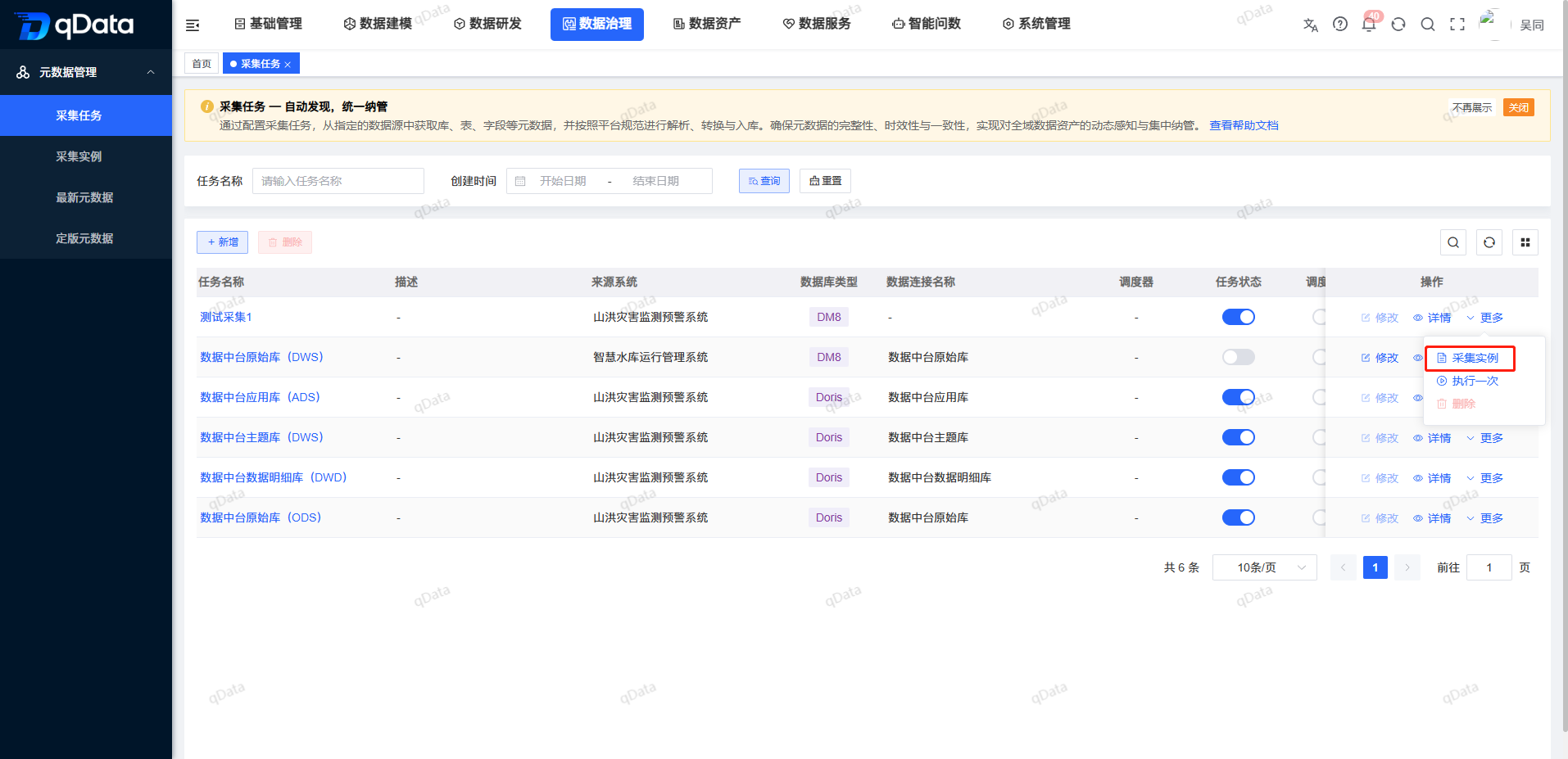
View collection examples
Select the collection task whose execution you want to view, and click the [View Collection Instance] or [Execution Record] button in the operation column to view the historical execution list of the task. Execution records can be used to troubleshoot the reasons for collection failure, confirm the amount of collected data, and track collection changes.
Delete collection task
- Locate the collection task that needs to be deleted in the collection task list.
- Click the [Delete] button in the operation column, or select the record and click [Delete] above the list.
- Check the target task in the confirmation prompt.
- Click [OK] to delete the collection task.
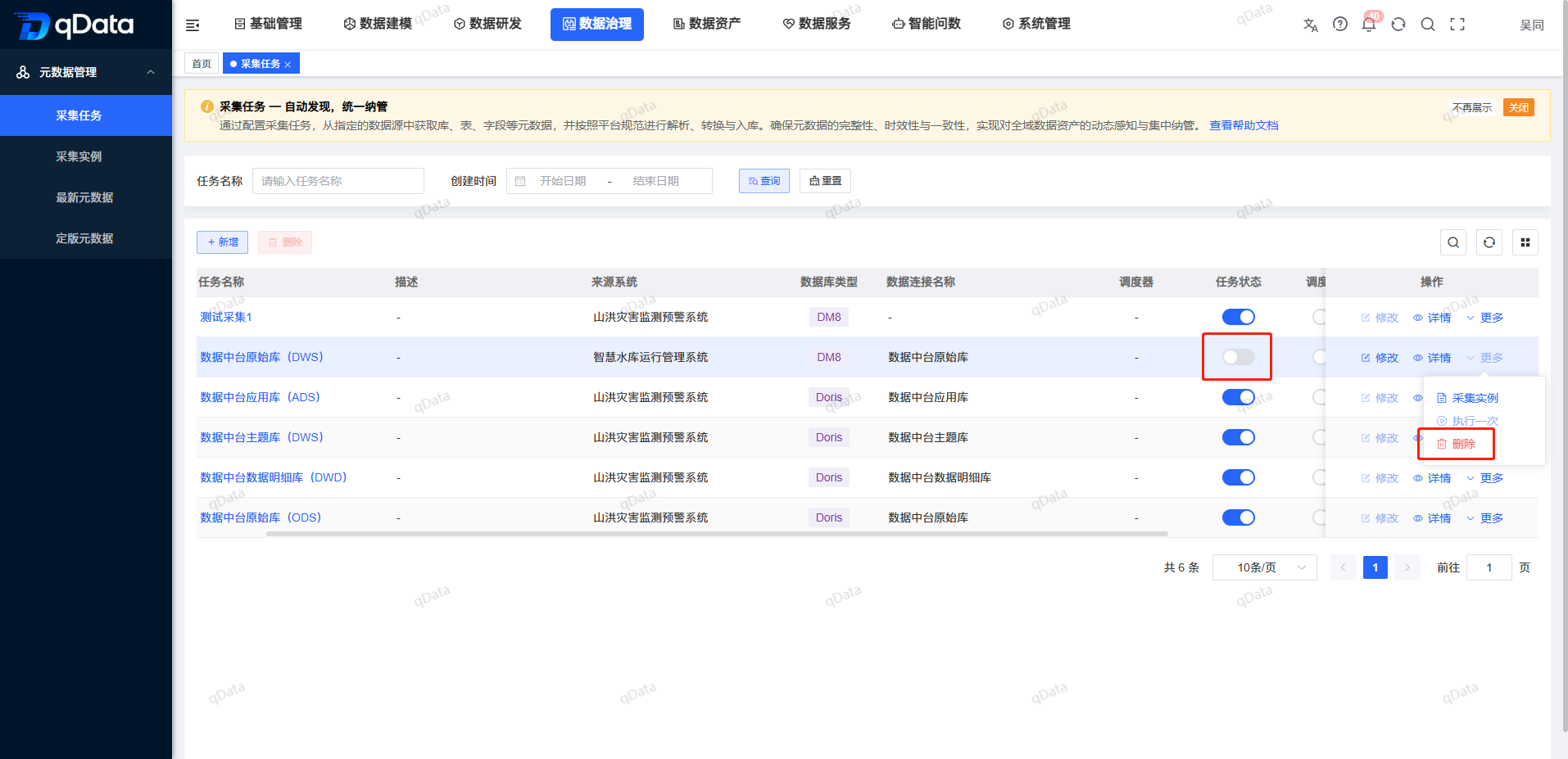
In a formal environment, it is recommended to deactivate the task first and confirm that there is no impact before deleting it to avoid affecting historical instances, the latest metadata version, or subsequent finalization results.
FAQ
**Why do we need to collect instances to view after the task is executed?**The
collection task is only responsible for configuration and triggering. The execution results, collection quantity, start and end time, and logs need to be viewed in [Collection Instance].What is the difference between task status and scheduling status?
task status indicates whether the task is valid and executable; scheduling status indicates whether the task is automatically executed according to the configured scheduling period.When to use [Execute Once]?
After creating a new task, it is recommended to execute it manually to verify whether the data connection, collection range and task configuration are normal.What scenarios is the Quartzzz scheduler suitable for?
Quartzzz is suitable for lightweight periodic collection tasks, with simple configuration and suitable for scheduled execution of regular metadata collection.What scenarios is the DolphinScheduler scheduler suitable for?
DolphinScheduler is suitable for metadata collection scenarios that require enterprise-level scheduling, unified operation and maintenance, and more complex task management.How should I choose the path for unstructured collection?
First confirm the source of the file, such as HDFS, FTP or OSS, and then select the target path in the file path.Why is it not recommended to delete the task directly?
deletion may affect historical instances, the latest metadata version, or subsequent finalization results. In the official environment, it is recommended to disable it first and confirm that it has no impact before deleting it.
Summarize
The collection task determines the starting point and scope of metadata management. When configuring, focus on confirming three things: whether the source system of is correct, whether the collection range is accurate, and whether the scheduler and scheduling cycle are as expected . After the task execution is completed, you should continue to view the running results and metadata version changes in [Collection Instance] and [Latest Metadata].