
Project members
Feature overview
Functional positioning
Project Members is used to view the member list under the current project and enter the interface related to adding, modifying and removing members. This function is located on the [Project Member] tab of the [Member Role Management] page and is displayed side by side with the [Project Role] tab.
Simple understanding: Here you can check which members are in the current project, which roles the members correspond to, and view the fields, selection status and confirmation scope in the member maintenance process.
Usage suggestions
The new pop-up window clearly prompts: If you need to add a new user, please click [User Management] to add it first. Before entering the member maintenance process, you can first confirm that the required user already exists.
Main features
- Member information display: List display of user name, role, department, mobile phone number and creation information.
- Member Form: You can open the new and modified pop-up windows to view the system user and user role fields.
- User selection interface: You can enter the user selection process from the new pop-up window to filter candidate users.
- Role Binding: Supports assigning responsibility roles within the project to project members.
- Removal Entry: Provides in-line [Remove] and batch [Remove] entries for removing members from the current project.
Scope
This page explains the project member list, new/modify pop-up window, system user selection interface, role check status and member removal in the context of the current project.
Preliminary steps
Preconditions
- Logged in to the qData platform.
- The [Projects] at the top has been switched to the project that needs to be viewed.
- If you need to add new project members, you have confirmed whether the candidate users need to be added in [User Management] first.
- If you need to assign roles, the current project has maintained available project roles.
Navigation path
Data Development > Project Basic Management > Member Role Management > Project Members
Page overview
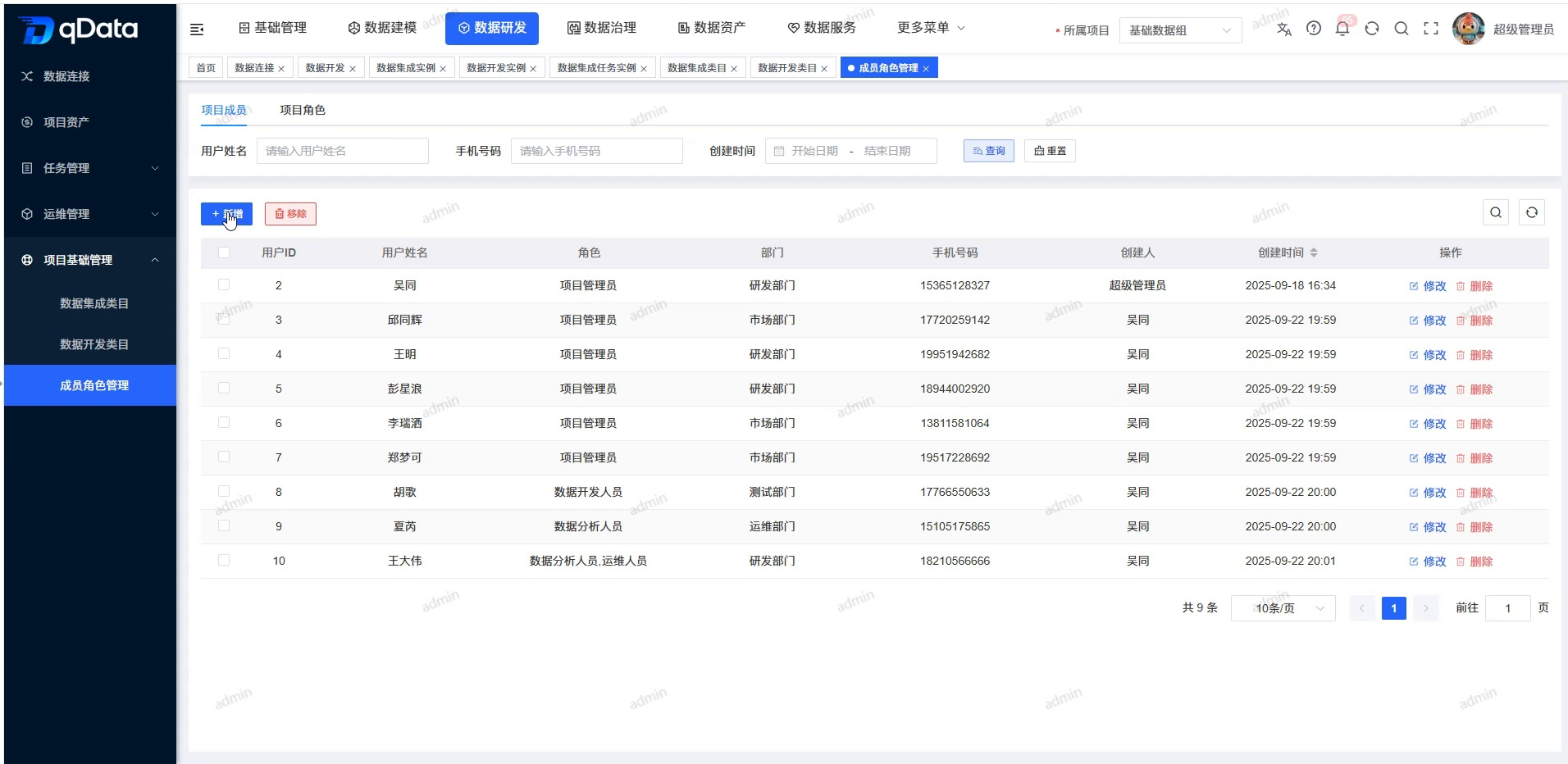
After entering the [Project Members] tab, the top of the page displays the query area, toolbar, member list, and paging in order. The toolbar provides [Add] and [Remove], and the list operation column provides [Modify] and [Remove].
Recommended operating procedures
View members: Enter the [Project Members] tab -> Check the query control and member list -> View the role, department and mobile phone number of the target member -> Open [Modify] as needed to view the backfill status.
Add new member: Click [Add] -> View the new member field -> Click [Select User] to select the system user -> Select user role -> Click [OK] to save.
Check the removal range: Check the member record or click [Remove] in the row -> Check the record range in the system prompt -> Remove the member after confirmation.
Functional operation instructions
View the query control and member list
- Enter the [Member Role Management] page.
- Select the [Project Members] tab.
- View the "User Name", "Mobile Phone Number" and "Creation Time" query controls.
- Check the [Query] and [Reset] buttons.
- Check the user's name, role, department, mobile phone number and creation information in the member list.
- View the total number, number of items per page, page number and go to specified page control in the paging area.
Open the add project member pop-up window
- Click [New] on the toolbar.
- Check the "Add Project Member" pop-up window.
- View the new user tips at the top.
- View the "System User" field and the [Select User] button.
- Check the "User Role" checkbox.
- After selecting the system user and user role, click [OK] to save.
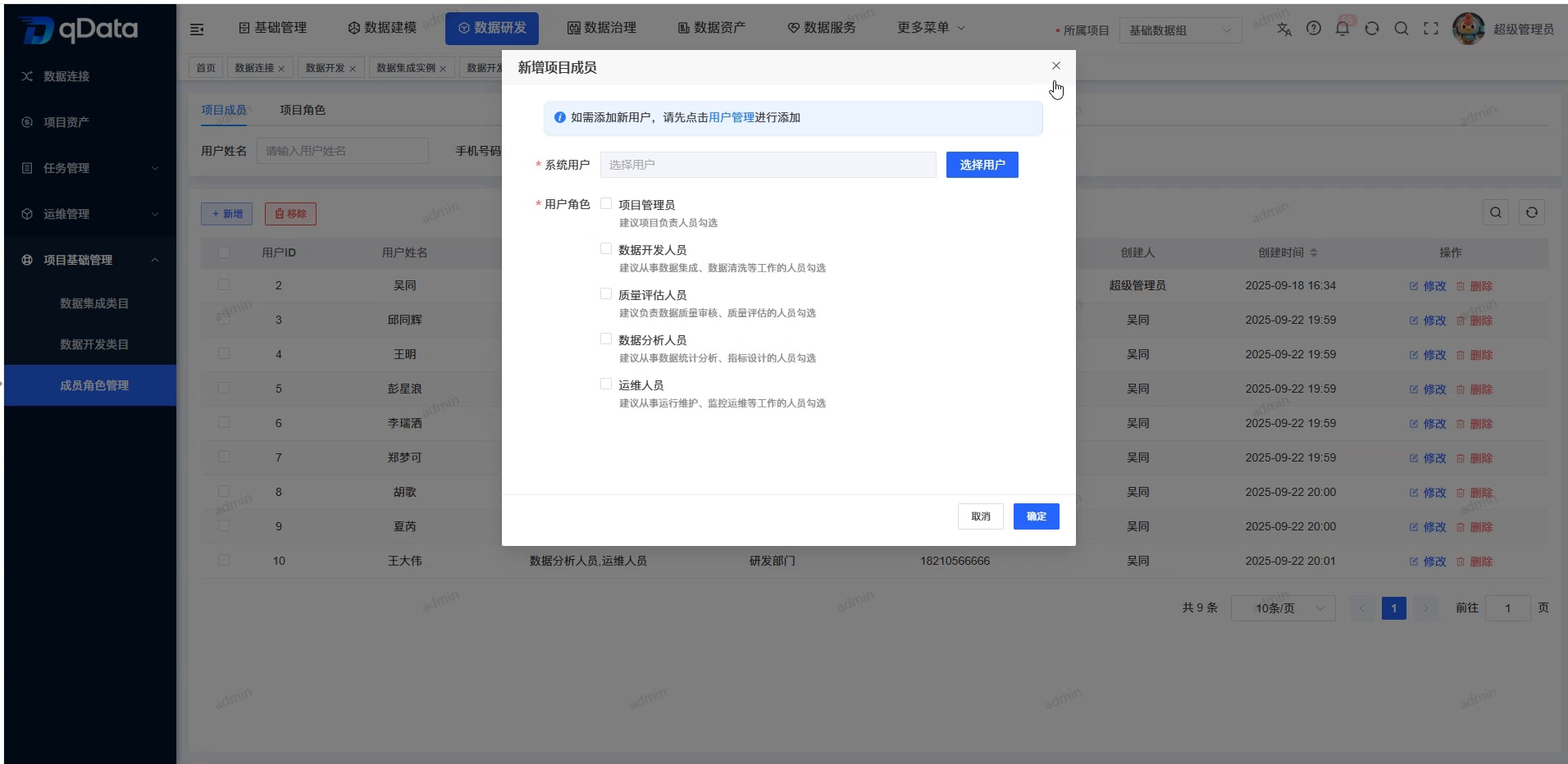
The two main fields in the new pop-up window are:
- System User: With required identification, the initial screen is empty, and you can enter the candidate interface through [Select User].
- User roles: With required marks, roles such as project administrators, data developers, quality assessors, data analysts, and operation and maintenance personnel are displayed in check boxes.
View the system user selection interface
- Click [Select User] in the "Add Project Member" pop-up window.
- View the "User Selection" pop-up window.
- View the "Login Account" and "Mobile Phone Number" query controls.
- Check the [Query] and [Reset] buttons.
- View the Candidate User List field.
- Select the target user and return to the Add Project Member pop-up window.
View user role selection status
- Return to the "Add Project Member" pop-up window.
- View the role check options in the "User Roles" area.
- Check the usage tips below the character name.
- Select one or more project roles based on member responsibilities.
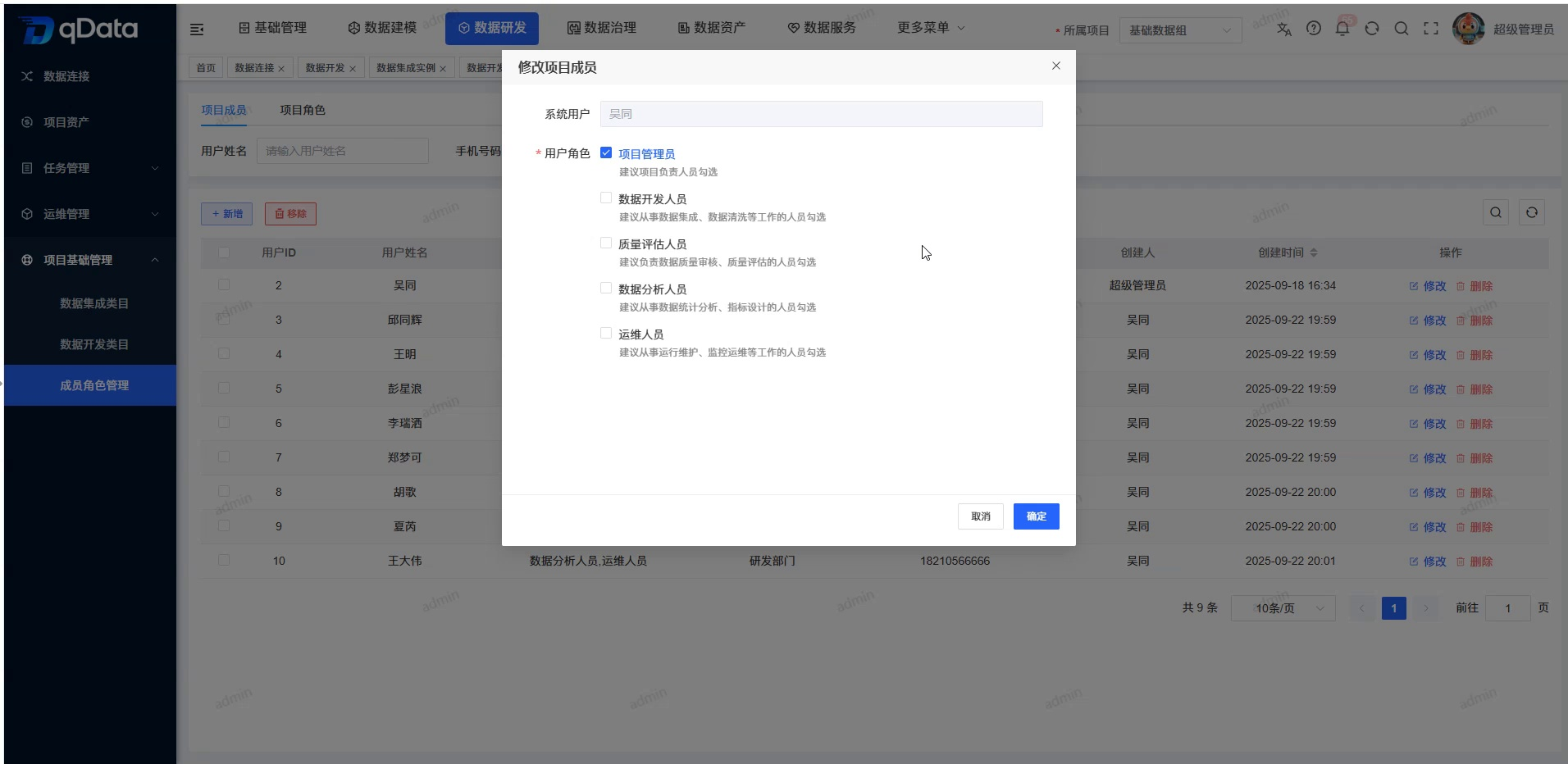
View modified project member backfill
- Click [Modify] in the target member row.
- View the "Modify Project Members" pop-up window.
- Check that "System User" has been backfilled with the current user.
- Check that the "System User" input box is read-only.
- Check the "User Role" checkbox and its current selected status.
- After modifying the user role, click [OK] to save; if you only check the backfill this time, click [Cancel] to exit.
Remove project members
- Locate the target member in the list.
- Click the [Remove] button of the target row, or select multiple records and click [Remove] on the toolbar.
- Check the “System Prompt” confirmation pop-up window.
- Check the member record range in the prompt copy.
- Click [OK] to remove the selected members from the current project.
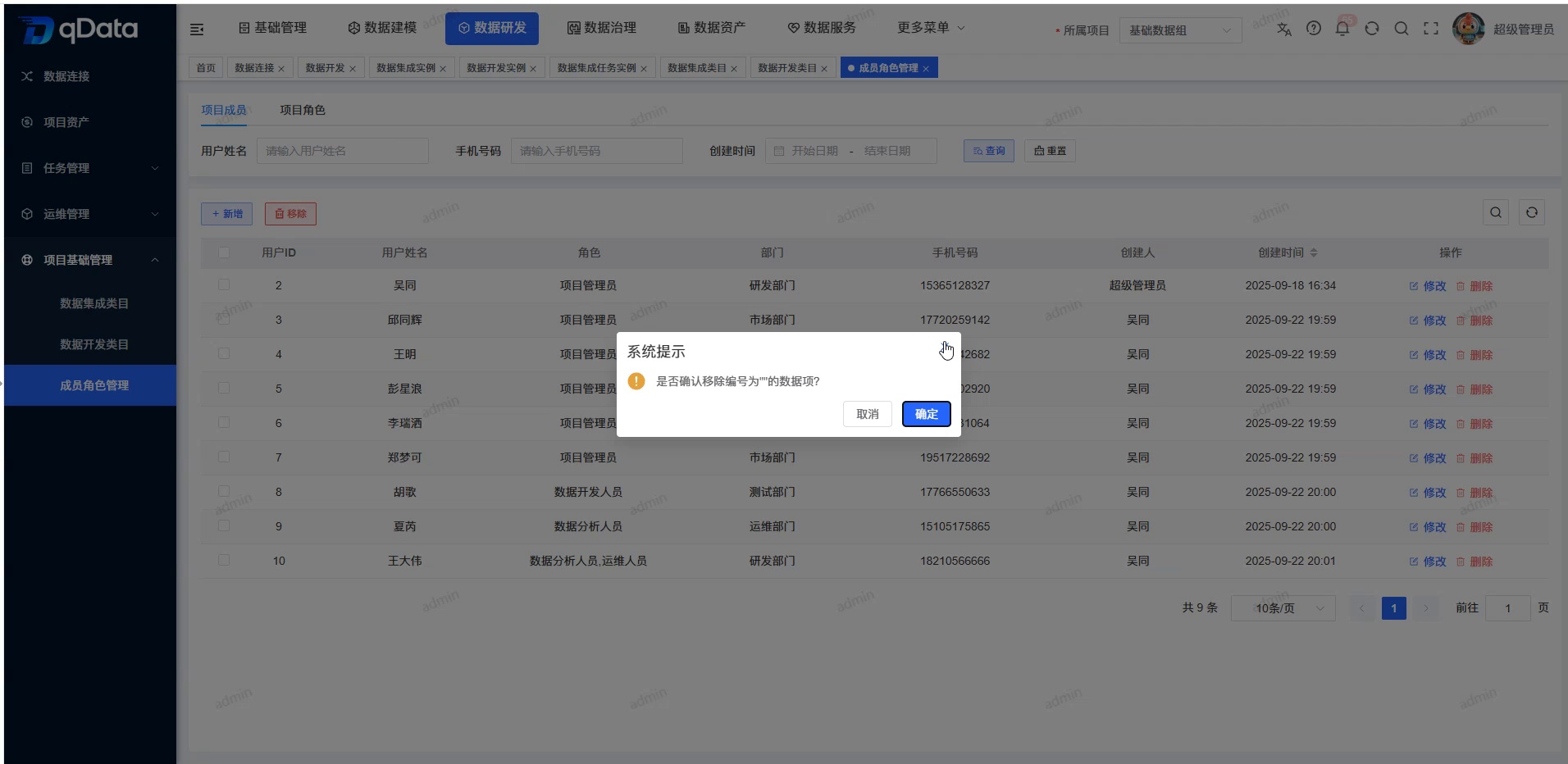
Removing a member only terminates the user's membership relationship with the current project and does not mean deleting the system user account.
FAQ
Why can’t I see optional users when adding new project members?
Please first confirm whether the target user has been created in [User Management], and check whether the query conditions limit the candidate range.Can project members be assigned multiple roles?
OK. User roles are displayed in the form of check boxes, and one or more roles can be selected based on the member's responsibilities.Will removing project members delete the user account?
will not. Removal only cancels the current project membership and does not delete the system user account.
Summarize
The project member page is used to view the current project members and their roles, departments, mobile phone numbers and creation information, and provides relevant entrances for adding, modifying, user selection and removal. When using it, you should focus on checking 's current project, system user, role backfill and removal scope.