
Data Development
Feature overview
Functional positioning
Data development is used to uniformly manage real-time and offline development tasks in the current project, and connect task query, addition, online configuration, scheduled operation and read-only details in series. The configured tasks can also be referenced by [Job Management] as nodes, and the running results are continued by details, execution history records, and operation and maintenance instances.
Simple understanding: First create a development task, then maintain SQL, running parameters and engine resources in the same task context, and finally confirm whether the task is executed as expected through status, scheduling and running records.
Usage suggestions
Before starting the operation, confirm the [Project] at the top and the target task name. It is recommended to follow the sequence of "Save basic information -> Configure development content -> Save task -> Online task -> Start scheduling"; after initiating [Execute Once], you need to continue to check the final status of the instance.
Main features
- Classification and combination query: Locate tasks by data development category, task name, task status, data connection type and processing type.
- Unified task creation: maintenance category, name, Cron scheduling cycle, executor type, development type, responsible person and description information.
- Quartzzz lightweight scheduling: Supports selecting Quartzzz executor when adding tasks, suitable for lightweight scheduling within the platform and regular offline development tasks.
- Configuration Conversion Workbench: Maintain the SQL or script, basic running parameters, data sources and SQL parameters of a single task in [Data Development Configuration Conversion].
- Display resources by type: Database tasks do not display engine resources; SparkSQL and Flink display their applicable resource fields respectively.
- Run and Status Control: Manage task status and scheduling status respectively, and provide scheduling cycle, execution once and conditional deletion entries.
- Upstream and downstream collaboration: Data development tasks can be referenced by jobs and run independently or with jobs to form traceable instances and logs.
Scope
This page provides a unified description of the data development master list, configuration transformation workbench, and task details, covering database classes, differences between SparkSQL and Flink tasks, and business boundaries for status, scheduling, instances, logs, and job references.
Preliminary steps
Preconditions
- Log in to the qData platform and switch to the project that requires development tasks.
- The current project has maintained data development categories, responsible persons and available data connections.
- The task name, scheduling period and valid SQL or script content have been prepared.
- If you need to use Quartzzzzz scheduling, please confirm that the platform scheduling service is normal.
- If you need to add the task to the job, confirm that the task has been saved and put the data development task online before the job goes online.
Navigation path
Data Development > Data Development
Page overview
After entering [Data Development], the left side is the data development category search and category tree; the right side provides task query, new addition, task list, run control, strategy and scheduling, row operations and paging. Each record can be entered into [Configuration Task] or [Details], or you can use the extended operations available for the current task from [More].
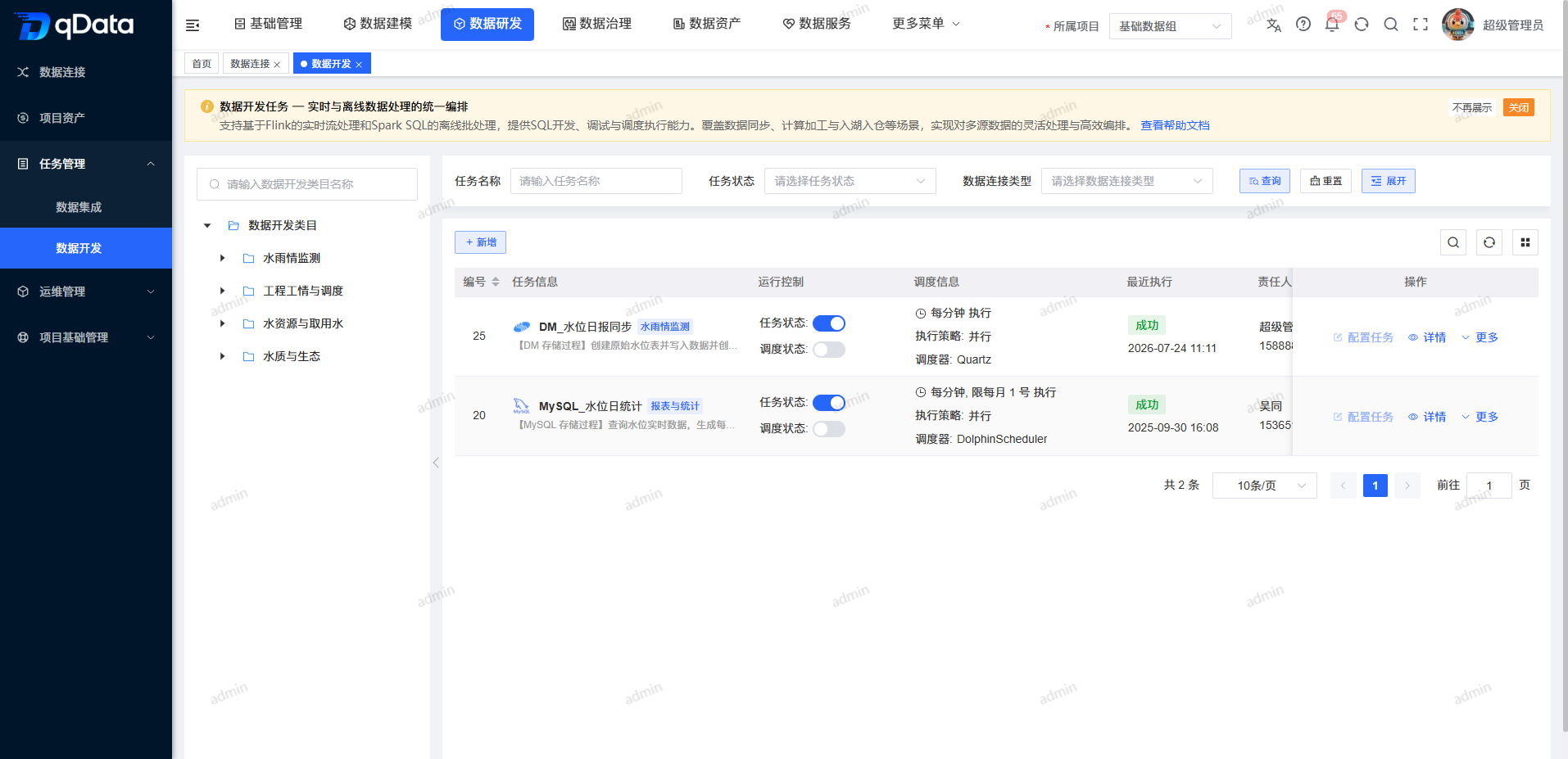
Recommended operating procedures
Create a task: Confirm the project and category -> Click [Add] -> Select the executor type Quartzzzzz or DolphinScheduler -> Fill in the basic information -> Configure the Cron cycle -> Save the task -> Return to the list to check the task.
Development configuration: Locate the target task -> Click [Configuration Task] to enter [Data Development Configuration Conversion] -> Check the task type and name -> Maintain SQL or script -> Configure running parameters and type-specific resources -> Click [Save Task] -> Confirm the results according to the page feedback.
Go online and schedule: Complete task configuration -> Go online -> Enable scheduling; when you need to go offline, first turn off scheduling and then go offline.
Single run: Click [More] > [Execute once] -> Confirm that the request has been accepted -> Enter details, execution history or operation and maintenance instance -> View the final status and failure log.
Functional operation instructions
Query and browse data development tasks
- Search or select the target data development category on the left.
- Enter the target name in Task Name.
- Select [Not Online] or [Online] in "Task Status".
- Select the target development type in "Data connection type".
- Select the processing type as needed, such as stream processing or batch processing.
- Click [Query].
- Check task information, run control, and policy and scheduling in the list.
- When you need to restore the default conditions, click [Reset].
Currently visible development types include DM8, Oracle, MySQL, Kingbase, DB2, OSCAR, Hive, SparkSql, Flink batch and Flink stream, etc. The specific options are subject to the system page.
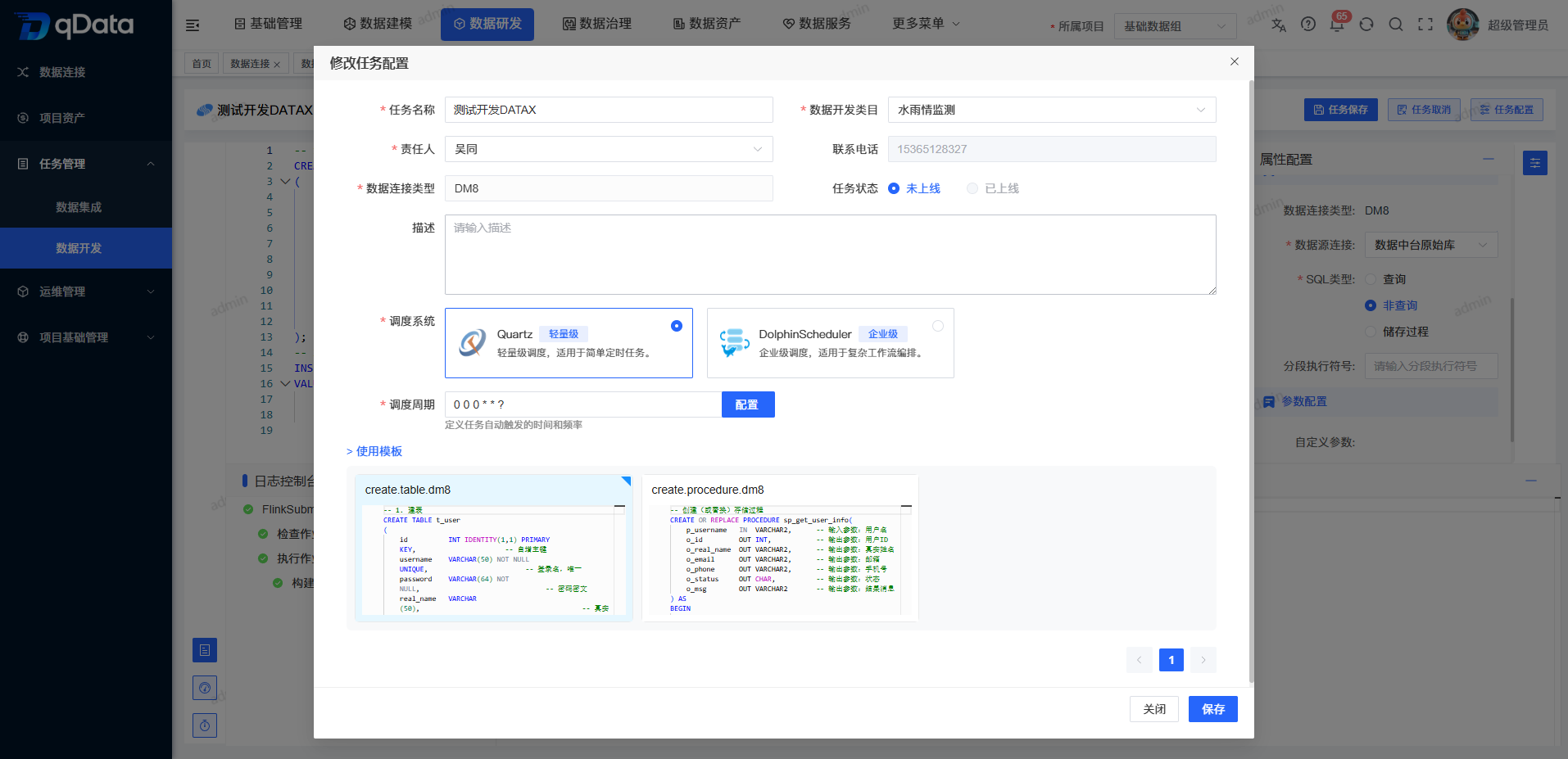
Added Quartzzzzz data development task
- Click Add above the list.
- Select the task category in "Data Development Category".
- Fill in a name for easy identification in "Task Name".
- Select Quartzzzzz (Lightweight) in Actuator Type.
- Click [Configuration] on the right side of "Scheduling Period" and set the Cron period.
- Select the development type in "Data connection type".
- Select the person responsible for the task in "Responsible person".
- Check the “contact number” displayed with the responsible person.
- Fill in the "Description" and "Remarks" as needed.
- Click [OK] or save to continue the configuration task.
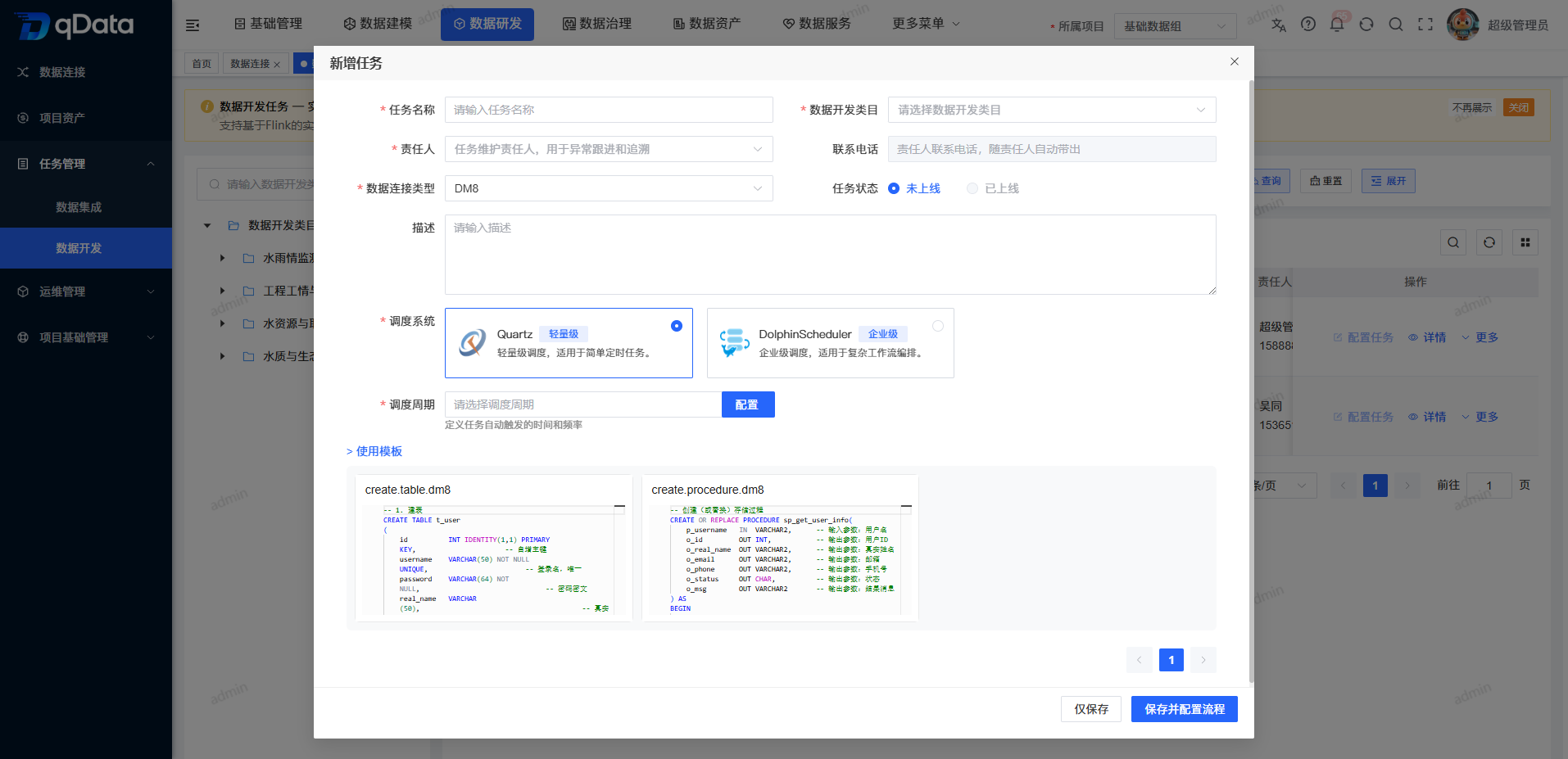
Basic information
| Field Name | Description | Required or not |
|---|---|---|
| Data Development Category | Select the project category to which the task belongs. | Yes |
| Task name | Fill in the identification name of the current task. | Yes |
| Executor type | Select the task scheduling executor, you can choose Quartzzzzz (lightweight) or DolphinScheduler (enterprise level). | Yes |
| Scheduling cycle | Open the Cron configurator through [Configuration]. | Yes |
| Data Connection Type | Select the development or execution type of the task. | Yes |
| Responsible person | Select the person responsible for the task. | Yes |
| Contact number | Read-only display with the responsible person. | No |
| Task status | The default is [Not Online] when adding a new task. | No |
| Description | Fill in the purpose of the task, the page provides a 500 character count. | No |
| Remarks | Fill in the supplementary description, the page provides a 500 character count. | No |
Quartzzz applicable scenarios
| Scene | Description |
|---|---|
| Lightweight periodic scheduling | Suitable for regular development tasks in the platform to run according to the Cron cycle. |
| Small and medium-sized offline tasks | Suitable for SQL or script-based tasks that do not rely on complex workflow orchestration. |
| Quick configuration verification | Simple configuration, easy to quickly create, save, go online and execute once. |
| Independent task running | Suitable for independent scheduling of single tasks without complex DAG dependencies. |
Added DolphinScheduler data development task
If a task requires enterprise-level scheduling, workflow capabilities, or more complex resource orchestration, you can select DolphinScheduler (enterprise-level) when adding a task.
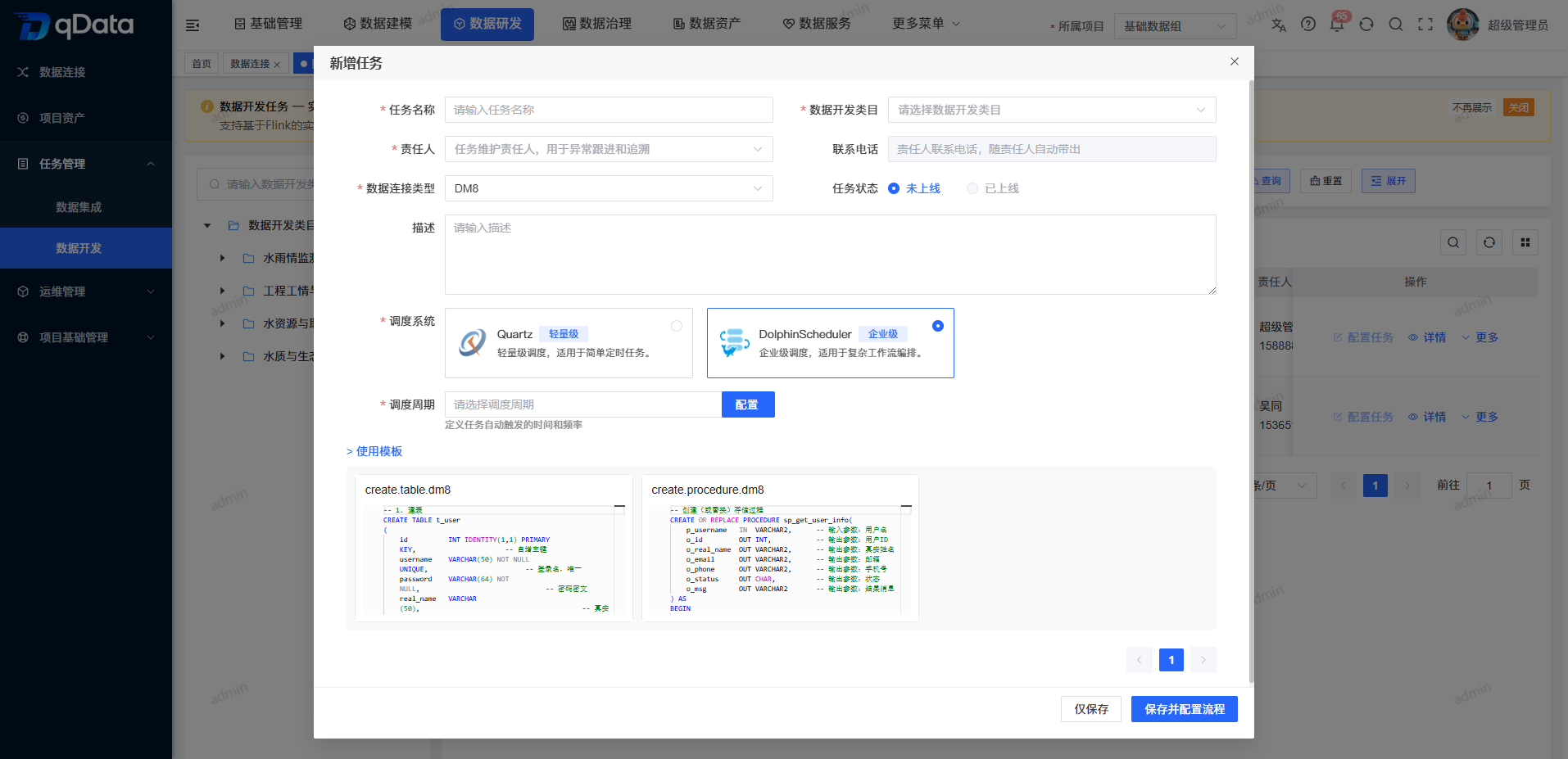
Configure scheduling cycle
- Click [Configure] next to the scheduling period in the new or modified task form, or click [More] > [Scheduling Period] in the target task row.
- Set the period on the "Seconds, Minutes, Hours, Days, Months, Weeks, Years" tab.
- Check the complete Cron expression.
- View the last 5 run times.
- Click [OK] to confirm the current expression, continue to save the task or current form, and then check the results.
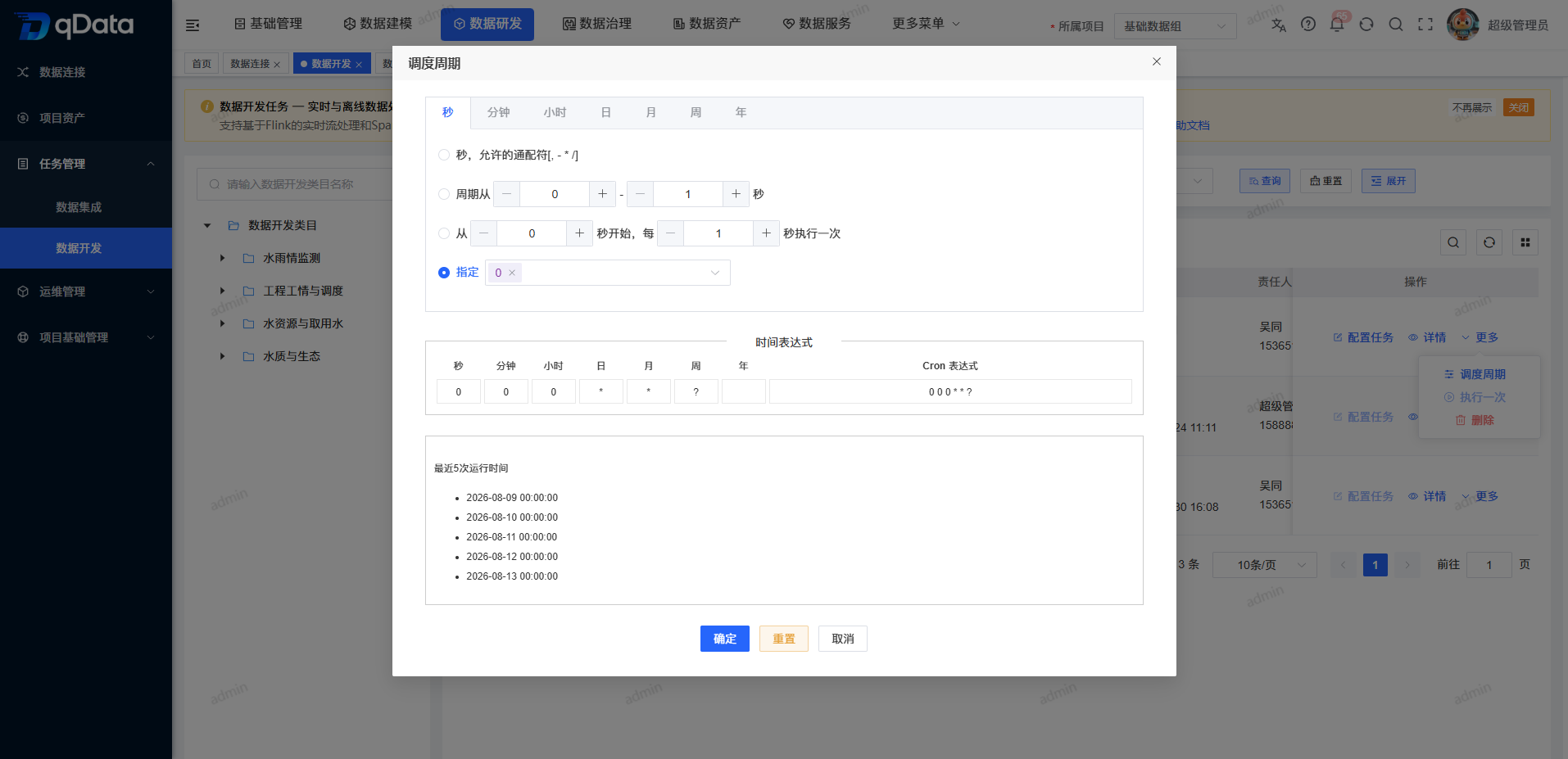
Scheduling order
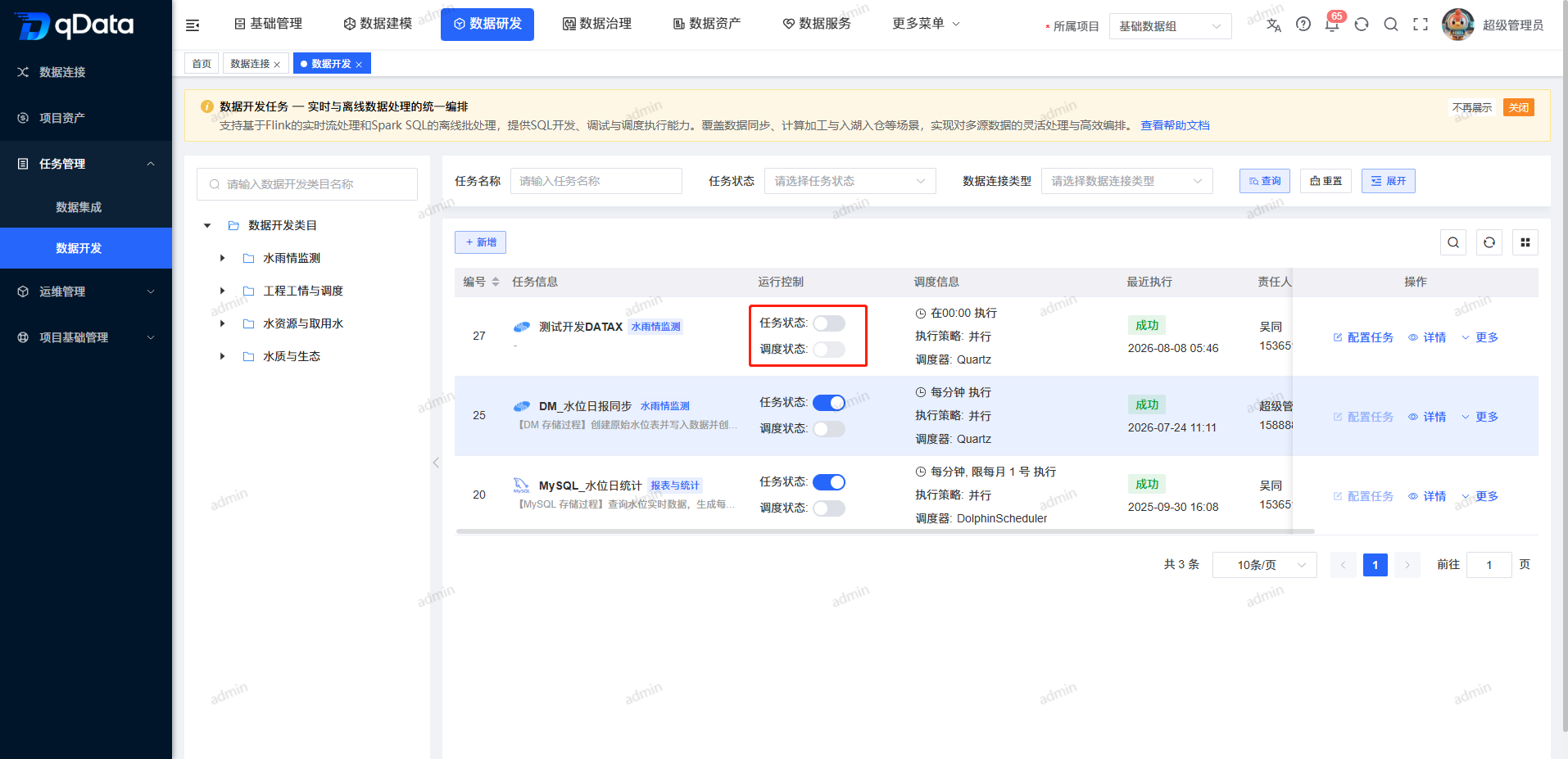
The task must be online first before the scheduling status is allowed to be turned on. When you need to take a task offline, you should first close scheduling; when you need to delete a task, you should first close scheduling and then take the task offline.
Enter the configuration conversion workbench
- Locate the target task in the list.
- Click [Configure Task].
- After entering [Data Development Configuration Conversion], check the task type icon and task name at the top of the page.
- View or maintain SQL and scripts in the Central Online Editor.
- Maintain operating parameters and type-specific fields in the property configuration on the right.
- Save the task configuration and confirm the results based on the page feedback.
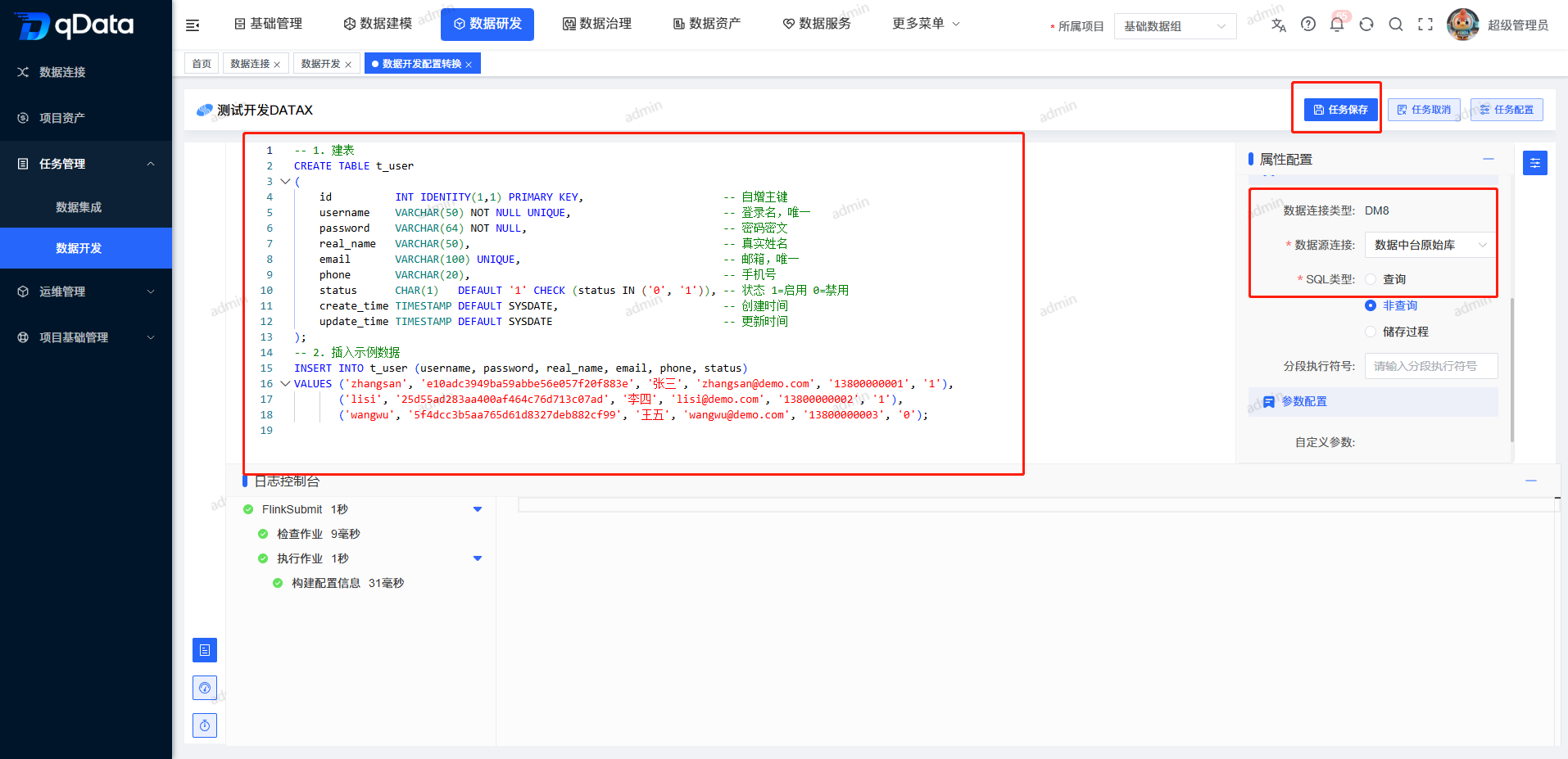
| Region | Current Content | Instructions for Use |
|---|---|---|
| Top task area | Task type icon, task name, [Task Save] [Task Cancel] [Task Configuration] | Confirm the editing object first; [Task Running] will also be displayed when it matches the current task status |
| Central editing area | Online editor with line numbers, syntax highlighting, folding, automatic word wrapping and prompts | View or maintain the SQL and scripts of the current task |
| Attribute configuration area on the right | [Basic Configuration] [Other Configuration] [Parameter Configuration] | Set general parameters, connection and SQL parameters, and display resource fields by task type |
| Bottom result area | [Log console] [Query results] [Execution history] | View development feedback of the current task |
Configure running parameters, data sources, and SQL parameters
- Check the task priority and Worker grouping in [Basic Configuration] on the right.
- Check the number of failed retries, failed retry intervals and delayed execution time.
- Expand [Other Configuration].
- Check the Read-only Data Connection Type and select the required Data Source Connection for the database task.
- Select [Query] [Non-Query] or [Store Procedure] in the required "SQL Type".
- Fill in the "Segmented Execution Symbol" as needed.
- Maintain parameter names, parameter types and values in [Parameter Configuration].
- When you need to add new parameters, click [Add Configuration Item].
| Field Name | Description | Required or not |
|---|---|---|
| Task Priority | Set task running priority. | Yes |
| Worker Group | Select the Worker group to use to run the task. | Yes |
| Number of failed retries | Set the number of retries after failure, the unit is "times". | Subject to page markup |
| Failure retry interval | Set the interval between adjacent retries, the unit is "minutes". | Subject to page markup |
| Delayed execution time | Set the delayed start time after scheduling, the unit is "minutes". | Subject to page markup |
| Data connection type | Read-only displays the development connection type of the current task. | Display |
| Data source connection | Select the data connection used by the current task. | Database task required |
| SQL Type | Select query, non-query, or stored procedure. | Database task required |
| Segmented execution symbol | Set the separation identifier for multiple independent SQLs. | Display by development type |
| Parameter configuration | Configure parameter names, types and values. | Display by development type |
Parameter types include VARCHAR, INTEGER, LONG, FLOAT, DOUBLE, DATE, TIME, TIMESTAMP, and BOOLEAN. The complete execution semantics, parameter reference syntax and all verification rules of the SQL type are subject to the actual page of the system.
Modify task configuration
Select the data development task that needs to be adjusted, click [Configure Task] in the operation column to enter the configuration page, or modify the basic information of the task, scheduling cycle, responsible person, remarks, etc. in the maintainable portal. When a task is online or scheduling is enabled, you should first turn off scheduling and take the task offline.
Manage task status, execute once and delete
- After completing the task configuration, open "Task Status" in the list.
- After the task goes online, enable "Scheduling Status" as needed.
- If you need to run it immediately, click [More] > [Execute Once].
- Check the request acceptance feedback.
- Enter details, execution history, or operation and maintenance instance to continue viewing the final status.
- When deletion is required, first close the scheduling status.
- Offline tasks.
- If the task has been referenced by a job, first dereference it in the related job.
- Click [More] > [Delete].
- Check the task in the secondary confirmation pop-up window and then confirm.
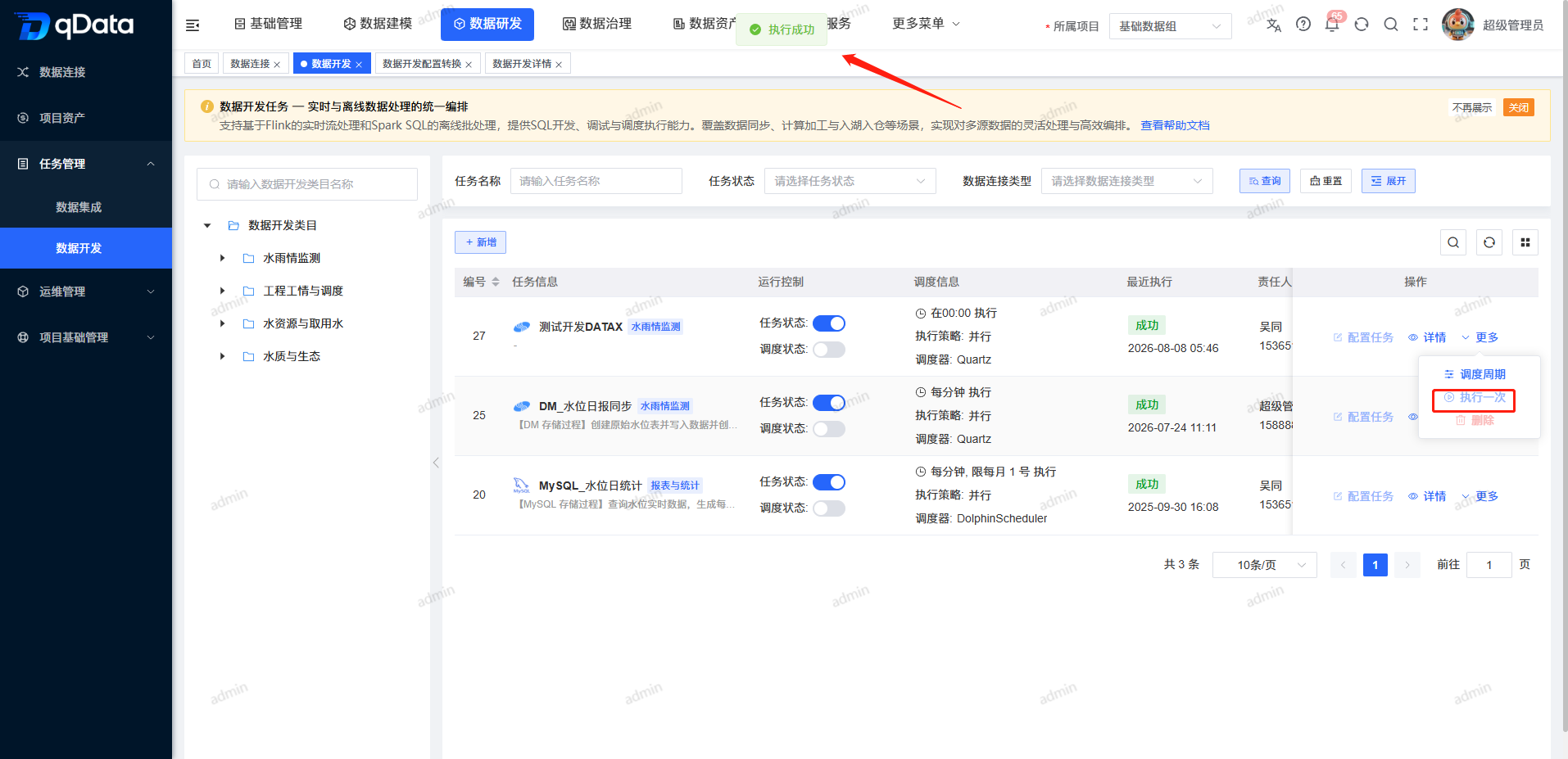
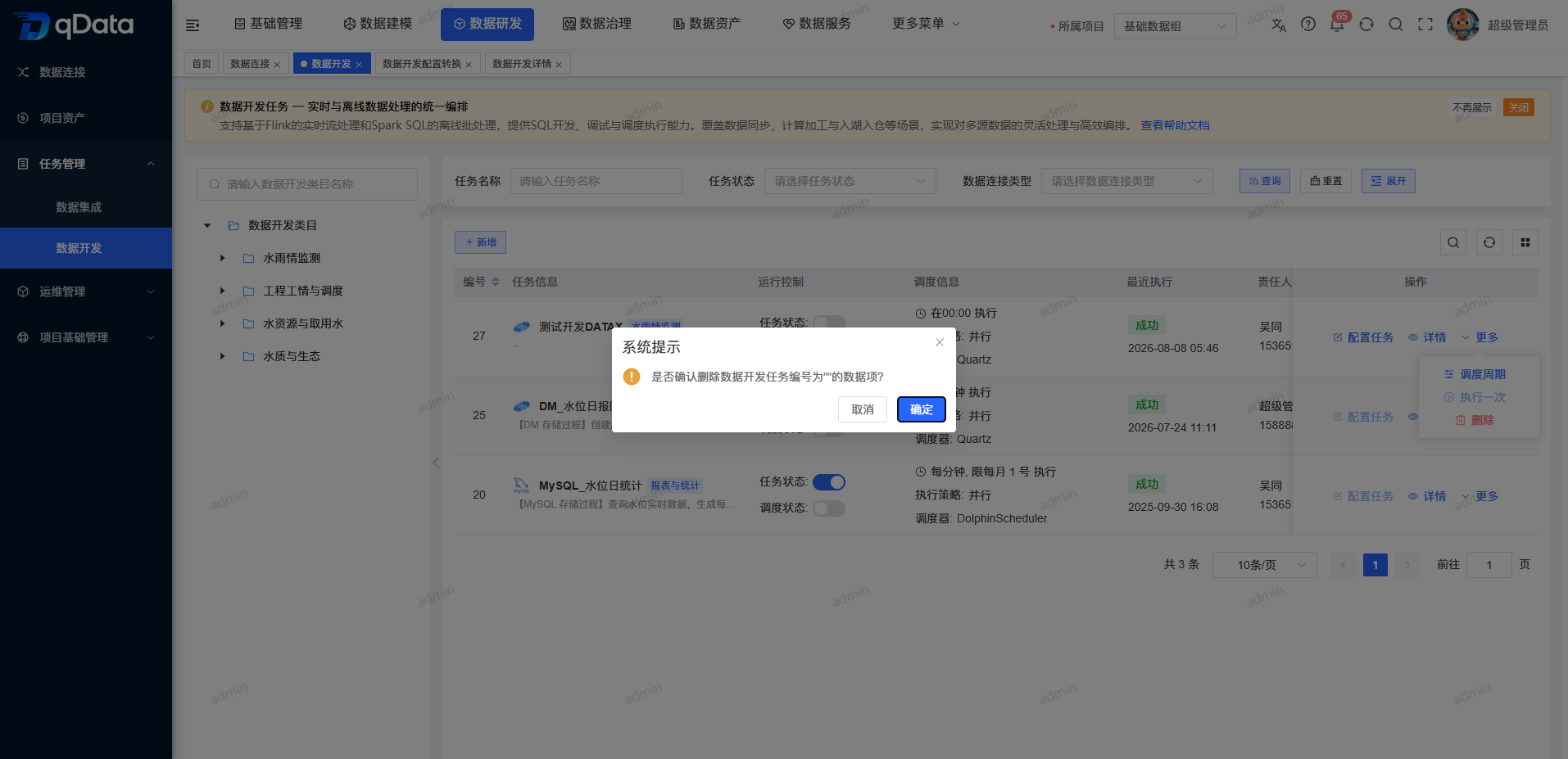
Tasks referenced by jobs cannot be deleted directly. You must first dereference them in related jobs. Historical instances that meet the existing status conditions can be rerun by the system's existing capabilities; the current data development list does not provide an available rerun entry.
View data development task details
- Click [Details] in the target task row.
- Check the task number, task name, task status, development category, data connection type and scheduling status at the top.
- View the saved SQL or script read-only on the [Development Details] tab.
- Switch to [Details].
- Check general operating parameters, scheduling information and recent execution results.
- Check the SparkSql or FlinkStream resource fields by task type.
- Click [Return] to return to the data development list.
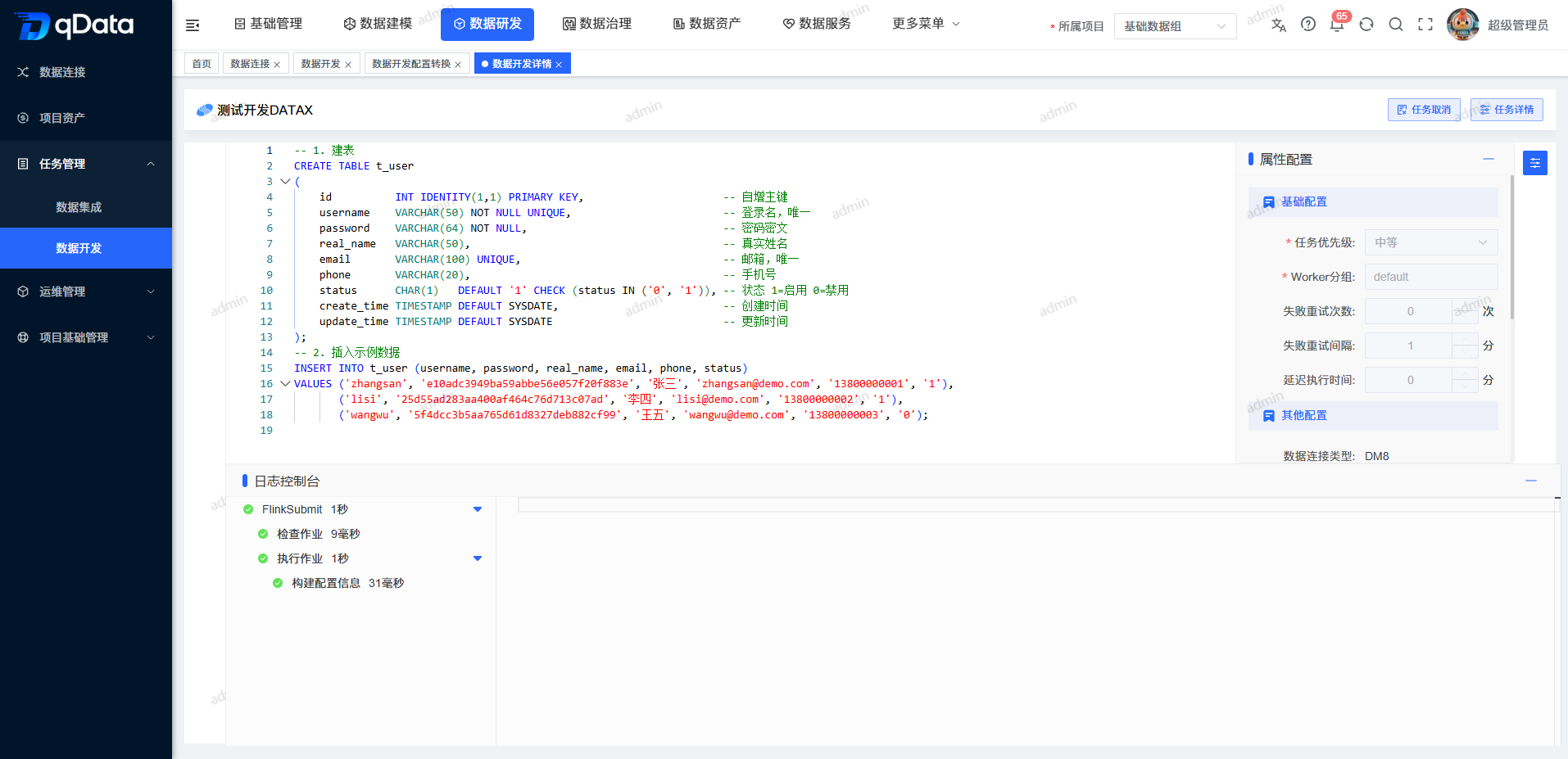
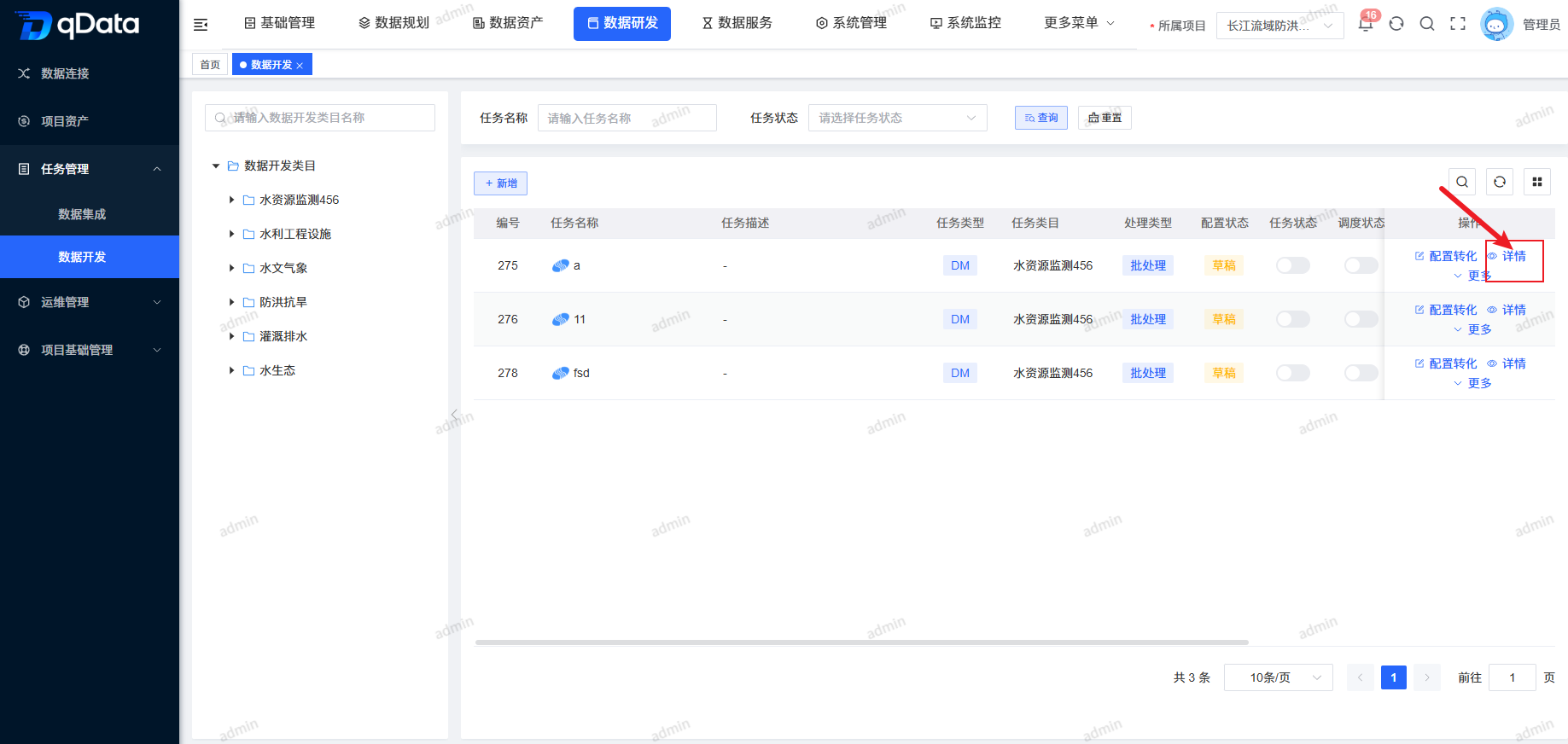
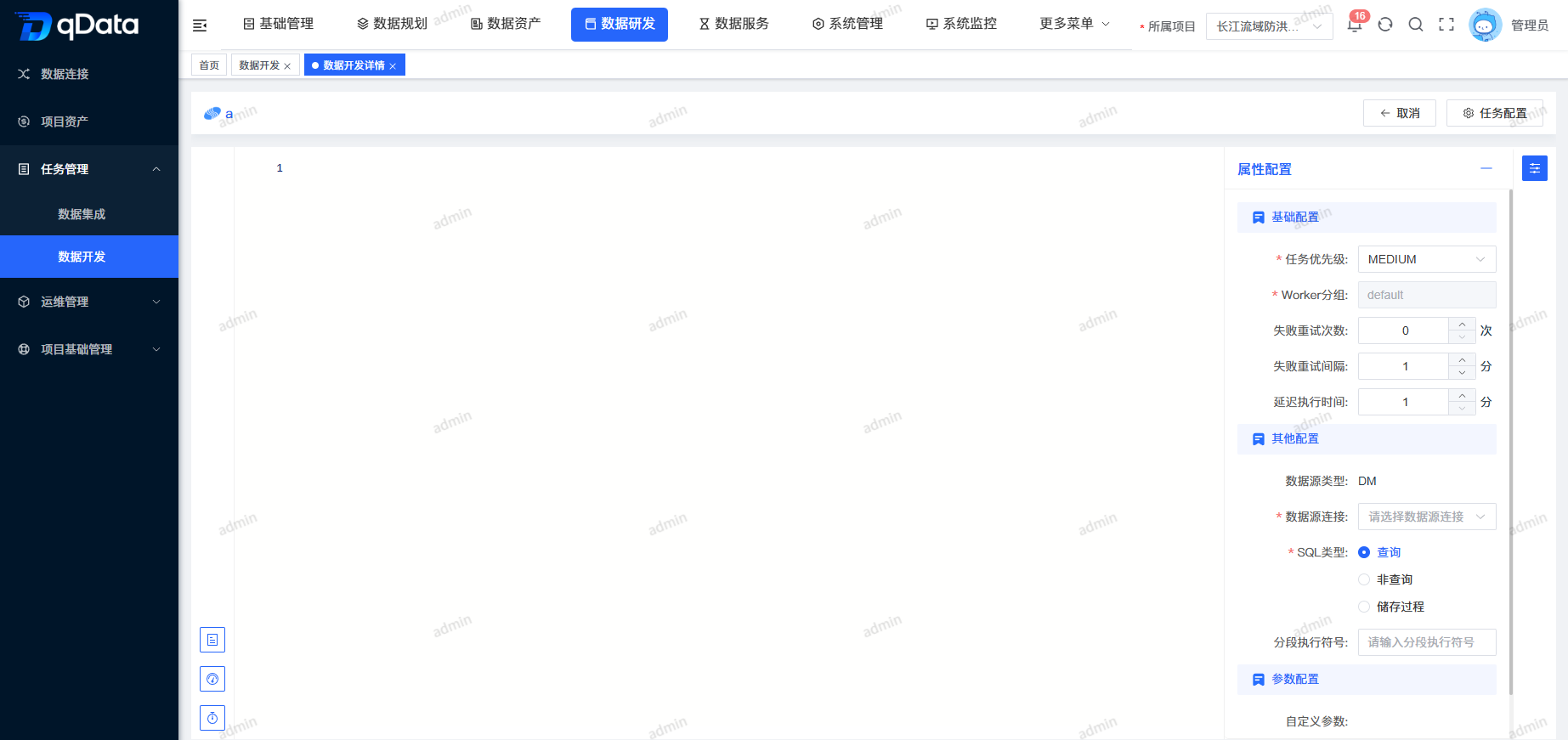
The details page is only for viewing and does not provide task saving, status switching, execution or debugging operations. The internal number or empty value in the details will only be displayed as it is on the page. Please do not directly interpret the internal value as the connection name.
Collaborate with job management and operation and maintenance management
- Save the target task in data development.
- Ensure that the data development task is online before the job goes online.
- Add it to the current job canvas in the [Job Management] task tree.
- Save job nodes and dependencies.
- After the job runs to the node, check the relationship between the parent job instance and the parent node in the running link; when you need to view or download the node log, go to [Operation and Maintenance Management] > [Data Development Instance] to locate the corresponding instance.
- When you need to delete a data development task, first dereference it from all related jobs.
The data development instance running with the job is associated with the parent job instance and parent node. Subsequent modifications to the task configuration will not overwrite the historical instance versions and running results that have been generated.
FAQ
Why can't the scheduling status be turned on?
Scheduling can only be enabled when the task is online. Please complete and save the task configuration first, then go online with the task, and then start scheduling.How to choose between Quartzzz and DolphinScheduler?
You can choose Quartzzz for regular lightweight periodic tasks; choose DolphinScheduler when you need complex workflows, enterprise-level scheduling or stronger task orchestration capabilities.What needs to be done before the task is offline or deleted?
Turn off scheduling before taking a task offline; before deleting a task, you must also ensure that the task is offline and not referenced by jobs. When being referenced, it should first be dereferenced in the relevant job.Why do SparkSql and FlinkStream see different resource fields?
Two types of tasks use different execution engines. SparkSql displays Driver/Executor resources, FlinkStream displays JobManager/TaskManager/Slot/parallelism, and database tasks do not display these two sets of fields.Where can I check the failure reasons and historical runs?
can first check the [Execution History] of the configuration page and the latest execution results in the details; if further troubleshooting is needed, check or download the node log in the data development instance of operation and maintenance management.
Summarize
Data development connects task query, new addition, configuration conversion workbench, type-specific resources, status scheduling, running instances and read-only details into a complete link. During operation, you should focus on checking the project to which belongs, target task, executor type, development type, task and scheduling sequence, save feedback and instance final status , and keep the upstream and downstream relationships intact when the task is referenced by the job.