
Data Integration Instance
Feature overview
Functional positioning
Data Integration Instance is used to centrally view runtime records generated by data integration tasks, and provides category retrieval, combined query, instance details, task flow, task logs, and log download capabilities.
In short: this is the runtime record center for data integration tasks. You can quickly confirm whether a task succeeded, then further view its flow and logs.
Usage suggestions
First confirm the current project, then narrow the scope by data integration category. After finding the target instance, verify execution status and time first, then enter Details or download logs when troubleshooting is needed.
Main features
- Combination positioning: Supports finding instances by data integration category, task instance name, execution status and execution date.
- Running Overview: Centrally displays instance number, execution type, status, start and end time, and responsibility information.
- Process View: View the task summary, process nodes and node status on the details page.
- Log acquisition: View read-only task logs, or download the
.logfile of the current instance. - List Assist: Supports displaying and hiding the query area, refreshing, displaying and hiding columns, and paged browsing.
Scope
This page is suitable for querying and troubleshooting already generated data integration instances. It is not used for creating, editing, deleting, rerunning, stopping or scheduling tasks.
Preliminary steps
Preconditions
- You have logged in to the qData platform and can enter the Data Development module.
- You have switched to the project space to be viewed.
- Data integration tasks have run and generated instance records.
Navigation path
Data Development > Operations Management > Data Integration Instance
Page overview
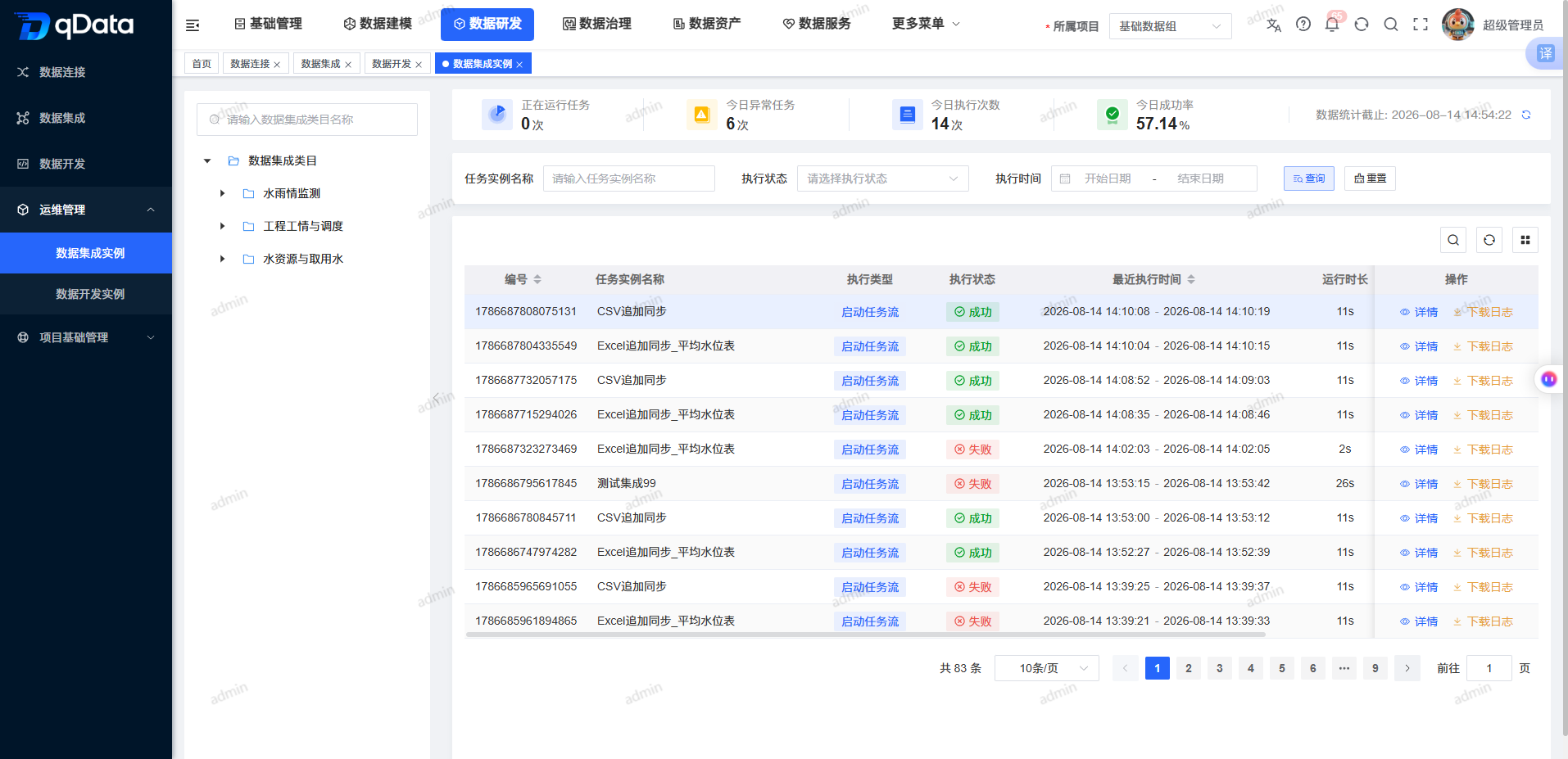
The left side of the page is the data integration category search and category tree, and the right side is the query area, instance list, list auxiliary control and paging area. Each instance record provides [Details] and [Download Log] entries.
Recommended operating procedures
Typical scenario: Select a data integration category -> enter query conditions -> click Query -> verify instance status -> enter Details to view flow or logs.
Troubleshooting: Confirm project and category scope -> view failed or stopped instances -> open Task Log -> return to the list to download logs if necessary.
Functional operation instructions
Query and reset instances
- Enter the category name fragment in the category search box on the left to filter the category tree nodes.
- Click the target data integration category, and the list will be refreshed according to the category and its subordinate categories.
- The top area displays instance runtime statistics, including running, today's exceptions, today's executions, and today's success rate.
- Enter a task instance name in the query area, or select execution status and execution date range.
- Click Query, and the list refreshes according to the current combined conditions.
- Click Reset to clear name, status, date, and category selection, restoring the default list.
View details and task flow
- Click [Details] in the target instance row.
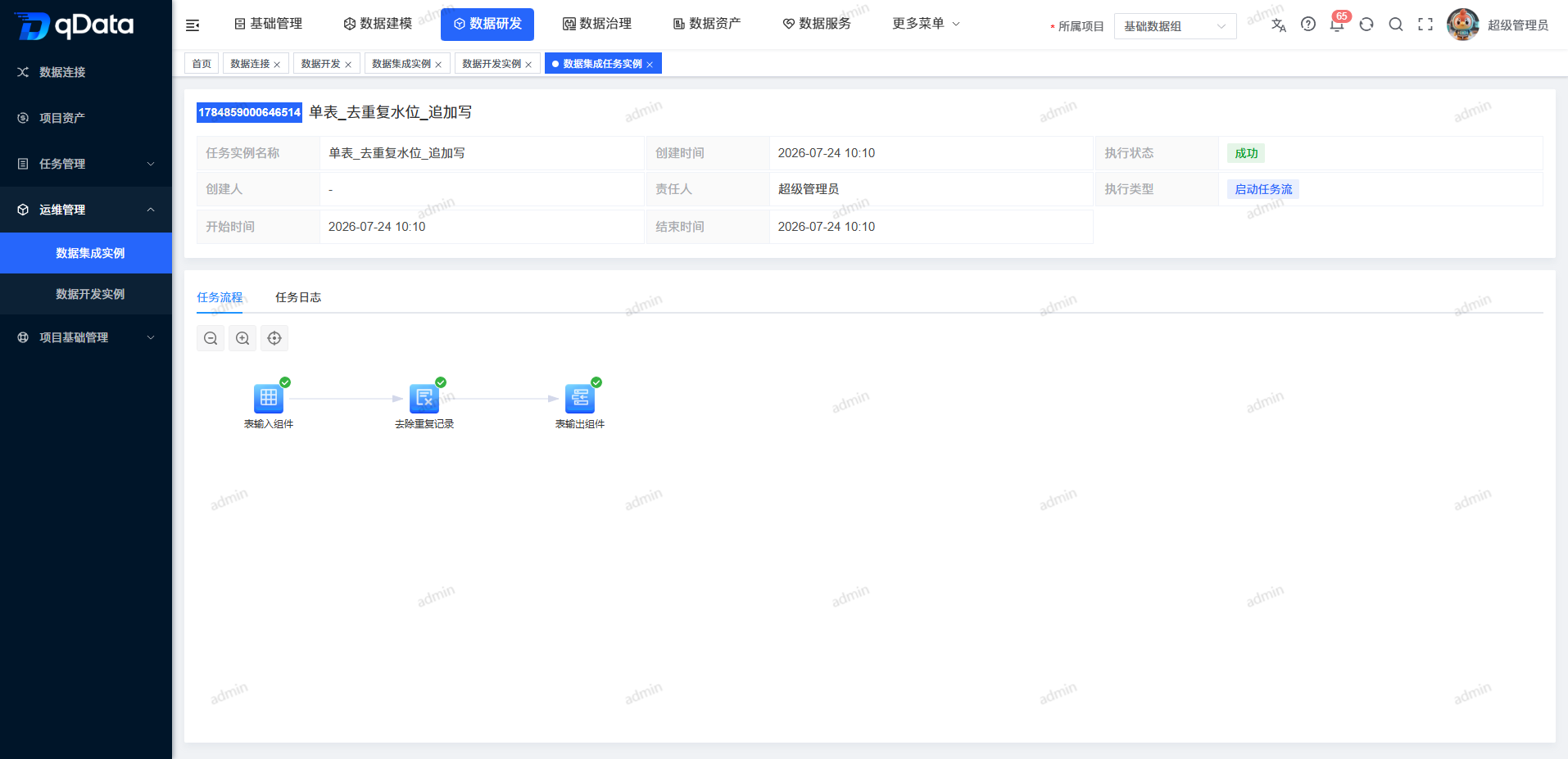
- Check the instance number, task name and execution status in the details title area.
- View the task instance name, creation time, creator, description, update time and remarks in the summary area.
- View the [Task Process] tab that is activated by default, and check the process nodes and status identifiers.
- Use the zoom out, zoom in, or reset perspective controls to adjust the process canvas.
- Click [Return] to return to the page before entering details.
View task log
- Enter the [Details] page of the target instance.
- Click the [Task Log] tab.
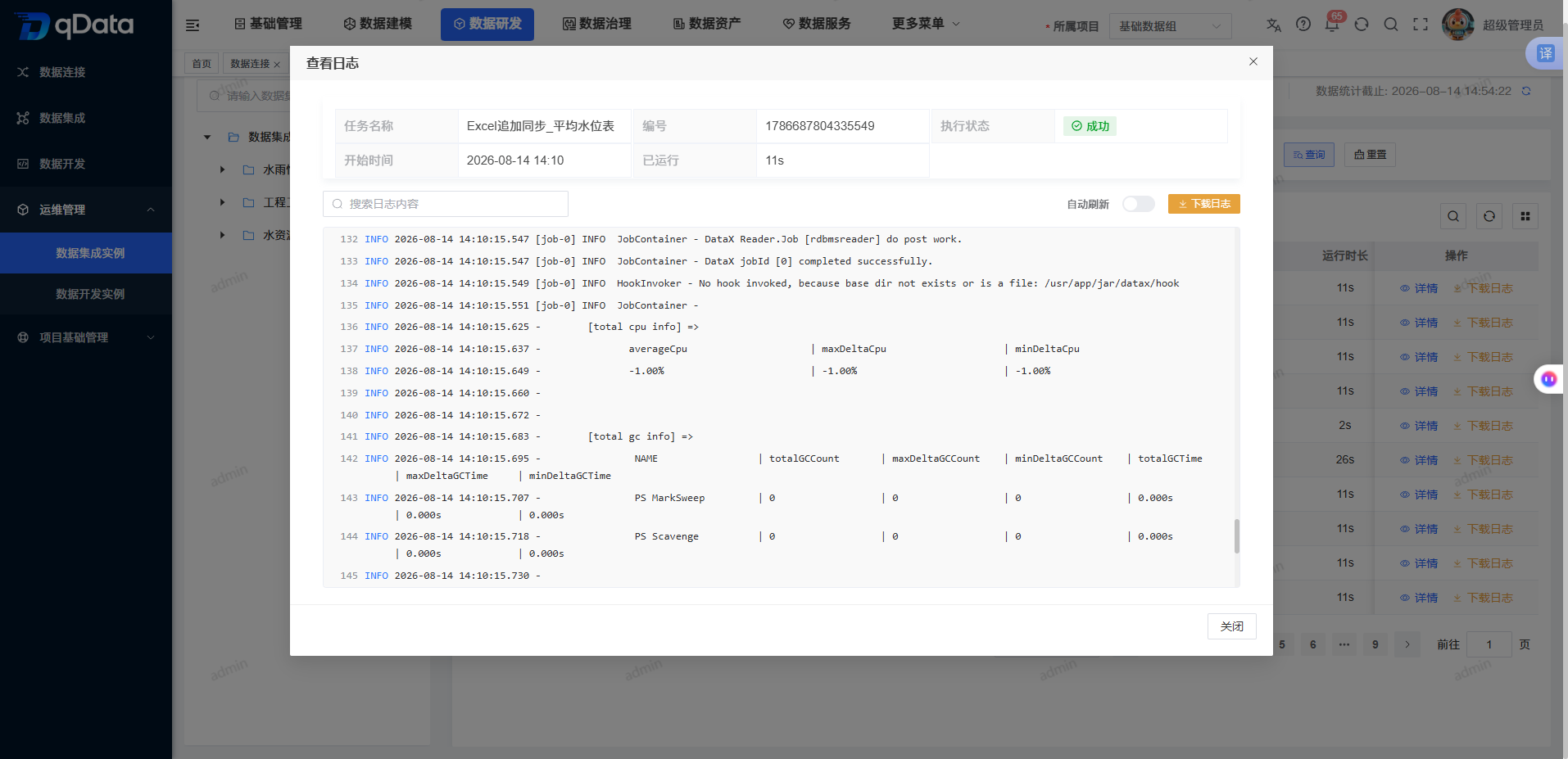
- View the read-only log content of the current instance.
- When the log is empty, the content area remains blank; this behavior does not mean that the page has failed to load.
- When the instance is in the running state, the log and process node status will be refreshed regularly; the refresh will stop after the instance enters the end state.
Download instance logs
- Return the list of data integration instances.
- Click [Download Log] in the target instance row.
- The page displays a download waiting prompt.
- After the download is successful, the browser saves the
.logfile named with the task instance name.
FAQ
Why is there no target instance in the query results?
First confirm the current project and data integration category scope, and then check the task instance name, execution status and execution date conditions; click [Reset] when you need to restore the default list.**How to name the log file?**The
download file has the task instance name as the main body and uses the.logextension.Can I rerun or stop the task on the instance page?
cannot. This page is only used for instance query, detailed viewing and log acquisition. It does not provide re-running, stopping or scheduling operations.
Summarize
The data integration instance page integrates category retrieval, running status, task process and logging capabilities into the same entrance. When using it, focus on checking the project, category, instance status and log object to ensure that you are viewing or downloading the target operation record.