
Standard data element categories
Feature overview
Functional positioning
Standard data metacategoriesare used for data planning by data owners to organize the classification structure of standard data elements through a tree directory. Users can complete category query, hierarchical browsing, top-level category addition, subcategory addition, modification, status control and deletion operations on the same page.
Simple to understand: The directory maintained here is the "What type of standard data elements are placed in", not the specific standard data element content; the parent category determines the hierarchy, the ordering value determines the display order, and the status determines whether the category can continue to be displayed and selected in other reference locations.
Usage suggestions
It is recommended to delete after -> checking the full subtree reference by -> https://qiantong.tech querying and locating the -> expand confirmation hierarchy -> adding or modifying the check status. When adding a subcategory, first check the parent category that the system automatically backfills.
Main features
- Tree display: Presents the parent-child hierarchy of standard data element categories through node arrows and indentation.
- Conditional positioning: The name uses fuzzy matching, and the upper-level category query includes the descendants of the selected node.
- Double entry new: Toolbar [New] is used to add top-level categories, and inline [New] is used to add subcategories under the current node.
- Field backfill: Backfill the superior category, name, status, sorting, description and remarks of the current category when modifying.
- Flexible level: Category names are allowed to be repeated, the maximum level is not set for subcategories, and the upper category can be adjusted for existing categories.
- Reference Protection: Recursively check the references of the target category and its complete subtree before deletion.
Scope
This page only maintains the classification structure of standard data elements, does not maintain specific standard data elements, and does not establish or maintain the binding relationship of specific business objects on this page. Enable categories to be displayed and selected in other reference locations; disable to remove only from the visible, selectable range of other reference locations, without deleting the current category, existing historical data, or child nodes.
Preliminary steps
Preconditions
- You have logged in to the qData platform and can access the [Basic Management] module.
- It has been confirmed that there is a need to plan the standard data meta classification and its parent-child relationship.
- To be added or modified, the category name, status, sorting and description information have been prepared.
- To delete the parent category, the citation of the target and all descendants categories have been checked.
Navigation path
Basic management > Category management > Standard data source category
Page overview
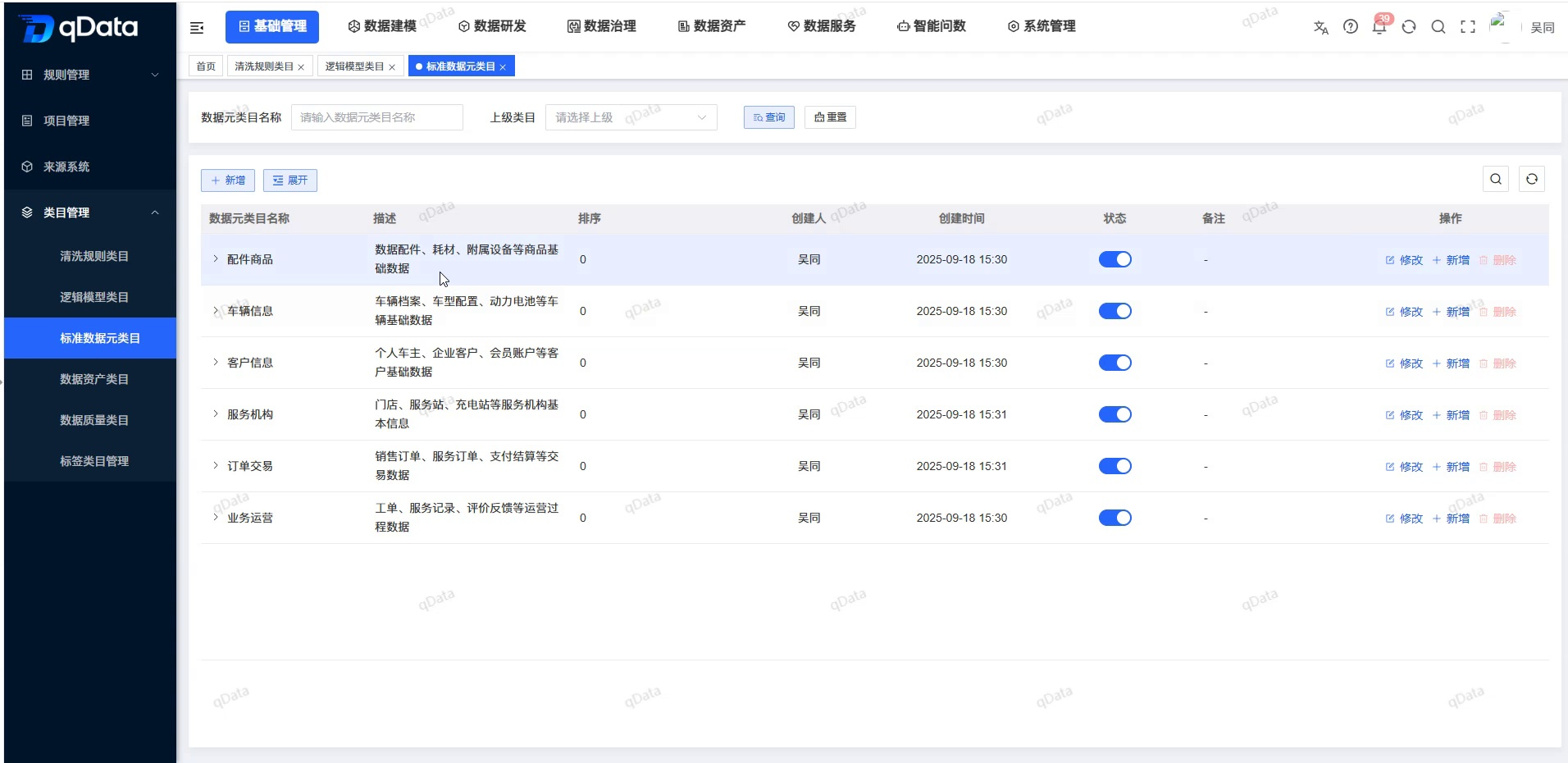
After entering the [Standard Data Element Category], provide the "Standard Data Element Category Name" "Parent Category", [Query] and [Reset] at the top of the page; the toolbar provides [New] [Delete] [Expand]. The list shows the standard data element category name, description, status, sorting, notes, creator, creation time, and action entry in a tree structure.
The page shows top-level categories such as "flood control and drought relief", "water resource management", "soil and water conservation", "rural water conservancy", "river and lake management" and "hydrological monitoring".
Recommended operating procedures
Find category: Enter the name keyword or select the parent category -> Click [Query] to -> expand the target node to -> check the hierarchy and sort.
Classification: Click [New] in the toolbar when adding a top-level category; click [New] in the target row when adding a sub-category -> Check the parent category -> fill-in field -> Click [OK] to initiate the submission.
Adjustment classification: Click the target line [Modify] to -> check the current field -> Adjust the parent category, name, status, sorting or description -> Click [OK] to initiate the submission.
Deactivation or deletion: Check the usage -> status of other locations Adjust and check the actual switch Recursively check the full subtree reference -> before -> deleting to decide whether to continue.
Functional operation instructions
Query standard data element categories
- Enter the name keyword in the Standard Data Meta Category Name.
- Select Parent Category as needed.
- Click [Query] to view the matching records.
- To reset the conditions, click [Reset].
The name is a fuzzy match; after selecting the parent category, the query results include the descendant category of the selected node. The lower the sort value, the higher the record; the order is not fixed when the sort value is the same.
View category hierarchy
- Locate the parent category with children in the list.
- Click the expand arrow in front of the node.
- View the indented subcategories displayed under the parent category.
- If you need to confirm the specific node, use the node front arrow to view it step by step; the unified expansion or collapse rule of the toolbar [Expand] is not fixed.
After expanding "Flood Control and Drought Relief", you can see sub-categories such as "Flood Forecast", "Flood Control and Dispatch", "Drought Monitoring", "Rescue and Disaster Relief", and "Drought Relief Measures".
Added top-level standard data meta categories
- Click [New] on the toolbar.
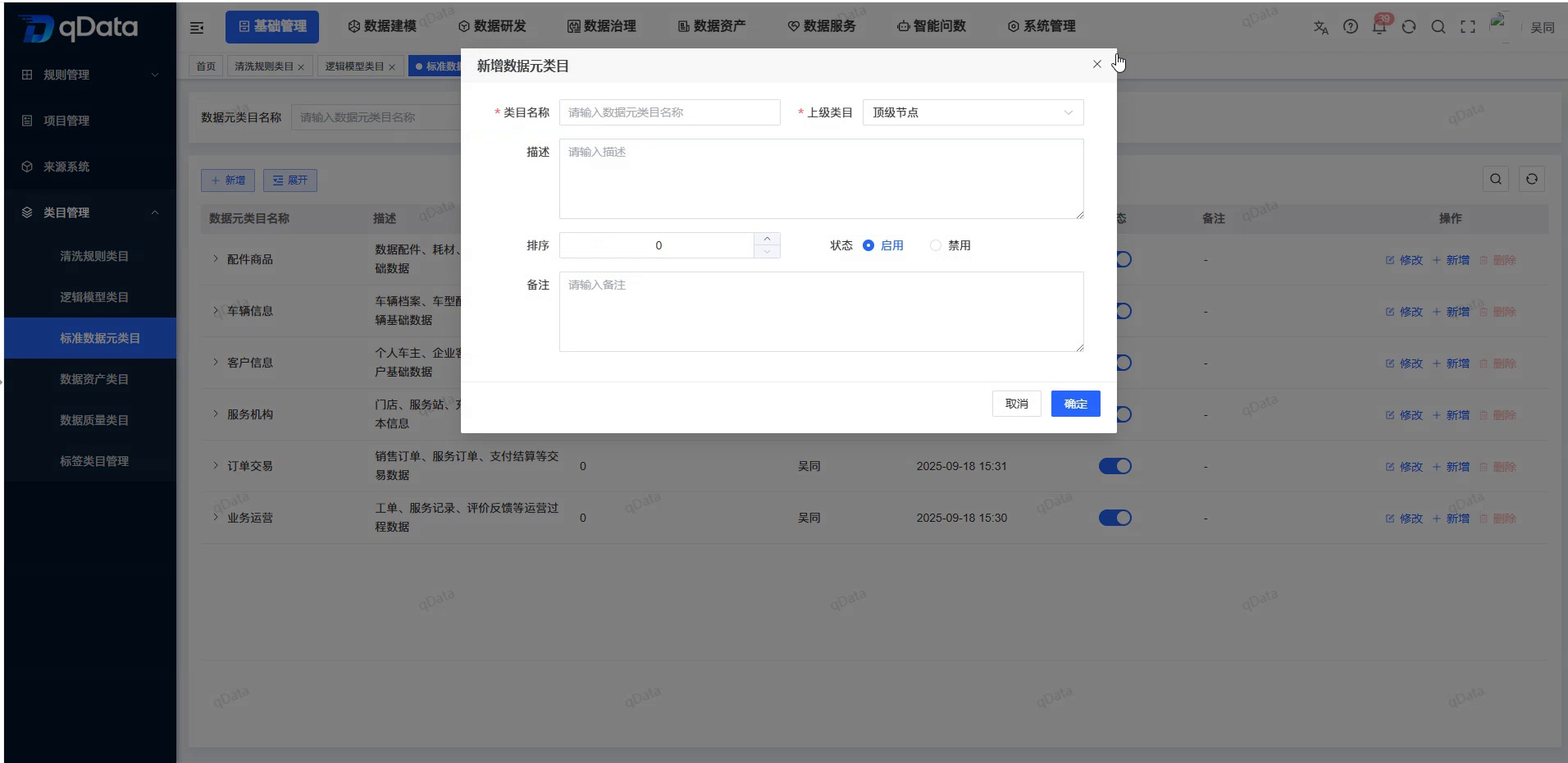
- Check that the parent category is "Top Level Node" in the "Add Standard Data Meta Category" pop-up window.
- Fill in the standard data element category name.
- Set status, sorting, description, and notes as needed.
- Click [OK] to initiate the submission, or click [Cancel] to exit.
Add Standard Data Element Subcategory
- Expand the tree list and locate the target parent.
- Click [Add] on the target row.
- Check the parent category in the Add Standard Data Meta Category pop-up window.
- Fill in the subcategory name and other information.
- Click [OK] to initiate the submission, or click [Cancel] to exit.
When added from the "Water Management" line, the parent category is automatically backfilled with "Water Management". The page supports continuing to add subcategories under any existing category without setting a maximum hierarchy.
Modify Standard Data Meta Category
- Click [Modify] in the target category row.
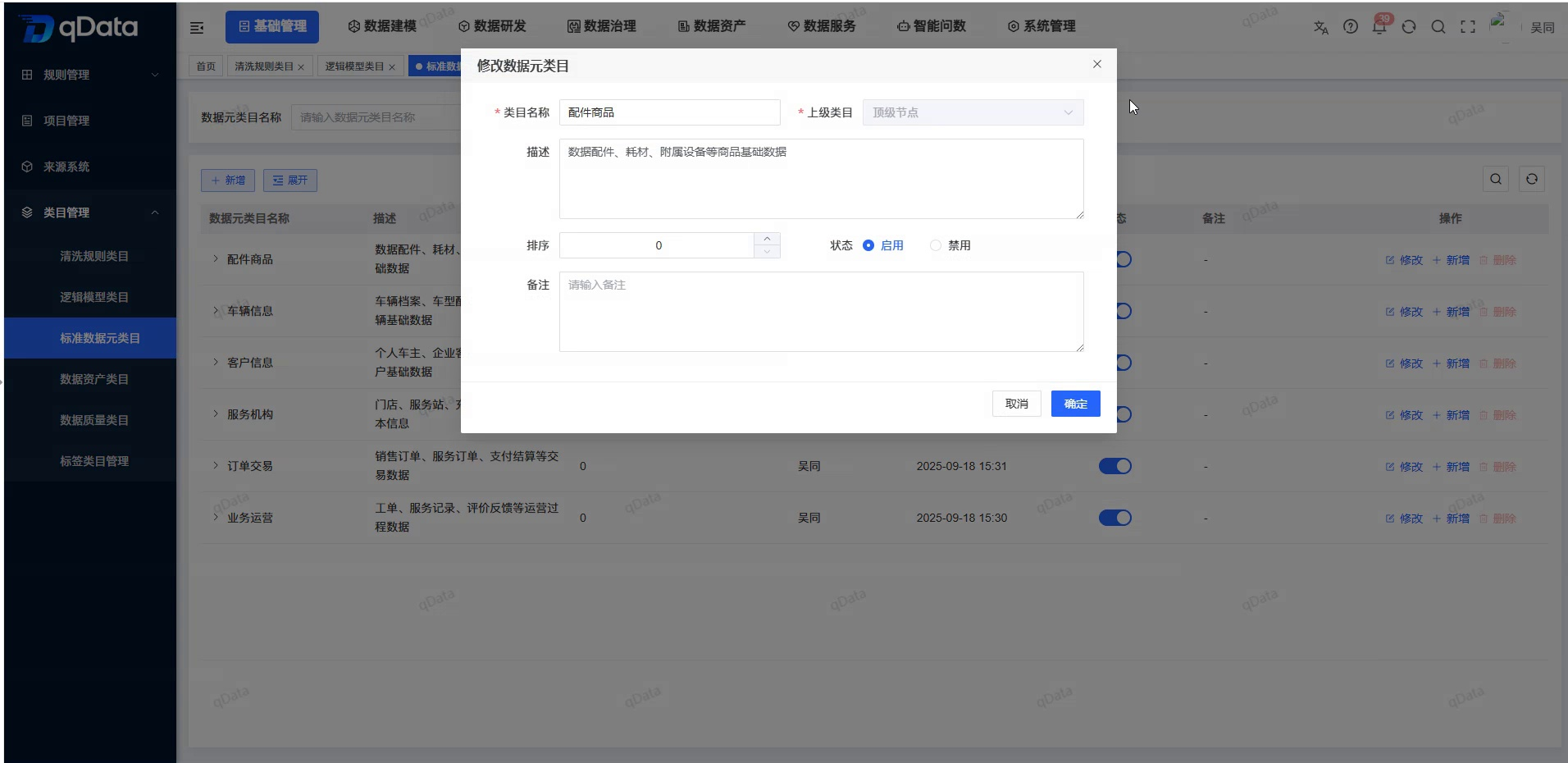
- Check the parent category, name, status, sorting, description and notes of the pop-up backfill.
- Adjust the fields as needed.
- Click [OK] to initiate the submission, or [Cancel] to exit.
In the modified example of "soil and water conservation", the parent category is backfilled with "top-level node", the status is enabled, the order is 0, the description is "soil and water loss prevention and control monitoring data", and the note is empty.
Set category status
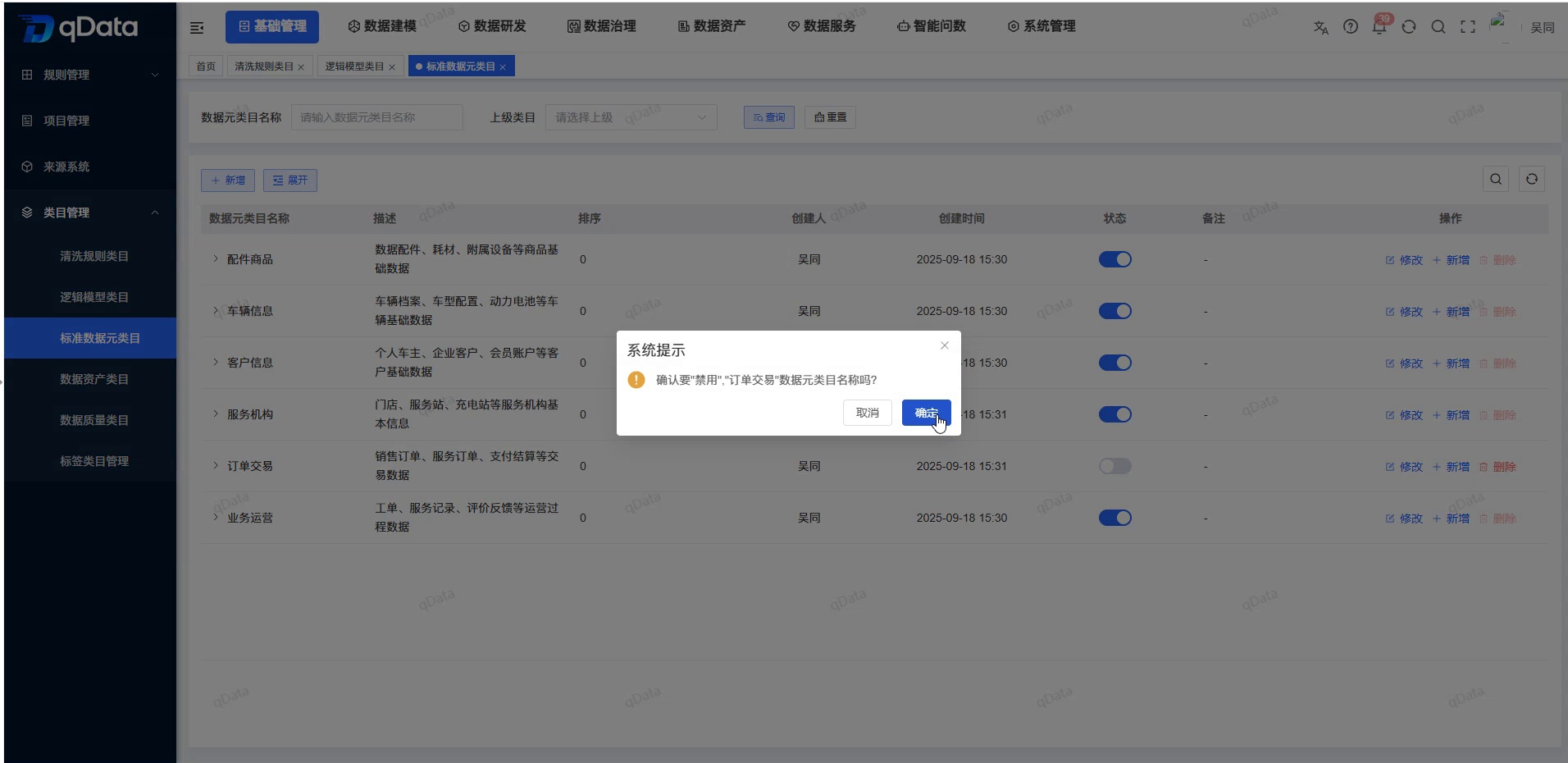
- View the current switch status in the Status column of the target record.
- To adjust the state, use the current line switch to initiate the enable or disable operation.
- Subject to the actual feedback on the page, and check the switch display of the target record.
The effect of the state on other locations is as follows:
- Enable: Categories can be displayed and selected in other reference locations or pages.
- Disabled: The category no longer appears in the visible and selectable scope of other reference locations or pages.
- Data retention: Disabling it will not delete or modify the current category and existing historical data, nor will it cascade change parent-child nodes or other objects.
Delete Standard Data Meta Categories
Delete a single record
- Locate the category that needs to be deleted.
- Check the citation of the target category and all its descendants.
- Click [Delete] on the target row.
- Check the processing object and refer to the actual feedback on the page.
Toolbar delete entry
The first column of the list provides a selection box, and the toolbar provides [Delete]. When no record is selected, the toolbar [Delete] is displayed as inoperable; the specific processing results after checking the record are subject to the actual feedback on the page.
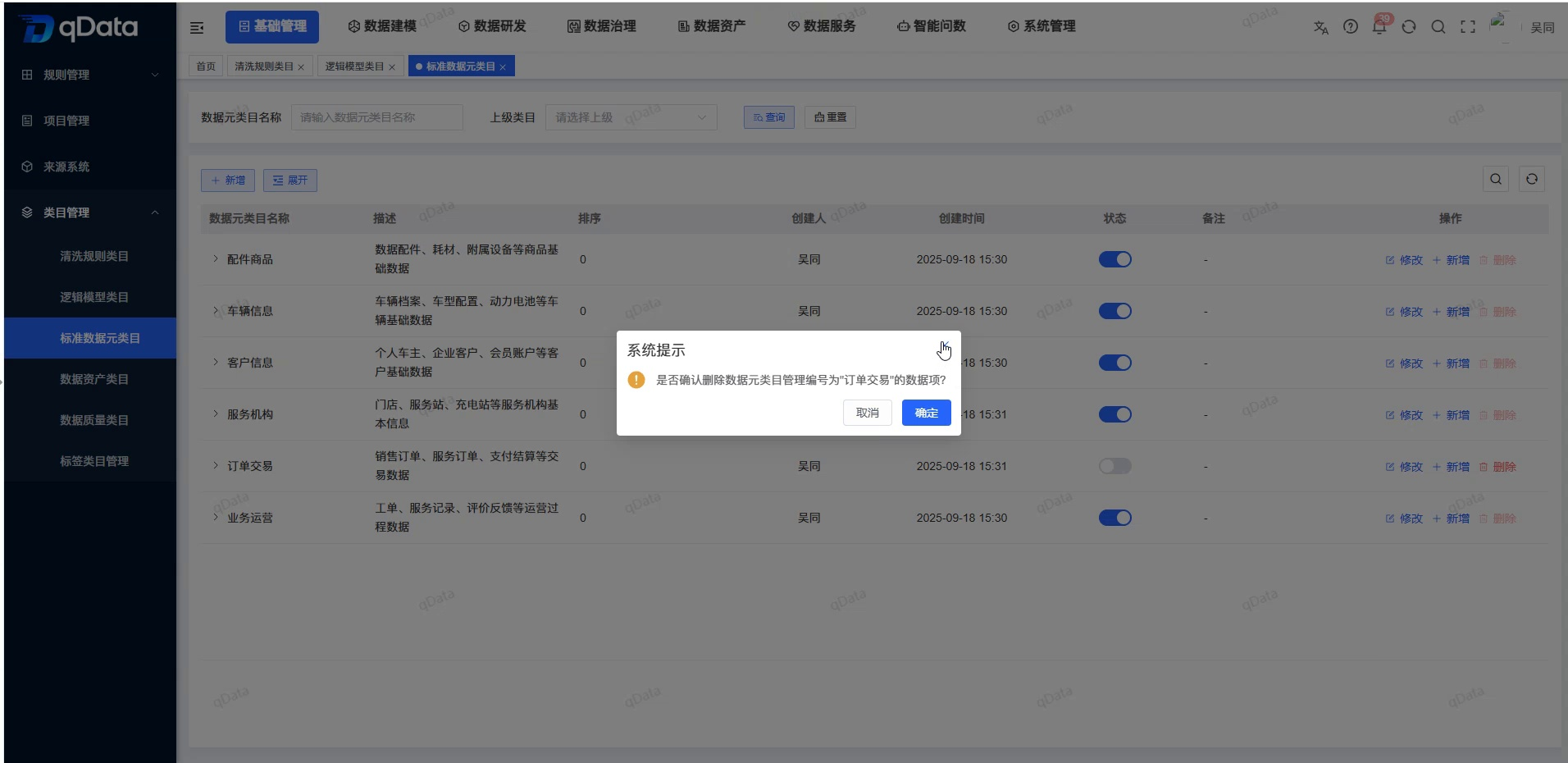
Before deletion, the system recursively checks for references to the target category and all its descendants:
- When any node has a reference, the entire deletion will not be performed, and the target category and complete subtree will be retained.
- When there is no reference to the target category or the complete subtree, deleting the parent category will cascade delete all descendant categories.
FAQ
Can standard data element category names be repeated?
OK. Names are not checked for uniqueness, and duplicate names can appear at the same level or at different levels.What is the difference between toolbar [Add] and inline [Add]?
toolbar [New] is used to add a top-level category; inline [New] is used to add a subcategory under the current node, and automatically backfills the current node as the superior category.**What are the restrictions when adjusting parent categories?**The current rules of
do not limit the target node, including itself or any descendant node, and do not perform loop mount verification. The tree relationship should be carefully checked before adjustment.**Why can't standard data element categories be deleted?**The
system will check the references of the target category and all descendant categories; when there is a reference to any node, the complete subtree will be retained.
Summarize
The key to maintaining a standard data element category is to check the reference relationship between the https://qiantong.tech parent category, tree hierarchy, sorting, status, and the full subtree at the same time. Be aware that name fuzzy matches and parent categories contain descendants when querying; confirm the parent-child hierarchy when adding or modifying; pay attention to the visibility of other locations when disabling; check the full subtree before deleting to avoid affecting the taxonomy structure that is still in use.