
Source System
Feature overview
Functional positioning
Source system is used to uniformly register which business system, collection layer, processing layer, application layer or service data comes from, and maintain business files such as system type, person in charge, docking person, sorting and status, and provide source attribution information for data access, data governance, data assets and data services.
Simple understanding: The data connection explains "how the platform accesses the data", and the source system explains "which system this data belongs to and who is responsible for it".
Usage suggestions
When adding a new source system, it is recommended to confirm the business name and system type first, then select the person in charge, the docking person, and set the sorting. Since system names are allowed to be repeated, records with the same name should be distinguished based on the system type, person in charge, and docking person.
Main features
- Unified registration of source files: Centrally maintain system name, system type, person in charge, docking person, description and remarks.
- Six types of fixed system types: The system type includes business system, data collection layer, data processing layer, data application layer, data service (API) and report application.
Scope
This page is suitable for querying, adding, modifying, status setting, detail viewing and deletion of the source system. The page maintains business source files, does not maintain IP, port numbers, accounts or passwords, and does not configure downstream tasks such as metadata collection and data research and development.
Preliminary steps
Preconditions
- Log in to the qData platform and enter [Basic Management].
- The source system name and system type have been prepared.
- If you need to specify responsibility information, the person in charge and the docking person have been confirmed.
Navigation path
Basic Management > Source System
Page overview
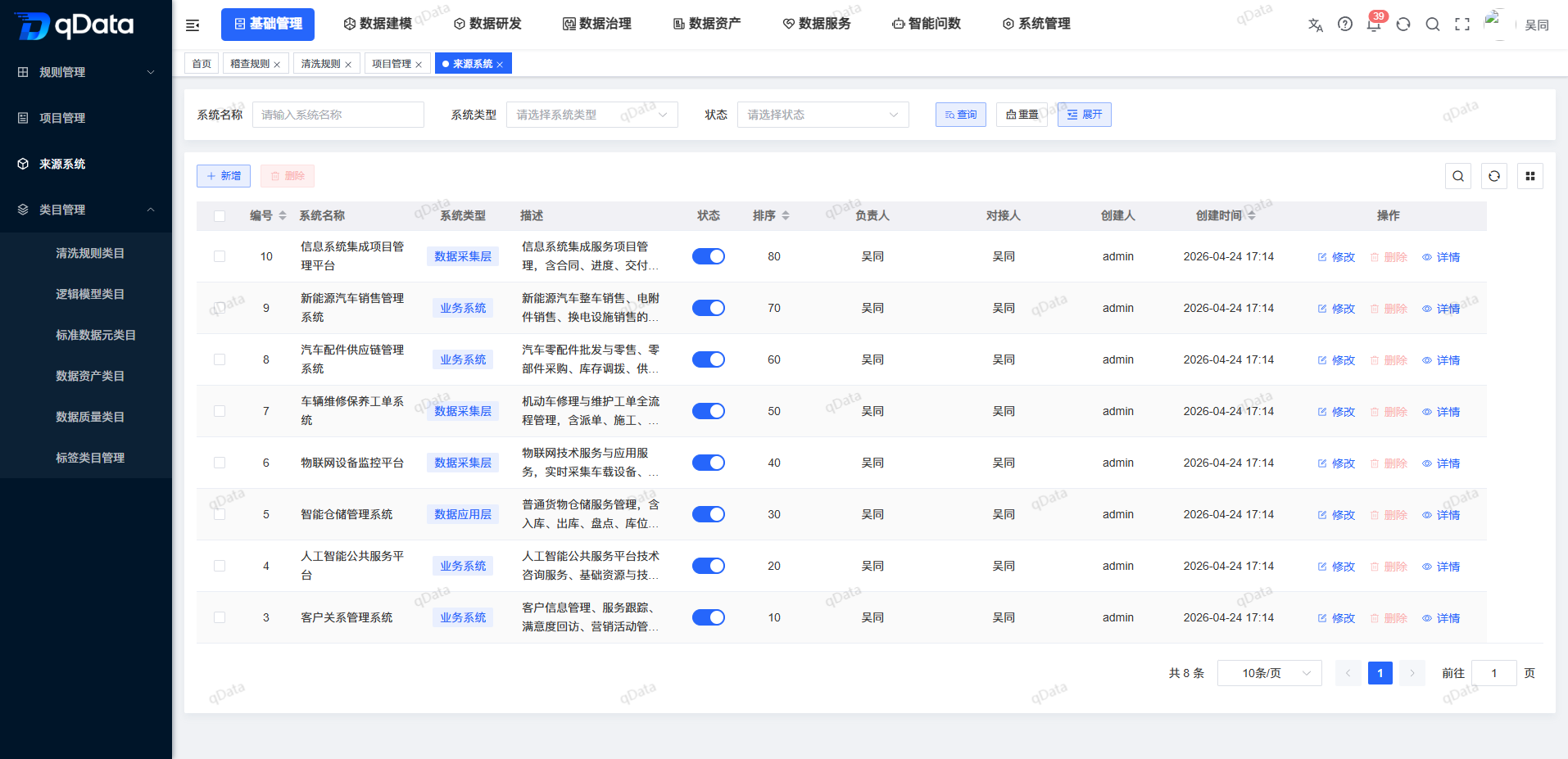
The source system page consists of query area, list toolbar, source system list, row operation and paging area. The query area can locate records by system name, system type and status; the list displays the sorting, person in charge, docking person, status and creation information; each record provides [Modify], [Delete] and [Details].
Recommended operating procedures
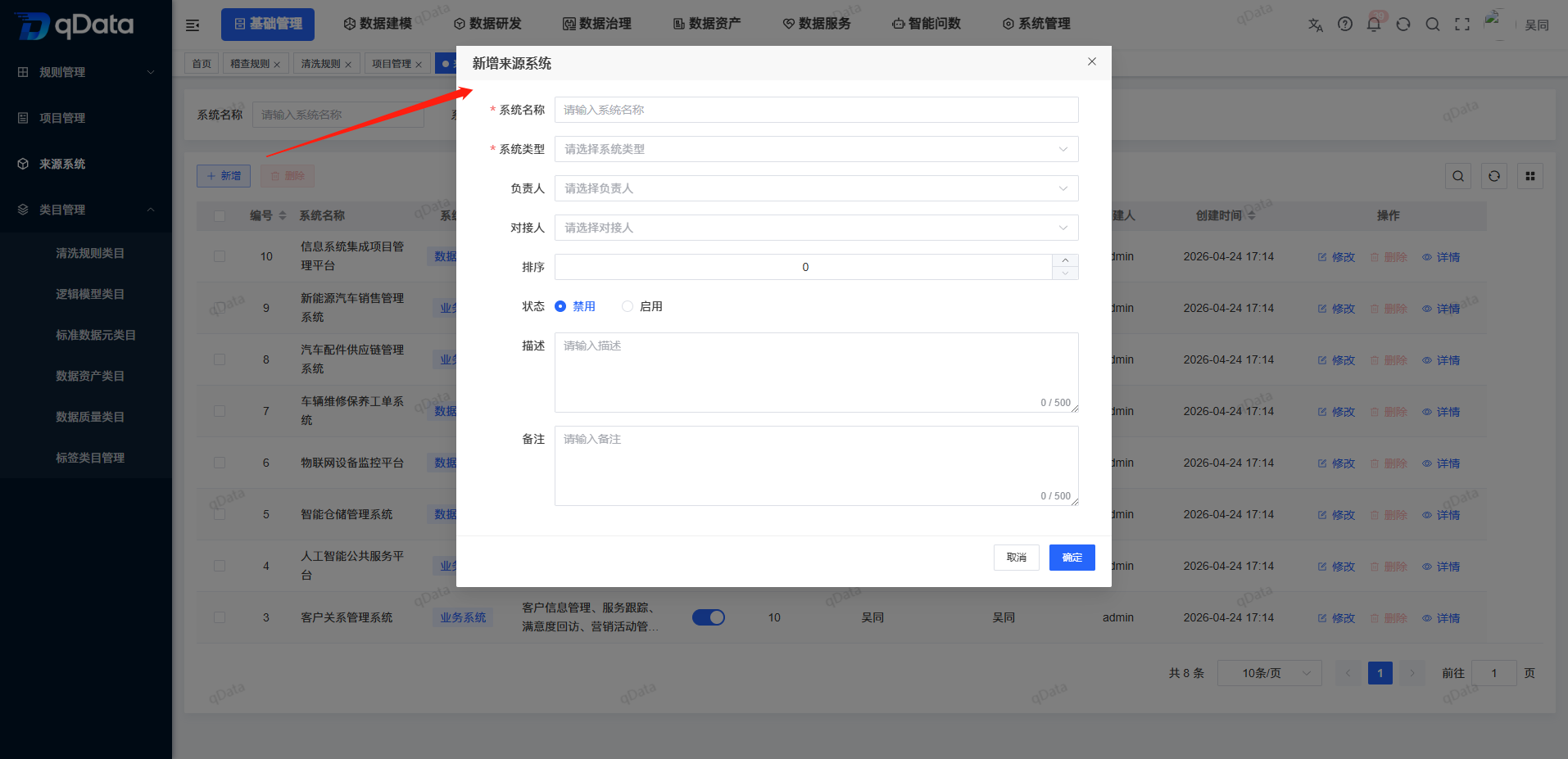
Add source file: Click [Add] -> fill in the system name -> select the system type -> select the person in charge and the docking person -> set the sorting and status -> fill in the description and remarks -> click [OK].
Daily verification: Query by name, type or status -> View the responsible personnel and sorting in the list -> Click [Details] to check the complete information -> Return to the list and click [Modify] when adjustments are needed.
Disable or delete: Set to disabled when it is not available for selection by other pages -> Use single or batch deletion after confirming that it is no longer referenced by other businesses.
Functional operation instructions
| Operation | Usage scenarios | Simplified operation |
|---|---|---|
| Query | There are many source records and need to be located by name, type or status. | Fill in the system name, select the system type or status, and click [Query]; click [Reset] when resetting the conditions. |
| New | To newly access a business system or data layer, you need to register the source file. | Click [Add], fill in the name, type and responsibility information and click [OK]. |
| Modify | The system type, responsible person, ordering, status, or description needs to be adjusted. | Click [Modify] on the right side of the target record, adjust the fields and click [OK]. |
| Set status | Pause other pages to continue displaying or select the source system. | Use the list status switch, or select [Enable]/[Disable] in the modification pop-up window. |
| View details | Requires verification of complete business fields and creation/update information. | Click [Details] on the right side of the target record, and click [Close] after viewing it. |
| Delete a single entry | A certain source system is no longer in use. | Click [Delete] on the right side of the target record and continue processing according to the page prompts. |
| Batch deletion | Multiple source systems need to be processed at the same time. | Check one or more records and click [Delete] above the list. |
Query and browse source systems
- Enter the source system name in [System Name].
- Select [System Type] as needed.
- Select [Status] as needed.
- Click [Query]; click [Reset] when you need to reset the conditions.
- Check the system type, sorting, responsible person, docking person and status in the list.
Add source system
- Click Add above the list.
- Fill in the system name and select the system type.
- Select the person in charge and the contact person as needed.
- Set the sort value and status.
- Fill in the description and notes as needed.
- Click [OK] after the verification is completed; click [Cancel] or close the pop-up window if not saving.
Modify source system
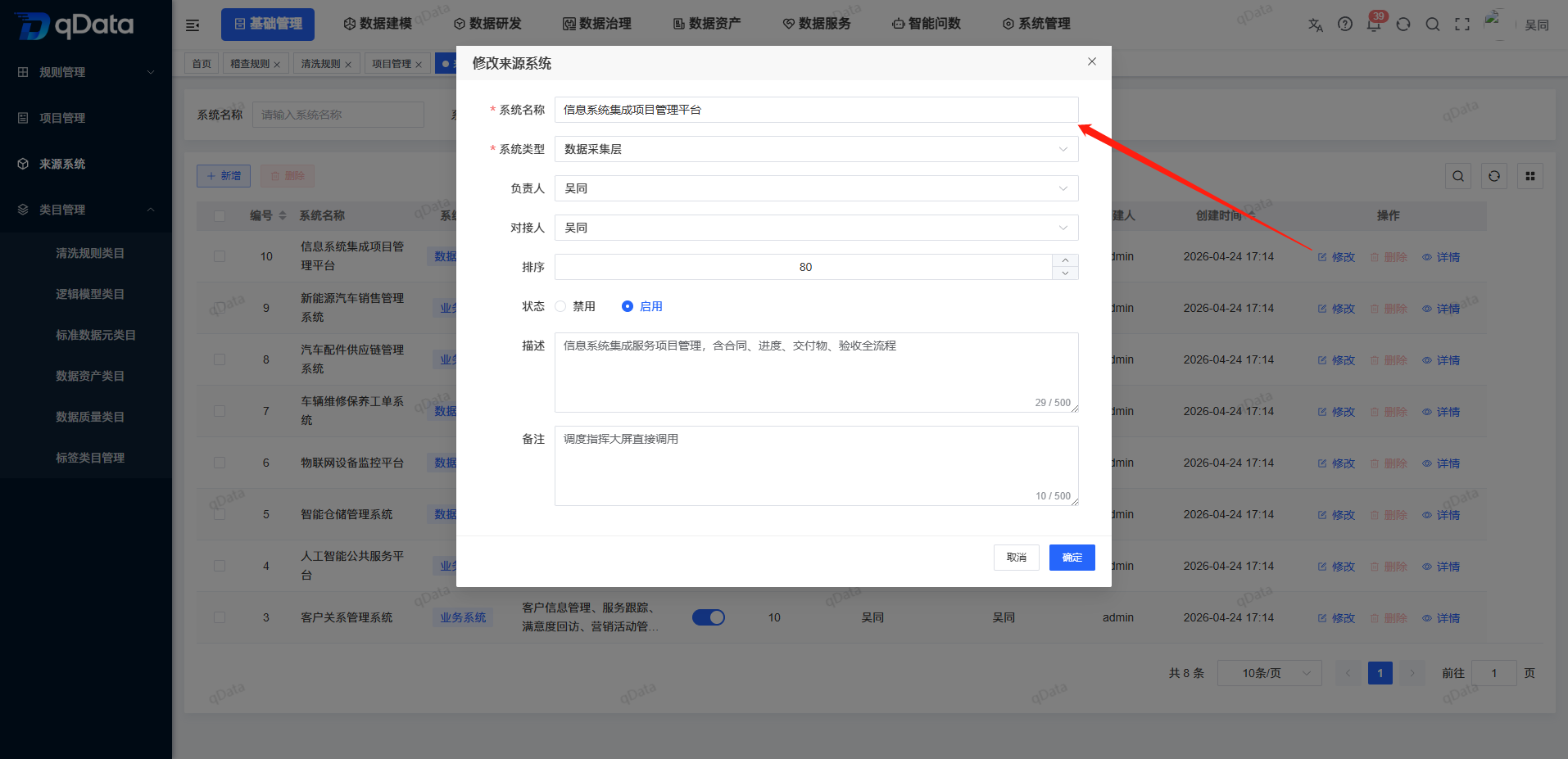
- Click [Modify] on the right side of the target record.
- Check the existing information in the [Modify Source System] pop-up window.
- Adjust the system name, system type, person in charge, docking person, sorting, status, description or remarks.
- Click [OK] to submit; click [Cancel] or close the pop-up window if not saving.
The modified page uses the same business fields as the new page and echoes the existing content of the target record.
Set source system status
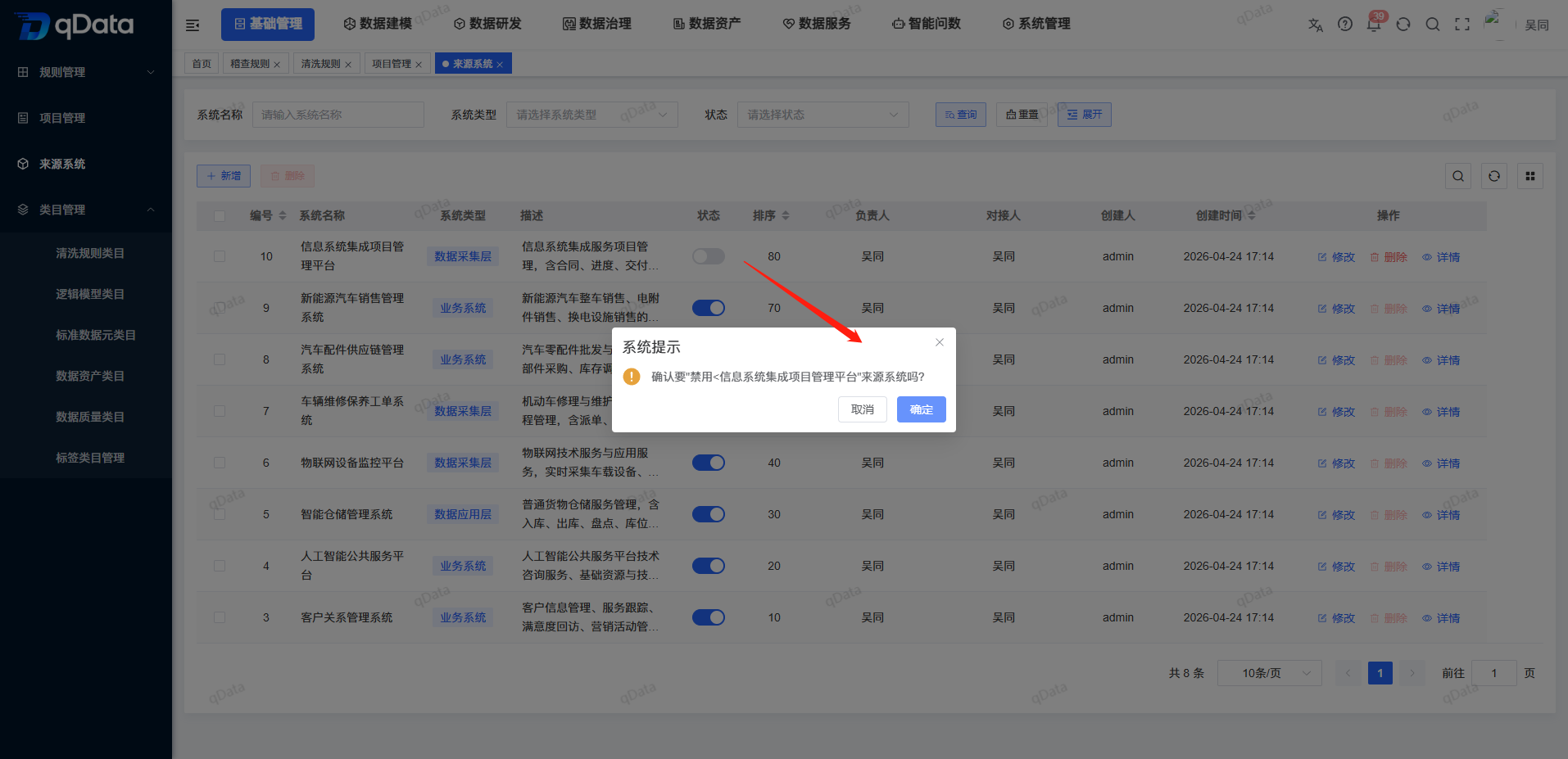
- Use the status switch setting in the target record row to enable or disable.
- You can also click [Modify], select [Enable] or [Disable] in [Status] and submit.
The status rules are as follows:
- Enable: The source system can be displayed and selected in other reference locations or pages.
- Disabled: The source system is removed from the visible, selectable scope of other reference locations or pages.
- Data Impact: Disabling will not delete or modify the current source system and existing historical data, nor will it cascade changes to other objects.
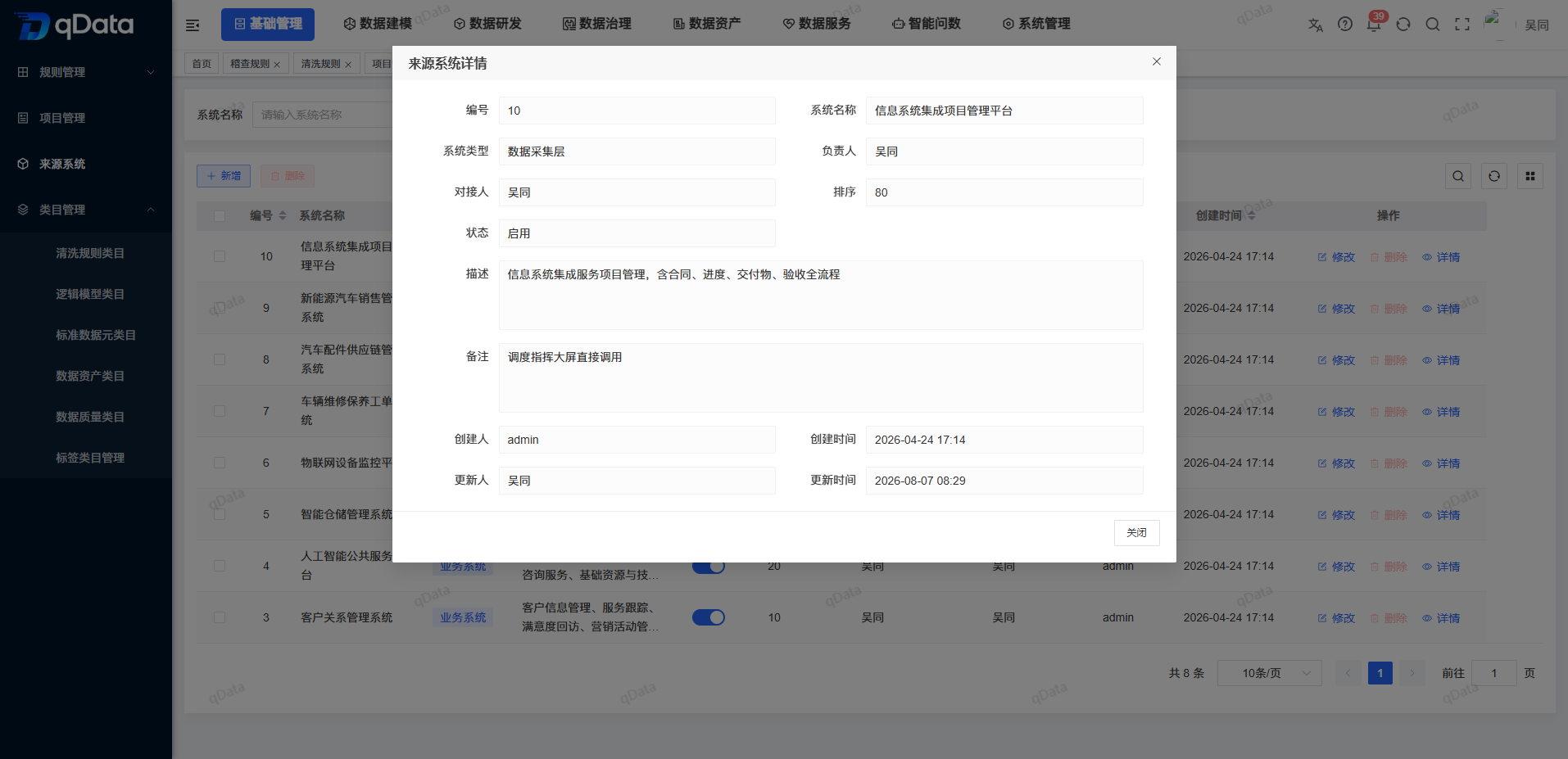
View source system details
- Click [Details] on the right side of the target record.
- Check the number, system name, system type, person in charge, docking person, sorting, status, description and remarks.
- Check the creator, creation time, updater and update time.
- Click [Close] to return to the list.
Delete source system
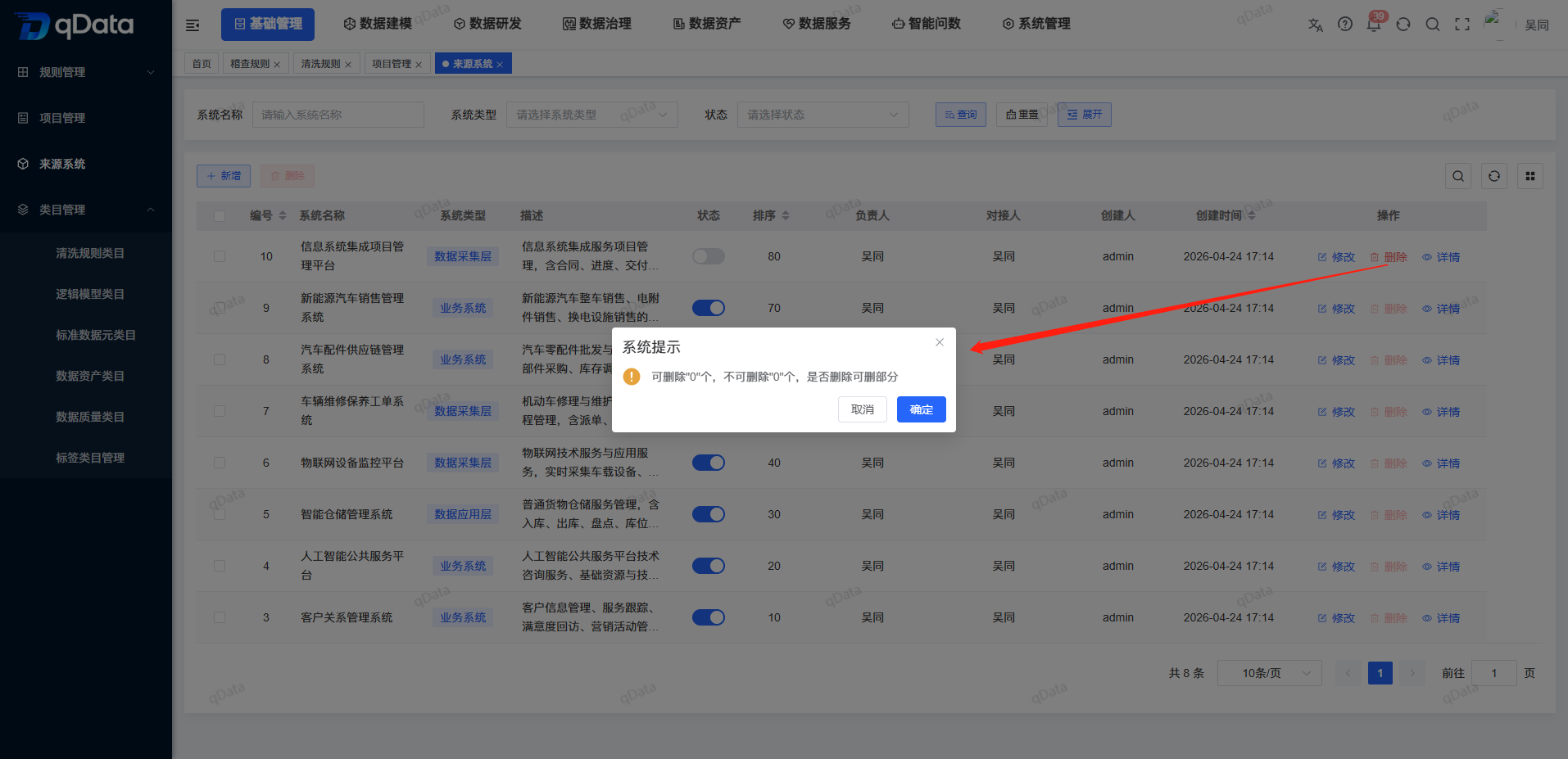
Delete a single record
- Click [Delete] on the right side of the target record.
- Follow the page prompts to continue processing.
Select multiple records
- Use the checkbox in front of the record row to select one or more source systems.
- Click [Delete] above the list.
FAQ
Can system types be added or expanded?
cannot. The system types are fixed into six categories: business system, data collection layer, data processing layer, data application layer, data service (API) and report application.How does the sort value affect list order?
sorting takes effect from small to large values, the smaller the value, the higher it is; the default value is 0, and the value range is not limited.Can source systems referenced by other businesses be deleted?
cannot. When the system detects other business references, it will not be deleted and the corresponding records will be retained.How should the source system and data connection be divided?
source system maintains business ownership and responsibility information; data connection maintains technical access parameters such as IP, port number, account number, and password.
Summarize
When maintaining the source system, you should focus on checking three items: whether the system type is selected correctly, whether records with the same name are distinguished by responsibility information, and whether the downstream reference has been confirmed before being disabled or deleted. Please maintain technical access parameters in [Data Connection] to avoid mixing them with source files.