Sensitivity level
definition
This module is used to configure and maintain the data sensitivity level system within the platform, provide a hierarchical basis for data desensitization strategies, and ensure the security and compliance of sensitive information during use.
Module features
- 🔐Sensitivity Level Configuration: Supports customizing sensitivity level names, replacement characters, replacement rules, descriptions and activation status;
- 🧩Desensitization rule association: Sensitivity levels can be bound to preset desensitization rules to ensure that sensitive fields are automatically blocked when previewing or outputting;
- 🗺️Asset map linkage: When browsing field data in the asset map, the system automatically performs data desensitization display according to the sensitivity level;
- 🔄Dynamic online and offline: Supports enable/disable state switching of sensitive level configuration, and flexibly controls the effective range of rules.
Things to note
Sensitivity levels should be uniformly maintained by data security administrators to ensure that each level is clearly defined and the rules are properly bound. It is recommended to perform hierarchical and classified configuration based on actual business compliance requirements.
Scope > Suitable for data security control scenarios, by assigning sensitivity levels to fields or assets to achieve automatic binding with desensitization rules. Sensitivity levels can be widely used in asset map data preview, interface output control, data query masking and other scenarios.
1. Sensitivity level page
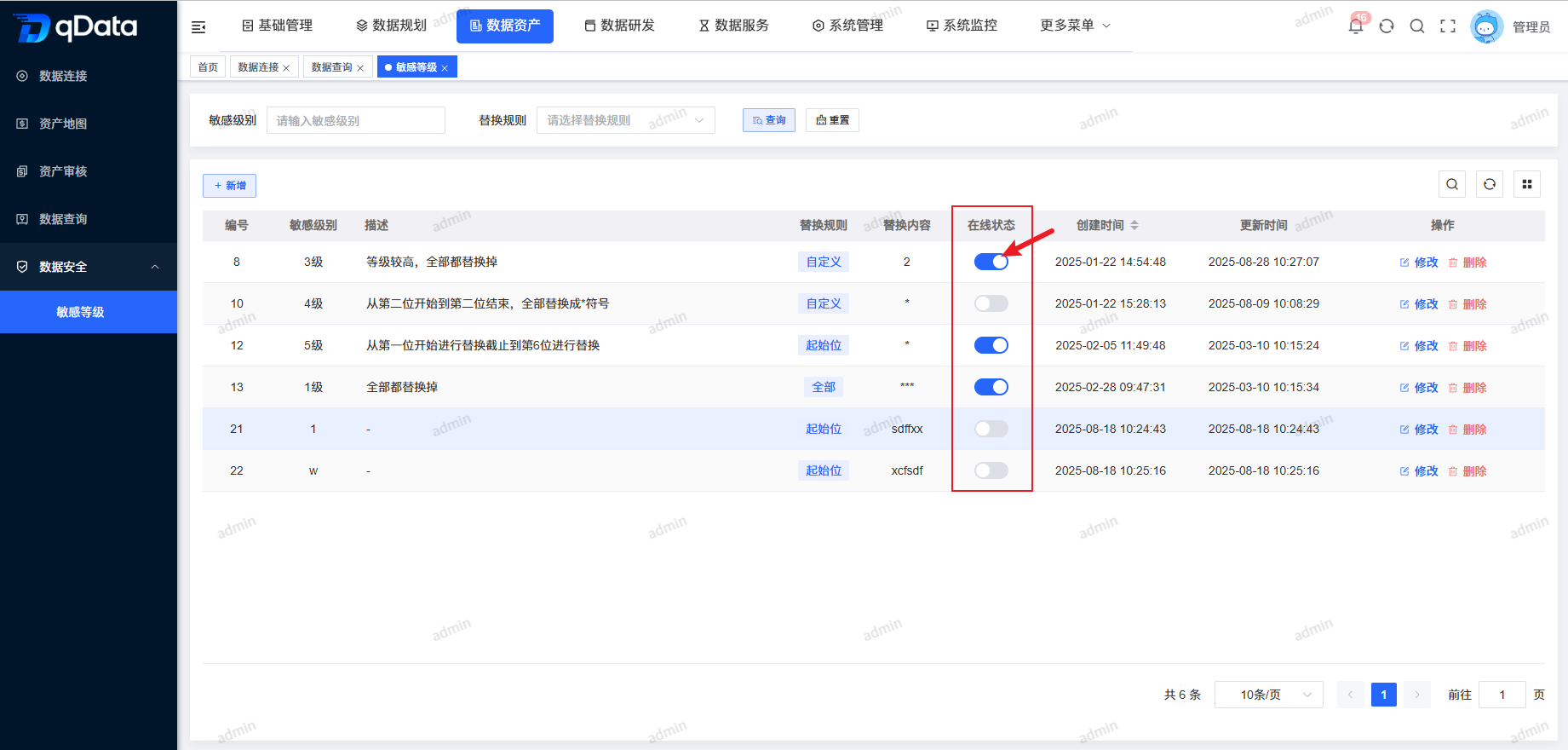
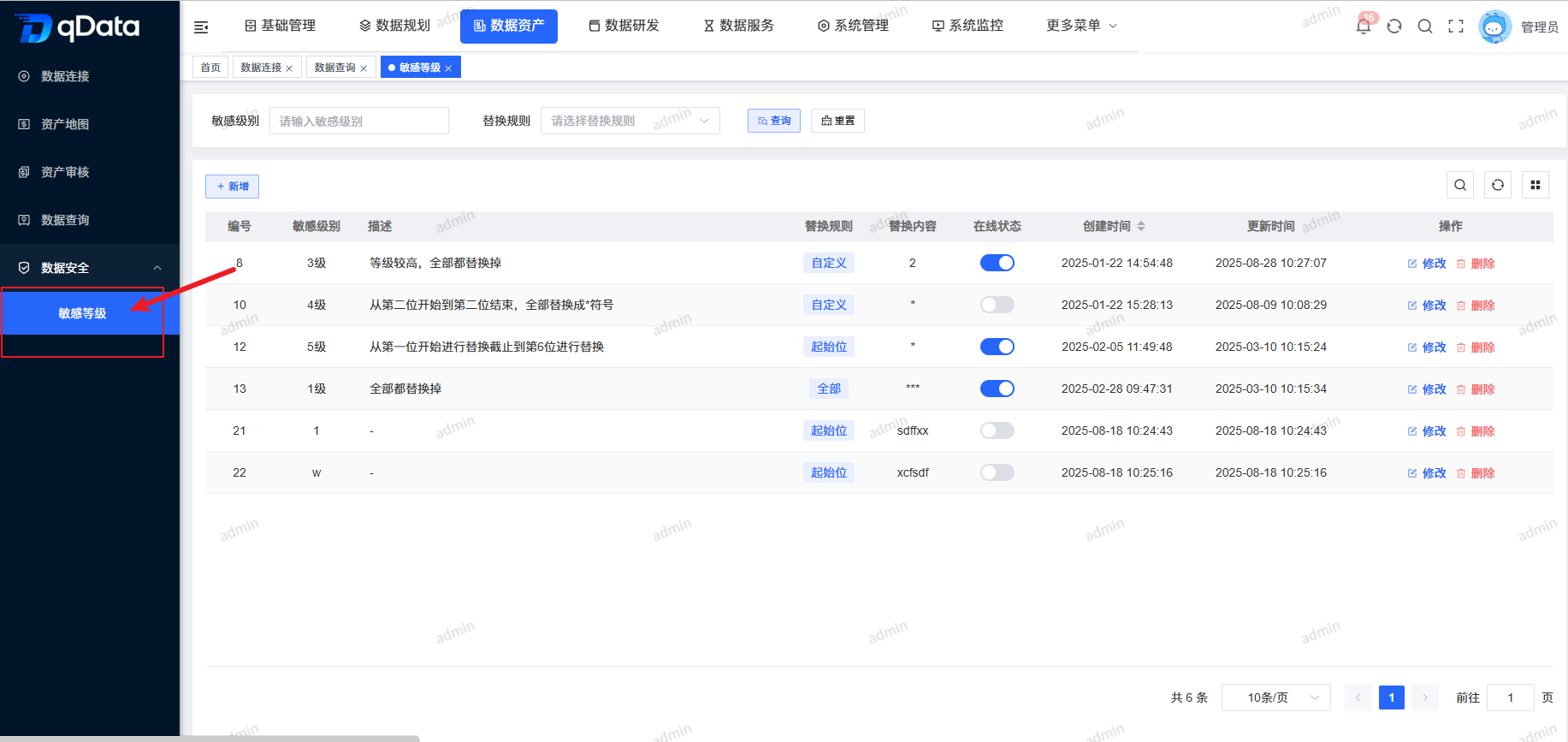
Click [Asset Data]->[Sensitivity Level] under [Data Security] to enter the sensitivity level page. This page displays a list of fields including number, sensitivity level, description, replacement rules, replacement content, online status, creation time, update time, etc.
2. Added new sensitivity level
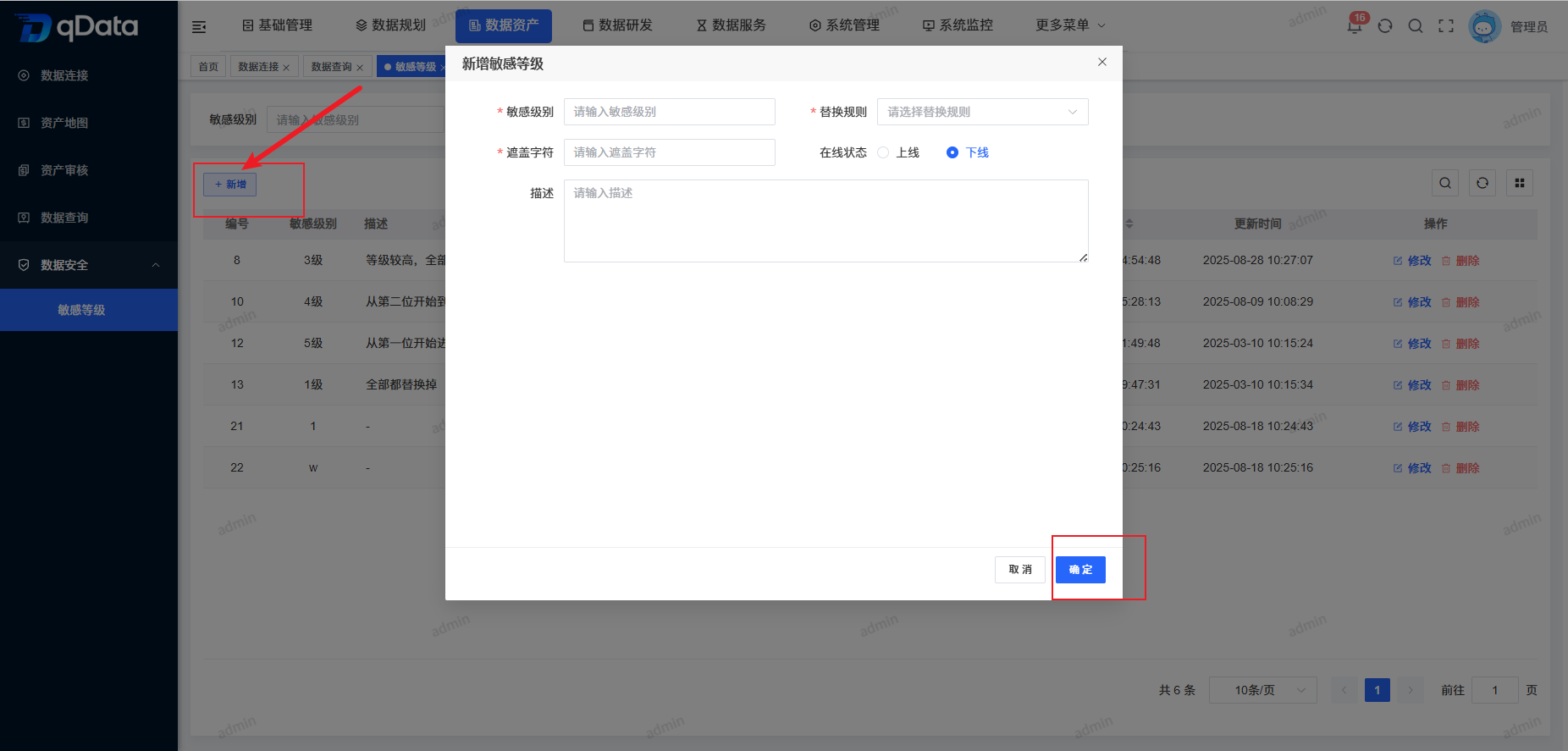
Click the [Add] button on the page, fill in the sensitivity level information in the pop-up box that appears, and click the [OK] button to complete the addition of the sensitivity level information.
3. Modify the sensitivity level
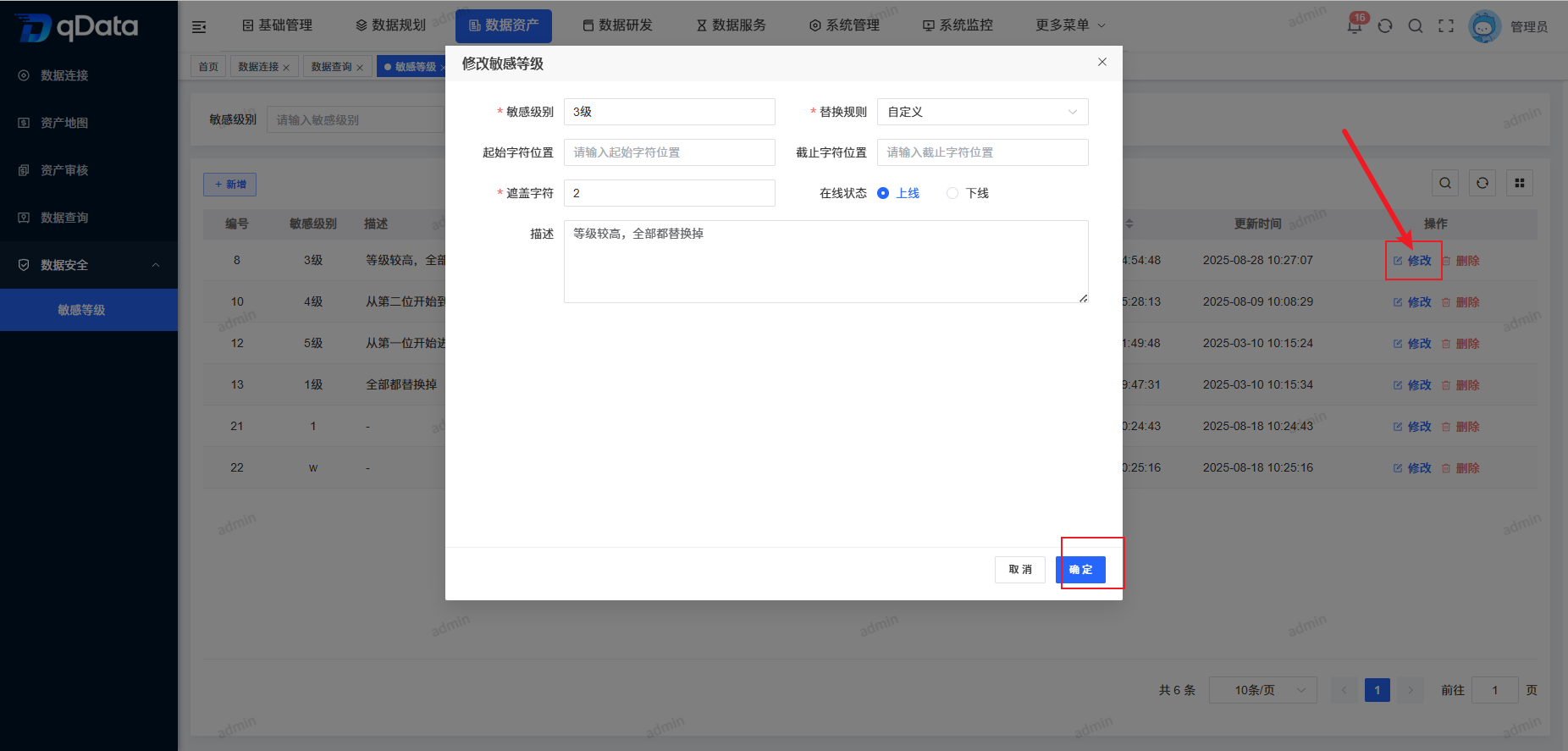
Select the sensitivity level information that needs to be modified, click the [Modify] button in the operation column, modify the existing sensitivity level information in the pop-up box that appears, and click the [OK] button to complete the modification of the sensitivity level information.
4. Delete sensitivity level
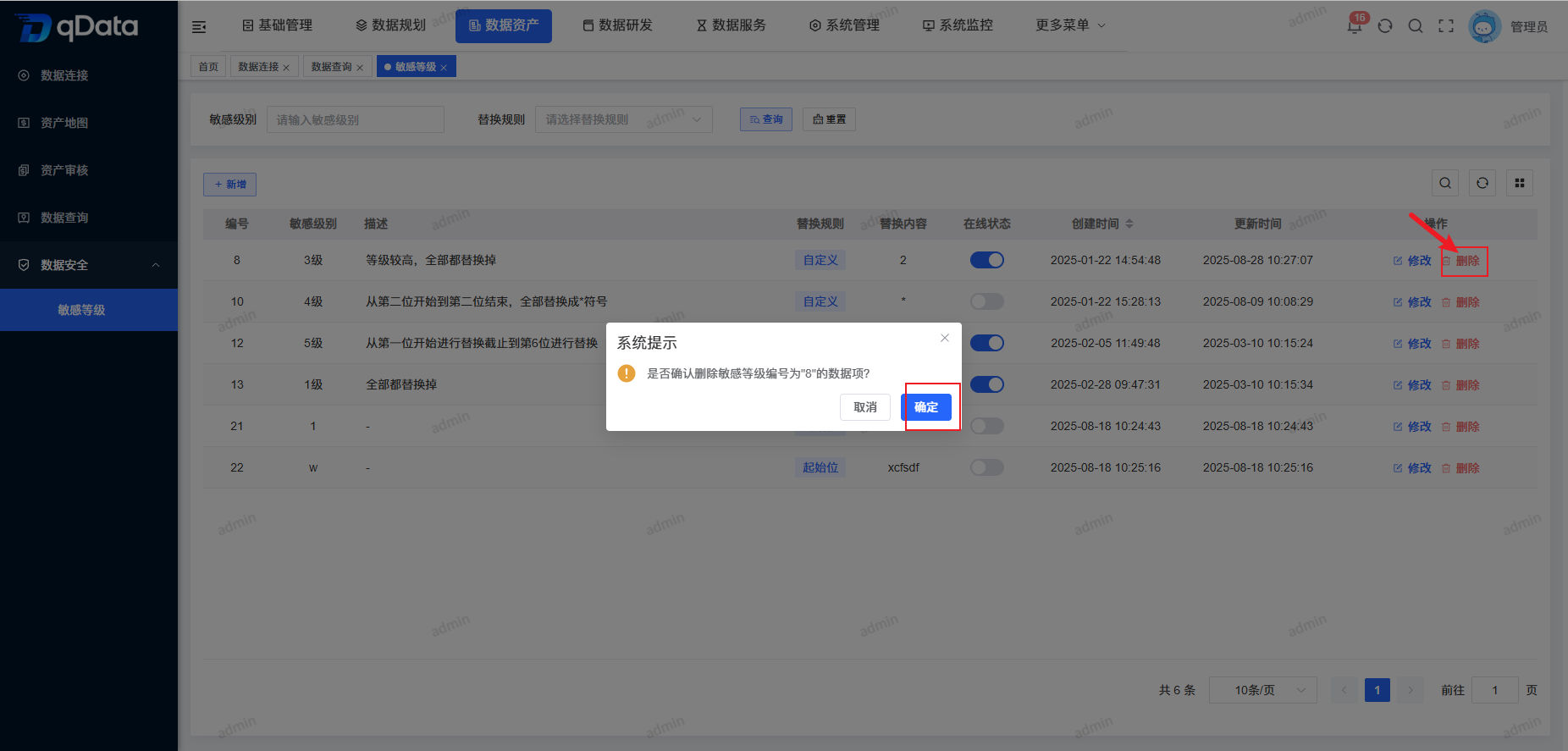
Select the sensitive level information to be deleted, click the [Delete] button in the operation column, and click the [OK] button. The system will delete the sensitive level information.
5. Online/Offline
Select the sensitive level information that needs to be brought online/offline, and click the [Switch] button in the status column to complete the online/offline operation. (Note: Sensitivity levels that have been used cannot be taken offline)